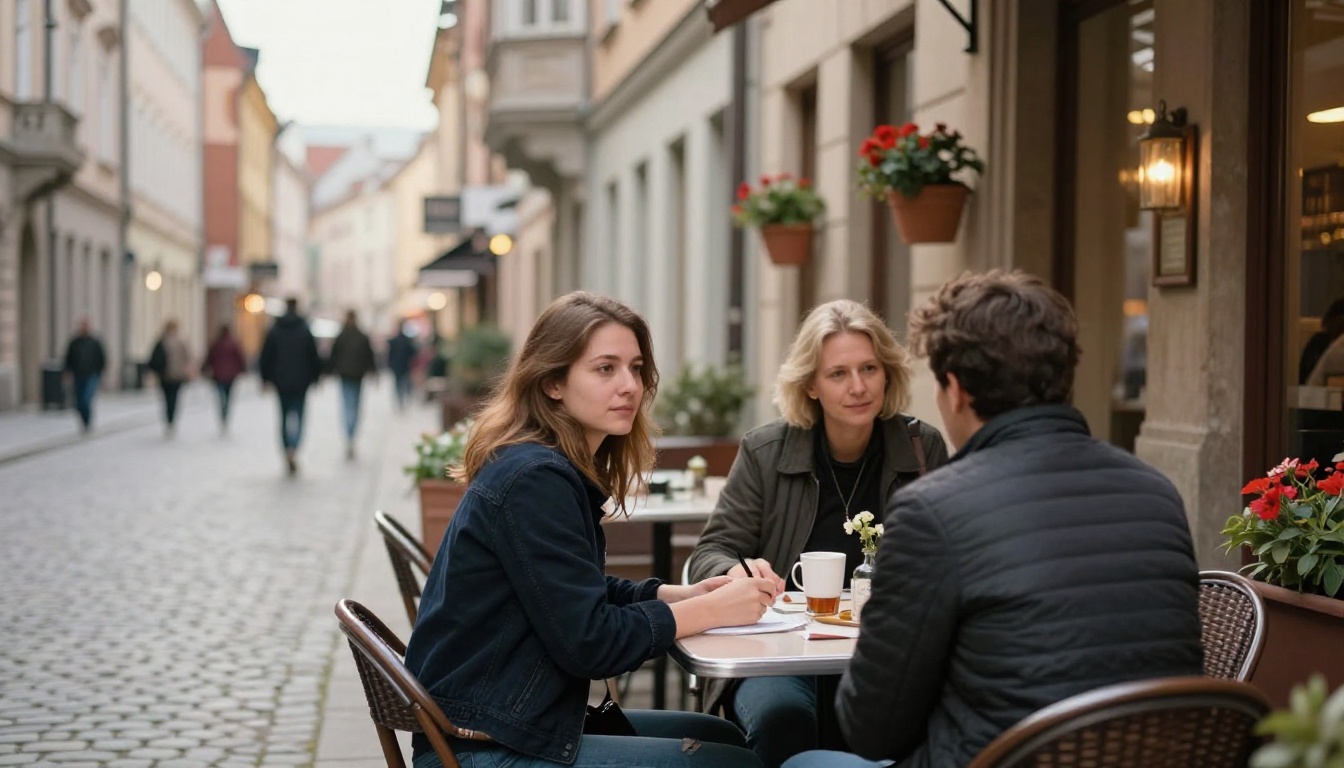
Seedream 5.0 has quietly become one of the most capable AI models for generating photorealistic portraits. While many text-to-image tools struggle with facial accuracy, eye reflections, and natural skin texture, Seedream 5.0 handles all three with a level of detail that rivals professional photography. If you've been getting flat or uncanny results from other models, this article breaks down exactly how to get the most out of it for portrait work.
What Makes Seedream 5.0 Different
Most AI image models treat faces like any other object in the scene. Seedream 5.0 was trained with a specific focus on human subjects, which shows up immediately in how it renders facial features. The results feel grounded in physical reality rather than polished into an artificial perfection that triggers the uncanny valley.
Skin Texture That Feels Real
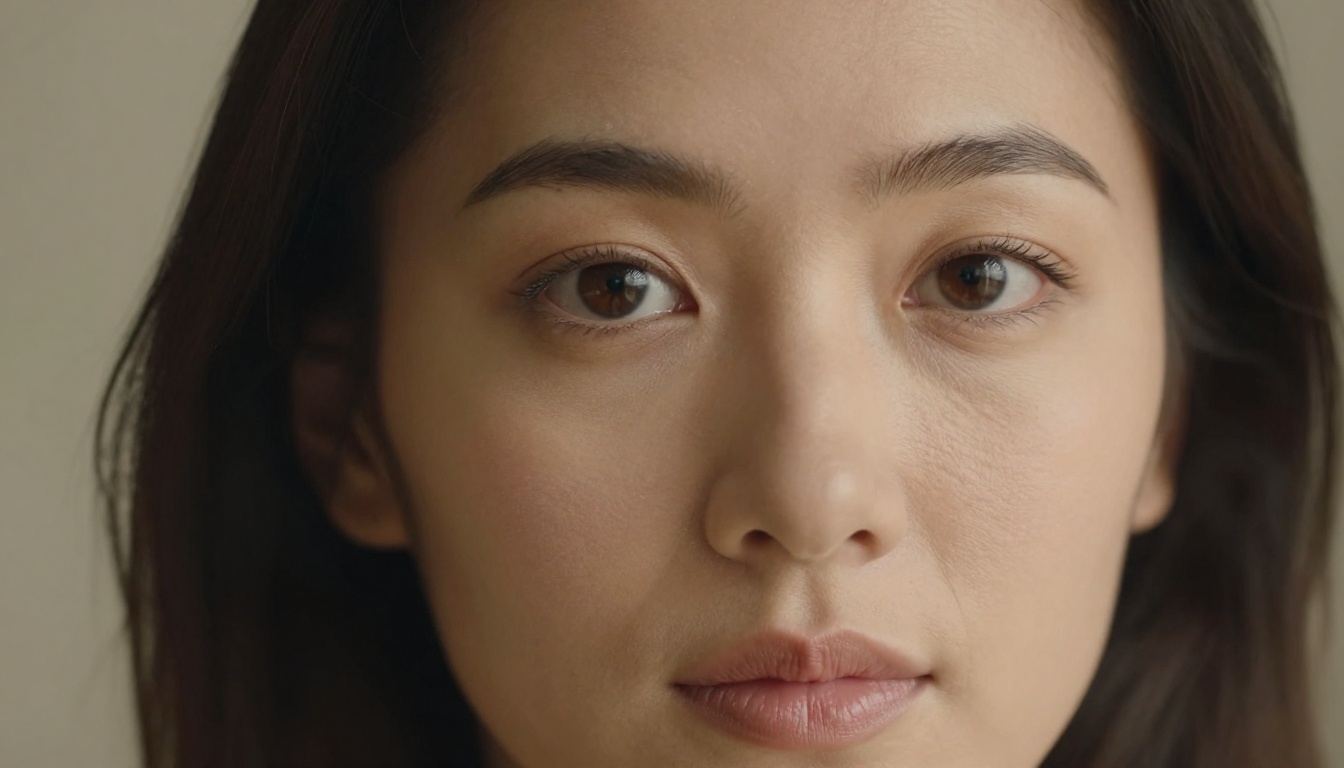
The most impressive thing about Seedream 5.0 is how it handles skin. Visible pores, subtle skin tone variation, fine hairs, the faint asymmetry of a real face, all of these show up naturally without needing specific prompts to force them. Compare this to older models where you'd need long negative prompt lists just to get rid of plastic-looking skin.
How It Handles Facial Symmetry
Seedream 5.0 produces faces with natural asymmetry. Real human faces are not perfectly symmetrical, and the model reflects this accurately. You'll see slight differences in eye size, a jawline that's fractionally different on each side, and expressions that don't look rigidly posed. This is a significant step forward from earlier generation models.
Eye Detail and Catchlights
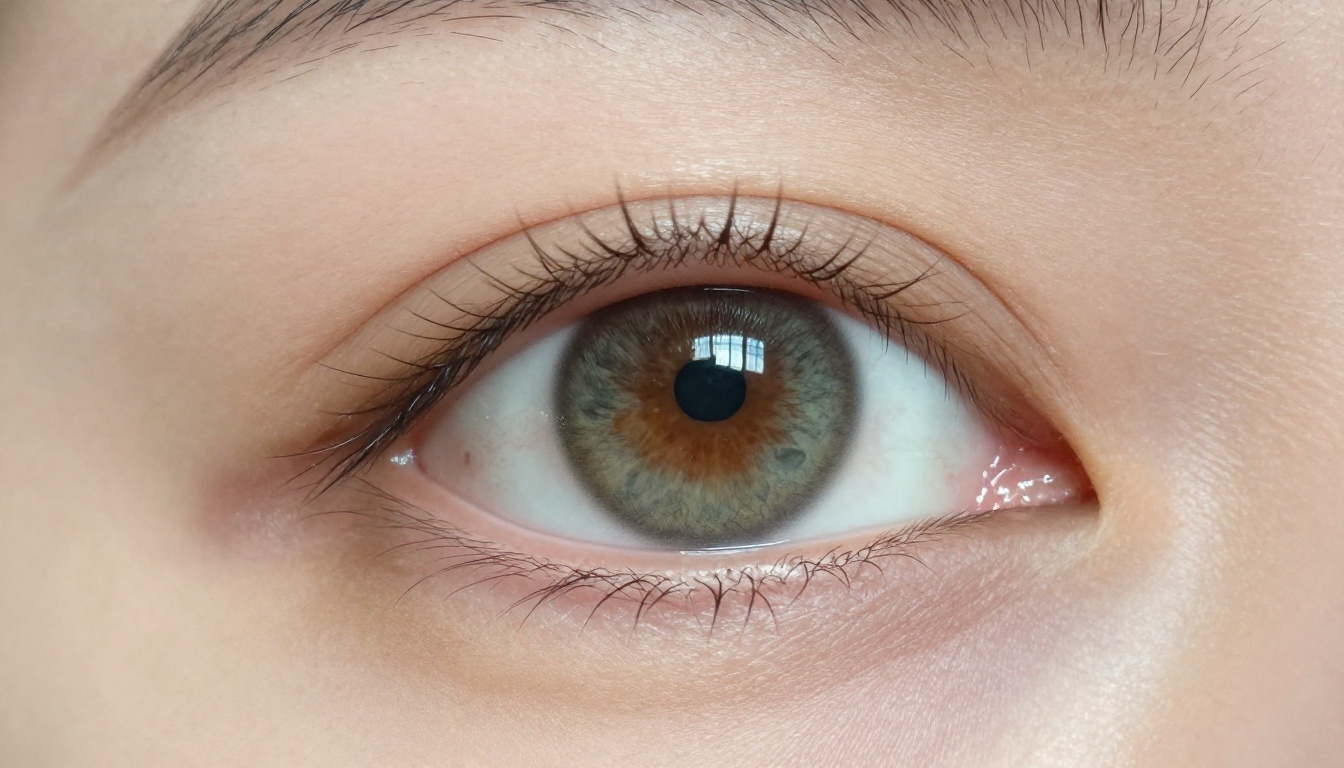
Eyes are where AI portrait models most often fail. Seedream 5.0 renders iris textures with visible color depth, generates accurate catchlight reflections based on the implied light source in your prompt, and keeps pupil shapes consistent and realistic. The result is portraits where the eyes genuinely feel like they have depth behind them.
Setting Up Your First Portrait Prompt
The structure of your prompt determines whether you get a professional-quality portrait or a generic headshot. Seedream 5.0 responds well to a specific formula that defines the subject, the lighting, the camera, and the atmosphere in that order.
The Basic Structure That Works
Use this order in your prompts for the most consistent results:
- Subject description (age, gender, distinctive features, clothing)
- Lighting conditions (source direction, quality, color temperature)
- Camera settings (lens length, aperture, depth of field)
- Atmosphere and mood (location context, texture details)
- Style tag (
--style raw or photorealistic 8K RAW photography)
A practical example: "Portrait of a woman in her thirties with dark wavy hair, soft window light from the left, 85mm f/1.4 lens, shallow depth of field, warm indoor ambient atmosphere, Kodak Portra 400 grain, photorealistic RAW photography --ar 16:9 --style raw"
Lighting Keywords That Change Everything
Lighting is the single biggest variable in portrait quality. The table below shows the most effective lighting terms for Seedream 5.0:
| Lighting Term | Effect on Portrait |
|---|
Rembrandt lighting | Creates a triangular highlight on one cheek, adds dramatic depth |
Split lighting | Half face in shadow, high contrast, bold character |
Butterfly lighting | Soft shadow under nose, classic glamour look |
Golden hour light | Warm orange-amber tones, flattering for all skin types |
Overcast diffused light | Even, shadowless, clean editorial feel |
Volumetric morning light | Soft rays from a specific direction, cinematic atmosphere |
What to Avoid in Portrait Prompts
Some prompt elements actually degrade portrait quality with Seedream 5.0:
- Avoid vague beauty descriptors like "beautiful face" or "pretty eyes" as these push the model toward generic outputs
- Skip style terms like "digital art" or "hyperrealistic CGI" because they conflict with the photorealistic training and introduce artificial surface quality
- Don't stack multiple lighting setups since "studio light + golden hour + neon glow" creates conflicting signals the model can't resolve cleanly
- Avoid describing perfection because phrases like "flawless skin" or "perfect symmetry" actually reduce realism
💡 Tip: Instead of "beautiful woman," write "woman with high cheekbones and a relaxed expression." Specific physical descriptors produce far more interesting and realistic results.
Portrait Styles You Can Create
Seedream 5.0 handles a wide range of portrait photography styles. Here's how to approach each one with the right prompt adjustments.
Studio Headshots
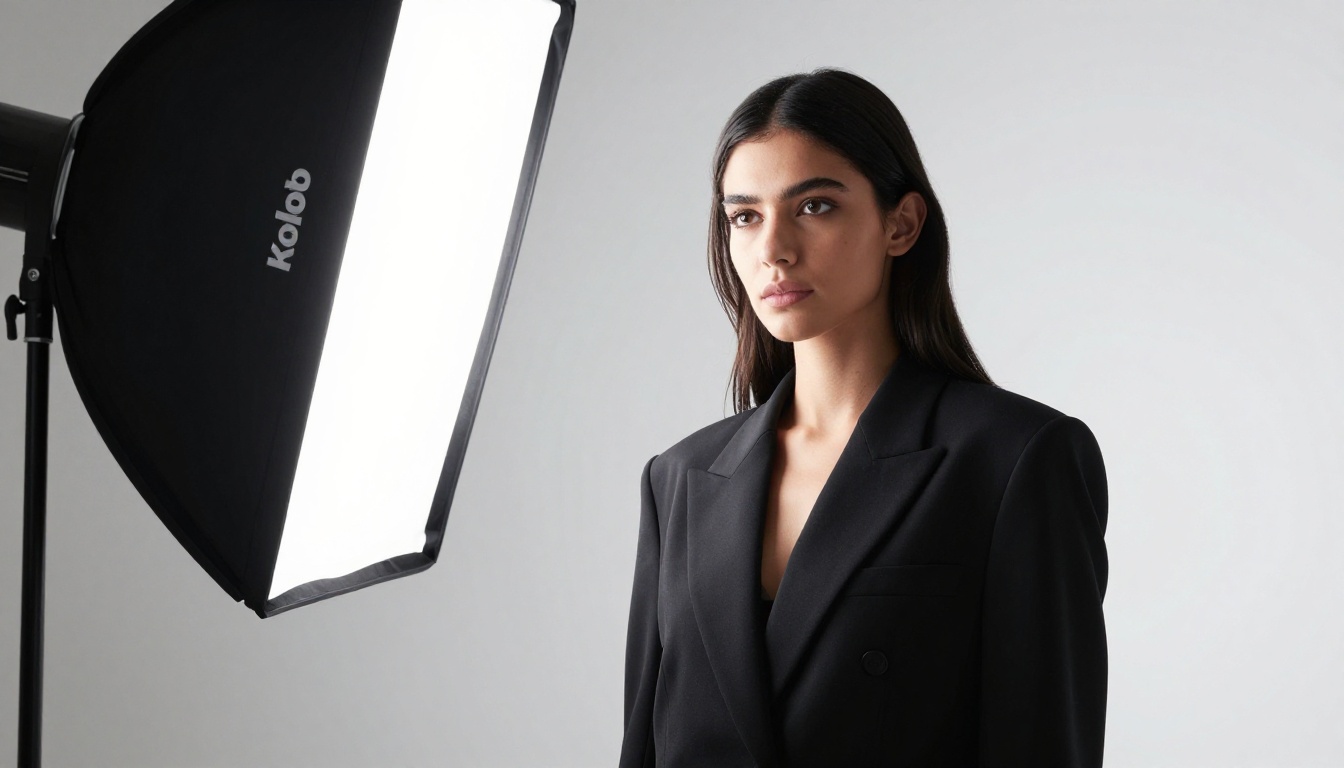
For clean professional headshots, keep the background simple and the lighting specific. A neutral gray or white background described in the prompt works well. Add a specific light source like a "single Profoto softbox to the left at 45 degrees" to get that professional studio look without it feeling staged.
Outdoor Natural Light Portraits
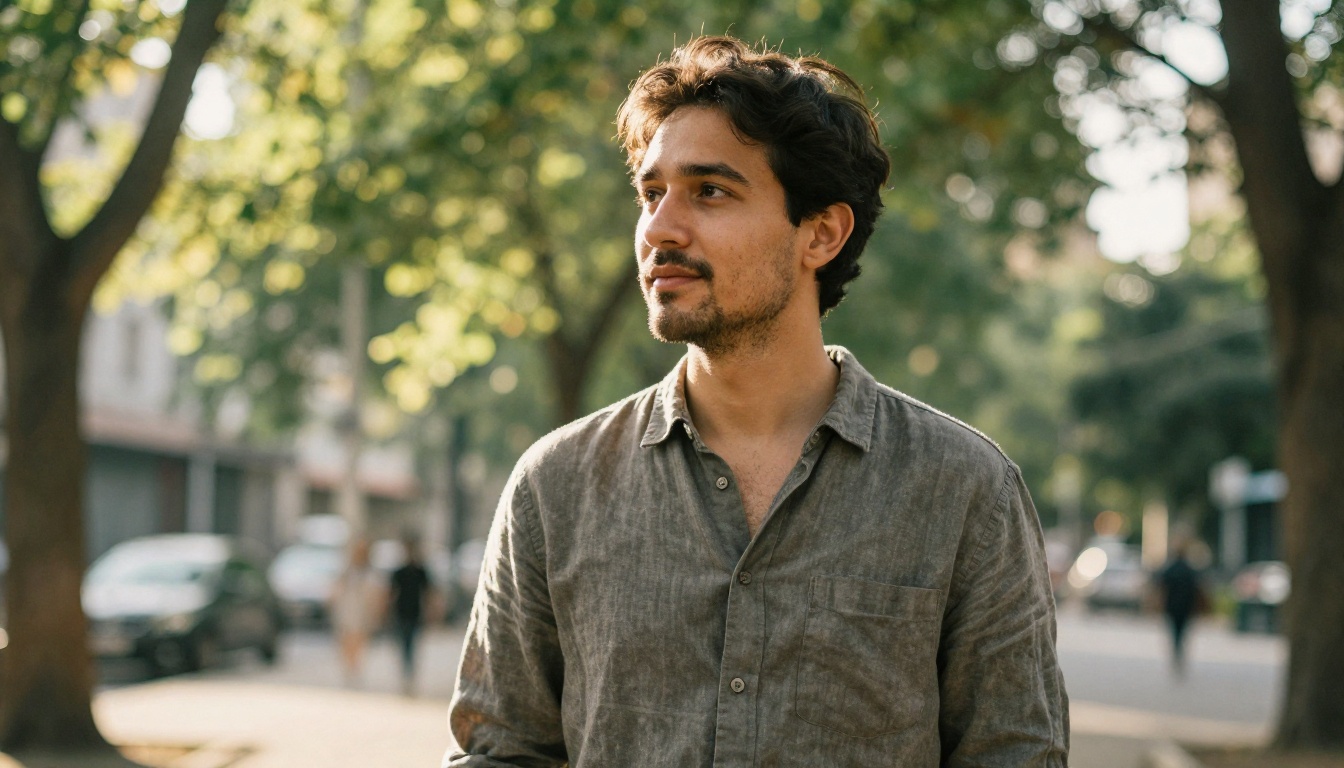
These work best when you specify the time of day and weather conditions. "Late afternoon golden hour, dappled light through tree canopy" gives the model enough context to generate convincing outdoor bokeh and natural skin warmth. Pair this with an 85mm or longer focal length description to get that classic compressed background effect.
Environmental and Lifestyle Shots
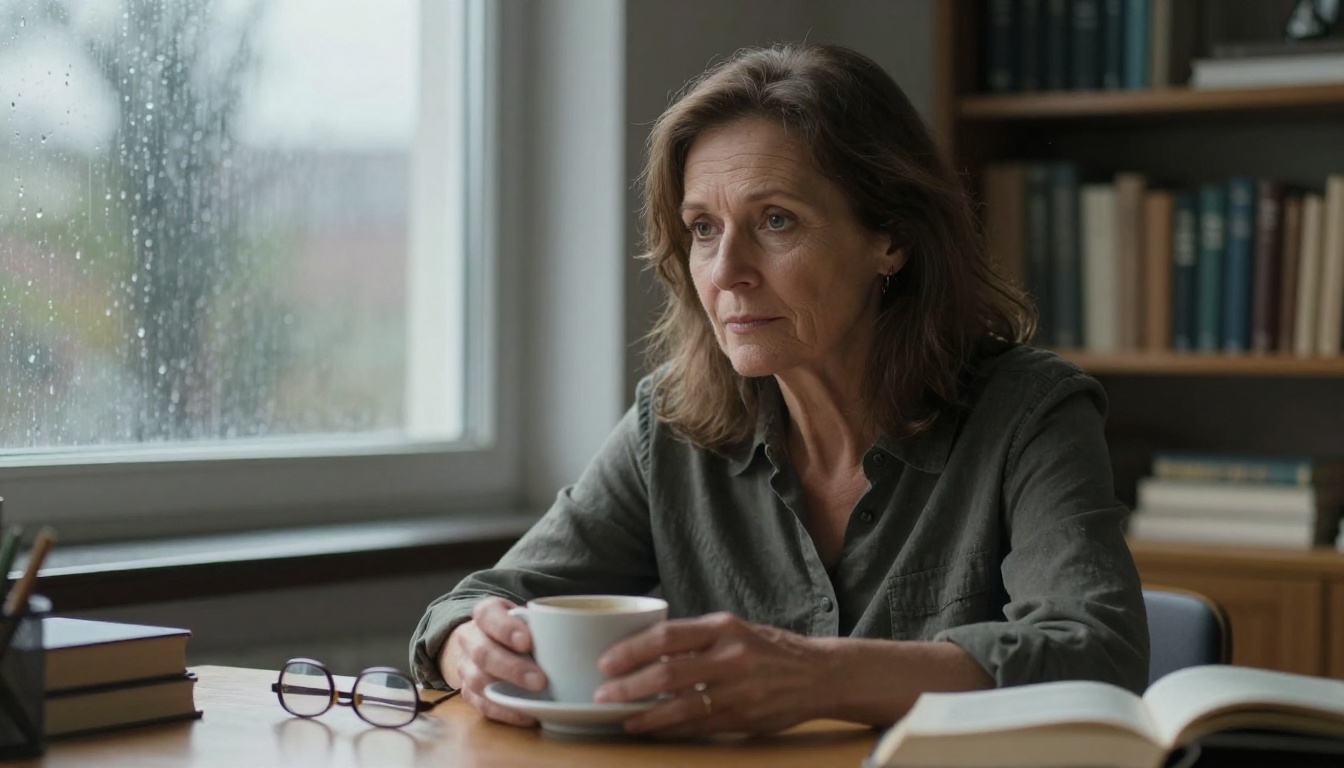
Seedream 5.0 excels at placing subjects in context. Describe the environment in detail, the textures of surfaces around the subject, the ambient light quality, what's visible in the background. "Seated at a wooden desk near a rain-streaked window, overcast daylight filtering through" produces naturally moody environmental portraits that feel lived-in.
Overhead and Unusual Angles
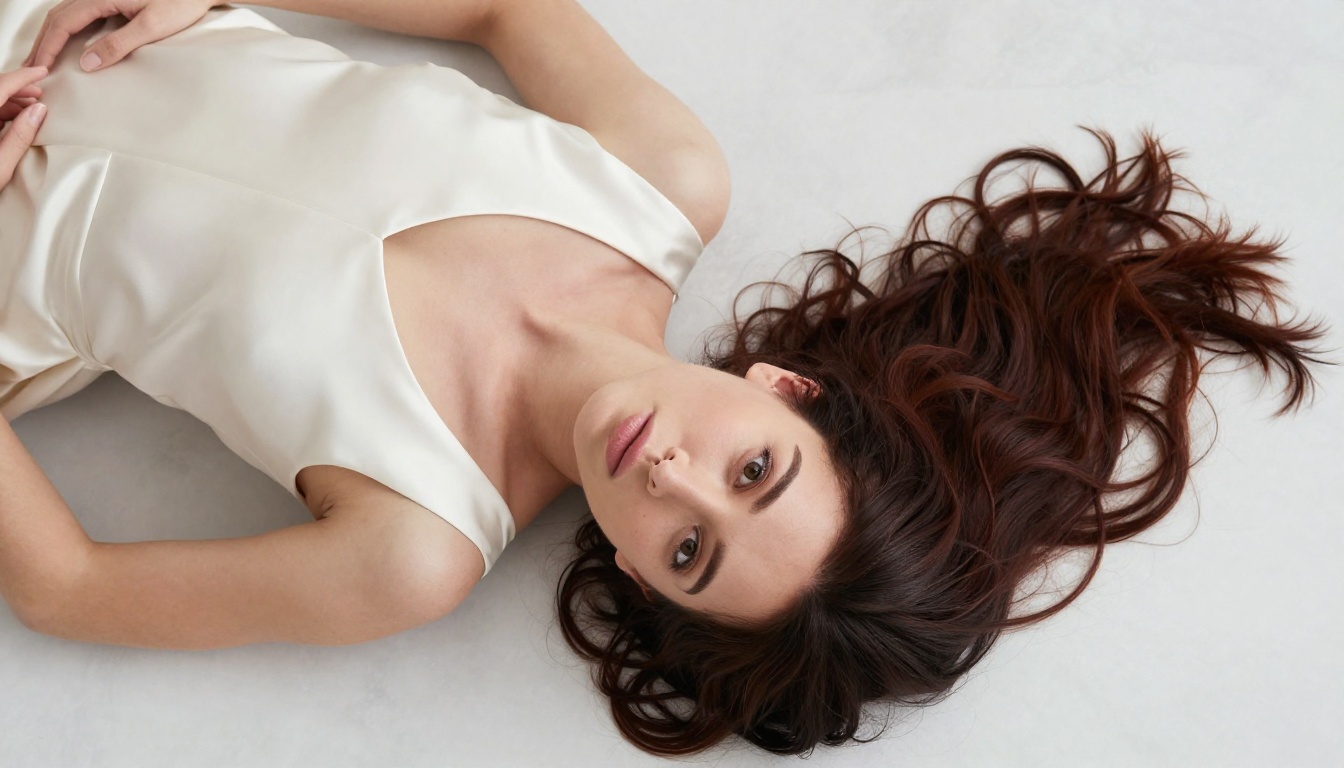
One of the underused angles in AI portrait generation is the overhead shot. Describe the camera position explicitly: "aerial overhead perspective, camera looking straight down, subject lying on white marble surface, hair fanned out around head." Seedream 5.0 handles these geometric compositions with strong spatial accuracy.
How to Use Seedream 5 Pro on PicassoIA
Seedream 5 Pro is available directly on PicassoIA with no setup required. Here's the exact workflow from prompt to finished portrait:
Step 1: Access the model
Go to Seedream 5 Pro on PicassoIA. No account setup is required to start generating.
Step 2: Write your prompt
Use the structure outlined above. Start with your subject, then lighting, then camera specs. Add --style raw at the end of the prompt for the cleanest photorealistic output.
Step 3: Set the aspect ratio
For portraits, 3:4 (portrait orientation) works well for headshots and half-body shots. Use 16:9 for environmental and editorial-style portraits where context matters as much as the subject.
Step 4: Adjust quality settings
PicassoIA gives you access to the full parameter range. For portrait work, keep the guidance scale between 7 and 9 for the best balance between prompt adherence and natural variation in the output.
Step 5: Iterate on details
Generate 3-4 variations of the same prompt before committing to one. Small random variation between runs means you'll get slightly different expressions, subtle pose shifts, and lighting nuances. Pick the best result and iterate from there.
💡 Tip: Save your best-performing prompts. A prompt structure that worked once will work again with minor adjustments. Build a personal library of portrait prompt templates over time.
Prompt Examples That Actually Work
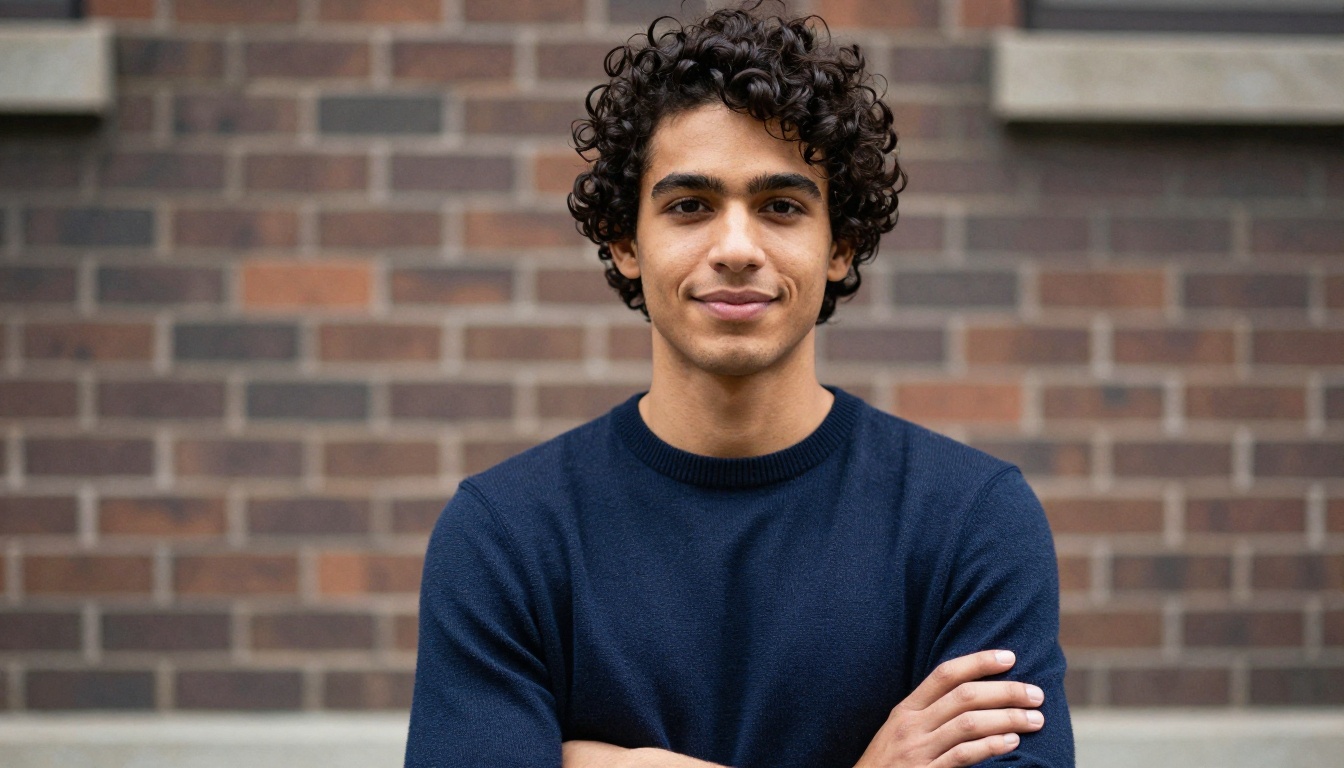
Here are tested prompt structures with the type of result each produces when used with Seedream 5 Pro:
| Portrait Type | Prompt Core | Prompt Tags |
|---|
| Soft editorial | Woman, morning window light, 85mm f/1.2 | Kodak Portra 400, bokeh, --style raw |
| Dramatic studio | Man, single hard light from right, 50mm | deep shadows, split lighting, high contrast |
| Outdoor lifestyle | Person in park, golden hour, 70mm | dappled light, green bokeh, natural skin texture |
| Environmental | Woman at desk, overcast window light | rain-streaked glass, shallow DOF, warm indoor tones |
| Macro detail | Close-up of face, 100mm macro | visible pores, iris texture, catchlight detail |
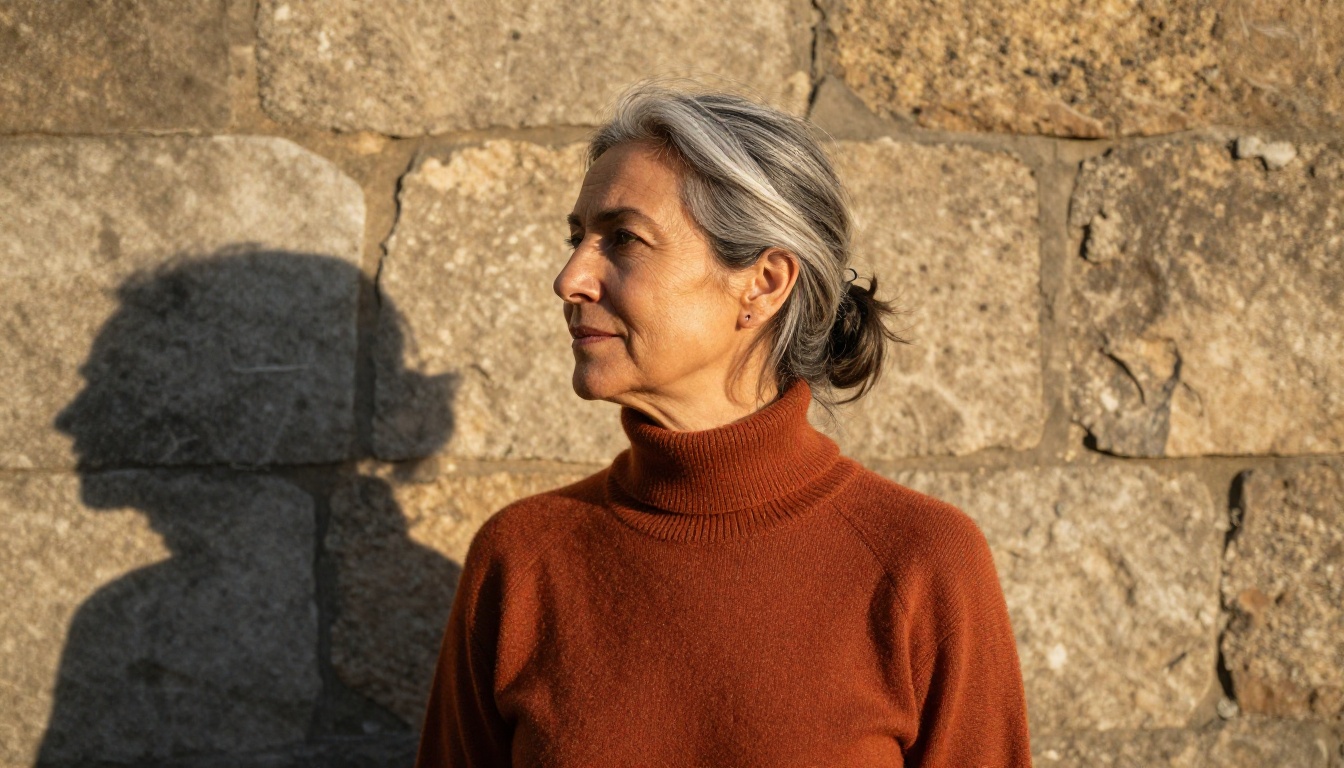
| Profile silhouette | Side profile, backlit sunset | rim light, hair halo glow, dark foreground shadow |
Comparing Models for Portrait Work
Seedream 5 Pro is not the only strong option on PicassoIA for portrait work. Here's how it stacks up against two other models available on the platform:
| Model | Skin Realism | Lighting Accuracy | Speed | Best For |
|---|
| Seedream 5 Pro | Excellent | Excellent | Medium | High-detail portraits with precise skin |
| Reve 2.1 | Very Good | Good | Fast | Quick editorial iterations and concept testing |
| P-Image Ideogram | Good | Good | Fast | Portraits that include text overlays or captions |
For pure portrait quality, Seedream 5 Pro consistently produces the most detailed skin and the most accurate lighting responses. Reve 2.1 is a strong alternative when you need to produce multiple variations quickly and then refine the best one in further passes.
Getting More from Your Portraits
Upscaling for Print or High-Res Use
Portrait generation at standard AI resolution is excellent for web and digital use but may need extra resolution for print or large-format display. PicassoIA's super-resolution tools can upscale your portrait outputs by 2x or 4x while preserving the fine skin texture and hair detail that Seedream 5.0 captured in the original generation.
For portraits specifically, upscaling with a model trained on facial and skin data produces far better results than general-purpose upscalers. The skin texture remains natural rather than getting artificially sharpened into an overly crisp look that reads as processed.
Working with Composition and Framing
The framing terms you use directly influence the crop and composition of the output:
- "close-up portrait" places the face filling most of the frame
- "half-body portrait" shows from waist up, including more environmental context
- "environmental portrait" shows the full body with surroundings visible
- "bust portrait" frames shoulders and head, the classic formal framing
- "three-quarter view" turns the subject 45 degrees, more dynamic than a direct frontal shot
Fine-Tuning Expressions
Expression is one of the hardest things to control in AI portraits, but Seedream 5.0 responds well to specific emotional descriptors rather than broad labels:
- "relaxed and introspective expression" instead of just "happy"
- "slight asymmetric smile" instead of "smiling"
- "direct eye contact with the camera" for assertive, engaging portraits
- "eyes directed slightly off-frame to the left" for a thoughtful, editorial feel
- "neutral expression with soft jaw" for clean, professional headshot energy
Speed vs. Quality Trade-off
One thing worth noting about Seedream 5.0 is that its output quality comes with a slightly longer generation time compared to lighter models. This is worth it for final outputs, but for initial concept exploration you might want to use a faster model to nail down the composition first before committing to a high-quality render.
A practical two-stage workflow: use Reve 2.1 for rapid ideation, generating 5 to 10 variations quickly, then take the best composition and translate that prompt to Seedream 5 Pro for the high-fidelity final result. This splits the workload intelligently and saves generation credits on the exploratory phase.
When to Use Each Setting
| Generation Goal | Recommended Approach |
|---|
| Final portfolio portrait | Seedream 5 Pro, high guidance, detailed prompt |
| Quick concept testing | Reve 2.1, multiple fast iterations |
| Portrait with text overlay | P-Image Ideogram for accurate text rendering |
| Large-format print output | Generate in Seedream 5 Pro, then apply 4x super-resolution |
Create Your Own Portraits on PicassoIA
Portrait generation with Seedream 5.0 rewards specificity. The more precisely you describe the subject, the lighting, and the camera position, the closer your output will be to what you actually visualized. The model has the technical capability; your prompts are what direct it.
Head to PicassoIA and open Seedream 5 Pro to start experimenting. Try one of the prompt structures from the examples table above, generate a few variations, and then start refining. You'll notice the skin texture and lighting quality immediately, and from there you can push the prompts further to get exactly the portrait style you're after.
If you want to see what else the platform can do beyond portrait work, browse the full model catalog at picassoia.com/en/all-models. There are over 90 text-to-image models available, each with different strengths, and portrait photography is just one of many areas where PicassoIA delivers at a professional level.