If you've spent any time with AI video generators in the past two years, you know exactly how fast the gap between "impressive demo" and "actually usable footage" has been closing. Veo 3.1 is where that gap nearly disappears. Google's latest iteration of the Veo model family delivers 1080p output, native audio generation, and cinematic motion physics that put it in a different category from anything most people expect when they hear "AI video."
The model alone isn't enough, though. The other half is knowing exactly how to write prompts that activate its strongest capabilities. This article covers the full process, from how to think about cinematic scenes before you write a single word, to the step-by-step workflow for generating your first professional-quality clip on PicassoIA.
What Veo 3.1 Actually Does Differently
Most text-to-video models still struggle with three core problems: temporal consistency (objects that change or disappear between frames), physics simulation (water, cloth, and hair that behave unnaturally), and audio synchronization, or simply no audio at all. Veo 3.1 attacks all three directly.
Built on Google DeepMind's video generation research, the results are measurable. The model maintains object identity across long sequences, renders physically plausible motion for everything from falling rain to walking figures, and, most importantly, generates synchronized ambient audio alongside the footage. That last part alone changes the workflow for anyone producing content that needs to feel finished without post-production audio layering.
Native Audio Is the Real Leap Forward
Previous AI video models gave you a silent clip and expected you to solve the audio problem yourself. Veo 3.1 generates sound that's contextually tied to the visual content. Footsteps on gravel, ocean waves, wind through trees, ambient city noise: the model reads the scene and produces audio that fits it. This isn't looped stock audio layered on top. It's generated in context.
For creators producing social content, short films, or product demonstrations, this cuts production time considerably. You get a usable clip, not a starting point for an audio session.
1080p Output with Cinematic Motion
Veo 3.1 Fast and the full Veo 3.1 both support 1080p output resolution, which means footage holds up on large screens without visible AI artifacts degrading the image. The motion system handles camera simulation with a sophistication that earlier models couldn't approach: slow pans feel weighted, zooms carry the optical characteristics of real glass, and handheld simulation introduces the right amount of organic movement rather than random jitter.
Before You Write a Single Prompt
The single biggest mistake people make with cinematic AI video tools is treating the prompt like a search query. "A sunset over mountains" is a search query. It produces something technically correct and completely generic.
Cinematic footage has intention behind every frame. Before you write anything, you need to know your shot.
Think Like a Cinematographer
Professional cinematographers make three decisions before they pick up a camera: what is the subject doing, where is the camera in relation to it, and what is the light doing. Those three decisions shape everything else.
Apply the same framework to your Veo 3.1 prompts:
- Subject action: What is happening, specifically? Not "a woman walks" but "a woman in a wool coat pauses at a window display, her breath fogging the glass."
- Camera position: Where are you watching from? Eye level at 85mm feels intimate and documentary. Low angle at 24mm feels dramatic and epic. Overhead feels detached and observational.
- Light source and quality: Hard midday sun, soft overcast diffusion, warm golden-hour backlight, practical lamp in a dark room. Light creates mood before anything else does.
Scene Anatomy in 5 Parts
Every cinematic prompt for Veo 3.1 should contain these five elements:
| Element | What It Means | Example |
|---|
| Subject | Who or what is the focus | A fisherman in his 60s |
| Action | What is physically happening | Casting a line at dawn |
| Environment | Where and what surrounds the subject | Mountain lake, morning mist |
| Light | Quality, direction, color temperature | Soft pink light from the east |
| Camera | Angle, lens focal length, movement | Low angle, 35mm, slow push-in |
Fill all five and your prompt is ready. Leave one empty and the model will fill it generically.
Prompt Writing That Actually Works
With the framework in place, here's how to construct prompts that consistently produce strong results.
The 4-Element Formula
The most reliable prompt structure for Veo 3.1 follows this pattern:
[Subject + Action], [Environment with sensory detail], [Light quality and direction], [Camera movement and lens]
Here's the same scene written three ways, from weak to strong:
Weak: "A woman running through a forest"
Better: "A young woman running through a pine forest, morning light filtering through the trees, camera tracking alongside her"
Strong: "A woman in her early 30s sprints through a dense pine forest, dead needles and leaf litter kicking up at her heels, volumetric shafts of early morning sunlight piercing the canopy from the left at a low angle, camera tracking at hip height 15 feet to her right, 35mm lens, slight motion blur on her arms, breath fogging in cold air"
The third version gives the model specifics it can execute on. It's not longer for the sake of being longer. Every word does work.
Camera Movement Language
Veo 3.1 responds well to specific cinematography terminology. Use these terms to control motion:
- Slow push-in: Camera gradually moves toward the subject
- Rack focus: Shifts focus from foreground to background (or reverse)
- Tracking shot: Camera moves parallel to a moving subject
- Static wide shot: No camera movement, wide lens
- Low-angle upshot: Camera below subject, looking up
- Overhead crane shot: High angle looking down
- Handheld follow: Organic, slightly unstable camera following movement
- Dolly zoom: Zoom and physical camera move in opposite directions
Tip: Combine camera movement with subject movement for the most dynamic results. "Slow push-in as she turns toward camera" creates a dramatically different feeling than the same push-in on a stationary subject.
3 Prompt Mistakes to Avoid
1. Vague emotion words without physical anchors
Saying "dramatic" or "emotional" tells the model nothing. Instead, describe the physical conditions that create drama: low-key lighting, extreme close-up on the eyes, tension visible in the subject's posture.
2. Conflicting instructions
"Bright sunny day with dark moody shadows" creates internal contradiction. The model will average these out and produce something muddy. Pick one lighting condition and commit.
3. Overloading with subjects
Multiple subjects, multiple actions, and a complex environment in a single prompt result in compositional chaos. One subject doing one thing in one environment is almost always the right call for a 5-10 second clip.
How to Use Veo 3.1 on PicassoIA
PicassoIA gives you direct browser access to Veo 3.1, without API setup or technical configuration. Here's the exact workflow.
Step-by-Step from Account to Output
Step 1: Open the Veo 3.1 model page
Navigate to the Veo 3.1 model on PicassoIA. The prompt input and settings panel loads immediately.
Step 2: Write your prompt using the 4-element formula
Paste or type your cinematic prompt into the text field. Aim for 40-60 words of descriptive detail. Include subject, action, environment, lighting, and camera specifics as discussed above.
Step 3: Set your duration
Veo 3.1 supports clips from around 5 to 8 seconds. For most cinematic shots, 5-6 seconds is the sweet spot. Longer clips require the model to maintain consistency over more frames, which increases the chance of visual drift.
Step 4: Generate and review
Hit generate and wait for the output. Treat each generation as a draft. The first generation is rarely the strongest one.
Step 5: Iterate on what's almost right
If the scene composition is correct but the lighting is off, adjust only the lighting descriptor and regenerate. Targeted iteration is faster than rewriting from scratch.
Picking the Right Veo Variant
PicassoIA offers three Veo 3.1 variants, each with a distinct use case:
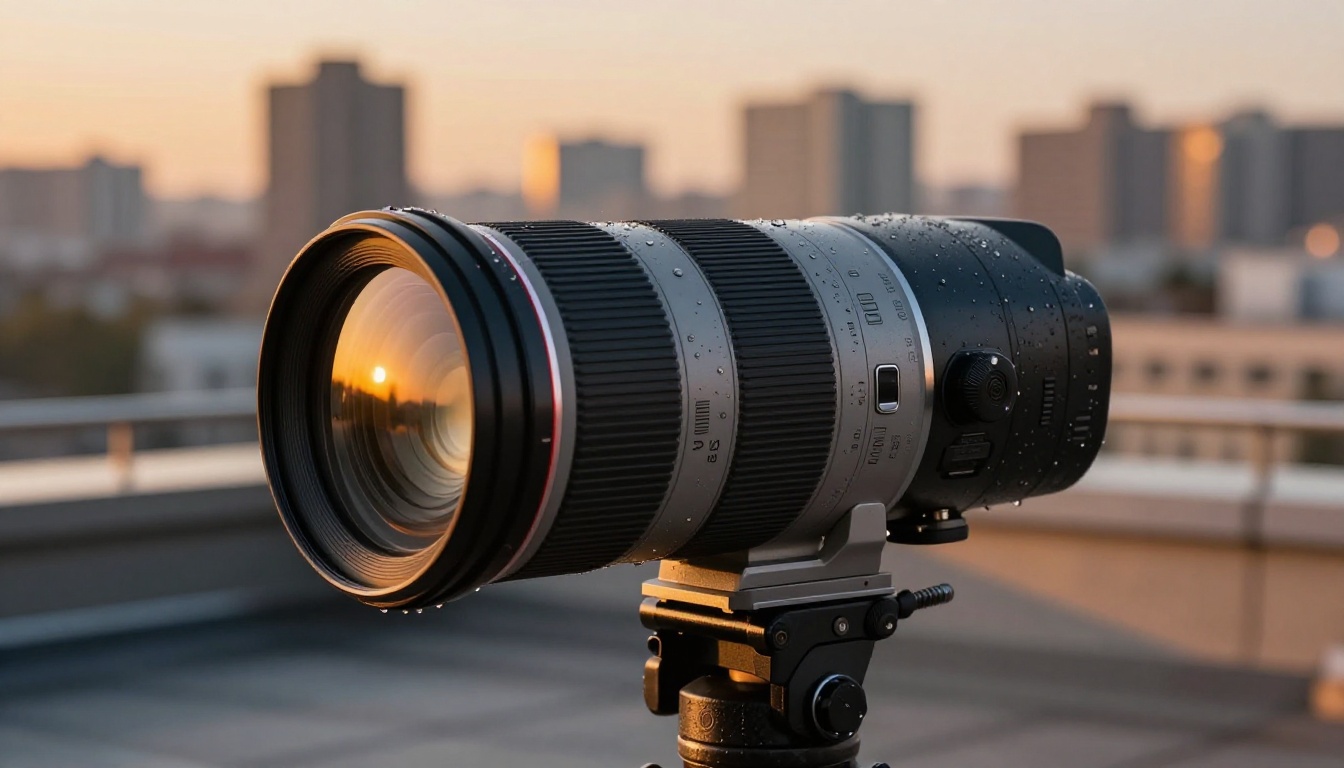
The most effective workflow: prototype with Veo 3.1 Fast or Veo 3.1 Lite, then run the final approved prompt through full Veo 3.1 for the highest quality output.
Cinematic Styles Worth Trying
Veo 3.1 handles a wide range of cinematic aesthetics with real consistency. These three produce strong results and are worth building into your prompt toolkit.
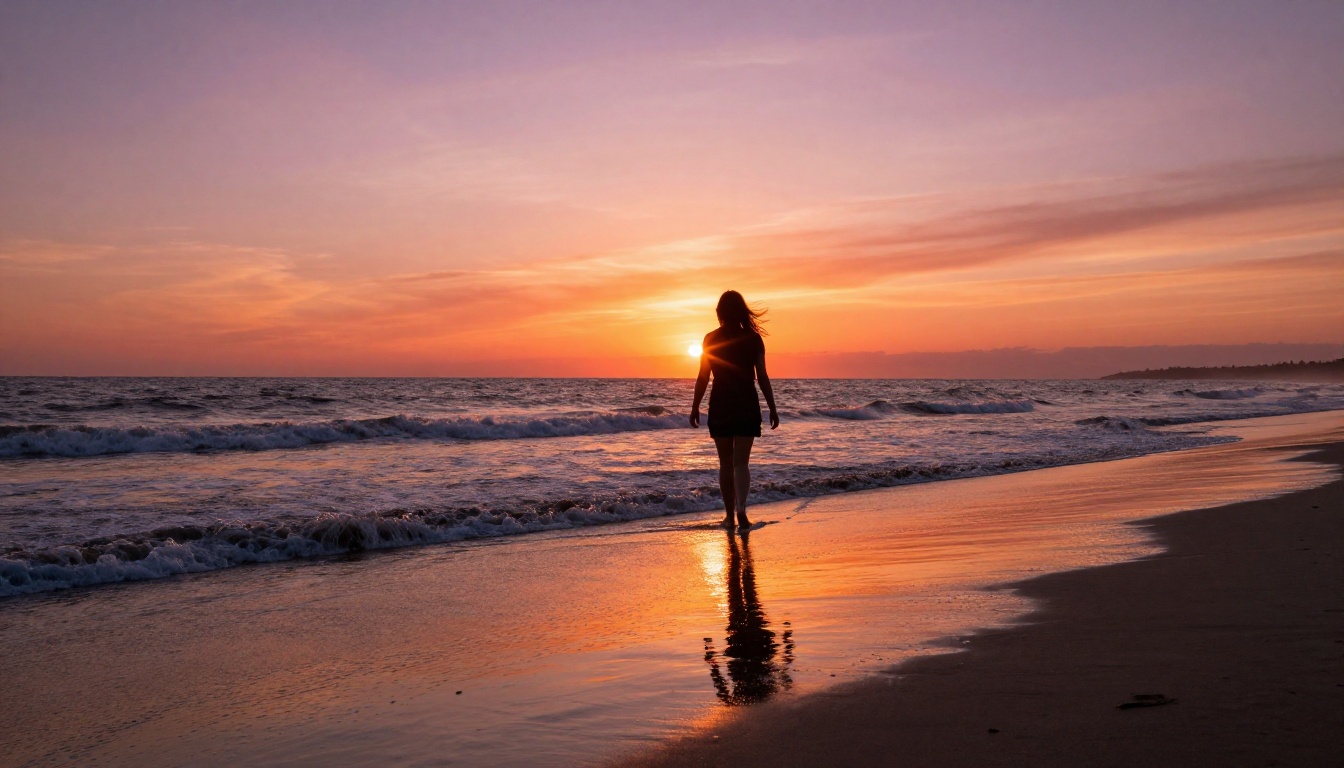
Golden Hour Drama
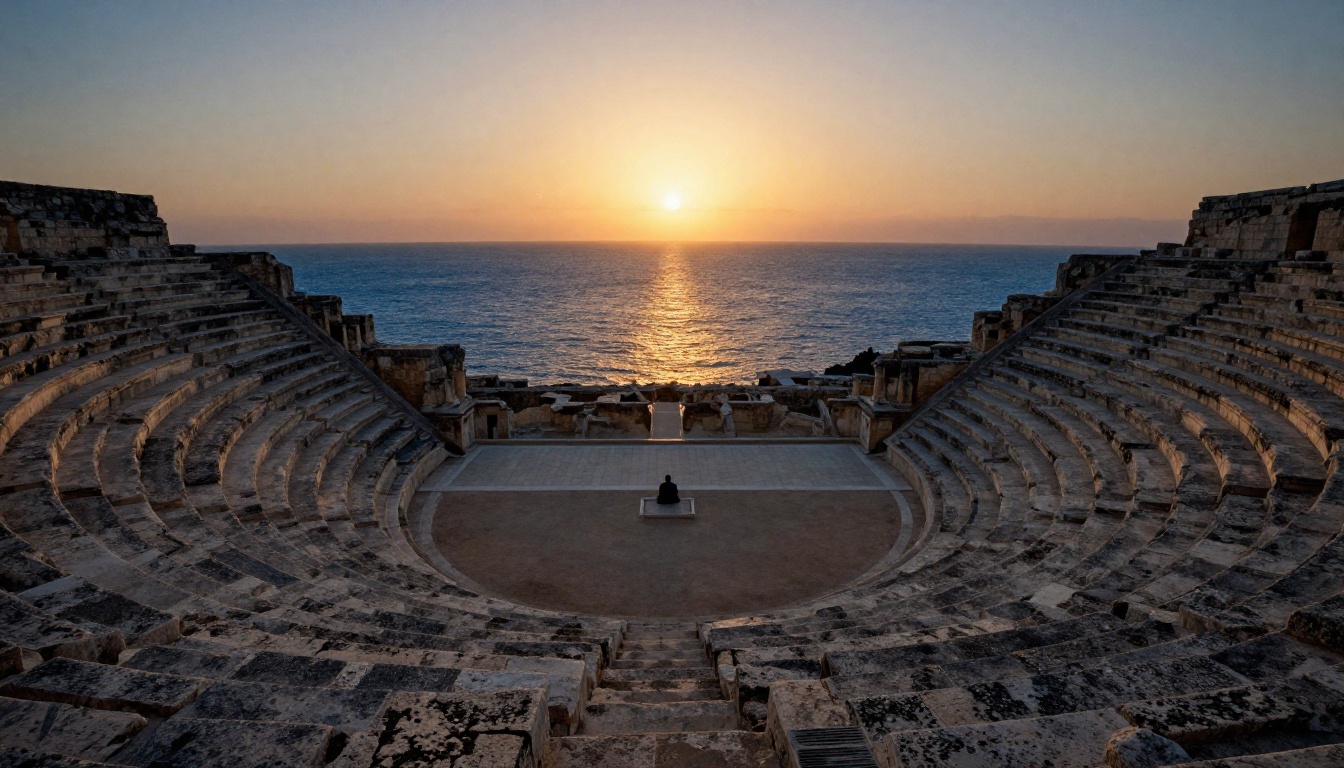
Golden hour footage is among the most immediately appealing visual content you can produce. The warm, low-angle directional light creates long shadows, saturated warm tones, and a natural visual appeal that requires minimal compositional work to pull off.
Prompt structure for golden hour results:
- Time reference: "late afternoon, 30 minutes before sunset"
- Light direction: "warm orange light from the left, long shadows stretching right"
- Lens flare instruction: "subtle anamorphic lens flare streak across frame"
- Environment: warm-colored surfaces that bounce light back, such as sand, stone, or weathered wood
Tip: Specify "backlit subject" when shooting people in golden hour. The rim light around hair and shoulders is the signature look of this style, and Veo 3.1 renders it convincingly.
Noir and Night Scenes
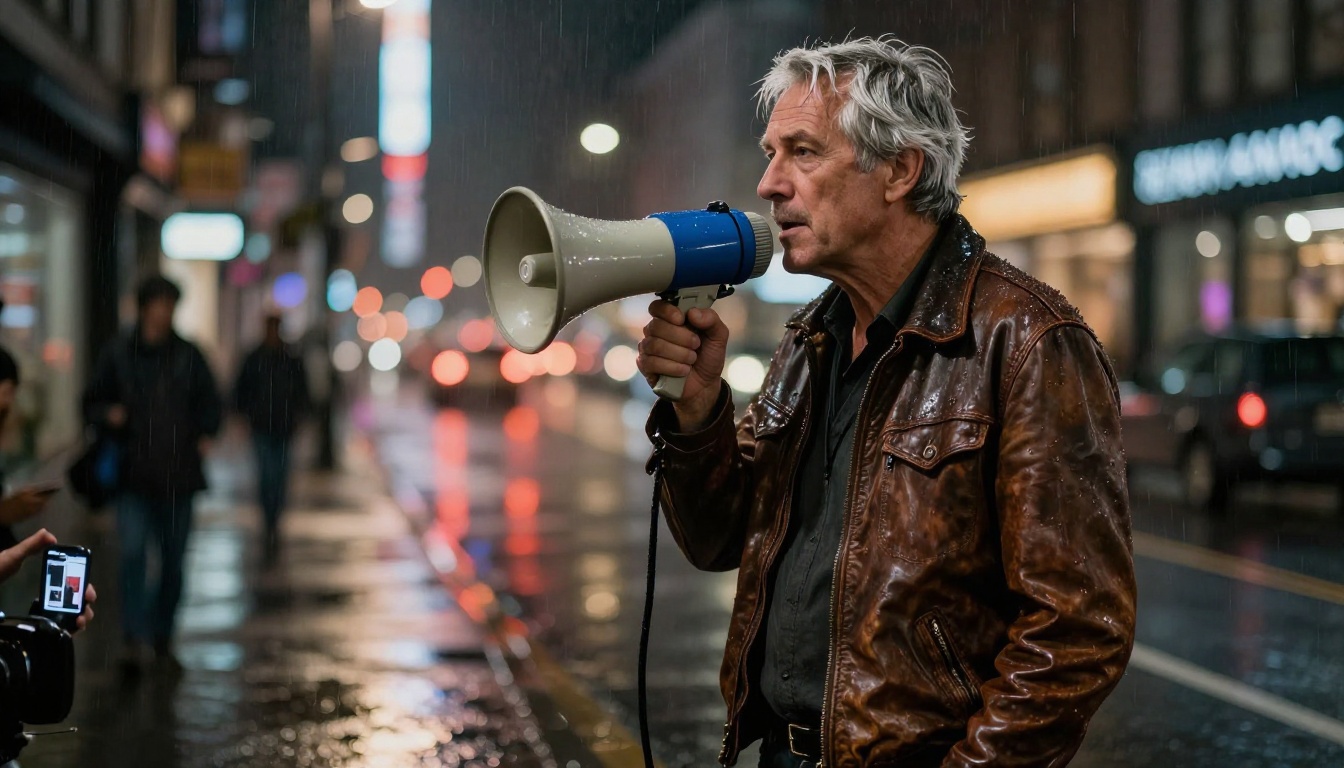
Night and low-light scenes reveal what a model can really do. Veo 3.1 handles artificial light sources, deep shadow areas, and practical light painting with unusual realism.
For noir results:
- Single harsh practical source, such as a desk lamp, a street light, or a neon sign
- Subject partially obscured by shadow
- Rain-wet streets for light reflections
- Desaturated color palette with one accent color (often deep red or warm amber)
Documentary Realism
Sometimes the most powerful cinematic choice is the least theatrical. Handheld documentary style, available light, and observational framing creates intimacy that staged lighting can't replicate.
For documentary realism:
- "Handheld" or "shoulder-mounted" camera specified in the prompt
- Available light only, no theatrical sources mentioned
- Subject unaware of or candidly engaged with the camera
- 35mm or 50mm lens at moderate aperture
How Veo 3.1 Compares to Other Models
Understanding where Veo 3.1 fits within the broader AI video landscape helps you make smarter creative decisions. PicassoIA hosts a wide range of models, and each has distinct strengths worth knowing.
| Model | Strengths | Veo 3.1 Advantage |
|---|
| Veo 3 | Strong predecessor | 3.1 improves temporal consistency |
| Kling v3 Video | Excellent motion control | Veo 3.1 wins on native audio |
| Seedance 2.0 | Built-in audio, fast output | Veo 3.1 delivers higher resolution realism |
| Sora 2 | Strong long-form coherence | Comparable quality, different aesthetic |
| Gen 4.5 | Fast cinematic motion | Veo 3.1 superior on physics simulation |
| Wan 2.7 T2V | Accessible 1080p output | Veo 3.1 leads on cinematic aesthetics |
No single model is right for every project. Veo 3.1 wins when cinematic quality, native audio, and photorealistic motion are the priorities. For rapid iteration at scale, models like Seedance 2.0 or Wan 2.7 T2V offer better throughput.
Real Output Quality: What to Expect
Setting accurate expectations before your first generation saves a lot of frustration. Here's what Veo 3.1 consistently delivers, and where it still has limits.
Consistent strengths:
- Photorealistic human skin, hair, and clothing in motion
- Accurate physics for water, fire, wind, and fabric
- Contextual ambient audio matched to the visual scene
- Stable object identity across the full clip duration
- Cinematic depth of field and natural lens behavior
Still developing:
- Complex multi-person interactions, such as two people passing objects to each other
- Highly specific text rendering within the video frame
- Sequences longer than 8-10 seconds without potential visual drift
- Extremely precise control over exact camera path geometry
Tip: Generate 3-4 variations of each scene before committing. The model introduces randomness in each run, and variation 3 is often noticeably stronger than variation 1 without any prompt changes at all.
Veo 3.1 in Your Production Workflow
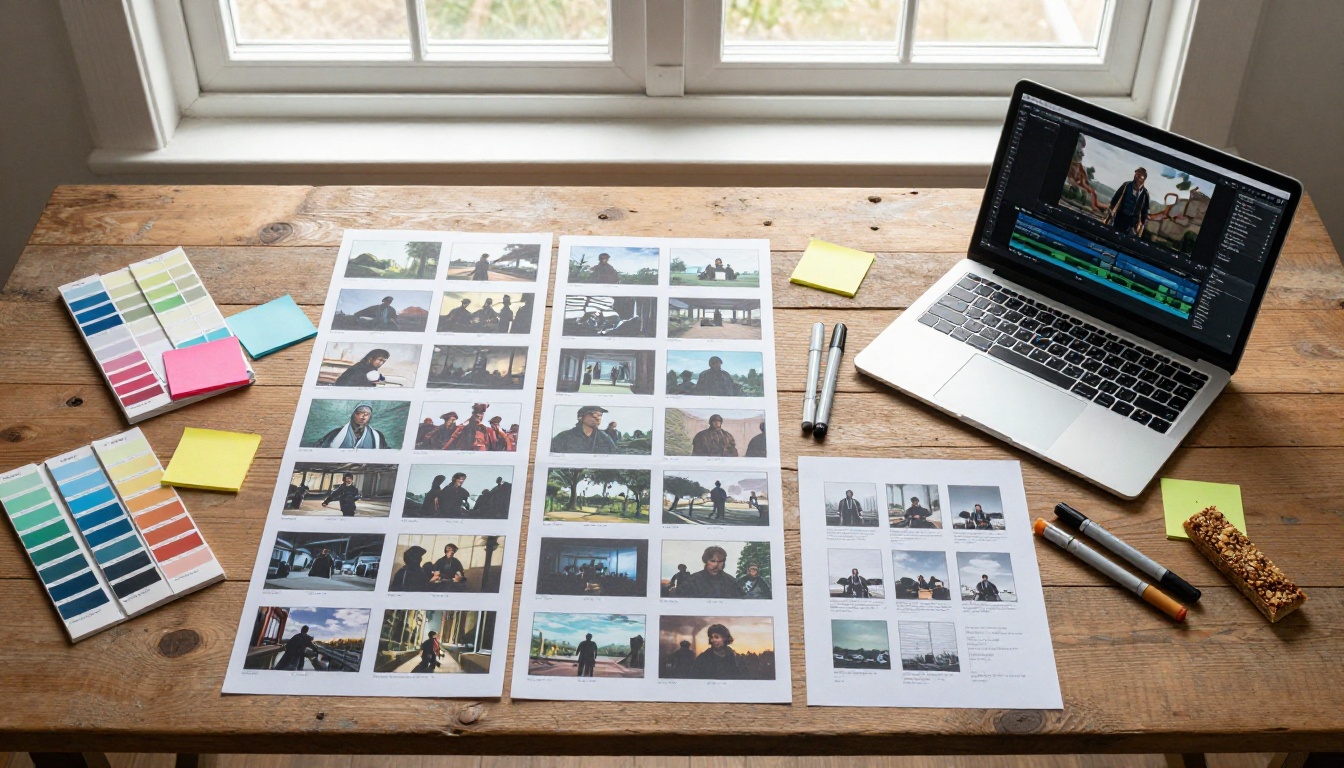
The most effective way to use Veo 3.1 isn't as a replacement for creative thinking. It compresses the distance between idea and finished footage.
Content creators are using it to produce hero clips for landing pages, short-form social content, and B-roll footage that would otherwise require a full shoot. Short film makers are prototyping their visual language before committing to physical production. Marketing teams are generating product context footage without scheduling a crew.
In all these cases, the workflow is the same: strong creative intention translated into precise language, run through a model that can execute on that language at photorealistic quality.
The creative process hasn't changed. The production bottleneck has.
If you haven't worked with AI video before, the best starting point is simple: pick one specific scene from something you've wanted to create, apply the 5-element framework from earlier in this article, and run it through Veo 3.1 Lite for a fast first draft. From there, iteration is fast enough that you'll have a strong version within a few generations.
Create Your First Cinematic Shot
PicassoIA puts Veo 3.1, Veo 3.1 Fast, and Veo 3.1 Lite alongside the full catalog of the best AI video models available right now, including Kling v3 Video, Seedance 2.0, Sora 2, Gen 4.5, and Wan 2.7 T2V, all in one place.
Take the prompt formula from this article, open the Veo 3.1 model page, and generate your first shot. The model is capable of producing footage that would have required a full production crew two years ago. Now it requires a well-written sentence and 60 seconds.
Start with the scene that's been in your head. Write it out in full detail. See what comes back.


