Veo 3.1 is one of the most requested AI video models of 2027, and the demand makes sense. It generates 1080p video from a single text prompt, handles motion fluidly, and produces results that rival productions requiring full editing suites. The catch for most users is access: Google's direct API requires billing credentials and most platforms gate the model behind paid tiers. This article covers exactly how to use Veo 3.1 Lite without a card, what to expect from it, and how to write prompts that actually produce good results.

What Is Veo 3.1 Lite
Google's Veo series has been iterating fast. Veo 2 established the baseline for realistic AI motion in video generation. Veo 3 followed with native audio synthesis, where background sounds and ambient noise are generated alongside the visuals. Veo 3.1 is the current full-quality version, and Veo 3.1 Fast is the lighter, faster variant commonly referred to as "Lite."
Veo 3.1 vs Veo 3.1 Fast
The difference between the two comes down to speed and rendering depth. The standard Veo 3.1 takes longer to generate but produces slightly more polished results in complex scenes. Veo 3.1 Fast cuts generation time significantly while maintaining the core quality that makes Veo 3.1 stand out: accurate motion, strong prompt adherence, and sharp 1080p output.
| Feature | Veo 3.1 | Veo 3.1 Fast (Lite) |
|---|
| Output Resolution | 1080p | 1080p |
| Generation Speed | Slower | Faster |
| Prompt Adherence | High | High |
| Audio Generation | Yes | Yes |
| Free Access | Yes | Yes |
| Credits per Generation | Higher | Lower |
Why "Without a Card" Matters
Using Google's AI Studio or Vertex AI to access Veo requires a Google Cloud billing account. For most personal creators, students, or small business owners, that is a barrier: not just in cost but in friction. Adding payment credentials for a tool you want to test once or use occasionally is something many people reasonably want to skip. The free tier on platforms that have integrated Veo 3.1 solves this directly, with no billing setup at any point.

Most AI video platforms follow a similar playbook. They offer a short free trial, require a credit card to activate it, and then charge monthly once the trial ends. Others offer free generations but deliberately limit quality to push upgrades.
Paywalls, Trials, and Credits
The common patterns you will encounter when searching for free AI video:
- Credit-based free tiers that run out within 2-3 generations and require payment to top up
- Trial periods requiring card details upfront with auto-renewal built in
- Quality-restricted free output where free tier generations have watermarks or cap at 480p
- API-only access where you need developer credentials and a billing account to reach the model at all
None of these work well for someone who just wants to test Veo 3.1, see what it produces, and decide from there.
What You Actually Get for Free
On PicassoIA, both Veo 3.1 and Veo 3.1 Fast are available without a credit card. The platform uses a credit system where free users receive credits on signup, and the Veo 3.1 Fast model is accessible within those free credits. You create an account with an email address, no payment details required, and you can start generating immediately.
💡 Tip: The Veo 3.1 Fast model consumes fewer credits per generation than the standard Veo 3.1, making it the smarter starting point for testing prompts before committing to higher-cost full-quality generations.

How to Use Veo 3.1 Lite on PicassoIA
PicassoIA has both Veo 3.1 and Veo 3.1 Fast integrated directly into its video generation platform. Here is how to use it from scratch, with no prior experience required.
Step 1: Create Your Account
Go to PicassoIA and register with your email address. No card is required at any point in the signup flow. Free credits are added automatically to your account on creation, ready to use on any model in the collection.
Step 2: Open Veo 3.1 Fast
Navigate to the Text to Video section and find Veo 3.1 Fast. You can also search for it directly using the search bar. The model page displays the credit cost per generation, example outputs, and the main prompt input field.

Step 3: Write Your Prompt
This is where results are won or lost. Veo 3.1 Fast responds well to structured, descriptive prompts. A reliable format is:
[Subject + Action] + [Setting/Environment] + [Camera Movement] + [Lighting/Mood]
For example:
"A woman walks slowly through a sunlit wheat field at golden hour, the camera tracking from behind at waist level, warm amber light illuminating the scene, soft wind moving through the stalks"
Avoid prompts that are too short or too abstract. "A beautiful sunset" will produce something generic. "A time-lapse of a sunset over coastal cliffs with sea mist rolling in, camera locked off on a tripod, cool blue tones warming to orange over 10 seconds" will produce something specific and usable.
Step 4: Set Duration and Aspect Ratio
Veo 3.1 Fast supports multiple clip durations. For your first test, keep it to 5 seconds. Short clips use fewer credits and let you iterate on the prompt without burning through your free allocation before you have found a direction you like.
Step 5: Generate and Download
Hit generate. The model typically processes within 30 to 90 seconds depending on current server load. Once complete, you can preview the video directly in the browser window, then download it in full 1080p resolution with no watermarks on the file.
💡 Tip: If your first result is close but not quite right, adjust one element at a time. Change either the camera direction, the lighting description, or the subject action. Changing everything at once makes it hard to identify what produced the improvement.

Writing Prompts That Actually Work
Prompt quality is the single biggest factor in Veo 3.1's output. The model is capable, but vague inputs consistently produce vague results regardless of which version you use.
5 Prompt Structures That Get Results
1. The Tracking Shot
"[Subject] walking through [environment], camera tracking from behind, [lighting], [mood]"
2. The Establishing Shot
"Wide establishing shot of [location] at [time of day], no people, [weather conditions], subtle lens flare"
3. The Close Detail
"Extreme close-up of [object or texture] with [light source] creating [effect], slow camera drift left, shallow depth of field"
4. The Action Sequence
"[Subject] [action verb] in [environment], high energy, motion blur on movement, [lighting description]"
5. The Atmospheric Scene
"[Location] in [weather or time of day], minimal movement except [one element], [mood], ambient sound implied"

What to Avoid in Your Prompts
- Multiple subjects with conflicting actions: Veo 3.1 handles one primary subject far better than two or three doing different things simultaneously in the same frame
- Overly abstract concepts: "The feeling of nostalgia" does not translate well. "An empty playground at dusk with one swing moving slowly" is concrete and produces results
- Demanding impossible physics: Complex multi-body interactions and precise text rendering inside video are weak areas for current generation models, including Veo 3.1
- Skipping camera language: Not specifying camera angle or movement results in generic static shots. Be explicit: "dolly in," "pan left," "aerial descending," "handheld shaky"
💡 Tip: Describe your video the way a cinematographer writes a shot list. The more specific the camera and lighting language, the more intentional the final output will be.
Veo 3.1 Fast vs the Competition
How does Veo 3.1 Fast stack up against other accessible video models? Here is a direct comparison of what matters for creators at every level.
Side-by-Side Comparison
| Model | Max Resolution | Audio | Free Tier | Speed | Best For |
|---|
| Veo 3.1 Fast | 1080p | Yes | Yes | Fast | Cinematic clips with audio |
| Veo 3.1 | 1080p | Yes | Yes | Medium | High-fidelity narrative video |
| Kling v2.6 | 1080p | No | Yes | Medium | Motion-heavy character scenes |
| Wan 2.6 T2V | 1080p | No | Yes | Fast | General purpose, wide range |
| Ray Flash 2 720p | 720p | No | Yes | Very Fast | Quick draft and ideation clips |

When to Use Each Model
The right choice depends on what you are producing:
- Veo 3.1 Fast: The best default for creators who want cinematic output with audio, fast iteration, and 1080p resolution without a long wait per generation
- Veo 3.1: When you need the highest possible visual fidelity and are willing to wait longer per clip
- Kling v2.6: Strong for complex motion and character-driven animation
- Wan 2.6 T2V: A reliable workhorse for general video where audio is not required
- Ray Flash 2 720p: Ideal for rapid ideation and storyboarding when generation speed matters more than resolution
Other Free Video Models Worth Trying
If you exhaust your free credits on Veo 3.1 Fast or want to experiment with different styles, there are several other models on PicassoIA that require no payment to access.
Fast and Free Alternatives
Seedance 1 Lite from ByteDance is a strong option for fast text-to-video generation. It produces fluid motion and handles a wide range of subjects competently across most prompt types. Pixverse v5 is another capable model that performs well for stylized content and creative scenes with strong visual energy. For ultra-fast iterations, Ray Flash 2 720p from Luma generates 720p clips in seconds, making it ideal for quickly testing a prompt direction before committing to a higher-quality generation.
💡 Tip: Use fast, lower-cost models to test your prompt structure first, then switch to Veo 3.1 Fast or Veo 3.1 once you have a prompt you are confident in. This approach conserves credits and produces better final results per generation.

Combining Models for Better Output
One workflow that gives you significantly more control is to generate a still image first, then animate it. PicassoIA's text-to-image models produce highly specific scenes in a single generation. You then feed that image into a video model to add motion. This gives you far more control over visual composition than text-to-video alone provides, because you can refine the frame exactly before adding movement.
How Good Is the Output, Really
It is fair to have calibrated expectations. Veo 3.1 Fast is not a production film tool, but it consistently delivers output that works well for:
- Social media content: Short-form clips for Instagram Reels, TikTok, and YouTube Shorts where AI video fits naturally
- Presentations and pitches: Adding visual movement to decks or explainer content where a static image is not enough
- Concept visualization: Showing a client or collaborator what a scene might look like before committing to production
- Personal creative projects: Music video concepts, short film previsualization, atmospheric visual storytelling
For anything requiring named actors, scripted dialogue, or precise scene-by-scene control, traditional production is still necessary. But for atmospheric, environmental, and motion-driven content, Veo 3.1 Fast holds up well at 1080p.
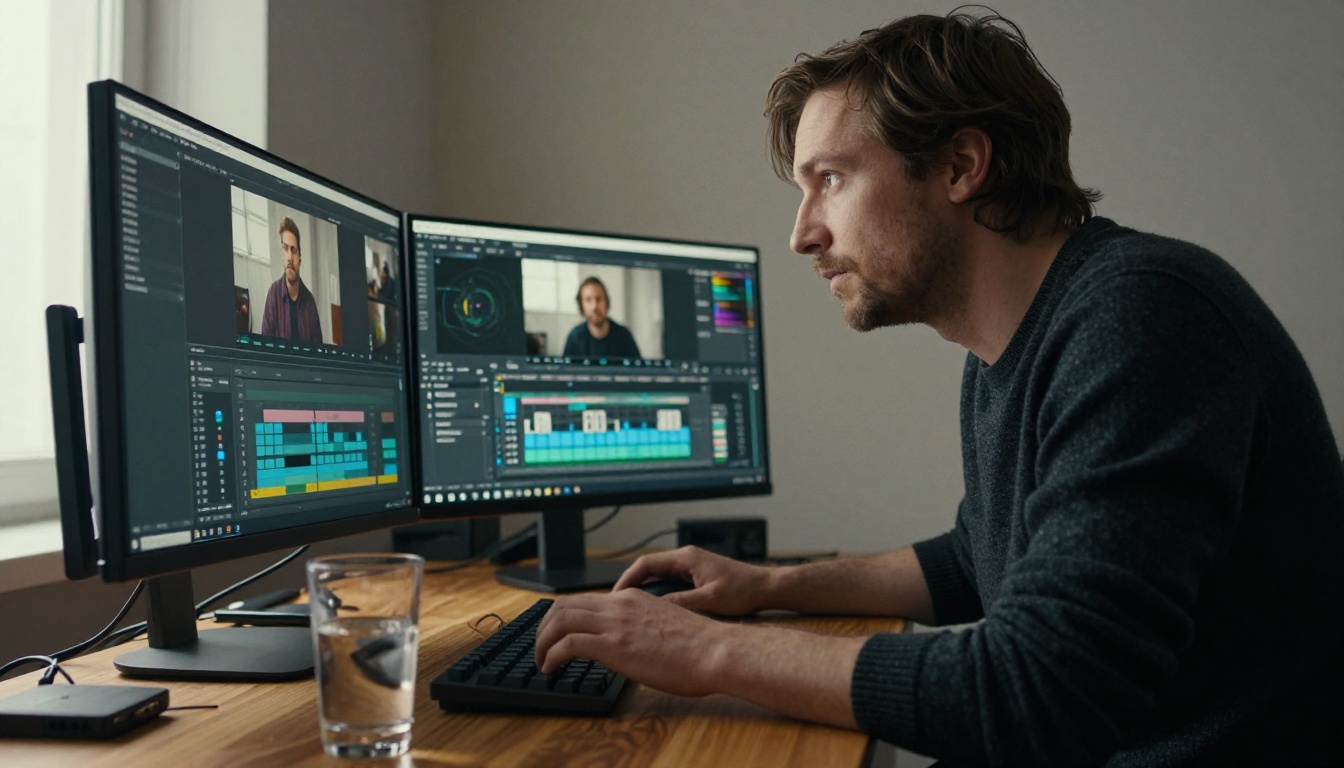
Try It Yourself Right Now
Veo 3.1 Fast is accessible, capable, and genuinely free to start with. No card, no subscription, no developer setup required. You create an account, write a prompt, and have a 1080p AI video ready in under two minutes.
PicassoIA gives you direct access to Veo 3.1 Fast alongside over 80 other text-to-video models, plus image generation, audio tools, and video editing in one place. Whether you are making your first AI video or building out a content production workflow, the free tier is a real working tool.
The best way to understand what the model can produce is to use it. Start with a simple scene, apply the prompt structures from this article, and iterate from there. The results will speak for themselves.


