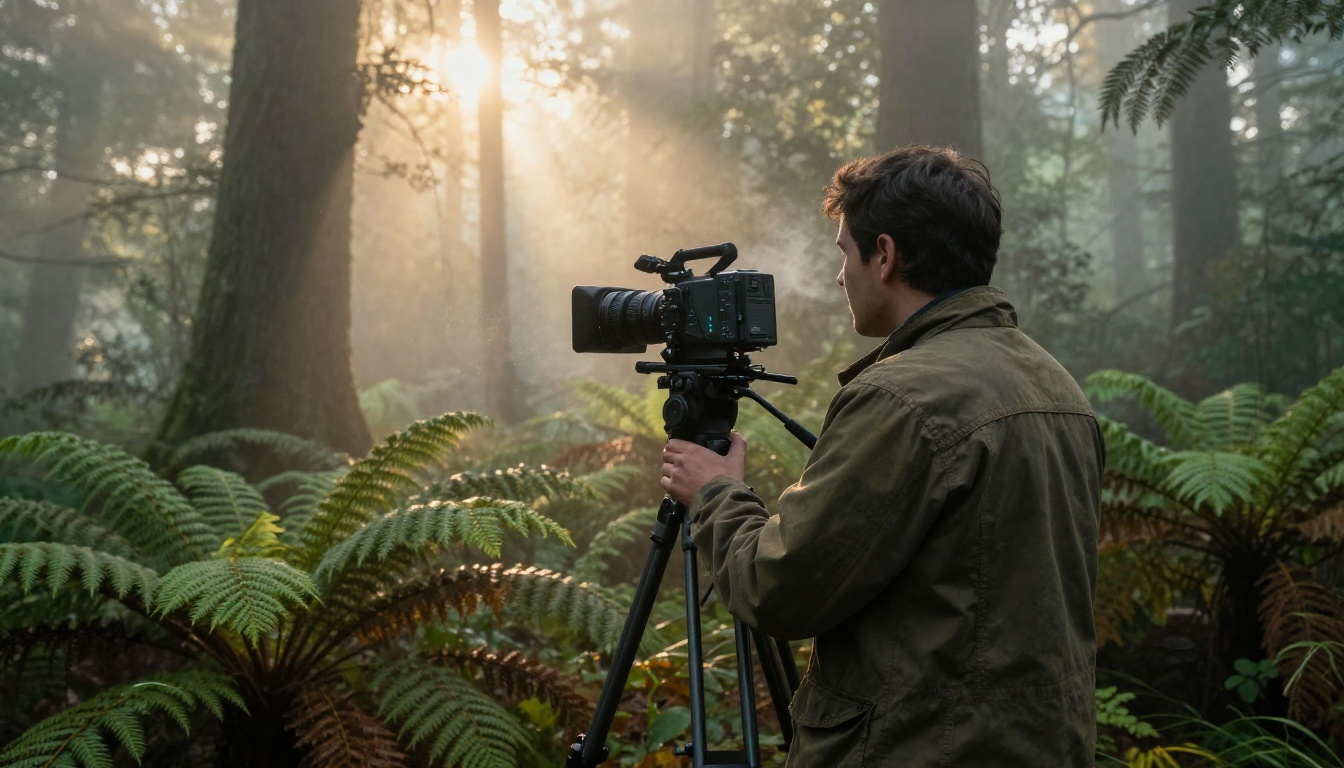
Until this year, making a video with believable sound meant one of two things: you hired a sound designer, or you settled for silence. Google changed that with Veo 3.1, a text-to-video model that generates synchronized, layered audio directly from the same prompt you use to describe the visuals. No separate tools. No post-production. No foley session. The audio comes baked in, frame-accurate and environmentally specific from the first generation.
This article breaks down exactly how Veo 3.1 handles sound design automatically: what the audio actually consists of, how the model reads your text for acoustic cues, where it sits relative to competing models, and how you can apply it today via PicassoIA.
What Veo 3.1 Actually Does With Sound
Most people recognize Veo 3.1 as Google's most capable text-to-video model. What gets less attention is that the audio engine is not a secondary feature layered on top of a visual-only model. The sound and image are generated together in the same inference pass, trained on paired video-audio data so that what you see and what you hear stay locked in sync.
Not a Separate Step
Earlier AI video models treated audio as a post-generation task. You generated the video, then fed it through a separate audio synthesis model. That two-step workflow produced persistent timing problems: footsteps landing a frame late, ambient wind cutting off mid-clip, dialogue floating disconnected from the speaker's mouth.
Veo 3.1 eliminates that pipeline by making audio a first-class output of the same model. The architecture processes the temporal relationship between motion and sound during training, so a door slamming in frame three produces the acoustic impact at frame three, not frame five.
Reading Your Prompt for Audio Cues
When you write a text prompt for Veo 3.1, the model parses both visual and auditory information at the same time. A prompt like "a jazz quartet performing in a candlelit basement bar, rain falling outside, audience murmuring" gives the model four distinct audio targets:
- Live jazz instrumentation including rhythm section, lead instrument, and dynamics
- Room acoustics shaped by a low-ceiling basement space with reflective brick walls
- Rain on glass producing mid-frequency irregular white noise
- Crowd ambience at low conversational volume behind the music
The model layers these elements and applies acoustic treatment that matches the described environment. The basement reverb behaves differently from a concert hall or a tiled bathroom. This spatial audio reasoning, where the physical properties of the described space shape the acoustic output, is one of the most practically useful aspects of Veo 3.1's audio system.
The 3 Audio Layers Veo 3.1 Generates
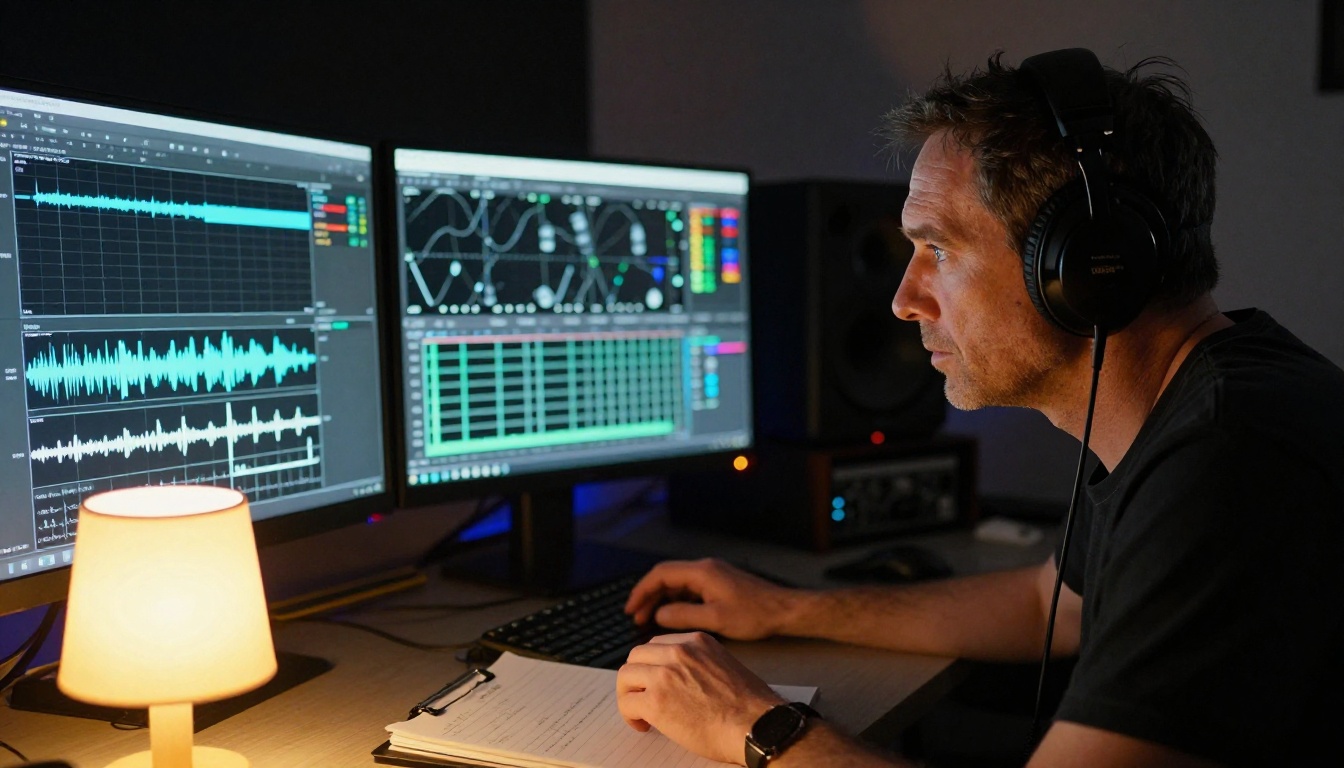
Every video that Veo 3.1 produces carries three distinct audio layers. Understanding each one helps you write better prompts and anticipate the output accurately.
Layer 1: Ambient Sound
Ambient sound is the environmental signature of a scene. It is what fills the perceptual space and tells the viewer's brain where the video was shot before they consciously notice it. Veo 3.1 infers ambient sound from the scene description with considerable specificity.
A forest scene produces birdsong, insect drone, wind through leaves, and the low-frequency presence of open air. A city street produces traffic rumble, distant horn blasts, shuffling pedestrians, and reflections off building faces. An empty office at night produces fluorescent hum, the low rattle of a ventilation system, and the acoustic signature of a hard-walled room.
The model does not reach for a generic "outdoor ambience" audio asset. It assembles a layered soundscape that matches the described location, including the way acoustic reflections differ between open spaces and enclosed ones, and between soft-furnished rooms and hard-surfaced ones.
Layer 2: Dialogue and Speech
When your prompt includes characters speaking, Veo 3.1 generates speech audio synchronized to visible mouth motion. You can specify vocal tone, emotional state, speaking pace, and the acoustic character of the voice in your prompt, and the model responds to those descriptors.
A prompt describing "a tired doctor quietly delivering difficult news to a patient's family in a hospital consultation room" produces a very different vocal performance than "an excited sports commentator calling a last-second goal in a packed stadium." The model infers volume, pace, emotional weight, and room acoustics from those descriptors and builds a vocal performance that matches.
💡 Tip: Specify the emotional state of speech in concrete terms. "Speaking urgently in a low voice" or "whispering hesitantly with long pauses" produces more accurate results than simply saying "talking."
The lipsync alignment, where generated speech matches visible mouth movement in the video, is a direct product of the paired training approach. The model has internalized the relationship between mouth shapes and phoneme sounds across thousands of hours of real video.

Layer 3: Sound Effects and Foley
The third layer covers discrete sound events: footsteps on different surfaces, object impacts, doors, machinery, weather, animals, appliances. In traditional film production, these sounds are created by foley artists working in dedicated recording studios, matching physical sounds to on-screen action frame by frame.
Veo 3.1 synthesizes these sounds computationally. A character walking across wet concrete produces heavy, slightly dampened footsteps. The same character on dry hardwood produces a lighter, crisper sound with more high-frequency content. The model tracks material properties from the prompt and applies the corresponding acoustic signature to each sound event.
Temporal alignment is most visible in foley sounds. The model ties each footstep impact to the frame where the foot makes contact with the ground, not to an average footstep rhythm. This attention to timing is what separates Veo 3.1's foley generation from earlier systems that produced sound events at statistically plausible intervals without true frame-level accuracy.
The Technical Architecture Behind the Audio
Understanding why Veo 3.1's audio performs as well as it does requires a brief look at how the training pipeline works.
Multimodal Training on Paired Video-Audio Data
The core advantage is that Veo 3.1 was trained on large quantities of real-world video paired with its original audio, not on video and audio trained separately and then aligned in post-processing. When the model learns from paired data, it learns the statistical relationship between visual events and acoustic events at every point in time simultaneously.
The result is a model that has internalized what an object hitting a surface sounds like relative to the visual impact frame, what speech should sound like given the visible mouth shape of the speaker, and what a given physical environment sounds like given the visual depth cues in the scene. These are not approximations computed after generation. They are properties baked into the model's weights through training.
Temporal Alignment
Audio events in Veo 3.1 are not placed at statistically plausible timestamps. The model maintains frame-level correspondence between visual and audio events throughout generation. Impact sounds align with visual impacts. Speech aligns with visible lip motion. Ambient sounds respond to changes in scene depth, where sounds from distant sources arrive quieter and more reverberant than sounds from close sources.
The system also handles off-screen audio. A car passing at the edge of frame, or a phone ringing in an adjacent room, can appear in the audio even when the sound source is not visible in the shot. The model infers the position and character of sounds from the total described environment, not only from what appears on screen.
Audio Output Quality
Veo 3.1 outputs audio at quality levels appropriate for direct use in digital publishing. The audio holds up to playback on professional monitoring speakers without the buzzing, pitch drift, or clipping artifacts that have historically marked AI-generated audio as synthetic. Combined with 1080p video output, the complete file is production-ready for most web, social, and broadcast applications.
How to Use Veo 3.1 on PicassoIA
Veo 3.1 runs on PicassoIA in three variants: the standard Veo 3.1, Veo 3.1 Fast for rapid iteration, and Veo 3.1 Lite for high-volume generation at lower cost. The audio capabilities are active in all three.
Prompt Patterns That Produce Better Sound
The quality of Veo 3.1's audio output scales directly with how much acoustic information you include in the prompt. A prompt that describes only the visual content will produce audio, but a prompt that describes both what you see and what you hear produces significantly richer results.
Weak prompt: "A man walks through a train station."
Strong prompt: "A man in a wool overcoat walks briskly through a crowded train station at rush hour, his leather-soled shoes echoing on marble floors, intercoms announcing departures overhead, the low roar of a departing train on a nearby platform, other passengers' rolling luggage wheels and muffled conversation filling the space."
The second prompt gives the model seven distinct audio targets. Each one contributes to a more specific, layered soundtrack. The difference in output quality between these two prompts is audible immediately.
Choosing the Right Variant
| Variant | Speed | Best For | Audio Quality |
|---|
| Veo 3.1 | Standard | Final output, complex acoustic scenes | Highest |
| Veo 3.1 Fast | 2-3x faster | Prompt iteration, quick tests | High |
| Veo 3.1 Lite | Fast | High-volume batches | Good |
For scenes with multiple simultaneous audio sources or complex acoustic environments, the standard Veo 3.1 produces the most nuanced layering. Use Veo 3.1 Fast to test and refine prompt wording before committing to a full-quality generation.
Downloading and Using the Output
Every video generated by Veo 3.1 on PicassoIA delivers the audio track embedded directly in the MP4 file. There is no separate audio download step and no mixer required. You can take the output file directly to a video editor for final assembly, or publish it as-is when the generated content meets your standards.
Veo 3.1 vs. Other Models With Audio
Veo 3.1 is not the only AI video model with built-in audio, but it approaches sound design differently from its main competitors. Here is how it compares against three strong alternatives available on PicassoIA.

Against Seedance 2.0
Seedance 2.0 from ByteDance generates built-in audio alongside fast, high-motion video. Its audio engine is particularly well-suited for energetic content where multiple sounds happen in rapid succession. For sports scenes, action sequences, or high-energy commercial content, Seedance 2.0 often produces more impactful results because it prioritizes the rhythmic and percussive qualities of audio.
Veo 3.1 outperforms it in scenes requiring emotional nuance, quiet dialogue, or complex layered ambient environments where subtlety matters more than energy.
💡 When to use Seedance 2.0 instead: High-energy sports, fast action, or upbeat commercial spots where acoustic punch matters more than ambient realism.
Against Pixverse v6
Pixverse v6 combines cinematic visual quality with dramatic AI audio. For content that needs a heightened, theatrical sound palette, including orchestral undertones and dramatic sonic emphasis, Pixverse v6 is a compelling choice.
Veo 3.1 produces more naturalistic audio that does not push toward artificial drama. If your goal is documentary-style realism rather than cinematic heightening, Veo 3.1 is the cleaner choice.
Against Wan 2.2 S2V
Wan 2.2 S2V inverts the standard workflow. Rather than deriving audio from a visual prompt, it accepts an existing audio track and generates a video synchronized to that sound. This makes it ideal for music-driven content or when you already have audio and need visuals built around it.
Veo 3.1 works in the opposite direction, synthesizing audio from a visual description. The two models serve complementary workflows. For completely prompted creation from scratch, Veo 3.1 wins. For animating around existing audio, Wan 2.2 S2V is the appropriate tool.
Sound Prompting Tips That Produce Results
Getting high-quality audio from Veo 3.1 is a learnable skill. These specific approaches consistently produce better output.
Describe the Room, Not Just the Subject
The acoustic character of any space depends on its physical properties: size, surface materials, furniture density, and openness. Naming those properties gives the model the information it needs to apply the correct reverb, reflection profile, and ambient noise floor.
"A quiet library" tells the model something fundamentally different from "a busy café" even if both scenes have a person speaking in the foreground. The library implies soft surfaces, near-silence, and restraint. The café implies hard surfaces, multiple overlapping conversations, espresso machinery, and background music. Both details show up in the audio.
Name the Emotional Tone
Descriptors like "tense," "joyful," "melancholy," and "anxious" shape not just any background music the model might generate but the entire audio palette. Tense scenes tend to produce sparse, high-frequency detail and minimal low-end warmth. Joyful scenes produce fuller, warmer audio with more energetic background activity. The model uses emotional descriptors as global audio mixing cues.
Avoid Internal Contradictions
If you describe "a silent, deserted parking garage" and then mention "a crowd celebrating," the model resolves the contradiction by weighting toward the dominant visual cues. You will not get what you expected. Keep the acoustic context internally consistent throughout your prompt. If a scene shifts dramatically in sound between its beginning and end, indicate that as a temporal change in the description rather than a static contradiction.
The Surface Material Rule
Whenever a character or object makes physical contact with a surface, specify the material. "Footsteps on gravel," "a glass falling onto tile," "a fist hitting a wooden table" all give the model the material properties required to synthesize an acoustically accurate result. Unspecified surfaces produce acoustically generic sounds. The more material properties you name, the more physically specific the sound design becomes.
Real Uses Worth Knowing
The practical value of Veo 3.1's automatic sound design varies depending on what kind of content you produce.
Social Media and Short-Form
For content creators working in short-form video, Veo 3.1 removes the need for a separate audio search, stock music license, or sound effects library. A 5-second clip of coffee being poured, waves breaking on shore, or rain on a window arrives with a full, specific soundscape. On mobile platforms where most users have sound on by default, that audio layer is often what stops the scroll.
Marketing and Commercial Production
Brands that need large volumes of visual content with consistent audio quality benefit from Veo 3.1's single-prompt workflow. One detailed prompt can produce multiple variations of a campaign concept with different acoustic environments, enabling A/B testing without additional production cost. Product shots with lifestyle ambience, dialogue-driven testimonial clips, and atmospheric brand films are all achievable within one platform.
Film Pre-Visualization
In professional film development, pre-visualization involves creating rough approximations of scenes before committing to full production budgets. Veo 3.1 enables audio-inclusive previs, where directors can hear a rough version of a scene's sound design alongside the visual concept. For scenes where sound is central to emotional impact, including horror sequences, tender dramatic moments, or musically driven scenes, this capability significantly changes what previs can communicate to production teams.
💡 Pro tip: Use Veo 3.1 Fast for rapid previs iterations and the standard Veo 3.1 for polished presentations to stakeholders.
Documentary and Educational
Documentaries and educational videos benefit from naturalistic ambient sound that grounds segments in real-feeling locations. With Veo 3.1, a documentary about marine biology can show an underwater sequence with appropriate low-frequency pressure sounds, bubbles, and muffled ambient wash without any location recording. An educational video about ancient Rome can show a forum scene with crowd noise, sandals on stone, and the acoustic characteristics of an open public space.
Start With One Prompt
Veo 3.1 is available on PicassoIA alongside Veo 3.1 Fast, Veo 3.1 Lite, Seedance 2.5, Kling v3, Pixverse v6, Flux 3, and more than a hundred other text-to-video models. All of them run through the same interface, so switching between them for comparison takes seconds rather than hours.
Write a single detailed prompt and generate your first Veo 3.1 video today. Include one surface material, one room description, and one emotional tone. Play the result with sound. Notice how the acoustic details from your prompt show up in the output. The gap between what you type and what you hear is smaller than most people expect, and it gets smaller the more precisely you describe the world you want the model to hear.
The full model library is at picassoia.com/en/all-models.