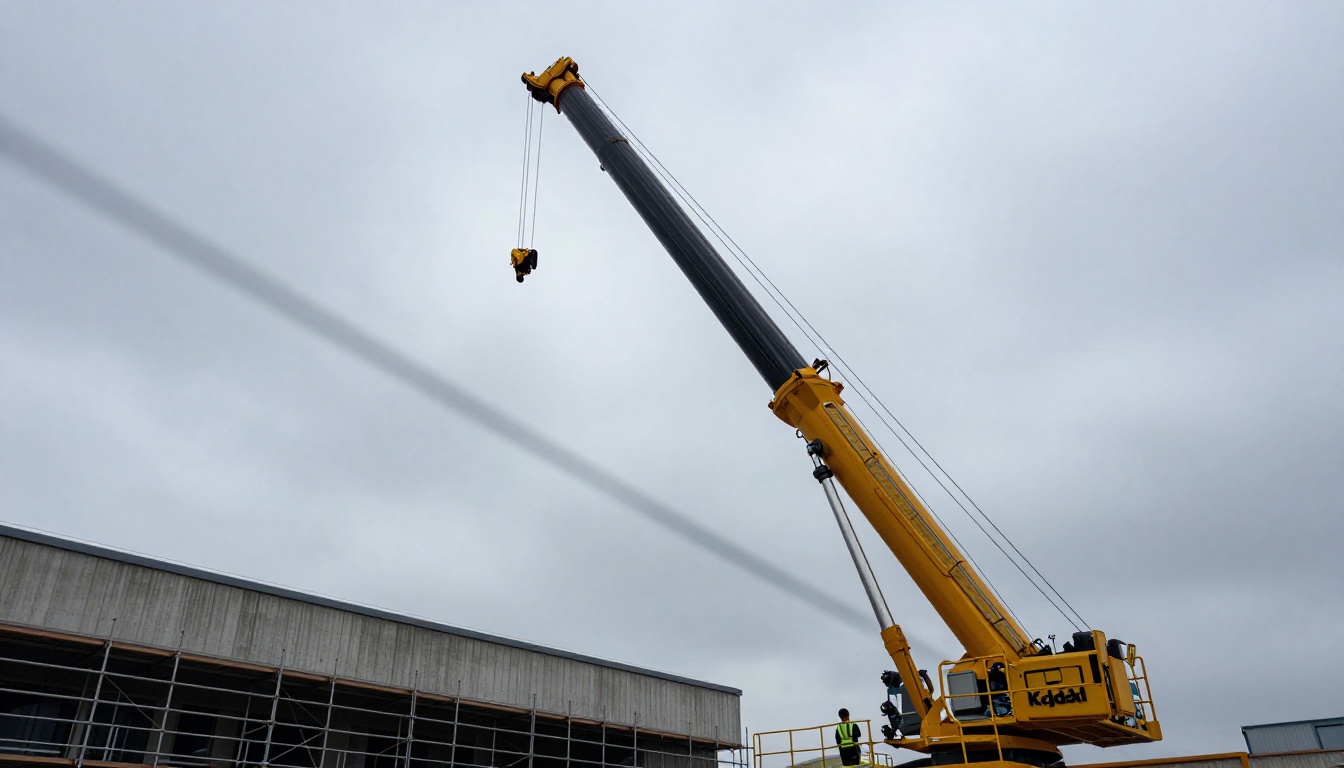
Google's Veo 3.1 is not the only AI video model available right now, but it is the one that has sparked the most serious conversation among filmmakers and video creators. The reason is simple: it handles camera movement in a way that previously required a physical rig, a trained operator, and significant post-production cleanup. That is a strong claim, and it deserves a thorough look at exactly what Veo 3.1 does differently, where it succeeds consistently, and how you can put it to work.
What Changed Between Veo 2 and Veo 3.1
The gap between Veo 2 and Veo 3.1 is not a version bump. In Veo 2, camera motion instructions were interpretive at best. The model could approximate a slow push-in or a pan, but the spatial logic was inconsistent. Objects in the foreground would drift in ways that did not match the implied camera trajectory, and complex sequences would break the illusion entirely.
Veo 3.1 treats camera movement as a first-class instruction. It has learned the physical relationship between lens position, focal length, and scene depth. When you describe a dolly-in, the parallax between foreground and background elements behaves as it would on a physical set. That is not a small thing. It is the fundamental difference between footage that looks real and footage that looks AI-generated.
The Physics Shift
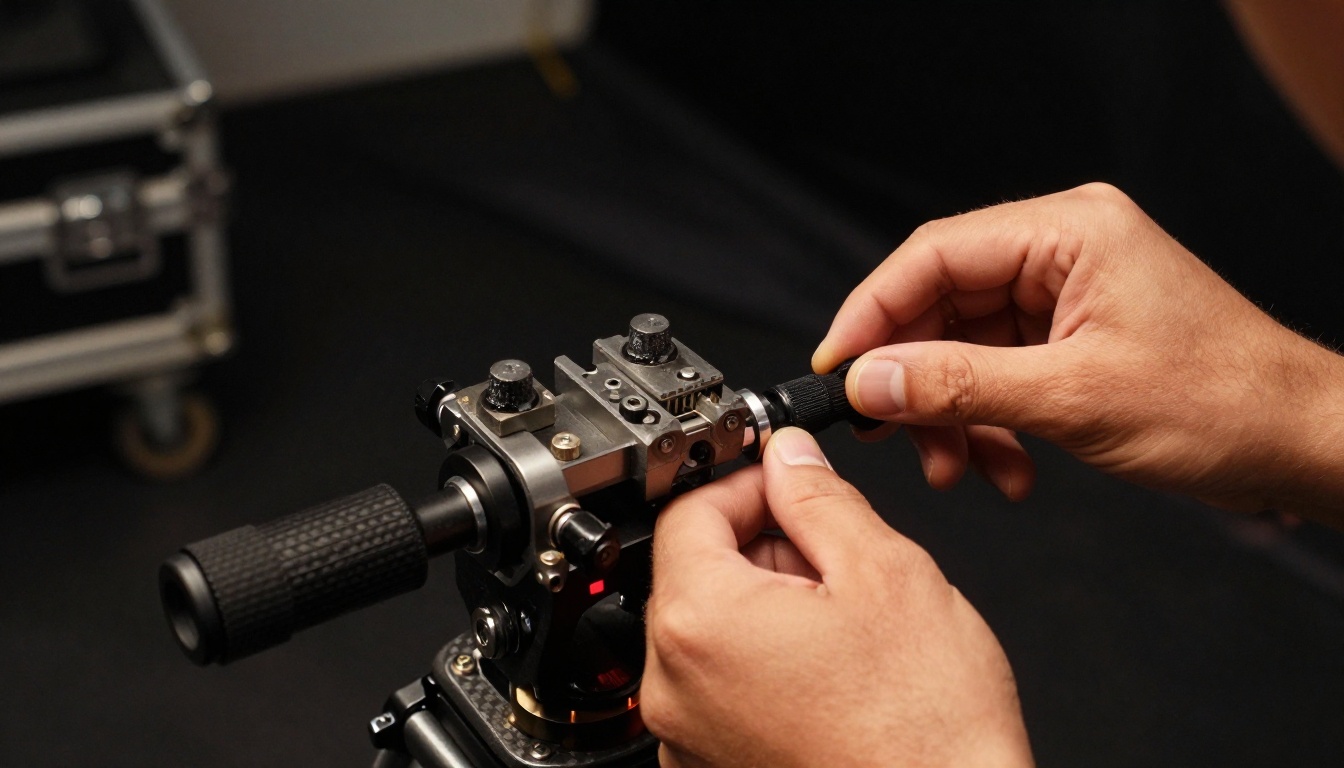
The biggest internal improvement in Veo 3.1 is what engineers have described as scene-space reasoning. Rather than predicting pixels in 2D and adding motion vectors afterward, the model builds a working spatial model of the scene before committing to any frame. Camera instructions are then applied to that spatial model, not to a flat image.
The result is immediate: foreground elements move faster than background elements during lateral moves, depth cues remain consistent during push-ins, and wide-angle distortion appears naturally at the edges of the frame during extreme movements. The footage looks three-dimensional because the model is operating in a simulated three-dimensional space, not approximating motion on top of a 2D surface.
💡 This spatial model is also why Veo 3.1 can hold a sharp subject in frame during complex arc moves without the subject appearing to warp or slide, which was a persistent problem in earlier versions of the model.
Native Audio Changes Everything
Veo 3 introduced native synchronized audio. Veo 3.1 refines it substantially. When the camera performs a rapid whip pan, the audio does not continue as if it were a static shot. Ambient sound spatializes with the camera direction, which is subtle but perceptually significant. A tracking shot following a moving subject now sounds like a tracking shot, not a still recording laid over moving images.
This spatial audio synchronization also works as a diagnostic tool during production. If you generate a clip and the audio sounds static while the visuals move, the camera instruction probably did not register as intended. Sound and picture being out of spatial phase is a reliable early indicator that the prompt needs adjustment before you spend credits on a full-resolution generation.
The Six Camera Moves Veo 3.1 Gets Right
Not all models handle every camera move equally well. The following are the moves where Veo 3.1 is genuinely reliable and repeatable across generations.
Pan and Tilt
A pan is a horizontal rotation around the camera's vertical axis. A tilt is the vertical equivalent. Veo 3.1 responds cleanly to both when the prompt specifies direction and speed. The single most important thing you can do is give the model an anchoring context: describe what is visible at the start and what should be visible at the end of the move.
Prompts that produce reliable results:
- "slow pan left revealing a wide cityscape at sunrise"
- "quick upward tilt from the dusty floor to the cathedral ceiling"
- "gentle pan right following the subject as they walk toward the door"
The model maintains edge sharpness during slow pans and adds appropriate motion blur during fast ones, matching what a camera operator would capture at a 1/50th shutter speed. This automatic motion blur calibration is one of the details that makes the footage feel photographically grounded.
Dolly and Truck Shots
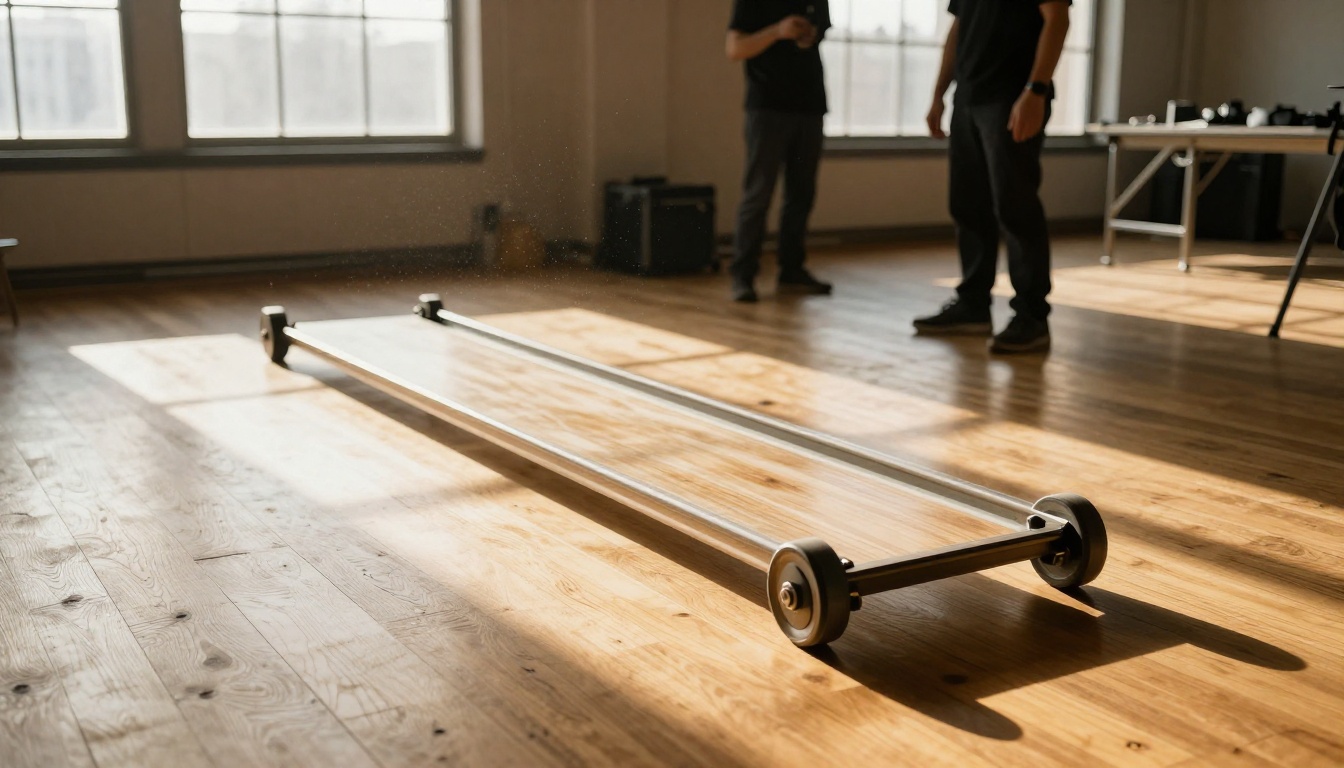
A dolly move is forward or backward along the lens axis. A truck is lateral translation without rotation. These are the moves where most AI models have historically failed because they require consistent perspective shift across every pixel in the frame simultaneously.
Veo 3.1 handles both cleanly. A prompted dolly-in creates expanding perspective correctly, with near objects growing faster than far objects. Trucking shots maintain vertical stability while the scene scrolls horizontally in a way that feels physically grounded. The parallax is right. That is the detail that makes a dolly move look like a dolly move rather than a zoom, and it is the detail that most competing models still get wrong.
Orbit and Arc Moves
An orbit is a 360-degree or partial arc around a subject, where the camera maintains a fixed radius while rotating. This is one of the most cinematically satisfying moves, often used to add drama around a character or central object. It is also one of the hardest for AI video because it requires the model to maintain consistent subject scale, consistent lighting direction on the subject, and a background that rotates correctly in proper perspective throughout the arc.
Veo 3.1 handles this at a level that consistently impresses. The subject stays centered and sharp, background parallax is convincing, and the lighting on the subject does not randomly flip as the camera crosses the shadow terminator. This last point is worth noting because most models produce visible light-direction inconsistency during orbit moves.
💡 For dramatic subject reveals, try: "camera slowly orbits 180 degrees around a figure standing in an open field, background shifting from morning forest to open sky." The environmental transition across the arc is handled consistently.
Crane and Pedestal Moves
A crane shot moves the camera vertically through space, not just tilting the lens. A pedestal move is the same vertical translation on a level track. These vertical movements give footage a sense of gravity and architectural scale that horizontal moves cannot replicate.
Veo 3.1 handles vertical translations with the same spatial consistency as horizontal ones. A crane-up from street level to rooftop height correctly reduces the apparent scale of ground-level elements and progressively opens up the sky. Combined with a slow pan at the apex, the result is the kind of establishing shot that previously required a drone rental and a certified operator.
Why the Motion Feels Real
Frame Interpolation with Scene Awareness
Veo 3.1 generates at 24fps. Between keyframes it uses a scene-aware interpolation system rather than generic optical flow. When a subject passes in front of a background element during a camera move, the interpolation correctly handles the occlusion and un-occlusion event. Generic optical flow creates smearing artifacts at these boundary points. Veo 3.1 produces clean, sharp edges even at motion boundaries.
This is the single biggest reason the footage reads as real rather than AI-generated. Smearing at motion boundaries is the primary visual tell in AI video. Veo 3.1 has reduced it to the point where identifying it requires frame-by-frame inspection at high zoom, rather than being obvious on first playback.
No Perspective Collapse
Most AI video models suffer from what could be described as perspective collapse. When a camera moves toward a subject, the background does not recede proportionally. The result is a flat, pasted appearance where the subject seems to hover in front of a still image rather than exist in a three-dimensional space.
Veo 3.1 maintains correct perspective ratios throughout any camera move. The background's rate of visual recession matches the camera's forward velocity. This single detail is what makes footage feel genuinely spatial and is the clearest sign that the model has internalized real camera physics rather than learned to approximate motion aesthetically.
Motion Blur Calibration
Real camera footage has motion blur that corresponds to shutter speed and subject velocity relative to frame. Veo 3.1 calibrates motion blur to the speed of the camera move. A fast whip pan produces significant blur across the frame. A slow dolly produces almost none. This is a detail that many AI models ignore entirely, defaulting to either heavy blur throughout or none at all. Veo 3.1 varies it correctly by move speed, and the result is footage that reads as shot rather than generated.
Writing Prompts That Actually Work

Words That Trigger Camera Motion
Veo 3.1 responds most reliably to industry-standard cinematography vocabulary. These are not magic words. They are the terms that appear consistently in the professional screenplay and production documentation the model was trained on. Using them signals cinematic intent clearly.
| Desired Move | Reliable Prompt Terms |
|---|
| Forward push | "dolly in", "slow push toward", "creeping forward" |
| Pull back | "dolly out", "pull back revealing", "retreat to wide" |
| Horizontal move | "truck left/right", "lateral tracking move" |
| Vertical rise | "crane up", "pedestal rise", "ascend slowly" |
| Rotation around subject | "orbit", "arc around", "180-degree arc" |
| Side rotation | "pan left/right", "slow horizontal sweep" |
| Vertical rotation | "tilt up/down", "look up toward", "sweep down to" |
Stacking Multiple Moves
Veo 3.1 handles compound camera moves when they are described sequentially. The model reads the motion description chronologically and executes each phase in order within the clip duration.
Example that works:
"Camera starts low at ground level, slowly craning up while simultaneously tracking right, ending in a high wide shot looking down at the full scene below."
When stacking more than two moves, add a connecting phrase between phases. Words like "smoothly continuing into" or "transitioning to" tell the model that the moves should blend rather than cut, which reduces stabilization artifacts at the transition point.
What to Avoid
Three common prompt mistakes produce poor camera results in every AI video model, including Veo 3.1:
- Vague speed descriptors — "dynamic camera" or "interesting angles" gives the model too much latitude. Specify speed: slow, medium, fast, or a time reference like "over 4 seconds."
- Self-cancelling moves — "Dolly in while simultaneously pulling back" cancels itself geometrically. Pick one axis of motion and commit to it.
- Missing subject anchor — Without a clear subject to follow or orbit, camera move instructions produce arbitrary results. Always describe the subject and the camera move in the same sentence so the model knows what the move is relative to.
How to Use Veo 3.1 on PicassoIA
Veo 3.1 is available directly on PicassoIA alongside Veo 3.1 Fast and Veo 3.1 Lite. Here is a practical workflow for camera-movement-focused video generation:
Step 1: Choose the right variant
Use the full Veo 3.1 for compound moves, orbit shots, and any production-quality output. Use Veo 3.1 Fast for rapid iteration on simple moves where motion precision is being tested. Reserve Veo 3.1 Lite for quick concept tests where motion quality is secondary to speed.
Step 2: Structure your prompt in three layers
Write your prompt in three parts in sequence:
- Subject description — who or what is in frame, plus the specific environment
- Camera instruction — the exact move with direction and speed
- Mood or atmosphere — lighting quality, tone, time of day
Example:
"A woman in a blue linen dress stands at the edge of a stone cliff overlooking a sunlit valley. Camera begins close on her face, then slowly dollies back to reveal the full landscape stretching behind her. Golden hour light, natural, photorealistic."
Step 3: Iterate on speed first
After a first generation, the most common adjustment needed is move speed. If the motion is too fast, add "slow, deliberate" to the camera instruction. If the clip feels too static despite the instruction, add "continuous movement throughout the shot" to signal that the move should persist across the full clip duration rather than stalling.
Step 4: Read the audio as a motion indicator
Veo 3.1's native audio reflects the spatial position of the camera. If the generated audio sounds like a static recording while the visuals are moving, the camera instruction did not register fully. Regenerate with a more explicit motion phrase before committing to a high-resolution output.
💡 Save credits during testing: run the first two or three iterations on Veo 3.1 Fast, then switch to full Veo 3.1 only when the prompt and timing are dialed in.
Comparing Motion Control Models
Veo 3.1 is not the only option when cinematic motion matters. Three other models on PicassoIA take a different approach to camera control, each with clear strengths in specific production contexts.
Kling v3 Motion Control
Kling v3 Motion Control uses a trajectory-based input system. Rather than describing motion in text, you draw or define the camera path as a curve directly in the interface. This is more precise than language for custom arcs and requires less iteration. It excels at repeatable, exact paths where Veo 3.1's text-based approach might vary slightly between generations.
Best for: product shots, architectural walkthroughs, any shot where exact path repeatability across multiple clips is a hard requirement. If you need the same arc twice and they must match frame-for-frame, Kling v3 Motion Control is the right choice.
Video 01 Director
Video 01 Director from MiniMax accepts named camera controls (pan, tilt, zoom, roll, truck, pedestal) as discrete parameters alongside the text prompt. This structured parameter approach produces highly consistent results for single-axis moves because the camera instruction is treated as structured data rather than a language interpretation task.
Best for: creators who need production-predictable results for simple, named single-axis moves and want to minimize the number of generation attempts required to get the shot.
Ray 3.2
Ray 3.2 from Luma brings HDR output and a strong emphasis on lighting accuracy during motion. Where Veo 3.1 prioritizes spatial physics, Ray 3.2 prioritizes light behavior: shadows move correctly with camera angle, reflections shift as the camera translates, and specular highlights track properly during dolly moves.
Best for: footage where lighting quality during motion is the priority, particularly interior scenes with complex practical lighting setups.
| Model | Strength | Best Move Type | Input Style |
|---|
| Veo 3.1 | Spatial physics, compound moves | Orbit, dolly, stacked sequences | Text prompt |
| Kling v3 Motion Control | Path precision, repeatability | Arc, custom tracking | Drawn trajectory |
| Video 01 Director | Structured, consistent | Single-axis named moves | Named parameters |
| Ray 3.2 | Lighting accuracy during motion | Dolly, push-in | Text prompt |
Start Creating
Camera movement in AI video has crossed from novelty into something genuinely useful for real production workflows. Veo 3.1 has pushed that boundary furthest, and it is available right now without equipment, crew, or location permits.
The barrier to cinematic footage is no longer access to a dolly, a crane, or a motion control rig. It is knowing how to describe what you want. If you can distinguish pan from tilt, dolly from truck, and orbit from arc, you already have the vocabulary to work with Veo 3.1 at a professional level. The prompt examples in this article are a starting point. Try them, adjust the speed, stack two moves together, and see how far the spatial physics holds up.
PicassoIA gives you access to Veo 3.1, Veo 3.1 Fast, Kling v3 Motion Control, Video 01 Director, Ray 3.2, and over 100 other video models in one place. Write the camera move you have been trying to shoot, paste it into the platform, and see what the first generation looks like. Production time is minutes, not shooting days.