Text has always been the Achilles heel of AI image generation. While models can create stunning landscapes and portraits, ask them to render a simple "OPEN" sign and you might get "OPNE" or worse. That changed with Ideogram 3.0.
Ideogram 3.0 represents a breakthrough in how AI handles typography. Unlike previous models that treated text as just another visual element, Ideogram was trained specifically to understand letterforms, spacing, and context. The result? Images where text actually says what you want it to say.
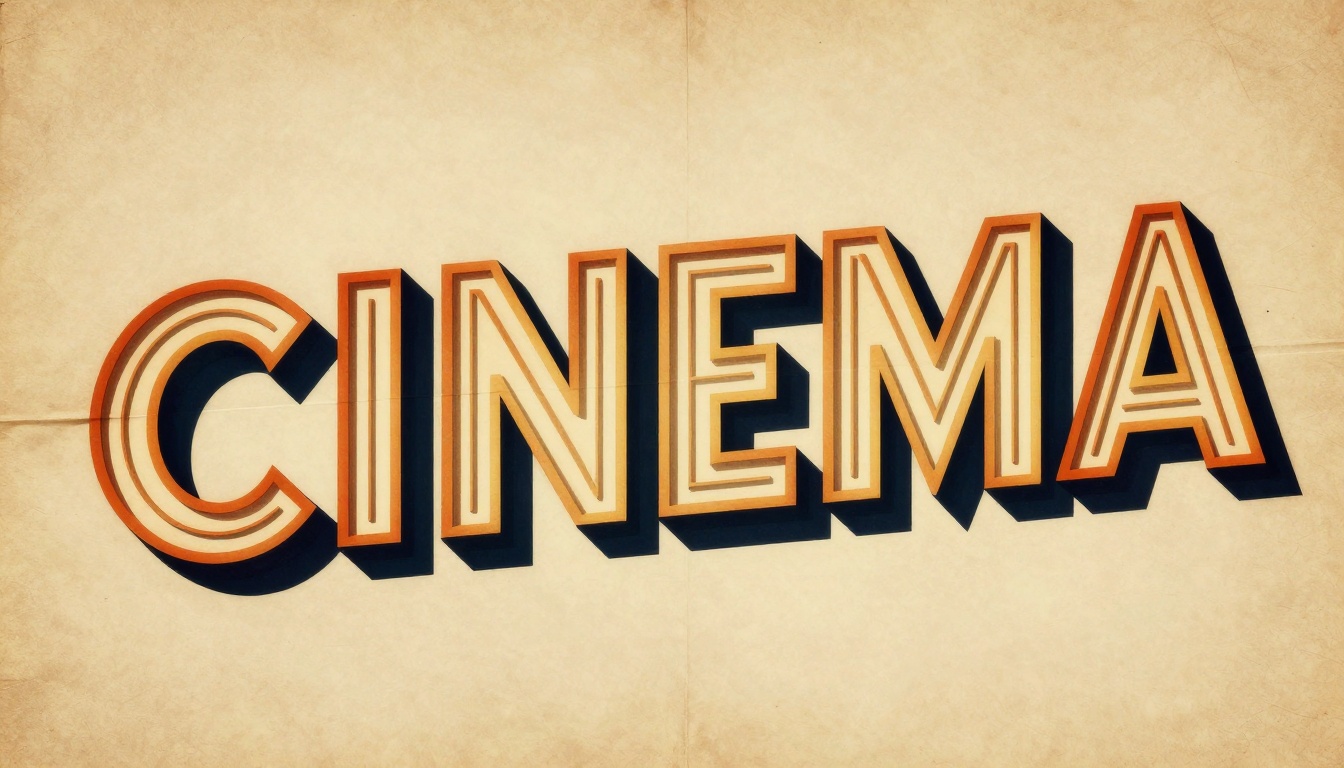
What Makes Text Generation So Difficult
Most AI image generators process text as visual patterns rather than semantic content. They see letters as shapes, not words. This leads to common problems:
- Random character substitutions
- Incorrect spacing and kerning
- Mirrored or upside-down letters
- Garbled nonsense that looks text-like but isn't readable
The fundamental issue stems from how diffusion models learn. They're trained on billions of images with captions, but those captions rarely describe the specific text visible in images. When you prompt "a stop sign," the model learns what stop signs look like, not that they contain the word "STOP."
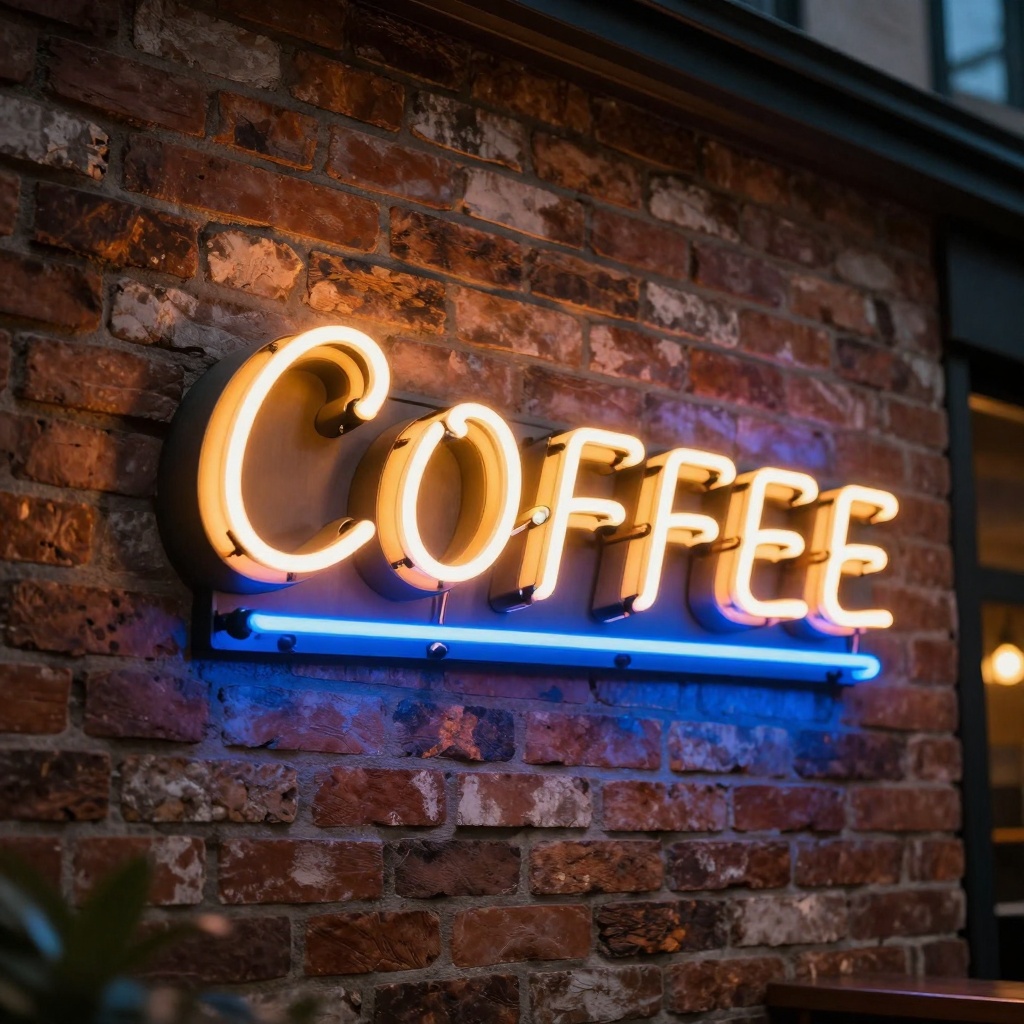
How Ideogram 3.0 Solves the Text Problem
Ideogram's approach differs in several key ways. The model was trained with explicit attention to text-image relationships, teaching it that when you write "coffee" in your prompt, the generated sign should display those exact letters in that exact order.
The training methodology included specialized datasets where text content was carefully annotated. This means the model learned not just what a neon sign looks like, but that neon signs contain specific, readable words that match their real-world function.
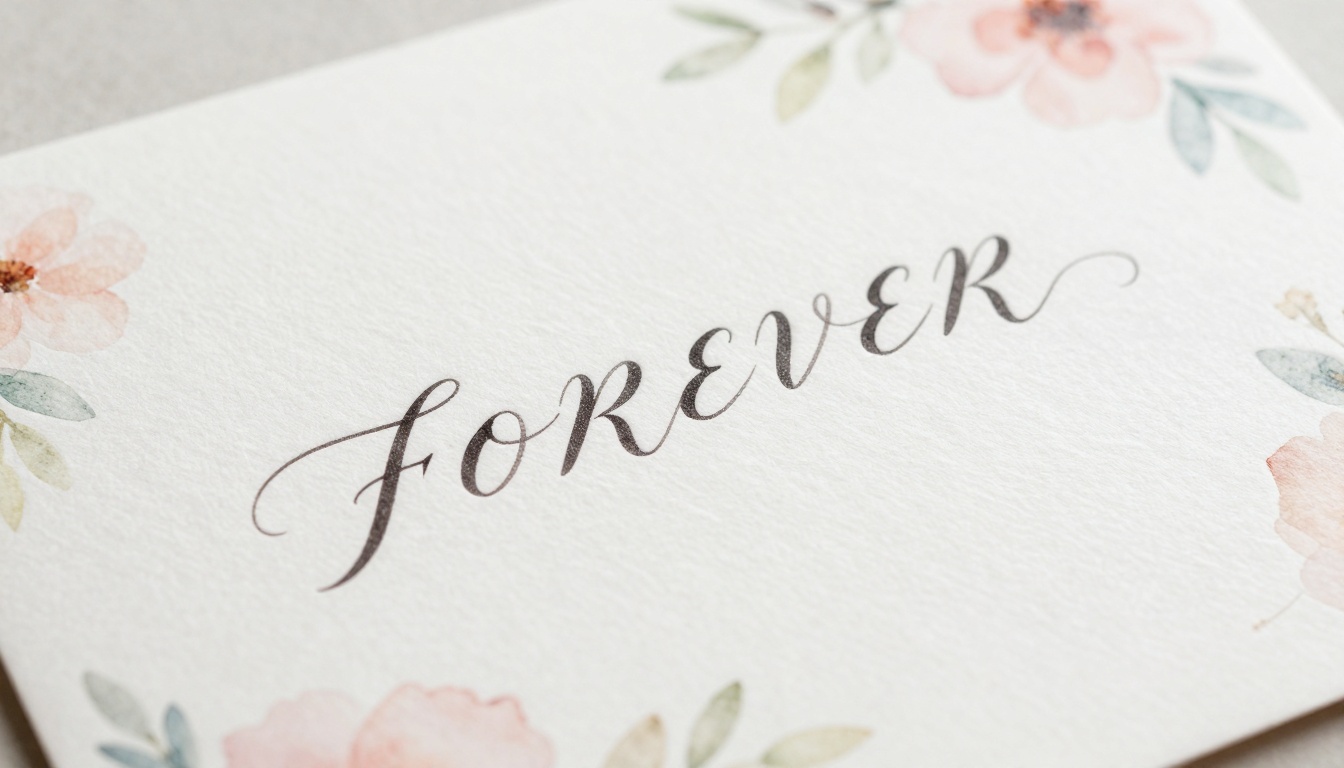
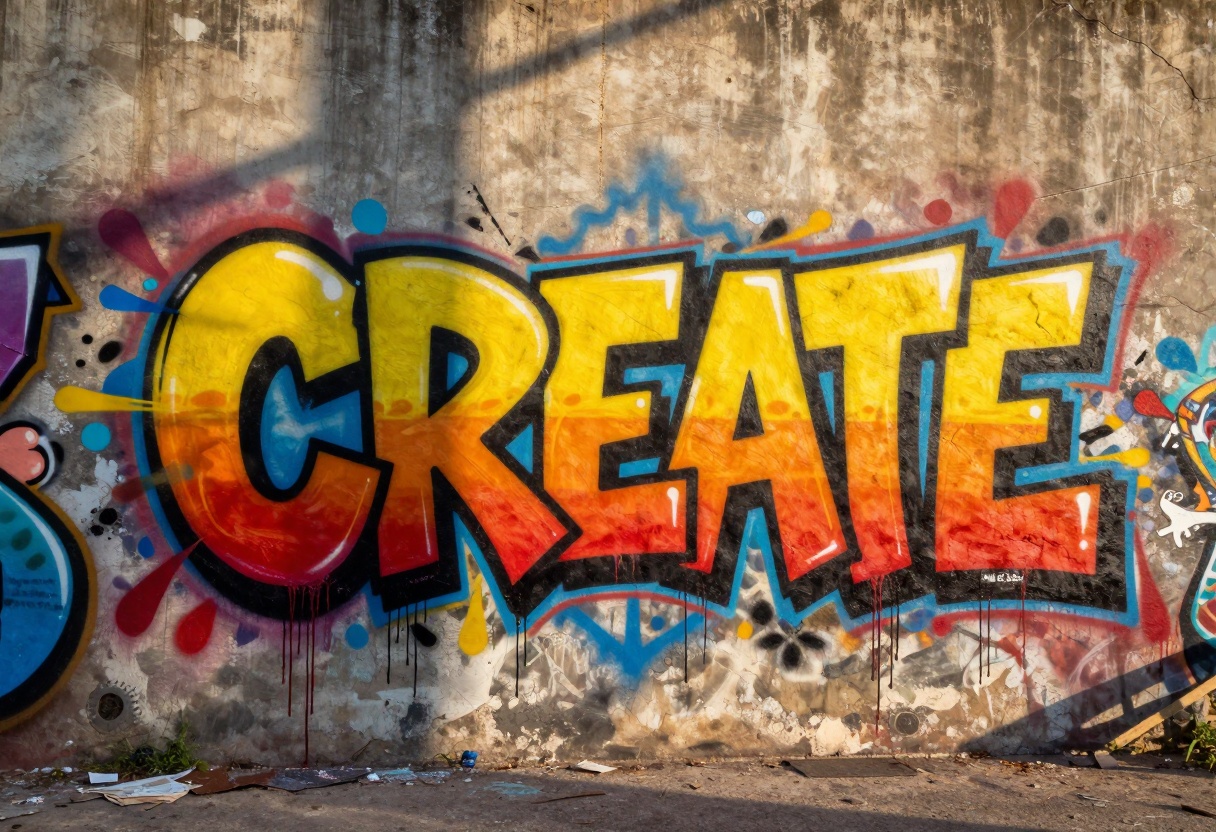
Style consistency is another strength. Ideogram can maintain typographic coherence across different artistic styles, from hand-lettered calligraphy to bold graffiti. The text integrates naturally with the overall aesthetic rather than looking pasted on.
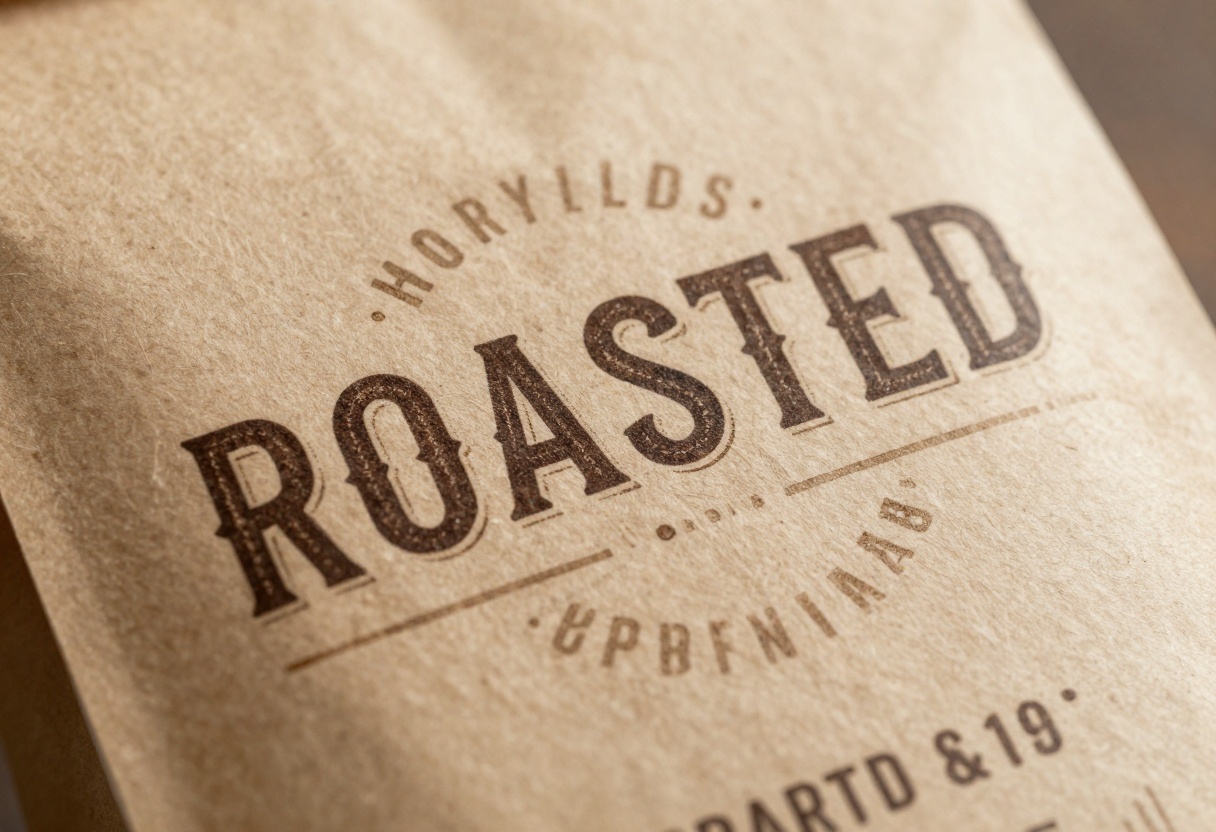
Practical Applications for Creators
The ability to generate accurate text opens doors for creators who previously had to manually add typography in post-production. Here are real-world scenarios where Ideogram 3.0 shines.
Brand Identity and Marketing
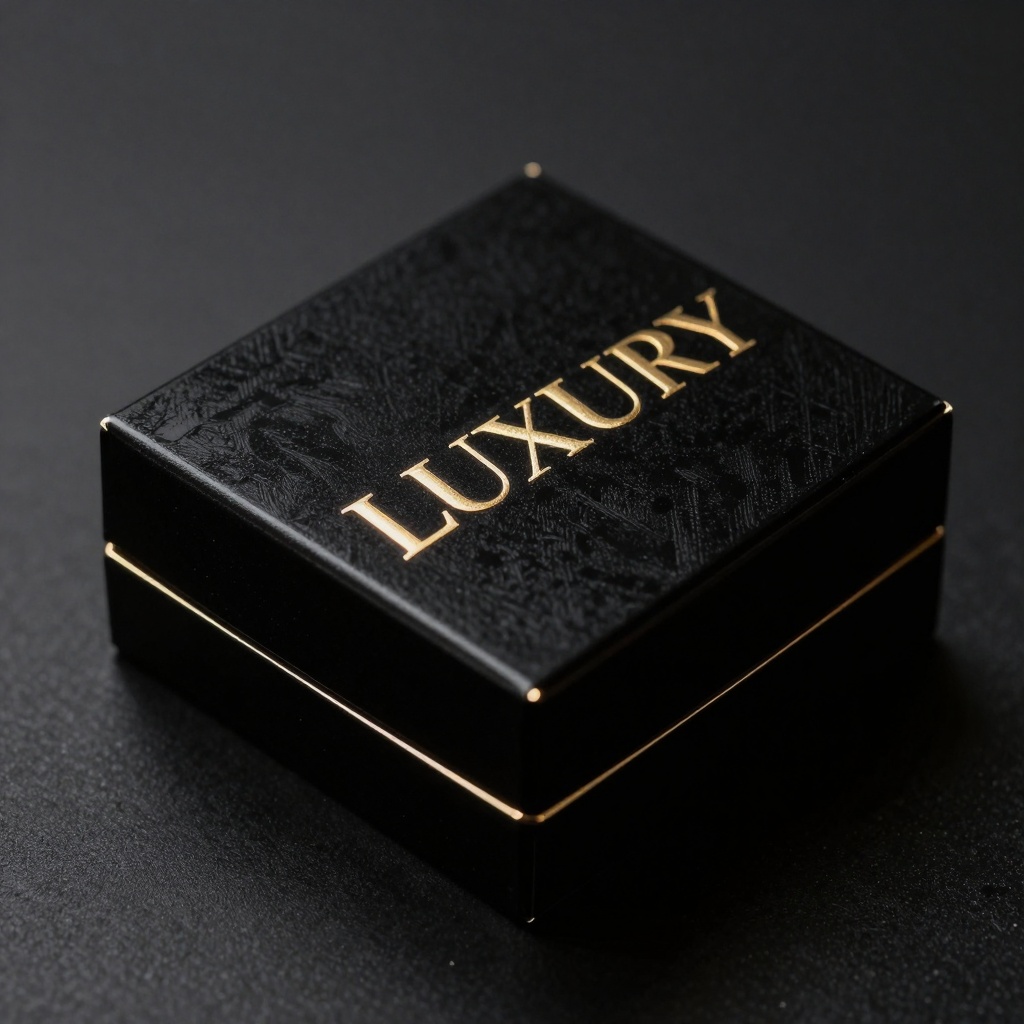
Designers can rapidly prototype logo concepts, product packaging, and marketing materials. Need 20 variations of a cosmetics label? Generate them in minutes and refine the best candidates.
Social media managers benefit from creating custom branded graphics without graphic design software. A prompt like "modern tech company logo with the word INNOVATE in bold sans-serif" produces usable results.

Content Creation and Publishing
Book cover designers can explore different typographic treatments quickly. A fantasy novel might need ornate lettering, while a thriller requires sharp, bold text. Ideogram handles both with equal proficiency.
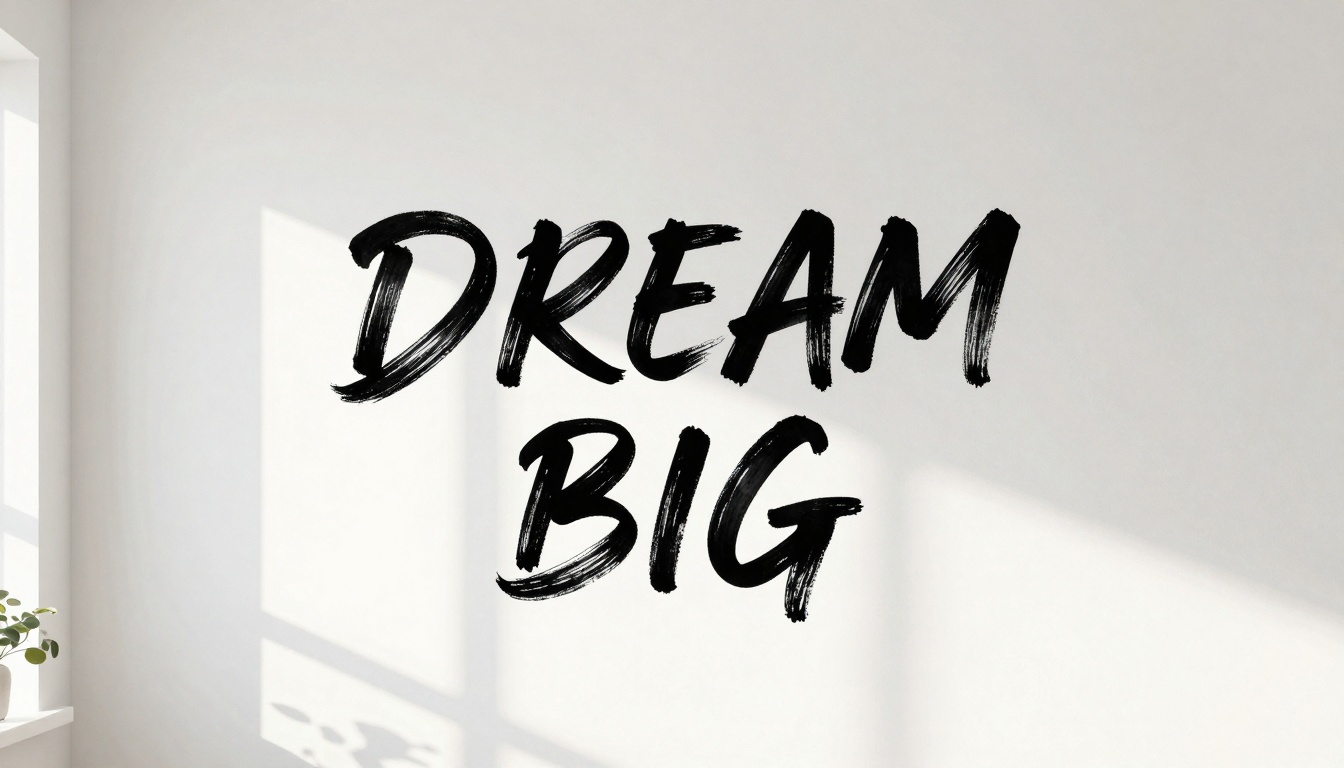
Bloggers and content creators generate custom featured images with article titles built-in. This saves time and creates a cohesive visual brand across posts.
Print and Physical Products
Merchandise designers can visualize how text will look on t-shirts, mugs, and posters before committing to production. The model's understanding of different surfaces and textures helps predict the final product appearance.
Greeting card and stationery companies use it to generate elegant calligraphy and handwritten-style text that feels authentic and warm.
Writing Effective Text Prompts
Getting the best results from Ideogram requires understanding how to structure your prompts. Here are proven techniques.
Be Specific About Typography
Instead of "a sign," write "a vintage metal sign with bold serif letters." The more detail you provide about the typographic style, the better the output.
Include specifics like:
- Font style (serif, sans-serif, script, decorative)
- Weight (thin, regular, bold, black)
- Texture (embossed, painted, neon, carved)
- Context (street sign, book cover, product label)
Describe the Text Environment
The surrounding visual context affects how text is rendered. Specify backgrounds, lighting, and spatial relationships.
For a neon sign, mention the time of day, wall material, and ambient lighting. For packaging, describe the product, material, and display context.
Use Quotation Marks
Place the exact text you want in quotation marks within your prompt. This signals to the model that these specific words must appear as written.
Example: Create a "coffee shop menu board with 'ESPRESSO DRINKS' written in chalk"
Layer Multiple Text Elements
When you need multiple text components, describe each separately with clear positioning. "A poster with 'SUMMER' in large letters at the top and '2024' smaller at the bottom" gives the model clear structural guidance.
Common Challenges and Solutions
Even with Ideogram's advanced capabilities, certain scenarios remain tricky. Here's how to handle them.
Long Text Blocks
The model performs best with short phrases and single words. If you need a full paragraph, consider generating multiple images and compositing them, or use a traditional graphic design tool for text-heavy layouts.
Special Characters
Standard letters and numbers work reliably. Symbols, accents, and non-Latin scripts have mixed results. Test your specific requirements and be prepared to adjust.
Text Size Balance
Very small text tends to degrade into blur. When you need fine print alongside large headlines, generate them separately at appropriate scales and combine them later.
Technical Capabilities and Limitations
Ideogram 3.0 offers several technical features that enhance text rendering quality.
The model supports multiple aspect ratios, letting you generate everything from square social media posts to wide banner images. Text scales appropriately for each format.
Resolution options ensure text remains sharp at different output sizes. Higher resolutions produce crisper letterforms, important for print applications.
The style preset system includes options specifically optimized for text legibility. Presets like "Vintage Poster" and "Modern Minimalist" have been tuned to maintain readable typography while applying aesthetic treatments.
However, limitations exist. The model works best in English, with other languages showing reduced accuracy. Complex layouts with text wrapping multiple lines or following curved paths may not render perfectly.

Comparing Versions: Why 3.0 Matters
Ideogram's earlier versions showed promise but had inconsistencies. Version 2 could handle simple text but struggled with anything beyond basic words in standard fonts.
Version 3.0 brought substantial improvements in accuracy, style range, and integration. The success rate for short phrases jumped significantly, and artistic typography became viable.
The quality variant (ideogram-v3-quality) prioritizes accuracy over speed, making it ideal for commercial work where text must be perfect. The turbo variant trades some precision for faster generation, suitable for iterative concept exploration.
Using Ideogram 3.0 on PicassoIA
PicassoIA provides access to Ideogram v3 Quality through an intuitive interface that makes text generation straightforward.
Accessing the Model
Navigate to the Ideogram v3 Quality page on PicassoIA. The interface presents all available parameters in an organized layout.
Required Parameters
Prompt: This is where you describe your desired image and specify the text content. Be detailed about the visual style and place the exact text in quotation marks.
Example prompt: "A modern coffee shop menu board with 'DAILY SPECIAL' written in elegant chalk lettering, warm lighting, rustic wooden background, photorealistic"
Optional Parameters
Aspect Ratio: Choose from standard ratios like 1:1 for social media, 16:9 for banners, or 2:3 for portrait formats. The default 1:1 works for most applications.
Style Type: Options include Auto, General, Realistic, and Design. For text-heavy images, Realistic often produces the cleanest results.
Style Preset: This applies predefined artistic treatments. Presets like "Vintage Poster" or "Modern Minimalist" come with optimized text rendering characteristics.
Resolution: Override the default resolution for specific output sizes. Higher resolutions (1280x1280 and above) produce sharper text suitable for print.
Magic Prompt: When enabled, this feature interprets and enhances your prompt automatically. It's particularly useful if English isn't your first language or if you want the model to fill in creative details.
Seed: Set a specific number to generate reproducible results. Useful when you want to iterate on a specific composition while changing only minor details.
Advanced Features
Inpainting: Upload an existing image along with a mask to modify specific areas while preserving the rest. This is powerful for adding text to existing artwork or photographs.
Style Reference Images: Upload images that represent your desired aesthetic. The model will generate new content matching that visual style while incorporating your text.
Workflow Tips
Start with simple prompts to establish the basic composition and text placement. Once you have a layout that works, add style details in subsequent generations.
Generate multiple variations by adjusting the seed value. Small changes can significantly affect text rendering quality.
Use the highest practical resolution for your application. Text degrades noticeably at low resolutions but stays crisp at larger sizes.
For critical projects, generate 5-10 variations and select the best one. Even with high accuracy, some generations will be slightly better than others.
Save successful prompts for future reference. Building a library of effective prompt structures accelerates your workflow.
Future Developments
Text rendering in AI image generation continues to evolve rapidly. Current research focuses on longer text passages, better handling of layouts, and improved support for non-Latin scripts.
Integration with traditional design tools is emerging, where AI-generated text elements can be imported directly into software like Adobe Illustrator with editable vector paths.
The technology's progression suggests that within a year or two, AI models will handle complex typographic layouts rivaling human designers in many contexts. For now, Ideogram 3.0 represents the current state of the art.
The democratization of high-quality text rendering means anyone with a clear vision can create professional-looking branded materials without years of design training. This shifts creative work from technical execution toward conceptual thinking and aesthetic judgment.
PicassoIA makes these capabilities accessible through a simple interface, removing technical barriers and letting you focus on creative decisions rather than configuration complexity.
Whether you're designing product packaging, creating social media graphics, or prototyping brand identities, Ideogram 3.0's text capabilities on PicassoIA provide a powerful tool for bringing your vision to reality with accurate, beautiful typography.


