Bad audio has killed more good videos than poor lighting ever will. Viewers will forgive a slightly blurry frame, an imperfect cut, even a shaky pan. But the second they hear hissing background noise, muffled dialogue, or wind destroying every word you say, they are gone. AI has quietly changed all of that. Today, fixing, replacing, and even generating audio for your videos does not require expensive studios, professional sound engineers, or re-recording sessions that eat up your whole afternoon.
Why Bad Audio Ruins Good Videos
Audio quality is the single biggest predictor of whether a viewer finishes your video or clicks away. Research on video retention consistently shows that poor audio triggers abandonment within the first 10 seconds, far more reliably than visual issues. The reason is straightforward: your brain processes audio continuously and automatically. A background hiss or room echo is not just annoying. It is cognitively draining. Viewers have to work harder to understand what you are saying, and most of them will not bother.
The 3 Most Common Audio Problems
Most audio issues fall into three categories that AI can now address directly:
- Background noise: Air conditioners, traffic, keyboard clicks, room hum, fan noise
- Wind and outdoor interference: Low-frequency rumble that swamps dialogue entirely
- Room echo and reverb: Hollow, cavernous sound from untreated spaces
Each of these was once a professional post-production problem requiring dedicated software and trained ears. AI has made them solvable for anyone with a video file.
What Viewers Notice Before Anything Else
The first thing any viewer registers is not your camera quality or your thumbnail. It is whether they can clearly understand what you are saying. A 4K video with bad audio feels cheaper than a 1080p video with clean, crisp sound. This asymmetry matters: investing 10 minutes in AI audio cleanup can make a budget camera setup outperform an expensive one in terms of perceived production value.
The Real Cost of Fixing Audio Manually
Traditional audio cleanup requires specialized software like Adobe Audition or iZotope RX, working knowledge of spectral repair and noise floor analysis, and often multiple passes to get clean results. That is before you factor in exporting, re-syncing to video, and checking everything again.
For the average content creator, solo filmmaker, or business owner producing video content, this is a time sink that compounds every week. AI noise removal tools have collapsed what used to be a 2-hour workflow into one that takes minutes, with results that are often indistinguishable from professional manual work.
Manual vs. AI Audio Cleanup
| Method | Time Required | Skill Level | Cost |
|---|
| Manual (Audition/RX) | 1-3 hours | High | $30-60/month |
| AI noise removal | 2-5 minutes | None | Low/Free tier |
| Re-recording | 30-60 minutes | Medium | Time only |
| Outsourcing to an editor | 24-48 hours | None | $50-200/job |
For 95% of creator use cases, AI audio cleanup is the right call on every metric.
AI Noise Removal That Actually Works
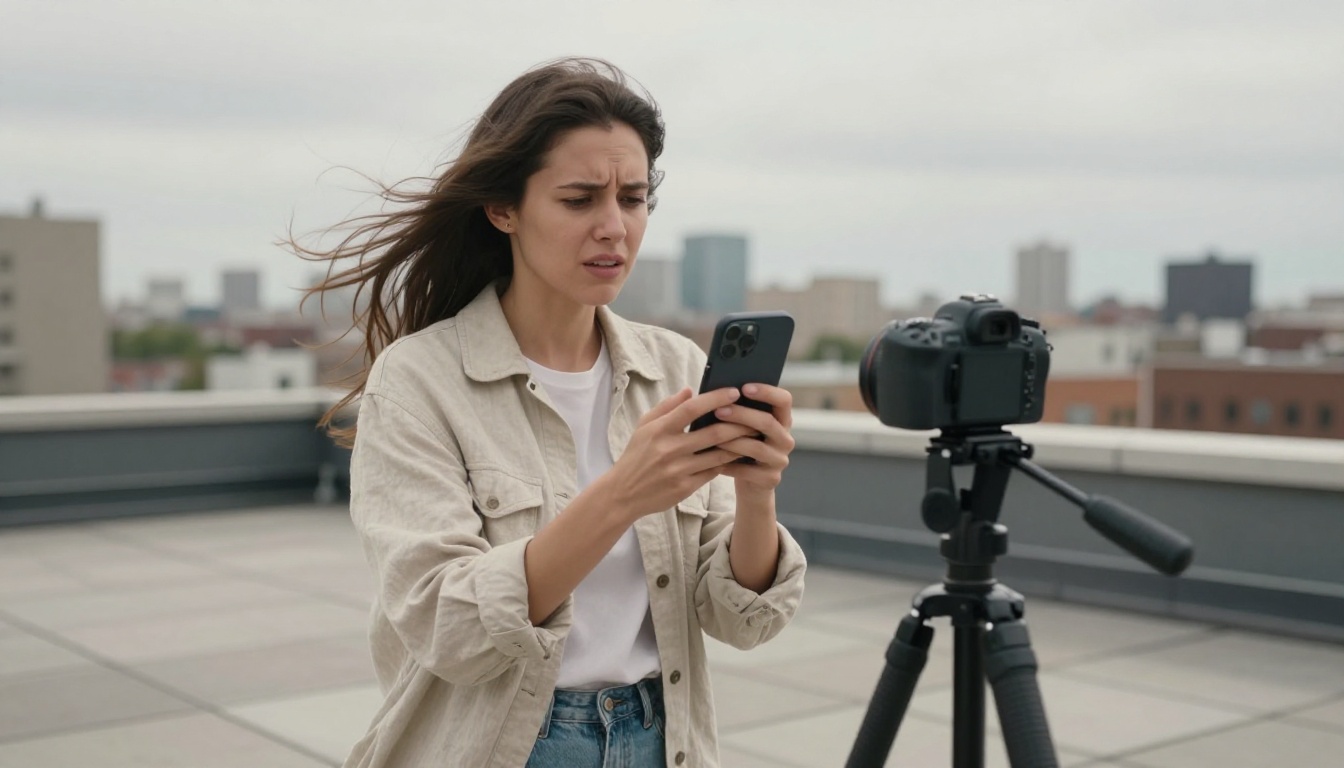
AI noise removal works fundamentally differently from older noise reduction filters. Traditional tools require you to "sample" a piece of pure noise and subtract it from the full signal. This approach works for consistent background hum but fails badly with irregular noise like traffic bursts, crowd sounds, or wind gusts.
Modern AI audio models are trained on millions of speech samples and noise profiles. They identify speech as speech and everything else as interference, separating the two with a precision that no filter-based approach can match. Your voice comes through clean even when the recording environment was genuinely bad.
When AI Noise Removal Shines
AI audio cleanup performs best in these specific situations:
- Outdoor recordings with wind, traffic, or environmental noise
- Home office videos with HVAC systems, fans, or keyboard clicks
- Interview footage recorded in untreated spaces with significant echo
- Old or archival footage with tape hiss or analog noise floor
- Screen recordings with constant system fan noise under a voiceover
💡 Important: AI noise removal works best when the original speech signal is present and clear. If the speaker was too far from the mic, AI can clean the noise but cannot reconstruct lost speech frequencies. Get mic placement right first, then let AI handle the rest.
Noise Removal vs. Audio Restoration
These are related but distinct processes worth knowing:
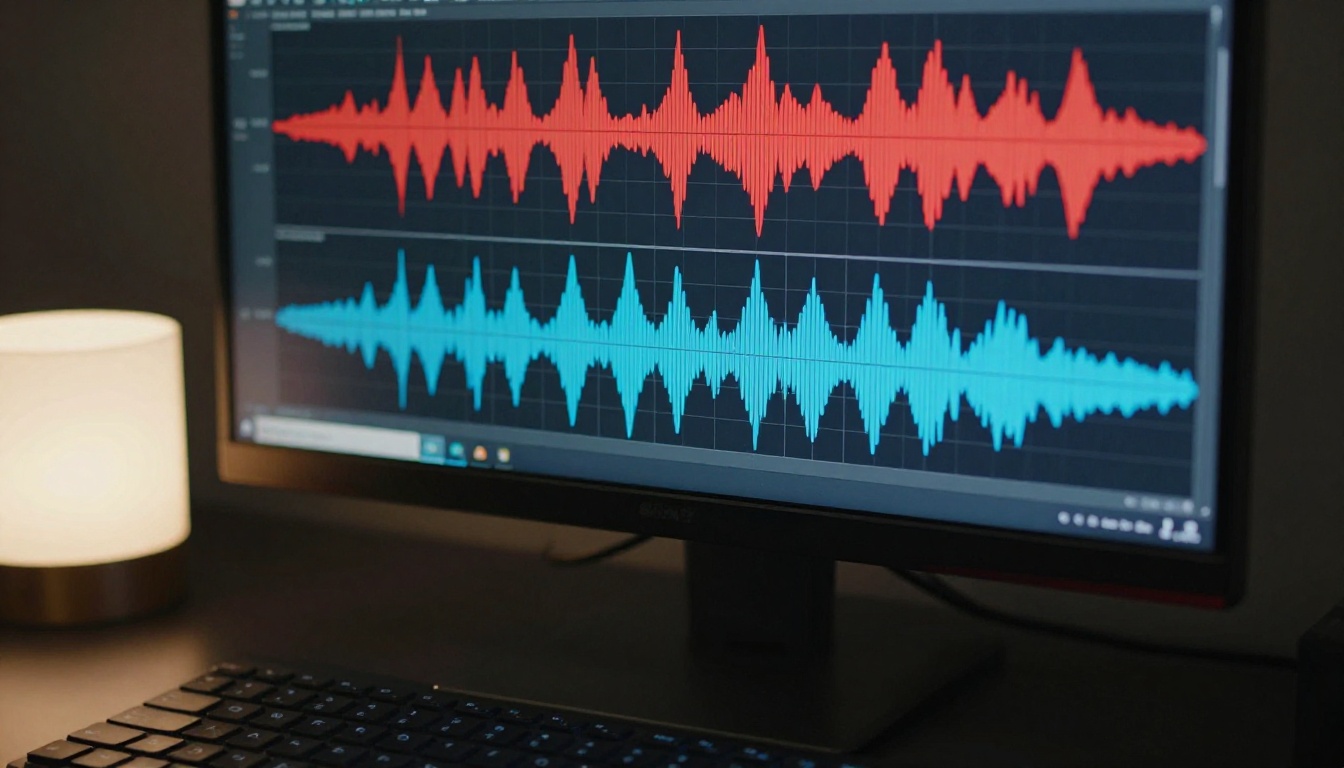
- Noise removal targets consistent background interference (hiss, hum, fan noise)
- Audio restoration addresses event-based damage (clipping, pops, clicks, crackling)
- De-reverberation specifically treats room echo and reflections
Some recordings will need all three passes. AI tools handle each one automatically, identifying the type of issue and applying the appropriate correction without requiring user input.
Replace Bad Audio with AI-Generated Voiceovers
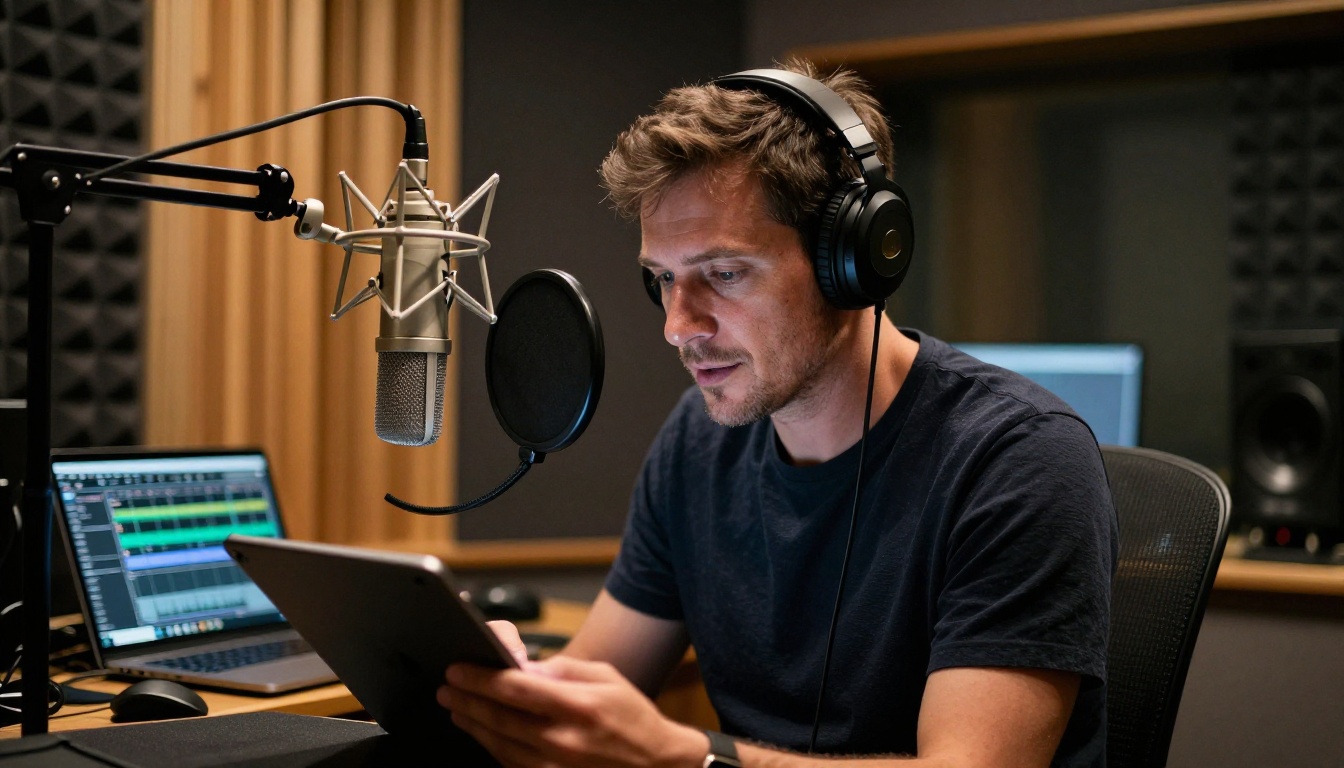
Sometimes noise removal is not enough. When the original audio is too degraded, or when you need to update narration without re-filming, replacing the audio entirely with an AI-generated voiceover is the most efficient path. This is where text-to-speech AI becomes a genuine production tool rather than a novelty.
The quality of modern AI voices has crossed a threshold that makes them usable in professional contexts. Models like ElevenLabs V3 produce voiceovers with natural pacing, breathing patterns, and emotional inflection that are nearly indistinguishable from a real human recording. For explainer videos, tutorials, product demos, and social content, AI voiceover is now a legitimate first-choice option.
Choosing the Right Voice Model
Different projects have different voice requirements:
Voice Parameters That Matter
Most AI voice models give you direct control over parameters that significantly affect how audio sounds when placed into a video timeline:
- Stability: Higher values give consistent tone but reduce natural expressiveness. Use 0.6-0.75 for narration, lower for storytelling content.
- Speaking rate: Adjust to match your video's visual pacing. Default rates often feel slightly slow for fast-cut editing styles.
- Emotion and style: ElevenLabs V3 lets you specify emotional delivery context so the voice sounds excited, calm, or authoritative depending on the script section.
- Language accent: Even within the same language, accent selection changes perceived authority and approachability for specific audiences.
Transcribe Your Video Audio Automatically
One of the most underused AI applications for video creators is automatic transcription. If you produce interviews, lectures, or video podcasts, getting an accurate transcript used to mean hours of manual work or paying a transcription service. AI speech-to-text models have essentially closed that gap.
Accurate transcription opens multiple workflows simultaneously: you can generate subtitles directly, create a searchable text version of your content, repurpose audio into written articles, and catch verbal mistakes before publishing.
Best Speech-to-Text Models for Video
GPT-4o Transcribe is currently one of the most accurate models available for transcribing video audio, particularly for English-language content with natural speech patterns, overlapping dialogue, and imperfect recording conditions. It handles accents, technical vocabulary, and fast speech better than most alternatives.
For multi-language or mixed-language video content, Gemini 3 Pro and Granite Speech 4.1 2B offer strong performance across Spanish, French, German, Japanese, Portuguese, and several other languages.
💡 Accuracy tip: Run your video audio through noise removal before transcription. Cleaner audio produces fewer transcription errors, which means fewer manual corrections needed in your subtitle file.
Transcription Accuracy by Content Type
| Content Type | Typical Accuracy | Key Factor |
|---|
| Studio-recorded narration | 98-99% | Near-perfect results |
| Two-person interview | 93-96% | Speaker separation |
| Outdoor recording with noise | 85-92% | Clean audio first |
| Heavy accent or dialect | 88-95% | Varies by model |
| Technical or medical vocabulary | 90-95% | Domain training data |
Voice Cloning for Consistent Narration
One of the most powerful features in modern AI audio is voice cloning. If you produce regular video content, having a consistent narration voice across all your videos is a production quality signal that audiences notice and trust. Voice cloning lets you build that consistency without booking studio time.
Minimax Voice Cloning can reproduce a voice from a short audio sample, capturing its tone, cadence, and timbre. Once cloned, you can generate unlimited narration text in that voice at any time, without re-recording. This is especially valuable for:
- YouTube channels that need consistent narration voice across many episodes
- Course creators producing module after module of instructional content
- Brands maintaining a consistent audio identity across video campaigns
- Multilingual dubbing projects where preserving the original speaker's character matters
Resemble AI Chatterbox Pro adds emotion control on top of cloning, letting you specify how the voice emotionally delivers its lines. Urgent, warm, matter-of-fact, or enthusiastic: the same cloned voice can shift registers on command.
💡 For best results: Provide a clean, noise-free audio sample of at least 30 seconds for voice cloning. The cleaner the source recording, the more natural and accurate the clone will be.
How to Use ElevenLabs V3 on PicassoIA

ElevenLabs V3 is one of the most capable AI voice models for video narration available on PicassoIA. Here is how to use it to replace or add professional voiceover to your video content.
Step 1: Write Your Script
Prepare your script in plain text before generating audio. Write for speech, not for reading. Short sentences, natural pauses, and conversational rhythm produce better output than formal written prose. Read your script aloud before submitting it: if a line sounds awkward when you say it, it will sound awkward in the AI output too.
Step 2: Set Voice and Parameters
Open ElevenLabs V3 on PicassoIA and select your preferred voice from the available library. Set your language, stability value (0.65 is a solid starting point for narration), and speaking rate. If your video uses fast-cut editing, increase the rate slightly to match the visual pacing.
Step 3: Generate and Preview
Submit your script and listen to the full output before accepting it. Pay close attention to sentence boundaries: AI voices can occasionally rush or clip between paragraphs if the script lacks natural pauses. Add commas or short line breaks to shape pacing. Regenerate any sections that sound unnatural.
Step 4: Export and Sync to Video
Download the audio file and import it into your video editor. Mute the original audio track and align the new AI voice against your visual cues. Most editors let you nudge audio by individual frames for precise alignment to cuts and transitions.
💡 Pacing trick: Adding a comma between sentences in your script creates a short breath pause. This single adjustment makes AI-generated narration feel significantly more human when synced to video cuts.
AI Video Enhancement Alongside Audio Fixes
Fixing your audio and leaving the visuals untouched is a missed opportunity. PicassoIA's video enhancement models can address visual quality in the same production pass. Crystal Video Upscaler and Topaz Video Upscale can bring older or lower-resolution footage up to 4K quality, sharpening detail and reducing compression artifacts at the same time.
Running a combined audio cleanup pass and video upscale pass on the same footage can transform archival material or budget-camera recordings into genuinely professional-looking output.
A Combined Audio and Video Workflow
- Extract audio from your original video file
- Run AI noise removal on the audio track
- Generate a clean replacement voiceover with AI if the original is too degraded
- Replace the audio in the video timeline
- Run the video through Crystal Video Upscaler for visual quality
- Export the final combined file
This six-step process, done entirely with AI tools, would have required a dedicated post-production suite just a few years ago.
Your First AI Audio Project Starts Here
You do not need to upgrade your microphone, book recording studio time, or hire a sound engineer to produce videos with professional-quality audio. The AI tools to fix, replace, and generate audio are available right now, and they work on footage you have already shot.
Whether you are cleaning up outdoor recordings wrecked by wind noise, replacing a muffled interview track with an AI voiceover, transcribing dialogue for accurate subtitles, or cloning your voice for consistent narration across your entire catalog, there is a specific model built for that exact task.
The workflow is fast. The results are professional. The barrier to entry is low.
Try one of the audio models on PicassoIA today. Take a video you considered unusable and run it through AI noise removal first. Then experiment with ElevenLabs V3 for voiceover replacement, or GPT-4o Transcribe to generate accurate subtitles automatically. The difference between a video you are embarrassed to publish and one you are proud to share might be a five-minute AI audio pass.


