InfiniteTalk ComfyUI Workflow and API: Free Lip Sync Avatars
InfiniteTalk is an open source model that turns one photo and an audio file into a talking video with synced lips, head, and body motion. This article shows the ComfyUI workflow, the settings that matter, hosted and self-hosted API calls, and a browser based alternative for quick results.
You have a photo, a voice recording, and no camera crew. InfiniteTalk turns those two files into a video where the person in the picture actually speaks, with lips, head, and shoulders moving in time with the audio. The weights are open under the Apache 2.0 license, ComfyUI can run them on your own GPU, and a hosted API can run them when you do not have one. This article walks through both routes: the ComfyUI workflow step by step, the settings that change the result, the API calls, and a no-install alternative on PicassoIA for the days when a local setup is more work than the job deserves.
What InfiniteTalk Actually Does
InfiniteTalk comes from the MeiGen-AI team. Code, weights, and the technical report went public on August 19, 2025. It is built on the 14B, 480P checkpoint of the Wan 2.1 image to video model, and it reads audio through a wav2vec2 encoder. Both 480p and 720p output are supported.
The model has a lineage. The same group's earlier MultiTalk handled audio-driven conversation videos, and the ComfyUI wrapper still lists it next to InfiniteTalk. What InfiniteTalk adds is unlimited-length generation and whole-body motion on top of lip movement. The repository's news section now also points to a successor family called LongCat Video Avatar, so check it when you want the newest weights from the same team.
Sparse-Frame Dubbing in Plain Words
Most older lip sync tools repaint a patch around the mouth and leave the rest of the face frozen. The result looks like a talking mask. InfiniteTalk uses what its authors call sparse-frame video dubbing: it keeps a handful of reference frames to hold identity steady, then generates everything in between so that lips, head turns, posture, and facial expressions all follow the audio. Long clips are built from chained context windows, with a default window of 81 frames, which is how a talking video can run far past the usual five seconds.
Image Mode vs Video Mode
Mode
You provide
Best for
Length
Image to video
One photo plus an audio file
Narrators, avatars, singers, spokespeople
Up to about one minute before quality drops
Video to video
An existing clip plus new audio
Dubbing, replacing a voice, keeping camera movement
Unlimited in theory
💡 Start with image mode. It needs the fewest inputs and fails in the most readable ways, so you see what the audio settings do before a source video enters the mix.
Is It Really Free?
The license is free. The compute is not. That difference decides which route you should pick.
Route
What it costs
What you trade
Local ComfyUI
Your GPU and electricity
Setup time, VRAM limits, slow renders on small cards
Hosted API
Billed per second of output. At the time of writing, WaveSpeed lists roughly $0.03 per second at 480p and $0.06 per second at 720p, up to 10 minutes per job
Ongoing spend, less control over the graph
Browser model on PicassoIA
Free to try on several lipsync models
A different model, shorter clips
Free also has a time price. A first local install eats a chunk of an afternoon in node installs and downloads, and the model files alone run to tens of gigabytes. Judge the route by how many clips you plan to make, not by the sticker price.
The Hardware Reality Check
InfiniteTalk sits on a 14 billion parameter video model, so memory is the first wall you hit. The official repository ships a low VRAM mode (--num_persistent_param_in_dit 0) that keeps weights off the GPU between steps, plus an FP8 quantized checkpoint. In ComfyUI, Kijai's FP8 scaled files serve the same purpose. I will not quote a VRAM number, because it moves with resolution, frame count, and quantization. Test with a 480p, 10 second clip before you commit an evening to a 720p render.
Build the ComfyUI Workflow
ComfyUI support comes through Kijai's ComfyUI-WanVideoWrapper. The InfiniteTalk music template on comfy.org lists three node packs: the WanVideoWrapper, audio-separation-nodes-comfyui, and comfyui-kjnodes. Together they load the model, split voice from music, and handle the image and video plumbing.
Install the Custom Nodes
Open a terminal in ComfyUI/custom_nodes and clone the wrapper.
Install its requirements with pip install -r requirements.txt (portable builds use the bundled python_embeded interpreter instead).
Add the audio separation and kjnodes packs through ComfyUI Manager.
Restart ComfyUI so the new nodes register.
cd ComfyUI/custom_nodes
git clone https://github.com/kijai/ComfyUI-WanVideoWrapper
pip install -r ComfyUI-WanVideoWrapper/requirements.txt
Download the Model Files
The wrapper's README sorts models into four folders: text_encoders, clip_vision, diffusion_models, and vae. InfiniteTalk adds its own weights on top of the Wan 2.1 base.
File
Folder
Notes
Wan 2.1 image to video 14B
diffusion_models
Base model, FP8 scaled versions exist
UMT5 text encoder
text_encoders
Same one the Wan 2.1 workflows use
Wan 2.1 VAE
vae
Shared with other Wan workflows
CLIP vision model
clip_vision
Reads the reference photo
InfiniteTalk Single (fp16, about 5.1 GB)
diffusion_models
One speaker
InfiniteTalk Multi (fp16, about 5.1 GB)
diffusion_models
Two speakers
Both InfiniteTalk files live in the InfiniteTalk folder of Kijai's WanVideo_comfy repository on Hugging Face. If a loader dropdown stays empty after you copy a file in, refresh ComfyUI and check the folder again.
Wire the Graph
Node names shift between wrapper versions, so open the example workflow from the wrapper's example_workflows folder instead of building from scratch. The logic is always the same:
Image branch: load the portrait, resize it to the target resolution, and encode it with the CLIP vision model.
Audio branch: load the audio, split the voice from any music, and pass it through the wav2vec2 encoder to get audio embeddings.
Model branch: load the Wan 2.1 base, attach the InfiniteTalk weights as an extra model, and add a speed LoRA if you want one.
Sampler: feed image embeds, text embeds, and audio embeds into the sampler, then decode with the VAE.
Output: combine the frames and the original audio into an MP4.
💡 Resize before you sample. A portrait that does not match the target aspect ratio gets stretched or cropped in ways that look like a bad lip sync but are really a bad input.
Prepare Audio and Portrait
The graph is only half the result. The two input files decide the rest.
Audio That Syncs Cleanly
Voice only is the safest input. Background music under the voice muddies the mouth shapes, which is why the ComfyUI template includes audio separation nodes that pull vocals out of a mix. Trim dead air from the start, even out the loudness, and export as WAV when you can.
No recording? Generate the voice instead. Speech 2.8 HD and ElevenLabs v3 both turn a script into a clean voiceover you can feed straight into the audio branch.
Image mode loses quality after about a minute, so write for scenes, not monologues. Break a long script into 20 to 40 second sections, render each one from the same portrait and the same seed, and join them in any video editor. Cutting on a pause hides the seam, and the repeated portrait keeps the identity stable from scene to scene.
A Source Photo That Works
The portrait is the first frame of your avatar, so every flaw travels through the whole video.
Face the camera, with a relaxed or lightly closed mouth.
Show the shoulders, because InfiniteTalk animates posture too.
Use even light with no hard shadow across the lips.
Keep hands, microphones, and hair away from the mouth.
No suitable photo? Create one with Seedream 4.5 and ask for a neutral expression, front-facing, soft window light.
Settings That Change the Result
Two dials do most of the work: the number of sampling steps and the audio CFG scale. Everything else is secondary until those behave.
Steps and Audio CFG
The official defaults use 40 sampling steps. For audio CFG, the repository recommends a value between 3 and 5 for good lip sync. In practice, a higher value pushes the mouth to follow the audio more strictly, and pushing it too far makes the face stiff.
Setting
Starting value
What it does
Sampling steps
40
Detail and stability, slower renders
Audio CFG
3 to 5
Strength of the audio to mouth link
Resolution
480p first, 720p for finals
Sharpness against render time and memory
Seed
Fixed while testing
Lets you change one setting at a time
Fast Mode With LoRAs
Forty steps on a 14B model is slow. The repository describes two shortcuts: 8 steps with the FusionX LoRA, or 4 steps with the lightx2v LoRA. When you use a speed LoRA, drop the audio CFG to about 2. You lose some fine texture in skin and hair, so use fast mode for drafts and for clips that will be viewed small, then rerun the best take at full steps.
When a render goes wrong, the symptom usually points at one cause:
Symptom
Likely cause
Fix
Lips drift away from the audio
Audio CFG too low, or music under the voice
Raise audio CFG toward 4 and separate the vocals
Stiff, mask-like face
Audio CFG too high
Lower it by one point and rerun with the same seed
Face slowly changes in a long clip
Image mode past its limit of about a minute
Split the script into scenes and join them in an editor
Out of memory error
Resolution or frame window too large
Drop to 480p, use the FP8 files, or enable the low VRAM setting
Mouth opens during silence
Breath noise or room hum read as speech
Clean the audio with a noise gate before loading it
💡 Fix the seed, change one thing. Render the same five seconds at 480p while you adjust the audio CFG. Once the mouth looks right, raise the resolution.
Call InfiniteTalk Through an API
An API turns a ten minute manual process into a function call. You have two options, depending on who owns the GPU.
The Hosted API Route
WaveSpeed hosts InfiniteTalk at POST https://api.wavespeed.ai/api/v3/wavespeed-ai/infinitetalk. The request takes image, audio, resolution (480p or 720p), seed, an optional prompt, and an optional mask_image. You get back a prediction ID, then poll a result URL every couple of seconds until the status reaches a terminal state. Audio up to 10 minutes is accepted per job.
import os, time, requests

TOKEN = os.environ["WAVESPEED_TOKEN"]
HEADERS = {"Authorization": f"Bearer {TOKEN}"}
BASE = "https://api.wavespeed.ai/api/v3"

job = requests.post(
    f"{BASE}/wavespeed-ai/infinitetalk",
    headers=HEADERS,
    json={
        "image": "https://example.com/portrait.jpg",
        "audio": "https://example.com/voice.wav",
        "resolution": "480p",
    },
).json()["data"]

while True:
    result = requests.get(f"{BASE}/predictions/{job['id']}/result", headers=HEADERS).json()["data"]
    if result["status"] not in ("created", "processing"):
        break
    time.sleep(2)

print(result["status"], result.get("outputs"))
Treat the snippet as a starting point and check the model page for the current schema before you ship it. Expect roughly 10 to 30 seconds of waiting per second of video, depending on resolution and queue load.
Your Own ComfyUI Endpoint
ComfyUI already runs an HTTP server, so your workflow is an API the moment you export it. Use Save (API Format), change the image and audio filenames inside the JSON, then post it to /prompt.
import json, time, requests

COMFY = "http://127.0.0.1:8188"
workflow = json.load(open("infinitetalk_api.json"))

prompt_id = requests.post(f"{COMFY}/prompt", json={"prompt": workflow}).json()["prompt_id"]

while True:
    history = requests.get(f"{COMFY}/history/{prompt_id}").json()
    if prompt_id in history:
        break
    time.sleep(3)

print(history[prompt_id]["outputs"])
Files named in the workflow must already sit in ComfyUI's input folder, or be uploaded to the /upload/image endpoint first. Fetch the finished video from /view using the filename listed in the outputs.
💡 Never expose port 8188 to the open internet. ComfyUI has no login. Put it behind a VPN or a reverse proxy with authentication before anyone outside your network can reach it.
Where Avatars Actually Help
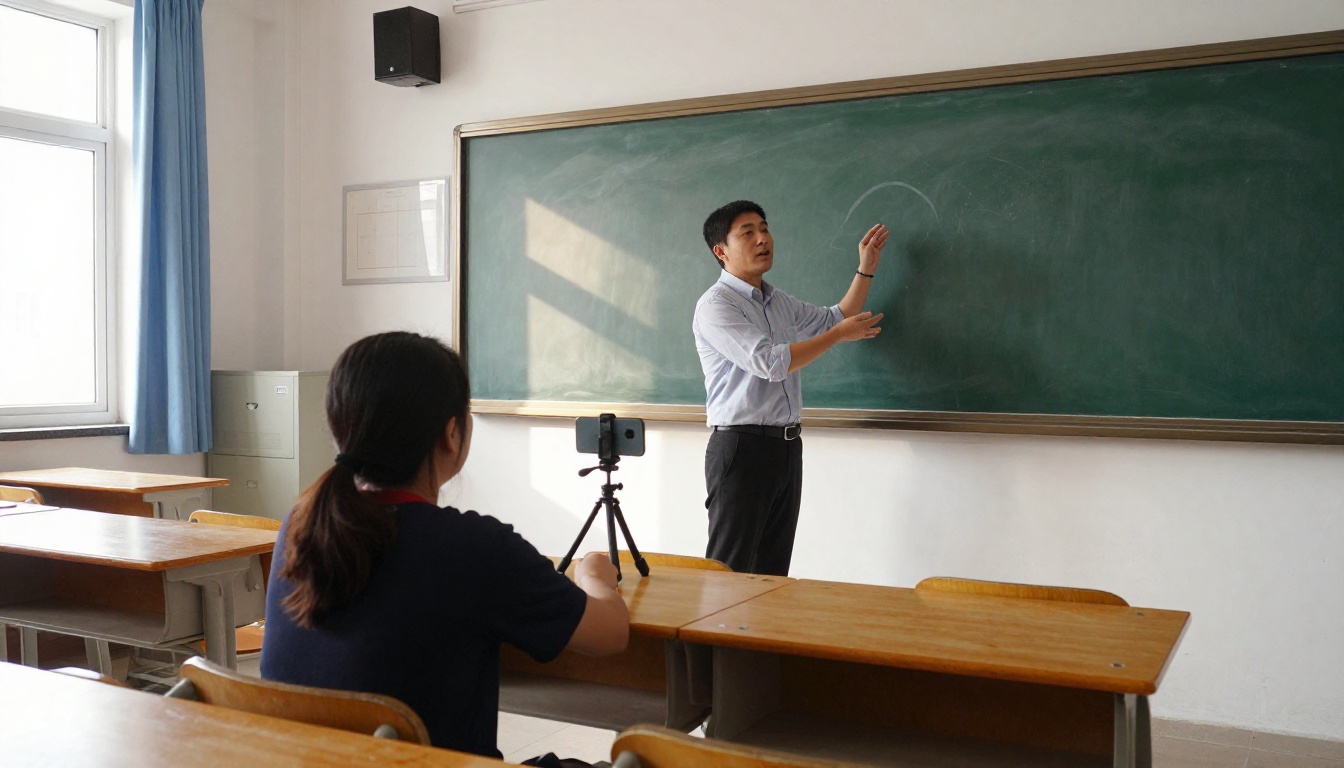
A talking avatar earns its place when recording a person on camera is slow, expensive, or impossible to repeat.
Lessons and training: one instructor photo and a script give you consistent video modules, and updating a sentence means rerendering instead of reshooting.
Product walkthroughs: a spokesperson avatar can narrate the same page in several languages by swapping the audio.
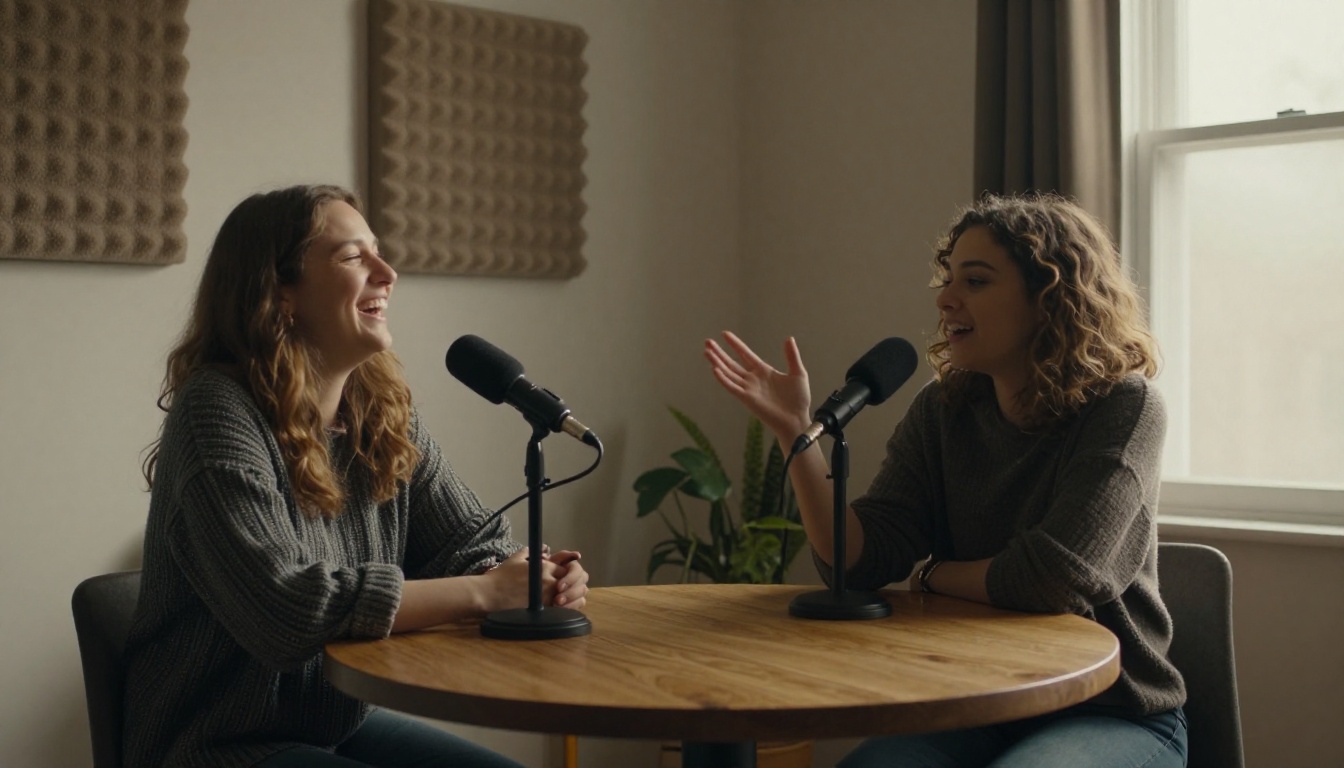
Podcast clips: the Multi model handles two speakers, which suits interview snippets for social media.
Music and character work: singers, mascots, and illustrated characters work as long as the face is clearly visible.
💡 Get permission. Animate your own face, a licensed character, or someone who agreed to it, and label the result as AI generated when it could be mistaken for a real recording.
Skip the Setup on PicassoIA
PicassoIA does not host InfiniteTalk itself. It does offer several photo plus audio models that deliver the same kind of result in a browser tab, with no nodes, no downloads, and no VRAM math.
The last row matters if you came for video to video dubbing: Lipsync 2 Pro works on footage you already shot. Which route fits depends on the job:
Choose local ComfyUI for clips longer than a minute, the Multi model with two speakers, dubbing that keeps the original camera moves, or full control over every sampler setting.
Choose the hosted API when your own app has to create avatars on demand and you would rather pay per second than keep a GPU awake.
Choose a PicassoIA model when you want a result in the next ten minutes, your audio runs under 35 seconds, and speed matters more than matching InfiniteTalk's exact look.
Upload a front-facing portrait. Faces, full-body shots, and illustrated characters all work.
Upload an MP3 or WAV file under 35 seconds. English, Spanish, Japanese, Korean, Chinese, and Indonesian audio are supported.
Add an optional prompt to direct camera movement or gestures, such as "she smiles and nods slightly".
Switch on fast mode for quick drafts, or leave it off for the best detail.
Set a seed if you want to reproduce a result, then generate and download the video.
💡 Write the script first, record it with Speech 2.8 HD, and keep each clip under the 35 second limit. Short clips stitched together look more natural than one long take.
Make Your First Avatar
Pick one portrait, record 20 seconds of audio, and run the same clip through two or three models. Comparing results side by side takes minutes and tells you more than any spec sheet. Open Omni Human 1.5 or Fabric 1.0 on PicassoIA, upload your two files, and watch a still photo start talking. If you want a local pipeline later, you will already know what a good input looks like.