Large Language ModelsGenerate imagesGenerate videos
Instagram Carousel AI Generator Free: Create Carousels With AI
Build a swipe-worthy Instagram carousel without paying for design software. This article shows how to draft slide copy with a free AI chat model, generate a matching set of photographic visuals, keep ten slides consistent, and avoid the mistakes that kill swipes.
A ten-slide Instagram carousel used to eat an entire afternoon: outlining the story, hunting for photos, nudging text boxes around a template, then exporting everything twice because slide six sat a few pixels off. An Instagram carousel AI generator free workflow compresses most of that into a single sitting. A language model drafts the slide copy, an image model produces a matching set of visuals, and your time goes to the one part a machine cannot supply: an idea worth swiping for. This article lays out the process I would follow today, the models worth picking, the settings that keep ten slides looking like one set, and the mistakes that make people bail on slide two.
What an AI Carousel Generator Does
Despite the marketing, there is rarely one magic button behind a "carousel generator". Under the hood it is a text model, an image model, and a layout step stitched together. Some tools hide the seams. When you run the pieces yourself, you gain control over every slide and you avoid the template look that gives away a rushed post.
Both approaches work, and the trade-off is simple:
Approach
Speed
Control
Risk
One-click template generator
Fastest
Low, slides look alike
Same look as everyone else
Chat model plus image model
Under an hour
High, every slide is yours
Needs a style line to stay consistent
For anyone posting weekly, the second route pays off by the third carousel, because the prompts and the style line are reusable.
The Three Layers of a Carousel
Every carousel that holds attention has three layers working together, and AI helps with each one in a different way.
Layer
Its job
What AI handles
Script
One idea per slide, in a clear order
A text model drafts and tightens the copy
Visuals
Photos or graphics behind or beside the words
An image model generates a matched set
Layout
Text size, safe margins, slide order
You, with a quick pass in any design editor
The script is the layer people skip, and it decides whether anyone reaches slide five. Instagram allows up to 20 slides in one carousel, but a tight run of 7 to 10 is much easier to keep strong, because every extra slide is another chance for the reader to leave.
What Free Really Gets You
Free access is enough to produce a full carousel, with a few honest caveats:
Generation caps on how many images you can produce per day or month
Queue times during busy hours
Model access: the newest premium models are sometimes gated while lighter ones stay open
Export limits in some editors, such as watermarks or reduced resolution
💡 Tip: Plan the carousel on paper first. Ten well-aimed generations beat forty random ones, and they keep you inside any free limit.
Limits vary by plan and change over time, so check the model page before a big batch.
Pick the Right Free AI Models
Different slides need different strengths. A hook slide with a bold headline needs reliable text rendering. A background photo needs realism. A caption needs a good writer. Splitting the job across two or three models beats forcing one model to do everything.
Text Models for Slide Copy
For the script, any strong chat model does the job, and the differences show up in tone and brevity. Claude Sonnet 5 tends to produce restrained, clean copy with few filler phrases. GPT 5.6 Luna is quick when you want a dozen hook variations in one go. Gemini 3.5 Flash is fast at turning long topic notes into slide-sized chunks. If you prefer lighter options, Llama 4 Maverick Instruct and Granite 4.1 8B are both listed as free chat models and handle a ten-slide outline without trouble.
Image Models for Slide Visuals
Image models differ more than text models do, so match the model to the slide.
A practical split: run rough drafts on P-Image to lock the composition, then re-render the winners on GPT Image 2 or Flux 2 Pro.
Use GPT Image 2 on PicassoIA
Here is how to use GPT Image 2 on PicassoIA, step by step. Carousels almost always need words on the slide, and that is where many image generators fall apart. GPT Image 2 places readable text inside the image and follows long, multi-part prompts, which makes it a sensible default for carousel slides.
Write the prompt for slide one: the subject, the palette, the mood, and any headline in quotation marks. For example: a coffee cup on cream linen, terracotta and sage palette, bold sans serif headline "Stop Overposting" across the top third.
Set aspect_ratio to 2:3 for a portrait frame you can crop to 4:5, or 1:1 for a square post.
Set quality to low or medium while you test the idea.
Raise number_of_images to 4 so one run gives you options to compare.
For slide two onward, add slide one under input_images as a reference and describe only what changes.
Switch quality to high for the final picks and set output_format to jpeg or png before you download, since webp is the default.
Settings Worth Changing
Setting
Suggested value
Why
aspect_ratio
2:3 or 1:1
Crops cleanly to 1080 x 1350 or 1080 x 1080
quality
medium, then high
Fast tests, sharp finals
number_of_images
4
A cheap way to find the best take
background
auto
Use transparent only for cut-out stickers or product shots
output_format
jpeg or png
Safest for uploading
💡 Tip: If one word comes out wrong, regenerate with only that word changed in the prompt. Rewriting the whole prompt usually changes the entire layout.
Write the Script Before Any Image
Images follow the script, never the other way around. Start with a text model and a prompt that forces short, specific slides:
Write a 10-slide Instagram carousel script about [topic] for [audience].
Slide 1: a hook under 8 words.
Slides 2 to 9: one point each, 25 words or fewer.
Slide 10: one clear ask (save, share, or comment).
Add a one-line visual note for every slide.
Run it twice, keep the better hook, and edit by hand. The visual notes become the base for your image prompts. Here is the shape of the output, trimmed to seven slides, for a carousel on planning a week of posts:
Slide
Copy
Visual note
1
Plan 7 posts in 30 minutes
Planner and coffee on a desk
2
Pick one topic per day
Seven sticky notes in a row
3
Write the hook first
Hand writing on a notepad
4
Batch your photos
Camera on a tripod, soft window light
5
Reuse one template
Matching prints on a table
6
Schedule, then step away
Phone beside a closed laptop
7
Save this plan
Warm close-up of the planner
Seven slides is plenty when the idea is simple. Notice that every line fits on a phone screen without shrinking the type.
The Hook Slide
Slide one gets about a second of attention. It has to promise something specific. Four formulas that work reliably:
Number plus promise: "7 caption openers that get saved"
Mistake call-out: "Stop doing this with your first slide"
Before and after: "My carousel took 3 hours. Now it takes 20 minutes."
Open question: "Why does slide two lose half your readers?"
Generate 10 hooks, then cut to the one you would stop scrolling for.
Middle Slides That Earn Swipes
Give each slide exactly one idea, and end it with a small open loop so the next slide feels necessary. Vary the rhythm: follow a text-heavy slide with a mostly visual one. A reader who sees five identical layouts in a row senses the pattern and stops swiping.
A reliable mix for slides 2 to 9 uses three slide types: a statement slide that makes the point, an example slide that shows it in a real-looking photo, and a proof slide with a number or a result. Rotate those three and the carousel never feels repetitive.
The Closing Slide and CTA
One ask only. A slide that begs for a follow, a save, a share and a comment gets none of them.
Goal
Closing line
Saves
"Save this for your next post"
Shares
"Send this to someone who posts too much"
Comments
"Which tip are you trying first?"
Follows
"More breakdowns like this every week"
Make 10 Slides Look Like One Set
A carousel feels professional when the slides read as one set. Image models treat every prompt as a fresh start, so consistency is something you build into the prompts yourself.
Lock a Palette and a Mood
Pick three colors and one lighting condition, then paste the same style line at the end of every prompt:
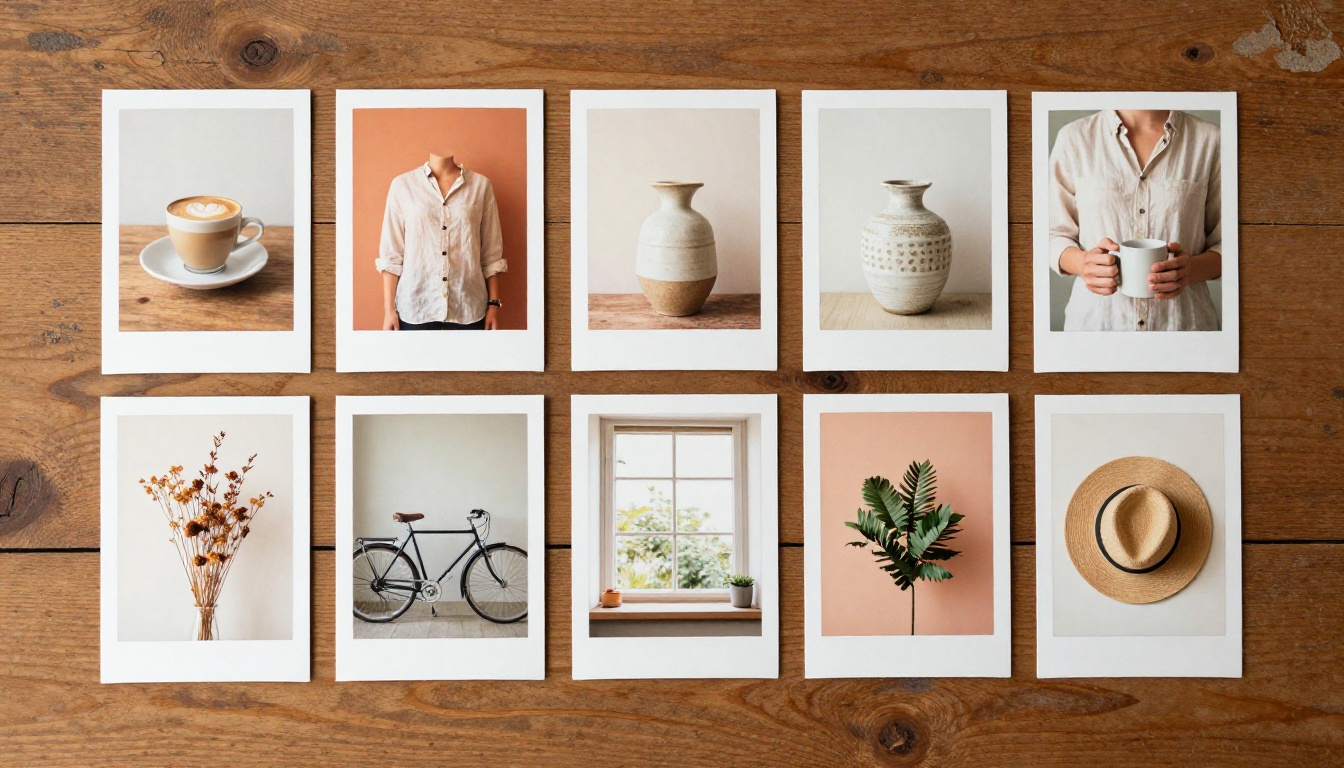
terracotta, cream and sage green palette, soft morning window light, 35mm film look, shallow depth of field
A full slide prompt then reads like this: a planner and a coffee cup on a pale oak desk seen from above, headline "Plan 7 Posts" in bold sans serif across the top third, terracotta, cream and sage green palette, soft morning window light, 35mm film look, shallow depth of field. Only the first part changes from slide to slide. The style line stays identical.
Reusing the exact wording matters more than adding new adjectives. When a model supports reference images, as GPT Image 2 and Nano Banana Pro do, feed your best slide back in and ask for a new scene in the same look.
Where Text Should Go
Instagram crops previews on the profile grid and reserves space for interface elements, so keep words away from the edges.
Leave a margin of roughly 8 percent on every side
Place the headline in the top third or bottom third, over a calm area of the image
Use one font style for the whole carousel
Check contrast: light text on a dark area, or the reverse
If a model misspells a word, add the text in an editor instead of fighting the prompt. Visual generation is for the picture. Typing a headline takes ten seconds.
3 Common Mistakes
Too Much Text per Slide
A slide is read on a phone screen held at arm's length. Past 30 or 35 words it turns into a paragraph, and paragraphs get skipped. If a point needs more, split it across two slides.
Mixed Visual Styles
One slide in warm film tones, the next in flat vector art, the next in a glossy studio look: the set falls apart. Stick to one model family and one style line for the whole carousel, and regenerate any outlier instead of keeping it.
No Reason to Swipe
Ten slides that each stand alone give the reader no pull. Build a thread: a promise on slide one, proof in the middle, payoff near the end. Each slide should raise a small question that the next one answers.
Add Motion With AI Video
Animate One Slide
Instagram lets you mix photos and short video clips inside one carousel, and a single moving slide in a row of stills stops the thumb. Pick the hook slide or the big reveal, upload the image as the first frame of an image-to-video model, and describe gentle movement: steam rising from a cup, a slow push-in, a hand turning a page. A sample motion prompt: slow push-in on a coffee cup on cream linen, steam rising, soft morning light, steady camera.
Seedance 2.5 Lite is listed as a free, unlimited generator for clips up to 10 seconds, and PicassoIA Video turns a text prompt or a still image into video at no charge. Keep clips between 3 and 5 seconds, and use one or two per carousel at most so the motion stays a surprise.
Make Your First Carousel Today
You now have the whole workflow: a script from a chat model, a palette locked into every prompt, GPT Image 2 for slides that need words, and an optional video clip for the slide that deserves it. Pick one topic you already know well, write the ten-slide script in Claude Sonnet 5 or Gemini 3.5 Flash, and generate your first three slides on Picasso IA.
Before you publish, run through this short checklist:
View every slide on your phone at arm's length
Confirm the crop is 4:5 or 1:1 and nothing important sits near the edges
Read each headline aloud to catch misspelled words
Write a caption that repeats the promise from slide one
Add alt text to the first slide for accessibility
Start small. Make the hook slide, check how it looks on a phone, then build the other nine in the same style. By the second carousel the process takes under an hour, and by the fifth you will have a palette and a prompt library that make every new post faster than the last. Open Picasso IA, try the models side by side, and publish the carousel you have been putting off.