You typed "Kling 03 vs 3.0" into a search bar because two names that look almost identical are sitting in the same model list, and one of them costs more or behaves differently. Fair question. Kling 03 is the shorthand most people use for Kling O3, the Omni edition of the Kling 3 family. Kling 3.0 is the standard prompt-first model. They share the same generation core, the same 1080p ceiling and the same multi-shot ideas, but they are built for different jobs. One is a fast, cheap way to turn a prompt or a single frame into a clip. The other is a control tool for people who need a character, a product or a camera move to stay exactly the same across shots.
This article breaks down what changes between them, what each one costs in practice, and a simple rule for picking the right one before you burn credits. Both are available on PicassoIA, so you can test them side by side: Kling v3 Video for the standard model and Kling v3 Omni Video for the Omni (O3) edition.
What Kling 03 Actually Means
The naming confusion, solved
Kuaishou released the Kling 3 family in early 2026 as a set of related models rather than one single checkpoint. The plain model is called Kling 3.0 (or Video 3.0). Its sibling is Kling O3, officially Video 3.0 Omni. The "O" stands for Omni, and "03" in search queries is almost always people typing the letter O as a zero.
So when someone asks about "Kling 03 vs 3.0", they are asking: should I use the Omni edition or the standard one? That is the comparison this article answers.
Quick snapshot table
| Feature | Kling 3.0 (Kling v3 Video) | Kling 03 / O3 (Kling v3 Omni Video) |
|---|
| Main purpose | Prompt-first generation | Reference-led generation and editing |
| Max resolution | 1080p (pro mode) | 1080p (pro mode) |
| Standard mode | 720p | 720p |
| Duration | Up to 15 seconds | 3 to 15 seconds |
| Multi-shot | Up to 6 shots | Up to 6 shots |
| Start and end frame | Yes | Yes |
| Reference images | No | Up to 7 (4 when a reference video is used) |
| Reference video | No | Yes, 3 to 10 seconds |
| Native audio | Yes | Yes, but not with a reference video |
| Best for | Drafts, iteration, social clips | Consistent characters, style transfer, video edits |
💡 Fast takeaway: if your input is a prompt and maybe one image, Kling 3.0 is enough. If your input includes several reference images or an existing video, you need Omni.
Core Differences Side by Side
Inputs and references
This is the biggest split. Kling 3.0 gives you a prompt, an optional start frame and an optional end frame. That is it. You describe what you want, pin the opening or closing image if you care, and let the model improvise the rest.
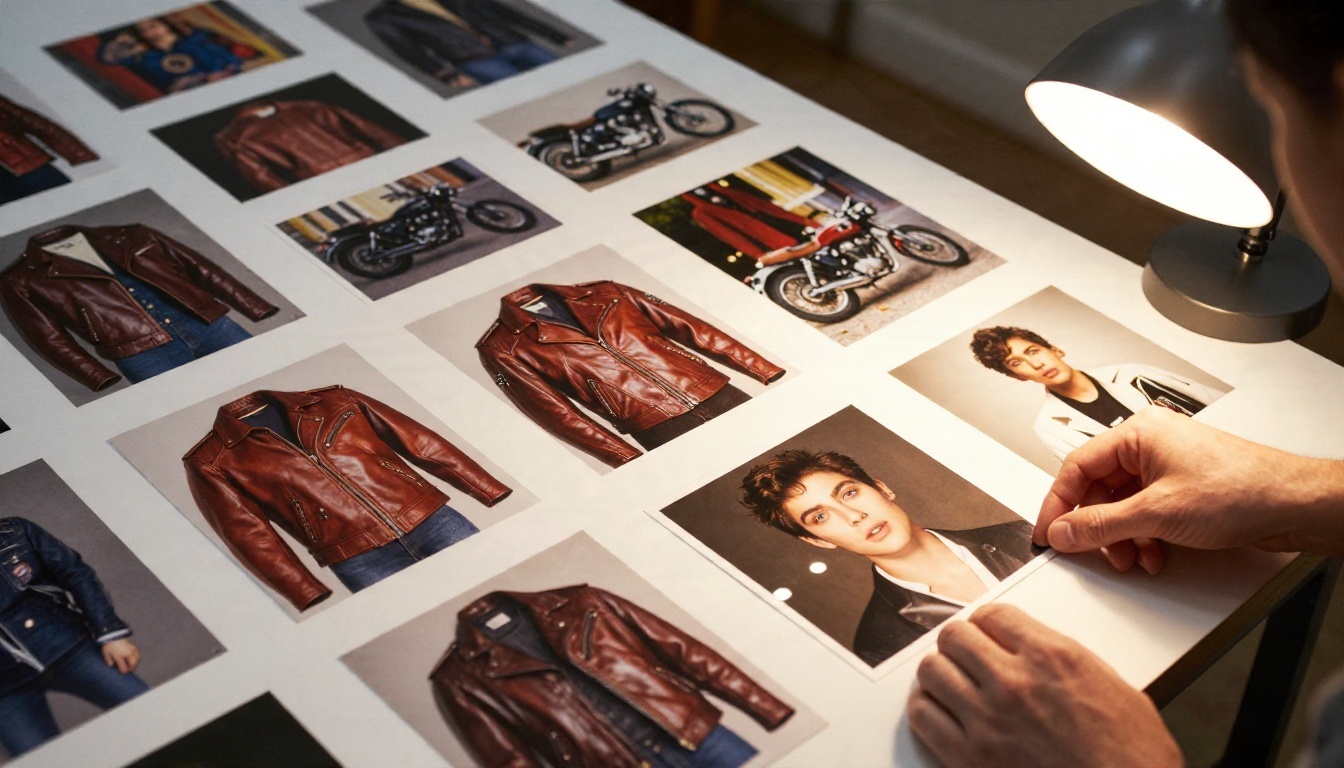
Kling O3 adds a reference layer. On PicassoIA, the Omni model accepts up to seven reference images for elements, scenes or styles, and the prompt can point to them with image tokens. That means you can upload a photo of a leather jacket, a motorcycle and a face, then ask the model to place all three in one scene without guessing what they look like.
Audio behavior
Both models can generate native audio, and both are off by default on PicassoIA, so you need to switch audio on. The catch with Omni is that audio generation cannot be combined with a reference video. When a clip is built on top of an existing video, the model works from that footage instead, and the sound options change. Some third-party reports describe this slightly differently, so treat audio plus video input as a case to test rather than assume.
For plain text-to-video or image-to-video, both models score the clip with ambient sound and effects in the same pass, which saves a trip to a separate audio tool.
Video editing and reference footage
Omni can take a reference video between 3 and 10 seconds long and use it in two ways:
- Feature mode: the video acts as a style or camera reference. The model borrows the movement or look without copying the content.
- Base mode: the video becomes the clip you are editing, which is closer to prompt-based video rewriting.
Kling 3.0 has no equivalent. If you want to restyle footage you already shot, Kling 3.0 cannot do it, and that alone settles the question for many editors.
Features Compared in Practice
Multi-shot storytelling
Both models support multi-shot scripting with up to six scenes in one job. You write a JSON-style list where each shot has its own prompt and duration, and the durations must add up to the total clip length. A 10-second ad might be three shots: a wide establishing view for 3 seconds, a product close-up for 4 and a final reaction for 3.
The structure is identical in Kling 3.0 and Omni. The difference is what holds those shots together. In Kling 3.0, consistency depends on how carefully you repeat descriptions in each shot prompt. In Omni, you attach reference images, and the model uses them to keep faces, clothes and objects stable across cuts.
💡 Prompt tip: in multi-shot mode, repeat the same three or four visual anchors in every shot (hair color, jacket, location). It costs nothing and cuts drift on both models.
Character and product consistency
If you only generate one-off clips, you may never notice consistency. The moment you build a series, it becomes the whole job. A brand mascot, a recurring host, a sneaker that must look identical in every shot: this is where Omni earns its higher price.
Kling 3.0 can approximate consistency with a start image. Pin the first frame to a photo of your subject and the clip will start from there. But once the camera moves, details can wander. Omni's reference images keep pulling the model back to the source.
Motion quality and realism
On pure motion, the two models feel very similar. They share the same family DNA: believable body movement, stable physics for cloth and hair, and cinematic camera behavior when you ask for dolly moves, pans or low angles. If you run the same prompt through both with no references, expect results close enough that you would need to compare frame by frame.
That is useful news. It means the choice is about workflow, not about one model looking better. For character movement with an existing performance as the source, there is also Kling v3 Motion Control, which animates a character from a motion reference.
Pricing Breakdown
Credit rates per second
Pricing for the Kling 3 family is quoted per second of generated video, and the number depends on resolution and whether audio is on. Here is the picture from the numbers published around launch and from the API resellers who track them. These are snapshots, and they conflict between providers, so check live pricing before committing a budget.
| Setup | Approximate official rate |
|---|
| 720p, no audio | About 6 credits per second |
| 1080p, no audio | About 8 credits per second |
| 720p, with audio | About 9 credits per second |
| 1080p, with audio | About 12 credits per second |
| Voice control add-on | About 2 extra credits per second |
For dollars, most reseller listings put the entry rate for both models between roughly $0.075 and $0.09 per second at 720p without audio, with some platforms charging two to four times that for the same job. The standard text and image routes start at about the same price on both models. The difference shows up when you use Omni's reference or editing routes, which start higher, at roughly $0.11 per second in the numbers I found.

Cost per finished clip
Per-second prices are abstract. Here is what they mean for real work, using the mid-range rates above as a rough yardstick.
| Project | Length | Rough cost range |
|---|
| One social clip, 720p, no audio | 5 seconds | Under $0.50 |
| Product teaser, 1080p with audio | 10 seconds | About $1 to $3 |
| Three drafts before a final | 15 seconds total drafts plus 10 final | Often $2 to $6 |
| Reference-based brand shot on Omni | 10 seconds | Noticeably higher than standard |
The real cost driver is retries, not the base rate. A model that nails your idea in two tries beats a cheaper one that needs eight. That is why a lot of creators draft on Kling 3.0 in standard mode, lock the idea, and only then move to Omni or pro mode for the final render.
💡 Budget habit: test every new idea at 720p without audio. Turn on pro mode and audio only for the take you plan to publish.
A newer, cheaper variant called Kling 3.0 Turbo has also been reported for high-volume work. It is a separate model from the two compared here, so check its limits (it is reported to stop at 1080p) before treating it as a replacement.
Which One Should You Use
Pick Kling 3.0 when
Choose Kling v3 Video when:
- You start from a text prompt and want to see what the model does with it.
- You are making social clips, concept tests or B-roll where one-off quality is enough.
- You are iterating fast and every generation costs real money.
- You want a start and end frame, native audio and multi-shot control, but no reference system.

Pick Kling 03 (Omni) when
Choose Kling v3 Omni Video when:
- A character, product or location must look identical across several clips.
- You have reference photos and want the model to respect them.
- You want to restyle or edit existing footage with a prompt.
- You need a camera move or style borrowed from a reference video.
- You are producing a series, an ad campaign or anything with recurring elements.
Other models worth a test
Kling is not the only strong option, and a quick side-by-side often saves you from forcing one tool to do everything. These are all on PicassoIA:
| Model | Why try it |
|---|
| Kling v2.6 | Earlier Kling generation, useful as a lower-cost baseline |
| Kling o1 | Text-driven rewriting of existing video |
| Veo 3.1 | Strong realism with native audio |
| Seedance 2.5 | Longer clips, up to 30 seconds |
| Wan 3 Prime | 1080p text-to-video with a different visual feel |
How to Use Both on PicassoIA
Run a draft on Kling v3 Video
- Open the Kling v3 Video page.
- Write your prompt (up to 2,500 characters). Describe the subject, the action, the camera move and the lighting in that order.
- Set mode to standard (720p) while you iterate. Switch to pro for 1080p only on your final take.
- Choose a duration. Start with 5 seconds to save credits.
- Pick an aspect ratio: 16:9 for YouTube, 9:16 for Reels and Shorts, 1:1 for feeds. Note that it is ignored when you upload a start image.
- Optionally upload a start image and an end image to pin the opening and closing frames. The end image needs a start image.
- Toggle generate audio if you want ambient sound. It is off by default.
- Add a negative prompt (for example: "blurry, distorted hands, flickering") to cut common artifacts.
- For several scenes, fill multi prompt with a JSON list, for example
[{"prompt":"Wide shot of a coastal road at dawn","duration":3},{"prompt":"Close-up of the rider's face","duration":2}]. The durations must add up to your total.

Lock the look with Kling v3 Omni Video
- Open the Kling v3 Omni Video page.
- Upload up to seven reference images: a face, an outfit, a product, a location. Use clean, well-lit photos at least 300 pixels on the shortest side.
- Write a prompt that refers to your references using the image template tokens (for example
<<<image_1>>>), so the model knows which picture is which.
- Set duration between 3 and 15 seconds.
- To borrow a camera move or style, add a reference video of 3 to 10 seconds and set the reference type to feature. To edit a clip you already have, set it to base. With a reference video, you can attach up to four reference images.
- Remember that native audio and a reference video are mutually exclusive. Choose one, or add sound afterward with a separate audio model.
- Use keep original sound if you want the soundtrack of the reference video to carry over.
- Test in standard mode first, then render in pro.
💡 Workflow that saves money: draft the idea on Kling v3 Video in standard mode, confirm the framing and motion, then move the winning prompt to Omni with references for the final, consistent version.
Start Creating Your Own Clips
The decision comes down to one question: do you need references? If not, Kling 3.0 gives you multi-shot scenes, start and end frames, audio and 1080p at the lower price. If yes, Kling 03 (Omni) is the one that holds a character or product steady and can work from existing footage.
The fastest way to settle it is to run the same prompt through both. Open Kling v3 Video and Kling v3 Omni Video on PicassoIA, paste an identical prompt, and compare the two clips frame by frame. Then add one reference photo to the Omni run and see what changes. Five minutes of testing will tell you more than any spec sheet, and you can browse every other video model at picassoia.com/en/all-models when you want to branch out.


