You have a photo of a character and a ten second clip of someone dancing, walking or talking. You want the character in the photo to move exactly like the person in the clip. That is the whole promise of Kling 2.6 Motion Control, and unlike most video models, it actually keeps it. Instead of hoping a text prompt describes a gesture well enough, you show the model the gesture, and it copies the timing, the weight shifts and even the facial expressions.
This article walks through what the model does, what "free online" realistically means, which settings change the result, and ten examples you can copy today. If you only want to run it, the model is live on PicassoIA as Kling v2.6 Motion Control.
What Kling 2.6 Motion Control Does
Most image to video models take one photo and invent the motion. Motion Control flips that. You provide two inputs: a still image that defines who or what appears, and a reference video that defines how it moves. The output is a new clip where your still image performs the reference movement.
Think of it as puppeteering with a camera. A person records a gesture on a phone, and a different character, whether a photographed model, a mascot or a stylized portrait, repeats it.
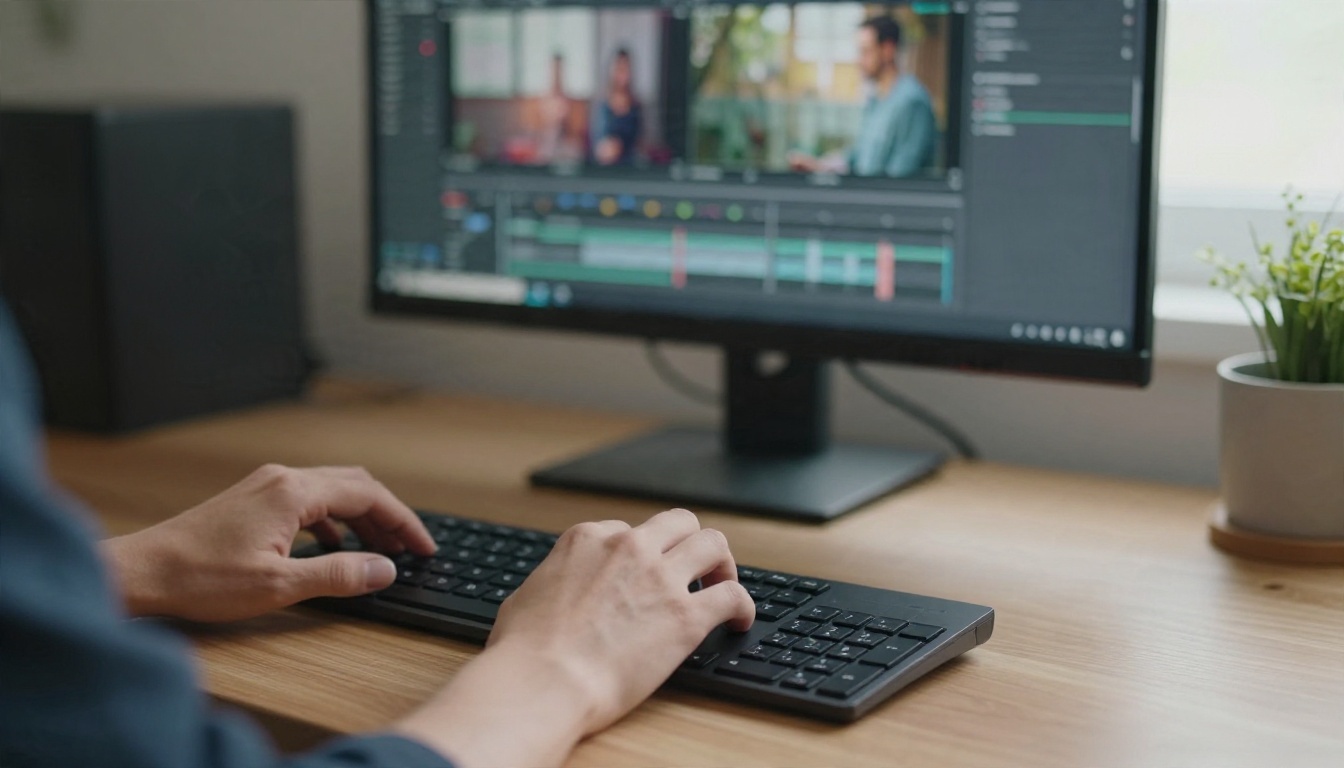
Two inputs, one result
| Input | What it controls | What to avoid |
|---|
| Character image | Face, clothes, body type, background | Cropped limbs, heavy blur, hidden hands |
| Reference video | Body motion, timing, expressions, often camera feel | Fast cuts, multiple people, occlusion |
| Text prompt (optional) | Scene details, light, small adjustments | Re-describing the motion in conflict with the clip |
Why it feels different
Ordinary text to video models struggle with repeatability. Ask for "a woman waves and turns" five times and you get five different waves. With a reference clip, the wave is the same wave every time, so you can produce a series of consistent shots with different characters. That matters for brand mascots, social content, short films and anything where you need control instead of luck.
💡 Quick mental model: the image is the actor's costume and face, the video is the actor's performance. Change either one and the other stays fixed.
Free Online Access Explained
The phrase "free online" attracts a lot of searches, so here is the honest picture. Motion transfer is expensive to run, because the model processes a source video and renders a new one. Because of that, most platforms that host Kling 2.6 Motion Control work on credits or short trials rather than unlimited free use.
From what I found while researching, access falls into three buckets:
- Trial credits: some platforms give a small amount of credit so you can test one or two short clips.
- Pay per generation: you pay for each clip, often priced by seconds of output.
- Subscription or credit packs: you buy a monthly allowance and spend it as you go.
I could not confirm any platform that offers truly unlimited Kling 2.6 Motion Control for nothing, so treat any site that promises that with caution.
How to spend less while you test
- Use short reference clips for your first runs. Three to five seconds is enough to check whether the character and motion match.
- Test the standard quality tier first, then move up when the motion looks right.
- Prepare your inputs carefully. A well framed image and a clean clip save more credits than any setting.
- Batch similar ideas. If a reference clip works, reuse it with several different character images.
💡 Looking for free unlimited video? If your goal is simply to make clips without watching a credit meter, Seedance 2.5 Lite is listed on PicassoIA as a free and unlimited video generator for clips up to 10 seconds. It does not copy a reference video, but it is a solid way to test ideas before you spend credits on motion transfer.
The Settings That Matter
Motion Control has fewer sliders than a typical video model, which is good news. Only a handful of choices change the outcome, and the biggest one is orientation.
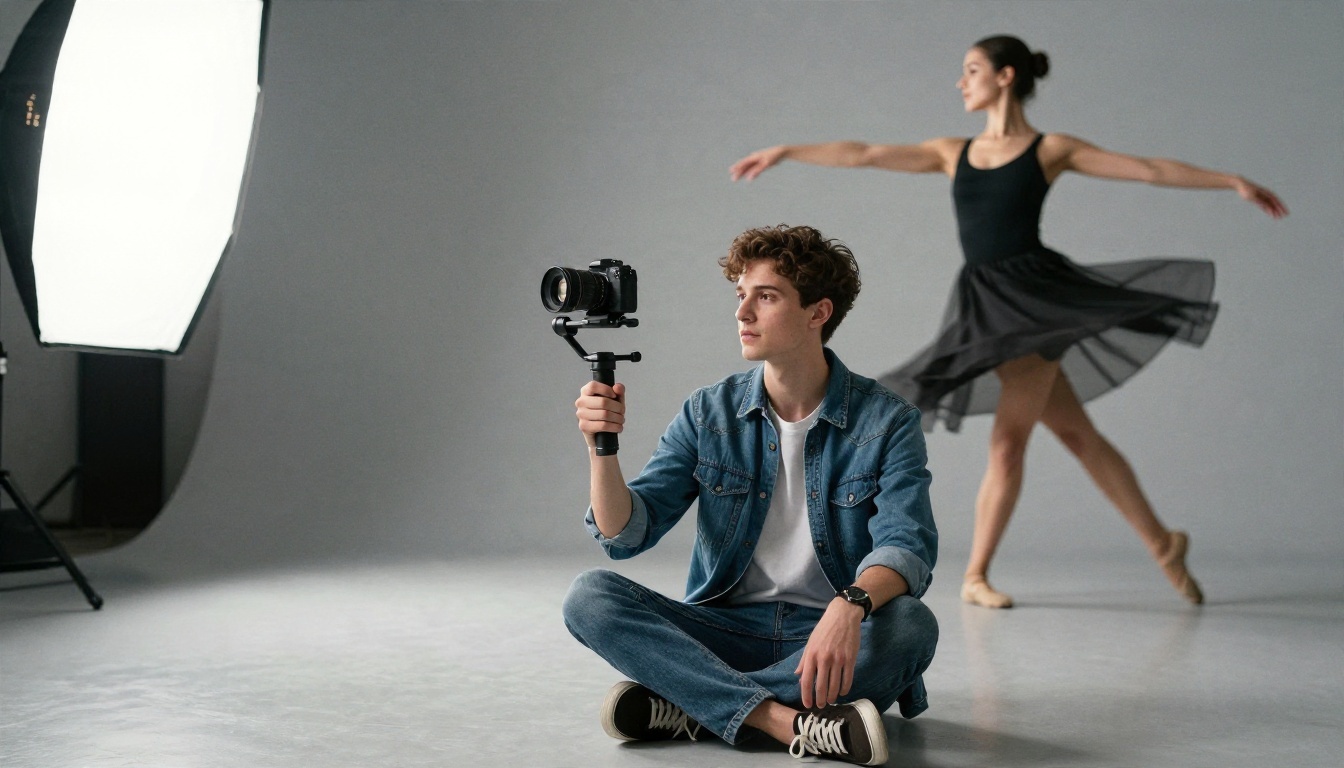
Character orientation
This setting decides whose facing direction wins. There are two modes:
| Mode | Behavior | Typical limit | Best for |
|---|
| Video orientation | The character turns and faces the way the performer in the reference does | Longer, up to about 30 seconds | Dances, spins, fight moves, full body action |
| Image orientation | The character keeps the facing direction of your still image, while limbs and expressions follow the clip | Shorter, up to about 10 seconds | Camera follow shots, talking, subtle gestures |
If your character image shows someone facing the camera, but the reference performer walks away from the camera, video orientation will make your character walk away too. Image orientation keeps them facing front and borrows only the movement.
Keep original sound
A toggle lets you keep the audio from the reference clip or drop it. If the reference contains a voice, music or a beat you want to match, keep it. If you plan to add your own track later, switch it off to avoid mismatched audio.
Quality tier
Kling's motion transfer is offered in a standard and a pro tier on many platforms. Standard is cheaper and faster, pro gives cleaner hands, hair and fine textures. Run the cheap tier to check composition, then render the keeper in pro.
Prompt text
The prompt is optional, and usually shorter is better. Use it for scene details such as light, location or clothing material. Avoid describing motion, because the reference video already does that, and a conflicting prompt can create wobble.
Reference clip length
Aim for clips between 3 and 30 seconds with clear, distinct movement. Your output length follows the reference, within the limits of the orientation mode you chose.
Prepare the Reference Video
Ninety percent of failed runs trace back to a weak reference clip. Treat recording it as a mini production.
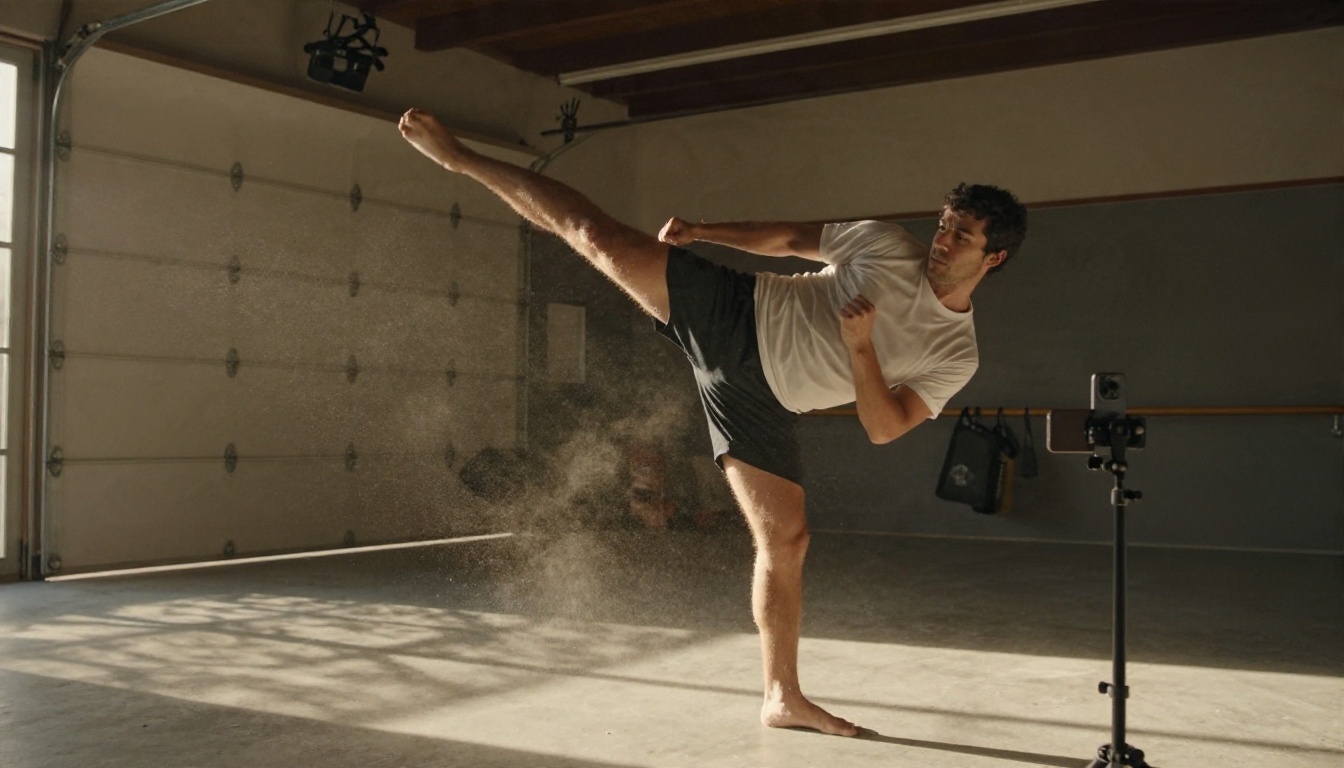
Recording checklist
- One performer only. Extra people confuse the tracking.
- Full body in frame when you want full body motion, with head and feet not cropped.
- Fixed camera on a tripod for the cleanest transfer. Gentle camera moves work, but jerky handheld footage does not.
- Plain background with contrast between the performer and the wall.
- Fitted clothing so the model can read the silhouette, since baggy fabric hides joints.
- Even light without strong flicker or deep shadows across the face.
What to avoid
| Problem | Result | Fix |
|---|
| Hands out of frame | Distorted or missing hands | Re-record with hands visible |
| Fast cuts | Character pops or resets | Use one continuous shot |
| Heavy motion blur | Smeared limbs | Raise shutter speed, add light |
| Performer partly hidden | Broken pose tracking | Clear the foreground |
| Very long clip | Wasted credits | Trim to the best moments |
💡 Tip: if you do not have your own footage, pick a clip where the movement is the star, such as a dance routine, a gym move or a presentation with big gestures. Make sure you have the right to use it.
Prepare the Character Image
The image is the second half of the formula. A bad still image gives a bad video, even with a perfect reference.
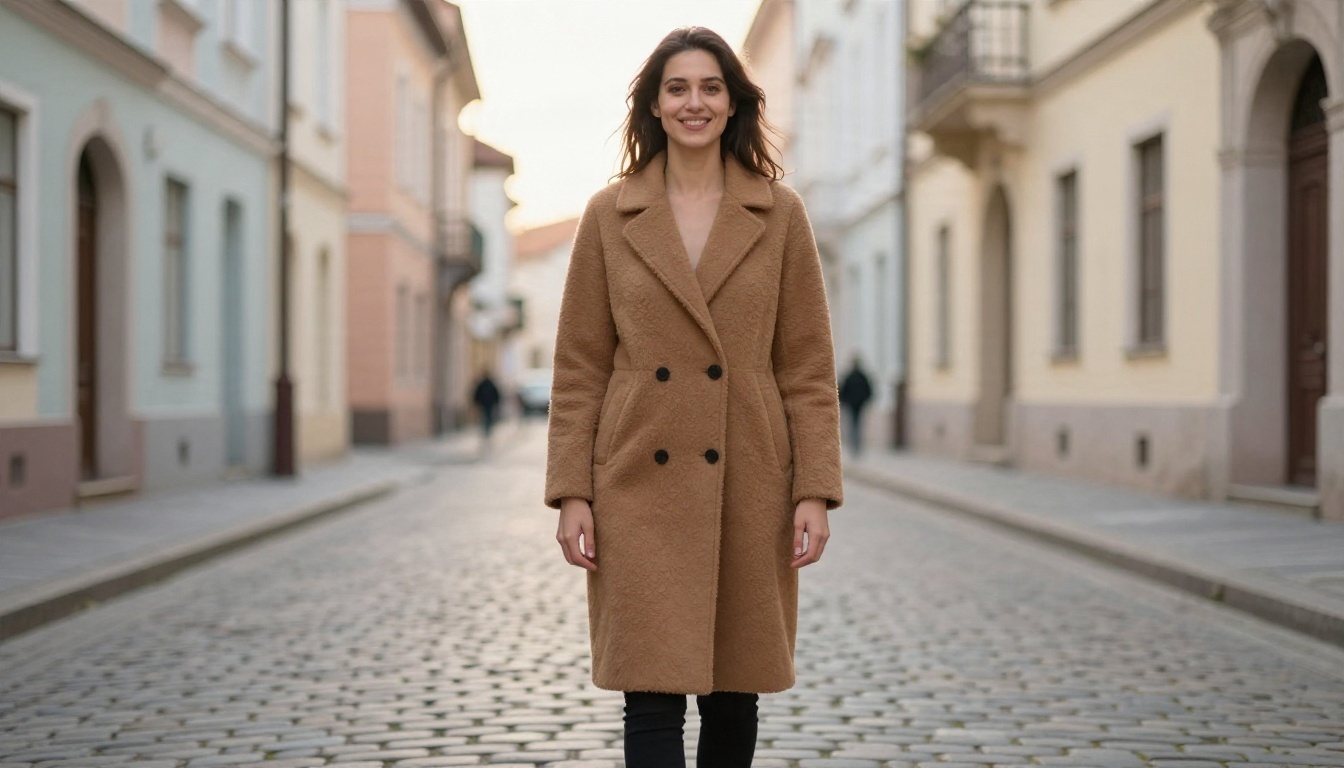
What a good source image looks like
- Similar framing to the reference. If the performer is shot full body, use a full body character. A tight headshot will not give the body anywhere to go.
- Neutral pose. Arms relaxed, hands visible, feet on the ground. A neutral stance leaves room for any movement.
- Sharp subject. The model cannot invent detail from a blurry photo.
- Clean edges. Avoid objects crossing the body, such as big bags or overlapping props.
- Natural proportions. If the character has different limb proportions from the performer, expect some stretching.
Where to get the image
Use a real photo, or generate one with a text to image model. On PicassoIA you can create a character in a neutral pose first, then drop it into motion control. Keep the face consistent across a series by reusing the same source image for every clip.
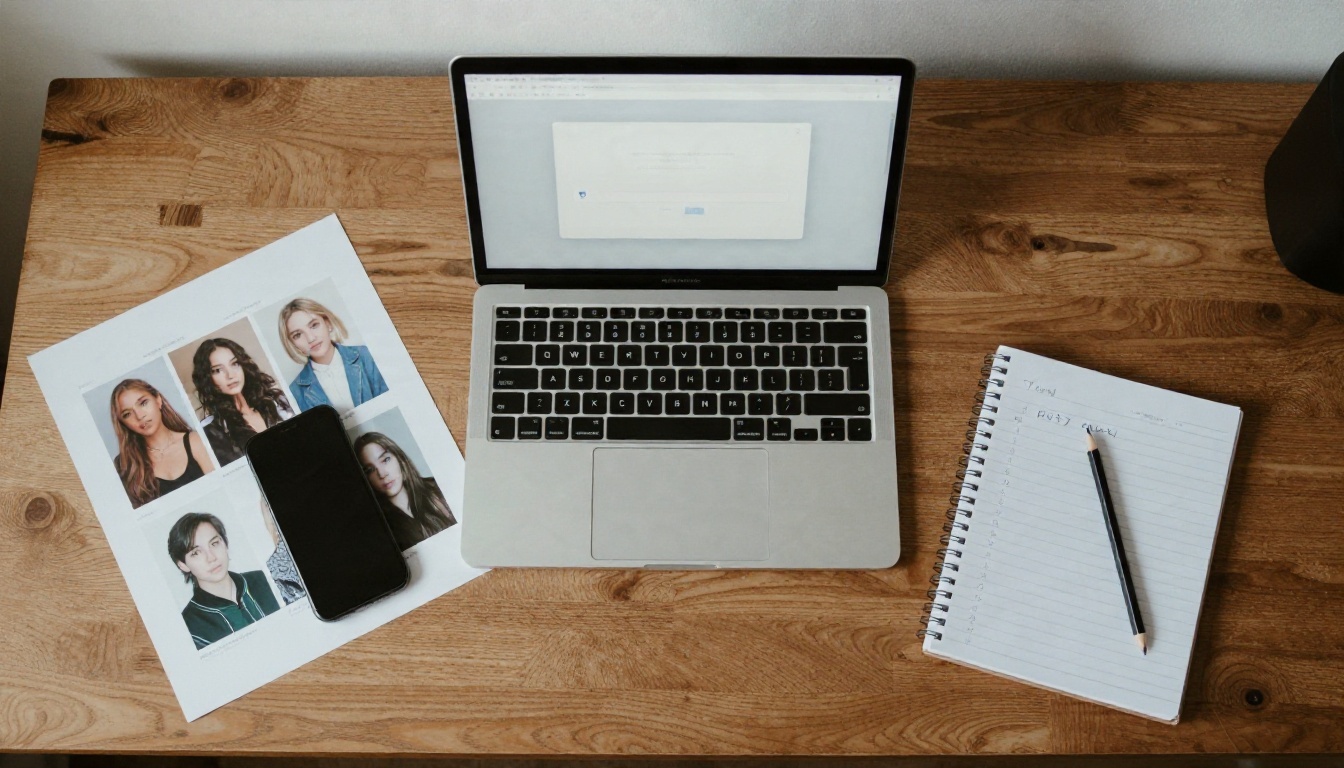
How to Use Kling v2.6 Motion Control on PicassoIA
Here is the workflow on the platform, step by step. The exact field names are shown on the Kling v2.6 Motion Control model page, so follow what you see there.
Step by step
- Open the model page. Go to Kling v2.6 Motion Control and sign in.
- Upload your character image. Choose a sharp, neutral pose with visible hands.
- Upload the reference video. Use a clean, single performer clip of 3 to 30 seconds.
- Pick the character orientation. Choose video orientation for full body moves, image orientation for talking and camera follow shots.
- Decide on original sound. Keep it if the audio matters, drop it if you plan to replace it.
- Add a short prompt (optional). Describe the setting, light and outfit material, not the motion.
- Generate and review. Watch the clip once for the body, once for the hands, once for the face.
- Iterate. Change one variable at a time, either the image, the clip or the orientation.
Parameter tips
- Change one thing per run. If you change the image, the clip and the mode together, you will not know what fixed or broke the result.
- Keep prompts under two sentences. Long prompts add noise.
- Reuse good references. Once you have a clip that tracks well, it becomes a template for dozens of characters.
💡 Newer option: Kling v3 Motion Control is also on PicassoIA. If you want to compare generations, run the same image and clip through both and pick the cleaner result.
Ten Examples to Copy
Here are practical setups, each with the input pairing, the orientation mode and a short prompt. Use them as starting points.
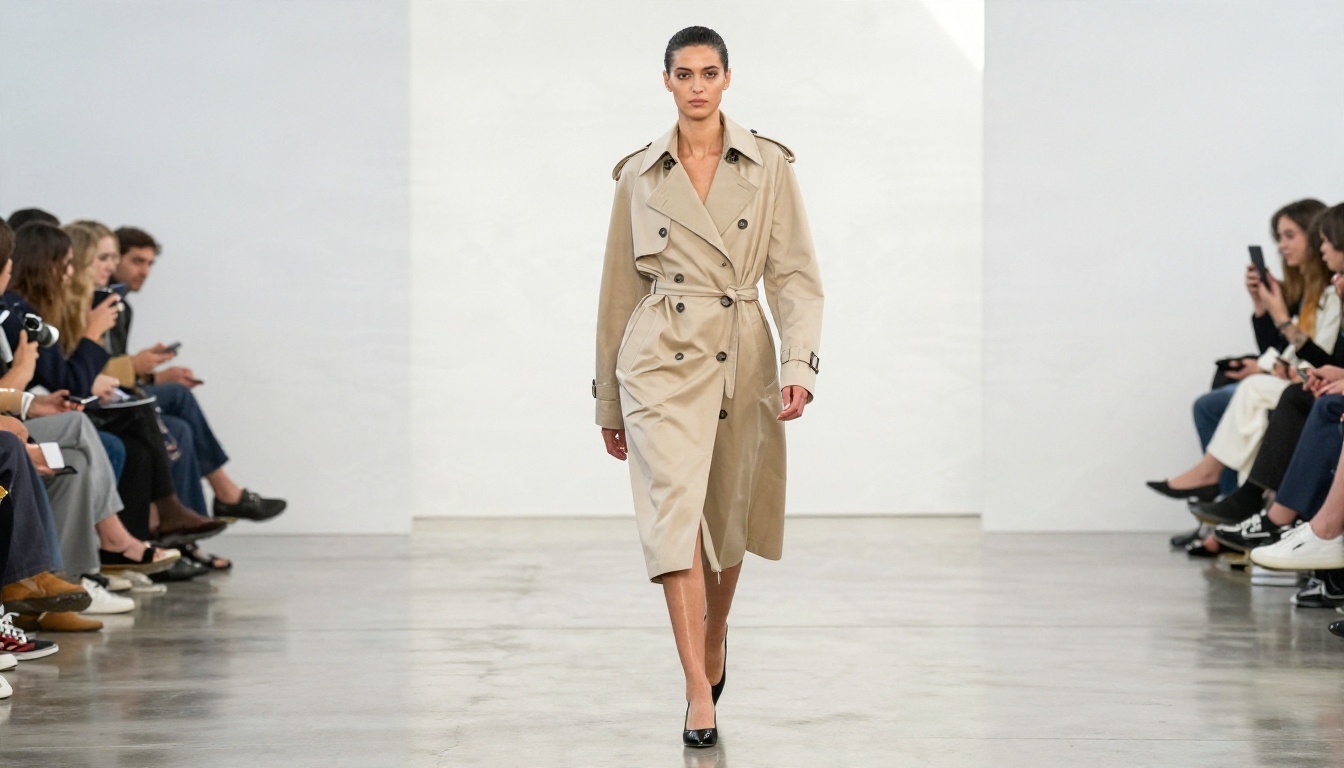
Fashion walk
- Image: full body model in a trench coat, front facing.
- Reference: a person walking toward the camera in a hallway.
- Mode: video orientation.
- Prompt: "Bright minimalist studio, soft daylight, fabric swaying naturally."
Dance cover with a different character
- Image: a stylish character in a neutral stance.
- Reference: a short dance routine filmed on a tripod.
- Mode: video orientation.
- Prompt: "Loft studio with wooden floor, warm morning light."
Talking head with expressions
- Image: a head and shoulders portrait, facing forward.
- Reference: someone speaking with lively gestures.
- Mode: image orientation.
- Prompt: "Sunny kitchen, natural light, relaxed mood."
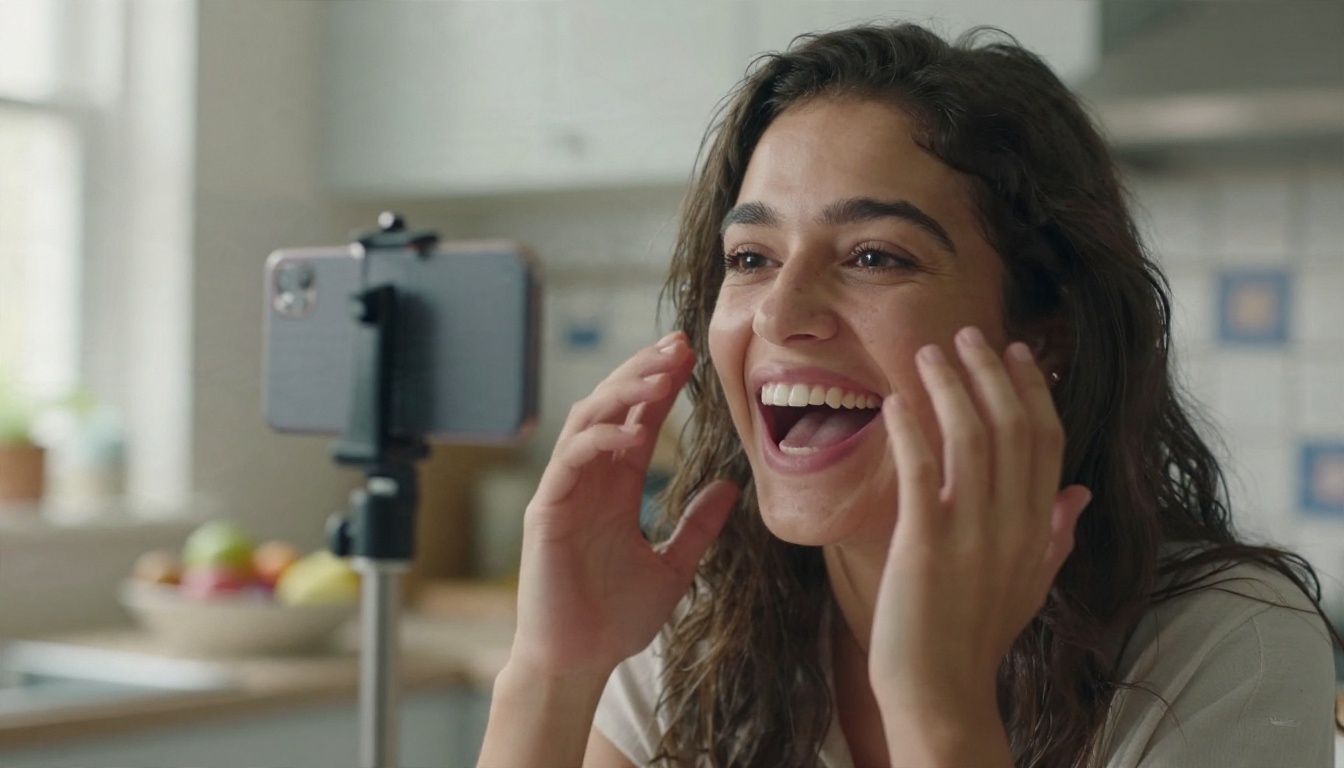
Product presenter
- Image: a person holding a product at chest height.
- Reference: a presenter gesturing toward an object.
- Mode: image orientation.
- Prompt: "Clean white background, soft shadows, product stays in hand."
Martial arts move
- Image: a fighter in a neutral stance.
- Reference: a slow kick filmed from the side.
- Mode: video orientation.
- Prompt: "Concrete studio, dust in warm light."
Mascot waving
- Image: a mascot character standing upright.
- Reference: a person waving with both hands.
- Mode: image orientation.
- Prompt: "Sunny park, shallow depth of field."
Fitness demo
- Image: an athlete in a gym, full body.
- Reference: a squat or lunge filmed from the front.
- Mode: video orientation.
- Prompt: "Modern gym with natural light from large windows."
Reaction clip
- Image: a close portrait with a neutral face.
- Reference: a surprised or laughing reaction.
- Mode: image orientation.
- Prompt: "Cozy living room, soft lamp light."
Street walk
- Image: a person standing on a street.
- Reference: someone strolling with a relaxed arm swing.
- Mode: video orientation.
- Prompt: "Quiet cobblestone street at golden hour."
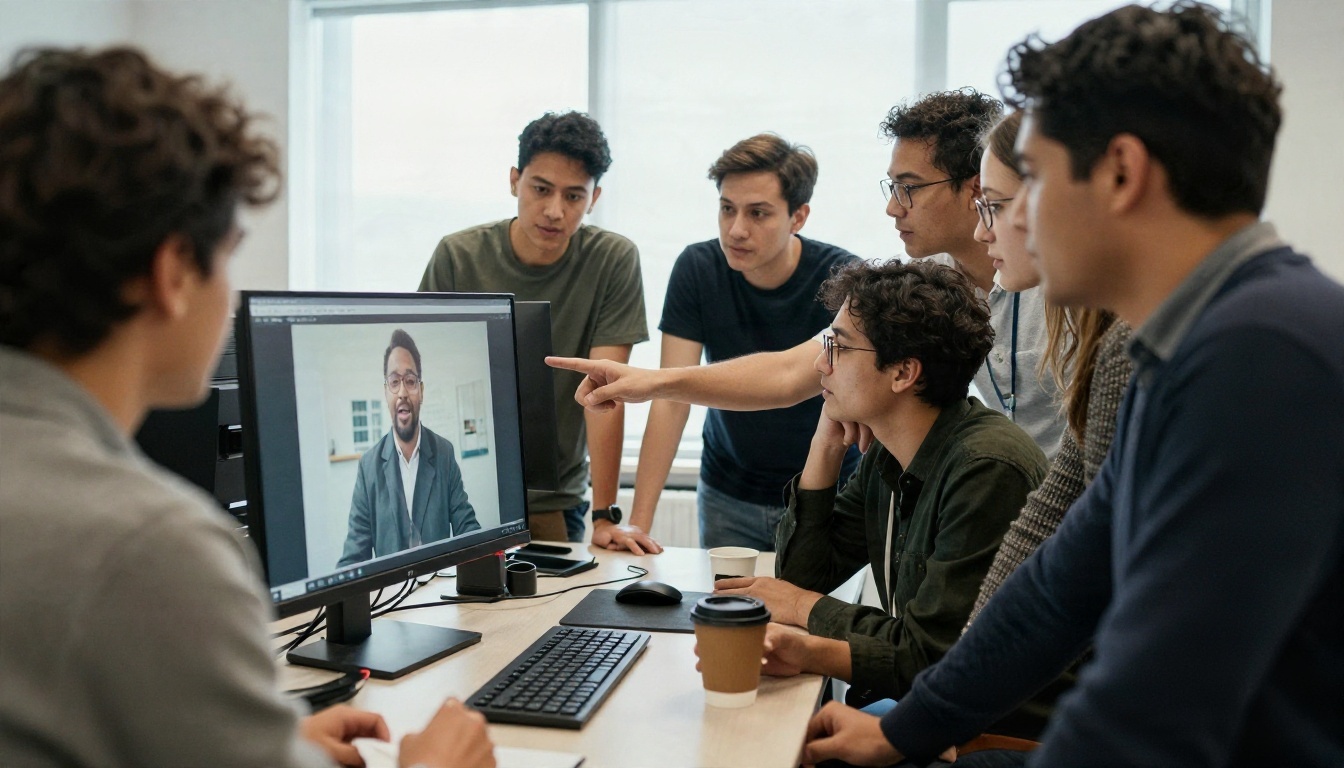
Team explainer
- Image: a presenter in an office, standing.
- Reference: a colleague explaining an idea with open hand gestures.
- Mode: image orientation.
- Prompt: "Daylight office, calm and professional."
Common Mistakes and Fixes
Almost every bad result has a clear cause. Use this table before you spend more credits.
| Symptom | Likely cause | Fix |
|---|
| Character faces the wrong way | Wrong orientation mode | Switch between video and image orientation |
| Hands melt or split | Hands hidden in image or clip | Use sources where hands are clearly visible |
| Body looks stretched | Different proportions or crop | Match framing and body type |
| Face drifts mid clip | Low resolution source image | Use a sharper, larger portrait |
| Jittery motion | Handheld, shaky reference | Re-record on a tripod |
| Clip ends too early | Orientation limit reached | Trim the reference or use video orientation |
| Audio mismatch | Original sound left on | Turn it off and add a new track |
Three habits that save time
- Preview your reference first. If you cannot clearly see the movement, the model cannot either.
- Match camera distance. Full body reference, full body image.
- Keep a library. Save every clip and image pair that worked, so you can reuse them.
Alternatives for Other Needs
Motion Control is great for copying a performance, but sometimes you want something else. These PicassoIA models cover neighboring jobs:
| Goal | Model | Why choose it |
|---|
| Standard image or text to video with Kling quality | Kling v2.6 | Cinematic video from a prompt, no reference clip needed |
| Faster turbo clips | Kling v2.5 Turbo Pro | Quick drafts with solid motion |
| Animate one photo without a reference | Wan 2.6 I2V | Gentle, natural movement from a single image |
| Longer videos | Seedance 2.5 | Extended clips for storytelling |
| Free and unlimited tests | Seedance 2.5 Lite | No credit meter for short clips |
A practical workflow combines them. Draft the scene and the character with a text to video model, test the look cheaply, then bring the final character image into Motion Control for a precise performance.
Questions People Ask
Is Kling 2.6 Motion Control really free?
Not as unlimited use, as far as I could verify. Expect trial credits or pay per clip. For endless testing, a free video model is a better starting point.
How long can the output be?
It follows your reference clip. Video orientation supports up to roughly 30 seconds, and image orientation up to roughly 10 seconds.
Can I use any character image?
Photos, portraits and many stylized characters work. Results are best when the subject is clear, sharp and in a pose that leaves room to move.
Do I need a prompt?
No. A prompt is optional. A short line about setting and light is plenty.
Which orientation should I pick?
Pick video orientation when the body turns, spins or travels. Pick image orientation when your character must keep facing the camera, like in a talking clip.
What if my result looks odd?
Check three things in order: the framing match between image and clip, the visibility of hands, and the orientation mode. Fixing those solves most problems.
Try Your First Motion Transfer
The best way to understand Motion Control is to run one clip. Record ten seconds of yourself on a phone, pick a clear character image, open Kling v2.6 Motion Control on PicassoIA and press generate. Then change a single setting and run it again. Within three or four tries you will have a feel for what the model rewards: clean references, matching framing and the right orientation.
When you want to try other styles, browse the full catalog at picassoia.com/en/all-models, mix video, image, voice and music models, and build your own workflow. Your next clip is one reference video away.


