Most "uncensored" AI sites make you pay, filter your prompts anyway, and keep a copy of everything you type. Locally Uncensored flips that deal. It is a free desktop app that runs on your own computer, so the prompts, the chat history and the pictures never leave your hard drive. The catch is that you have to set it up yourself, and the default image settings are not always flattering.
This article walks through what the app is, what hardware it wants, how to install it, and which image settings actually produce good adult-themed portraits. Near the end, there is a faster route for people whose graphics card cannot keep up.
💡 Quick take: Locally Uncensored is a good fit if you own a recent NVIDIA graphics card and like tinkering. If you want results in seconds without installing anything, jump to the PicassoIA section further down.
What Locally Uncensored Actually Is
The name sounds like a single model, but it is an app. Think of it as a friendly front door to open source tools that are normally annoying to wire together.
Free and open source
According to the project's own pages, Locally Uncensored is a free, open source desktop application for Windows and Linux. There is no subscription and no account. Sources disagree on the exact license (some say MIT, one review says AGPL-3.0), so read the LICENSE file in the repository before you build anything commercial on top of it.
Because the developer writes most of the public material about it, treat claims like "five minute install" as self-reported. In practice, the time depends on your internet speed, because the model files are large.
What runs under the hood
The app bundles two engines in one window:
- Ollama handles chat. It runs large language models locally, including uncensored community versions that will write roleplay, character backstories and image prompts without refusing.
- ComfyUI handles images. It is a node based image engine that loads checkpoints such as Stable Diffusion XL, FLUX.1 Schnell, Pony Diffusion and Juggernaut XL.
- Video support is listed through Wan 2.1 and AnimateDiff, though video on a home PC is slow and hungry for memory.
The practical benefit is simple. Instead of juggling a chat window, a separate ComfyUI browser tab and a folder of checkpoints, you get one interface. Some write-ups say ComfyUI installs itself inside the app, while another developer post says you need a running ComfyUI instance. The README is the final word, so check it for your version.
Hardware You Need First
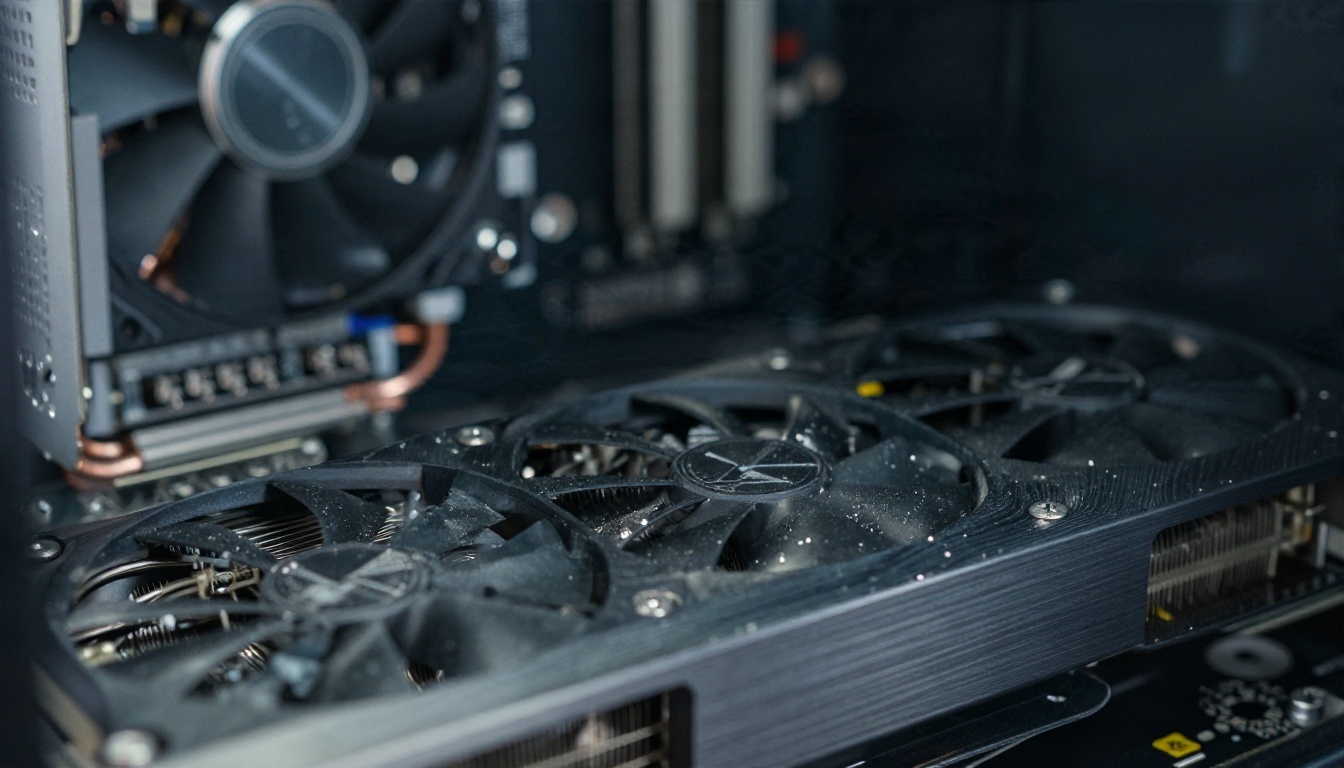
Local generation lives and dies by VRAM, the memory on your graphics card. System RAM matters far less.
GPU and VRAM expectations
These are rough numbers from typical community experience, not guarantees:
| Graphics card VRAM | What works well | Typical speed (1024 px image) |
|---|
| 4 GB | Older SD 1.5 style models only | Slow, 40+ seconds |
| 6 GB | SDXL with memory saving options | 30 to 60 seconds |
| 8 GB | SDXL, Pony, Juggernaut XL comfortably | 15 to 30 seconds |
| 12 GB | SDXL plus quantized FLUX.1 Schnell | 8 to 20 seconds |
| 16 GB or more | FLUX.1 Schnell, light video, upscaling | 5 to 15 seconds |
An NVIDIA card is by far the smoothest path. AMD cards can work, but the setup is more fragile and you will spend time in forums.
Storage and RAM
Plan for 60 to 100 GB of free disk space. A single SDXL checkpoint is around 6 to 7 GB, a chat model is 4 to 10 GB, and you will collect more than you expect. An SSD makes model loading far quicker than a spinning drive. 16 GB of system RAM is a sensible minimum, 32 GB is relaxed.
Setup Tutorial Step by Step
The steps below follow the route the project describes: Node.js, Ollama, a model, then the app. Menu names can change between versions, so treat the exact labels as approximate.
Install the prerequisites
- Update your graphics driver. Old drivers cause most of the strange errors people report.
- Install Node.js (the current LTS version). The app is built on web tooling and needs it.
- Install Ollama for your operating system. After install, it runs quietly in the background.
- Install Git if you plan to clone the repository instead of downloading a release.
Download a chat model
Open a terminal and pull a model through Ollama. Pick one that fits your VRAM:
- 8 GB card: a 7B or 8B parameter model, quantized to 4 bit.
- 12 to 16 GB card: a 12B to 14B model gives noticeably better writing.
- 24 GB card: go bigger if you want richer roleplay.
Search for "abliterated" or "uncensored" variants. These are community versions with refusal behavior removed. They will happily write image prompts for you, which saves a lot of typing later.
Launch and connect ComfyUI
Run the project's setup script or install from source with npm, then start the app. On first launch it should detect Ollama automatically. For images, let the app set up its ComfyUI install if it offers to, then download a checkpoint from inside the app or drop the file into the models folder.
⚠️ Adults only, own characters only. Use these tools for fictional adults or yourself. Never generate someone's likeness without their consent, and keep it away from anyone who might be underage. Local software removes filters, so the responsibility moves to you.
Do a test render
Before changing anything, generate one 1024 by 1024 image with a short prompt. If it finishes without an out of memory error, your pipeline works and you can start tuning.
Image Settings That Work
Default settings are a starting point. A few changes lift quality a lot.
Pick the right checkpoint
Each checkpoint has a personality:
| Checkpoint | Best for | Notes |
|---|
| Juggernaut XL | Photorealistic portraits | Natural skin, forgiving prompts |
| Pony Diffusion | Stylized and character work | Needs special tag prompts |
| Stable Diffusion XL base | General purpose | A solid baseline |
| FLUX.1 Schnell | Fast, clean results | Few steps, needs more VRAM |
For realistic glamour and boudoir style images, Juggernaut XL is the easiest place to start.
Resolution and aspect ratio
SDXL family models were trained around one megapixel. Stay near these sizes:
- 1024 x 1024 for square portraits
- 832 x 1216 for standing, full length poses
- 1216 x 832 for wide, scene based shots
Going much larger in the first pass causes duplicated limbs and stretched faces. Generate small, then upscale afterward.
Steps, CFG and sampler
These values are common community defaults. Adjust one at a time and compare.
| Setting | SDXL / Juggernaut XL | Pony Diffusion | FLUX.1 Schnell |
|---|
| Steps | 28 to 35 | 25 to 30 | 4 |
| CFG scale | 4 to 6 | 6 to 7 | 1 |
| Sampler | DPM++ 2M | Euler a or DPM++ 2M | Euler |
| Scheduler | Karras | Karras | Simple |
| Clip skip | 1 | 2 | n/a |
Higher CFG does not mean better pictures. Past 7 or so, skin turns orange and contrast gets harsh.
Writing prompts that behave
For photorealistic results, write like a photographer, not like a tag collector. Include the subject, clothing, location, light direction and lens:
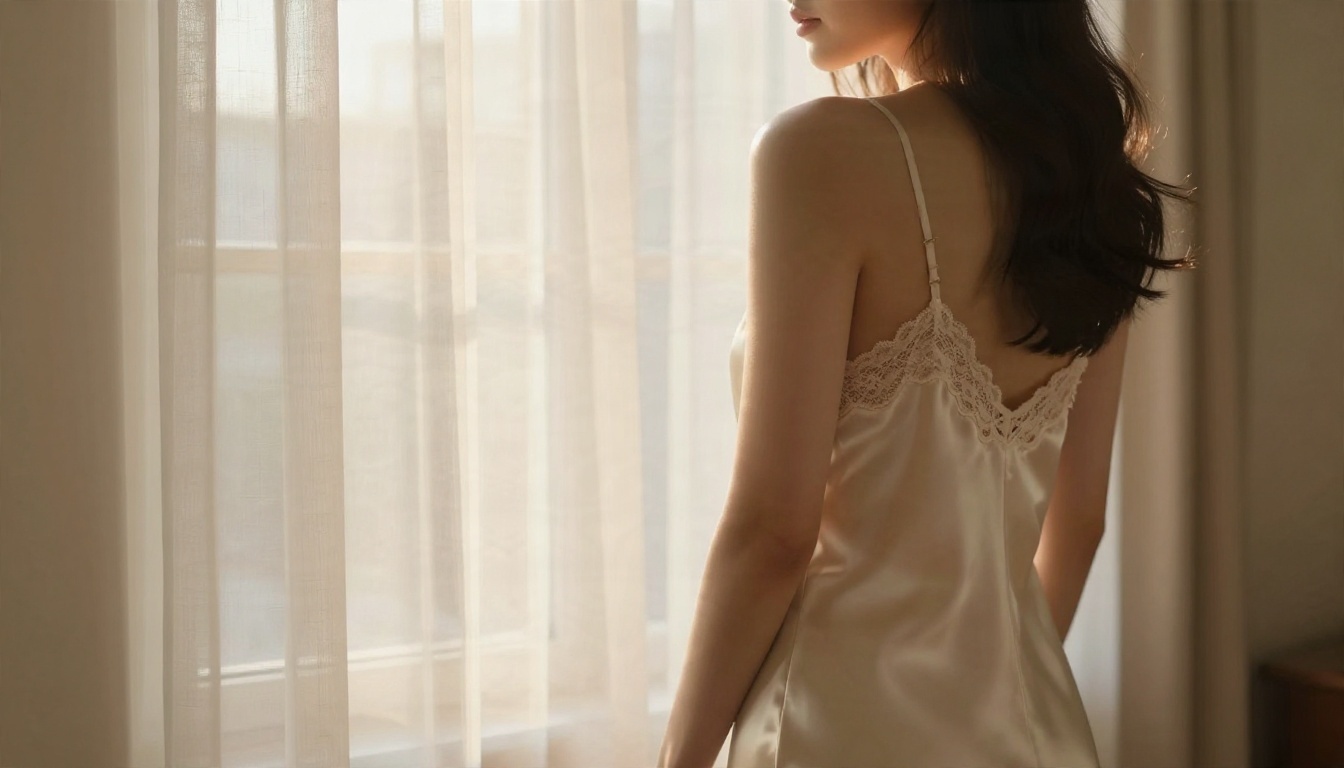
"young woman in black satin lingerie and a loose robe, seated at a window desk, golden hour light from the left, 85mm lens, shallow depth of field, natural skin texture, film grain"
Pony models are different. They respond to quality tags at the start, such as "score_9, score_8_up", followed by plain descriptors. Mixing the two styles in one prompt usually gives muddy output.
A negative prompt helps with the usual problems: "blurry, extra fingers, deformed hands, plastic skin, watermark, text".
Fixing Common Problems
Out of memory errors
The most frequent complaint. Try these in order:
- Lower the resolution to 896 x 896.
- Close your browser and games. Browsers eat VRAM.
- Switch to a quantized or "fp8" version of the checkpoint.
- Turn on the app's low VRAM option if it has one.
- Generate one image at a time instead of a batch.
Plastic skin and bad hands
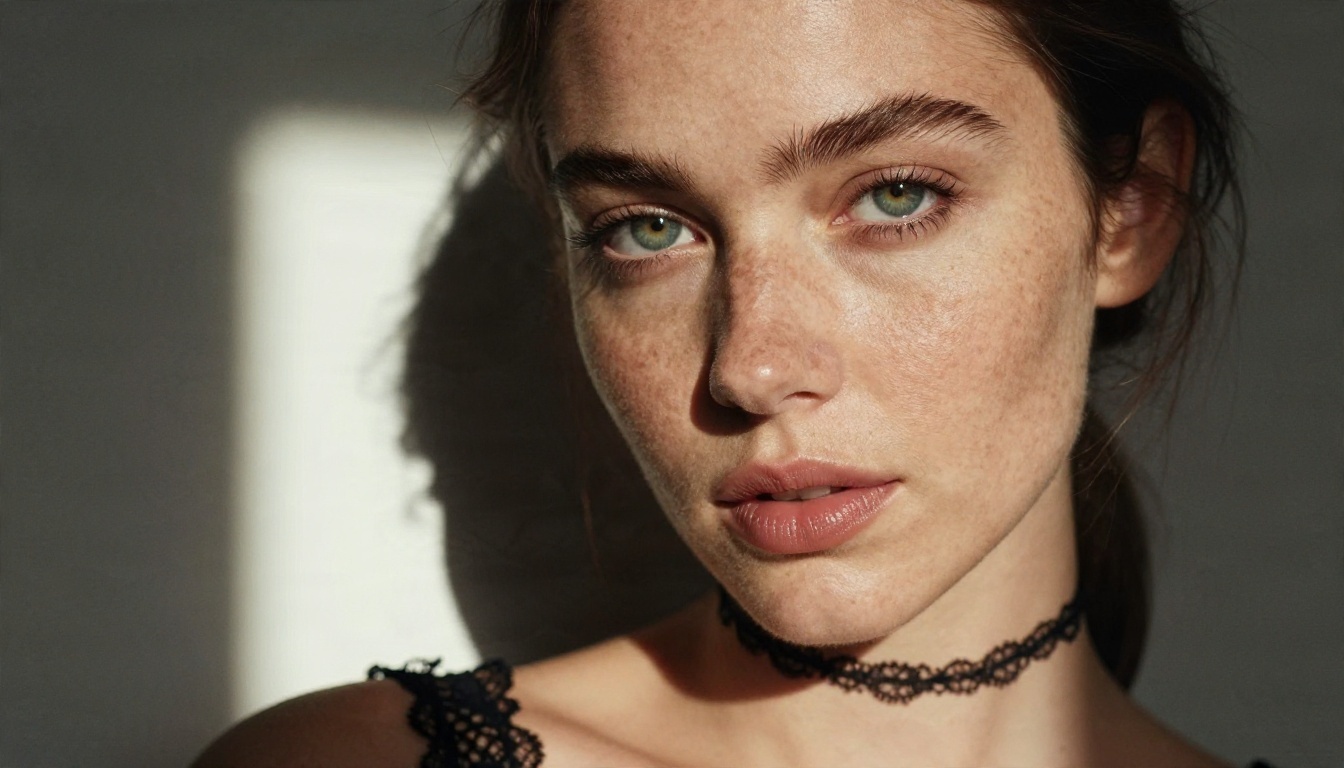
Plastic skin usually means CFG is too high or the prompt says "perfect" and "flawless". Ask for visible pores, fine hairs and natural skin texture instead. For hands, generate several candidates and keep the best, or fix them with inpainting. Hands in a pocket, on a hip or holding an object are easier than open fingers.
Slow chat after loading an image model
Ollama and ComfyUI compete for the same VRAM. If chat feels sluggish after you start generating images, use a smaller chat model, or unload one engine before using the other.
Local vs Cloud: An Honest Comparison
Running locally is not automatically better. It is a trade.
| Factor | Local app | Cloud generator |
|---|
| Privacy | Everything stays on your PC | Depends on the provider |
| Cost | Free software, but you pay for hardware and power | Per use or subscription |
| Setup time | An evening, sometimes more | Seconds |
| Speed | Tied to your GPU | Consistently fast |
| Max quality | Limited by VRAM | Access to the newest large models |
| Filters | None unless you add them | Varies widely |
If you have a strong GPU and care about privacy, local wins. If you have a laptop with 4 GB of VRAM, the cloud wins by a mile. Many people end up doing both: local for experiments, cloud for the final polished image.
How to Get Similar Results on PicassoIA
Locally Uncensored is a separate desktop app and is not part of PicassoIA. But if your PC is too slow, or you simply do not want to install anything, PicassoIA gives you suggestive, glamour style image generation in the browser. Start with Seedream 4.5.
Seedream 4.5 in five steps
- Open the Seedream 4.5 page.
- Write a prompt in the photographer style shown earlier: subject, outfit, setting, light direction, lens.
- Choose a 16:9 ratio for scenes or a portrait ratio for standing poses.
- Generate, then compare two or three variations by changing only the lighting or the pose.
- Download the best one and, if needed, refine it in the editor below.
Parameter tips: Seedream follows natural language closely, so you do not need quality tags or negative prompts. Keep skin descriptions concrete ("visible pores, soft window light") and avoid stacking adjectives like "perfect, flawless, ultra HD".
Edit and iterate without limits
PicassoIA Image Editor Pro is the natural second stop. It offers unlimited generations, so you can keep adjusting an outfit, a background or a lighting mood until it looks right, without watching a credit counter. It is also fast, which matters when you are iterating twenty times on one scene.
Other models worth trying
For more variety, work through these in order:
- Qwen Image 3 Pro for photorealistic faces and clean detail.
- Z Image Turbo for sharp images in a couple of seconds, good for rapid drafts.
- Flux 2 Klein 9B Base LoRA for styled looks with LoRA support.
- Flux Redux Dev to build variations from an image you already like.
Let a language model write the prompts
The same trick you use locally with Ollama works online. Ask Deepseek v3 to turn a rough idea into a detailed photographic prompt with lens, lighting and fabric details, then paste the result into an image model. It saves time and tends to produce more consistent pictures than short prompts.
💡 Tip: Keep a short note of prompts that worked. A good base prompt with a changed outfit or location gives you a consistent series.
Which Route Should You Pick
Choose Locally Uncensored if you own a capable NVIDIA GPU, enjoy tuning settings, and want full privacy with no recurring cost. Budget an evening for setup and expect to troubleshoot VRAM errors.
Choose a browser based option if you want results now, with no downloads and no hardware limits. A sensible split is local for private experiments and PicassoIA for fast, high resolution finals.
Start Creating Your Own Images
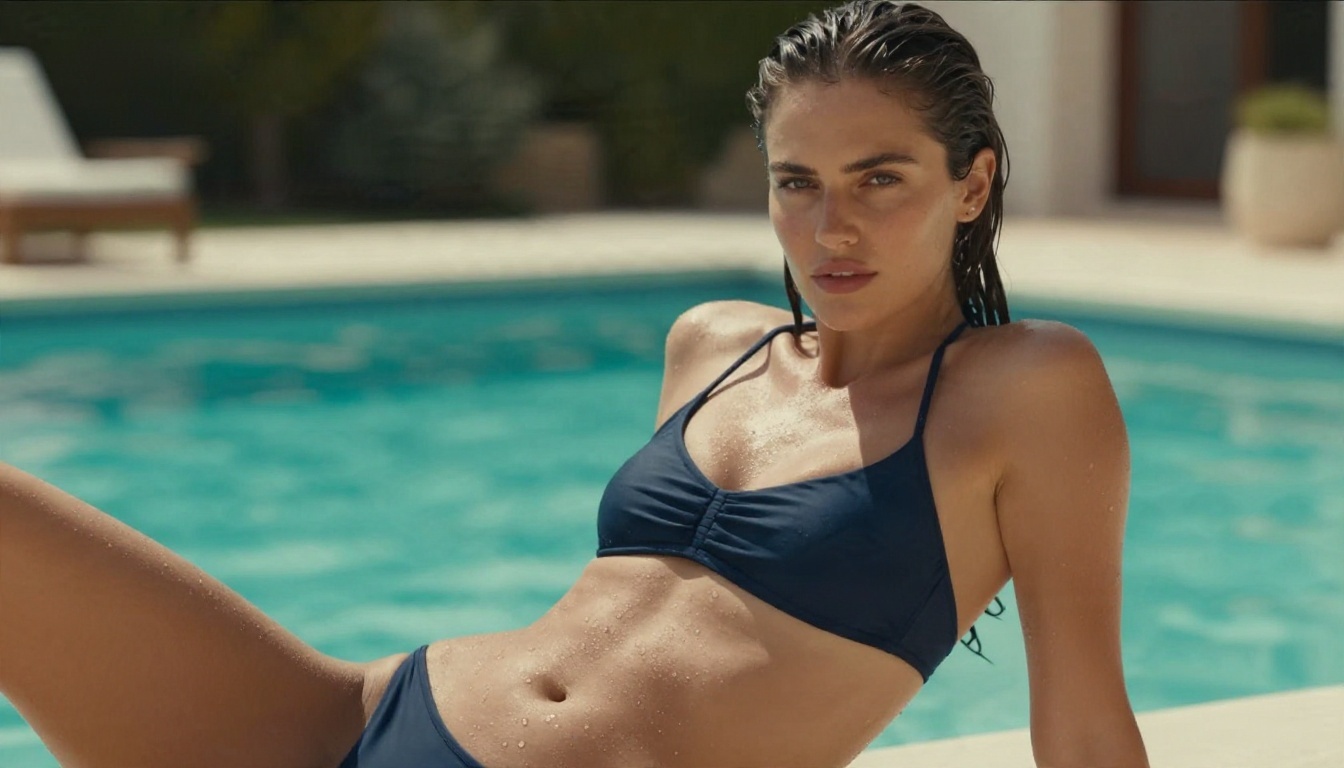
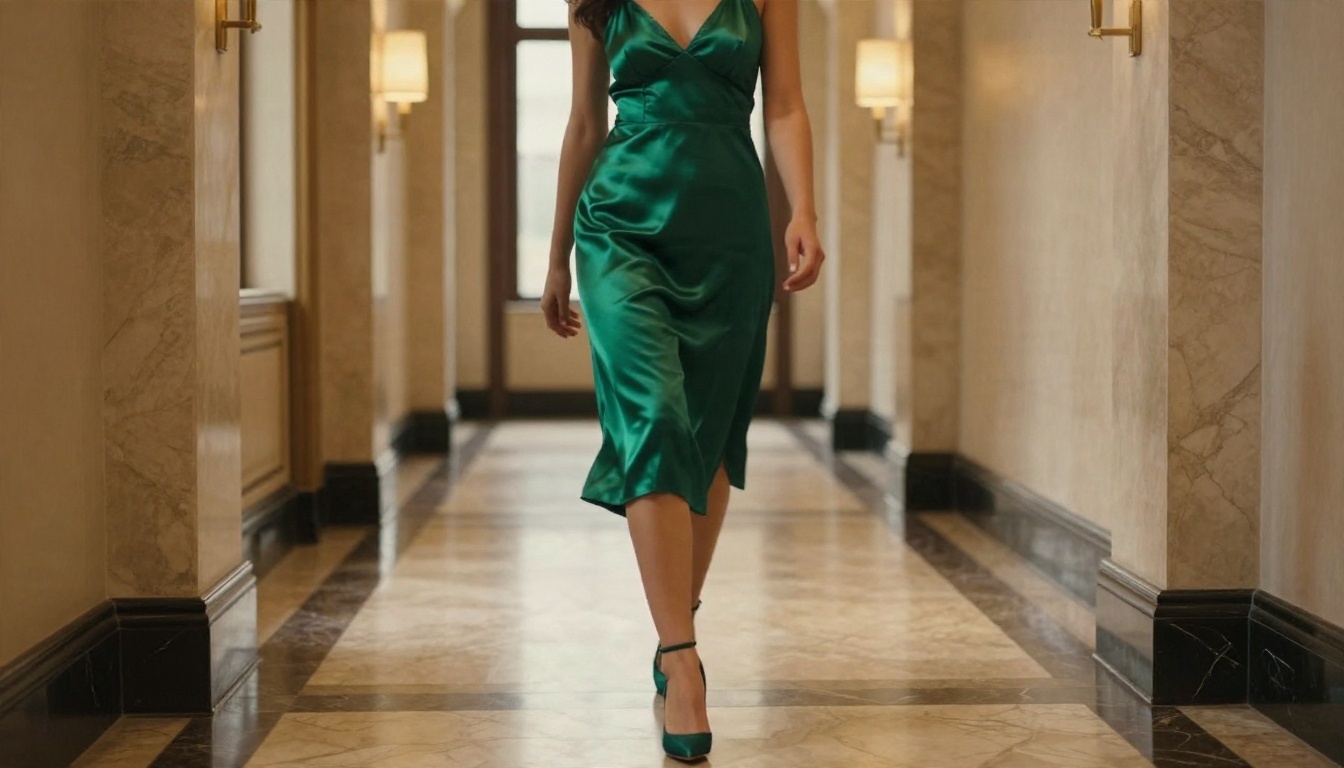
Pick one scene you actually want to see, such as a golden hour portrait by a window, a poolside shot or an evening in a hotel hallway, and write it out like a photographer would. Run it on Seedream 4.5, refine it in PicassoIA Image Editor Pro, and compare it with whatever your local setup produces. The fastest way to find your favorite workflow is to run the same prompt through both and see which result you like more.
To try every available image model side by side, visit picassoia.com/en/all-models and start experimenting with your own ideas.