Luma Dream Machine arrived quietly and changed everything. Before it, AI video felt like a novelty: jerky motion, faces that melted mid-frame, objects that multiplied and vanished without reason. Then Luma showed up with fluid camera movement, coherent subjects, and footage that genuinely fools people for a few seconds. If you have been waiting for AI video to become actually useful, that moment is here.
What Luma Dream Machine Actually Does
Luma Dream Machine is a text-to-video model built by Luma AI. You type a description of a scene, and the model renders video footage that matches it. The system was trained on an enormous dataset of real-world video, which is why the output carries a photographic weight that sets it apart from earlier generators.
The core product lives at Luma AI's website, but the underlying models are also accessible through third-party platforms, which gives you more flexibility in how you run them and what you pay per generation.
How It Reads Your Prompts
Every word you write in a Luma prompt gets weighted against the model's training data. It does not treat prompts like instructions in a programming language. It treats them like scene descriptions in a film script. The model asks, essentially: "What real footage would match this description?" Then it synthesizes motion frame by frame.
This means specificity wins over vagueness. "A woman walking" produces generic results. "A woman in a beige linen jacket walking slowly through a sun-drenched olive grove, handheld camera following at medium distance" produces something with character and intention.
Why It Looks So Real
The realism comes from a training approach focused on physical plausibility. Luma's models absorbed how light bounces off surfaces, how clothing moves with a body, and how camera operators actually frame and move shots. The result is footage that obeys physics rather than approximating it.

This does not mean every output is flawless. Complex multi-person scenes still degrade. Fast-moving text fails almost every time. But for the right shot type, static subjects with controlled motion, the quality is genuinely remarkable and consistently above anything that existed two years ago.
The Models Behind the Magic
Luma has released several versions of its video generation engine under the Ray brand. Each version trades off speed, resolution, and quality differently. Knowing the lineup helps you pick the right tool for each job rather than defaulting to whichever option loads first.
Ray vs. Ray 2: Which to Pick
Ray is the foundational Luma text-to-video model. It produces smooth, coherent video with strong motion consistency and solid prompt adherence. For most creative projects, it is a reliable starting point that does not require much calibration.
Ray 2 720p is a significant upgrade in two areas: cinematic framing and subject stability. Faces hold their structure longer through a clip. Camera motion feels more intentional, more like something a human operator would do. The improvement is most noticeable in clips longer than four seconds.
| Feature | Ray | Ray 2 720p |
|---|
| Subject stability | Good | Excellent |
| Camera motion | Natural | Cinematic |
| Prompt adherence | Strong | Very strong |
| Generation speed | Faster | Moderate |
| Best for | Quick drafts | Final output |
💡 Use Ray for iteration. It is faster and cheaper per generation. Once you have a prompt that works, switch to Ray 2 for the polished final version.
Ray Flash 2: When Speed Wins
Ray Flash 2 720p and Ray Flash 2 540p prioritize generation speed over maximum quality. You get results in a fraction of the standard time. For social content where you are iterating through many prompt variations in a single session, Flash models cut your workflow time dramatically.
The 540p version works well for storyboarding and concept testing. The 720p version produces footage clean enough for most web and social platform use cases. When you are running 15 variations to find the one that works, Flash 2 is the practical choice.

Writing Prompts That Work
The single biggest variable in output quality is prompt construction. A mediocre prompt sent to the best model produces mediocre video. A precise prompt sent to a mid-tier model often produces something genuinely impressive. The prompt is where most of your creative effort should go.
The 4-Part Formula
Every strong Luma prompt contains four components, written in sequence:
- Subject: Who or what is in the shot. Be specific about appearance, clothing, expression, and position within the frame.
- Environment: Where the shot takes place. Include lighting conditions, background details, and time of day.
- Camera: How the camera is positioned and whether it moves. "Static wide shot," "slow dolly forward," "handheld close-up" all produce meaningfully different results.
- Mood/Style: The emotional register of the footage. "Documentary naturalism," "cinematic drama," "casual warmth" steer the visual tone.
Example: "A young woman in a white sundress stands at the edge of a wheat field at golden hour, wind moves through the grain behind her, static medium shot with slight handheld sway, warm documentary naturalism, Kodak Portra color palette"
5 Prompts to Try Right Now
These are calibrated prompts that produce consistently strong results across the Ray model family:
- Product reveal: "A hand places a luxury watch on a white marble surface, extreme close-up, soft studio light from the left, slow zoom out, 8K commercial photography aesthetic"
- Nature establishing shot: "Dense pine forest at dawn, ground-level fog drifts between tree trunks, static wide shot, natural cool morning light, cinematic silence"
- Urban walk: "Man in a grey coat walks through a busy weekend market, handheld camera follows at medium distance, warm afternoon light, documentary style"
- Interior mood: "Empty coffee shop before opening, chairs upside down on tables, morning light through steamed windows, static shot, warm amber tones"
- Coastal landscape: "Aerial pull-back from waves breaking on rocks to reveal a rocky coastline, overcast diffused light, 4K cinematic, slow and steady motion"
What Kills a Good Video
Some prompt patterns reliably produce poor results. Avoiding these saves significant time and credits:
- Multiple subjects with complex interactions: Two people having a conversation degrades quickly. Luma handles single subjects better than group dynamics.
- Text in frame: Any readable text in AI video output looks distorted. Add text overlays in post-production instead.
- Extreme action sequences: Fast movement and physical collisions exceed what current models handle cleanly. The motion becomes muddy.
- Highly specific facial descriptions: Describing "a woman who looks like a 1950s film actress" produces inconsistent results across frames. Keep subject descriptions general.
- Transformation over time: Describing something that changes during the clip, "a flower blooming" or "a face aging," is technically possible but rarely clean.
How to Use Luma Ray on PicassoIA
PicassoIA gives you direct access to the full Luma Ray model family through a straightforward interface that does not require API configuration or separate billing setup beyond your account credits. Here is the complete workflow from first visit to finished video clip.
Step 1: Pick Your Model
Navigate to the text-to-video section and select your target model based on your priority:
The model page shows example outputs from other users, which is useful for calibrating your expectations before spending credits on an untested prompt.
Step 2: Write Your Prompt
Use the 4-part formula described above. Paste your complete scene description into the prompt field. There is no hard character limit enforced, but prompts over 200 words tend to produce confused outputs where the model cannot prioritize effectively. Aim for 60 to 120 words for best results.
💡 Start simple. A 60-word prompt that works is more valuable than a 200-word prompt that does not. Add detail and complexity once you have a working baseline.
Step 3: Set Duration and Motion
Most Luma Ray models offer duration settings between 3 and 9 seconds. Short clips are harder to produce poorly. Start at 5 seconds for most prompts. If you need longer footage, generate two overlapping clips and edit them together in any standard video editor. The cut will be cleaner than a single long generation.
Camera motion parameters, where available, let you specify direction: push in, pull out, pan left, pan right, orbit. Adding explicit camera motion dramatically increases the cinematic feel of the output and gives the clip purpose beyond simply recording a static scene.
Step 4: Download and Share
Once generated, download the MP4 file directly from the results page. Resolution and file size vary by model:
| Model | Output Resolution | Approx. File Size |
|---|
| Ray Flash 2 540p | 960x540 | 3-6 MB per clip |
| Ray Flash 2 720p | 1280x720 | 6-12 MB per clip |
| Ray 2 720p | 1280x720 | 8-15 MB per clip |
| Ray | Up to 1080p | 12-25 MB per clip |
For social platforms, 720p is more than sufficient. For broadcast or large-screen presentations, use Ray at maximum quality settings.
Luma is not the only option in the text-to-video space. The platform hosts over 100 video generation models, and each one has a different performance profile. Here is how Luma Ray positions against the main alternatives:
| Model | Strength | Weakness | Best Use Case |
|---|
| Ray 2 | Subject stability, cinematic look | Slower generation | Final-quality clips |
| Kling v2.6 | Long clips, motion control | Complex prompts degrade | Action and movement |
| Seedance 1 Pro | Photorealism, 1080p output | Higher credit cost | High-production content |
| Pixverse v5 | Speed, vibrant styles | Less photorealistic | Social and entertainment |
| Wan 2.7 T2V | 1080p quality, detailed scenes | Slower on complex prompts | Documentary and editorial |
| Google Veo 3 | Native audio, realism | Premium tier | Professional production |
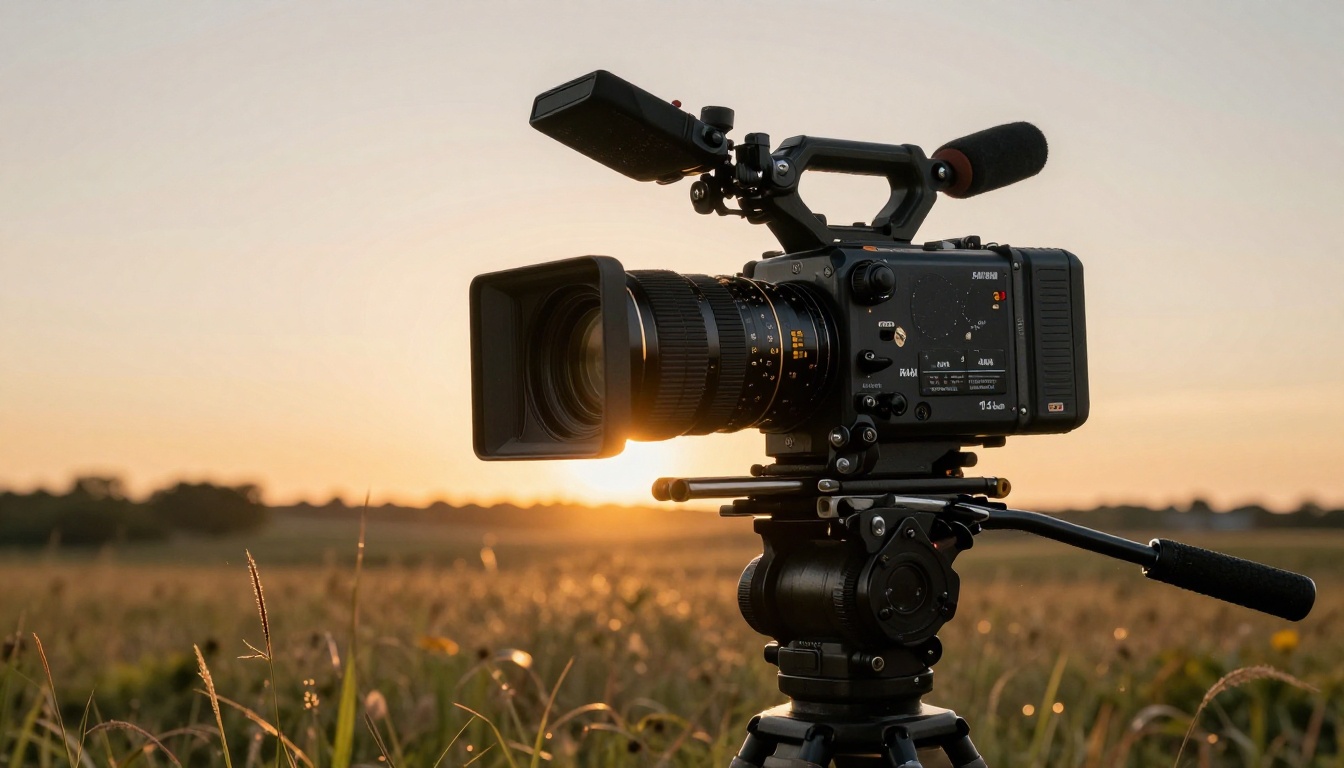
The honest read: Luma Ray 2 wins on cinematic quality and prompt fidelity for most standard use cases. If you specifically need longer clips with complex motion paths, Kling v2.6 is worth testing. For pure speed at scale, the Flash 2 models are unmatched. For audio-synced content, Seedance 2.0 adds built-in audio generation to the mix.
When Results Disappoint
Not every generation works. Knowing the failure patterns helps you diagnose and fix problems without burning through credits on doomed attempts.
Motion Blur Issues
If your output has excessive blur on fast-moving elements, the prompt is asking for more kinetic energy than the model can handle cleanly. Reduce the pace of action in the description. "Running through a forest" becomes "walking at a steady pace through a forest" for cleaner output. You can add the impression of speed during editing with standard post-production tools.
Subject Drift
Subject drift happens when the main character or object gradually changes appearance over the course of the clip. A person's face shifts. A product changes color. This is a known limitation of current diffusion-based video models, not a problem with your prompt specifically. The practical fixes:
- Keep clips short (4 to 5 seconds maximum for character-focused scenes)
- Use highly specific subject descriptions at the start of the prompt
- Avoid any language describing change or transformation over time
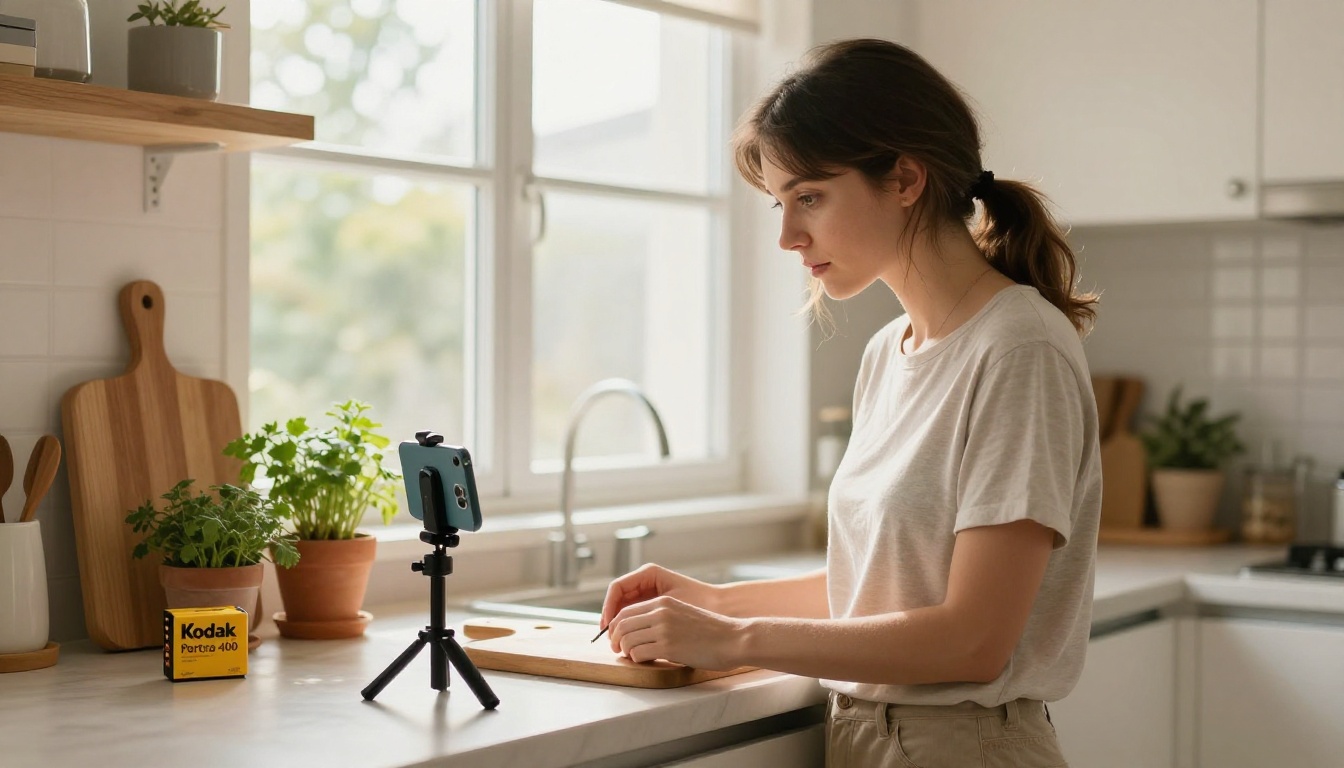
💡 For character consistency across multiple clips, use image-to-video workflows. Generate a reference image first with a text-to-image model, then use Wan 2.7 I2V to animate it. Your subject stays locked to the reference throughout the entire clip.
Real Use Cases That Work
The technology produces its best results when matched to the right type of content. These three categories consistently deliver strong outputs without requiring expert-level prompt engineering.
Short-Form Social Content
The 5 to 9 second clip length is tailor-made for social platforms. A single well-crafted prompt can produce a loop or opening sequence that outperforms stock footage at a fraction of the cost. Brands use this for product announcements, seasonal promotions, and atmospheric brand content without hiring a film crew or booking a location.
Workflow: Write five variations of the same prompt with minor wording changes. Generate all five. Pick the best two and combine them with a simple cut in any editing app. The total time from first prompt to finished clip is often under 20 minutes.
Product Demos
Close-up product footage is where Luma Dream Machine genuinely shines. The model handles still or slow-moving objects with near-photographic fidelity. A watch, a perfume bottle, a skincare product on a marble surface, a coffee cup with rising steam: these scenarios play to the model's core strengths.
The key is controlling the camera movement. Specify "slow push-in" or "gentle orbit left" to add motion without introducing instability. A small amount of intentional camera movement makes AI-generated product footage feel alive rather than frozen.
Creative Storytelling
Short narrative vignettes, opening sequences, and mood pieces translate extremely well to the Luma workflow. The practical absence of dialog in current models is a feature rather than a limitation when you reframe the goal around atmosphere. Focus on environmental and emotional storytelling rather than character action. A deserted train station at dusk communicates more than a character running. A kitchen table with a cold cup of coffee says more than a monologue.
Start Creating Your Own AI Videos
The barrier to producing professional-looking video has dropped to the cost of a well-written sentence. Luma Dream Machine, accessed through models like Ray and Ray 2 720p, puts cinematic text-to-video inside a workflow you can run from any device with a browser.
The platform hosts the complete Luma Ray family alongside over 100 additional video generation options, including Seedance 2.0, Kling v3, and Google Veo 3.1. Testing them side by side costs no more than a few minutes and a handful of credits.
The fastest way to get good at this is through volume. Write 20 prompts. Generate them. Study what worked and what did not. The feedback loop is fast, and the results improve quickly once you understand how the model interprets language and translates description into motion.
Pick a scene, write the description, hit generate. The first clip that surprises you is when this stops feeling like a productivity tool and starts feeling like a creative collaborator worth spending time with.