Make NSFW AI Images in Under a Minute with the Right AI Models
Create stunning NSFW AI images in under a minute with the right models and prompts. This article covers the top text-to-image models for adult content, how to write prompts that actually work, step-by-step instructions for Flux 1.1 Pro Ultra, speed strategies for fast iteration, and the styles that produce consistently strong results. From glamour boudoir to artistic fine art, everything you need to generate photorealistic adult AI art fast.
People searching for how to make NSFW AI images in under a minute usually hit the same wall: they type a vague prompt into the wrong model, wait 30 seconds, and get back something blurry, off, or outright censored. The good news? The process is genuinely fast when you know which tools to use and how to speak their language. This article breaks down everything from model selection to prompt structure so you can start getting strong results immediately.
Why Most People Fail at NSFW AI Art
The failure rate for first-timers is high. It's not because the technology is bad. It's because people treat AI image generators like a search engine, typing something like "sexy woman on the beach" and expecting magazine-quality output. That approach rarely works.
Wrong Model, Wrong Result
Not every AI model handles NSFW content the same way. Some are heavily filtered. Others can produce suggestive, glamour-style, or artistic adult content but require the right prompt structure. Picking a photorealism-focused model is the first step.
Models like Flux 1.1 Pro Ultra and RealVisXL v3.0 Turbo are built for hyperrealistic photography output. They respond far better to detailed, cinematic prompts than abstract or general ones.
Vague Prompts Kill Quality
A prompt like "beautiful woman, lingerie" gives the model almost nothing to work with. AI image generators thrive on specificity: skin texture, light direction, fabric material, camera angle, environment. When you give more, you get more.
💡 Tip: Think like a photographer, not a viewer. Describe the scene you would be shooting, not just the scene you want to see.
The Best Models for NSFW Images
There are 91 text-to-image models on PicassoIA. For NSFW content specifically, the list narrows to a few high performers worth knowing.
Flux 1.1 Pro Ultra
Flux 1.1 Pro Ultra from Black Forest Labs is the top pick for photorealistic NSFW output. It handles skin tone rendering, fabric texture, lighting falloff, and body proportions with exceptional accuracy. For glamour, boudoir, and beach-style adult content, nothing beats it right now.
Why it works for NSFW:
Hyperrealistic skin and fabric texture rendering
Responds accurately to directional lighting descriptions
Low hallucination rate on body proportions
Fast enough for quick iteration cycles
Flux 2 Pro and Flux Dev
Flux 2 Pro pushes the quality ceiling higher with second-generation architecture. For maximum detail on faces, hair, and skin at high resolution, this is where to go.
Flux Dev is the open development version, which offers more creative flexibility. Prompts that feel too constrained on other models often produce exactly what you want here.
RealVisXL v3.0 Turbo
RealVisXL v3.0 Turbo was specifically trained on photographic content with heavy emphasis on realistic human figures. It's one of the most widely used models for adult AI art because it consistently produces natural-looking results without the uncanny valley effect that plagues lower-quality options.
The Turbo version adds speed without sacrificing output quality significantly, making it ideal when you want fast results with strong realism.
SDXL and Stable Diffusion 3.5
SDXL remains a solid foundation for NSFW AI images, especially when paired with LoRA fine-tunes. It's highly flexible and the community around it has produced a massive library of specialized model variants.
Stable Diffusion 3.5 Large is the latest evolution from Stability AI. It handles complex scene compositions and multi-subject prompts better than previous versions, making it great for detailed environmental setups.
The prompt is where the image is born. Here is exactly what to include and how to structure it for the best results with any model.
Subject and Pose First
Start every NSFW prompt with a clear description of the subject. Include physical characteristics, what they're wearing, and their pose or expression. Being specific about the pose prevents the model from defaulting to a generic standing figure.
Example:
"A confident young woman with olive skin and dark wavy hair, sitting on the edge of a bed, wearing a black lace bralette and silk shorts, relaxed posture, looking directly at camera with a soft expression"
Environment and Background
Tell the model where the scene is happening. This creates context that naturally influences the lighting, mood, and overall aesthetic.
Strong environment examples:
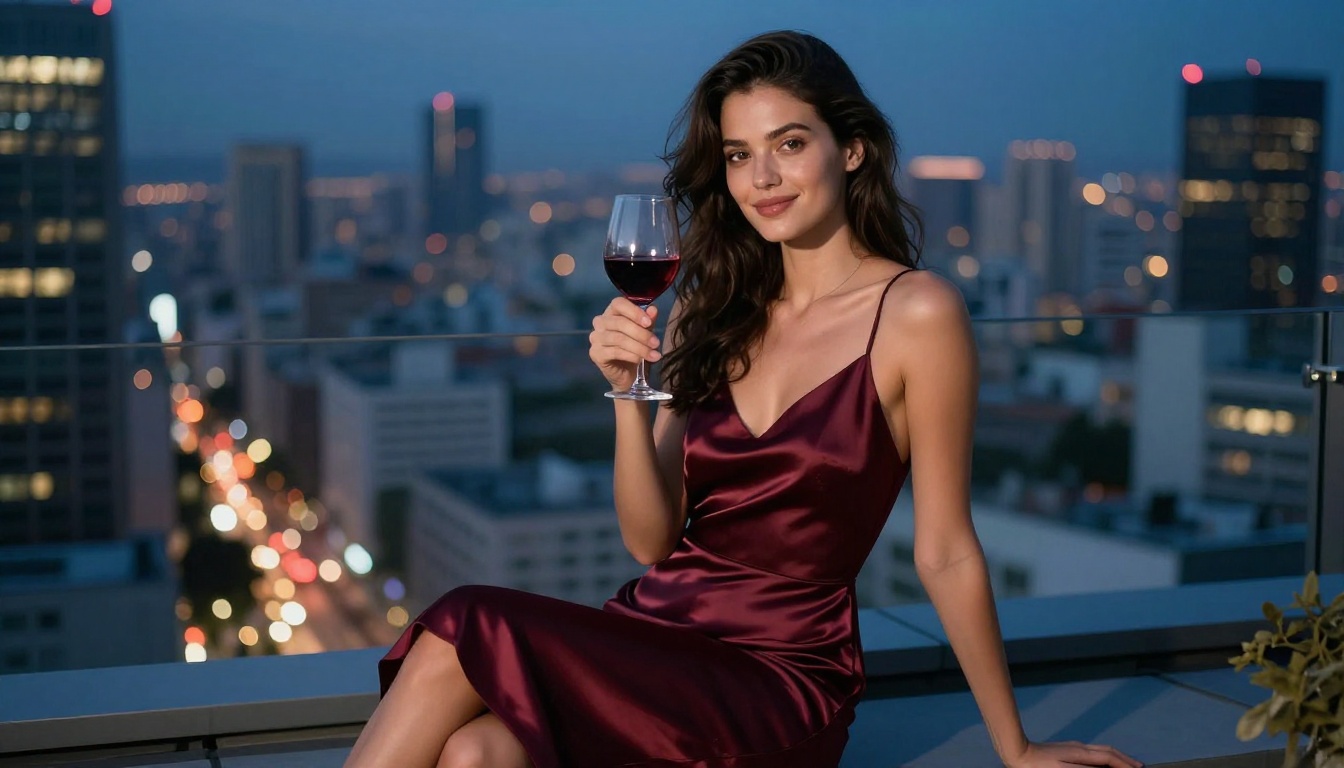
"luxury hotel suite with floor-to-ceiling windows overlooking a city at night"
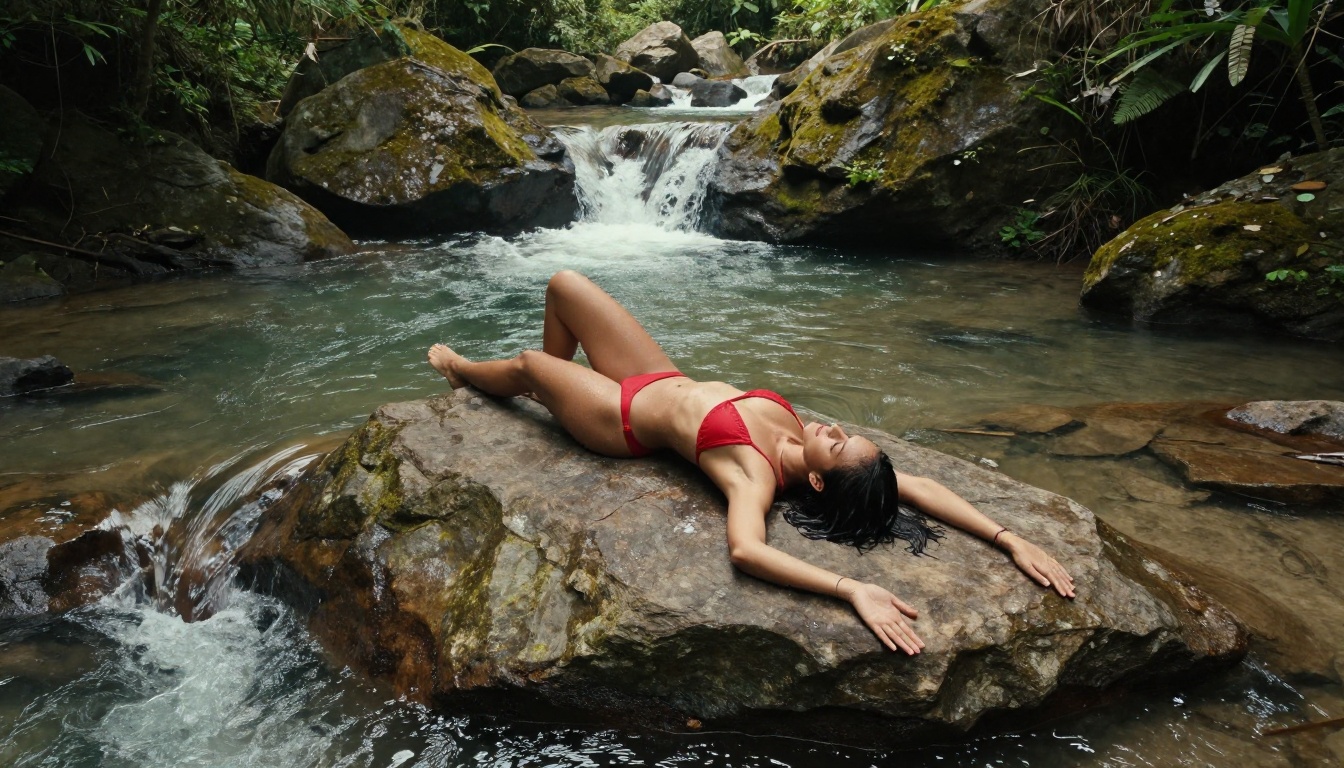
"private tropical beach at golden hour with calm turquoise water"
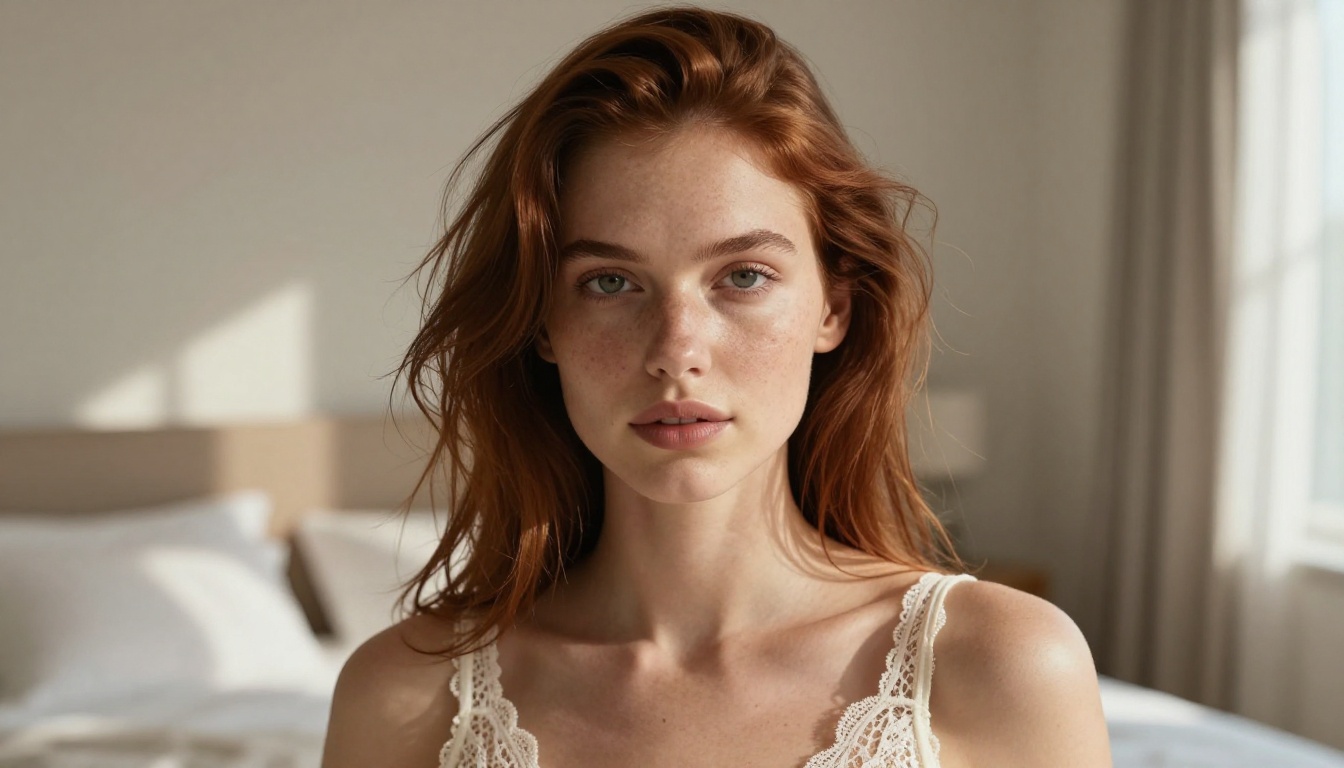
"minimalist modern bedroom, soft morning light, white linen sheets"
A well-described environment also prevents the model from generating floating figures against empty backgrounds.
Lighting: The Most Important Detail
Lighting descriptions have a bigger impact on image quality than almost any other variable. Models like Flux 1.1 Pro Ultra respond directly to lighting direction, temperature, and quality.
High-impact lighting terms:
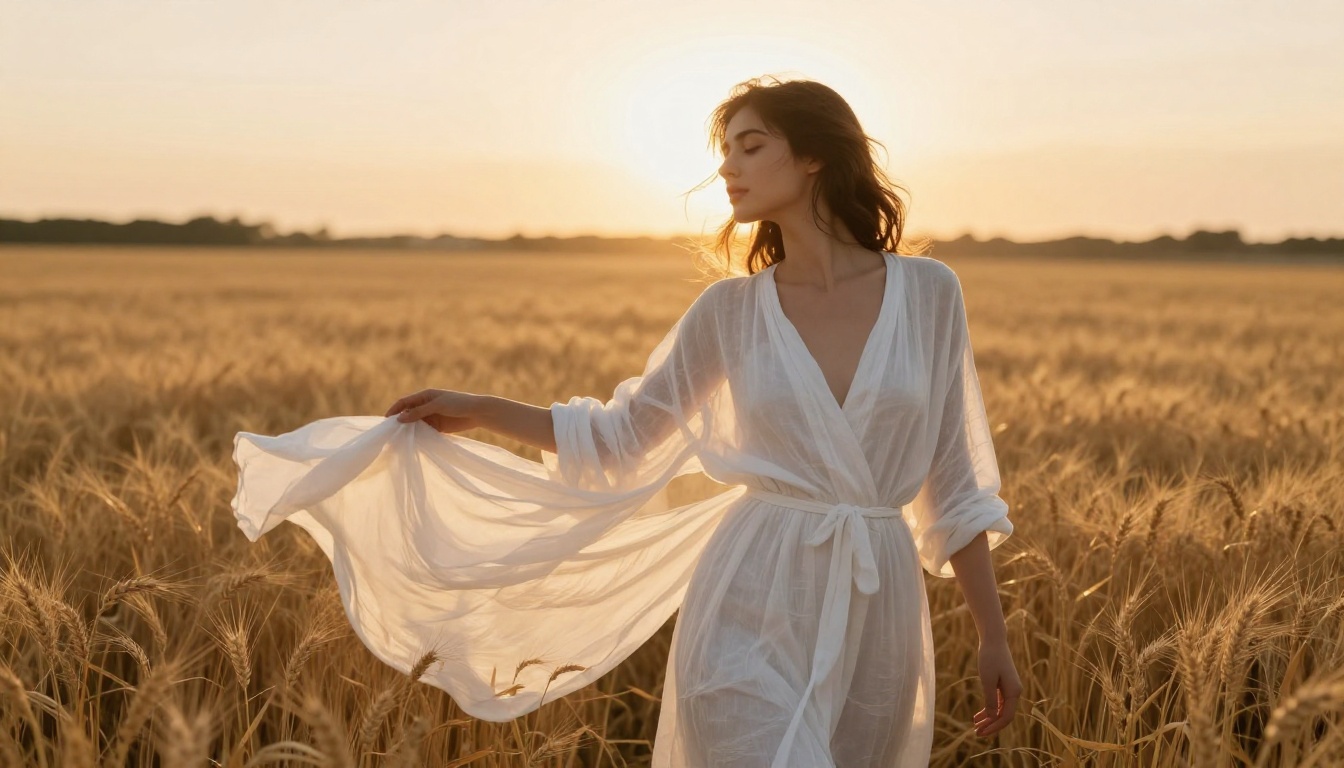
"golden hour backlight from the left"
"soft diffused morning light through sheer curtains"
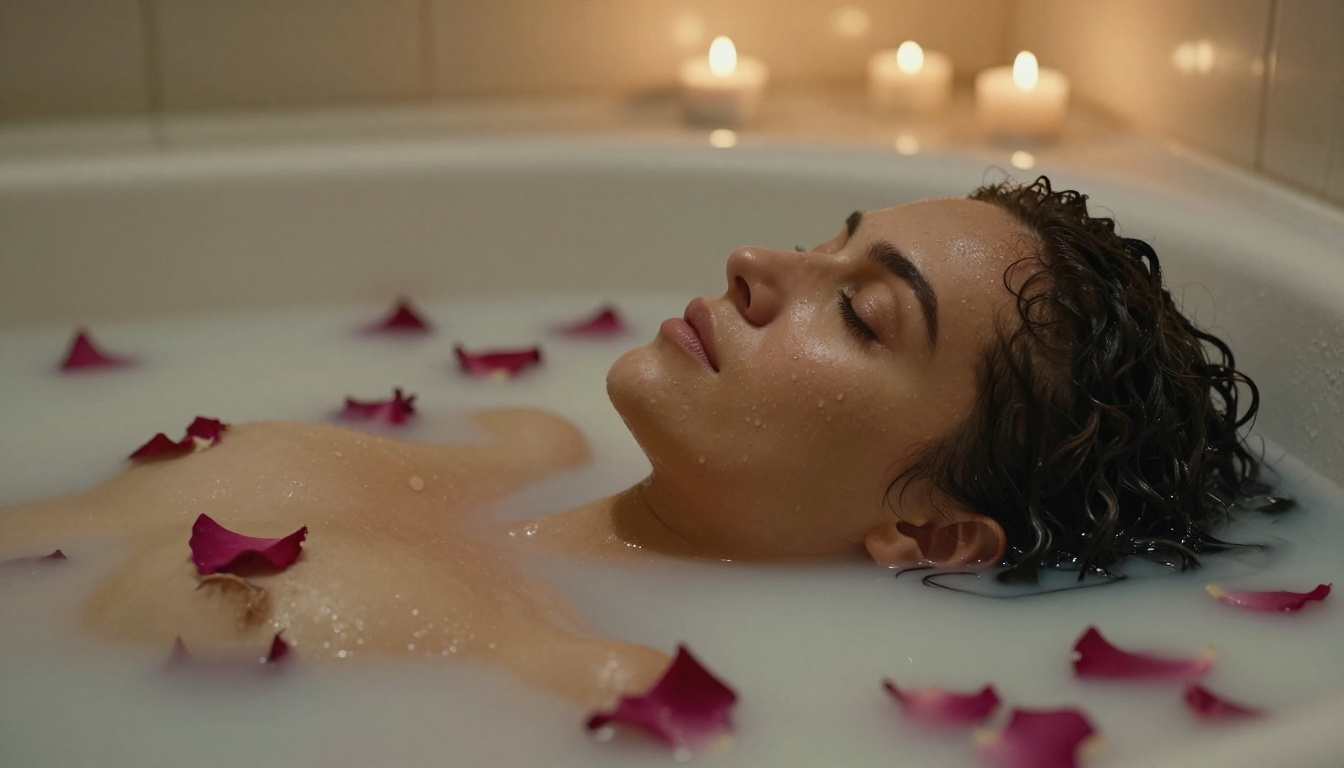
"candlelight creating warm amber tones with chiaroscuro shadows"
"volumetric fog with rim lighting from behind"
💡 Always specify where the light comes from. "Light from the left" vs "light from behind" creates entirely different images.
Camera Angle and Lens Details
Adding camera specifications dramatically improves output quality on photorealism-focused models. The model treats this as art direction.
Effective camera descriptors:
"85mm f/1.4 prime lens, shallow depth of field"
"low angle, looking up at subject"
"aerial overhead bird's-eye view"
"close-up portrait, tight crop on face"
Style Tags to Lock In the Look
End every prompt with style anchors that reinforce the photographic, non-digital nature of the output:
photorealistic RAW 8K photography, Kodak Portra 400 film grain, cinematic mood, hyper-detailed, professional editorial
Avoid style terms like "digital art", "illustration", or "3D render" unless you specifically want those aesthetics.
Flux 1.1 Pro Ultra: Full Walkthrough
Flux 1.1 Pro Ultra is the recommended starting point for anyone wanting to make NSFW AI images quickly with professional-grade results. Here is the exact process.
Step 1: Open the Model
Go to the Flux 1.1 Pro Ultra model page on PicassoIA. You will see the prompt input field, aspect ratio selector, and generation controls ready to use.
Step 2: Build Your Prompt
Using the structure from the previous section, write your prompt in this order:
Keep your prompt between 60 and 120 words. Too short gives the model too little direction. Too long and it starts losing track of priorities.
Step 3: Set the Aspect Ratio
For NSFW images, 16:9 works well for landscape scenes such as beach, bedroom, and outdoor settings. Use 9:16 for vertical portrait compositions. Flux 1.1 Pro Ultra handles both ratios without distorting proportions.
Step 4: Generate and Iterate
The first result will rarely be perfect. Analyze what came back and adjust:
Face looks off: Add "symmetrical face, realistic proportions, natural expression"
Lighting is flat: Strengthen your lighting description with direction and temperature
Clothing wrong: Be more explicit about material, fit, and coverage level
Background weak: Add more environment details and depth cues
Most people hit a strong result within 3 iterations.
Step 5: Draft Fast With Flux Schnell
If you are iterating quickly and do not need maximum quality yet, switch to Flux Schnell for fast draft generation. It generates in under 10 seconds and still produces solid output. Once you have a prompt structure that works, move back to Flux 1.1 Pro Ultra for the final high-quality version.
Speed Tips for Results Under 60 Seconds
The "under a minute" goal is realistic once you have a system in place. Here is how to consistently hit it.
Keep a Prompt Template
Create a personal template that you fill in for each new image. This removes the blank-page problem and gets you to a first generation faster.
[Subject: build, skin, hair, clothing, pose] in [environment: location, time of day], [lighting: direction, quality, temperature], shot at [lens mm and aperture], photorealistic RAW 8K, [film stock], cinematic mood
Use Fast Models for Drafting
The fastest models for NSFW generation on PicassoIA:
Use these for testing prompt variations. Switch to premium models for the final output.
Batch and Compare
Rather than generating one image and evaluating before moving on, run 3 to 4 generations simultaneously with slight prompt variations. This gives you options to compare without meaningfully adding to your total wait time.
Save Your Best Prompts
When a prompt produces a strong result, save it. Build a personal library organized by scene type: beach, bedroom, outdoor, urban. Over time, this library becomes your fastest path to high-quality NSFW AI images on demand.
NSFW Styles That Consistently Deliver
Different scenarios call for different approaches. These styles reliably produce quality output across models.
Glamour and Boudoir Photography
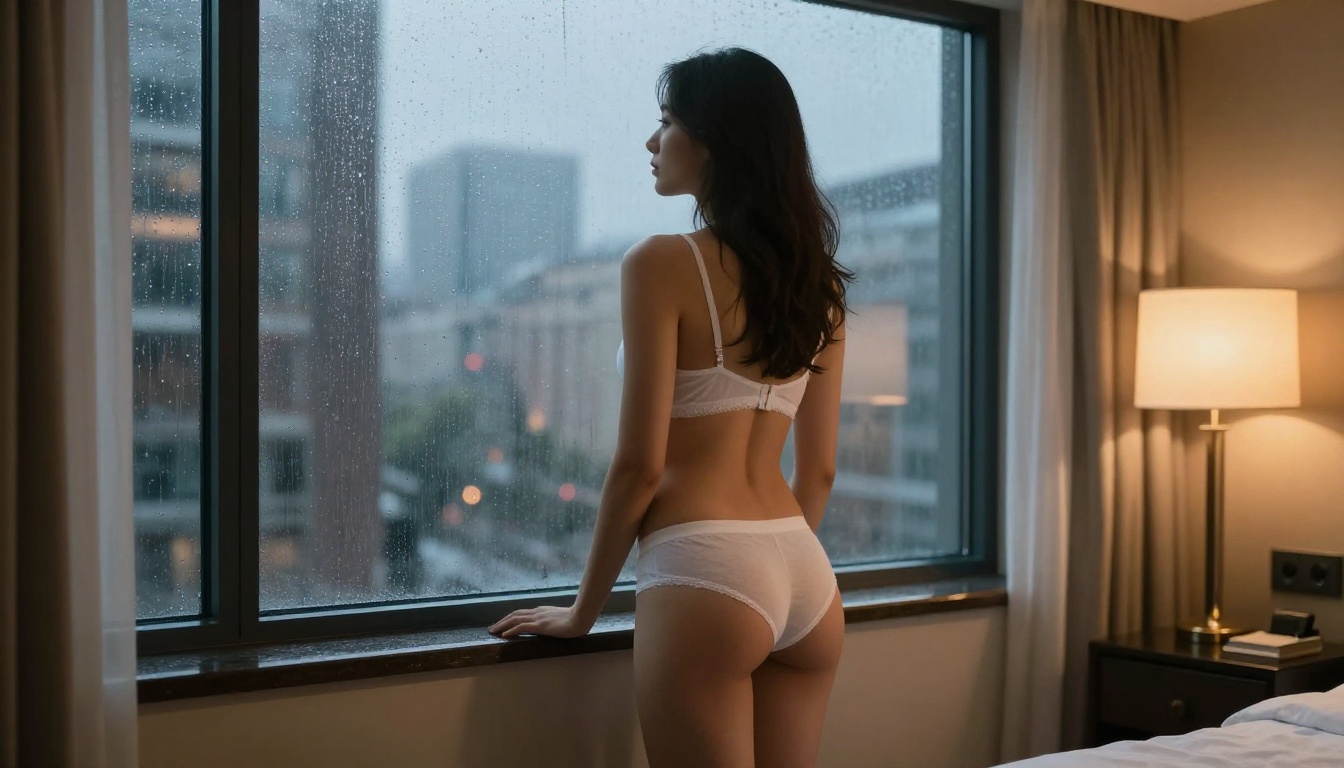
This is the most popular category: high-end lingerie editorial, bedroom scenes, and intimate portraiture. The aesthetic is polished, warm, and confident.
Prompt focus: Fabric texture, ambient light in enclosed spaces, skin tone warmth, intimate settings with natural environmental details.
Outdoor and Beach Scenes
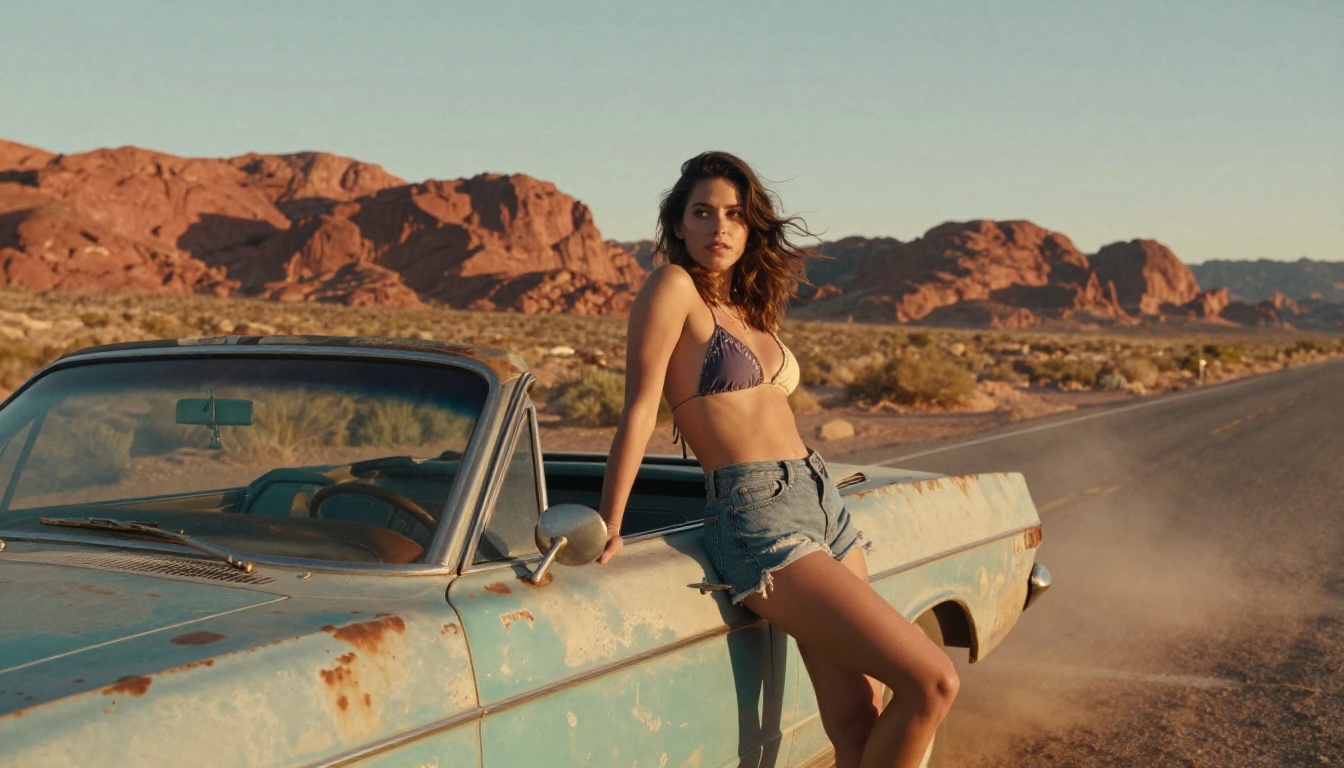
Natural settings allow more freedom in composition. Beach, poolside, and outdoor scenes benefit from directional sunlight descriptions and strong environmental context.
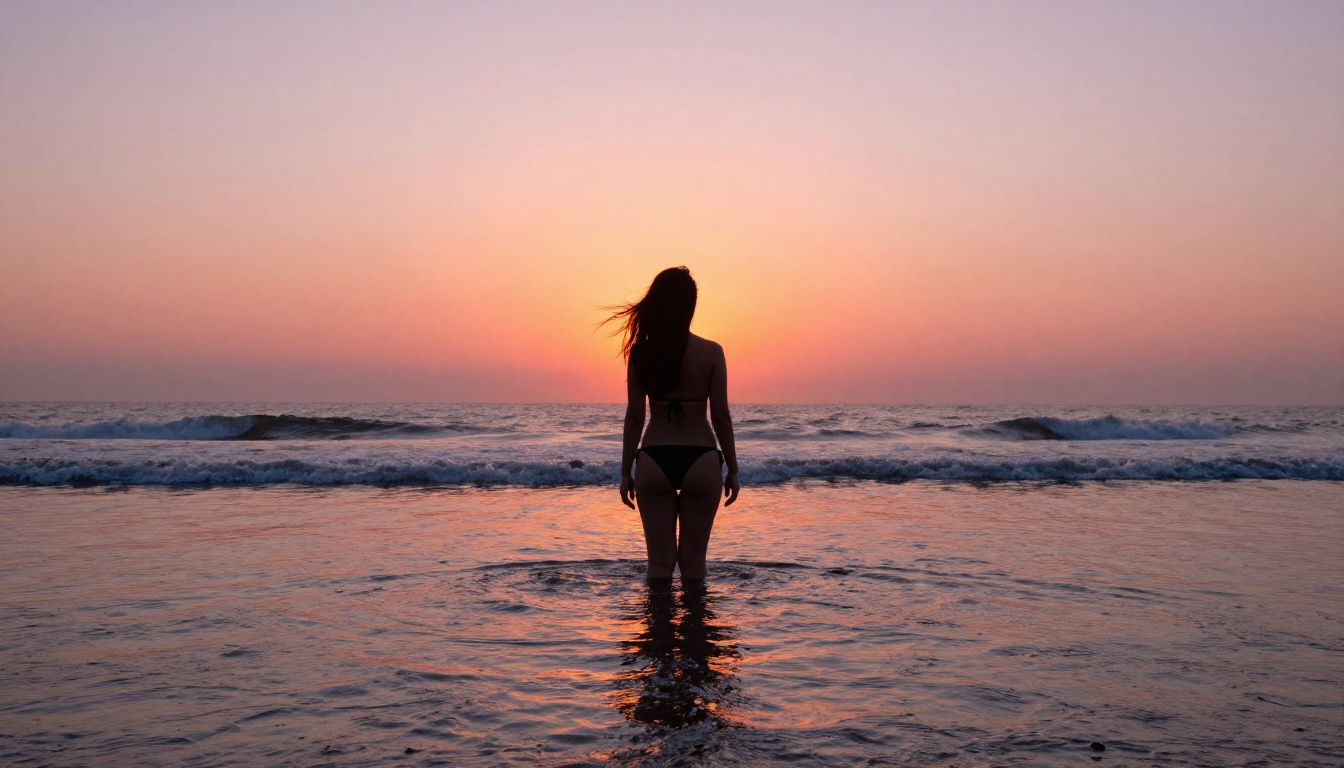
Prompt focus: Time of day (golden hour, blue hour, midday), water and light interaction, wind effects on hair and fabric, natural skin warmth and confident body language.
💡 For beach and outdoor scenes, always specify the sun's position. "Backlit by golden hour sun" creates a completely different image than "midday overhead sun."
Artistic Fine Art Nude
This category focuses on body form, composition, and light as an artistic statement. References to fine art photography and compositional terms shift the output toward the tasteful end of the spectrum.
Effective approach:
Describe the image in terms of light, shadow, and form rather than explicit content
Reference artistic lighting setups such as Rembrandt lighting, butterfly lighting, or split lighting
Use GPT Image 1.5 for clean, compositionally strong fine-art results
Focus on a single strong composition rather than multiple competing elements
Common Mistakes to Stop Making
Most bad NSFW AI images come from the same small set of errors. Fixing these immediately improves output quality.
Anatomy Without Guidance
AI models still struggle with hands, feet, and specific body proportions without direction. If anatomy is consistently off, add "correct anatomy, realistic proportions, natural body shape" to your prompt. Avoid complex poses with multiple visible extremities until you have a working prompt base.
Conflicting Style Instructions
Mixing "photorealistic" with "soft watercolor" or "film grain" with "sharp HDR" confuses the model. Pick one visual lane and stay in it for the entire prompt. Consistency in style language produces consistent results.
Weak Background Description
A poorly described background undermines even a great subject prompt. The environment creates depth, context, and believability. Always include at least two sentences of environment description: the setting, time of day, and at least one atmospheric detail.
More Tools to Use After Generating
Once you have a strong base image, PicassoIA offers additional capabilities to refine and build on it without starting over.
Available editing tools:
Inpainting: Fix specific areas, correct anatomy issues, or add details without regenerating the full image
Outpainting: Expand the canvas to reveal more of the scene beyond the original frame
Super Resolution: Upscale results from standard to ultra-high definition at 2x to 4x scale
Object Replacement: Swap clothing, accessories, or background elements using a simple text instruction
These tools sit alongside the generation models in the same interface, making it easy to go from raw generation to polished final output in a single session.
Create Your First Image Now
You now have the model list, the prompt structure, the speed strategies, and the style breakdowns. The only thing left is to put them together.
Open Flux 1.1 Pro Ultra on PicassoIA, write your first prompt using the template structure from this article, and generate. The first result tells you exactly what to adjust. From there, you're usually 2 to 3 iterations away from something genuinely strong.
If you want to move faster, use Flux Schnell for your first few prompt tests. Once you have locked in a prompt that works, switch to Flux 2 Pro or Flux 1.1 Pro Ultra for the final high-quality version.
The models are fast. The platform is built for this kind of creative work. Try it.