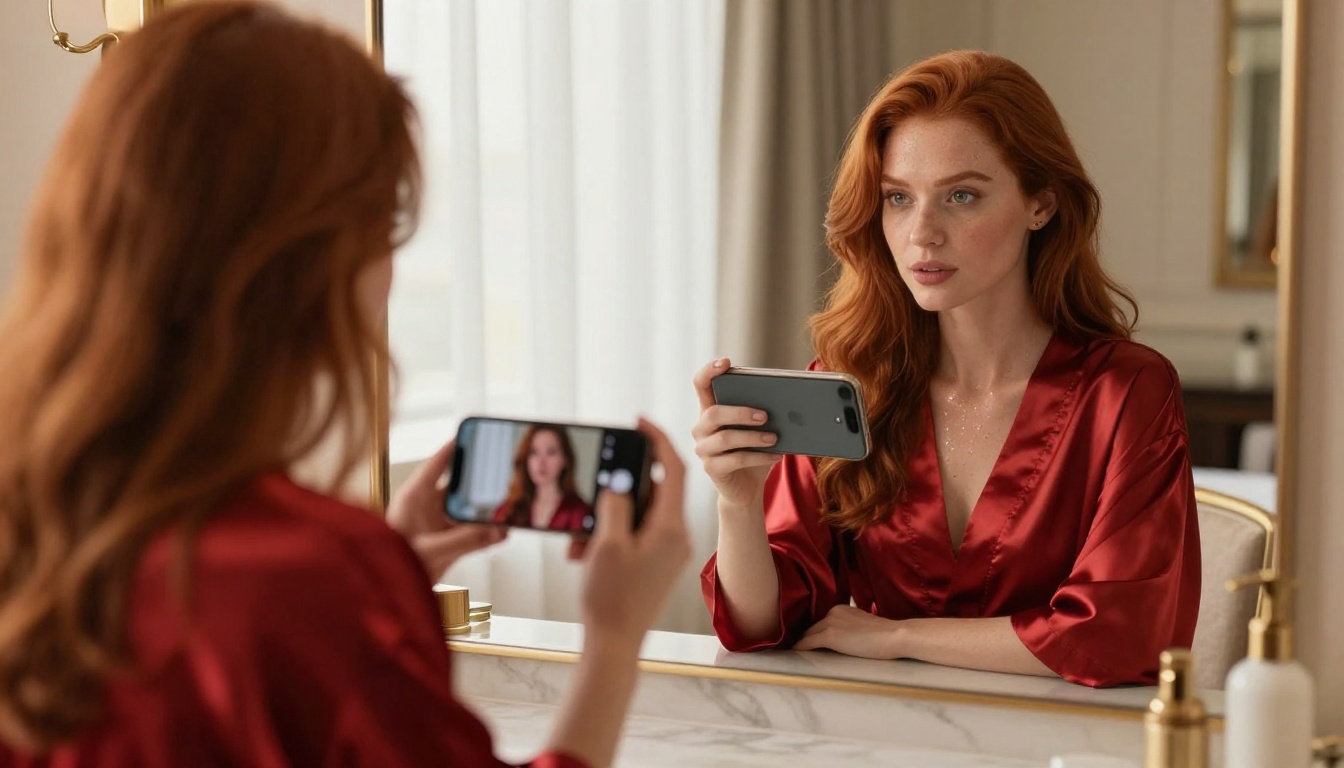
Want to make NSFW AI videos from a single photo? This article covers the best AI models available in 2027, step-by-step workflows for photo-to-video conversion, tips for writing prompts that actually work, and where to generate without censorship or restrictions.
Taking a single photo and turning it into a cinematic, uncensored AI video is something that would have been impossible two years ago. Today, with the right models and the right platform, it takes less than two minutes from upload to playback. This article covers exactly how to do it, which models to use, and what to expect from the output, whether you're starting from a photo you already have or generating one from scratch.
Why One Photo Is All It Takes
The short version: modern image-to-video AI models were trained on hundreds of millions of video clips paired with still frames. They absorbed how faces, bodies, fabrics, and lighting move naturally over time. When you feed them a photo, they don't "animate" it like a cartoon. They synthesize new frames based on what they know about how real people and real physics actually behave.
This is why a single high-quality photo is genuinely all you need. The model infers everything else from that one frame, filling in motion, micro-expressions, fabric shifts, and ambient lighting changes across the full clip.
The Tech Behind It
The architecture powering most photo-to-video models today is a video diffusion transformer. These models process your image as a conditioning signal and iteratively denoise a sequence of latent frames until a smooth, realistic video clip emerges. The result is typically a 5-second clip at 24fps that looks and moves like real footage.
What makes this especially interesting for NSFW content: many of these models were trained without strict content filters on the video data itself. When deployed on platforms that don't impose additional restrictions, you get uncensored, photorealistic results from virtually any source photo.
Why NSFW AI Video Is Different
Generating a static NSFW image is one thing. Generating a video from that image adds an entirely different dimension: motion, timing, and physical realism. Hair moves with a gentle breeze. Fabric shifts naturally as the subject turns. Skin catches light differently as the camera angle changes.
The output feels alive in a way that static generation simply cannot replicate. This is what draws so many creators to photo-to-video AI right now. The barrier went from "I need a production studio" to "I need a photo and a text prompt."
The Best Models for Photo-to-Video
Not every image-to-video model handles NSFW content. Some platforms add aggressive safety filters that flag anything remotely suggestive. Others leave the content policy entirely up to the user. Here's what actually works.
Wan 2.7 I2V
Wan 2.7 I2V is one of the strongest open-architecture image-to-video models available. It handles close-up portrait shots exceptionally well, preserving facial features across frames and generating smooth, natural motion from subtle poses. For NSFW content specifically, it produces realistic skin tones, fabric movement, and lighting that holds across the full clip.
It works best with:
High-resolution source photos with clear subject separation from background
Prompts that describe motion direction and camera behavior
Natural lighting setups in the source image
Kling v3 Video
Kling v3 Video by Kwai is a top-tier choice for cinematic quality. It generates at 1080p and handles complex scenes with multiple motion vectors. If your source photo has a detailed background (a beach, a hotel room, a pool terrace), Kling v3 keeps everything in motion simultaneously rather than freezing the background and only animating the subject.
💡 Tip: Kling v3 responds very well to camera direction prompts. Add phrases like "slow dolly in" or "gentle pan left" and the model applies that camera movement on top of the subject's natural motion.
Hailuo 2.3
Hailuo 2.3 from MiniMax is the fastest option for high-resolution output. It generates 1080p clips quickly and has strong identity preservation, meaning the person in your source photo looks consistent throughout the entire clip. For NSFW content, it handles subtle motion particularly well: a slight head turn, the natural rise and fall of breathing, fabric shifting.
Its companion Hailuo 2.3 Fast trades some quality for a quicker turnaround, useful when iterating on prompts before committing to a full-quality render.
Ovi I2V
Ovi I2V by Character AI is built specifically for character-focused animation from a photo. It generates with native synchronized audio and is particularly strong at emotional expression: a smile spreading across a face, eyes moving naturally, subtle facial muscle animation. For portraits taken at close range, the results are remarkably human.
PicassoIA Video
PicassoIA Video is the platform's own video generator with one standout advantage: unlimited generations at up to 720p and 5 seconds per clip. No credit limit, no per-video fee for subscribers. For anyone who wants to iterate quickly without worrying about costs, this is the starting point.
How to Use Wan 2.7 I2V on PicassoIA
Here's a direct workflow for getting your first NSFW AI video from a single photo.
Step 1: Upload Your Source Photo
Go to Wan 2.7 I2V on PicassoIA. Click the image upload area and select your photo. The model accepts JPG, PNG, and WEBP formats.
What makes a strong source photo:
Minimum 512px on the shortest side (higher is always better)
Clear, uncluttered background if you want clean subject motion
Natural lighting rather than heavy flash or mixed color temperature
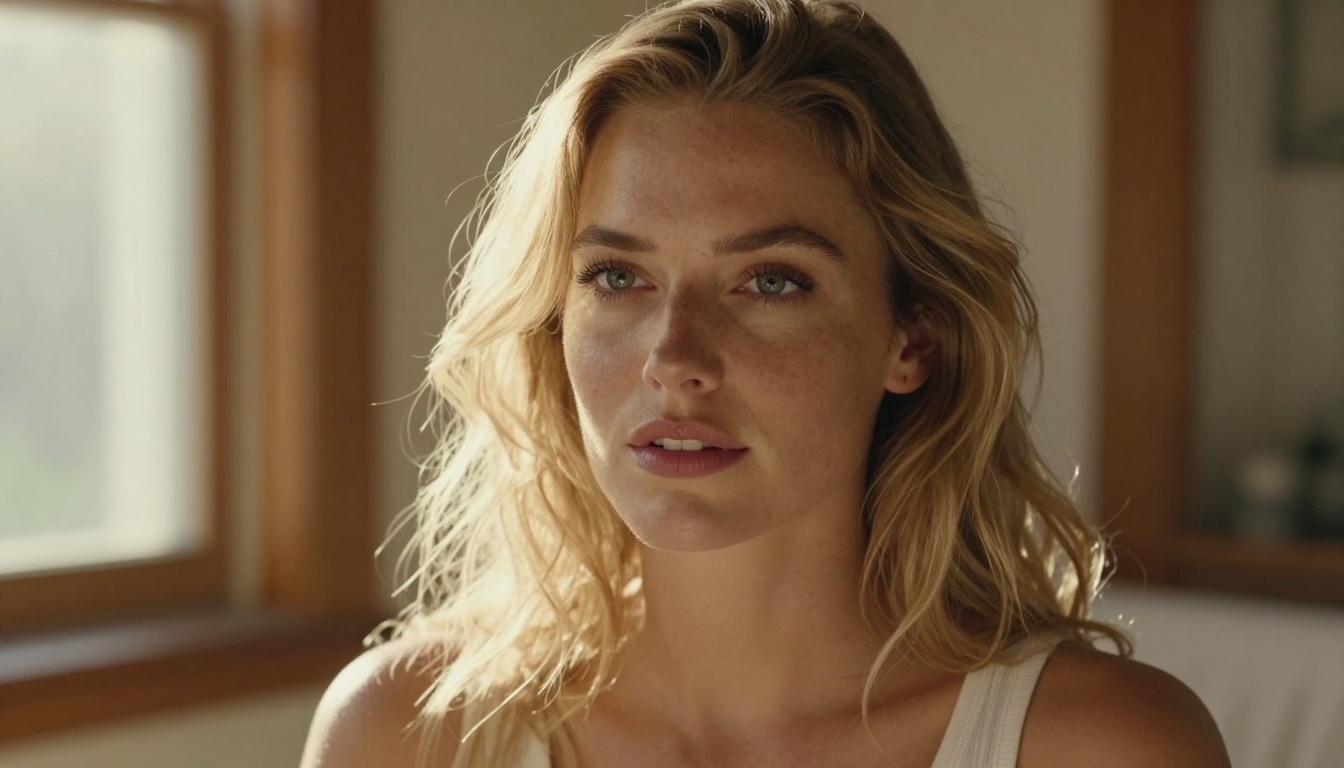
Subject facing roughly toward camera with visible face and upper body
Relaxed, natural pose with slight asymmetry
💡 Tip: A photo taken in soft natural light with the subject in a relaxed, natural pose will generate much smoother motion than a heavily edited or stylized photo. The model animates what's actually there. Give it something real to work with.
Step 2: Write a Motion Prompt
This is where most beginners lose quality. The prompt for image-to-video is not the same as a prompt for image generation. You're not describing a scene. You're describing what happens in the scene over 5 seconds.
Use this structure:
[Subject] + [what they do] + [how the camera moves] + [lighting/atmosphere]
Example prompt:"Woman slowly turns her head toward camera, hair falling gently across her shoulder, soft evening light from the left, slow dolly forward, intimate atmosphere"
What to avoid:
Describing visual details already visible in the photo — the model already sees those
Abstract words ("sensual", "romantic") without physical motion descriptors
Overlong prompts with contradicting directions in the same sentence
Step 3: Set Resolution and Generate
Select 720p for the best balance of quality and generation speed. Click generate and wait. Processing typically takes 1-3 minutes depending on platform load.
If the result doesn't match what you intended, adjust the motion in your prompt, not the visual description. Motion prompt specificity is almost always the variable that matters most.
Writing Prompts That Actually Work
The prompt is the lever that controls everything in AI video generation. Get it right and the output is stunning. Get it wrong and even a great model returns something mediocre.
Structure Your Prompt Like a Camera Direction
Think of your prompt as a film director's instruction. A director doesn't tell actors what they look like. They tell them what to do, how to move, and what to feel. Your prompt works the same way.
Component
Example
Subject action
"slowly raises her chin"
Body or hair motion
"hair drifts in a gentle breeze"
Camera movement
"slow dolly in from medium to close-up"
Lighting
"warm late afternoon light from right side"
Atmosphere
"soft focus background, intimate, quiet"
Combining three or four of these components in a single coherent sentence gives the model precise instructions it can act on.
Common Mistakes to Avoid
1. Prompting visual style instead of motionLess effective: "Photorealistic, cinematic, 8k, high quality"
More effective: "Hair moves gently as subject turns slowly left"
2. Conflicting directionsLess effective: "Camera dollies in while also panning right and tilting up simultaneously"
More effective: Pick one camera movement per prompt
3. Ignoring the source photo's pose
If your photo shows someone standing still, don't prompt for "running." Start motion from where the photo already is. The model animates forward in time, not into an entirely different scenario.
4. Not iterating
Your first generation is almost never your best. Run three to five variations with small prompt changes. The differences between outputs will tell you exactly which direction to refine toward.
Best NSFW AI Image Models on PicassoIA
Before you generate a video, you need a great source photo. If you don't already have one, these models can create it.
Seedream 4.5 ⭐ — The top recommendation. Accepts NSFW content, generates ultra-realistic results in under 3 seconds, and supports image editing. This is where to start. (Note: the newer Seedream 5 Lite does not support NSFW content.)
PicassoIA Image Editor Pro — img2img with unlimited generations on Elite and Infinite plans. Need 1,000 images? That's $0 extra on your subscription, compared to around $100 on generation-capped models. Accepts NSFW, delivers results in under a second, and includes a 3-generation free trial with no credit card required.
Qwen Image 2 — Open-source model that creates or edits any image in seconds with very detailed realism and no content restrictions.
Grok Imagine Image — Realistically converts any photo to a bikini or alternative format. Particularly strong at realistic clothing transformation.
P-Image — NSFW text-to-image generation in under 1 second. Ideal for fast iteration on source photo concepts.
💡 Note: If you generate your source photo with Seedream 4.5, include lighting direction and lens specifics in your prompt. "Shot on Canon 85mm f/1.4, soft side light from left" produces a photo the video model can animate much more convincingly than a flat, evenly-lit image.
The quality of your input photo directly controls the ceiling of your output video. A blurry, low-light, or heavily compressed photo will always produce worse video than a clean, well-lit source image. This is not a limitation of the models. It's a fundamental property of conditioned generation.
The Ideal Input Photo
The best source photos share these characteristics:
Resolution: At least 1024x576 pixels, ideally 1920x1080 or higher
Lighting: Soft, directional natural light. Avoid heavy overhead flash or mixed color temperature
Sharpness: Subject in sharp focus. Background blur is fine, subject blur is not
Pose: Relaxed, natural, slightly asymmetrical poses animate more convincingly than stiff frontal poses
Framing: Slightly loose framing gives the model room to animate without reaching the image edges
What to Avoid
Heavy filters or aggressive editing: Strong color grading and heavy post-processing confuse the model's reading of real skin tones and lighting physics
Extreme angles: Straight-on passport-style shots produce more limited motion than three-quarter angles
Flat, directionless lighting: Even lighting with no directional component makes it harder for the model to create convincing motion shadows as the subject moves
Very small face in frame: If the face occupies a small portion of a wide shot, facial animation quality drops significantly. Crop closer when face detail matters
Building a Prompt Template
Once you find a motion prompt structure that works, save it as a reusable template. For example:
Swap the variables for each new video and you'll get consistent quality across an entire batch of different source images.
Matching Model to Content Type
One of the most common inefficiencies is using one model for everything. These models have different strengths. Routing your project to the right one from the start saves time and produces better results.
Maximum fidelity: LTX 2.3 Pro at up to 4K, with retake and extend editing
The workflow that wastes the least time: run quick 720p generations to find a motion prompt you're happy with, then do a single final render at your target resolution. Every draft at maximum quality multiplies your wait time without improving your final output.
Where to Access All of This
Every model listed in this article is available at picassoia.com/en/all-models. The platform hosts over 90 image models and 100+ video models, many without content restrictions.
The main advantage over other platforms: PicassoIA does not add extra safety filters on top of the base models. What the model is capable of generating, you can generate. That is a meaningful difference from platforms that restrict outputs even when the underlying model itself would allow them.
For unlimited image generation, PicassoIA Image Editor Pro remains the best value. For unlimited video generation, PicassoIA Video offers the same uncapped model for video clips at up to 720p, 5 seconds per clip.
Your First NSFW AI Video Starts Here
You don't need a production budget. You don't need professional photography equipment. You need a single photo and a text prompt that describes what happens next.
Start with Seedream 4.5 if you need to generate a source image first. Then take that image to Wan 2.7 I2V or PicassoIA Video for the video step. Iterate on the motion prompt until the output matches what you had in mind.
The full lineup of NSFW-capable models, including everything discussed in this article, is at picassoia.com/en/all-models. Browse by category, check example outputs, and find the right tool for your specific creative project. The models are ready. The technology works. The only thing left is to try it yourself.