The gap between what your camera shoots and what social media demands has never been wider. You film everything in 16:9 because that is how cameras, monitors, and TVs work. But TikTok, Instagram Reels, YouTube Shorts, and every vertical surface where real attention lives in 2027 demands 9:16. That is not a minor adjustment. That is a fundamental flip in how your footage exists in the world.
The good news: making vertical videos from horizontal ones is no longer a painful manual process. Between smart crop tools, AI-powered subject tracking, and dedicated reframing models, you can repurpose any horizontal clip into portrait format without your subject being cut at the neck or the main action happening completely off screen.
This is exactly what you need to know.

Short-form vertical content gets more watch time, more shares, and higher completion rates than any other format on mobile devices. Over 70% of video consumption happens on phones held vertically. Algorithms on TikTok, Reels, and Shorts actively penalize content that does not fill the full 9:16 frame. Those black bars on the sides signal to the algorithm that you are not a native creator.
💡 Platform Requirement Cheatsheet: TikTok, Instagram Reels, YouTube Shorts, Pinterest Idea Pins, and Snapchat Spotlight all require 9:16 vertical video for full-screen display.
The problem is that most professional footage, tutorial recordings, travel videos, interviews, and drone shots are filmed in 16:9 or wider. Converting them means losing 56% of your horizontal frame if you simply crop without thinking. That is where smart reframing enters the picture.
The 3 Methods to Convert Horizontal to Vertical
Not all conversion methods are equal. Here is a breakdown of what each approach actually delivers:
| Method | Quality | Speed | Preserves Subject | Best For |
|---|
| Simple Crop (manual) | Medium | Fast | Only if centered | Static shots |
| Pillarbox (add side bars) | Low | Instant | Yes | Avoid whenever possible |
| AI Reframing | High | Medium | Yes, with tracking | Moving subjects, dynamic content |
Simple Crop: When It Works
A straight crop to 9:16 works perfectly when your subject stays centered in the original frame. Interview footage, talking-head videos, and product demos often fall into this category. You take the middle third of the horizontal frame and you are done. No important information is lost.
The problem arrives the moment your subject moves, there are two people in frame, or the interesting action happens in the corners of the widescreen shot.
Pillarboxing: What to Avoid
Adding black or blurred bars to fill the 9:16 frame without cropping preserves the entire horizontal image but looks lazy on every platform. Audiences swipe past it in under a second. Unless the aesthetic is intentional, pillarboxing is not a real solution.
AI Reframing: The Real Answer
AI reframing uses subject detection and motion tracking to automatically identify where the action is in each frame and keeps it centered as the crop window moves through the clip. If someone walks across the frame, the crop follows them. If the camera pans, the reframe adjusts. The result feels like the video was always shot vertically.
This is exactly what Reframe Video by Luma does on PicassoIA.
How to Use Reframe Video on PicassoIA
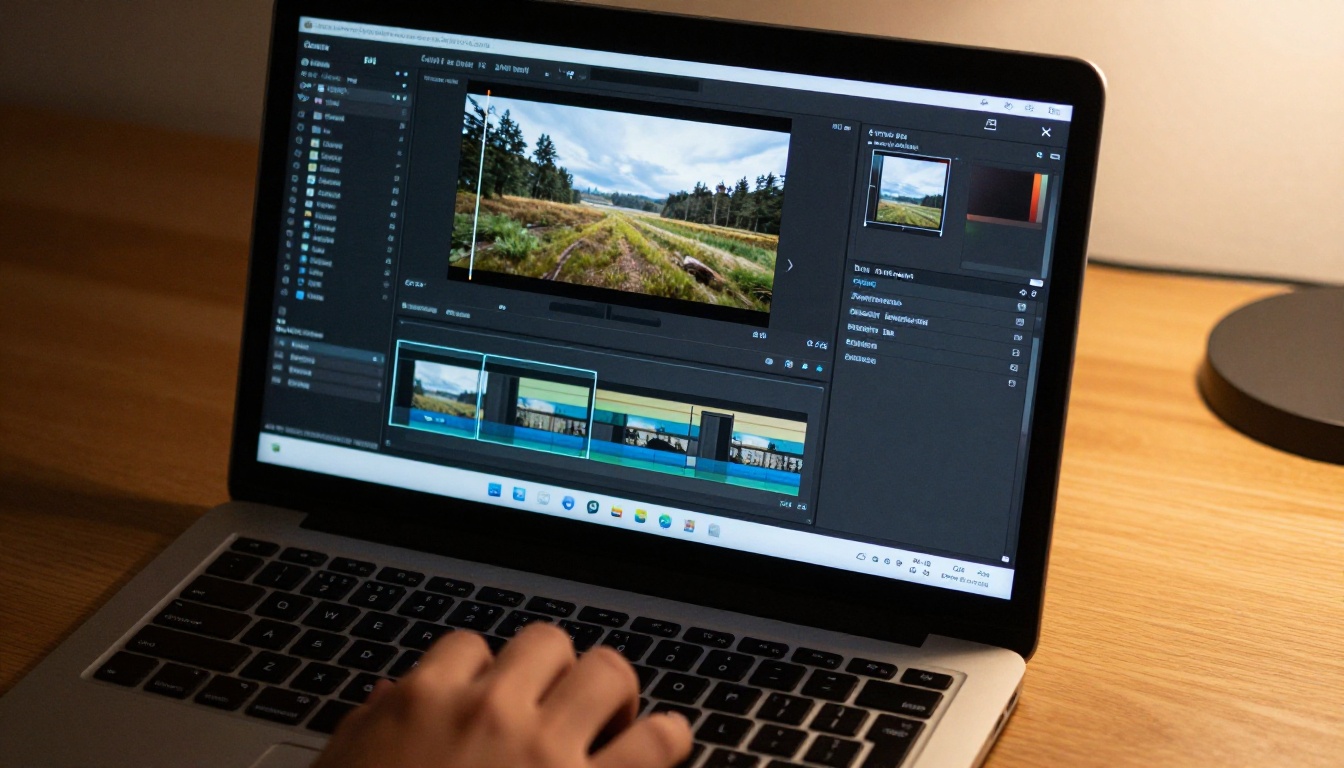
PicassoIA has a dedicated model built for this exact task: Reframe Video by Luma. It changes any aspect ratio to any other while keeping subjects in frame using AI tracking. Here is exactly how to use it.
Step 1: Upload Your Horizontal Clip
Go to Reframe Video on PicassoIA. Upload your 16:9 horizontal video directly from your device. The model accepts standard MP4 and MOV files.
Step 2: Set Your Target Aspect Ratio
Choose 9:16 as the output aspect ratio. This is the standard vertical format for TikTok, Reels, and Shorts. If you need square format (1:1) for Instagram feed posts, that option is also available.
Step 3: Define the Subject (Optional but Recommended)
For best results, you can specify what the AI should track. Whether it is a person, a product, or a specific area of the frame, giving the model context improves centering accuracy on fast-moving or multi-subject content.
Step 4: Generate and Download
Click generate. Reframe Video processes your clip, applies intelligent crop tracking, and delivers a fully vertical output ready to upload directly to any short-form platform.
💡 Pro Tip: For clips longer than 60 seconds, use Trim Video first to cut your horizontal footage into the segments you want before reframing. This gives you more precise control over each vertical output.

Aspect Ratios You Actually Need to Know
Before converting anything, it helps to understand what format you are targeting. Every platform has specific requirements, and the wrong dimensions create letterboxing automatically.
| Platform | Format | Aspect Ratio | Max Duration |
|---|
| TikTok | Full Screen | 9:16 | 10 minutes |
| Instagram Reels | Full Screen | 9:16 | 90 seconds |
| YouTube Shorts | Full Screen | 9:16 | 60 seconds |
| Snapchat Spotlight | Full Screen | 9:16 | 60 seconds |
| Pinterest Idea Pins | Full Screen | 9:16 | 60 seconds |
The 9:16 ratio means your video must be 1080 x 1920 pixels at minimum for crisp display on modern screens. If your original horizontal footage is in 1080p (1920 x 1080), a straight crop to 9:16 gives you a 608 x 1080 output, which is below the recommended resolution. This is why upscaling after reframing matters.
Why Resolution Matters After Reframing
When you crop a 1080p horizontal video to 9:16, you are working with a smaller pixel area than the original. The resulting portrait clip will be lower resolution than what the platform wants. On a phone screen this looks soft and slightly blurry compared to natively-shot vertical footage.
The fix is to run the output through an AI video upscaler. Video Increase Resolution by Bria pushes your reframed clip up to 4K without adding visible noise or artificial sharpening artifacts. For footage with significant motion or texture complexity, Real ESRGAN Video handles the upscaling with exceptional accuracy on complex surfaces like fabric, grass, and faces.
Recommended Workflow for Maximum Quality
- Start with your highest-resolution horizontal source file
- Trim unnecessary sections using Trim Video
- Reframe to 9:16 using Reframe Video
- Upscale the output with Video Increase Resolution or Real ESRGAN Video
- Add captions with Autocaption for accessibility and reach
This five-step chain takes a raw horizontal clip and produces a platform-ready, high-resolution vertical video without losing anything important.

4 Common Mistakes That Ruin the Conversion
Even with AI reframing, there are ways to get a bad result. These mistakes show up most often.
Wrong Source Clip Selection
Not all horizontal footage reframes well. Clips with rapid camera movement, extreme zoom, or subjects that are frequently off-center produce unstable or awkward vertical output. Steadily-shot footage with a clear central subject works best.
Ignoring the Safe Zone
In vertical video, the top 15% and bottom 20% of the frame are frequently covered by platform UI elements (usernames, captions, like buttons). If critical information in your clip appears near the very top or very bottom of the 9:16 frame, it will be hidden on some platforms. Keep key visual elements in the center 65% of the vertical frame.
Skipping Captions
85% of social video is watched on mute. A reframed vertical video without captions loses most of its potential impact. Autocaption adds accurate, styled captions to your video in minutes, turning any spoken content into readable text that keeps viewers watching.
💡 Engagement Fact: Videos with captions average 40% more views and significantly higher completion rates than uncaptioned content on short-form platforms.
Low-Resolution Output
As covered above, skipping the upscaling step means your reframed clip sits below platform-recommended resolution. Always run the output through Video Increase Resolution before publishing.

When to Film Horizontal and Reframe Later
The cleanest solution is always to shoot vertical when you know the content is for vertical platforms. But there are real situations where horizontal is unavoidable or preferable:
- Drone footage always shoots in widescreen. Reframing is the only option.
- Event recordings shot by professionals use cinema cameras in landscape.
- Screen recordings from desktop tutorials are inherently 16:9.
- Interview setups in professional environments use horizontal framing by default.
- Travel footage and cinematic B-roll shot for YouTube needs repurposing for Reels.
For all of these, Reframe Video is your cleanest path to portrait format without reshooting a single frame.

Batch Processing Long-Form Content
If you have a long YouTube video or full interview that you want to repurpose into multiple short vertical clips, break it up first. Use Video Split to cut the horizontal source into timed segments, then run each segment through Reframe Video individually.
This approach lets you:
- Extract the 3 to 5 best moments from a 20-minute video
- Create different vertical clips for TikTok (fast, punchy) vs. Reels (slightly longer)
- Maintain consistent framing quality on each segment rather than fighting a single long reframe job
- Add unique captions per clip for platform-specific context
💡 Content Strategy: One 20-minute horizontal YouTube video typically contains 8 to 12 moments strong enough to stand alone as vertical shorts. A proper repurposing workflow generates a month of short-form content from a single recording session.
Each platform has its own nuances. Here is what actually matters on each one.
TikTok
TikTok's algorithm heavily favors videos that hold attention past the 3-second mark. Make sure your reframed clip has a strong visual hook in the first frame. Avoid slow fade-ins or intros from the horizontal version that do not work in portrait format.
Instagram Reels
Reels prioritize aesthetic quality and audio sync. If your horizontal clip had music or synced beats, verify the reframed version maintains the same audio-visual alignment. Captions from Autocaption are especially valuable here because Reels viewers tend to consume content while multitasking.
YouTube Shorts
YouTube Shorts is the most forgiving of the three. Slightly lower resolution is acceptable, and Shorts can be longer than Reels or TikToks. Focus on clear audio and centered subjects rather than maximal visual polish.
Pinterest Idea Pins
Pinterest users are highly search-driven. Make sure your reframed Idea Pin features the key product or concept prominently in the upper-center of the 9:16 frame, since the bottom portion is often obscured by the platform's UI overlay.

The Smartest Way to Scale Your Content Output
The best content creators in 2027 do not film separately for every platform. They film once in the best format for quality (usually 4K horizontal), then use AI reframing tools to distribute that footage across every vertical surface. A single 4K horizontal video becomes:
- TikTok clips at 9:16, under 60 seconds
- Instagram Reels at 9:16, under 90 seconds
- YouTube Shorts at 9:16, under 60 seconds
- YouTube long-form at 16:9, full length
- LinkedIn video at 4:5 or 1:1 square
This is how you scale content output without scaling filming time.
The tools on PicassoIA are built specifically for this workflow. Reframe Video handles the conversion. Trim Video and Video Split handle the segmentation. Video Increase Resolution restores quality after cropping. Autocaption adds text. Everything is in one place.
You have horizontal footage sitting in your library right now that could be generating views on TikTok today. The conversion process using AI reframing takes minutes, not hours, and the output quality is close enough to native vertical content that most viewers cannot tell the difference.
Head to Reframe Video on PicassoIA, drop in your horizontal clip, set the ratio to 9:16, and see the result for yourself. Then run it through Autocaption and Video Increase Resolution to bring it to platform-ready quality. Your existing footage library is already a vertical content goldmine. The only thing missing was the right set of tools to extract it.


