Your Instagram feed is the first thing anyone sees when they land on your profile. In less than two seconds, they decide whether you're worth following. That split-second judgment is based almost entirely on how your feed looks, not what your captions say. A messy, inconsistent feed bleeds followers silently, day after day. A polished, cohesive one converts profile visits into new followers on autopilot.
The good news: you don't need a professional photographer or a design degree to make your Instagram feed look professional. What you need is a system, a few smart visual decisions, and the right AI tools to produce stunning photos even if you have zero design experience. This article walks through exactly that, step by step.
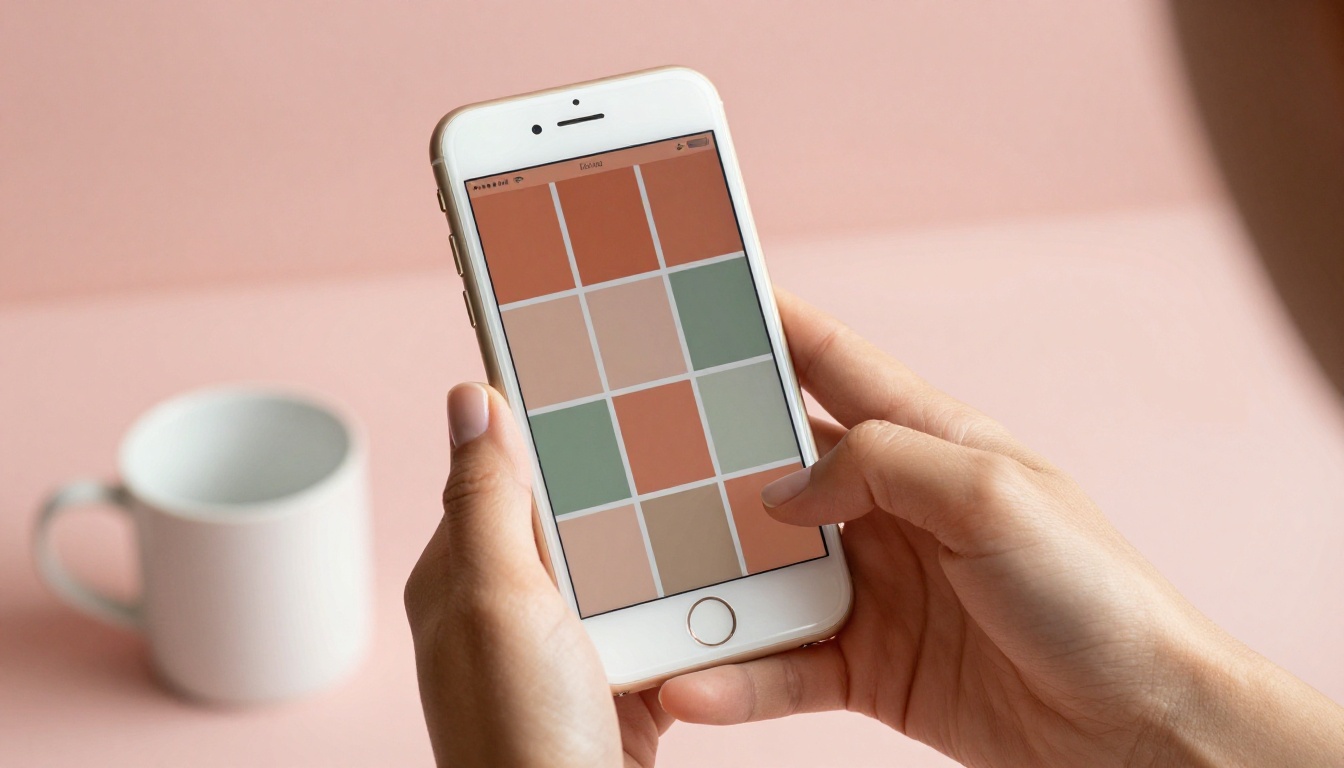
First Impressions Work Against You
The 2-Second Rule
When someone clicks your username, you have roughly two seconds before they hit back. During that window, your grid is the only thing being evaluated. They're not reading captions. They're not clicking posts. They're scanning your visual grid and making a judgment call about your credibility, taste, and whether your content is worth their time.
Accounts with visually consistent feeds see significantly higher follow-through rates from profile visits compared to accounts posting random, unfiltered content. The feed either sells the follow or it doesn't.
What "Professional" Actually Means
"Professional" doesn't mean expensive camera gear. It means:
- Consistent lighting across every photo
- A defined color palette that ties everything together
- Intentional composition with purpose behind each shot
- Uniform editing style that makes posts feel connected
You can achieve every one of these things using a smartphone and AI tools. Let's go through each.
Pick a Color Palette and Commit
The 3-Color Rule
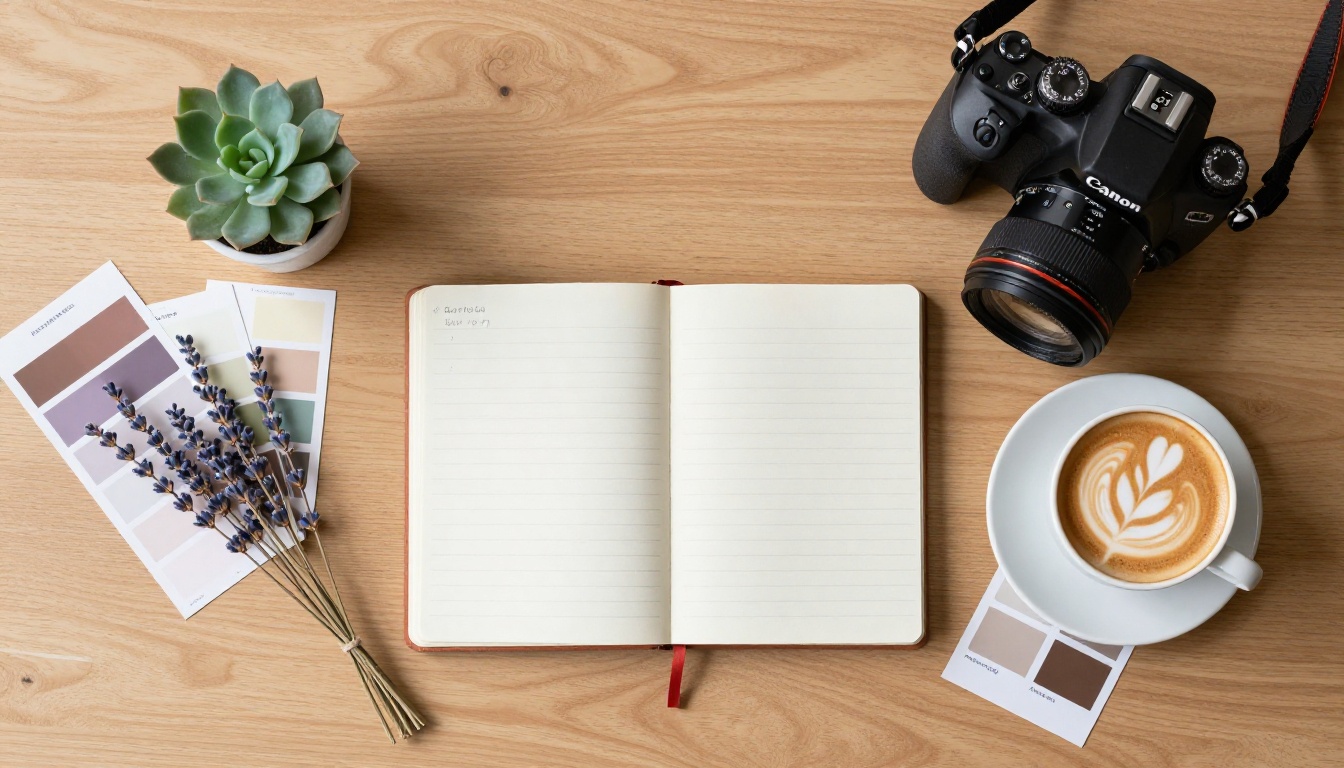
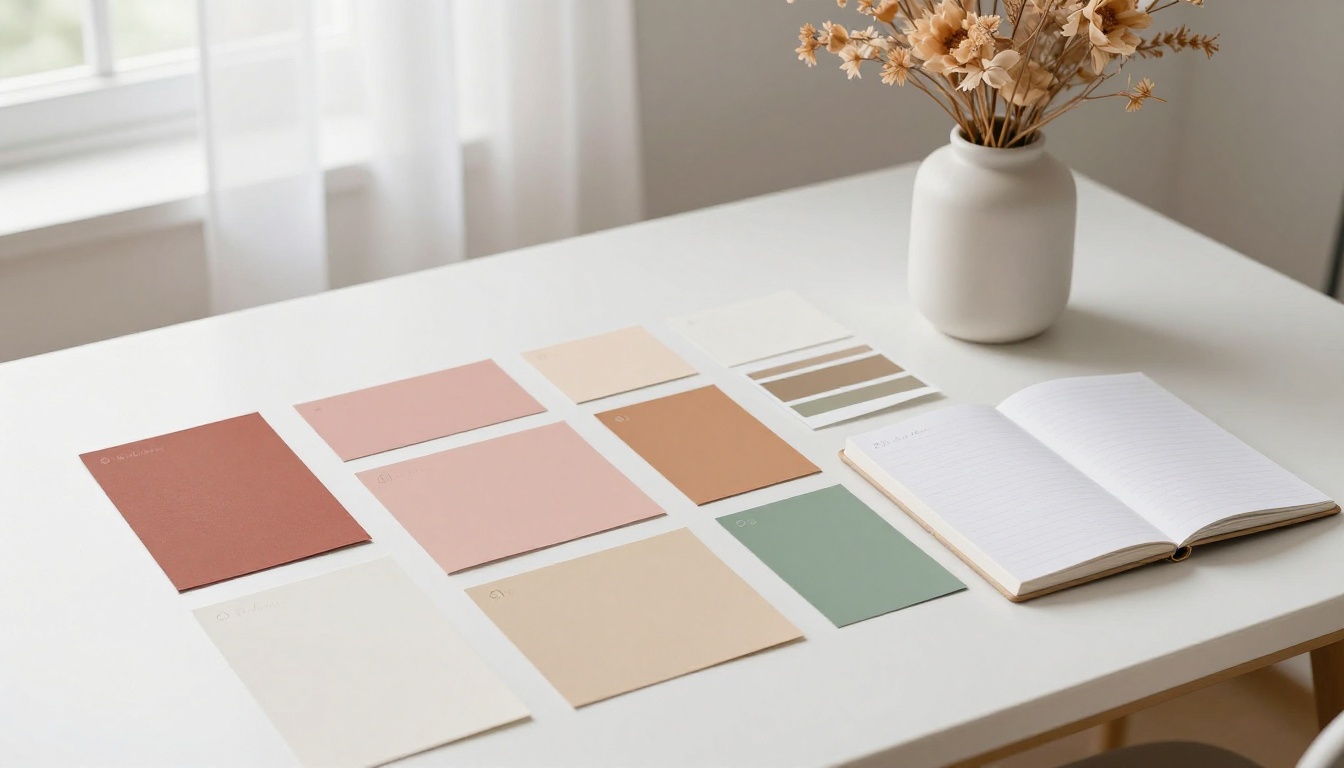
The single fastest way to make your Instagram feed look professional is to commit to a color palette. Pick 3 colors maximum: one dominant, one secondary, and one accent. This creates visual harmony across your grid without making everything look identical.
Popular palette archetypes:
| Style | Dominant | Secondary | Accent |
|---|
| Warm Minimal | Cream / Off-white | Terracotta | Sage Green |
| Cool Neutral | Soft Grey | Dusty Blue | White |
| Bold Editorial | Deep Navy | Warm Black | Burnt Orange |
| Earthy Organic | Sand Beige | Olive | Warm Brown |
How to Find Your Palette
Start by looking at your 9 most recent posts. Identify what tones naturally appear. If you shoot a lot of outdoor content, earthy and warm tones likely already dominate. Lean into that instead of fighting it. Consistency comes from working with your environment, not against it.
💡 Pro tip: Screenshot your feed grid and open it in any photo editor. Blur the image slightly. The blurred result shows you the actual dominant color story of your feed. If it looks muddy or chaotic, that's your signal to tighten the palette.
Light Makes or Breaks Every Photo
Natural Light Is Free and Unbeatable
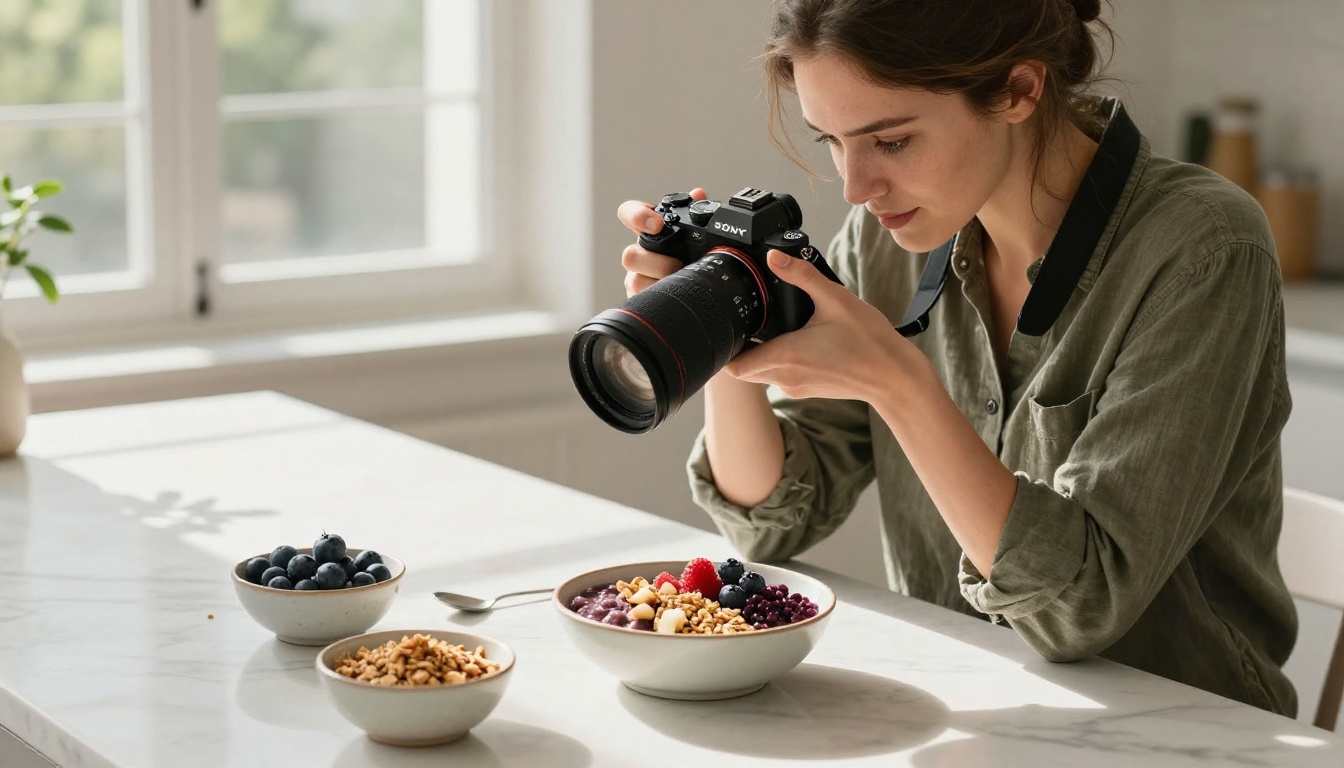
The cheapest upgrade you can make to your Instagram photography is shooting near a window. Natural light hitting from the side of a subject creates soft, dimensional photos with texture and depth that artificial light rarely replicates.
The best times to shoot:
- Golden hour (first hour after sunrise, last hour before sunset): warm, flattering, cinematic
- Blue hour (just before sunrise, just after sunset): cool, moody, editorial
- Overcast midday: diffused, shadow-free, clean
Avoid harsh midday direct sunlight. It creates unflattering shadows, blown highlights, and flattens subjects against backgrounds.
Setting Up Your Natural Light Shot
Position your subject so window light hits from a 45-degree angle. This creates the soft shadows that give photos dimension. Point your camera from the opposite side of the light source for clean, well-lit results.
If you shoot indoors with poor natural light, a single softbox or ring light positioned at 45 degrees replicates this effect consistently. One light source is almost always better than multiple competing ones.
Use AI to Create Stunning Feed Photos
Here's where things shift dramatically. You no longer need a camera, a location, or a model to create beautiful Instagram content. AI image generation has reached a level of photorealism where generated images are indistinguishable from real photographs, and they can fill your feed with consistent, on-brand content every week.
What AI-Generated Photos Can Do For Your Feed
- Fill gaps in your content calendar when you can't shoot
- Create aspirational lifestyle imagery that matches your exact brand tones
- Generate consistent background scenes across multiple posts
- Produce product mockups without a full photography session
How to Generate Photos on Picasso IA
Picasso IA has over 90 text-to-image models available to create photorealistic images directly from your descriptions. Here's the process:
Step 1: Open the GPT Image 2 model on Picasso IA, which produces exceptional photorealistic lifestyle photography.
Step 2: Write a detailed prompt describing your ideal Instagram photo. Be specific about subject, background, lighting, camera angle, color tones, and film style.
Step 3: Select your preferred aspect ratio. For Instagram feed posts, 1:1 (square) is the standard grid format. For Stories and Reels covers, use 9:16.
Step 4: Generate, review, and download. If the result isn't right, refine your prompt and try again.
💡 Prompt tip: Instead of "woman at a coffee shop," write "young woman in a cream linen shirt at a minimalist white cafe table, warm morning light from the left, 85mm lens, Kodak Portra 400 film grain, RAW photorealistic photography." The detail makes the difference.
Top models to try on Picasso IA:
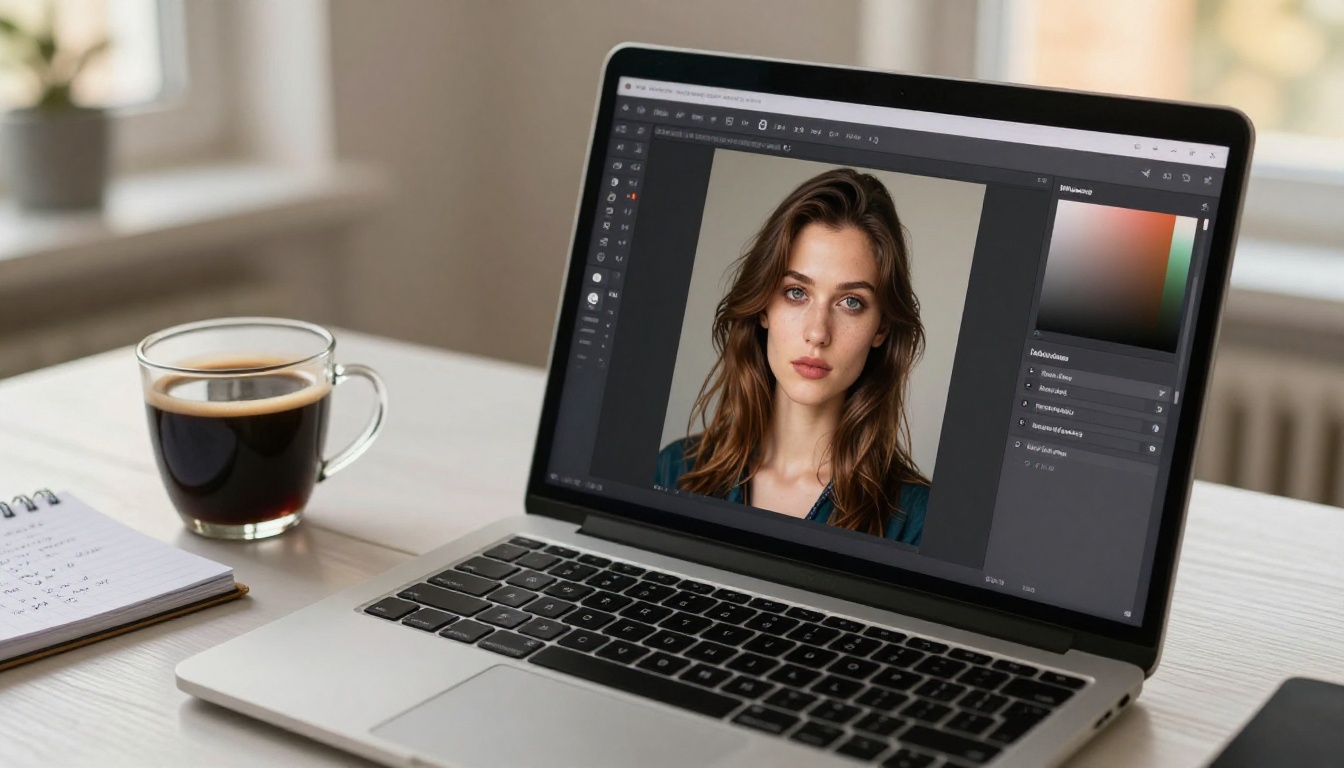
Upscale Every Photo Before Posting
Why Resolution Kills Feed Quality
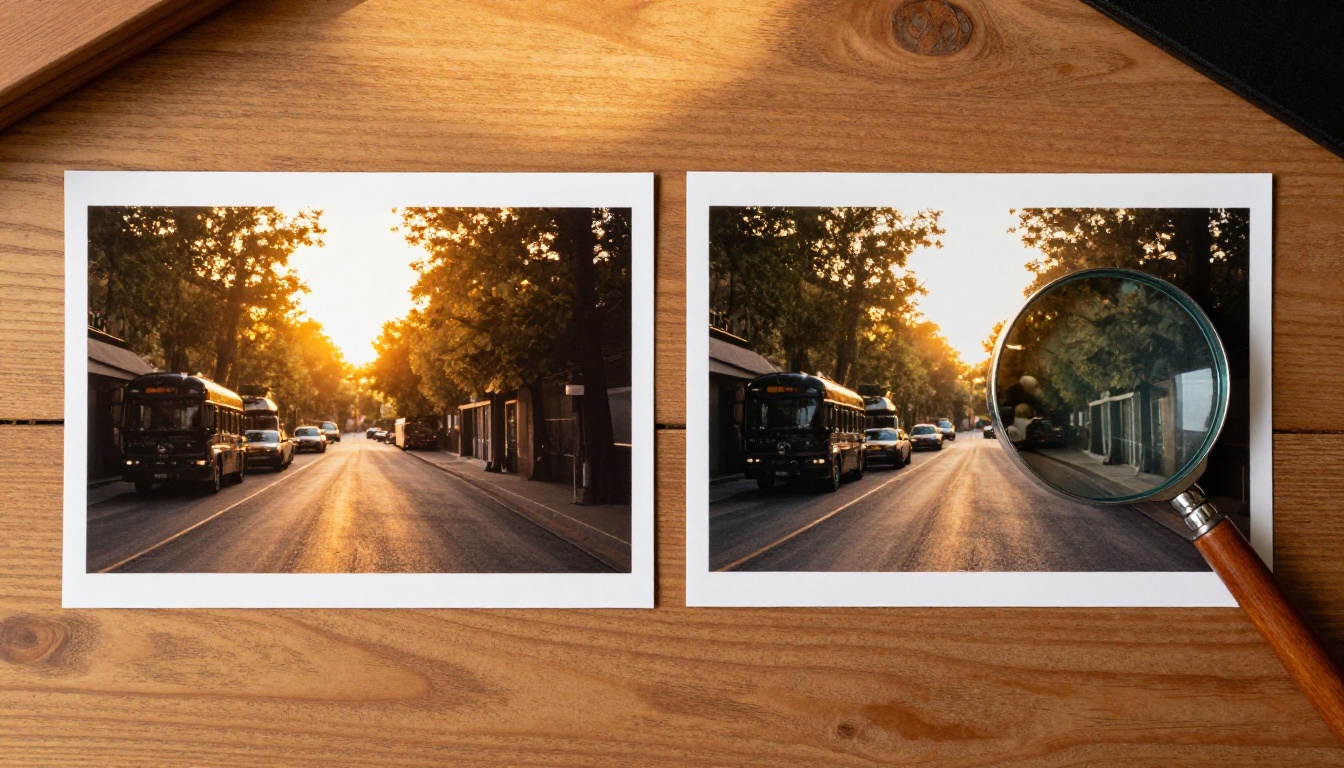
Instagram compresses images on upload. Photos that aren't high enough resolution come out blurry or flat on screen, especially on modern high-resolution displays. The platform recommends a minimum of 1080 x 1080px for square posts, but uploading at 2160 x 2160px gives you a significantly sharper result after compression.
If you're working with AI-generated images or older photos shot on a phone, upscaling before upload is one of the highest-impact changes you can make to your feed quality.
AI Upscaling: 2x to 6x in Seconds
AI super-resolution tools analyze your image and intelligently reconstruct detail that wasn't originally there. The result survives Instagram's compression algorithm much better than the original.
The best upscaling models on Picasso IA:
💡 Always upscale before final color editing. That way your upscaled image retains full editing flexibility without introducing double-compression artifacts.
Edit Every Photo With the Same Preset
What a Preset Actually Does
A preset is a saved set of editing adjustments applied in one click: brightness, contrast, shadows, highlights, saturation, tone curves. When you apply the same preset to every photo, they immediately share the same color story and mood, even if the subjects and locations vary completely.
The key adjustments that most affect visual consistency:
- White Balance (Temperature): Warmer looks welcoming, cooler looks editorial
- Shadows: Lifting slightly creates an airy, bright feel
- Highlights: Pulling down adds depth without blowing out
- HSL (Hue, Saturation, Luminance): Controls specific colors individually
Building Your Signature Look
Warm, airy, lifestyle preset:
- Lift shadows (+15 to +25)
- Warm the temperature slightly (+10 to +15)
- Reduce highlights (-15 to -20)
- In HSL, desaturate oranges and reds (-10 to -15) for clean skin tones
- Slightly mute greens (-10 saturation)
Cool, editorial preset:
- Keep shadows neutral or slightly dark
- Cool the temperature slightly (-5 to -10)
- Increase contrast moderately (+15 to +25)
- Boost blue luminance slightly
- Desaturate warm tones globally (-5 to -10)
Presets vs. Filters
Filters are single-step adjustments applied uniformly across the entire image. Presets are full multi-parameter edits that work with the underlying tonal structure of each photo. Filters applied across different lighting conditions produce wildly inconsistent results. A proper preset adapts because it modifies tone and color proportionally, not absolutely.
Plan Your Grid Before You Post
Why Grid Strategy Matters
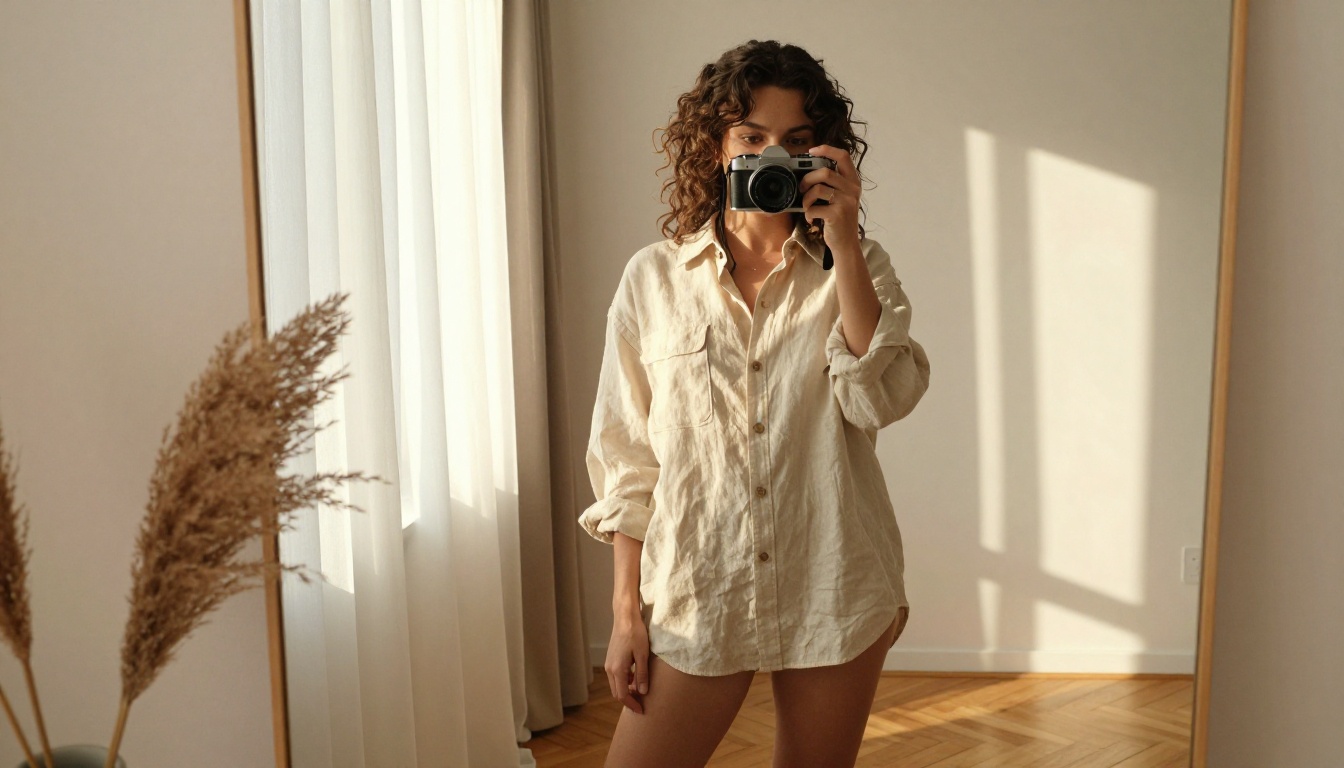
The Instagram grid is read in rows left to right, but visually experienced as a 3x3 block at a glance. A random posting order, even with individually beautiful photos, creates a chaotic visual grid. Intentional planning turns your profile into a curated gallery that holds attention.
Row-by-Row Planning
Every 3 posts represent one complete row. Plan your next 3 posts so they complement each other in tone, brightness, and subject matter before posting any of them. Avoid placing two photos with the same dominant color side by side.
Simple row rules:
- Alternate brightness: bright post, medium post, bright post
- Separate similar subjects: no two portraits directly next to each other
- Balance content types: mix wide/landscape shots with close-up detail shots
The Checkerboard Layout
Alternating between light-toned posts and darker or busier posts creates a checkerboard visual rhythm that feels deliberate and polished. This works especially well for accounts mixing product shots with lifestyle imagery or quotes.
💡 Tools like Planoly or Later let you preview your grid before posting. Drag and drop photos to see how they look before going live. It takes two minutes and eliminates the risk of posting something that breaks your visual flow.
Clean Backgrounds Change Everything
The Invisible Problem With Cluttered Backgrounds
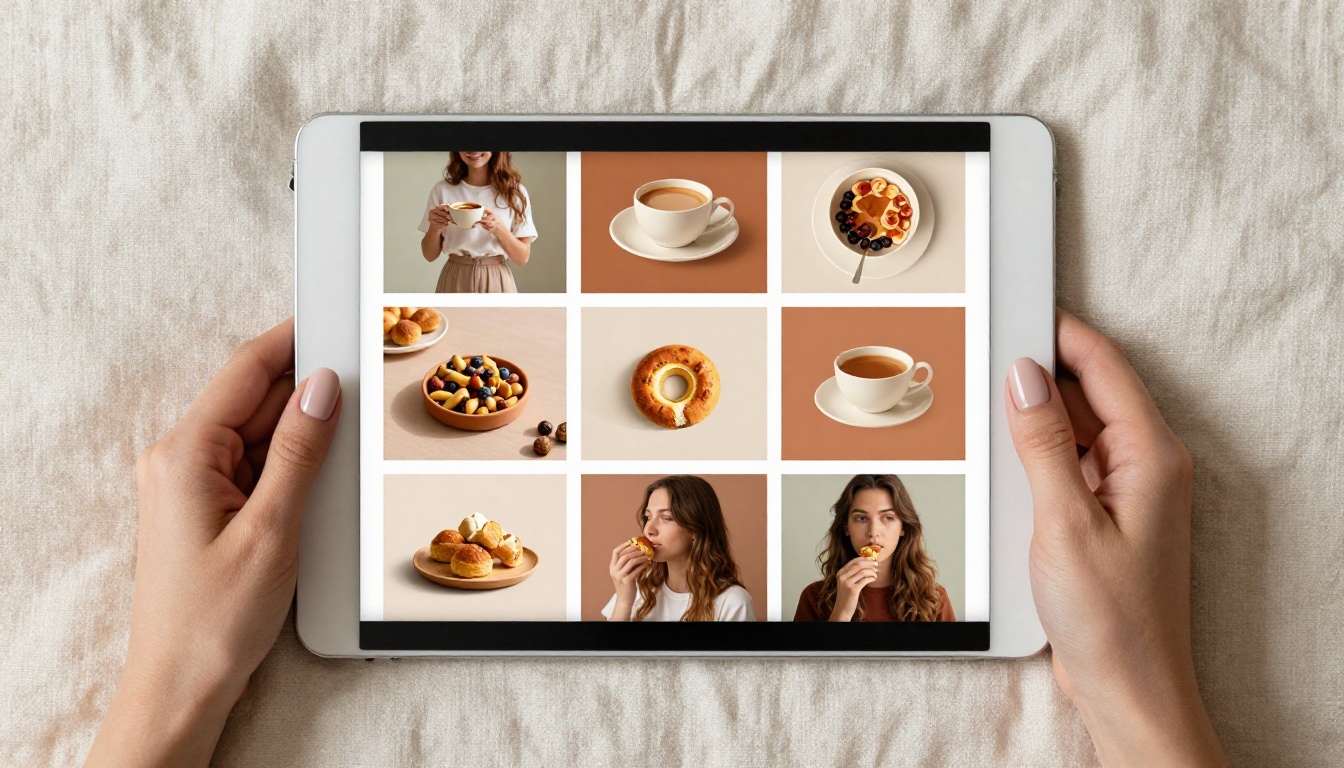
Most amateur Instagram photos share one weakness: distracting, busy backgrounds. A great subject shot against a messy kitchen or a street full of visual noise loses impact immediately. The background competes with the subject instead of framing it. Viewers sense this even if they can't articulate it.
Remove and Replace in Seconds
Picasso IA's background removal tool uses AI to cleanly cut any subject from its background in seconds. Once the background is gone, you can:
- Replace with a clean solid color that matches your palette
- Drop in a professional location backdrop
- Layer your subject onto an AI-generated background that perfectly matches your brand
This technique is how product accounts produce clean, studio-quality shots without ever booking a photography session.
💡 For product photography, remove the background and replace it with a simple warm white or soft beige gradient. It supports your color palette while keeping the product as the absolute focal point.
The Details Most People Overlook
Aspect Ratio Consistency
Instagram allows multiple aspect ratios, but mixing them creates an uneven, jagged-looking grid where some images appear smaller than others. Pick one and commit to it for all grid posts. Portrait 4:5 is the most popular professional choice as it takes up maximum screen real estate in the feed and forces a slightly tighter, more intentional composition.
Caption Quality Signals Overall Quality
A stunning photo followed by a two-word caption creates a quality mismatch that subtly undermines your credibility. Match your caption depth to your visual quality. A great photo deserves a thoughtful first sentence, even if it's just one sentence, before the hashtags.
Posting Frequency Affects Perception
An erratic posting schedule makes your grid feel abandoned and signals low commitment to visitors. Aim for 3-5 posts per week minimum. Use Instagram Insights to identify when your specific audience is most active, then post within that window. Consistency in timing is almost as important as consistency in aesthetics.
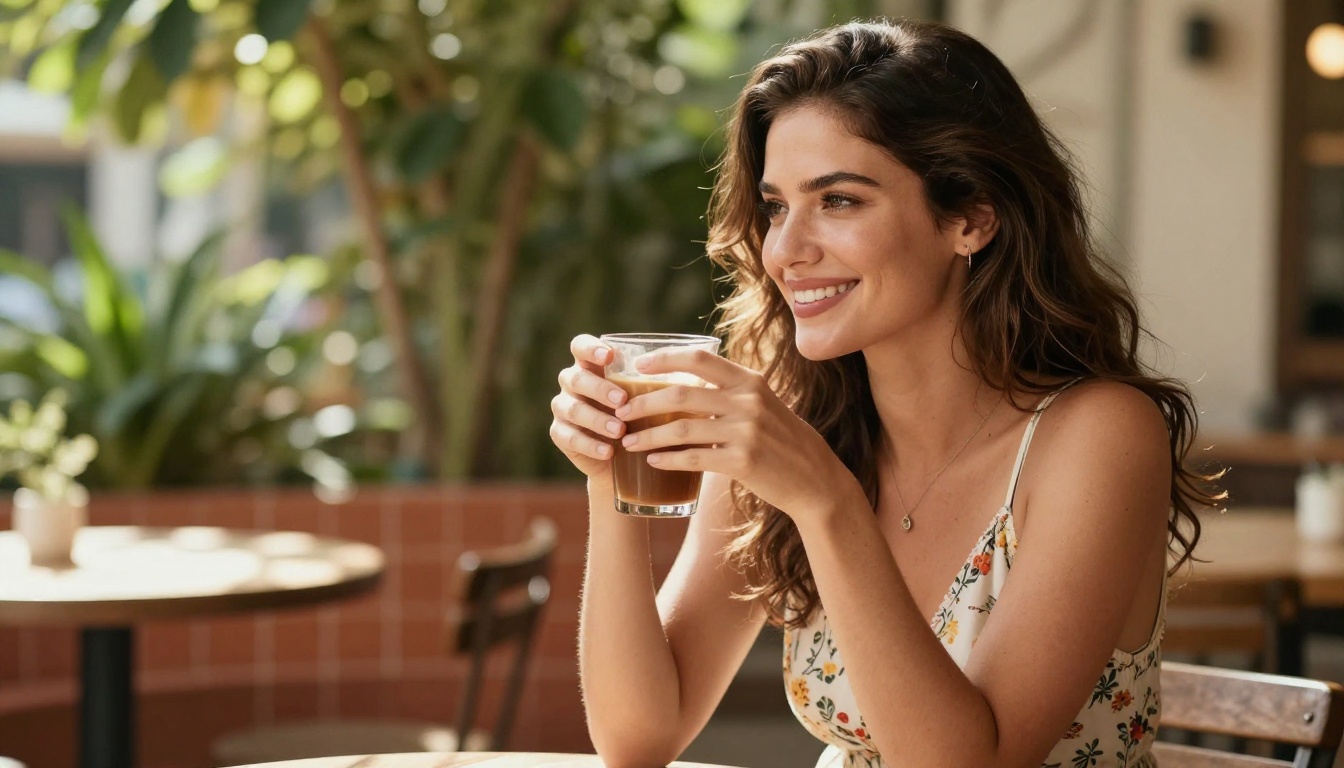
Create Your First AI Photo Right Now
You have everything you need. The strategies above cover every layer of what separates a professional-looking Instagram feed from an average one: palette discipline, lighting control, AI-generated content, upscaling, preset editing, grid planning, and background removal.
The biggest shift you can make immediately is to start generating your own AI photos for your feed. You don't need a shoot day, a location, or a model. Write a well-crafted prompt, pick the right model, and download a photorealistic image in under a minute.
Start with GPT Image 2 on Picasso IA and generate your first feed-ready photo today. Try different prompts, lighting descriptions, and color tones until you find the visual style that matches your brand identity exactly.
Your next 9 posts can look completely different from your last 9. That transformation starts with one image.


