You typed a prompt, waited a few seconds, and instead of a picture you got a gray frame and a short note: mature filter was enabled for this generation. No explanation, no hint about which word caused it, and often no refund of the credit you just spent. It is one of the most irritating messages in AI image work, especially when your idea was a simple fashion shoot, a beach portrait or a boudoir-style close-up that any magazine would print.
This article breaks down what the message actually means, why it fires on prompts that look harmless, which quick fixes are worth trying, and which tools on PicassoIA give you more room for tasteful glamour and swimwear imagery. Everything here stays on the non-explicit side: suggestive, attractive, artistic, never pornographic.

What the Message Means
In plain words, the system decided that either your prompt, your reference image or the finished picture belonged in an adult-content category, and a mature filter (sometimes called an NSFW filter or safety checker) blocked, blurred or replaced the result. The wording varies from app to app. The phrase "mature filter was enabled for this generation" tends to show up in generators that sit a safety toggle on top of an underlying model, so the exact trigger depends on the product you are using.
A Safety Layer, Not a Bug
Nothing is broken when you see it. A moderation layer ran exactly as designed. Providers add these layers for legal reasons, payment-processor rules, app store policies and brand protection. The model underneath may be perfectly capable of producing your image, but the wrapper around it said no.
That is why the same prompt can pass on one platform and fail on another. The difference is rarely the model's skill. It is the policy attached to it.
Prompt Check vs Output Check
Most services filter at two moments:
| Stage | What gets checked | Typical symptom |
|---|
| Before generation | Your text prompt and any uploaded reference | Instant error, no image, sometimes no credit charge |
| After generation | The finished pixels, scanned by a classifier | Long wait, then a blurred or blank result |
The second stage explains the maddening cases where a perfectly polite prompt fails. A classifier looks at skin area, pose and clothing coverage in the output. If a swimsuit portrait lands close to its threshold, it gets flagged even though your words were innocent.
💡 Tip: If the error arrives instantly, the text or reference tripped it. If it arrives after the usual wait, the output scan did. That tells you where to adjust.
Why It Happens
Filters are blunt tools. They are tuned to avoid the worst outcomes, so they accept a lot of false positives. Here are the patterns that trigger them most often.
Words That Raise Flags
Certain terms push a prompt toward a block even in neutral context. Anatomical words, "nude", "topless" and "sexy" are obvious. Less obvious ones include "seductive", "lingerie", "wet", "oiled", "bare" and "undressing". Even "mature" itself can confuse a filter, since some systems read it as an age term and others as a content rating.
Skin Exposure Ratio
Output classifiers estimate how much of the frame is skin. A close-up with bare shoulders, a bikini beach shot or a silk robe slipping down can cross a threshold without any explicit element. Tight crops make it worse, because skin fills a bigger share of the frame.
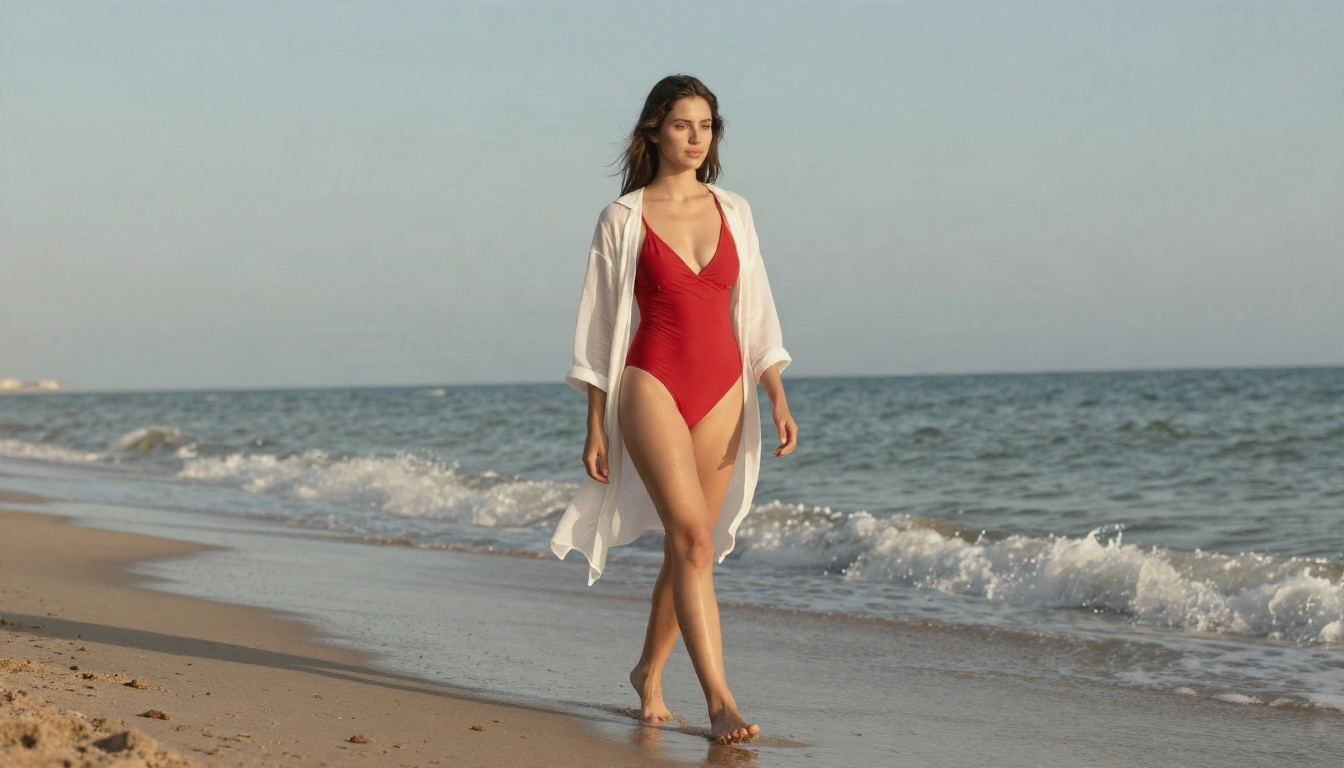
A wide beach shot like the one above is the kind of swimwear editorial that many standard filters still hesitate on, simply because of the exposed skin.
Reference Images and Edits
Uploading a photo for editing is the fastest way to trigger a block. Image-to-image and inpainting tools check the source and the result. If the original already shows a lot of skin, or the edit asks to change clothing, the filter often shuts the request down before it starts.
Default Toggles and Account Rules
Some platforms ship with the mature filter on by default and place the switch in account settings, behind age confirmation or behind a paid tier. Others tie it to your region. If you have never opened the settings page, the filter may simply be at its strictest default.
Ambiguous Subjects
Filters err hard on anything that might involve a minor. Words like "girl", "student" or "young" can trigger a block even when your subject is clearly an adult, because the system plays it safe. Stating an adult age and an adult setting helps, and it is the right thing to do regardless of the filter. Content involving minors is never acceptable in any context.
You do not always need a new platform. Try these first, in this order.
Rewrite the Prompt Around Photography
Describe the picture the way a photographer would. Swap loaded adjectives for camera language, wardrobe names and lighting.
| Flagged style | Safer photographic rewrite |
|---|
| "sexy girl in tiny bikini" | "adult woman in a red one-piece swimsuit, editorial beach portrait, 70mm lens, soft morning light" |
| "seductive, wet skin" | "sea spray on shoulders, golden hour backlight, natural skin texture" |
| "lingerie model on bed" | "boudoir-style portrait, silk robe, window light, 105mm f/1.8" |
| "nude art" | "tasteful implied glamour, draped fabric, side lighting, fine art composition" |
Notice what changes: the rewritten versions carry more detail about light, lens and texture, which also makes the image better. Detail pushes the generator toward a photograph and away from the vague "adult content" cluster that filters watch for.
Check the Settings and Region
Open your account or generation settings and look for terms such as "mature content", "safe mode", "NSFW" or "content level". Some tools allow adults to loosen the filter after confirming age. If your region restricts it, no prompt will get around that.
Pull Back the Crop
If the output scan is the problem, change the framing. A waist-up portrait, a three-quarter shot or a wider environmental scene lowers the skin share of the frame. Add a jacket, a wrap, a shawl or a draped sheet and the same mood often passes.

Lower the Pressure From Reference Photos
If you are editing, try describing the result in text instead of uploading a heavy reference. Or crop the reference so it shows less skin and let the prompt do the rest.
💡 Tip: Keep a short checklist beside your keyboard: adult age stated, wardrobe named, lighting described, crop widened. Most blocked prompts fail on at least two of those.
Why Filters Frustrate Working Creators
Think about who actually runs into this message. Fashion photographers building mood boards. Swimwear brands testing lookbooks. Illustrators who need a figure study for reference. Novelists making cover concepts for romance titles. Boudoir photographers planning a shoot. These are legal, ordinary jobs, and a filter built for the worst-case scenario treats all of them as suspects.
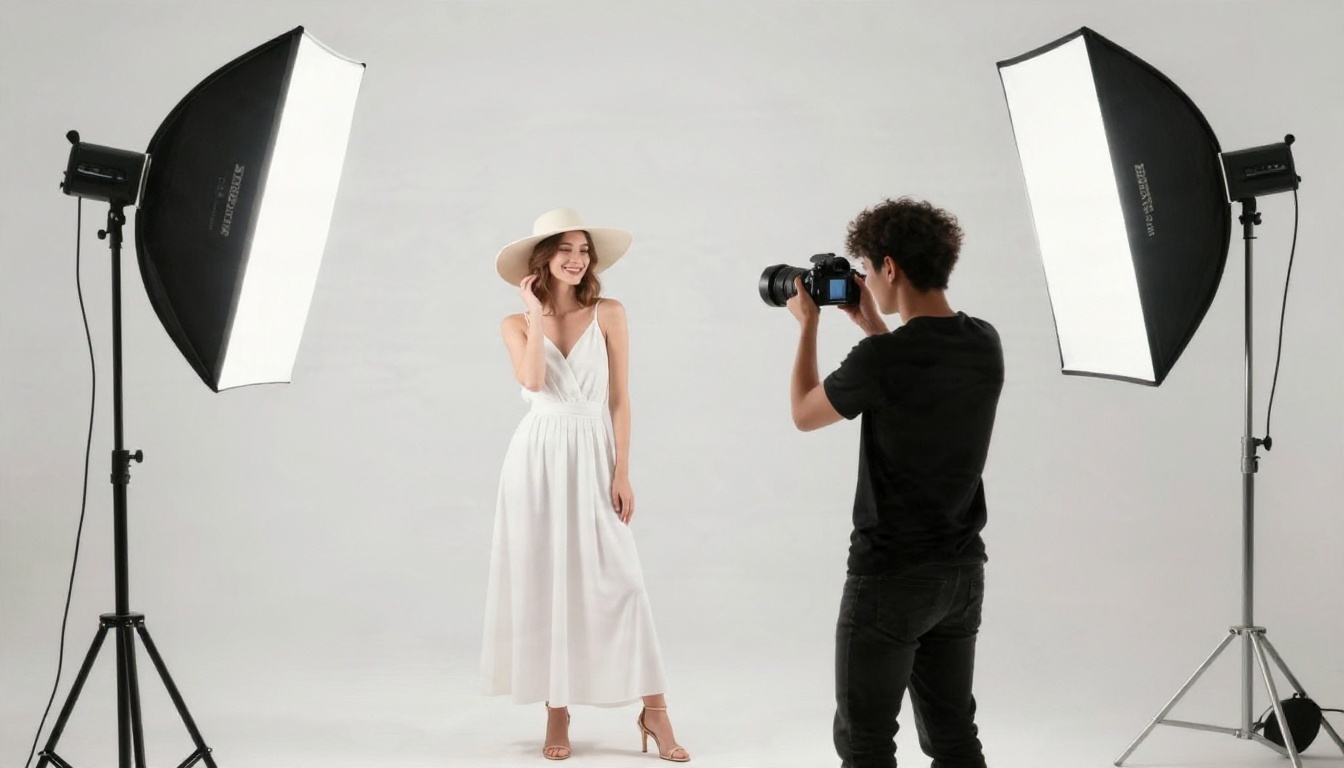
The costs are real:
- Wasted credits. Many apps charge for a generation even when the output scan blocks it.
- Wasted time. Retrying the same prompt with tiny edits can take twenty attempts.
- Inconsistent results. The same prompt passes on Monday and fails on Tuesday because a threshold was adjusted.
- No feedback. A vague message gives you nothing to fix.
When the work is legitimate and the content stays non-explicit, a model with fewer restrictions is a practical answer, not a loophole.
Alternatives That Work Better
On PicassoIA, you can pick from dozens of text-to-image models, each with its own behavior. For glamour, swimwear and boudoir-style work, I would start with these two and then branch out.
Seedream 4.5 First
Seedream 4.5 is the model I reach for first when a standard filter keeps interfering. It produces sharp, photographic skin, handles fabric such as satin, lace and knit convincingly, and follows detailed lighting instructions closely. It also outputs at high resolution, so close-up portraits keep their pores, freckles and flyaway hair rather than turning waxy.
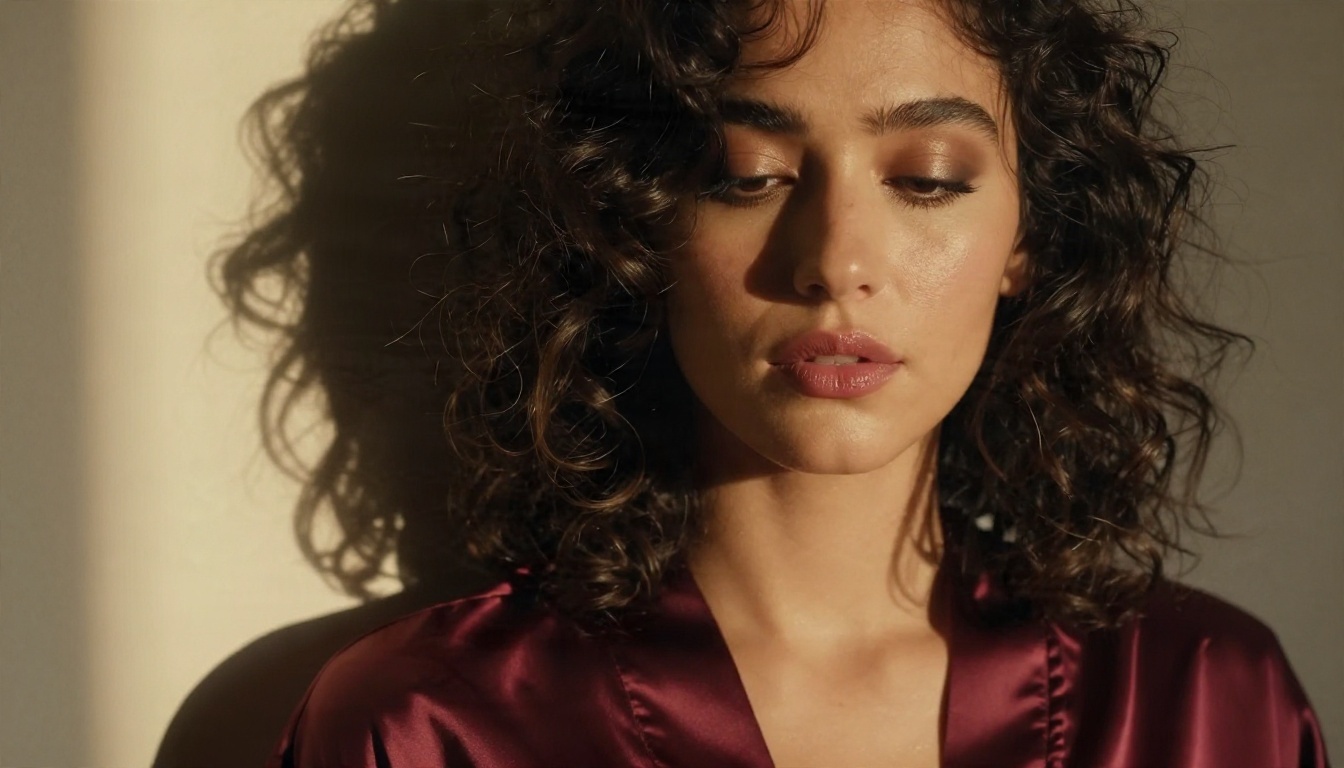
Portraits like this one, with a silk robe, soft shadow and shallow depth of field, are exactly the boudoir-style frames that tend to be blocked elsewhere. Here they are normal work.
⚠️ Heads up: Seedream 5 Lite is a fast and capable model, but it blocks adult content. Skip it for this kind of work and use Seedream 4.5 instead.
PicassoIA Image Editor Pro for Unlimited Runs
PicassoIA Image Editor Pro is the second tool to keep open. It is built for editing and generating, and the big advantage is that generations are unlimited. When you are tuning a prompt, that matters more than any single feature. You can retry wardrobe, crop and lighting ten times without watching a credit counter fall.
It is also quick, which keeps you in a creative rhythm instead of waiting on a queue and hoping the output scan lets the image through.
Other Models Worth Testing
Different models have different strengths, so it is worth keeping a short list. These are all on PicassoIA and all text-to-image:
| Model | Best for | Link |
|---|
| Seedream 4.5 | High-resolution skin, fabric and lighting | Open model |
| PicassoIA Image Editor Pro | Unlimited retries and edits | Open model |
| Z Image Turbo | Fast drafts in seconds | Open model |
| Flux 2 Klein 9B Base LoRA | Styled looks with LoRA control | Open model |
| Qwen Image 3 Pro | Photorealistic portraits | Open model |
| Nano Banana Pro | 4K output and editing | Open model |
Rules differ from model to model, so treat the last four as a testing bench. Run the same prompt through two or three of them and keep the one whose look you prefer. Use Z Image Turbo for rough drafts, then rebuild the best idea in Seedream 4.5 for the final frame.
A Five Step Workflow That Avoids Blocks
Here is a repeatable routine for glamour and swimwear shots on PicassoIA.
Step 1: Write the Scene Like a Shot List
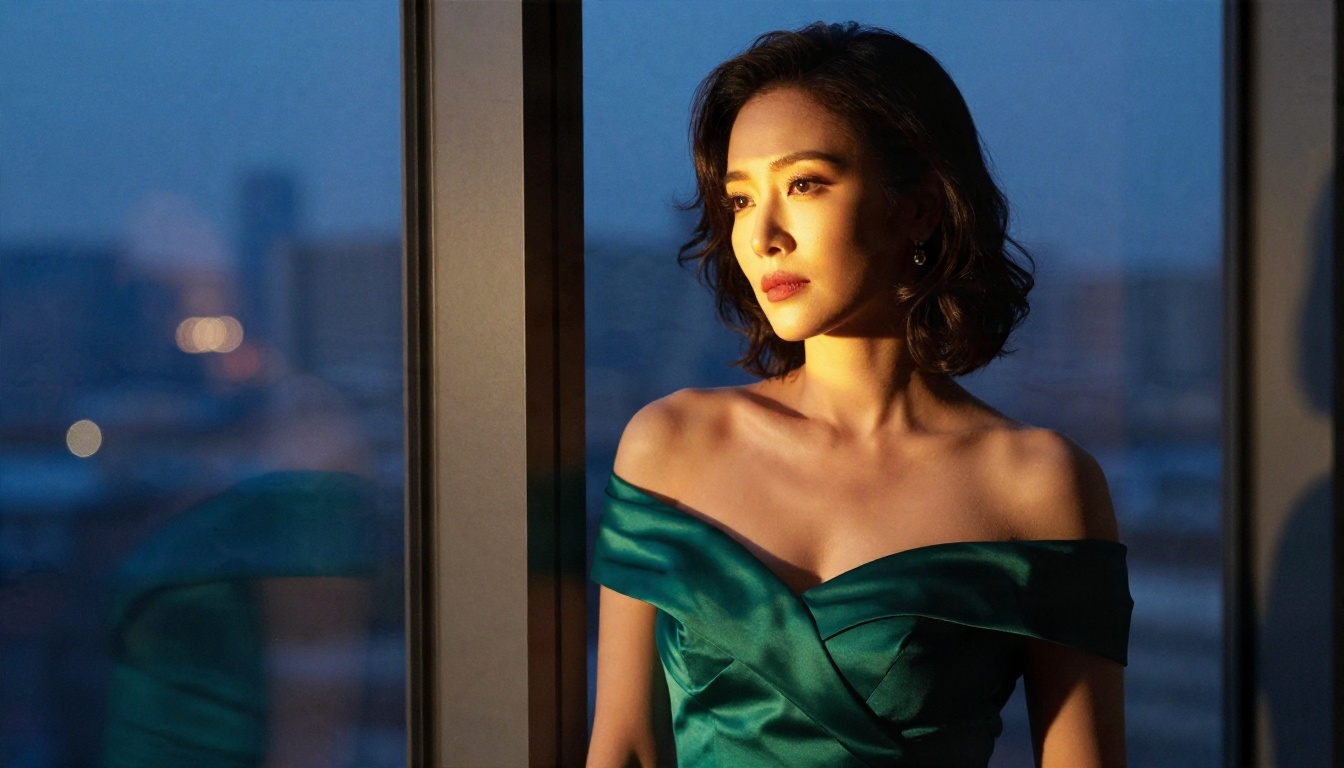
Start with subject, wardrobe, location, light and lens. Example: adult woman in an emerald off-the-shoulder gown, standing by a tall window at dusk, soft blue-hour light from the right, warm lamp fill, 85mm f/1.4, natural skin texture, film grain.
Step 2: Run a Draft
Open Z Image Turbo or PicassoIA Image Editor Pro and generate a few cheap versions. You are checking pose and mood, not final detail.
Step 3: Move to Seedream 4.5 for the Final
Paste the best prompt into Seedream 4.5. Choose a 16:9 ratio for editorial scenes and keep your lighting language specific. Phrases like "volumetric morning light from the left" and "soft shadow on the right cheek" give better results than "cinematic lighting".
Step 4: Fix Details With the Editor
If a hand, strap or hairline looks off, bring the image into PicassoIA Image Editor Pro and describe the correction in one sentence. Because runs are unlimited, you can iterate freely.
Step 5: Upscale and Export
For print or large display, finish with a super resolution model from the platform's upscaling category, then export.
💡 Tip: Keep a text file of prompts that worked. Reusing a proven structure and changing only wardrobe and location saves a lot of trial and error.
Where to Draw the Line
Fewer restrictions do not mean no judgment. A good rule set for your own work looks like this:
- Adults only. Every subject is clearly an adult, with an adult setting and styling. Never generate anything involving minors.
- No real people without consent. Do not create suggestive images of a real person, whether a celebrity or someone you know.
- Keep it non-explicit. Tasteful glamour, swimwear, boudoir and implied artistic compositions are one thing. Pornographic output is not what this article supports.
- Respect platform and local law. Age rules and content rules differ by country, and publishing channels such as social networks and stock sites have their own limits.
A lot of professional photography sits comfortably inside those lines: lingerie campaigns, swimwear catalogs, perfume ads and magazine editorials. If your project belongs to that world, you are in normal territory.

Lifestyle Frames Pass More Easily
Candid, everyday scenes often clear filters that reject posed glamour. A relaxed sofa moment in a camisole and jeans carries the same attractive tone with less risk of a block, which makes it a good option for social content and product mockups.
Evening Looks Are Safe Territory
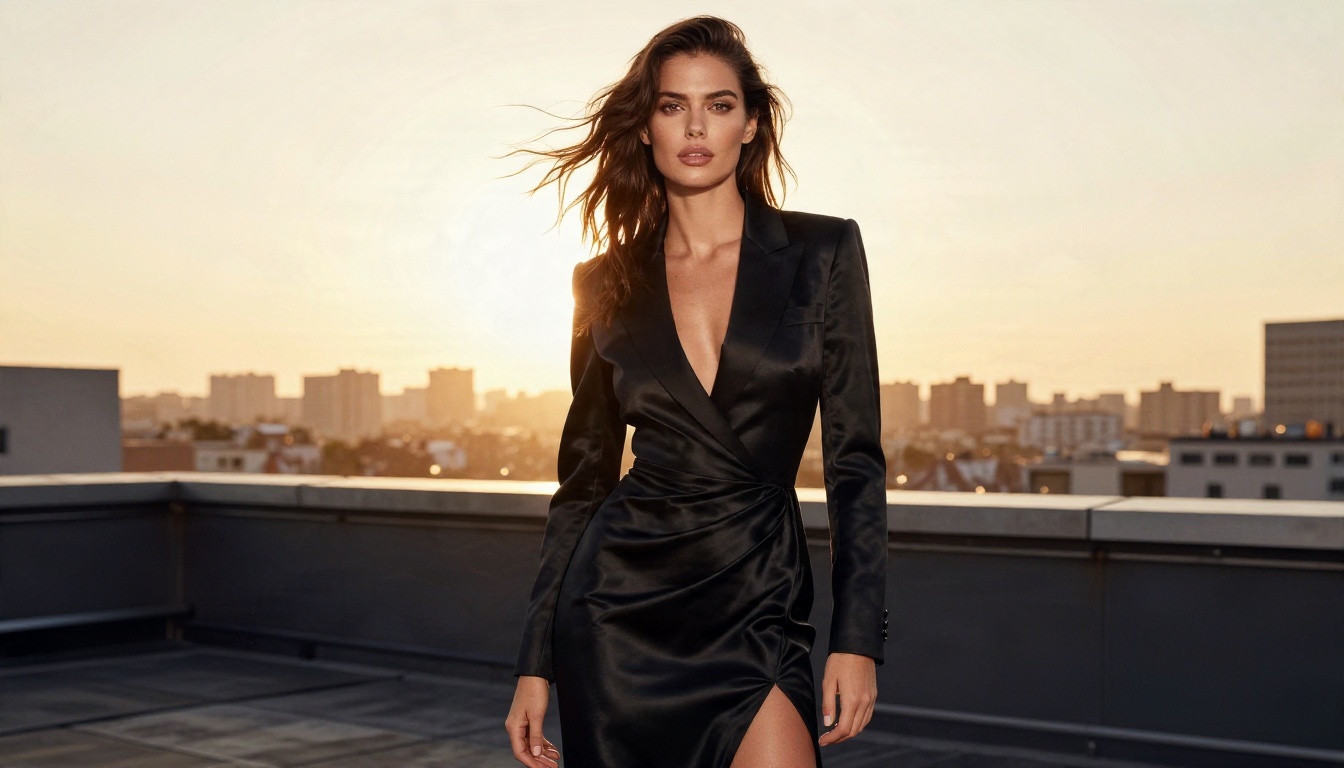
Gowns, off-the-shoulder necklines and dusk light give you drama without raising flags. They also look expensive, which suits fashion and event content.
Try It Yourself on Picasso IA
If "mature filter was enabled for this generation" has cost you credits and patience, the fastest way out is to test a different engine with the same prompt. Open Seedream 4.5, paste in a detailed shot-list prompt, and see how the result compares with the version that got blocked. Then bring it into PicassoIA Image Editor Pro and refine it as many times as you like, since generations there are unlimited.
Start with one scene you actually need: a swimwear lookbook frame, a boudoir portrait, an evening-wear campaign shot. Generate three versions, compare them, and keep the best. When you want to see what else is available, browse the full list at picassoia.com/en/all-models and build your own shortlist of go-to models. Picasso IA gives you the room to experiment, so the next message you see should be a finished image.


