Most AI video gives itself away in the first second. A face that melts when someone turns their head, a hand with six fingers, water that moves like syrup. Heading into 2027, that is changing fast, and a handful of generators now produce clips that pass for footage shot on a real camera. The catch is that "most realistic" depends on what you are filming. The best choice for a talking head is not always the best choice for an ocean at dawn.
This article sorts the realistic generators by what they actually do well, shows where even the strongest ones still slip, and points to the free options that hold up without a budget. Every model below links to its page on Picasso IA, so you can run the same prompt through two or three of them and judge the result with your own eyes.
💡 Short answer: For lifelike people and dialogue, try Veo 3.1 or Sora 2. For cinematic camera movement, try Kling v3 Video. For free drafts with no counter running, use Picasso IA Video.
What Realistic Actually Means
Realism is not resolution. A crisp 4K clip can look fake, and a soft 720p clip can look like a phone video from a real afternoon. What matters is whether the viewer's eye finds a reason to doubt. People spot those reasons faster than any benchmark does, and they tend to look in the same five places: faces, hands, cloth and hair, physics, and sound.
Use those five as a checklist every time you judge a clip. Pause it, scrub through it frame by frame, then play it at full speed with the sound on. A clip that survives all three passes is genuinely realistic. A clip that only survives the first is a screenshot with ambitions.
Faces and Eyes
We have spent our whole lives reading faces, so this is where AI video fails first. Watch the eyes before anything else.
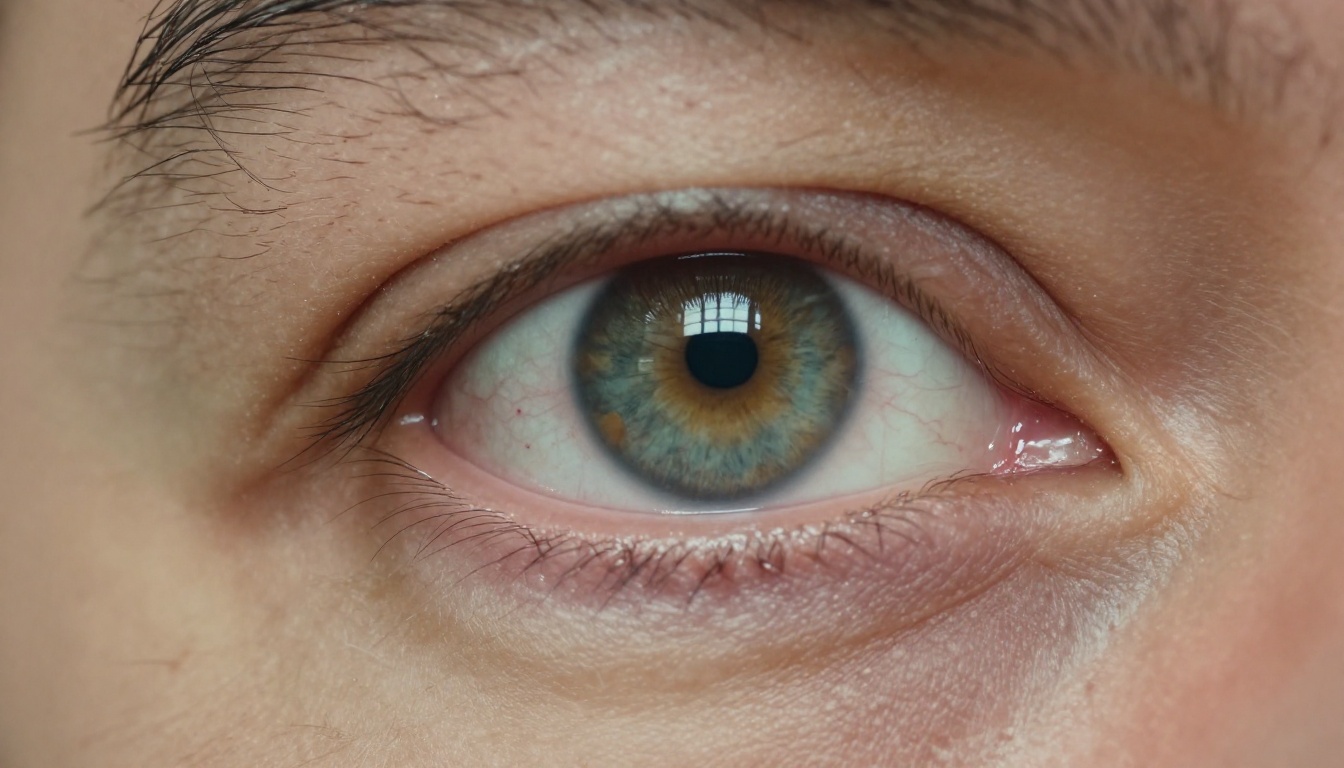
Here is what to check:
- Reflections stay put. A window glint in the iris should move believably when the head turns, not slide around or vanish.
- Blinks look uneven. Real people blink at irregular intervals. A metronome blink looks synthetic.
- Teeth stay consistent. Count them in two different frames. If the number changes, the clip is flagged.
- Skin has pores and small asymmetries. Perfectly smooth skin reads as a beauty filter, not a person.
- Expressions start early. A real smile begins in the cheeks and around the eyes before the mouth moves.
💡 Tip: Ask for a slow, small movement, such as a head turning a few degrees. Big expression changes break faces. Subtle ones let the model hold identity from frame to frame.
Hands, Cloth and Hair
Hands were the classic tell for years. They have improved a lot, but they still fail in the same situations: when fingers overlap, when they grip a thin object, or when two hands work together.

Cloth and hair are the other quiet giveaways. Fabric should fold in the direction of the wind and keep its weave as it moves. Hair should separate into strands and settle back in the same order it lifted.

Prompts that name one clear action, like "shaping clay on a wheel" or "walking into a steady breeze," give the model a physical story to follow. Vague prompts like "hands working" leave it to invent the details, and invented details are where the glitches live.
Sound and Room Tone
Sound is the fifth check, and it is the one people forget. A silent clip almost always reads as AI, because real footage never arrives without air in it. Listen for room tone, footsteps that land on the right frame, and a voice with the right echo for the space. Lips and voice should land together, with no drift between them. Models that generate audio alongside the picture handle this in a single pass, and the next section flags which ones do. If your model outputs silence, add a quiet ambient bed in your editor so the clip does not feel vacuum-sealed.
The Generators Worth Your Time
The field moves quickly, so think in categories instead of crowning a single winner. The listings on Picasso IA make each model's strength easy to spot, and the table further down puts the main options side by side.
Photographic Humans and Dialogue
When the subject is a person speaking, sound matters as much as picture. A flawless face with no voice still feels fake, and a voice that does not match the lips ruins the shot.
- Veo 3.1 renders text to 1080p video and is a strong first pick for people on camera. Veo 3.1 Lite lists native audio, and Veo 3.1 Fast is the quicker sibling for drafts.
- Sora 2 generates text to video with synced audio, and Sora 2 Pro steps up to HD output when a clip is headed for a final cut.
- Gemini Omni 1.1 generates video with audio, which suits short dialogue scenes.
Cinematic Motion and Camera Work
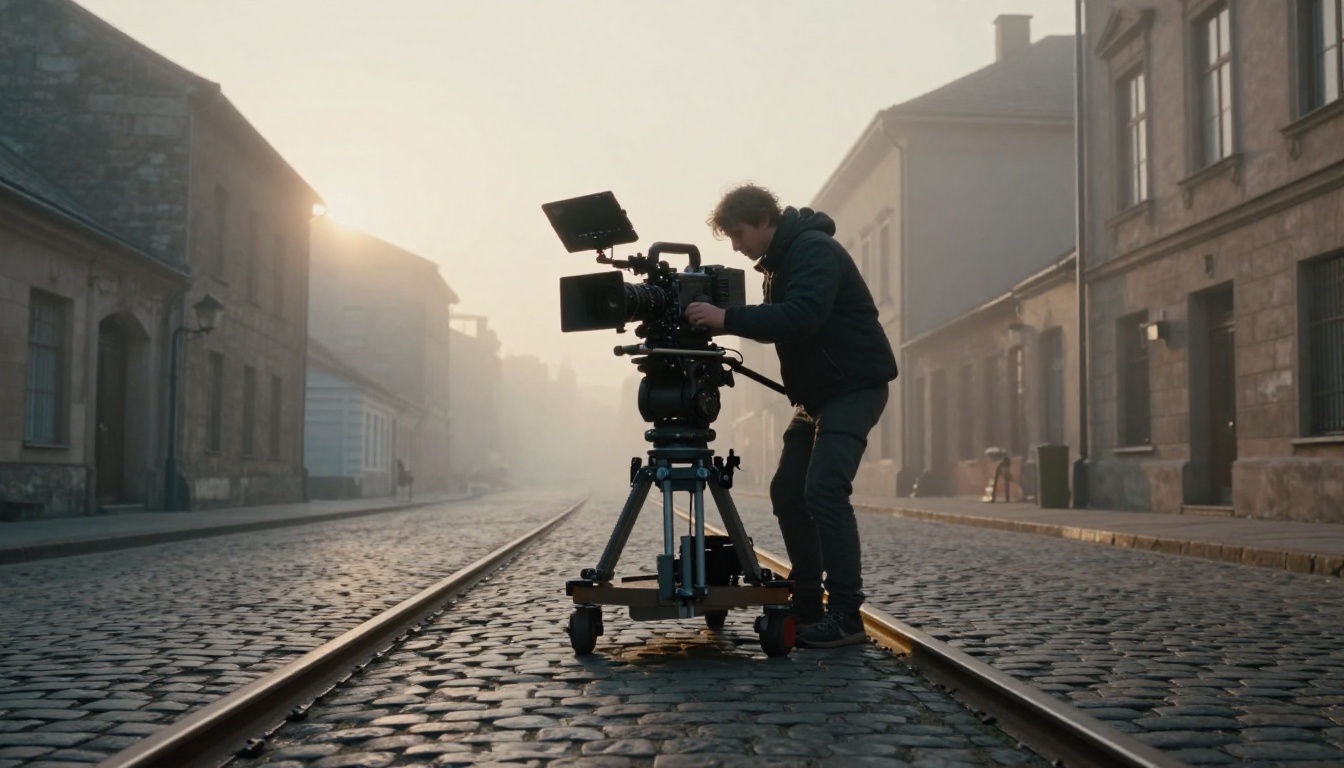
Some generators care less about faces and more about how a real camera would move through a space: a slow push-in, a handheld drift, a shift of focus from foreground to background.
- Kling v3 Video is built for cinematic shots, and Kling v3 Omni Video outputs text to 1080p video.
- Ray 3.2 from Luma pairs cinematic text to video with HDR, which helps highlights and shadows sit closer to real exposure.
- Gen 4.5 from Runway lists cinematic motion as its headline strength.
- Wan 3 also targets cinematic video and is worth running next to the others on landscape and action shots.
Long Clips and Higher Resolution
Here is how the main options line up:
If you would rather pick by the shot you need, use this as a starting point:
- Interview or talking head: begin with Sora 2 or Veo 3.1, and note that Sora 2 lists synced audio, which matters for speech.
- Travel or landscape b-roll: run Wan 3 and Ray 3.2 side by side and keep the better light.
- Product on a table: try Kling v3 Video for a slow camera move, then lock the seed.
- One long take: use Seedance 2.5 so the scene does not have to be stitched.
- Social drafts: use Picasso IA Video and iterate without watching a credit counter.
- Final high-resolution delivery: render the winning prompt in LTX 2.3 Pro.
💡 Rule of thumb: Resolution is the last thing to chase. A 1080p clip with believable motion beats a 4K clip with a wobbling face every time.
Where Realism Still Breaks
Even the strongest models share a few weak spots. Knowing them saves credits, because you can design a shot around the problem instead of rerolling and hoping.
Crowds and Background Faces

A single face in close-up is the easy case. A market full of faces is the hard one. Background people tend to share the same features, walk in unison, or drift in and out of existence between frames. If realism matters, keep background people few, blurred or turned away. A shallow depth of field is your friend here, because it hides exactly the details models get wrong.
Water, Fur and Fast Motion

Water is a stress test because every droplet follows physics that viewers know without thinking about it. Fur and fast movement add speed to the same problem, so a dog running through a shallow lake is about as hard as a prompt gets.

Three fixes help:
- Slow the action down. Ask for slow motion or a calm scene. Fast movement multiplies errors.
- Shorten the clip. Five seconds is easier to hold together than ten.
- Lock the camera. A static or slow camera leaves the model one thing to track instead of two.
Free Options That Still Look Real
"Free" used to mean watermarks and smudgy 480p. Today it can mean usable footage, as long as you pick models built for it and set honest expectations: short clips, 720p at most, and a few rerolls.
Free and Unlimited
- Picasso IA Video is the platform's own text-to-video model, listed as free and unlimited. Every clip is 5 seconds at 24 frames per second with synchronized audio, and it accepts either a plain prompt or a starting image. Pick 480p for the fastest renders or 720p for sharper output.
- Seedance 2.5 Lite is the lightweight edition of Seedance 2.5, tuned for 480p and 720p, with clips of 5 or 10 seconds. Wonder members run it without limits.
Because neither has a per-clip cost, they are ideal for iterating. Try ten prompt variations, change the seed, keep the best take.
Free Drafts Before You Spend
Other free-to-try options exist on the platform. Ray Flash 2 720p is listed as a free text-to-video generator, and Wan 2.1 I2V 720p is listed as free for animating photos. Availability can change, so check the model page for current terms before you plan a project around either one.
The workflow that saves the most money is simple: draft free, finish paid. Test composition, motion and wording in a free model. Once a prompt reliably produces a believable result, re-render the final version in Veo 3.1 or Sora 2 Pro. You spend premium credits only on shots that already work.
💡 Budget move: Lock the seed once you like a result. Same prompt plus same seed lets you change one setting at a time and see exactly what it did.
How to Use Picasso IA Video
Picasso IA Video is the simplest place to begin, because the settings are few and every clip comes out in the same format: 5 seconds at 24 frames per second.
Write the Prompt

Open the model page and type a cinematic, chronological description into the prompt box. That is the style the model page itself recommends. Say who is in frame, what happens from the first second to the last, what the camera does, and how the light looks.
Pick Resolution and Ratio
The settings are short:
| Setting | Choices | When to use it |
|---|
| Resolution | 480p or 720p (default) | 480p for quick drafts, 720p for final clips |
| Aspect ratio | 16:9, 9:16, 1:1, 4:3, 3:4, 3:2, 2:3 | 16:9 for YouTube, 9:16 for Shorts and Reels |
| Seed | Any whole number | Repeat or tweak a result you liked |
| Save audio | On by default | Turn off for a silent clip |
Animate a Still Image
Image-to-video is the most reliable road to realism. Create a photographic still with a text-to-image model such as P-Image, Nano Banana 2 or Flux 2 Pro, then upload it as the input image. The clip uses it as the opening frame and inherits its aspect ratio, so the ratio setting is ignored. Because the first frame is already a photograph, the model only has to animate it, not invent it.
From there, prompt only the motion. For example: "She slowly turns her head toward the window and smiles, soft morning light."
💡 Note: Quality is easier to judge at 720p. Draft at 480p to test an idea, then switch to 720p once the motion looks right.
Prompts That Look Filmed
A Formula That Works
Build every prompt in four beats: subject and starting pose, action over time, camera movement, light and sound. Here is one that follows the pattern:
A fisherman in a faded blue jacket stands at the edge of a wooden pier at sunrise, coiling a rope. He looks up as a gull cries overhead. The camera pushes in slowly from a medium shot to a close-up of his face. Soft golden light from the left, a light sea breeze, creaking boards and distant waves.
Notice the limits: one subject, one action, one camera move. Five seconds does not have room for more.
Words That Hurt Realism
Some habits push every model toward the same glossy, over-processed look:
- Stacked quality tags. "Ultra HD, hyper-detailed, award winning" tells the model to polish, and polish reads as artificial.
- Perfect people. Ask for freckles, tired eyes, a creased jacket. Imperfection is what makes a face believable.
- Too many actions. "She runs, jumps, laughs and spins" in five seconds guarantees a mess. Pick one.
- Impossible cameras. A shot that spins around the subject while zooming and tilting asks for physics no real camera has.
Swap tags for camera language instead: lens length, time of day, handheld or tripod, the kind of light in the room.
Make Your Own Clip Today
You now have a checklist, a shortlist and a free place to practice. The fastest way to build judgment is to generate and compare. Open Picasso IA Video, paste the fisherman prompt above, set 720p and render it. Then run the same words through Veo 3.1, Kling v3 Video and Seedance 2.5 Lite and put the results side by side.
Change one thing at a time: the seed, the camera move, the time of day. Within an afternoon you will know which generator suits the kind of footage you make. Browse every available model at Picasso IA, pick a prompt, and see how real your next clip can look.


