Large Language ModelsGenerate imagesGenerate videos
n8n OpenRouter Image Generation: Free Models Workflow and the Real Cost
OpenRouter lists no image model with a free tag, but 16 free text models can write your prompts. This n8n workflow pairs them with a low-cost image call, base64 decoding, a spend guard and a free PicassoIA route that keeps costs near zero.
Search for a free image generation model on OpenRouter and you hit a wall fast. On October 8, 2026, we pulled OpenRouter's public model list filtered to image output. It returned 61 models, and not one carried the :free tag. The unfiltered list had 16 free models, and every one of them produces text only. That sounds like bad news for anyone who wanted an n8n workflow that makes pictures for nothing, but it points straight at a design that works: a free text model writes the prompts, the cheapest image model that fits renders them, and a zero-cost path stays ready for everything else.
This article builds that workflow node by node. You get the trigger, the prompt writer, the HTTP call to OpenRouter's image endpoint, the base64 decode, storage, and a spend guard that stops a runaway loop before it empties your balance. Along the way you will see what each piece costs, which settings trip people up, and how to run the same job through PicassoIA when you want a free image step.
What Free Really Means on OpenRouter
The word "free" gets stretched on model marketplaces, so pin it down before you wire anything.
Free Text Models Write Your Prompts
OpenRouter marks zero-cost models with a :free suffix on the slug. On the day we checked, 16 models had it, including nvidia/nemotron-3-super-120b-a12b:free, google/gemma-4-31b-it:free, poolside/laguna-s-2.1:free and thinkingmachines/inkling:free, which also accepts images and audio as input. All of them return text. That is exactly what the first half of an image workflow needs, because a prompt is a few hundred tokens.
Free models rotate, and they carry per-minute and per-day request limits that loosen once an account has bought credits. Treat every slug in this article as an example and check the live list before you hard-code one.
💡 Tip: Test your prompt-writing instruction before you build the node. Paste it into Gemini 3.5 Flash or Llama 4 Scout Instruct on PicassoIA and read what comes back.
Image Models Bill Per Image
Pictures go through a dedicated endpoint, https://openrouter.ai/api/v1/images, using the same Bearer token as text calls. Billing depends on the model: some charge per image, others per megapixel or per token. OpenRouter's own image tutorial puts the spread from well under a cent to more than ten cents per image. Every response carries a usage.cost field with the real charge, and that is the number your workflow should log.
⚠️ Watch out: A 0 in the token price fields does not make a model free. Most image-only models in the public list show 0 for both prompt and completion price, and OpenRouter's image tutorial says none of them carries the free tag. Read the pricing on the model page and trust usage.cost.
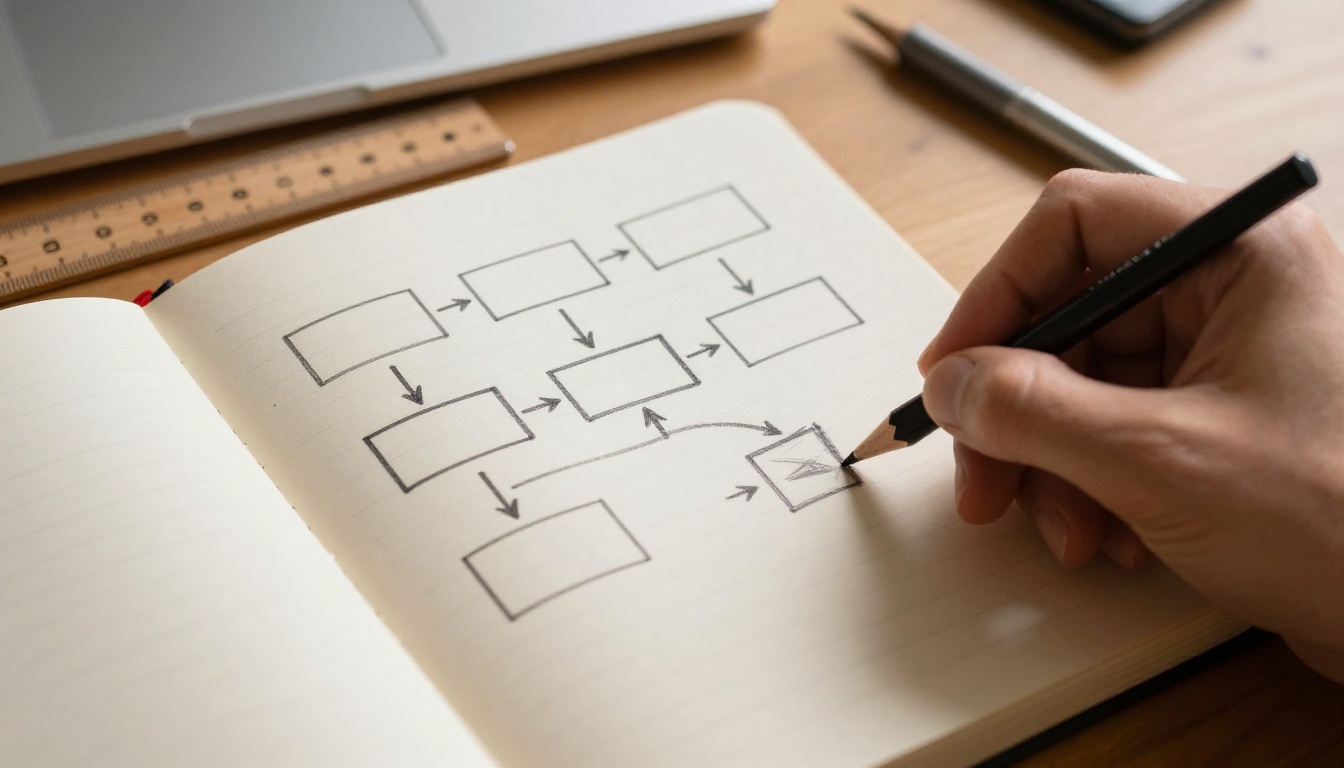
Seven steps, and each one maps to a single n8n node or a short pair of nodes:
Trigger: manual while you test, then a schedule, a webhook or a new spreadsheet row.
Inputs: topic, style and aspect ratio set in an Edit Fields node.
Prompt writer: an LLM chain running a :free model.
Image call: an HTTP Request node posting to /api/v1/images.
Decode: copy b64_json into its own field, then convert it to a file.
Store: Google Drive, an S3-compatible bucket or local disk.
Guard: log usage.cost, retry on failure and alert when something looks off.
n8n ships an OpenRouter Chat Model node for its AI chains, so step 3 needs no custom HTTP. Only the image call does, because chain nodes are built for text.
Build It Node by Node
Start with a Manual Trigger so you can run one item at a time. Follow it with an Edit Fields node that sets three values: topic (for example "ceramic mug on a sunlit windowsill"), style ("natural light, 50mm, film grain") and aspectRatio ("16:9"). Swap the trigger for a Schedule Trigger or a Google Sheets row once the chain works.
Prompt Writer on a Free Model
Add a Basic LLM Chain and attach the OpenRouter Chat Model sub-node. Create an OpenRouter credential with your token, then pick one of the :free slugs. Use a system message like this:
You write one image prompt per request. Describe subject, setting,
light, lens and mood in 60 to 90 words. Put no text in the image.
Return only the prompt.
A good result reads like this: "A ceramic mug of black coffee on a sunlit windowsill, steam curling toward a linen curtain, soft morning light from the left, 50mm lens at f/2, shallow depth of field, matte glaze with tiny speckles, calm and quiet mood." It is short, concrete and free of the filler that image models ignore.
Pass {{ $json.topic }} and {{ $json.style }} as the user message and keep temperature near 0.7. The chain returns the prompt in a text field. Check the output tab and adjust the name if your n8n version differs.
HTTP Request to the Image Endpoint
Add an HTTP Request node with these settings:
Method: POST
URL:https://openrouter.ai/api/v1/images
Authentication: Generic Credential Type, Header Auth, name Authorization, value Bearer followed by your token
Send Body: on, JSON, "Using JSON"
Build the body with an expression rather than hand-written JSON, because prompts contain quotes that break a plain template:
Swap the slug for any model from the filtered list. Parameter support varies by provider, so drop an option if a model rejects it. The endpoint also accepts resolution, quality, n for several images at once and input_references for editing from a source picture.
The response has this shape (values here are placeholders):
Open the node settings and turn on Retry On Fail with two or three tries and a wait of a few seconds. Transient provider errors are common, and a retry costs nothing when the failed call was not billed.
Decode and Store the File
Add a second Edit Fields node with two assignments: image_base64 set to {{ $json.data[0].b64_json }} and cost set to {{ $json.usage.cost }}. Then add Convert to File, choose "Move Base64 String to File" and type image_base64 as the input field name. That is the field name, not the encoded string itself, and it is the single most common mistake with this node.
Name the file {{ $now.toFormat('yyyyMMdd-HHmmss') }}.webp and keep the extension in step with the output_format you requested. A mismatch gives you files that fail to open.
Finish with a Google Drive node, an S3 node pointed at any S3-compatible bucket, or Read/Write Files from Disk if n8n runs on your own machine.
Keep Spending Under Control
A workflow that loops by accident is the fastest way to turn "almost free" into a surprise invoice.
Cap and Log the Spend
Set a credit limit on the OpenRouter token you hand to n8n, so the worst case is a number you chose in advance. Then append cost and a timestamp to a Google Sheets row on every run. An IF node comparing cost against a threshold, wired to an email or chat alert, catches a model that suddenly costs more than it did last week.
Slow Down Free Calls
Free models answer with rate limit errors when you push them. Put a Loop Over Items node with a batch size of 1 in front of the prompt writer, add a Wait node of a few seconds inside the loop, and keep Retry On Fail on. A batch of fifty topics then trickles through instead of failing at item twelve. Give the image call the same treatment, since providers can throttle bursts there too.
Pick an Image Model That Fits
Several OpenRouter image slugs belong to families you can try by hand on PicassoIA, which is a quick way to judge the look before you commit a slug to the workflow.
For hero images and anything with legible detail, pay for a top model such as GPT Image 2 and generate one picture per topic. For high volume, such as thumbnails and social variants, pick a smaller, cheaper slug and let the free prompt writer do the heavy lifting.
Before you commit, run ten typical topics through two candidate slugs and add up the cost column in your sheet. The cheaper model often wins on thumbnails and loses on text rendering, hands and fine product detail, and a ten-topic test shows you that within minutes. Store the winning slug in one place, such as the Edit Fields node at the start of the workflow, so a model swap becomes a one-line change.
Review Before Publishing
Automation should not publish blind. Save results to a folder, post a thumbnail grid to a chat channel and wait for a thumbs up before any image reaches a site. Two minutes of human review beats a broken hand in a product photo.
A Free Route Through PicassoIA
PicassoIA publishes an API with a Replicate-style flow. Its API page lists four models: picassoia/picassoia-image for text to image, picassoia/picassoia-image-editor-pro for editing and combining pictures, picassoia/picassoia-video, and picassoia/seedance-2.5-lite for video with synchronized audio. The same page states that "API predictions are currently free" and use no credits, and that creating predictions needs the Infinite plan. Confirm the terms on the PicassoIA API page before you build on them, since plans change. Concurrency is limited to 5 predictions per account.
Keep the style words that worked and put them in the style field of your Edit Fields node.
Create, Wait, Poll, Download
PicassoIA jobs are asynchronous, so the n8n layout has four nodes instead of one:
HTTP Request (create): POST to https://api.picassoia.com/v1/models/picassoia/picassoia-image/predictions with a Bearer header and the body { "input": { "prompt": "...", "aspect_ratio": "16:9", "num_outputs": 1, "output_format": "webp" } }. Build it with JSON.stringify as above.
Wait: five to ten seconds.
HTTP Request (poll): GET https://api.picassoia.com/v1/predictions/{{ $json.id }}.
IF: when status equals succeeded, continue. When it is starting or processing, loop back to the Wait node. When it is failed or canceled, route to your alert.
On success the output field holds a URL, or a list of URLs. Add one more HTTP Request node with the response format set to File and download it, then reuse the same storage node as before.
💡 Tip: Need to edit a photo instead of generating one? PicassoIA Image Editor Pro handles editing and combining pictures, and it is the model to call for background swaps and product retouching.
The stills your workflow saves can also feed a video step. Image-to-video models such as Wan 2.7 I2V, LTX 2.3 Fast and Seedance 2.0 turn one picture into a short clip, and PicassoIA Video is the API route for the same idea. Add it as a second branch after the storage node so a single topic produces both an image and a clip.
Keep It Running
Fixes for Common Failures
Symptom
Likely cause
Fix
HTTP 402
The account is out of credits
Add credits, or move the failing step to a free route
HTTP 429
Free model rate limit
Loop Over Items, a Wait node and Retry On Fail
Invalid JSON body
Quotes in the prompt broke a hand-written template
Build the body with JSON.stringify
File will not open
Wrong input field name, or extension differs from media_type
Use the field name image_base64 and match the extension to output_format
Slug not found
A model was renamed or retired
Pull the model list again and update the slug
Garbled base64
Chat completions route returned a data URL
Strip the data:image/...;base64, prefix in Edit Fields
The chat completions route, which uses a modalities array, is the older way to get images from models that return both text and pictures. It still works for those models, but the dedicated image endpoint gives you a cleaner response and is the one used throughout this article.
Watch for a Free Image Model
Free image models may appear one day, and you will want to hear about it the same morning. Build a second small workflow:
A Schedule Trigger that fires once a week.
An HTTP Request to https://openrouter.ai/api/v1/models?output_modalities=image, which needs no token.
A Code node that returns the ids ending in :free.
An IF node that sends a message only when that list is not empty.
That is a five-minute build, and it means this article's central finding gets re-checked automatically instead of going stale.
Try It on PicassoIA Today
Your workflow now has a free brain for prompts, a paid image step you can price to the cent, and a zero-cost branch for when the budget is tight. The fastest way to find the look you want is to run a few prompts by hand first. Open PicassoIA Image, paste the prompt your n8n chain wrote, and compare it against Flux 2 Pro and Nano Banana Pro. Once one of them gives you the picture you had in mind, copy its settings into the workflow and let it run.