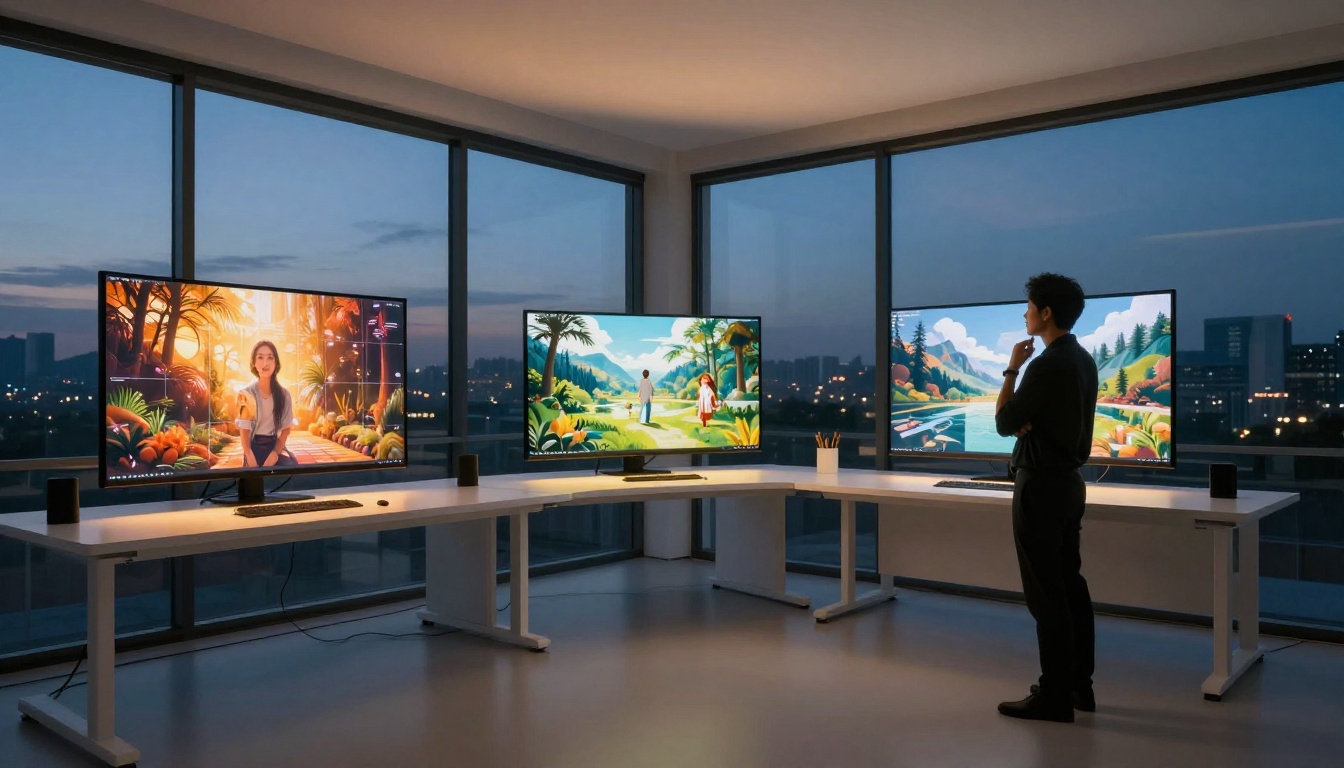
Most people tweak one setting in Nano Banana 2, get a mediocre result, and assume the model is average. They're wrong. The settings in Nano Banana 2 are layered intentionally, and a few specific adjustments separate forgettable images from ones that stop people mid-scroll.
This isn't about chasing perfection. It's about knowing which dials actually move the needle, which ones waste your time, and how to stop fighting the model and start working with it.
What Makes Nano Banana 2 Different
Nano Banana 2 is Google's fast text-to-image model built for speed and coherence. Where many models sacrifice one for the other, this one holds its ground in both categories. That speed-quality balance is exactly why the default settings feel deceptively "fine" but rarely reach their potential without a few deliberate changes.
Speed Without Cutting Corners
The architecture behind Nano Banana 2 is optimized for rapid inference. What this means practically: you can iterate faster than with heavier models like Flux Dev or Stable Diffusion 3.5 Large. But fast generation only pays off if you're adjusting the right settings between runs. Running 20 generations with the same broken parameters gets you nothing.
How It Reads Your Prompts
Unlike older diffusion models that relied heavily on keyword stacking, Nano Banana 2 processes prompts more like natural language. This means comma-separated keyword dumps often work against you. The model responds better to descriptive sentences. That shift alone changes how you should approach every parameter in the interface.

The Settings That Actually Matter
These are the parameters that directly control output quality in Nano Banana 2. Not all settings are equal. Most sliders in any AI image tool are secondary. These three are primary.
Guidance Scale Is Everything
The guidance scale (also called CFG scale) tells the model how strictly to follow your prompt. Low values give the model creative freedom. High values force literal interpretation.
💡 For Nano Banana 2, the sweet spot is between 4.5 and 7.5. Below 4, the model ignores your prompt. Above 9, images start looking stiff, oversaturated, and artificial.
| Guidance Scale | What Happens |
|---|
| 1 - 3 | Model ignores most of the prompt, generates freely |
| 4 - 6 | Balanced output, natural-looking results |
| 7 - 8 | Prompt-accurate, slightly more rigid |
| 9+ | Oversaturation, artifacts, loss of realism |
Most people leave this at the default (usually 7.5) and never touch it. Try dropping it to 5.0 for portrait subjects and you'll immediately notice more natural skin tones and softer compositions.
Inference Steps and Real Results
Inference steps control how many passes the model takes to build your image. More steps means more detail refinement but also longer generation time.
For Nano Banana 2 specifically:
- 20 steps: Fast draft, good for checking composition
- 30 steps: The practical sweet spot for most outputs
- 40 to 50 steps: Marginal improvement, noticeable speed cost
💡 Don't go above 50 steps. Beyond that threshold, Nano Banana 2 shows almost no improvement and sometimes introduces noise in smooth surfaces like skin or sky gradients.
The real trick is pairing steps with guidance scale. A lower guidance scale (5.0) with 35 steps often outperforms a high guidance scale (8.5) with 50 steps. Test this combination before assuming you need more steps.
Seed Values for Consistency
The seed is the most underused setting by beginners and the most appreciated setting by anyone who produces images professionally.
A seed value locks the randomness of your generation. If you find a composition you like but want to adjust the lighting or colors with a prompt change, keeping the same seed preserves the underlying structure while your new description reshapes the output.
How to use seeds practically:
- Generate with a random seed until you find a composition worth building on
- Note the seed number from that output
- Refine your prompt, keep the seed locked
- Iterate with confidence

Resolution and Aspect Ratio
Getting the resolution wrong is one of the fastest ways to waste generations. Nano Banana 2 handles certain aspect ratios better than others.
Best Sizes for Each Use Case
The model was optimized around standard training resolutions. Stray too far from those and you'll get stretched faces, distorted architecture, and broken symmetry.
| Use Case | Recommended Resolution | Aspect Ratio |
|---|
| Social media post | 1024x1024 | 1:1 |
| Blog / article header | 1344x768 | 16:9 |
| Portrait / character | 768x1344 | 9:16 |
| Product shot | 1152x896 | 4:3 |
| Cinematic scene | 1344x768 | 16:9 |
💡 Stick to multiples of 64 or 128. Nano Banana 2 uses tiled generation internally. Images with dimensions that aren't clean multiples of 64 can produce subtle seaming artifacts at the tile boundaries.
Output Format Options
PNG preserves full quality and is the right choice for any image you plan to edit further. JPEG is fine for web publishing where file size matters. Never downsize at the generation stage, always generate at full resolution and downscale afterward if needed.

How to Use Nano Banana 2 on PicassoIA
Nano Banana 2 is available directly on PicassoIA. Here's how to get your first optimized generation running.
Step 1: Open the model page
Navigate to the Nano Banana 2 model page on PicassoIA. The interface loads the generation panel with all parameters visible.
Step 2: Write a descriptive prompt
Avoid keyword dumps. Write a sentence describing the scene you want. Include subject, environment, lighting, and mood. Example: "A woman in her 30s with dark curly hair standing in a sunlit wheat field, late afternoon golden hour light, wide shot, film photography aesthetic."
Step 3: Set your guidance scale
Start at 5.5 for portraits, 6.5 for landscapes and product shots, 7.0 for technically precise images.
Step 4: Set inference steps
Use 30 steps for most generations. Bump to 40 only when detail in specific areas like fabric texture, facial features, or foliage matters and you're willing to wait.
Step 5: Lock a seed for iteration
Once you generate an output you want to build on, copy the seed from that result and paste it back into the seed field before your next run.
Step 6: Choose your resolution
Pick from the table above based on your output format. Don't generate bigger than you need.
Step 7: Review and iterate
Look at what changed. If the image is too literal, drop CFG scale by 0.5. If it's drifting from your prompt, raise it by 0.5. Small adjustments, not big jumps.

Prompt Settings That Boost Output
The way you write your prompt is itself a setting. Nano Banana 2 responds to prompt structure differently than models like Flux 1.1 Pro or GPT Image 1.5.
Writing Prompts That Work
The most consistent results come from prompts structured in layers:
- Subject: Who or what is in the image
- Action / Pose: What they're doing or how they're positioned
- Environment: Where the scene takes place
- Lighting: The specific quality and direction of light
- Camera: Lens, angle, depth of field
- Aesthetic: Film stock, color grade, mood
Weak prompt: "beautiful woman, photorealistic, 8k, cinematic"
Strong prompt: "A young woman with freckles and short blonde hair standing near a rain-streaked window in a quiet cafe, diffused grey morning light from the left, 85mm f/1.4 shallow depth of field, Kodak Portra 400 warm tones, subtle film grain"
The second prompt gives the model actual visual information instead of quality adjectives. Words like "photorealistic" and "8K" contribute almost nothing to Nano Banana 2 because the model doesn't treat them as style tokens.
Negative Prompts as a Filter
Negative prompts in Nano Banana 2 work as exclusion filters. Use them to cut specific artifacts you're seeing repeatedly.
Useful negative prompts by problem:
| Problem | Negative Prompt |
|---|
| Blurry faces | blurry face, soft features, unfocused |
| Extra fingers | extra fingers, deformed hands, mutated |
| Overexposed sky | blown highlights, overexposed, washed out |
| Plastic skin | plastic skin, airbrushed, waxy texture |
| Bad composition | cropped head, cut off limbs, poor framing |
💡 Keep negative prompts specific. Generic entries like "low quality, bad art" don't do much for Nano Banana 2. The model already produces decent quality by default. Specific exclusions for known artifacts are far more effective.

Nano Banana 2 vs. Other Models
Where does Nano Banana 2 actually fit in the current landscape? Here's an honest comparison against models available on the platform.
| Model | Speed | Detail | Prompt Accuracy | Best For |
|---|
| Nano Banana 2 | Very Fast | Good | High | Rapid iteration, portraits |
| Nano Banana Pro | Fast | Very Good | Very High | Professional outputs |
| Flux Dev | Medium | Excellent | High | High-quality final images |
| Flux 1.1 Pro | Medium | Excellent | Very High | Commercial production |
| Imagen 4 | Medium | Excellent | Excellent | Photorealism, fine detail |
| GPT Image 1.5 | Slow | Outstanding | Exceptional | Complex scenes, text in image |
The use case for Nano Banana 2 is clear: high-volume iteration. When you need to run 15 to 20 variations to find the right composition, this is the model that won't burn through your time or credits at each step. Then you take your best result and recreate it with Nano Banana Pro or Flux 1.1 Pro for final production quality.
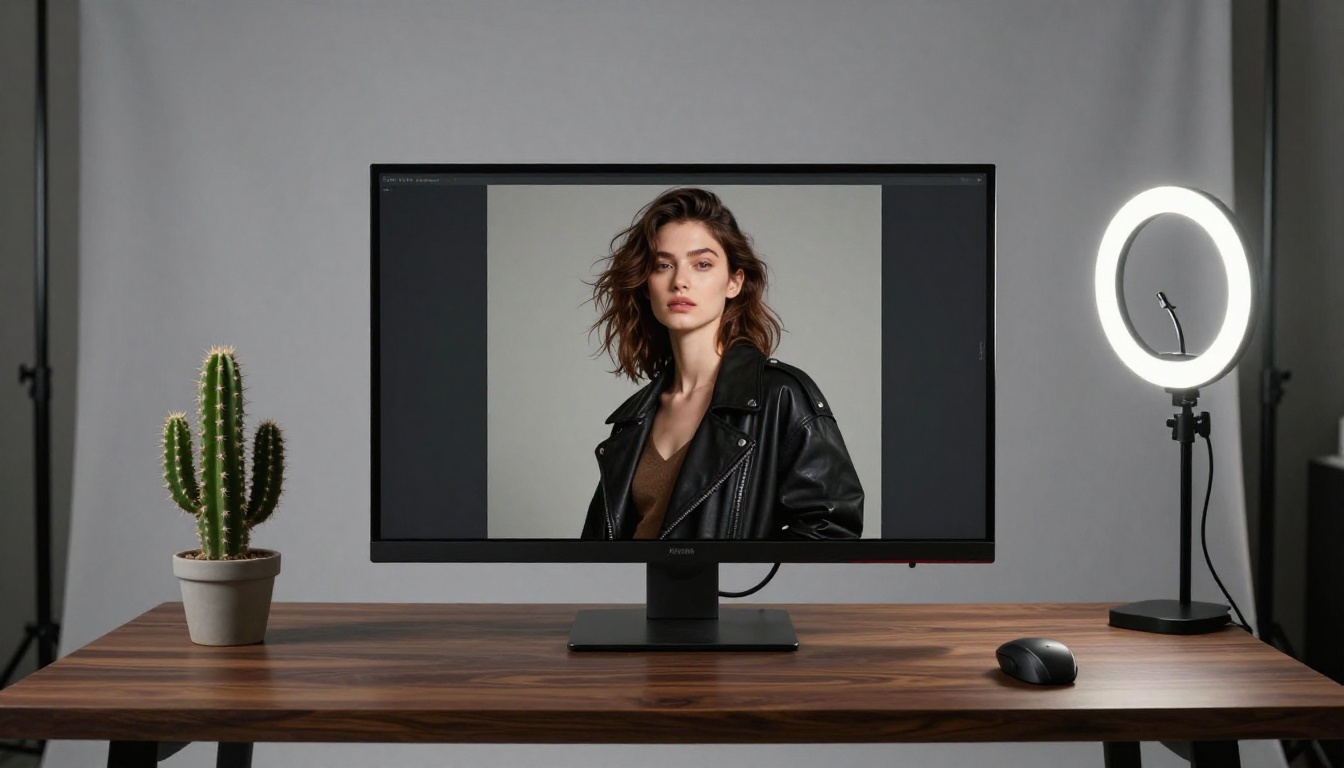
3 Common Mistakes to Stop Making
These show up in almost every beginner workflow and each one silently kills image quality.
Mistake 1: Changing too many settings at once
When an image doesn't look right, most people adjust 4 or 5 parameters simultaneously. Then the next output looks different, but you have no idea which change made it better or worse. Change one setting per iteration. It takes more runs but gives you actual data.
Mistake 2: Maxing out inference steps by default
50 or more steps feels like "more effort equals better result" but that's not how diffusion models work. Past the sweet spot, you're spending compute on changes too subtle to see at normal zoom. 30 steps is correct for 90% of use cases with Nano Banana 2.
Mistake 3: Ignoring aspect ratio until the end
Many creators write their prompt, tweak settings for 20 runs, find something they love, and then change the aspect ratio for their actual platform. The composition breaks. Subjects that were centered in 1:1 get awkward in 16:9. Set the correct aspect ratio in your very first generation and never change it mid-session.
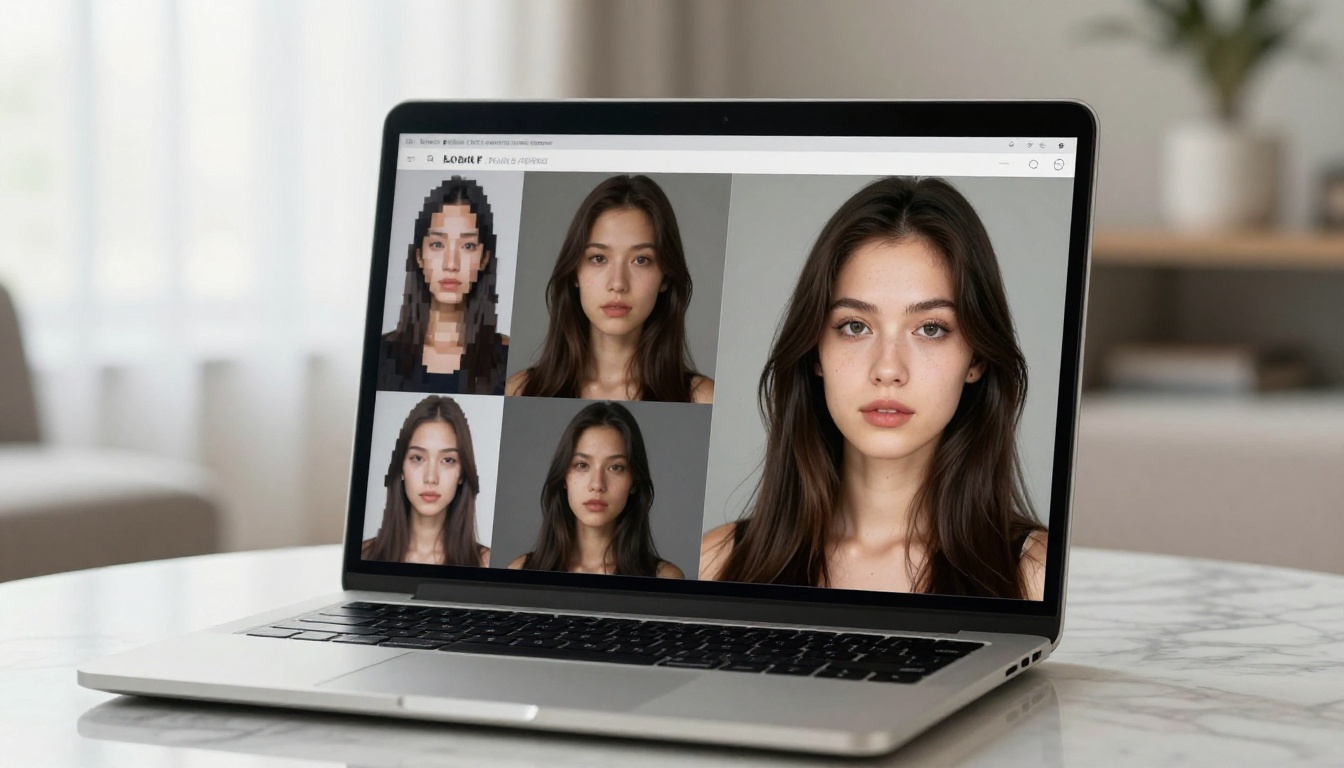
Nano Banana 2 vs. Nano Banana Pro
People often wonder whether to use Nano Banana 2 or step up to Nano Banana Pro. The decision isn't about which is "better." It's about workflow stage.
Use Nano Banana 2 when:
- You're in an exploratory phase, testing compositions and subjects
- You need 10 or more variations quickly to present or review internally
- Speed matters more than pixel-perfect output
- You're prototyping a prompt structure before committing to a final generation
Use Nano Banana Pro when:
- You've locked your composition and prompt and need the highest quality version
- The image is going on a website, print, or product where detail matters
- You're working with complex scenes requiring precise element placement
- Fine facial details, fabric texture, or architectural accuracy are required
The smartest workflow: iterate fast in Nano Banana 2, finish in Pro.
💡 Both models share similar prompt language. A prompt that works well in Nano Banana 2 will translate cleanly to Nano Banana Pro without requiring a full rewrite, which is exactly why using Nano Banana 2 as a drafting tool makes sense.
Start Creating Right Now
The settings in Nano Banana 2 aren't complicated. They just require deliberate use. A guidance scale between 4.5 and 7.5, 30 inference steps, locked seeds for iteration, and a prompt written as a scene description rather than a keyword list. Those four changes alone will shift your results from average to consistently good.
The platform already has everything you need. Nano Banana 2 is running on PicassoIA right now, ready for you to test every setting covered in this article. Pick one section, apply it to your next generation, and see what changes.
If you want to see how far the model can go, try running the same prompt at guidance scale 5.0 with 30 steps and compare it to 8.0 with 50 steps. The difference will tell you more about the model than reading any article ever could.