Professional image editing starts with understanding that every adjustment affects the final output. Whether you're preparing photos for commercial printing, web publication, or client delivery, consistent results require systematic workflows. The tools available today, particularly advanced AI-powered solutions like Nano Banana Pro, offer unprecedented precision when you know how to use them effectively.
Why Color Accuracy Matters in Professional Editing
Color inconsistency destroys credibility faster than any technical error. When skin tones shift between devices or product colors appear different online versus in print, clients notice immediately. Color management isn't optional—it's the foundation of professional work.
💡 Professional Insight: The human eye can distinguish approximately 10 million colors, but digital systems must translate this continuous spectrum into discrete values. Calibration bridges this gap.
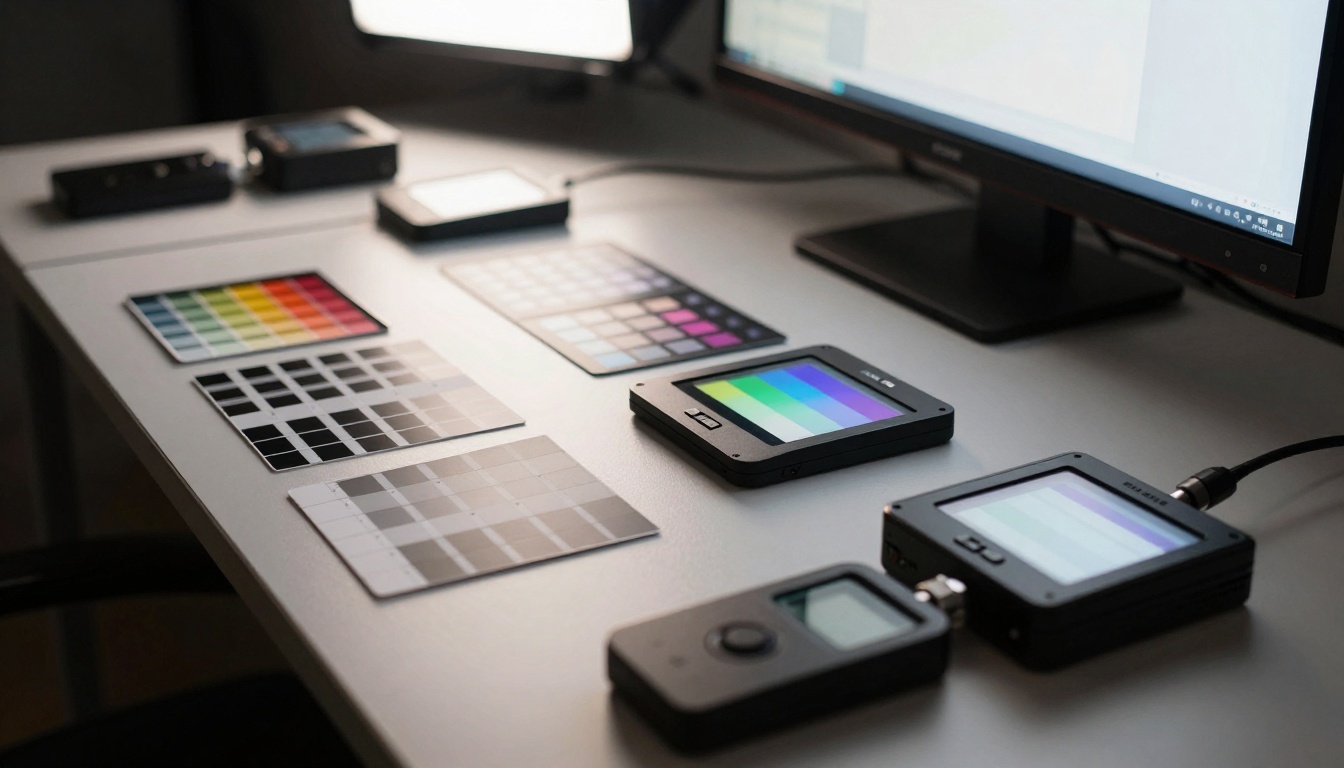
The role of neutral grays in color calibration begins with understanding that neutral tones (grays without color cast) serve as reference points. When grays appear neutral on your display, all other colors align correctly. This principle applies whether you're using traditional editing software or advanced AI tools like Nano Banana.
Consider this comparison of common color issues:
| Issue | Cause | Solution |
|---|
| Yellow skin tones | Incorrect white balance | Use gray card reference during shooting |
| Muted colors | Limited color gamut | Work in wider color spaces (ProPhoto RGB) |
| Printer mismatch | Profile not applied | Embed correct ICC profile on export |
| Screen variation | Uncalibrated display | Monthly hardware calibration |
Setting Up Your Workspace for Efficiency
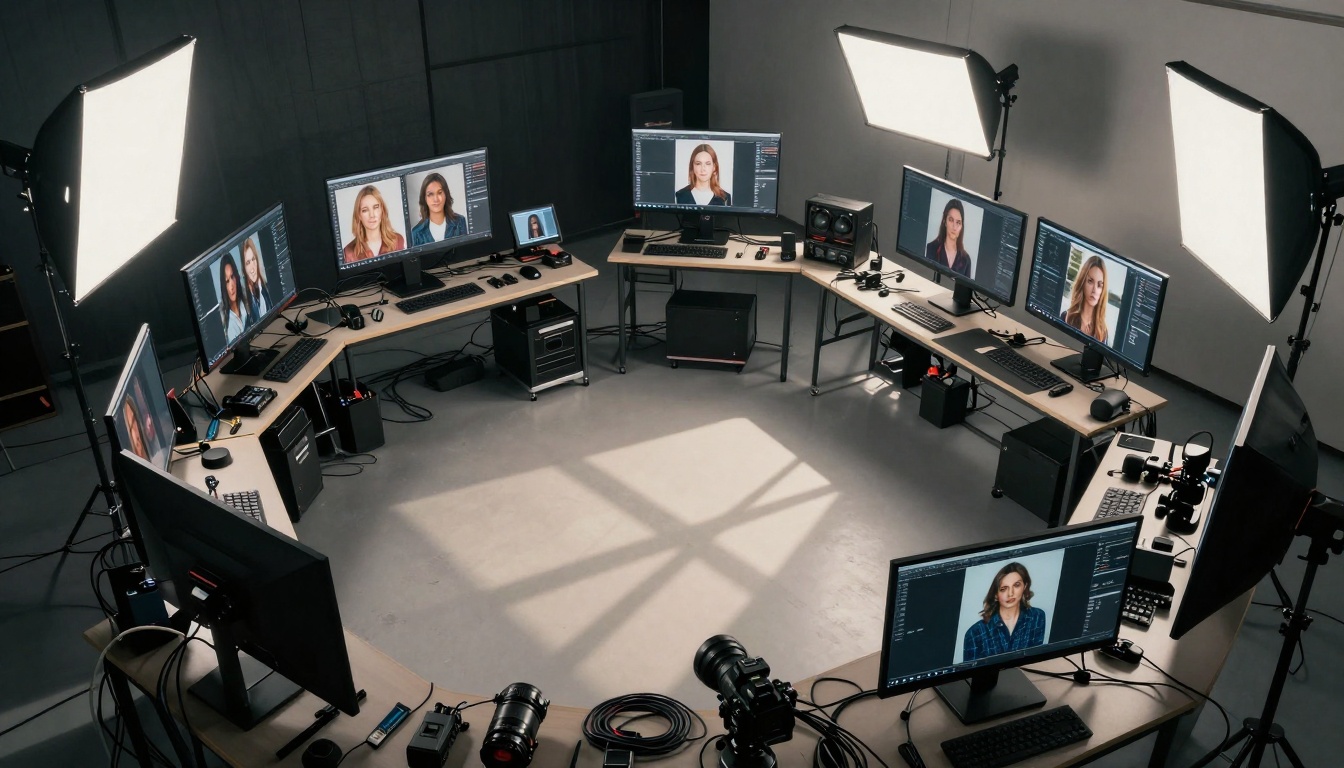
Physical workspace organization directly impacts editing quality. Monitor placement, lighting control, and equipment arrangement create either barriers or pathways to efficient workflow.
Workspace lighting considerations include three key elements:
- Ambient light control: Blackout curtains or controlled LED panels
- Monitor positioning: Eye level, arm's length distance, minimal glare
- Reference materials: Color charts, gray cards, print samples within reach
The systematic approach matters more than expensive equipment. A well-organized workspace with proper lighting yields better results than premium gear in poor conditions.
💡 Practical Tip: Position your monitor perpendicular to windows to avoid glare. Use bias lighting behind the monitor to reduce eye strain and improve color perception accuracy.
Equipment checklist for professional editing:
- Calibrated monitor (monthly calibration recommended)
- Graphics tablet for precision retouching
- Color reference tools (X-Rite ColorChecker or similar)
- Controlled lighting (5000K color temperature ideal)
- Ergonomic seating to maintain posture during long sessions
- Backup storage with versioned file organization

Understanding Histogram Data Interpretation
Histograms provide visual representation of tonal distribution—the foundation of exposure adjustment. Learning to read histogram data separates amateur adjustments from professional corrections.
Reading histogram spikes and gaps reveals image characteristics:
- Left spike: Shadow detail loss (underexposure)
- Right spike: Highlight clipping (overexposure)
- Center peak: Balanced midtones
- Gaps at extremes: Limited dynamic range
- Multiple peaks: High contrast scene
Traditional editing and AI-powered tools like Flux 2 Pro both rely on understanding these patterns. The histogram tells you what adjustments are possible before you make them.
Histogram interpretation workflow:
- Assess overall shape (single peak vs. multiple peaks)
- Identify clipping points (data touching either edge)
- Evaluate distribution (balanced vs. skewed)
- Plan adjustments based on desired outcome
- Monitor changes as you apply corrections
Color Correction Workflow Step by Step
Systematic color correction follows logical progression from global to local adjustments. Skipping steps creates inconsistency; following them builds predictability.
HSL adjustments versus curves represent two different approaches:
- HSL (Hue, Saturation, Luminance): Component-based adjustments affecting specific color ranges
- Curves: Relationship-based adjustments affecting tonal transitions
Standard correction sequence:
- White balance using neutral reference points
- Exposure correction to establish midtone foundation
- Contrast adjustment to define tonal range
- Color balance for accurate hue representation
- Vibrance/Saturation for intensity without clipping
- Selective adjustments for localized corrections
This workflow applies whether using traditional software or AI image generation platforms. When creating images with tools like p-image, understanding these principles helps craft better input prompts for desired output characteristics.
Common correction targets:
- Skin tones: Hue -5 to +5, minimal saturation changes
- Sky/water: Blue hue adjustments, saturation boosts
- Foliage: Green hue refinement, luminance adjustments
- Architecture: Neutral tones, contrast enhancement
- Product photography: Color accuracy, shadow detail preservation
Layer Masking Techniques for Selective Edits
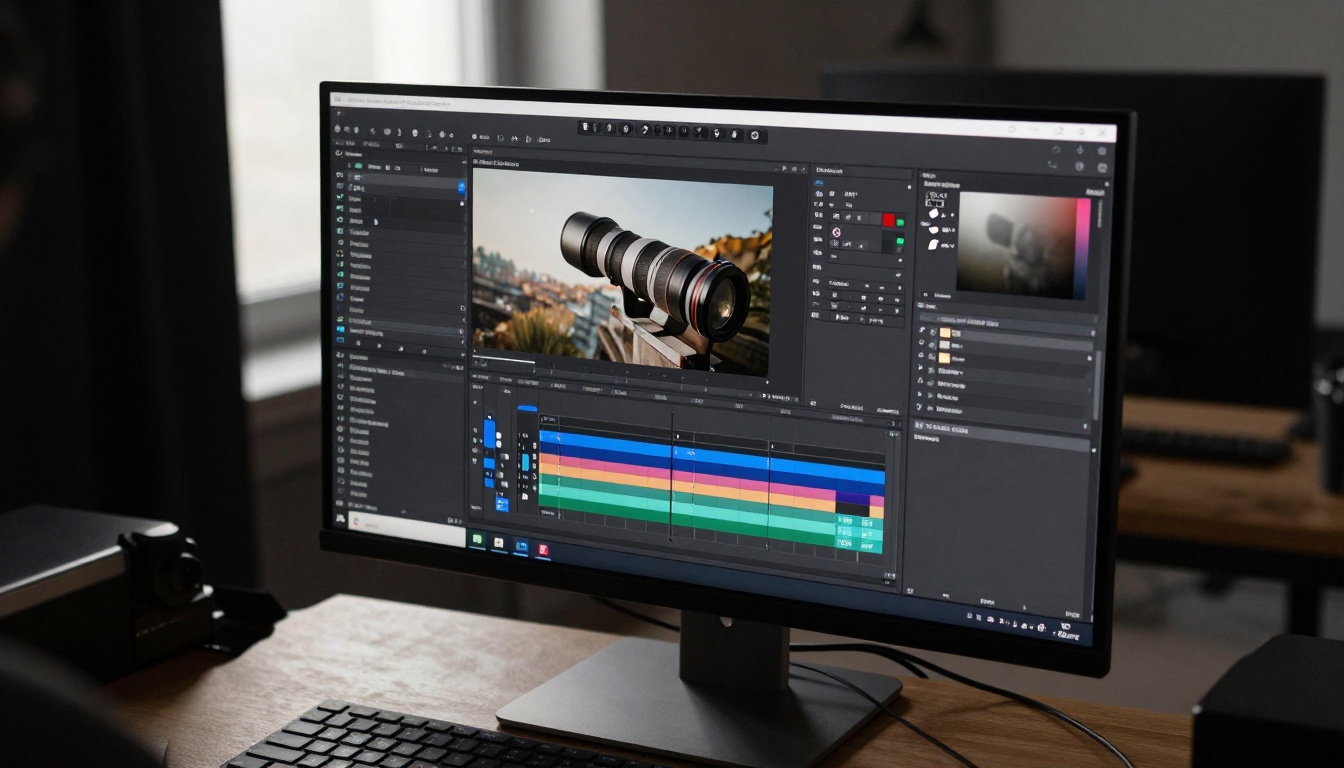
Non-destructive editing through layer masks preserves original data while allowing precise adjustments. Mastering masking techniques enables surgical precision in corrections.
Creating precise selection masks involves understanding edge detection, feathering, and refinement tools. Each image requires different approaches:
| Mask Type | Best For | Technique |
|---|
| Luminosity | Sky/background separation | Blend modes based on brightness |
| Color Range | Specific hue isolation | Sampling target colors |
| Channel | High contrast edges | Individual channel extraction |
| Quick Selection | Simple object isolation | AI-assisted edge detection |
| Pen Tool | Precision geometric shapes | Manual path creation |
💡 Advanced Technique: Combine multiple mask types for complex selections. Use luminosity masks for overall separation, then refine edges with color range selections for perfect boundaries.
Mask refinement checklist:
- Edge detection accuracy verification
- Feathering amount appropriate for image resolution
- Mask density adjustment for transparency control
- Edge refinement tools for difficult boundaries
- Mask stacking for complex multi-step adjustments
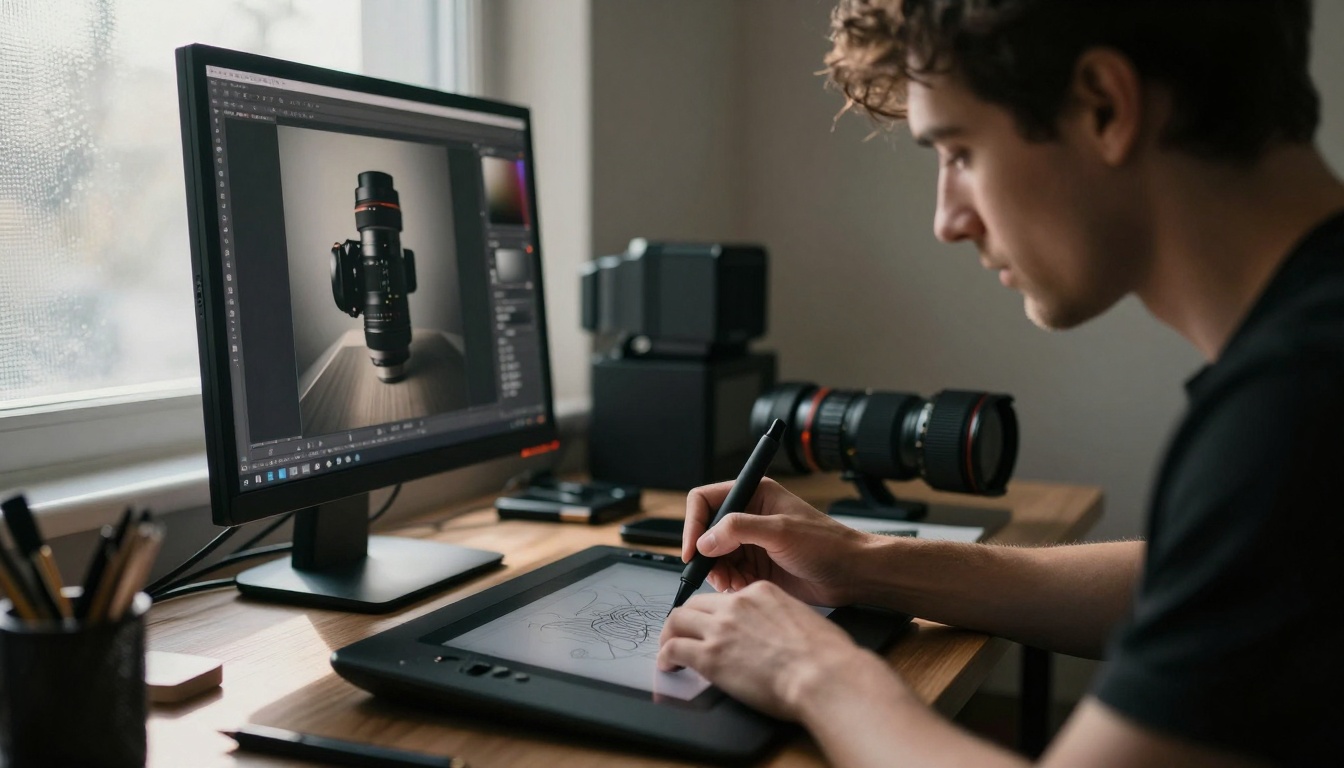
Precision Retouching with Graphics Tablets
Mouse-based retouching lacks the nuance of tablet-based work. Pressure sensitivity, tilt recognition, and natural hand motion translate to more organic editing results.
Pressure sensitivity optimization requires matching brush behavior to task requirements:
- Healing/Cloning: Medium pressure, variable size
- Dodge/Burn: Light pressure, subtle effect buildup
- Painting masks: Variable pressure for density control
- Detail enhancement: Precise pressure for localized effects
Tablet configuration essentials:
- Express keys programmed for frequent actions
- Touch ring/scroll for brush size/zoom control
- Pen sensitivity calibrated to personal pressure
- Workspace mapping matching monitor area
- Driver settings optimized for software used
Retouching workflow with tablet:
- Initial assessment identifying areas needing attention
- Global corrections applied to entire image
- Localized adjustments using pressure-sensitive tools
- Detail enhancement for specific feature emphasis
- Final review verifying consistent application
Preparation varies significantly between screen display and physical printing. Understanding destination requirements prevents disappointing results.
Print versus screen color profiles represent the most critical distinction:
| Characteristic | Screen Display | Physical Print |
|---|
| Color Space | sRGB (web), Display P3 (Apple) | Adobe RGB, ProPhoto RGB |
| Resolution | 72-144 PPI | 300-600 PPI |
| Black Point | Absolute black (0,0,0) | Paper white influences |
| White Point | Monitor maximum | Paper substrate color |
| Viewing Conditions | Variable ambient light | Controlled lighting standard |
Output preparation workflow:
- Determine destination (web, print, social media)
- Select appropriate color space for destination
- Adjust resolution to match output requirements
- Apply sharpening optimized for output method
- Convert profiles for accurate color translation
- Soft proof to preview final appearance
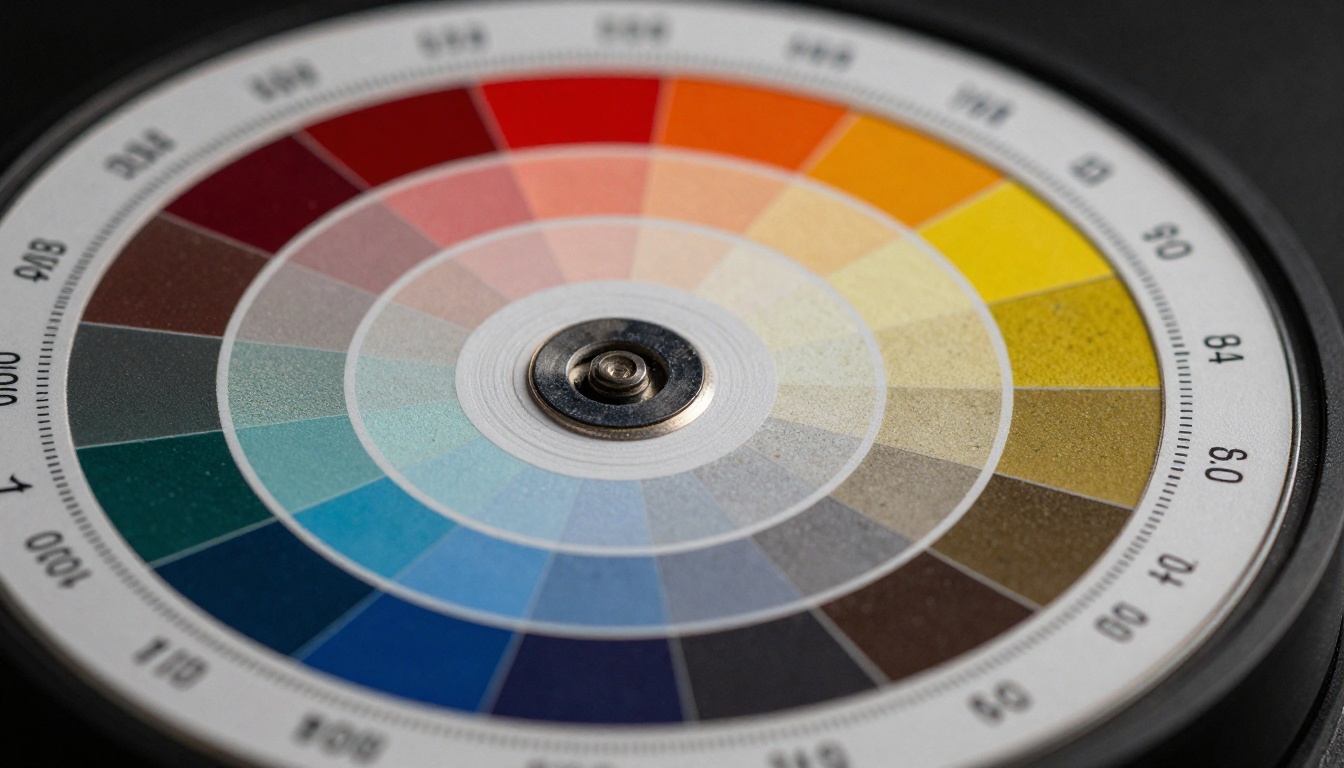
How to Use Nano Banana Pro on PicassoIA
The Nano Banana Pro model on PicassoIA represents advanced image generation capabilities. Understanding parameter optimization yields better results than random experimentation.
Input parameter optimization begins with understanding what each control affects:
Core parameters for Nano Banana Pro:
- Prompt specificity: Detailed descriptions yield precise results
- Aspect ratio: Matching intended output format
- Style guidance: Consistency with target aesthetic
- Detail level: Resolution appropriate for final use
- Color palette: Hue and saturation guidance
Step-by-step workflow on PicassoIA:
- Access the model through the PicassoIA interface
- Craft detailed prompt including subject, environment, lighting
- Set parameters matching output requirements
- Generate initial image for baseline assessment
- Refine through iteration adjusting prompt specifics
- Finalize selection from generated options
Prompt crafting principles:
- Be specific: "Golden hour portrait" versus "portrait"
- Include environment: Indoor studio versus outdoor natural
- Specify lighting: Direction, quality, color temperature
- Detail composition: Camera angle, lens characteristics
- Define mood: Emotional tone through color and lighting
💡 Integration Tip: Use generated images from Nano Banana Pro as starting points for traditional editing. The AI provides strong foundations that can be refined through precise corrections.
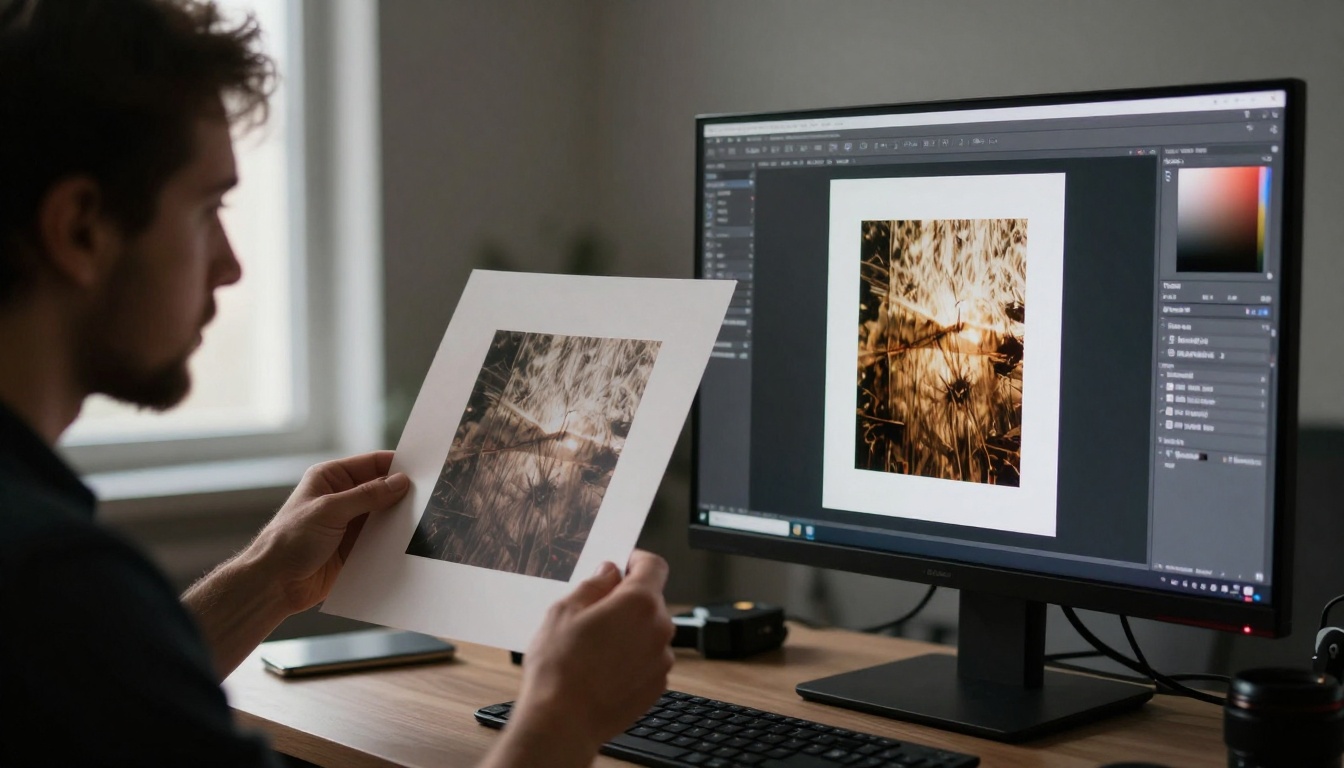
Common Mistakes and How to Avoid Them
Recognizing common errors prevents wasted time and improves results efficiency. Each mistake has identifiable patterns and corrective actions.
Over-editing and how to recognize it appears through several indicators:
- Loss of detail in highlight/shadow areas
- Color banding in smooth gradients
- Unnatural contrast exceeding scene reality
- Excessive sharpening creating halos around edges
- Memory color distortion (skin, sky, foliage)
Prevention strategies:
- Take breaks during extended editing sessions
- Compare to original frequently during process
- Use reference images for color/tonal comparison
- Apply adjustments gradually rather than extreme changes
- Seek second opinions from trusted colleagues
Common error patterns and solutions:
| Error Pattern | Symptoms | Correction Approach |
|---|
| Color cast | Consistent hue shift | Neutral reference calibration |
| Over-sharpening | Halo artifacts | Reduced radius/amount |
| Shadow blocking | Lost detail in dark areas | Selective luminance adjustment |
| Highlight clipping | White areas without texture | Exposure recovery techniques |
| Memory color error | Unrealistic natural elements | Reference comparison adjustment |
Quality verification checklist:
The editing journey continues beyond basic techniques. Each project presents unique challenges requiring adapted approaches. Whether working with traditional photography or AI-generated imagery from platforms like PicassoIA, the principles of color accuracy, systematic workflow, and quality verification remain constant.
Experiment with different approaches using the Nano Banana Pro model on PicassoIA to see how AI generation can complement traditional editing workflows. The combination of AI creation foundations with precise manual refinements often yields superior results to either approach alone.
Share your experiences with systematic editing workflows and how they've improved your results consistency. The community benefits from practical insights about what techniques work in real-world applications versus theoretical perfection.


