You had an idea for an image once. Maybe a specific landscape, a portrait of someone who doesn't exist, a product photo without the expense of a photographer. You thought about hiring someone or sketching it out, then heard that AI could produce it from plain text in seconds. You wondered if it was actually that simple.
It is. And you don't need any design background to do it.
This article covers everything a first-timer needs: what the technology is, which models to start with, how to write a prompt that works, and what to do when your first result isn't quite right. By the time you finish reading, you'll have everything you need to generate your first image today.
What AI Image Generation Actually Is
Plain-Language Version
AI image generation turns a written description into a visual output. You type something like "a red bicycle leaning against a stone wall in morning light" and the model produces a photograph-quality image of exactly that, in seconds.
The model has been trained on millions of images paired with text descriptions. Over time it picks up the visual patterns associated with specific words. When you type a new prompt, it reconstructs an image by predicting what pixels, colors, and textures belong together based on everything it has absorbed during training.
You don't need to touch any settings to get started. You type, you click generate, and you get an image. The entire process takes under 30 seconds on a fast model.
Why People Are Using It Right Now
The most common use cases today:
- Social media content: Custom visuals for posts, covers, and thumbnails
- Product mockups: Show how an item would look without a real photoshoot
- Concept art: Put a visual to an idea before spending money on production
- Personal projects: Book covers, avatars, wallpapers, and gifts
- Marketing assets: Ad creatives, landing page images, and email headers
None of these require design skills or expensive software. They require a good prompt and the right model.
3 Models Worth Trying First
There are dozens of text-to-image models available online. For someone just starting, the choice matters because different models have different strengths. Here are the three that make the most sense when you're new.
Flux Schnell: Speed First
Flux Schnell is built for speed. It produces a usable 1-megapixel image in under five seconds using a streamlined four-step generation process. For beginners, speed matters because you'll want to run many variations of a prompt before settling on the right result. Waiting 90 seconds per generation breaks momentum. With Flux Schnell, you can run 10 variations in the time it takes to make a coffee.
It supports 11 aspect ratios, including 1:1 for social posts, 16:9 for YouTube thumbnails and banners, and 9:16 for Reels and TikTok. Export as JPG, PNG, or WebP with adjustable quality settings. On Picasso IA, there are no credit counters or usage caps.
💡 Start here if you want to experiment with many prompt variations quickly without waiting between results.
Flux Dev: Quality First
Flux Dev is the 12-billion parameter version of the same model family. It takes slightly longer per image but produces noticeably sharper, more detailed results. It also supports image-to-image editing, where you upload an existing photo and describe changes to redirect it.
The guidance parameter controls how closely the model follows your prompt. A value of 3.5 is the standard starting point. Higher values (5 to 7) produce more literal interpretations. Lower values (1 to 2) give the model more creative room.
💡 Start here if you need a polished result for a specific project, not just a quick draft.
Stable Diffusion: Control First
Stable Diffusion is the original open-source model that sparked the entire consumer AI image movement. It runs at resolutions up to 1024x1024 and exposes more settings than either Flux model: guidance scale, six scheduler options, negative prompts, and adjustable inference steps.
Negative prompts let you describe what you don't want in the image. If your output keeps producing blurry backgrounds or unwanted elements, adding those terms to the negative prompt field pushes them out of the result.
💡 Start here if you want to build a deeper feel for how prompts translate to visual outputs by adjusting individual settings one at a time.
Your First Prompt: What to Type
The prompt is everything. A well-written prompt consistently produces strong results. A vague one generates outputs that don't match what you imagined.
The Anatomy of a Good Prompt
A prompt that works well contains four elements:
| Element | What It Does | Example |
|---|
| Subject | Who or what is in the image | A woman in her 30s |
| Setting | Where the subject is | sitting in a sunlit cafe |
| Mood / Lighting | The emotional and visual tone | warm afternoon light, soft shadows |
| Style / Technical | The output aesthetic and quality | photorealistic, 8K, 85mm f/1.8 |
Put these together and you get:
"A woman in her 30s sitting in a sunlit cafe, warm afternoon light, soft shadows, photorealistic, 8K, 85mm f/1.8 lens"
That's a prompt with enough information to produce a consistent, high-quality result every time you run it.
What Bad Prompts Look Like
The most common beginner mistake is treating the prompt like a Google search.
Too vague: woman in cafe produces a generic, forgettable image with no distinctive lighting, composition, or mood.
Too abstract: happiness and freedom produces something random because the model needs concrete visual subjects, not emotions or concepts.
Contradictory: dark moody scene with bright cheerful colors splits the output in two directions and achieves neither.
Prompts That Work Right Away
These templates are reliable starting points you can modify immediately:
A [subject] [doing something] in [location], [lighting description], photorealistic, 8K, [lens]Close-up portrait of [person], [expression], [background], [lighting], film grain, 50mm f/1.4Product photo of [item] on [surface], [lighting], white background, commercial photography, high detailAerial view of [place] at [time of day], natural light, photorealistic, landscape photography
The pattern is always the same: be specific about the subject, tell the model where the light is coming from, and add a technical descriptor like "photorealistic" or "8K" to anchor the output quality.
How to Use Flux Schnell on Picasso IA
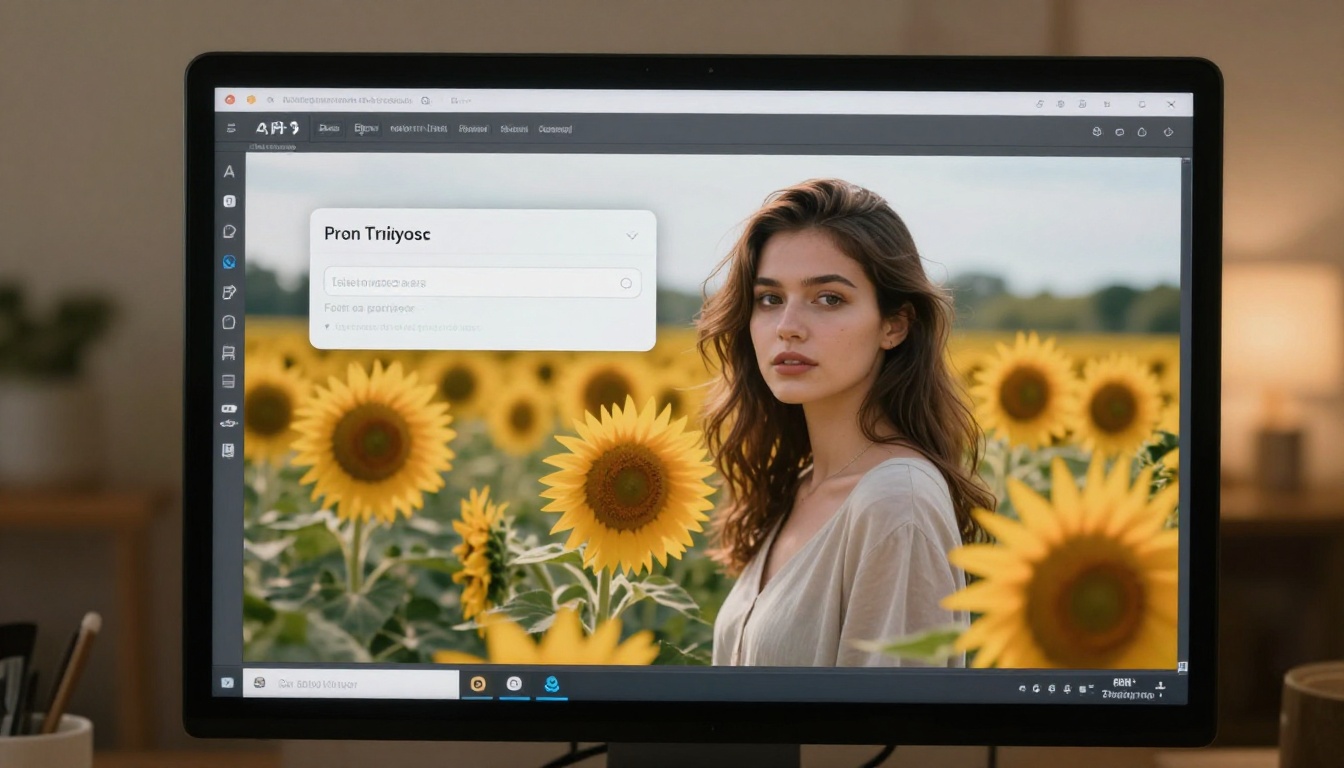
Since Flux Schnell is the best entry point for beginners, here's exactly how to use it from scratch on Picasso IA.
Step 1: Open the Model
Go to Flux Schnell on Picasso IA. You'll see a text input at the top and a settings panel below. No account setup is required to generate your first image.
Step 2: Write Your Prompt
Type your prompt into the input field. Keep it concrete and use one of the templates from the section above. For example:
"A woman reading a book in a cozy autumn library, warm candlelight, dust particles floating in the air, photorealistic, 8K, 50mm f/1.8"
Don't overthink the first run. The goal is to see how the model responds to your words, not to produce a final asset.
Step 3: Set Your Aspect Ratio
Choose the ratio that matches your use case before generating:
- 1:1 for Instagram posts and profile images
- 16:9 for YouTube thumbnails, website banners, and desktop wallpapers
- 9:16 for Instagram Stories and TikTok
- 4:3 for blog article images
This setting has a larger impact on your final output than almost any other parameter. Setting it correctly saves you from having to crop or reformat later.
Step 4: Generate and Iterate
Click generate. The image appears in under five seconds. If it's not what you wanted, change one element of the prompt and run it again. Adjust the lighting description. Shift the subject's activity. Swap out a location detail. After five runs, you'll have a clear feel for how the model responds to your specific phrasing.
💡 Use the seed parameter to lock a result you like. Setting the same seed means small prompt changes are tested from the same starting conditions, making it easier to compare variations fairly.
Step 5: Download Your Output
Once you have a result you're satisfied with, download it directly from the interface as JPG, PNG, or WebP. Files are clean and watermark-free, ready for any use.
What to Do After You Generate
Getting the image out is step one. For most use cases, two follow-up tools significantly improve what you can do with the output.
Upscaling Your Output
Flux Schnell generates at 1 megapixel by default. For social media, that's usually sufficient. For print, large banners, or any context where you'll be viewing the image at high resolution, upscaling is worth doing. Three solid options on Picasso IA:
- Real ESRGAN: The reliable 4x upscaler. Fast and works well on photorealistic images without over-sharpening.
- Google Upscaler: Enlarges images up to 4x with high accuracy and preserved fine detail.
- Topaz Image Upscale: The most powerful option, scaling up to 6x with professional-grade sharpening algorithms.
For most beginner workflows, Real ESRGAN is the right starting point. It's free, fast, and produces clean results without artifacts.
Removing Backgrounds
If you generated a product shot or portrait and need to isolate the subject, Remove Background handles it in one click. Upload the image, get a clean transparent PNG cutout. No manual masking, no separate software, no selection tools.
This is particularly useful for e-commerce mockups, social media posts, and any workflow where you need a subject placed on a different background or color.
4 Mistakes Beginners Make
Prompts Are Too Short
The most common problem across the board. "A dog in a park" is not a prompt; it's a starting point for one. The model has no idea what kind of dog, what time of day, what mood, what camera angle, what season. Add all of that and the result improves immediately and dramatically.
Ignoring Aspect Ratio
Every platform has an ideal image dimension. Generating in 1:1 and then forcing it into a YouTube banner means cropping and stretching. Set the correct ratio before you click generate, not after you see the result.
Expecting Perfection on the First Try
No one gets the ideal image on the first generation. Professional content creators run 10 to 20 variations of a prompt before selecting the best output. This is standard practice, not failure. Treat early results as useful information about what to adjust next.
Stopping at the Raw Output
A generated image is a starting point. Upscaling with Real ESRGAN makes it larger and sharper for print or large-format use. Removing the background with Bria Remove Background makes it versatile for placement on any surface. Using Flux Dev's image-to-image mode lets you take a rough draft and refine it into a polished final asset. The raw output is step one, not the end.
What You Can Actually Build With This
The real value of AI image generation isn't the images themselves. It's what they make possible for people who couldn't afford to produce them before.
Content creators can produce a week's worth of custom social media visuals in an afternoon, without a photographer, without stock photo subscriptions, without design software.
Small business owners can generate professional product mockups, lifestyle shots, and banner images at zero cost per image, then iterate freely until the result matches the brand vision.
Writers and storytellers can visualize characters, scenes, and settings that only exist as text, giving themselves and their readers a concrete visual reference for the work.
Developers and designers can generate placeholder images that look real rather than generic stock photos, making prototypes far more convincing during review.
Marketers can test multiple visual directions for an ad campaign in a single afternoon, before spending anything on photographers, retouchers, or production crews.
💡 For volume and speed: Flux Schnell. For quality-critical outputs: Flux Dev. For fine-grained control and negative prompts: Stable Diffusion.
Choosing the Right Model for the Right Job
| What You Need | Best Model | Why |
|---|
| Fast drafts, many variations | Flux Schnell | Under 5 seconds per image |
| High-quality, print-ready output | Flux Dev | 12B parameters, fine detail |
| Full manual control | Stable Diffusion | Negative prompts, 6 scheduler options |
| Upscaling an existing image | Real ESRGAN | 4x upscale, sharp and clean |
| Larger upscaling up to 6x | Topaz Image Upscale | Professional-grade sharpening |
| Clean cutout of a subject | Remove Background | One-click transparent PNG |
What Good Prompts Look Like in Practice
Here's the same idea written at three levels of specificity, using a cafe scene as the example:
| Prompt Quality | Prompt Text | What You Get |
|---|
| Weak | coffee shop | Generic, flat, no mood |
| Better | cozy coffee shop in the morning | Some warmth, still generic |
| Strong | A woman in her 20s reading a novel at a wooden corner table in a small European cafe, warm golden morning light through frosted glass windows, steam rising from a ceramic cup, photorealistic, 35mm f/2, film grain | Specific, vivid, production-ready |
The difference isn't prompt length. It's prompt specificity. Subject, location, lighting, mood, and a technical anchor. That formula applies to every image you'll ever generate.
When you're stuck, ask yourself: if I were directing a photographer to take this exact shot, what would I tell them? Write that answer down and use it as your prompt. A photographer needs to know the subject, the location, the light source, the mood, and the framing. So does the model.
💡 One more thing: you can set a seed value on any model and reuse it across prompt variations. This locks the random starting conditions so you're comparing prompt changes fairly, not rolling the dice on two completely different generations.
Your First Image Is One Prompt Away
You now have the models, the prompts, and the process. There's nothing left to read about. There's only the first generation to make.
Open Flux Schnell on Picasso IA, type a concrete scene description with a subject, setting, and lighting, choose a 16:9 aspect ratio, and click generate. In five seconds you'll have your first AI-generated image.
If the result isn't what you wanted, that's useful data. Change one element of the prompt and run it again. After three or four iterations, you'll have a result you're satisfied with and a real feel for how to direct the model.
The first image is always the hardest. After that, it becomes instinctive. Start with a prompt you genuinely care about, not a throwaway test phrase. Real projects produce better results because you have a clear visual goal in mind and you'll push through iterations until you hit it.
Picasso IA has over 90 text-to-image models beyond Flux and Stable Diffusion, plus tools for upscaling, background removal, image editing, and video generation. Once you're comfortable producing still images, the rest of the platform is ready when you are.


