What people mean by “NSFW AI”
“NSFW AI” is a catch-all term people use when talking about AI-generated images or videos that might not be appropriate for work, school, or public spaces. Sometimes it refers to adult content, sometimes it means suggestive themes, and other times it includes graphic violence or other sensitive material.
The tricky part is that the label depends on context.
- A lingerie product photo might be fine for an online store, but not for a workplace slideshow.
- A romance poster can be tasteful, but it can also drift into content you did not intend.
- A medical diagram might be educational, but it can still trigger “sensitive content” checks.

Common situations where NSFW appears by accident
Accidental “not safe for work” outputs usually happen when prompts are:
- Too vague (the model fills in the blanks)
- Missing context (editorial vs. fashion vs. medical)
- Heavy on style keywords like “provocative”, “sensual”, “erotic” (these often steer results past your comfort zone)
- Missing boundaries (what you do not want)
Tip: If you are creating content for brand channels, start with the safest version of your idea, then slowly add detail. It is easier to “dial up” than to fix a batch of unusable results.
Safety first: what to decide before you generate
Before you open any model, decide what “safe” means for your project. That decision is what keeps your prompts consistent.
A quick boundary checklist
- Audience: internal team, public social, adult-only community, private concept art
- Format: still image, short clip, loop, thumbnail
- Subject matter: romance, swimwear, nightlife, horror, medical
- Visibility: where the content will appear (homepage vs. private folder)

Use “creative intent” words, not “explicit outcome” words
If your goal is a mature mood (for example, a noir romance poster), the prompt works better when you describe the storytelling and aesthetics.
Safer intent phrases:
- “tasteful romance poster, fully clothed, PG-13 mood”
- “fashion editorial lighting, studio backdrop, elegant styling”
- “classic film noir, dramatic shadows, sophisticated atmosphere”
How PicassoIA helps you stay in control
On PicassoIA, you can generate images and videos with models that include content moderation and practical controls. Think of it as two layers:
- Your prompt craftsmanship (clear subject, setting, boundaries)
- Model settings (moderation and generation options)
Settings that matter for sensitive topics
Even when your idea is safe, these controls help reduce surprises:
- Moderation: keep it on the default option unless you have a specific, permitted workflow.
- Aspect ratio: pick a ratio that matches your real use case (posters, thumbnails, banners). It reduces “weird cropping” that can make otherwise safe images look suggestive.
- Number of images: generate a small set first, review, then scale.
Prompting tactics that reduce NSFW drift
The biggest improvement usually comes from changing how you describe the scene, not adding more keywords.
A simple prompt template (image or video)
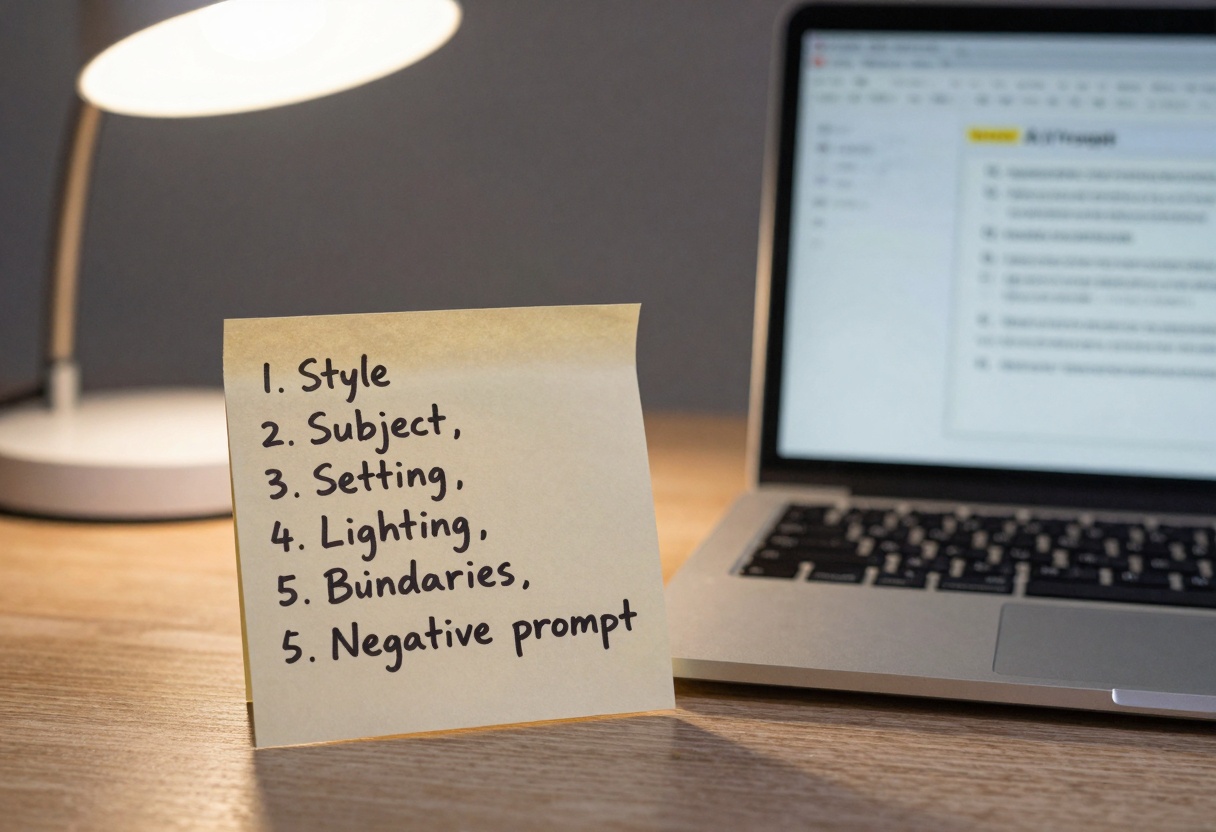
- Subject: who/what is in the scene
- Wardrobe and coverage: “fully clothed”, “long coat”, “swimwear catalog styling”
- Setting: where it takes place
- Mood + lighting: cinematic, softbox, neon, golden hour
- Camera details: lens, framing, depth of field
- Boundaries: what must not appear
Example: vague vs. controlled
| Version | Prompt style | What tends to happen |
|---|
| Vague | “a seductive portrait” | The model guesses what you mean, results vary widely |
| Controlled | “studio portrait, elegant fashion styling, fully clothed, soft rim light, neutral background, respectful mood” | More consistent, less likely to cross a line |
Use negative prompts as “guardrails”
If your model or workflow supports a negative prompt field, use it to remove the common failure cases.
Examples of boundary phrases you can use (keep it short and specific):
- “nudity, explicit anatomy, lingerie focus”
- “pornographic, fetish, explicit pose”
- “graphic violence, gore”
Tip: Avoid writing long negative-prompt essays. Start with 5 to 10 terms, then iterate based on what you actually see.
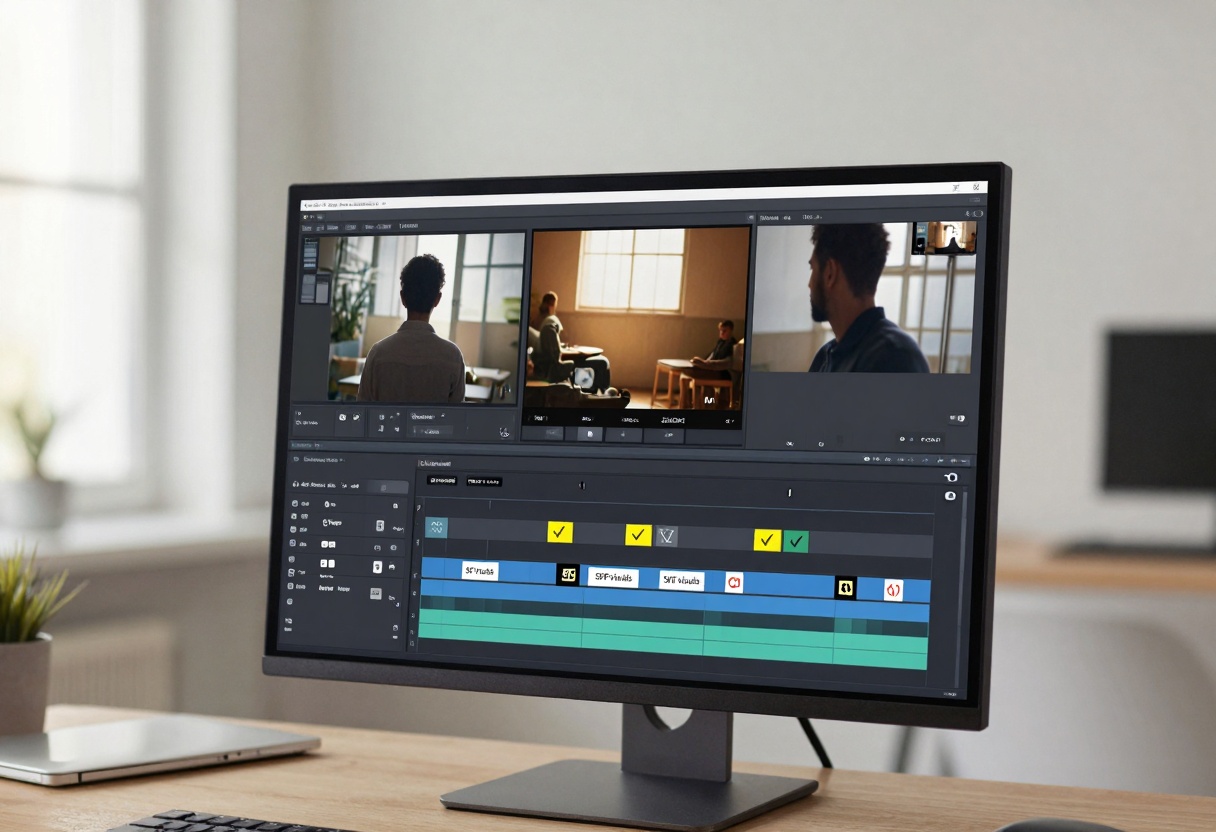
NSFW risk is higher with video: plan it like a storyboard
Text-to-video generation adds motion, camera changes, and multiple frames. That can increase the chance of a borderline frame, even if the first frame looks fine.
Practical habits that help:
- Keep wardrobe and coverage explicit in the prompt
- Define the camera framing (“waist-up”, “medium shot”, “wide shot”) so the model does not drift
- Generate short clips first, review, then extend
A “safe video prompt” example
Here is a format you can adapt without pushing into explicit territory:
- “Short cinematic clip, fully clothed couple walking in rainy neon street, respectful distance, medium shot, 35mm lens, soft bokeh, moody atmosphere, no nudity, no explicit content.”
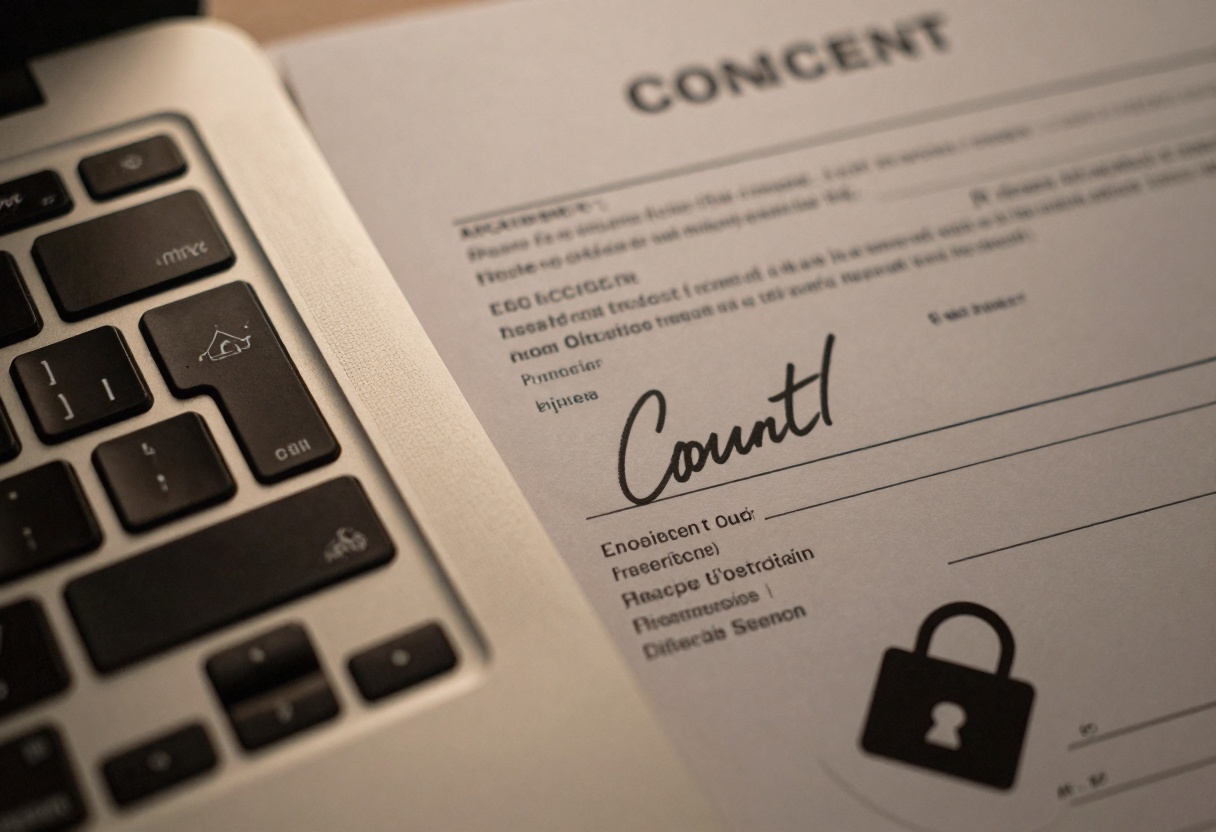
Consent, privacy, and real people
Even when content is not explicit, you can run into problems if you generate images that look like real individuals or imply non-consensual situations.
Good practice:
- Use fictional characters and clearly fictional settings
- Avoid using personal photos as references unless you have permission
- Do not try to recreate a private person’s likeness

What to do when results still cross the line
Even careful prompts sometimes produce an output you do not want. Treat it like quality control.
A practical response loop
- Stop batch generation (do not keep rolling the dice)
- Identify what triggered the drift (wardrobe, framing, style words)
- Tighten one variable at a time
- Save a “safe preset prompt” for your project
Reporting and cleanup
If you see content that looks inappropriate or violates platform rules, use the reporting controls inside the interface.

Tip: Keep a private folder for experiments and a separate folder for approved assets. It keeps your workflow calm and reduces accidental sharing.
Models on PicassoIA that fit safer workflows
For image creation, a strong default is GPT Image 1.5 because it gives you practical controls (background, aspect ratio, moderation, output format).
For text-to-video, PicassoIA also offers multiple options in the Text-to-Video collection. If your goal is to stay on the safe side, prioritize models and settings that make it easy to:
- Generate short clips first
- Iterate quickly
- Keep moderation enabled
You can browse models here:

How to use GPT Image 1.5 on PicassoIA (safer results)
This walkthrough uses the PicassoIA web interface, no code required.
Step 1: Open the model page
Go to: GPT Image 1.5 on PicassoIA
Step 2: Fill the required parameter
Required field:
- prompt: your text description of the image
A solid safe prompt example:
- “Photorealistic studio portrait, elegant fashion styling, fully clothed, soft rim light, neutral backdrop, respectful mood, 85mm lens, shallow depth of field.”
Step 3: Adjust optional settings that help with control
Here are the key options you will see on the model page:
| Setting | What it does | A safe default |
|---|
| moderation | Applies content safety moderation | auto |
| background | Chooses transparent or opaque background | auto |
| aspect_ratio | Shapes the composition | Match your destination (1:1, 3:2, 2:3) |
| output_format | File format | webp or png |
| output_compression | File size vs. quality | ~90 |
| quality | Render quality level | low to start, then raise if needed |
| number_of_images | Batch size | 1 to 4 for testing |
Step 4: Generate, then review like an editor
Click Generate, then check:
- Does wardrobe and framing match what you asked for?
- Are there any accidental suggestive details?
- Does the mood still fit your use case?
If something is off, change one thing in the prompt and regenerate.
Step 5: Download and organize
Save the output, then store your final prompt next to the asset. Next time you need a similar image, you can reuse a proven prompt instead of starting over.
Quick takeaways
- “NSFW AI” is often a prompt clarity problem, not a mystery.
- Write boundaries directly: wardrobe, framing, and what to exclude.
- Keep moderation enabled and iterate in small batches.
Ready to create safely? Start here: PicassoIA


