You sign up for an NSFW image to video free trial, upload a glamour photo, hit generate, and the clip comes back blurred, watermarked, or not at all. Then the credit counter drops to zero after two tries. That is the usual story, and it is not bad luck. Free trials in this niche are built to run out fast, and the rules behind them are rarely written in big letters on the signup page.
This article lays out what a trial really includes, how credits get burned, which limits show up first, what the main options cost, and what to use when the trial is over. The focus stays on suggestive, tasteful content: swimwear, lingerie-style fashion, glamour portraits. Nothing explicit, and nothing that depends on a platform looking the other way.
What a Free Trial Really Gives You

A free trial sounds like "try the product." In practice it is a small bucket of credits with conditions attached. The wording changes from site to site, but most trials fall into one of four patterns:
- One-time credits. You get a fixed number at signup, and once they are gone, they are gone. Several well-known video tools work this way.
- Daily credits. A small allowance refreshes every day, usually enough for a single short clip. Unused credits often do not stack.
- Monthly credits. A larger pool resets each month, normally with a watermark and a lower resolution.
- Card-required trial. You enter payment details, get a short window, and are billed unless you cancel in time.
Adult-focused platforms lean on the last pattern. One popular NSFW service starts around $25 per month, and its trial reportedly gives a handful of credits that you can cancel without charge. Reports also suggest that some trials include image generation but not video, so you may spend the trial before you ever see a moving frame.
💡 Before you sign up: read the trial terms for three things. Does it include video or only images? Is the output watermarked? Does the trial convert to a paid plan automatically?
Trial vs Free Plan
These two get confused all the time. A trial ends. A free plan continues, usually with tighter limits. For image to video, a free plan with 60 to 120 daily credits can be more useful than a trial with 200 credits that vanish in one afternoon.
Who a Trial Suits
A trial works if you want to test one specific thing: how a platform handles skin tones, whether motion looks natural, or how strict its filters are. It does not work as a production tool. If you plan to make ten clips a week, a trial is a demo, not a workflow.
How Credits Get Spent
Credits are the currency, and video eats them far faster than images. A single still image might cost 1 to 5 credits. A five-second clip can cost 20 to 100, depending on resolution, model and duration. That gap is why a 100-credit trial feels generous for photos and stingy for video.
The Cost Multipliers
| Factor | Effect on credit cost |
|---|
| Clip length (5 s vs 10 s) | Roughly doubles the cost |
| Resolution (480p vs 720p vs 1080p) | Each step up costs noticeably more |
| Audio generation | Often adds a surcharge |
| Premium or "pro" model | Can cost 2x to 4x a standard model |
| Failed or filtered generations | Sometimes still charged |
That last row matters most. On some platforms a blocked or failed generation still consumes credits. Others refund automatically. If a service does not say which, assume the worst and test with one cheap clip first.
Hidden Costs Beyond Credits
- Watermark removal is usually a paid-tier feature.
- Resolution caps keep free clips at 480p, which looks soft on a large screen.
- Queue time. Free users often wait several minutes while paid users skip ahead.
- Retries. Image to video is a bit of a lottery. Expect to generate two or three takes to get one you like, so divide your credits accordingly.
A Quick Budget Formula
Take your total credits, divide by the cost of one clip, and then divide by three for retries. A trial with 200 credits and a 50-credit clip gives you four generations, which is only about one usable result. Run that math before you start, not after.
Limits You Will Hit First
Credits are the visible limit. The others show up later, and they are the ones that hurt.
Duration and Resolution
Most free tiers cap clips at 3 to 5 seconds and 480p or 720p. Some paid tiers still cap at 720p. If you need a 10-second shot for a longer edit, check this before anything else.
Daily and Concurrency Caps
Free accounts typically run one generation at a time. Some limit you to a handful per day even if you have credits left. A few platforms also throttle accounts that generate many clips in a short window.
Commercial Use
Free output often comes with a non-commercial license. If you plan to post on a monetized page or sell content, that matters. Reading the license section takes two minutes and avoids a takedown later.
Account and Region Limits
Reported daily allowances differ by region. One mainstream tool reportedly gives US free accounts 120 credits per day while other regions get less. Another gives 90 credits at signup plus 60 per day, but those daily credits do not stack. Treat any number you read online, including these, as a snapshot and check the current terms on the signup page.
Why Filters Break Free Trials
This is the part nobody puts in the pricing table. Moderation decides whether your credits are worth anything.
Mainstream video tools generally prohibit explicit content, and their filters have been getting stricter. Community reports describe prompts that fail silently: no video, no message, sometimes a deducted credit. A swimsuit photo that passes on Monday can get rejected on Thursday after a policy update.
Three Ways Filters Interrupt You
- Input filter. The uploaded image is scanned first. Skin-heavy frames can be rejected before generation starts.
- Prompt filter. Certain words trigger a block, even in harmless sentences. Rewording often fixes it.
- Output filter. The clip is generated, then hidden or blurred because a frame crossed a threshold. The credits are spent anyway.
How to Work With Filters
- Start from a tasteful, well-lit image with clear composition. Swimwear editorials and fashion portraits pass far more often than ambiguous or low-quality frames.
- Describe motion, not anatomy: "hair moves in the breeze, camera slowly pushes in" works better than detailed body descriptions.
- Test with one clip before spending the rest of the trial.
- If a platform keeps blocking harmless content, the filter is the product. Move on.
💡 Reality check: "uncensored" claims are marketing until you test them. Spend one credit-cheap clip to see what actually comes out.
Pricing Compared Side by Side
Prices and credit amounts change often, so use this table as a rough orientation drawn from publicly reported figures, not as a quote.
| Option | Free allowance (reported) | Typical paid entry | Main catch |
|---|
| Adult-focused platform | Small trial pack, card often required | Around $25 per month | Trial may exclude video |
| PixVerse | 90 signup credits plus 60 daily | Around $10 per month | 720p cap on that tier, strict moderation |
| Pika | About 80 credits per month | Varies by plan | 480p on free |
| Runway | 125 one-time credits | Varies by plan | Watermark, non-renewable |
| Dreamina | Around 120 daily credits in the US | Varies by plan | Regional differences, strict moderation |
| Hailuo | One-time trial credits | Varies by plan | No monthly refresh |
| PicassoIA | Free-to-start models plus unlimited options for members | See membership page | Pick the right model for the job |
What the Table Tells You
The cheapest-looking option is rarely the cheapest in use. A $10 plan with a resolution cap and heavy moderation can cost more in wasted attempts than a $25 plan that simply works. Count usable clips per dollar, not credits per dollar.
The Real Cost of "Free"
Free tiers cost you in time: queue waits, retries, re-uploads, and rewrites. If your hourly time has any value, a generous free plan that fails half of your generations is not free.
Alternatives That Keep Working
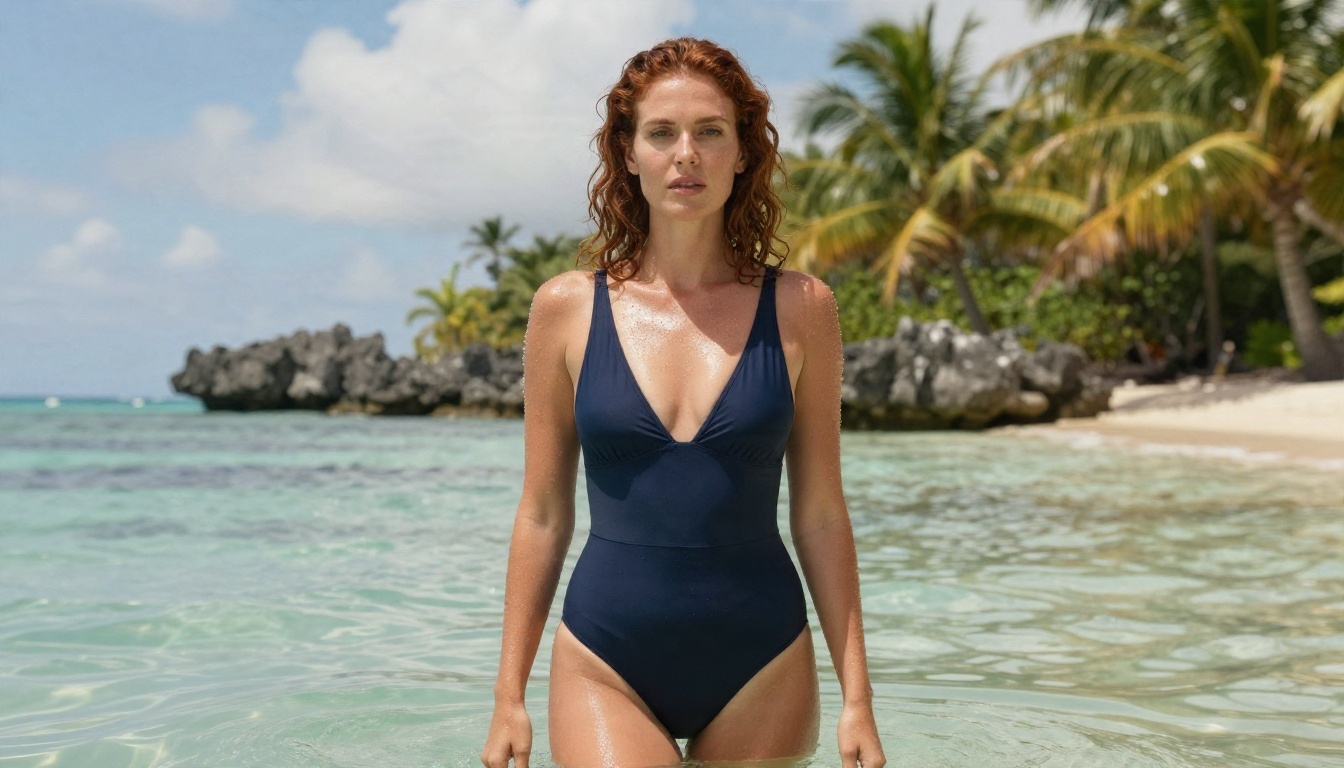
The most reliable approach is to split the job in two: build a great still image first, then animate it. Each step can use the model that suits it best, and you avoid paying video prices for experiments you could run on images.
Step One: Make the Still
Seedream 4.5 is the first model to try for glamour and swimwear imagery. It produces sharp, photorealistic skin, convincing fabric, and clean lighting, which gives a video model a strong first frame. Strong first frames are the single biggest factor in how good the animated clip looks.
PicassoIA Image Editor Pro is the second tool to keep close. It edits photos from a text prompt, accepts up to three reference images, and runs unlimited edits without a per-edit cap or daily quota. That makes it ideal for fixing details before animation: change the outfit color, adjust the background, fix lighting, or keep a consistent look across several shots.
💡 Tip: do your trial-and-error on stills. Edits are fast and unlimited, and a polished source image makes the video step far more predictable.
Step Two: Animate the Still
For the video step, these models on PicassoIA take an image as the opening frame:
Each model has its own content rules, so test with a single short clip before you commit a batch. For suggestive, tasteful material, the still-first workflow gives you the most control.
Why This Beats a Trial
A trial gives you a few clips and then asks for money. This workflow gives you unlimited image work plus a choice of video models, so the part that burns credits fastest, the experimenting, costs nothing extra.
How to Get Free Image to Video Results on PicassoIA

Here is the practical version, using Seedance 2.5 Lite as the video step.
1. Build the Source Image
Open Seedream 4.5 and write a prompt that names the subject, outfit, setting, light and lens. For example: a woman in a black bikini on a villa terrace at golden hour, 85mm lens, shallow depth of field, natural skin texture, Kodak Portra 400 look. Generate several versions and pick the sharpest.
2. Polish It With Image Editor Pro
Load your favorite into PicassoIA Image Editor Pro. Fix anything that would look odd in motion: stray objects, uneven light, a busy background. Keep the aspect ratio at 16:9 if you plan to post widescreen clips.
3. Animate With Seedance 2.5 Lite
Open Seedance 2.5 Lite, upload the polished image as the first frame and set the resolution. For the settings:
- Resolution: 720p for final clips, 480p for quick tests.
- Duration: start at 5 seconds. Go to 10 only when the motion idea needs room.
- Prompt: describe motion in order, as you would explain a shot to a camera operator.
4. Write Motion Prompts That Work
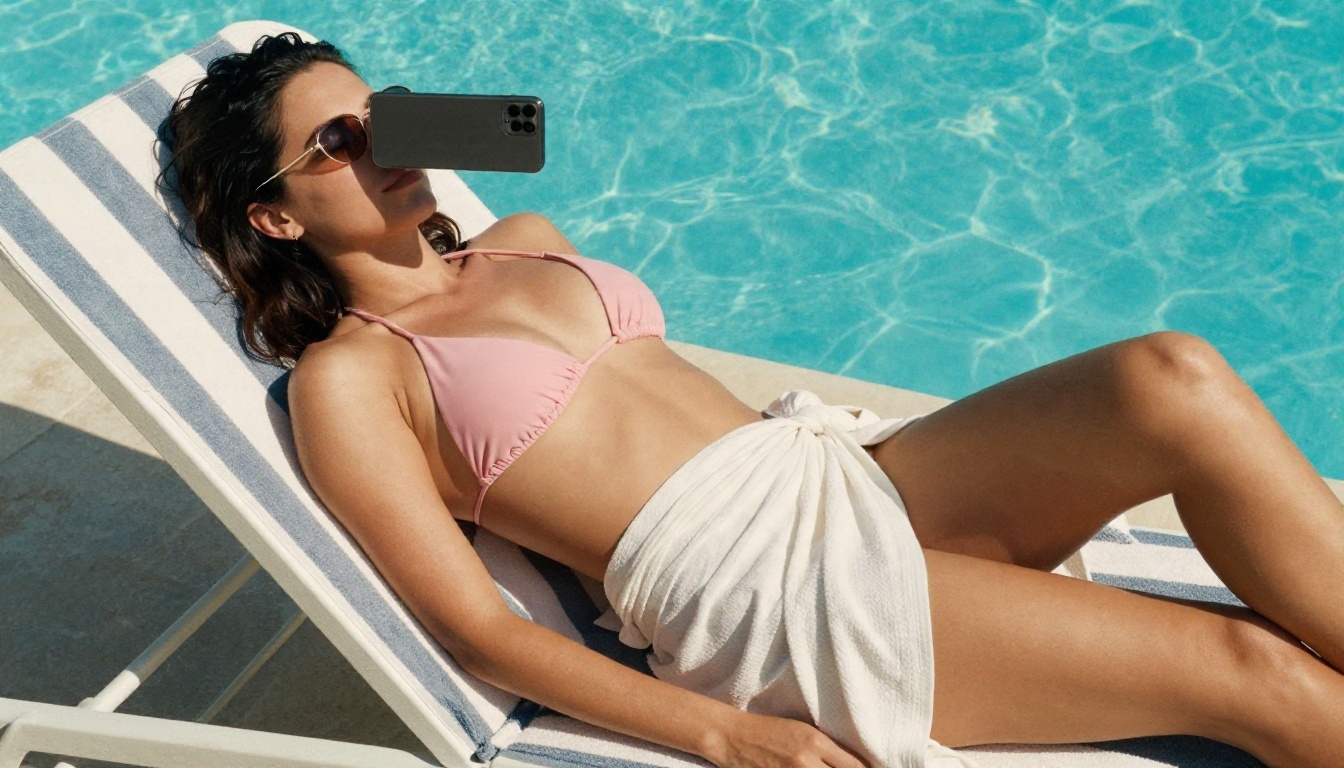
A good motion prompt follows a simple pattern: starting pose, movement over time, camera move, light.
- "She turns her head toward the camera and smiles, a light breeze moves her hair, slow push-in, warm afternoon light."
- "Palm shadows drift across her legs as she lifts the phone, gentle handheld sway, soft sun from the right."
- "She walks along the terrace holding a coffee, fabric moves in the wind, camera tracks sideways, pale sunrise glow."
Keep it to one main action. Prompts that stack five movements usually produce distorted hands and warped faces.
5. Review and Iterate
Watch the clip with the sound off first, then on. Look for hands, hairline and fabric edges, which are where animation usually breaks. If something looks wrong, adjust the prompt or return to the still image, fix it, and run again.
Parameter Tips
| Setting | Recommendation |
|---|
| Source image | Sharp, well lit, subject clearly separated from background |
| Resolution | 480p to test, 720p to finish |
| Duration | 5 seconds first |
| Prompt length | 25 to 50 words, one main action |
| Camera | Slow push-in or gentle pan beats fast movement |
| Retries | Plan for 2 to 3 takes per final clip |
Common Mistakes
- Starting from a blurry or heavily compressed image. The video will inherit every flaw.
- Over-describing. Long prompts confuse motion models.
- Fast camera moves. They break faces and hands more than any other setting.
- Skipping the test clip. One cheap test saves a batch of bad ones.
Try It Yourself
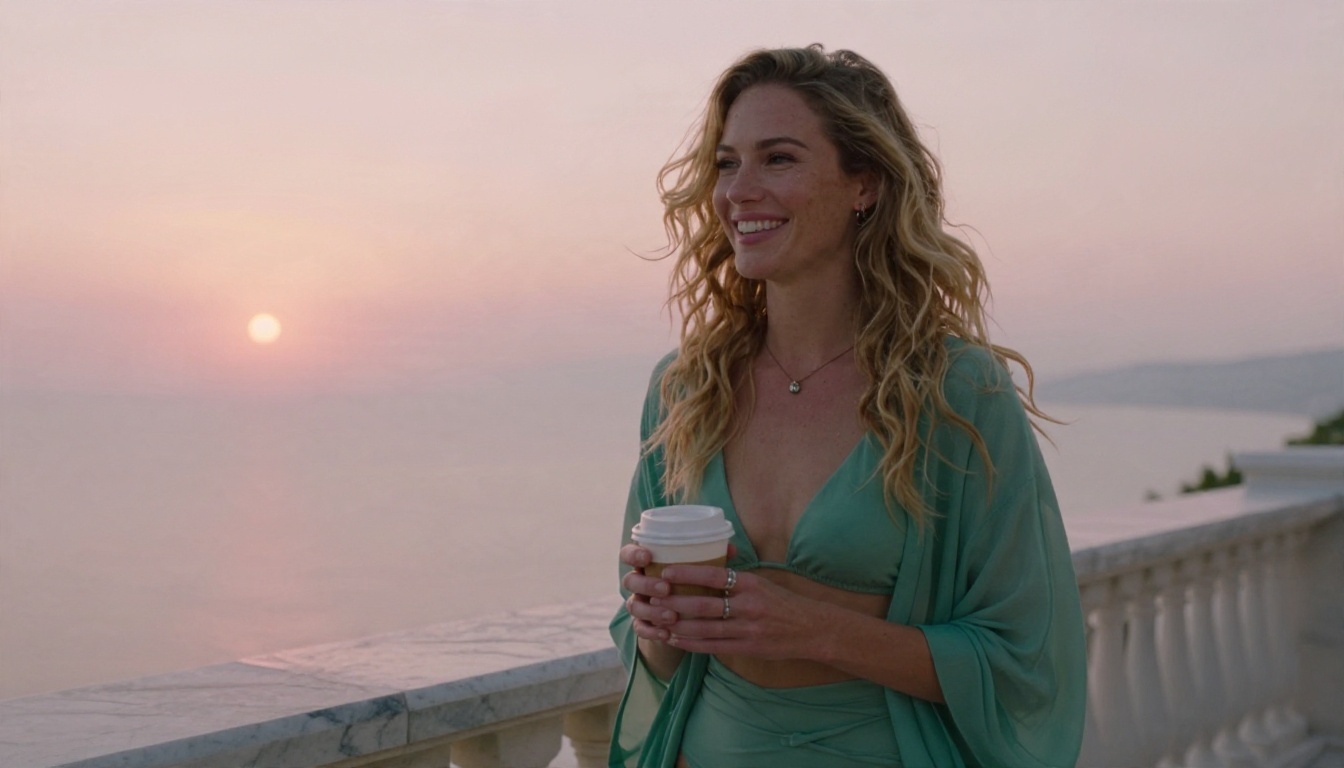
A free trial is a sample, and samples end. What you actually need is a setup that keeps working on day thirty the same way it did on day one: a strong still-image tool, an unlimited editor, and a choice of video models so no single filter or credit counter can stop your project.
Start with Seedream 4.5 for the source image, refine it in PicassoIA Image Editor Pro, and animate it with Seedance 2.5 Lite or Wan 2.7 I2V. Make your first image today, animate it, and compare the result with what your trial produced.
Want to see every option in one place? Browse the full catalog at picassoia.com/en/all-models, pick a model, and run your own test. Your first clip is one prompt away.


