You typed a perfectly reasonable prompt, waited a minute, and got a gray box that says the content cannot be generated. If you have used Kling AI for anything involving swimwear, lingerie-style fashion or sensual mood, you know the feeling. So the question people keep asking is simple: does Kling AI allow NSFW content at all? The short answer is no. The longer answer is more useful, because the filter is stricter in some places than others, and there are smarter ways to get the look you want.
This article breaks down what Kling blocks, how the moderation seems to work, what the free plan really gives you, and which alternatives let you build tasteful, non-explicit glamour visuals without fighting a rejection message every third attempt.
💡 Quick answer: Kling AI does not offer an adult mode. Explicit nudity and sexual content are blocked, and borderline material such as bikinis, sheer fabrics or intimate poses is hit or miss. If you want more room for glamour imagery, build the still image in a less restrictive image model first, then animate only when the result is safe for a video model.
Does Kling AI Allow NSFW?
No. Kling AI is built by Kuaishou for broad commercial use, and its moderation is designed to refuse sexual or explicit material. There is no toggle, no age-verified setting and no hidden "relaxed" tier on the standard plans. Reports from developers and reviewers in 2026 point the same way: explicit nudity is a hard block, and anything that reads as sexual is likely to be refused.
What surprises most people is how far the filter reaches. It is not limited to obviously explicit requests. Prompts that mention revealing clothing, intimate settings or certain body-focused camera moves are flagged often enough that creators describe the behavior as unpredictable.
Why the policy exists
Video models are expensive to run, and a single viral misuse can cause real brand and legal damage. Platforms that ship mainstream video generation tend to choose the strictest setting and accept some false positives. Kling follows that pattern. The result is a tool that is excellent for cinematic scenes, product shots and character animation, and a poor fit for adult content.
What "NSFW" means in practice
People use the term for very different things. Here is how the usual requests tend to fare:
| Request type | Typical result in Kling |
|---|
| Explicit nudity or sexual acts | Blocked every time |
| Topless or lingerie-focused scenes | Almost always blocked |
| Bikini or swimwear clips | Inconsistent, often blocked |
| Fashion editorial in evening wear | Usually allowed |
| Romantic, fully clothed scenes | Allowed |
If your project lives in the middle rows, you will spend a lot of credits on rejections.
How the Kling Filters Work
Moderation in modern video generators rarely depends on a single check. Based on what creators report, Kling appears to apply several layers, and a clip can be stopped at any of them.
Layer 1: Prompt screening
Your text is checked before any compute is spent. Obvious terms are refused instantly, and so are phrases that suggest a sexual context even when each word is harmless. This is why rewording sometimes works and sometimes does nothing: the system is judging meaning, not just a word list.
Layer 2: Reference image screening
In image-to-video, the uploaded picture is scanned as well. A photo that shows a lot of skin, a revealing outfit or a suggestive pose can be rejected before the animation starts. Image-to-video faces the same restrictions as text-to-video, so uploading a picture does not get you around the rules.
Layer 3: Output review
Even when the prompt and image pass, the finished clip can be reviewed. Creators report videos that render fully and then get withheld, which wastes credits and time. Motion can push a borderline frame over the line: a turn, a stretch or a gust of wind on a dress can change how the output is judged.
Why error messages are vague
When something is blocked, you usually get a generic failure notice rather than a reason. That is deliberate. Naming the exact rule would help people probe the filter, so platforms keep the message short. For you, it means debugging is trial and error.
💡 Reality check: Most facts about Kling's moderation come from user reports and third-party reviews, not from a full public rulebook. Treat the details as patterns, not promises, and expect them to shift between model versions.
Why Swimwear Gets Blocked
The most common complaint is not about explicit content. It is about a woman in a bikini on a beach being refused while the same scene in a sundress goes through. A few reasons explain it.
Context stacking. A bikini alone may pass. A bikini plus a wet look, a slow camera tilt and words like "sensual" or "seductive" starts to read as sexual.
Body-focused framing. Close-ups on specific body areas raise the risk score even when the clothing is ordinary.
Motion on skin. Video adds movement, and the output filter looks at what moves and how.
Reference photos with a lot of exposed skin. Real photos tend to be judged more harshly than stylized ones, because the system treats them as possible images of real people.
A few prompt habits lower the rejection rate:
- Describe the setting and mood before the outfit
- Use neutral wording such as "summer fashion" or "resort wear"
- Keep the camera wide or medium rather than tight on the body
- Avoid words that imply intent, like "seductive" or "provocative"
- Generate shorter clips and test the first frame in a still model
These help with borderline cases only. They will not make explicit material pass, and they are not a reason to push a filter that exists for a purpose.
Free Options and Real Costs
Plenty of searches for NSFW tools also ask whether Kling is free. The picture here is murky.
Several 2026 pricing guides describe a free plan with around 66 credits that refresh every 24 hours and do not roll over, enough for a handful of standard clips per day. Newer reports dispute that and say the free allowance may now be a limited promotional grant rather than a guaranteed daily top-up. Free output is generally capped at 720p, around 5 seconds, and carries a watermark. Paid plans start at roughly $7 to $10 per month depending on the source and the billing term.
| Plan type | What to expect |
|---|
| Free | Small or variable credit grant, 720p, watermark, short clips |
| Entry paid | Monthly credits, no watermark, higher priority |
| Higher paid tiers | More credits, longer or higher quality output |
💡 Check your own account: Credit rules change often. Look at the balance and terms inside your account before you plan a project around the free tier.
The bigger cost is invisible: credits spent on clips that get blocked. If your workflow runs close to the filter, the real price per usable video is much higher than the sticker price suggests.
Better Alternatives for Glamour Content
If your goal is tasteful, attractive imagery such as swimwear editorials, boudoir-style portraits or fashion glamour, an image model with fewer restrictions is a better place to start than a video model with a strict filter. Two options on PicassoIA stand out, and they work best in this order.
1. Seedream 4.5
Seedream 4.5 is the first model to try. It produces sharp, photorealistic images with convincing skin texture, believable fabric and natural lighting, and it handles glamour, swimwear and editorial portraits with far less friction than Kling. Generations are fast, so you can iterate on pose, outfit and light in minutes instead of waiting on a video queue.
Why it fits this use case:
- Photorealistic skin and fabric, which is where weaker models fall apart
- Strong prompt following, so the outfit, setting and lighting come out as written
- High resolution, good enough for large prints and social posts
- Quick turnaround, which makes trial and error cheap
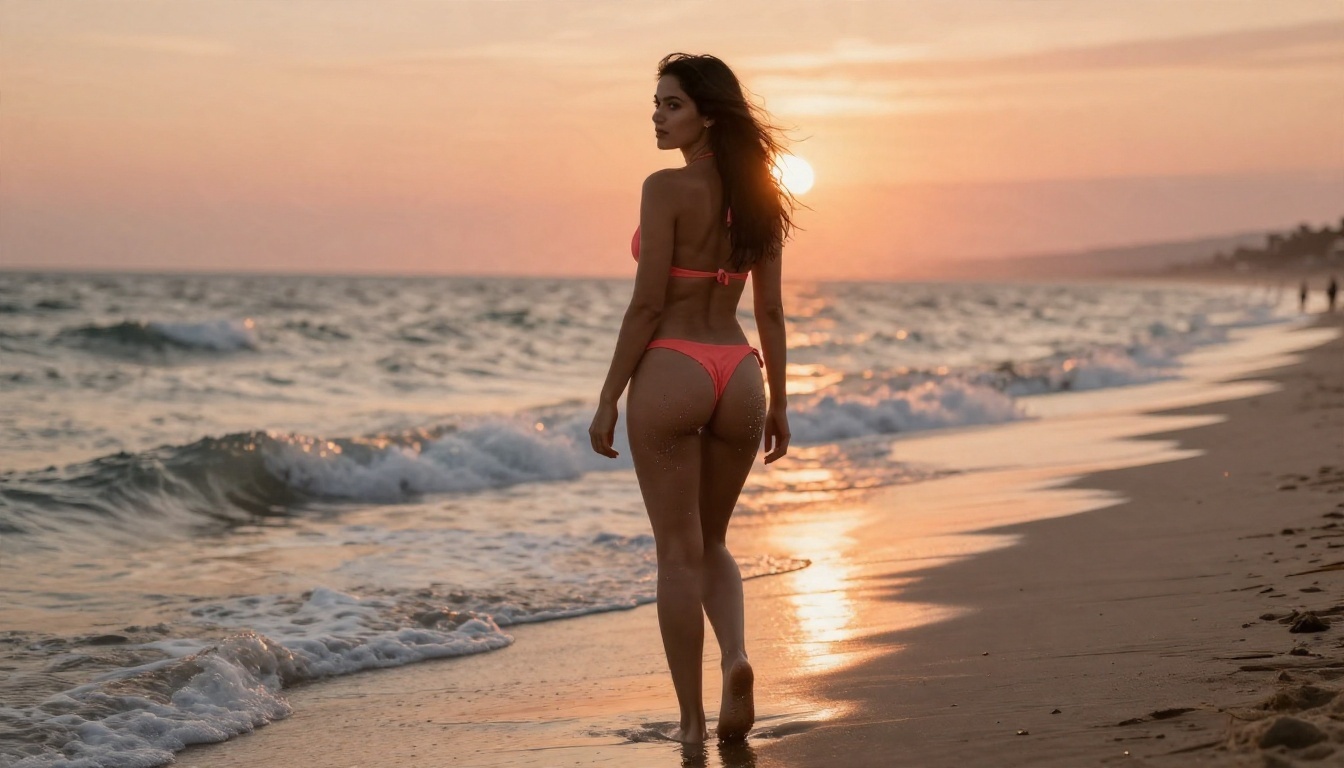
💡 Note on versions: Do not swap in Seedream 5 Lite for adult-leaning glamour work. It blocks that kind of content, so stay with Seedream 4.5.
2. PicassoIA Image Editor Pro
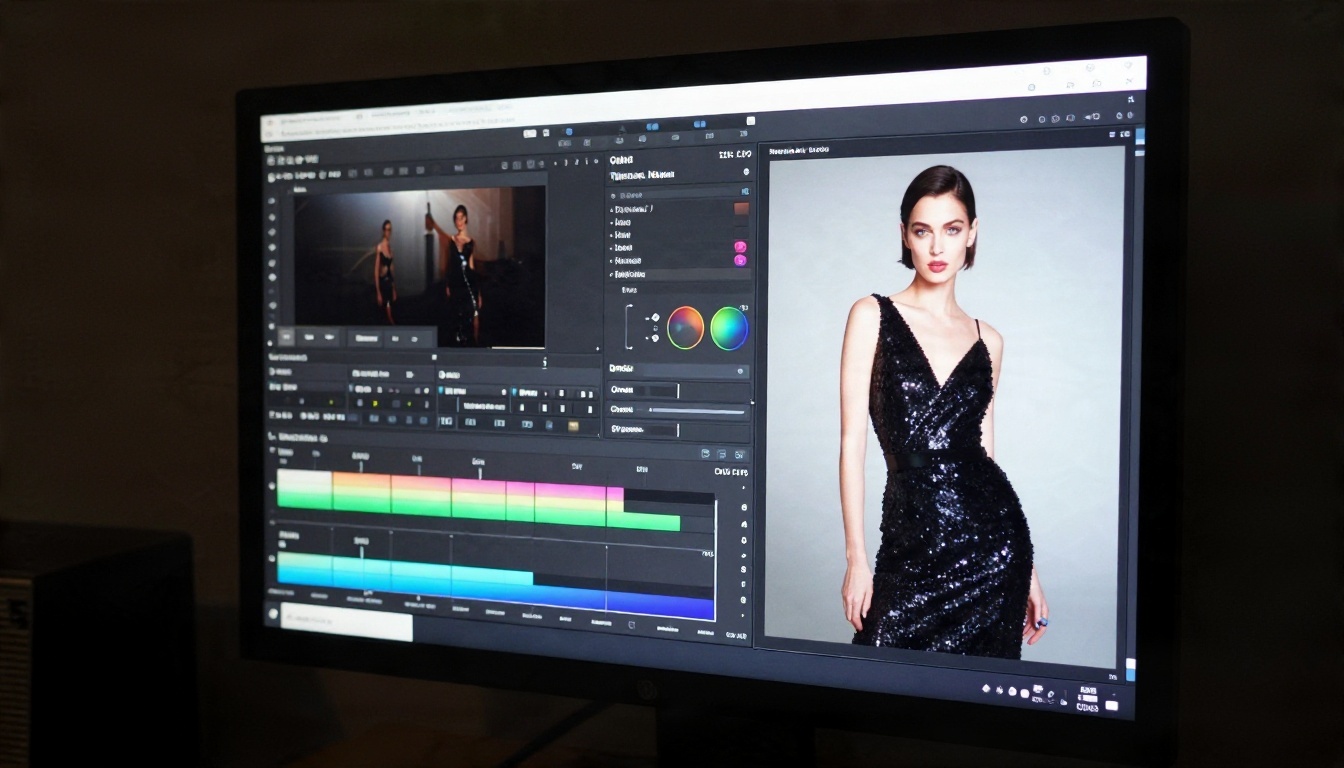
PicassoIA Image Editor Pro is the second tool in the chain, and its big advantage is unlimited generations. That changes how you work. Instead of rationing credits, you can retouch a pose, change an outfit, adjust the lighting, fix hands, swap a background and keep going until the frame is right. For uncensored-style creative freedom within non-explicit boundaries, plus speed and no counting of attempts, it is hard to beat.
Typical uses:
- Changing clothing or color on an existing portrait
- Cleaning skin, flyaway hair and small distractions
- Rebuilding a background or adjusting the light direction
- Preparing a still so it is ready for animation
Side by side
| Tool | Best for | Strength | Limit |
|---|
| Kling (video) | Cinematic motion, product clips, character animation | Smooth movement, native audio | Strict content filters |
| Seedream 4.5 | Photorealistic glamour stills | Skin, fabric, light | Images, not video |
| Image Editor Pro | Editing and iterating | Unlimited generations | Works on stills |
Where this approach stops
Everything here assumes non-explicit work: swimwear, fashion, boudoir mood and artistic glamour. Neither tool is a way to produce pornographic content, and this article does not suggest otherwise. Keep your subjects to adults, never use a real person's likeness without permission, and respect the laws and platform rules where you publish.
A Workflow That Actually Works
Here is a practical pipeline that avoids most rejections and saves credits.
Step 1: Build the still
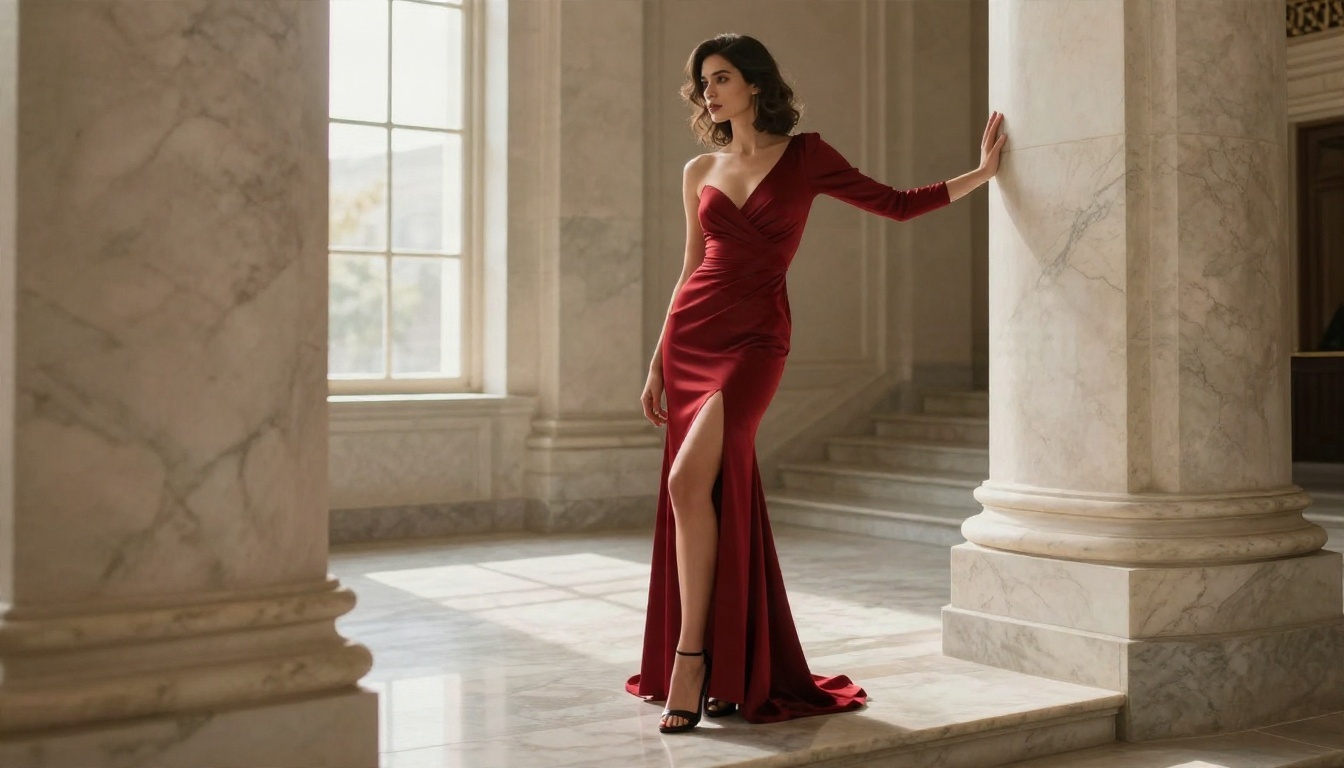
Write a clear prompt in Seedream 4.5. Lead with the setting and light, then the outfit, then the pose. For example: "A woman in a deep red evening gown on a marble staircase, soft window light from the left, 24mm lens, Portra 400 film grain."
Step 2: Refine it
Open the result in Image Editor Pro. Because generations are unlimited, fix details freely: the hem of the dress, the hands, a stray shadow. Aim for a frame that would pass any reasonable review.
Step 3: Choose the right video model
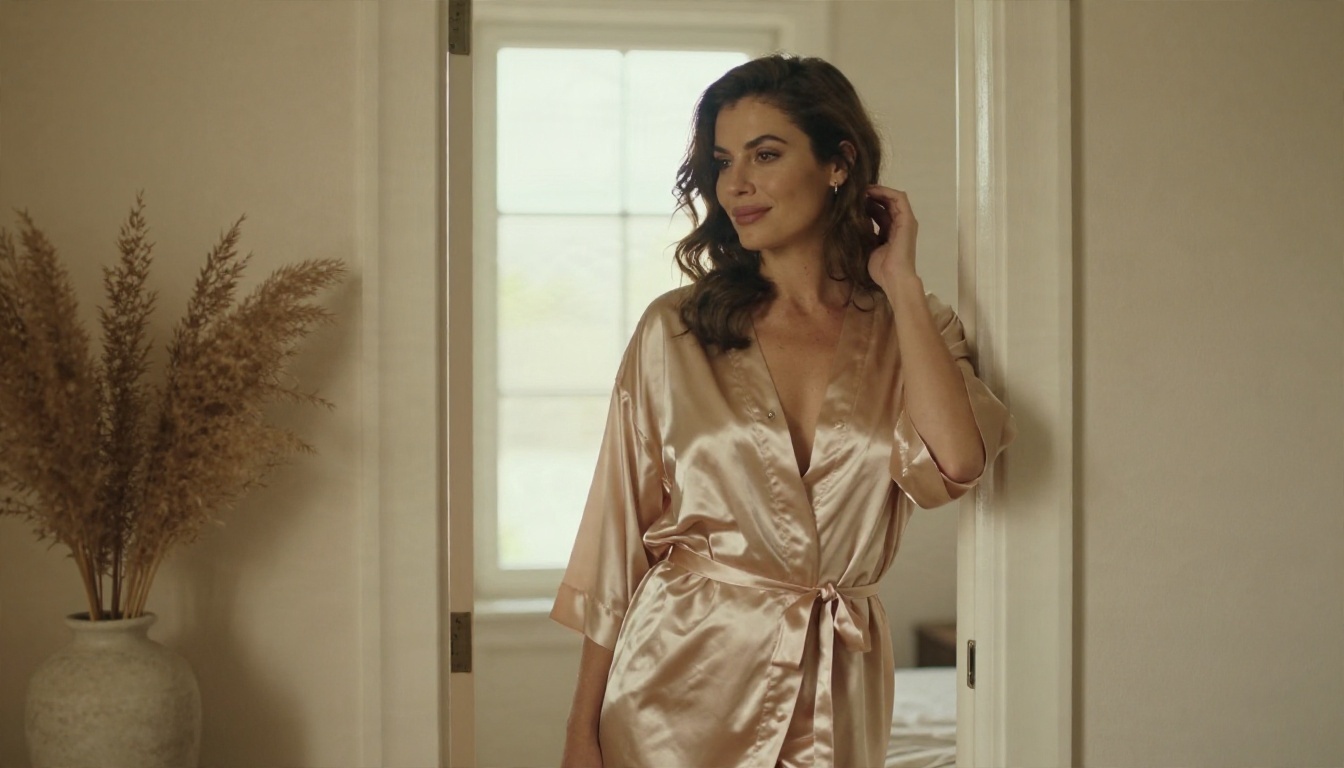
Only animate when the still is safe for a mainstream video model. A clothed fashion shot with gentle motion is a good candidate. Heavy skin exposure in a reference image is the quickest way to get a rejection.
Step 4: Keep motion simple
Gentle camera pushes, fabric movement and a subtle head turn work best. Quick, body-focused moves raise the chance that the output filter steps in.
How to Use Kling v3 Video on PicassoIA
For the clothed, cinematic side of your project, Kling v3 Video is available on PicassoIA. It creates video from a text prompt or from a start image, supports multi-shot scenes, and can add native audio. It is meant for general cinematic content, so keep your prompts within normal fashion and lifestyle boundaries.
Step-by-step
- Open the model page and choose Kling v3 Video.
- Write your prompt. Describe the scene, the subject's action and the camera move in order. The limit is 2500 characters.
- Add a start image if you want to animate a still. Use a JPG or PNG of at least 300 pixels and keep the aspect ratio between 1:2.5 and 2.5:1. Aspect ratio is ignored when a start image is supplied.
- Pick a mode. Standard produces 720p and pro produces 1080p. Use standard for tests and pro for final renders.
- Set the duration. The default is 5 seconds. Shorter clips are cheaper to test.
- Turn on audio if you want ambient sound generated with the video.
- Generate and review. If a clip is rejected, simplify the prompt and use a more conservative start frame.
Parameter tips
| Parameter | Tip |
|---|
| Mode | Test in standard, finish in pro |
| Duration | Start at 5 seconds before extending |
| Start image | Use a clothed, well-lit frame |
| End image | Pin a last frame for controlled motion |
| Multi-prompt | Split a longer idea into up to 6 shots |
| Negative prompt | Add unwanted elements such as blur or distortion |
💡 Other Kling versions: PicassoIA also lists Kling v2.6, Kling v3 Omni Video and Kling v3 Motion Control, which are useful for animating characters from a photo.
Mistakes That Waste Credits
A few habits cost people the most time with Kling and similar tools.
Retrying the same prompt. If a prompt fails once, it will usually fail again. Change the framing, not one word.
Uploading the riskiest photo first. Test with a safer reference image so you learn where the line sits.
Asking for too much in one clip. Long, complicated motion gives the output filter more chances to object.
Ignoring the still-first option. Testing a look in an image model costs a fraction of a video render.
Trusting old advice. Moderation changes with every model update. A trick that worked last spring may not work today.
Free Ways to Test Your Ideas
If budget is the issue, a layered approach keeps costs down:
- Use a still image model to prove the concept before paying for any video clip
- Take advantage of unlimited generations in Image Editor Pro for iteration
- Use Kling's free allowance, if your account has one, only for final animation tests
- Keep clips short and resolution at 720p until you are sure of the result
It is a simple rule: spend cheaply where mistakes are likely, and spend carefully where they are expensive.
Try It Yourself
Kling AI is a strong tool for cinematic motion, but it is not the place for NSFW content, and the filters will catch a lot more than explicit material. If your work leans toward glamour, swimwear and boudoir-style photography, start with images where you have more freedom and iterate without limits.
Open Seedream 4.5 to build your first still, refine it in PicassoIA Image Editor Pro, and then decide whether it belongs in a video. For more options across image, video, audio and editing, browse every tool at picassoia.com/en/all-models.
Pick a look, write a prompt, and see what you can create today with Picasso IA.


