OmniHuman 1.5 API: Pricing, Lip Sync and Avatar Videos
OmniHuman 1.5 turns one portrait photo and one audio file into a talking video, billed at $0.16 per second on fal.ai. This article breaks down the real cost of each clip, the input limits, lip sync quality, and how to run the model on PicassoIA without writing code.
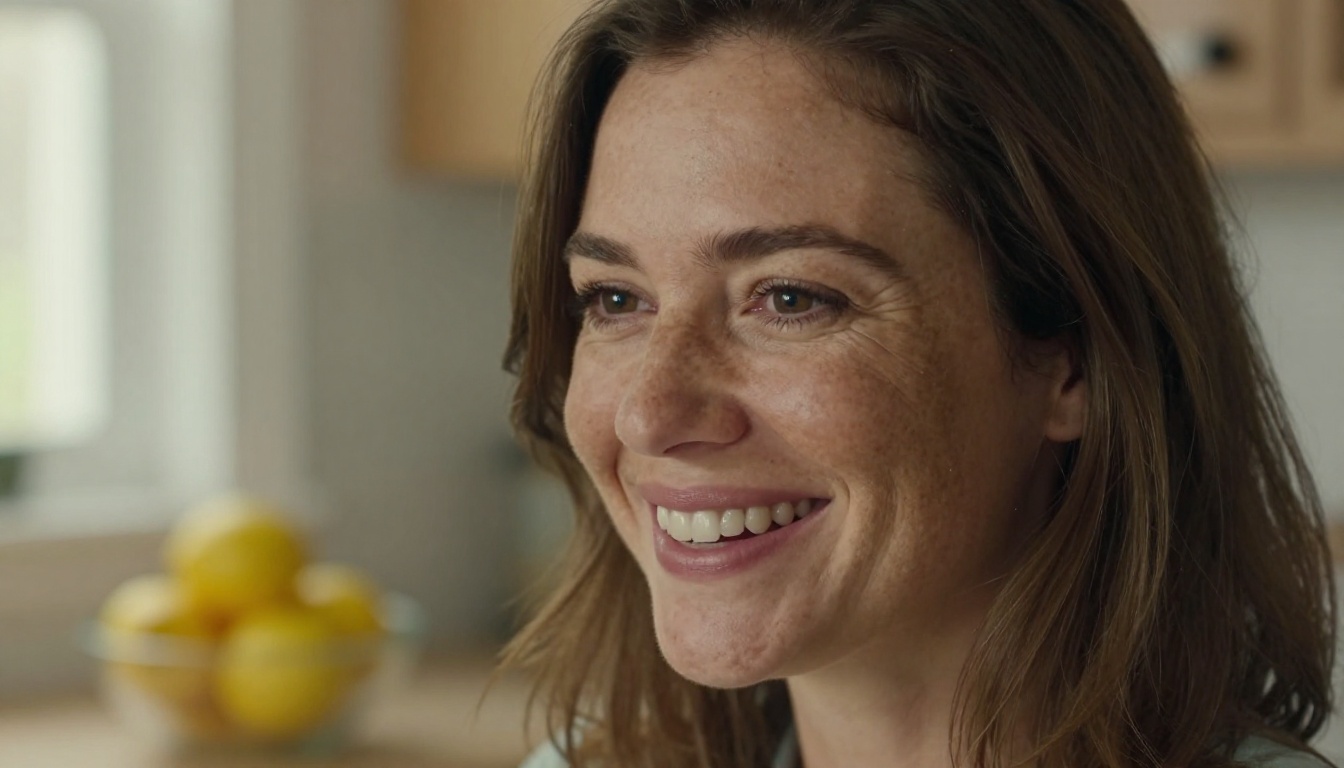
A single portrait photo and a 30 second voice recording can become a talking video for $4.80. That is the math behind the OmniHuman 1.5 API, ByteDance's audio-driven avatar model, which fal.ai bills at $0.16 per second of generated video. No camera, no studio, no actor. Just a face, a voice and a few minutes of waiting.
This article puts real numbers on it. You will see what clips cost at different lengths, which limits will actually block you (audio length, resolution, file formats), how the lip sync holds up on real faces, and where a talking photo beats filming. There is also a step by step walkthrough for running OmniHuman 1.5 on PicassoIA from the browser, plus a short list of alternatives to test it against.
💡 Quick answer: OmniHuman 1.5 takes one image of a person plus an audio file and returns a video where the face and head move with the speech. On fal.ai it costs $0.16 per second and accepts up to 60 seconds of audio at 720p or 30 seconds at 1080p.
What OmniHuman 1.5 Actually Does
OmniHuman 1.5 is an image-to-video model built around audio. Instead of inventing a scene from a text prompt, it starts from a person you already have and makes that person speak, sing or react to whatever sound you give it.
One Photo, One Audio File
The workflow is almost too simple. Upload an image that contains a person, a face or a character. Upload an audio track. The model animates the subject so the mouth, expressions and head movement follow the sound. An optional text prompt lets you direct gestures, scene composition or camera movement.
Three things set it apart from older talking photo tools:
Movement beyond the lips. Facial expressions, gestures and head motion respond to the emotion and rhythm of the speech, not only the words.
Flexible subjects.OmniHuman 1.5 on PicassoIA accepts real portraits, full-body shots and illustrated characters.
Multilingual audio. The PicassoIA page lists voiceovers in English, Spanish, Japanese, Korean, Chinese and Indonesian.
What Changed From OmniHuman 1
The original model is still available, and the gap between the two is small enough that price becomes part of the decision. fal.ai's own comparison puts them side by side:
Feature
OmniHuman (original)
OmniHuman 1.5
Price on fal.ai
$0.14 per second
$0.16 per second
Resolution
Fixed, no choice
720p or 1080p
Audio limit
30 seconds
60 seconds at 720p, 30 seconds at 1080p
Turbo mode
Not available
Available
Difficult inputs
Sometimes needs several attempts
More reliable on the first pass
"Difficult inputs" means partly hidden faces, noisy audio, harsh lighting and angled portraits, the cases that used to ruin a take.
On PicassoIA the difference is just as visible. The original OmniHuman page recommends audio of 15 seconds or less, because quality starts to degrade beyond that. OmniHuman 1.5 accepts clips under 35 seconds and adds a text prompt, a fast mode and a seed.
OmniHuman 1.5 API Pricing Explained
Pricing is the simplest part of this model. You pay per second of generated video, and the output runs as long as your audio. A 12 second voiceover gives you a 12 second video and a $1.92 bill.
Cost Per Second of Video
Here is what common clip lengths cost at the fal.ai rate of $0.16 per second:
Clip length
Cost
Typical use
5 seconds
$0.80
Test snippet before a full run
15 seconds
$2.40
Social post or short greeting
30 seconds
$4.80
Product pitch, longest clip at 1080p
60 seconds
$9.60
Explainer, longest clip at 720p
Scale changes the picture fast. One hundred 30 second clips come to $480. A weekly 20 second update for a full year (52 clips) costs $166.40. To make it concrete, here are three realistic monthly budgets:
Scenario
Output
Seconds
Monthly cost
Solo creator
8 clips of 20 seconds
160
$25.60
Small online shop
30 clips of 15 seconds
450
$72.00
Training team
40 lessons of 45 seconds
1,800
$288.00
The 1.5 release carries a premium over the original, which fal.ai lists at $0.14 per second. On a 30 second clip that is $4.20 versus $4.80, so 60 cents more, or 14 percent. Over 100 such clips the gap is $60. Whether the longer audio limit and the resolution choice justify that depends entirely on your volume.
💡 Check your host. The numbers above come from fal.ai. Other API providers set their own rates, so read the pricing line on your provider before you budget a campaign.
Ways to Cut the Bill
You pay for every second, so the savings come from wasting fewer of them:
Test on 5 seconds first. A $0.80 snippet tells you whether the portrait works before you spend $9.60 on a full minute.
Trim silence. Dead air at the start and end of an audio file becomes billed video.
Draft fast, finish slow. Use 720p or turbo mode for drafts, then render the approved take at 1080p. Check whether your host prices turbo differently.
Cut away to B-roll. Let the avatar talk for 10 seconds, then show the product for 5. You only pay for the talking seconds.
Keep the seed. When a take works, reuse its seed on PicassoIA so you can reproduce it instead of paying for a lucky guess twice.
Inputs, Limits and Parameters
Most failed runs come from the same few input mistakes. These are the limits that matter.
Image and Audio Requirements
The two places you can run the model have slightly different rules:
Input
fal.ai API
PicassoIA
Image
image_url, JPEG or PNG, publicly reachable
Upload a photo with a person, face or character
Audio
audio_url, MP3, WAV or M4A
MP3, WAV and similar formats
Audio length
60 s at 720p, 30 s at 1080p
Under 35 seconds, longer files fail
Resolution
720p or 1080p, default 1080p
Not exposed as a setting
Optional inputs
prompt, turbo_mode, mask_url
Prompt, fast mode, seed
If you call the model through fal.ai, the endpoint is fal-ai/bytedance/omnihuman/v1.5. Install @fal-ai/client, set your fal.ai API token as an environment variable, and a call looks like this:
import { fal } from "@fal-ai/client";

const result = await fal.subscribe("fal-ai/bytedance/omnihuman/v1.5", {
  input: {
    image_url: "https://example.com/portrait.jpg",
    audio_url: "https://example.com/voiceover.mp3",
    resolution: "720p",
    turbo_mode: false,
    prompt: "Warm smile, small hand gestures, steady medium shot"
  },
  logs: true
});

console.log(result.data.video.url);
The video URL comes back at data.video.url. fal.ai notes that the link stays valid for roughly 24 hours, so download the file and store it somewhere permanent right away.
Resolution, Turbo Mode and Prompts
Resolution. 1080p is the default and caps audio at 30 seconds. Drop to 720p when you need up to 60 seconds or faster generation.
Turbo mode. Faster output in exchange for some quality. Perfect for checking a portrait, not for the final delivery. PicassoIA calls the same idea fast mode.
Prompt. Optional text for expressions, movement and camera. PicassoIA accepts prompts in Chinese, English, Japanese, Korean, Spanish and Indonesian.
Mask. On fal.ai, mask_url isolates the person who should speak when several people share the frame.
Write prompts about behavior, not about lips. "Calm smile, slight nod, hands resting on the desk" works better than "mouth moves with the words", because the audio already handles the mouth.
Lip Sync Quality in Practice
Lip sync is where avatar models win or lose, so judge it the way viewers will: on a phone, at full speed, with the sound on.
Where It Shines
Emotional match. Smiles, brow movement and head tilts follow the tone of the voice, so an excited read looks excited.
Messy inputs. fal.ai reports better handling of partly hidden faces, noisy audio, difficult lighting and angled portraits than the original model.
Single speaker clips. A 10 to 30 second monologue is the sweet spot: a pitch, an announcement, a lesson intro.
Illustrated characters. Mascots and stylized portraits animate too, which helps brands without a spokesperson.
Where It Still Struggles
Length caps. Under 35 seconds on PicassoIA and 60 seconds at best on fal.ai. Longer scripts must be split into scenes and edited together.
Waiting time. PicassoIA's three published examples with fast mode on took 197, 280 and 370 seconds, roughly 3 to 6 minutes each. That rules out live chat or real-time use.
Re-runs. Even with better reliability, budget for the odd second attempt on tricky portraits.
Weak inputs. A tiny, blurry or heavily filtered face gives a weak result. A flat, monotone voiceover gives a flat performance.
Real Uses for Avatar Videos
The strongest use cases share one trait: a person needs to appear on screen, but filming that person is slow, costly or impossible.
Product Explainers and Ads
A small shop owner can turn a single founder photo into a 20 second product pitch for every new item, recorded once as audio and refreshed whenever the script changes.
The format works well for landing pages, paid social and marketplace listings, where a short human face lifts trust. Pair the talking clip with product b-roll and the avatar only needs to speak for the opening hook and the closing offer.
Training and Education
Course creators can produce a presenter for every lesson without recording on camera. Write the lesson intro, record the audio, and let the portrait deliver it. Keep each clip under the length cap and chain several short ones across the lesson.
Internal teams use the same trick for onboarding messages and policy updates, where a consistent face matters more than cinematic polish.
Multilingual Messages
One portrait can carry many voices. Record or generate the same script in Spanish, Japanese and English, then run each file against the same photo. The lips follow the language instead of fighting it.
If you already have filmed footage and only need it dubbed, Video Translate handles that job, while OmniHuman 1.5 is the better pick when all you have is a still photo.
💡 Use real faces responsibly. Only animate a photo of a real person when you have their permission, never imitate someone to mislead viewers, and label synthetic videos wherever a platform asks for it.
How to Use OmniHuman 1.5 on PicassoIA
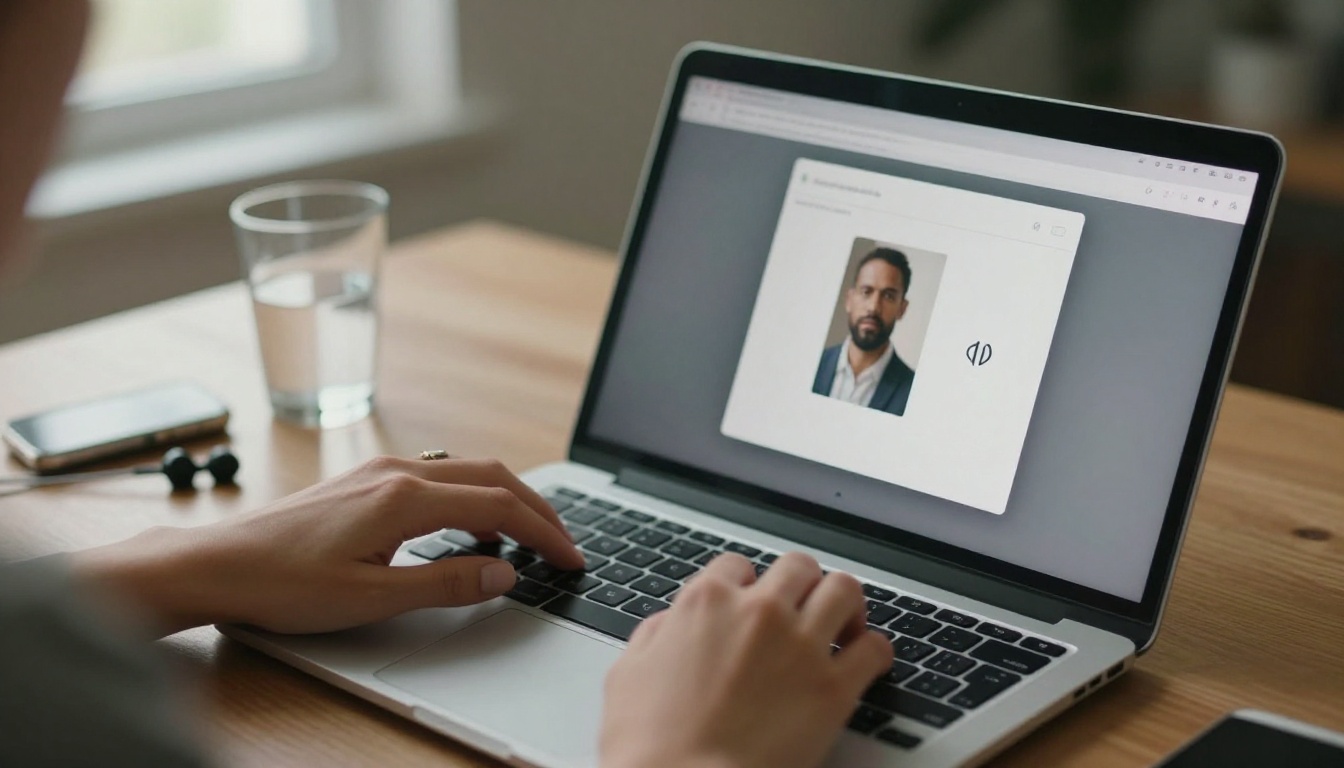
You do not need an API account or any code. OmniHuman 1.5 on PicassoIA runs from a browser: two uploads, one optional prompt, one click.
Prepare the Portrait
Choose a photo where the face is clearly visible, evenly lit and facing the camera or turned slightly. Skip sunglasses, heavy filters and tiny faces in a crowd.
No suitable photo? Generate one with Seedream 4.5, which outputs images at 2K or 4K in 16:9 and other ratios. Describe a realistic person, a neutral expression and soft window light, then use the result as your avatar.
Add Your Audio
Record your own voice, or generate a voiceover with Speech 2.8 HD or ElevenLabs v3. Export it as MP3 or WAV and keep it under 35 seconds, since longer files make the generation fail. Remove background music, because clean speech gives the cleanest sync.
Run and Check the Result
Upload the image and the audio, add a prompt if you want direction, and start the run. PicassoIA's published fast mode examples finished in about 3 to 6 minutes. Then review the clip in this order:
The first two seconds, where sync errors show up first.
Teeth and the corners of the mouth on long vowels.
Hands and shoulders, to see whether the movement looks natural.
Here is how each parameter behaves:
Parameter
What it does
Tip
Image
The person who speaks
Front facing, sharp, well lit
Audio
Drives the speech and the length
Under 35 seconds, no music
Prompt
Scene, motion and camera
Describe behavior, not lips
Fast mode
Trades fine detail for speed
On for drafts, off for finals
Seed
Makes a take reproducible
Save the seed of any keeper
Three prompts worth copying as a starting point:
"Friendly presenter, relaxed shoulders, small nods, steady medium shot."
"Energetic delivery, wide smile, expressive hand gestures, soft daylight."
"Calm and serious tone, minimal movement, slow push in on the face."
Other Avatar Models Worth Testing
No single model wins every job, and each of these is available on the same platform, so a side-by-side test costs you only minutes.
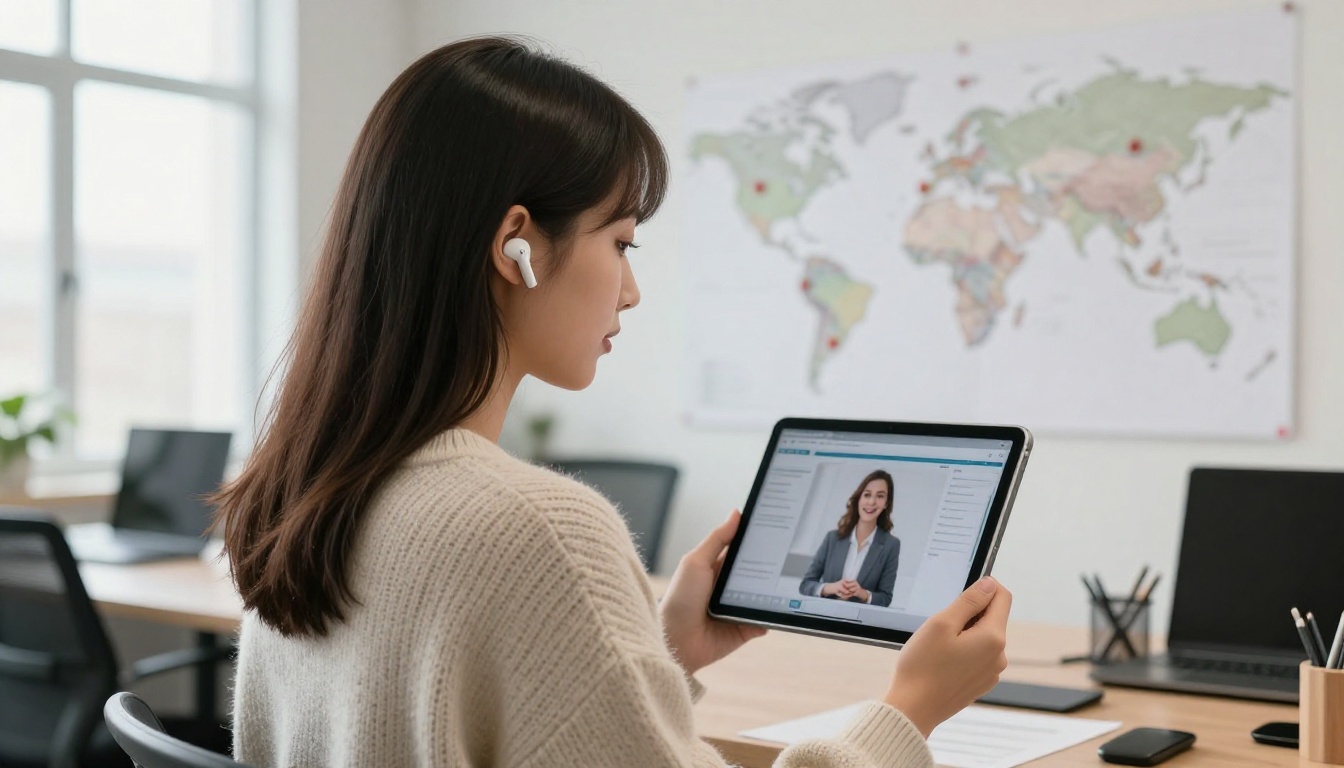
Pick by input. If you start from a photo and a recording, begin with OmniHuman 1.5 and compare it with Fabric 1.0 or Kling Avatar v2. If you only have a written script and no voice, P Video Avatar can speak it for you. If you already shot the video and only need new lips, Lipsync 2 Pro rewrites the mouth movement to match a fresh audio track.
Make Your First Talking Photo Today
Reading about pricing only gets you so far. The fastest way to judge OmniHuman 1.5 is to feed it your own portrait and a 10 second voice note, then watch the result at full speed.
Generate a face with Seedream 4.5, record or synthesize a short line, and run both through OmniHuman 1.5. Try the same photo with three different voices. Swap the prompt from "calm and steady" to "energetic, wide smile" and compare the takes.
Every model mentioned here sits in one place at picassoia.com/en/all-models. Open it, pick two avatar models, and make your first talking video before the coffee gets cold.