Most AI image generators want a wall of keywords and a prayer. Photon does something different: you write a normal sentence about a scene, and it gives you back a sharp, photographic frame that looks like it came out of a camera bag, not a prompt lab. Built by Luma Labs, the same team behind the Dream Machine video tools, Photon is a text-to-image model that leans hard into realism, clean composition and fast turnaround.
This article walks through what the Photon AI image model actually does well, how to write prompts that get consistent results, what every setting changes, and where you can run it online today. Every example image below was made in the same photographic style, so you can see the kind of look you can aim for.
What Photon Actually Is
Photon is an image generation model released by Luma Labs in late 2024. It comes in two flavors that share the same basic behavior:
- Photon: the higher-fidelity version, tuned for detail, nuance and faithful prompt following.
- Photon Flash: a faster, lighter version meant for quick drafts, batches and tight budgets.
Both are available on PicassoIA as separate model pages: Photon and Photon Flash. You can run either one in the browser, with no installation, no GPU and no setup.
Where It Fits Among Image Models
Photon sits in the "natural language first" camp. You do not need weighted tags, bracket syntax or negative prompt lists. A paragraph that reads like a photographer's shot note works better than a string of comma-separated buzzwords.
| Trait | Photon | Photon Flash |
|---|
| Main strength | Detail and prompt accuracy | Speed and low cost |
| Best for | Final images, portraits, product shots | Drafts, concept tests, batches |
| Reference images | Yes | Yes |
| Aspect ratios | 7 options | 7 options |
| Typical workflow | Finish a chosen idea | Test ten ideas quickly |
💡 Tip: Run your first five or six ideas on Photon Flash, then switch the winning prompt to Photon for the final render. You keep the same seed and wording, so the composition stays close.
How Photon Reads a Prompt
The model responds best to prompts that behave like a scene description. Think of the sentence you would say to a photographer before a shoot: who is in the frame, where they are, what the light is doing, and what lens you would use.
The Five Part Formula
A reliable structure looks like this:
- Subject and action: who or what, doing what.
- Environment: where the scene happens, with two or three concrete props.
- Light: direction, time of day, softness.
- Camera: angle, lens length, aperture.
- Texture and mood: surface details, film stock, atmosphere.
Here is an example that follows the formula:
A young woman with freckles and wind-tousled auburn hair laughing softly in a wheat field at golden hour, warm rim light from behind left, blurred amber background, 85mm lens at f/1.8, visible skin texture, Kodak Portra 400 film grain.
And here is what that kind of prompt produces:
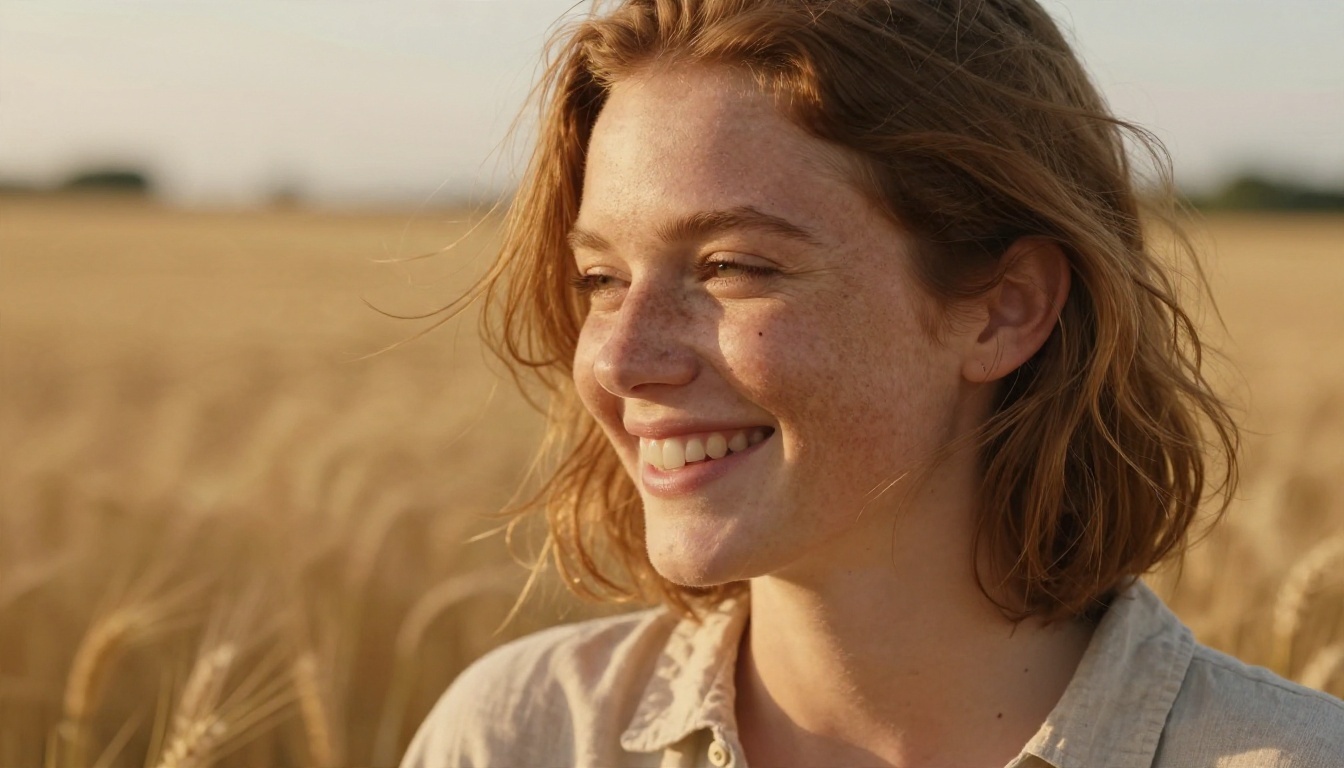
Notice how many of the details are photographic rather than decorative. "Rim light from behind left" and "85mm at f/1.8" tell the model where the light sits and how shallow the focus should be. Those two phrases do more work than ten adjectives like "stunning" or "beautiful".
Words That Help and Words That Don't
| Helps | Wastes tokens |
|---|
| "soft window light from the left" | "amazing lighting" |
| "35mm lens, eye level" | "professional camera" |
| "weathered oak, linen, brushed steel" | "highly detailed textures" |
| "Kodak Portra 400 palette" | "best quality, masterpiece" |
| "shallow depth of field, creamy bokeh" | "4k 8k ultra HD" |
Quality tags like "masterpiece" were useful with older diffusion models. With Photon they add very little. Spend those words on light and lens instead.
Every Setting Explained
Photon has a short settings list, which is a feature. Fewer knobs means fewer ways to break a good prompt. Here is what each input does.
| Setting | What it does | Practical advice |
|---|
| Prompt | The text description of the image | Write 40 to 90 words with a clear subject and light |
| Aspect ratio | Frame shape: 1:1, 3:4, 4:3, 9:16, 16:9, 9:21, 21:9 | Choose the final platform before you generate |
| Seed | Fixes the random starting point | Lock it when you want to change only one detail |
| Image reference | Uses a photo to guide composition | Use for layout, pose or scene structure |
| Image reference weight | How strongly that photo pulls (default 0.85) | Lower it to 0.4 to 0.6 for a loose influence |
| Style reference | Borrows color and texture from a photo | Great for matching a brand look |
| Style reference weight | How strongly the style is applied (default 0.85) | Drop it if faces or objects start to warp |
| Character reference | Keeps a face or character stable across images | Use a clear, front-facing, well-lit photo |
Aspect Ratio Choices
Aspect ratio changes the composition, not only the crop. A 21:9 frame invites wide, cinematic scenes with space on both sides. A 9:16 frame pushes the model toward tall, single-subject portraits and vertical layouts.
- 1:1 for profile images and product grids.
- 3:4 and 4:3 for editorial layouts and classic photo prints.
- 9:16 for Stories, Reels and phone wallpapers.
- 16:9 for blog headers, YouTube thumbnails and slides.
- 21:9 for cinematic banners and film-style frames.
- 9:21 for very tall mobile scrolls and banners.
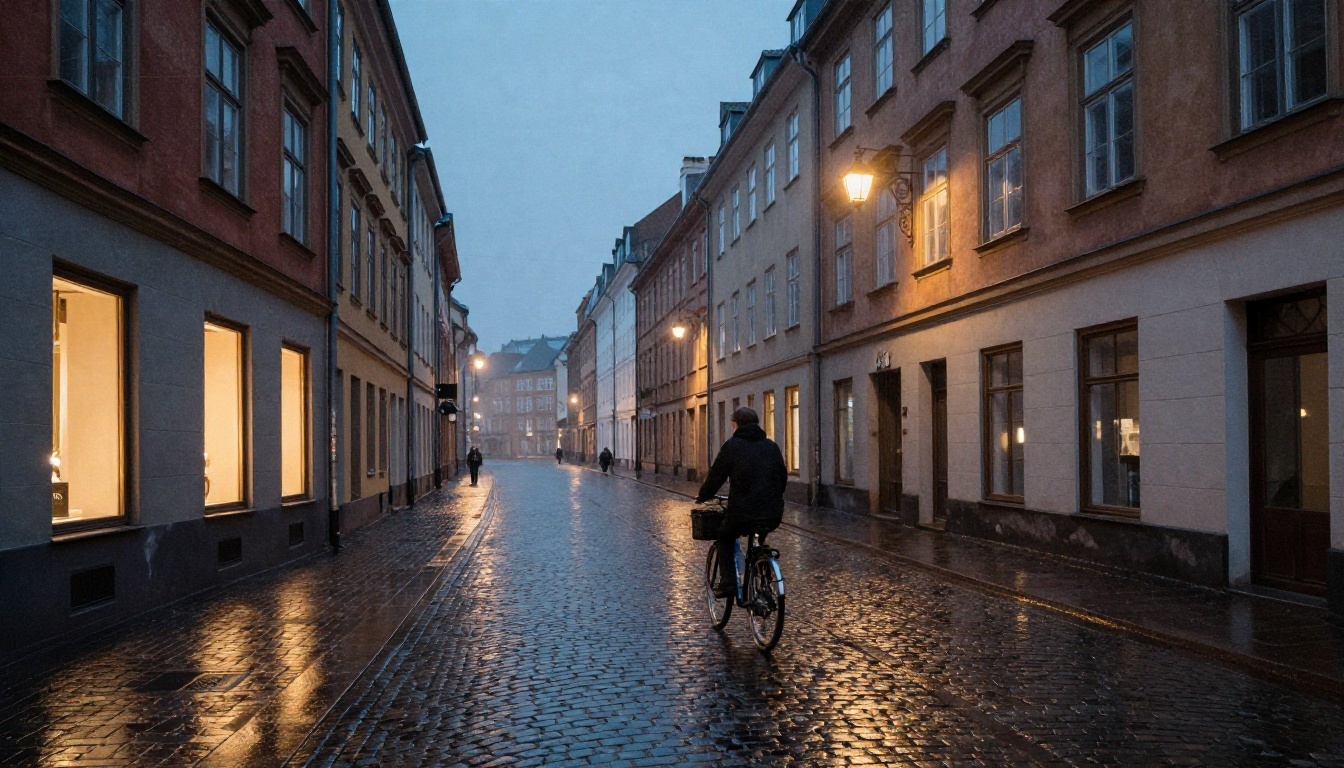
Wide scenes like this rainy dusk street are a natural fit for 16:9 and 21:9, where the model can place the subject small in the frame and let the reflections do the storytelling.
Using the Seed Properly
The seed is your reproducibility button. Same prompt plus same seed plus same settings gives you the same composition. Change one thing, like "golden hour" to "overcast morning", and you see only the effect of that edit.
A simple routine:
- Generate with a random seed until you like a composition.
- Copy that seed.
- Edit only one phrase in the prompt per run.
- Keep a short note of what each edit did.
Photon Examples by Genre
Photon is flexible, but it shines in a few categories. Here are six, each with a prompt pattern you can adapt.
Product Photography
Clean surfaces, controlled light and a plain backdrop are Photon's comfort zone. Mention the material of the object and the surface it sits on.
Glass perfume bottle with a gold cap on a veined white marble slab, a single dried lavender sprig beside it, soft diffused window light from the left, low three-quarter angle, 100mm macro lens at f/4, cream backdrop.
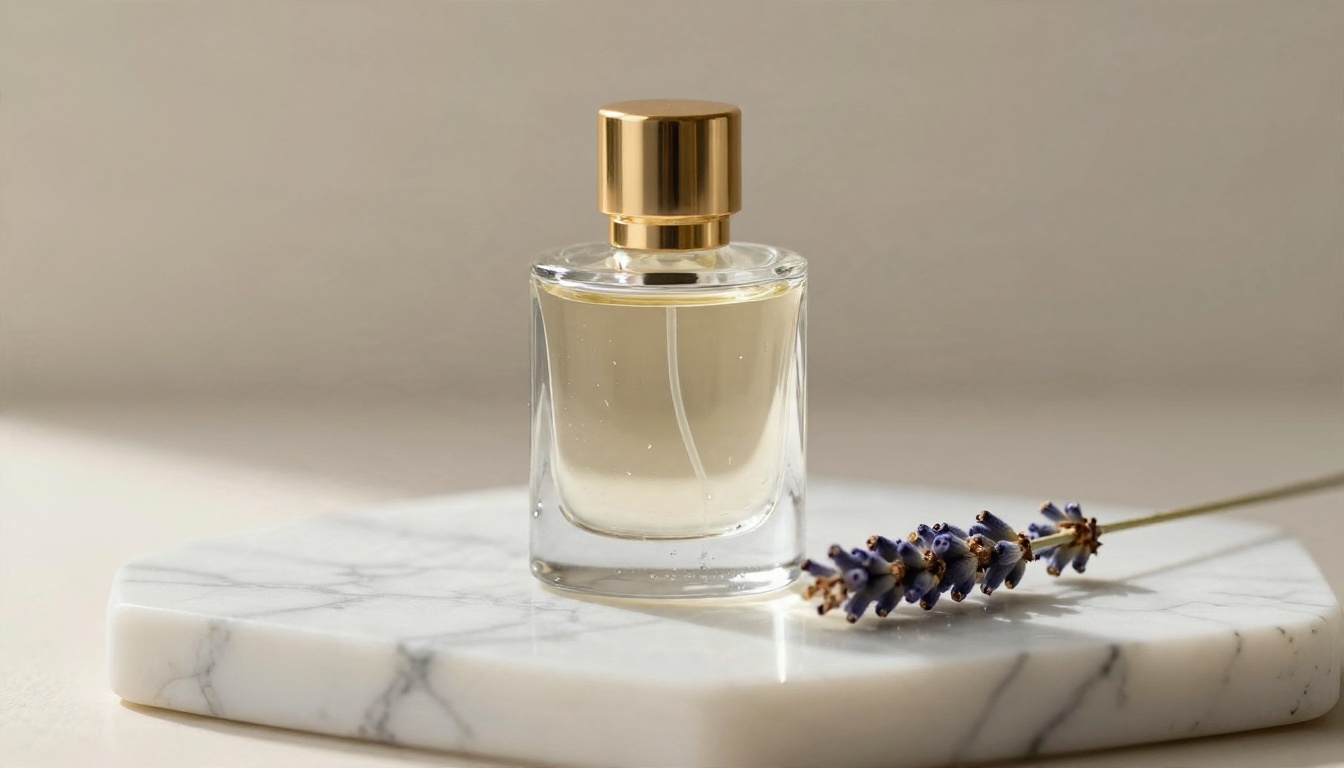
For ecommerce, generate the same product in 1:1 and 4:3 with the same seed so your listing images stay consistent.
Food Photography
Top-down flat lays work because there is no perspective to get wrong. Name the ingredients, the surface and the side the light comes from.
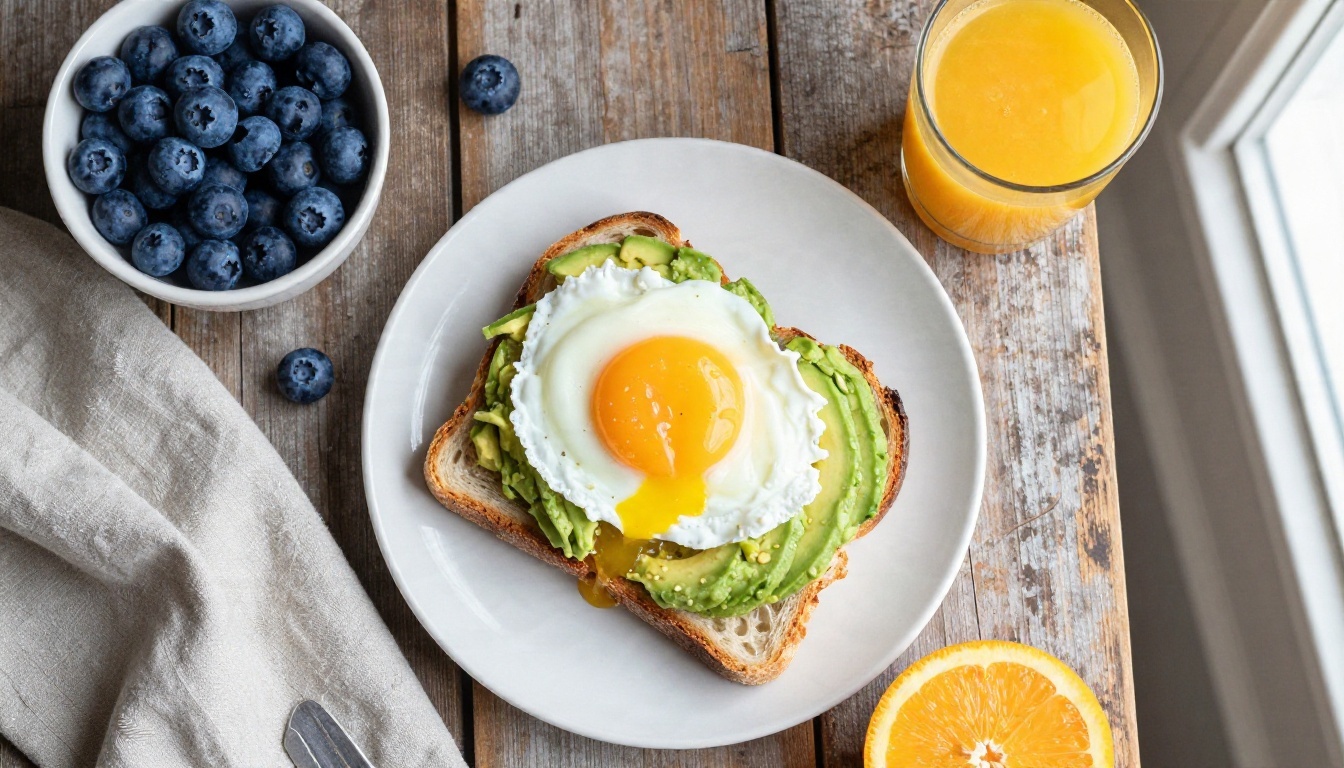
💡 Tip: Add one tiny imperfection, like crumbs or a drop of juice. It makes food shots feel shot rather than staged.
Interiors and Architecture
Interior prompts benefit from naming the lens and the light direction. Mentioning "tilt-shift" or "24mm" keeps vertical lines straight and gives that real estate magazine look.
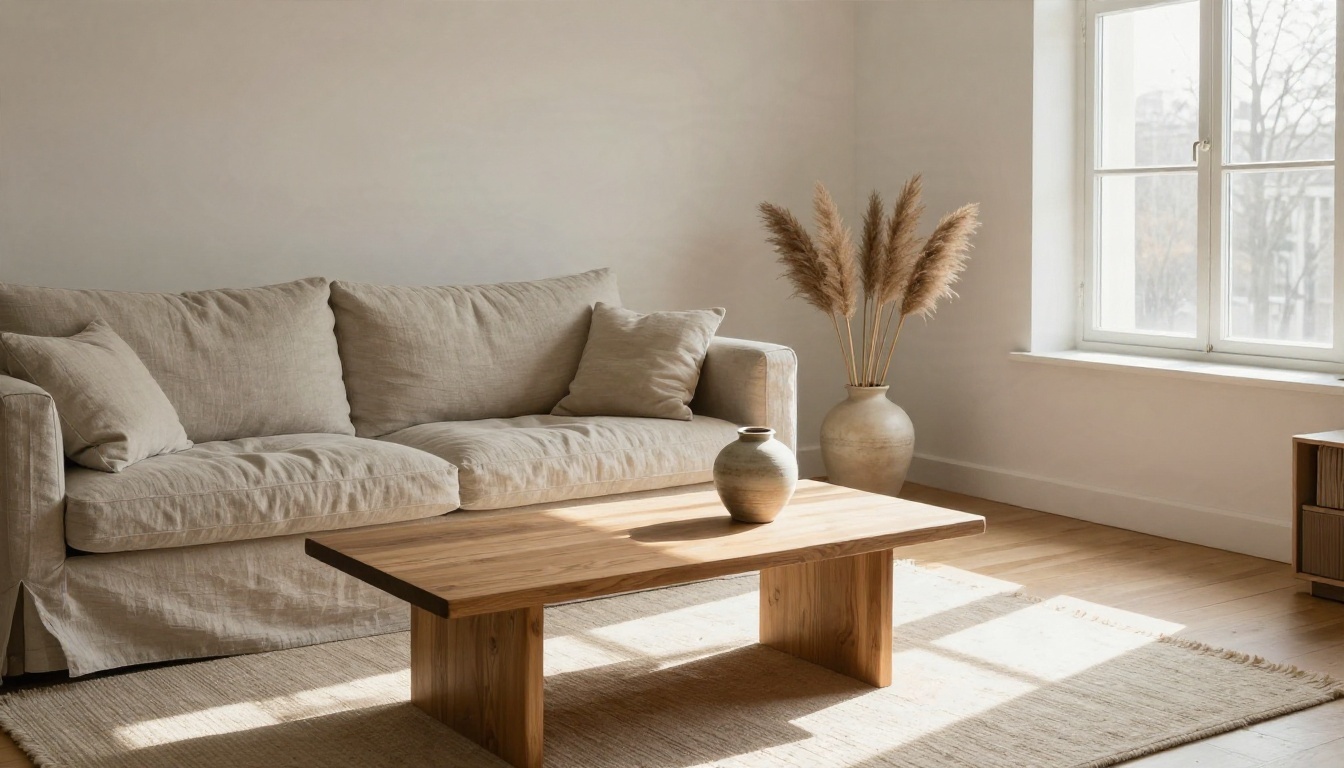
Use a style reference when you want a whole series of rooms to share the same palette, for example warm oak, cream and sage green.
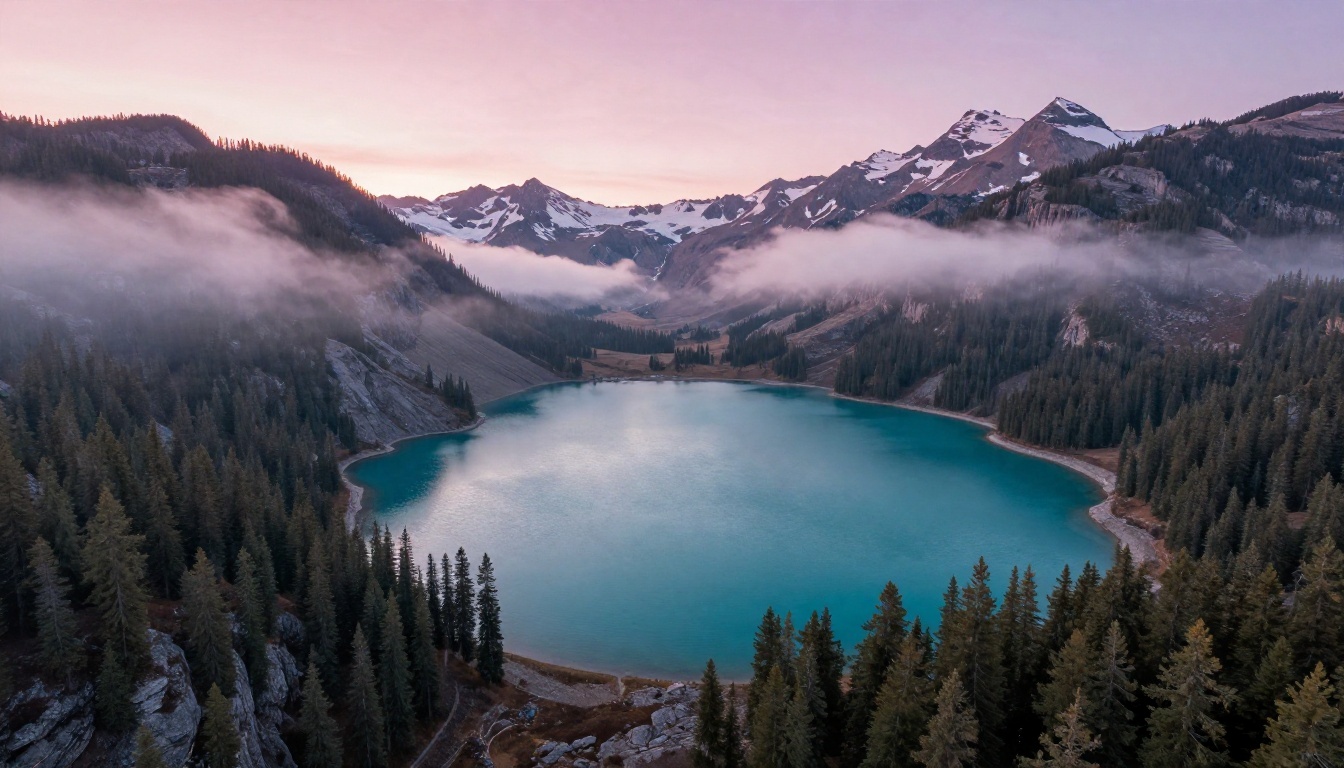
Landscapes
Landscapes are where wide ratios and aerial viewpoints pay off. Specify altitude, time of day and atmosphere, such as mist, haze or low cloud.
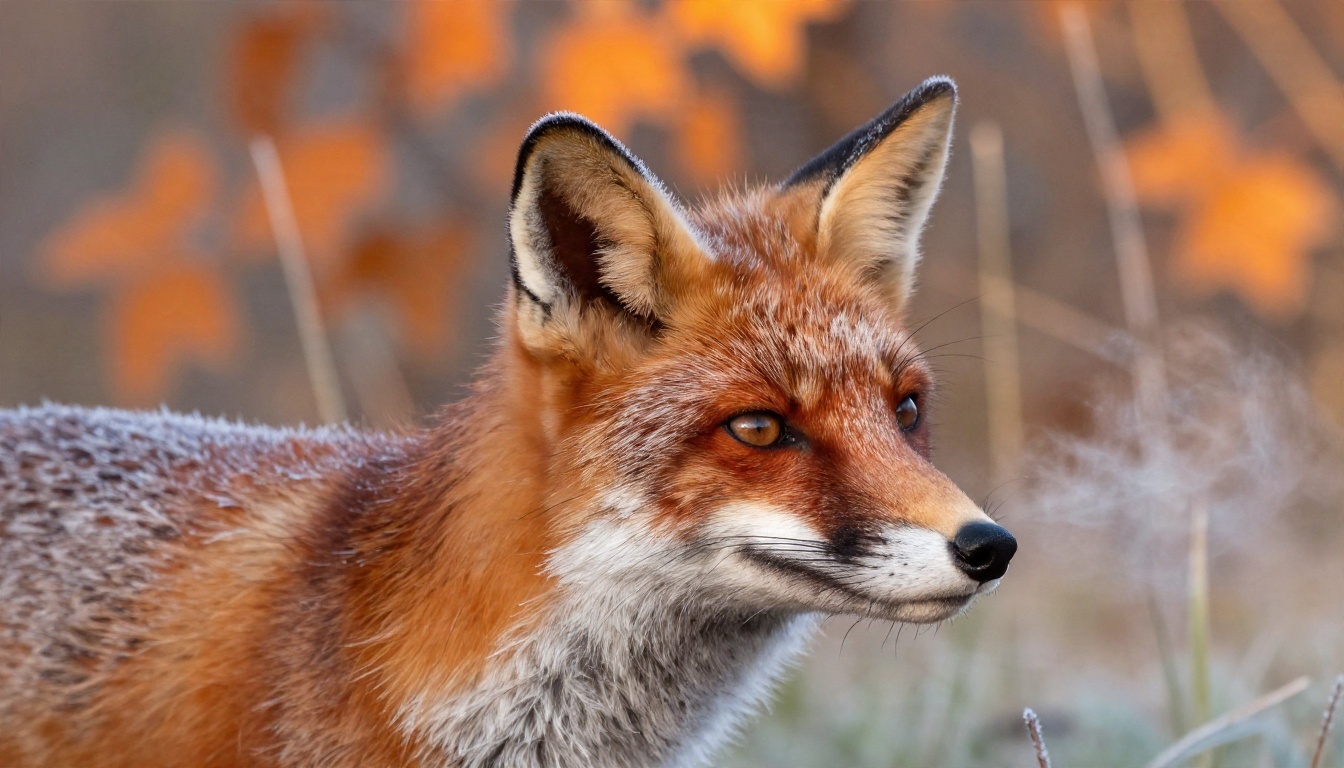
Wildlife
Telephoto language works well. Say "300mm", "eye level" and describe the backlight on fur or feathers. The model rewards you with a shallow focus plane and soft background.
Fashion and Lifestyle
For editorial work, describe the garment fabric, the movement and the location. Wind, a walking pose and a low angle bring natural energy.
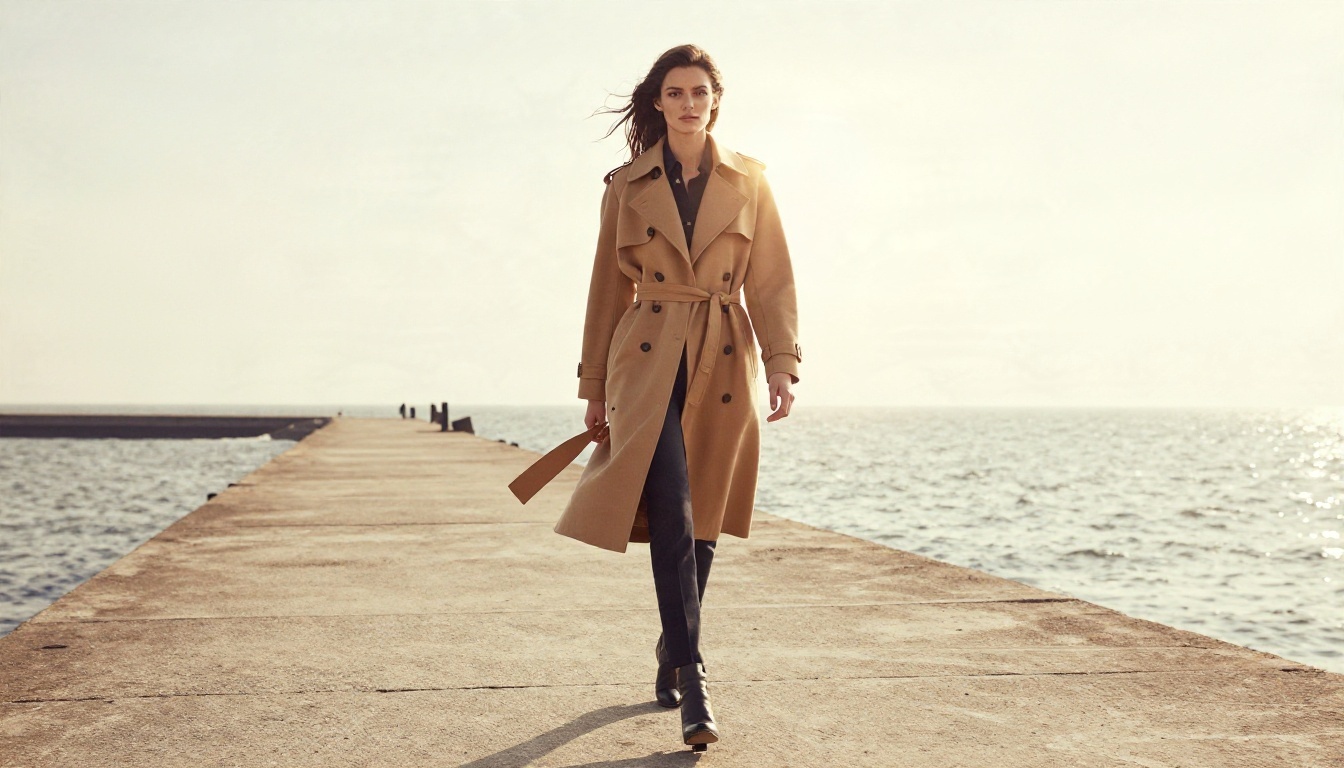
Lifestyle scenes, like a creator working at a cafe table, also come out believable when you name small props such as a latte, a knit sweater and window light.

Photon vs Photon Flash
Choosing between the two is mostly a question of what stage you are at.
| Situation | Pick |
|---|
| Testing ten prompt ideas | Photon Flash |
| Building a mood board | Photon Flash |
| Final hero image for a website | Photon |
| Portrait where skin detail matters | Photon |
| Bulk product variants | Photon Flash first, then Photon for winners |
| Social posts with a deadline | Photon Flash |
Flash is faster and cheaper per image, which makes it the sensible choice for exploration. Photon takes a little longer and rewards you with finer texture, more accurate small details and better handling of complex prompts. In practice, many people write one prompt, run it on Flash five times, and then re-run the best seed on Photon.
How to Use Photon on PicassoIA
You can run Photon in a browser in a few minutes. Here is the exact flow.
Step by Step
- Open the model page. Go to Photon on PicassoIA. For quick drafts use Photon Flash instead.
- Write your prompt. Use the five part formula: subject, environment, light, camera, texture.
- Pick an aspect ratio. The default is 16:9. Switch to 9:16 for vertical content or 1:1 for grids.
- Optionally set a seed. Leave it empty for variety, or enter a number to reproduce a result.
- Add references if needed. Paste a URL in the image reference, style reference or character reference field.
- Adjust weights. Start at the default 0.85, then lower the value if the reference overpowers your prompt.
- Generate and compare. Run three to four variations, keep the best seed, and refine one phrase at a time.
💡 About free use: PicassoIA lets you try models online without installing software. Credit allowances and free tiers change over time, so check the model page for the current options before you plan a big batch.
Parameter Tips That Save Time
- Reference weight at 0.4 to 0.6 gives a gentle nudge, ideal when you only want the same general layout.
- Reference weight at 0.85 or higher locks composition tightly, which is useful for product angle consistency.
- Character reference works best with a sharp, evenly lit face photo. Avoid sunglasses, heavy shadows and extreme angles.
- Keep prompts under 100 words. Longer prompts tend to dilute the main subject.
- Re-use the same wording across a series, and change only the scene details.
A Starter Workflow for a Brand Series
- Generate a hero image with Photon Flash at 16:9.
- Save the image URL and use it as a style reference at weight 0.7.
- Write four new prompts for four scenes, each with the same lighting words.
- Generate all four on Photon.
- Upscale your favorites with a super resolution model for print use.
Common Mistakes With Photon
Most weak results come from a handful of habits.
Stacking Contradictions
"Soft overcast light" and "hard directional sunlight" in one prompt confuse the output. Choose one light source and describe it.
Overloading the Scene
Seven subjects, three locations and five props rarely work. Photon keeps better focus when the frame has one main subject and two or three supporting details.
Forgetting the Lens
Without lens information, the model picks a default view. Adding "35mm", "85mm" or "100mm macro" instantly changes perspective and depth of field.
Pushing Reference Weights Too High
At very high weights, the reference photo can dominate and suppress your prompt. If the output looks like a copy, reduce the weight.
Expecting Perfect Text
Like most image models, Photon is not reliable for long strings of text inside the image. Keep any in-image text to one or two short words, or add text afterward in an editor.
Prompt Templates You Can Copy
Replace the bracketed parts with your own ideas.
Portrait
[Age and description of subject] in [location], [expression], [light direction and quality], 85mm lens at f/1.8, visible skin texture, Kodak Portra 400 film grain.
Product
[Product and material] on [surface], [one small prop], soft diffused light from the left, 100mm macro at f/4, [backdrop color], crisp reflections.
Landscape
Aerial view of [place] at [time of day], [weather or mist], [color of light on the peaks or buildings], 35mm lens, natural color grading.
Interior
[Room type] with [two furniture items and one decor item], [window shape], afternoon light from the right, 24mm tilt-shift at f/8, [palette].
Street
[City type] street at [time], [weather], [one moving subject], reflections on [surface], low angle, 24mm at f/2.8.
When to Pick Another Model
Photon is a strong choice for natural, photographic scenes. For other jobs, these PicassoIA models fit better:
Many people keep two or three models open in different tabs. Write one prompt, run it on each, and pick the result that matches the idea in your head.
Frequently Asked Questions
Is Photon good for realistic people?
Yes. It handles skin, hair and fabric well when you describe light and lens. Use the character reference field when you need the same face across several images.
Can I use my own photos as input?
Yes. Photon accepts an image reference for composition, a style reference for color and texture, and a character reference for faces.
What is the best aspect ratio?
The one that matches where the image will live. Use 16:9 for headers, 9:16 for Stories, 1:1 for grids and 21:9 for banners.
Does the seed guarantee identical images?
With the same prompt, settings and seed, results stay very close. Change any of them and the output will shift.
How long should my prompt be?
Between 40 and 90 words works best for most scenes. Short prompts work too, but you give up control over light and camera.
Make Your First Photon Image Today
Photon rewards clear, camera-minded writing. Pick one scene from this article, paste the matching template into Photon, choose your aspect ratio and run it. Then switch to Photon Flash to test five variations in the time it takes to finish a coffee.
Change one phrase per run, keep your best seed, and build a small library of prompts that work for your style. When you want to compare results, try the same prompt on Seedream 4.5 or Imagen 4. Open Picasso IA, write your first prompt, and see how far a well-described scene can go.


