Photoroom sells background removal at $0.02 per image, and that single number is why developers shortlist it first. The trouble starts one click later. There are two paid plans, a free sandbox that stamps a watermark on every result, a default throttle of 60 images per minute, and a credit rule that makes one edit call cost as much as five cutouts. Misread those details and a cheap integration becomes a surprise invoice, or a queue that takes hours to drain.
This article lays out Photoroom API pricing as it stands in October 2026: what the free plan really gives you, where the rate limits bite, and how the Remove Background endpoint behaves in a real pipeline. The figures come from Photoroom's own pricing page and documentation. Where two sources disagree, the disagreement is flagged instead of smoothed over.
💡 Short answer: Basic costs $0.02 per image, Plus costs $0.10 per image, the sandbox is free but watermarked, and the default limit is 60 images per minute with an HTTP 429 when you go over.
What You Actually Pay
Photoroom splits its API into plans by what the images can do, not by how many calls you make. You pick a plan, buy images each month, and every successful call spends from that balance.
The Basic Plan at $0.02 per Image
Basic is the plan most people mean when they say "the Photoroom API". Each image costs $0.02, and the Remove Background API lives here. The plan also includes cropping and resizing, solid color backgrounds, green screen despill and uncertainty scoring, a value that signals how confident the cutout is. Files can reach 6,000 pixels on the widest side and 50 MB.
Third party trackers put the entry Basic subscription at roughly $20 a month, which lines up with 1,000 images at $0.02. Treat that as a reference point and confirm the exact subscription on the pricing page before you budget.

The Plus Plan at $0.10 per Image
Plus costs $0.10 per image, five times more, and it opens the creative side of the Image Editing API: AI backgrounds, AI shadows, AI expand, ghost mannequin, virtual try-on and product staging. The file ceiling is lower, at 5,000 pixels and 30 MB.
You are not locked to one tier. Photoroom lets you call features outside your plan at the per image rate of the tier they belong to, so a Basic account can still reach a Plus tool at $0.10.
Enterprise and the 200K Floor
Enterprise pricing is custom and comes with volume discounts, but it starts at a minimum annual commitment of 200,000 images. In return you get access to every API including Image to Video, plus Visual QA, an Enterprise Guarantee, onboarding and a dedicated customer success manager. It is also the route Photoroom points to when the default rate limit is too low.
| Plan | Price per image | What it adds |
|---|
| Basic | $0.02 | Remove Background, crop and resize, color backgrounds, despill |
| Plus | $0.10 | AI backgrounds, AI shadows, AI expand, ghost mannequin, try-on |
| Enterprise | Custom | Every API, Image to Video, Visual QA, volume discounts |
The Free Plan Is a Sandbox
Photoroom does not offer a permanent free production tier for the API. What it gives you is a sandbox and a small welcome allowance.
1,000 Watermarked Images a Month
The pricing page advertises 1,000 free images per month in sandbox mode on the Image Editing API. The docs add that sandbox mode works on both the Image Editing API and the Remove Background API, and that every result carries a watermark. That is plenty to build and test an integration, and useless for anything a customer will see.
10 Free Production Calls
New accounts also receive 10 free production calls on the Remove Background API, and those results come back without a watermark. Ten calls is one honest demo with real client photos, not a pilot.
💡 Spend the 10 wisely. Use the sandbox for plumbing, error handling and queue logic. Save the 10 clean calls for your hardest images: wispy hair, glass bottles, shiny products with reflections, white products on white tables.
A sensible evaluation order:
- Wire up the sandbox and confirm authentication, uploads and response handling.
- Run 20 representative images through it and check the cutout edges.
- Spend the 10 production calls on the worst cases from that batch.
- Only then buy a Basic subscription and set a monthly budget.

How Credits Get Spent
Price per image is only half the story. The other half is how many images each call burns.
One Edit Equals Five Cutouts
Photoroom's docs state it plainly: one call to the Image Editing API is worth five calls to the Remove Background API. On Basic, an Image Editing call consumes 5 images, which is $0.10 at list price. On Plus, a Remove Background call consumes 0.2 images, which is $0.02. The ratio is the same either way, so the endpoint you call matters more than the plan you pick.
The practical translation: if all you need is a transparent PNG, call Remove Background. Every time a workflow reaches for the Image Editing API just to delete a background, it pays five times too much.
Failed Calls Cost Nothing, Unused Images Vanish
Two billing rules are worth writing on a sticky note:
- Errors are free. Calls that end in an error do not consume an image, so retrying after a timeout or a 429 does not double your bill.
- No rollover. Unused images disappear at the end of the month. Subscriptions are monthly, and annual terms are an Enterprise option.
Check the Balance in Code
Remaining credits show in the API dashboard and through GET https://image-api.photoroom.com/v2/account. Poll it from a scheduled job and alert yourself at 20 percent, because otherwise the first sign of an empty balance is a failed production run.
| Images per month | Basic at $0.02 | Plus at $0.10 |
|---|
| 1,000 | $20 | $100 |
| 10,000 | $200 | $1,000 |
| 50,000 | $1,000 | $5,000 |
💡 This is list price arithmetic, not a quote. Enterprise contracts negotiate volume discounts off these rates.
A worked example makes the five to one rule concrete. A shop with 4,000 products and three photos each needs 12,000 cutouts for its first import. On Basic that is $240 at list price, and at 60 images per minute the import takes about 3 hours 20 minutes. After launch the shop adds 500 products a month, so 1,500 cutouts, or $30. Now picture the same shop calling the Image Editing API on a Basic account just to strip those backgrounds. Every call burns 5 images, so the first import costs $1,200 and the monthly top up costs $150. Same pixels, five times the bill.
One more billing trap: Photoroom's consumer app subscriptions are billed separately from the API. Third party pricing trackers report that an app Pro seat includes zero API calls, so a team that already pays for the app still needs an API plan.

Rate Limits You Will Hit
60 Images per Minute by Default
According to Photoroom's pricing documentation, the default rate limit is 60 images per minute. Go over and the API answers with HTTP 429. Photoroom's advice is to send no more than 60 calls a minute, or to leave a one second gap between requests.
One caution. An April 2025 reply on the Photoroom forum said the default was 500 images per minute, and a later reply in the same thread sent readers to the FAQ for the current number. Build for 60 and treat anything higher as a bonus you have verified on your own account.
The throughput math is what makes the limit real:
| Batch size | Time at 60 per minute |
|---|
| 1,000 images | about 17 minutes |
| 10,000 images | about 2 hours 47 minutes |
| 50,000 images | about 13 hours 53 minutes |
The theoretical ceiling is 3,600 images an hour, or 86,400 a day, and no real pipeline sustains that.
Throttling Code That Survives
A few habits keep a batch job alive:
- Use one queue with a one second gap between dispatches, not a burst of parallel workers.
- When a 429 arrives, pause the whole queue, not just the failed item, then resume with backoff: 1, 2, 4, then 8 seconds.
- Retry freely. Errors do not consume images, so a retried call costs nothing extra.
- Raise the HTTP timeout. Large images take longer, and a slow response is not a failure.
- Log 429 counts per hour. A rising count means your batch is too aggressive or another job shares the account.
When to Ask for More
Photoroom says higher limits come through Enterprise plans and its sales team. The math on when that makes sense is simple: if you sustain more than 3,600 images an hour and can commit to 200,000 images a year, which is about $4,000 a year at Basic list price, talk to sales. Below that, spread the work out. A nightly batch of 10,000 images finishes in under three hours.
Remove Background in Practice
Formats, Sizes and Speed
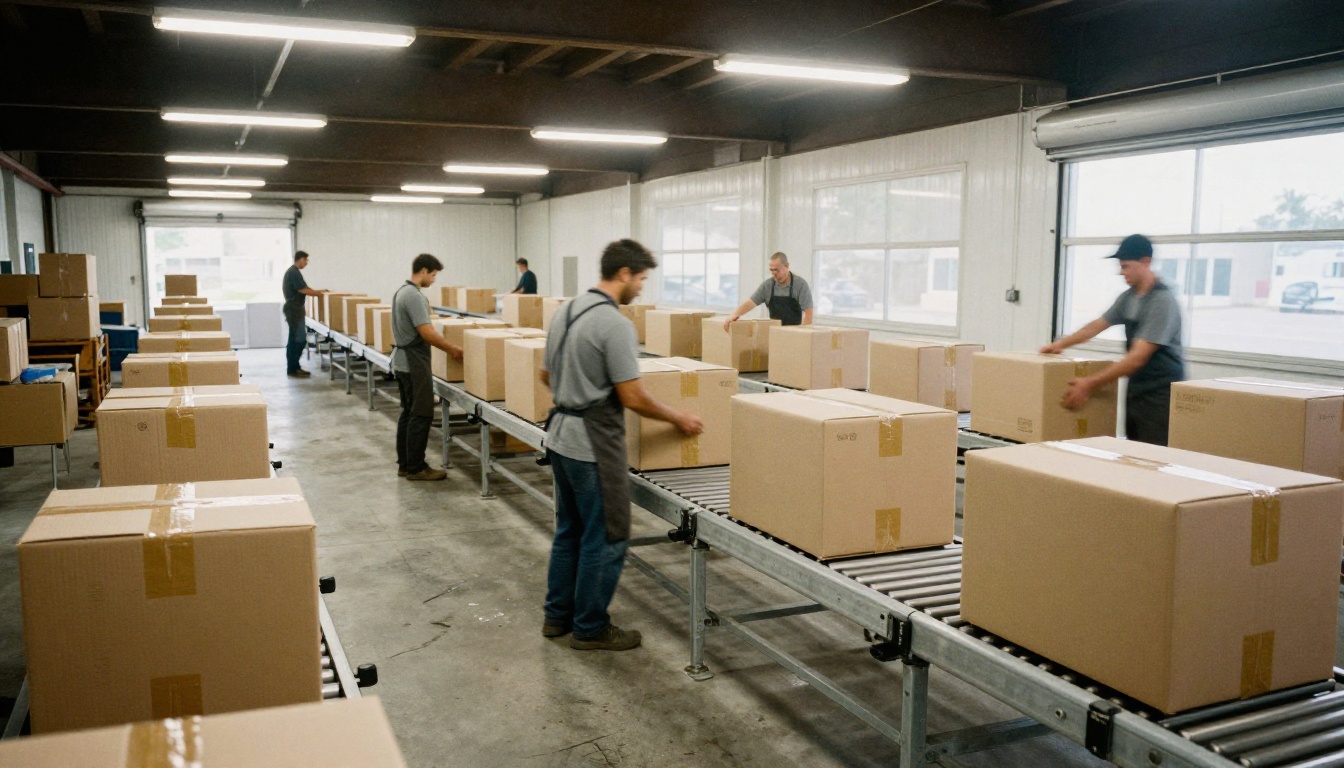
The Remove Background API accepts PNG, JPEG, WEBP and HEIC inputs and returns PNG (the default), JPEG or WEBP. Pick PNG or WEBP when you need transparency, since JPEG is smaller but flattens it. Inputs can reach 50 MB and 6,000 pixels on the widest side, and Photoroom recommends staying under 25 megapixels for the best performance.
Because this endpoint only removes the background, it responds faster than the Image Editing API. That is one more reason to use it whenever a cutout is all you need.
One POST Request
The integration is small. Send a POST to https://sdk.photoroom.com/v1/segment, attach the photo as multipart form data in a field named image_file, and put your API credential in the request header. Optional parameters such as format, channels, bg_color, size and crop shape the output. The response is the finished image, so the whole call fits in a few lines of any language.
Three common mistakes show up again and again in background remover integrations:
- Uploading oversized originals. A 6,000 pixel photo is allowed, but a product that ends up as a 1,200 pixel thumbnail on a shop page does not need it. Large images make calls slower, so resize before you send.
- Choosing JPEG output. JPEG does not preserve transparency, so a cutout saved that way arrives with a flat background again. Request PNG or WEBP for anything that will sit on a new backdrop.
- Treating the watermark as a bug. Sandbox results are stamped on purpose. If a watermark shows up in production, check which mode your credential is running in before you open a support ticket.
A Lighter Option for Cutouts
Who Should Stay on Photoroom
The API earns its price when you need programmatic volume plus the Plus toolset. Ghost mannequin, virtual try-on, AI shadows and product staging at catalog scale are what that plan is built for, and a vendor contract with an Enterprise Guarantee matters when a storefront depends on it.
Photoroom also keeps one practical advantage: the Remove Background call is only one step in a larger product photo stack. If you plan to add AI backgrounds, expand a canvas or stage a product on a surface later, staying with one vendor and one billing relationship keeps the pipeline simple.

The other side of the ledger is the small seller. A shop owner who cuts out about 130 photos a month would use roughly 13 percent of a 1,000 image allowance, and no rollover means the rest evaporates. If the work happens by hand in a browser, an API plan buys programmatic access you never call.
| Question | Photoroom API | Browser cutout tool |
|---|
| How do you run it? | Code, a credential and a request per image | Upload a photo, click run |
| How is it billed? | Per image, monthly, no rollover | Through the platform plan you already use |
| What do you maintain? | Queues, retries, balance checks, a 60 per minute throttle | Nothing beyond the upload |
| Best fit | Automated catalog pipelines | Hand driven batches and one offs |

How to Use Remove Background on PicassoIA
Remove Background on Picasso IA runs Bria's background removal in the browser. It detects the foreground subject and returns a transparent PNG in seconds, with no code and no API plan. Here is the full routine:
- Open the Remove Background model page.
- Upload your photo or paste an image URL.
- Leave Preserve Partial Alpha on for hair, fur and semi-transparent materials. Turn it off for hard edged product shots that need fully opaque output.
- Switch on Content Moderation if you process images from other people.
- Run the model and download the transparent PNG.
💡 Next step for product photos: once the cutout is ready, give it a new setting. Generate a fresh backdrop with Seedream 4.5, or rework a scene with Qwen Image Edit Plus or GPT Image 2.

Try It on Picasso IA
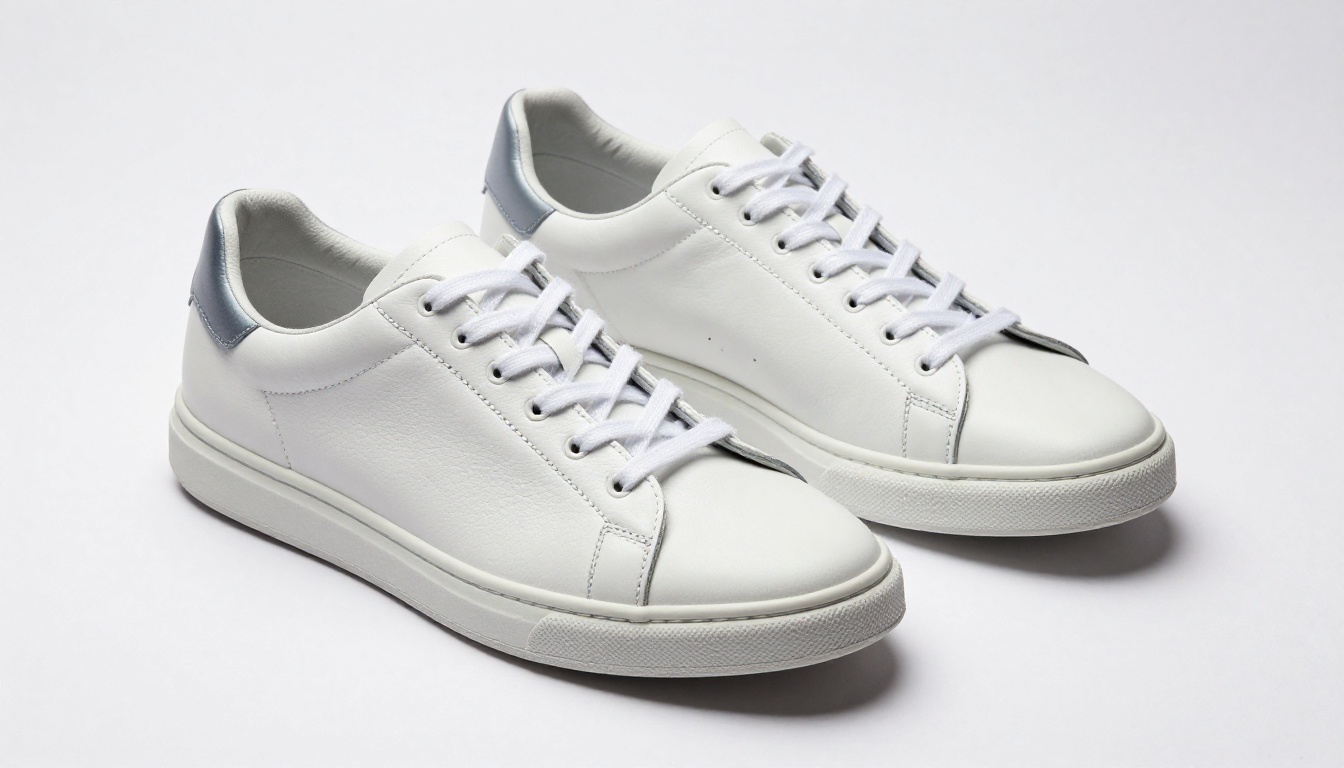
Pricing tables only tell you so much. The fastest way to decide whether you need an API contract is to run your own photos and look at the edges. Pull five of your hardest product shots, the ones with glass, hair or reflective surfaces, and send them through Remove Background on Picasso IA. Then place the cutouts on a new scene made with Seedream 4.5 and compare the result with what you expected from Photoroom.
If those five images look right, you have your answer for a hand driven workflow, and you have skipped a monthly subscription. If your volume is in the tens of thousands, you now know the real numbers to put in front of a budget: $0.02 or $0.10 per image, 60 per minute, 5 images per edit, and no rollover. Either way, the best test is the one you run yourself, so open Picasso IA and start experimenting.