If you pay for Freepik every month and still feel like your AI-generated images are missing something, you're not imagining it. The gap between a platform built for stock media and one built exclusively for AI image generation is wider than most people expect, and the price difference makes it even harder to justify staying.
This article cuts through the marketing and puts the two platforms side by side: features, model quality, editing tools, and actual per-image cost. By the end, you'll know exactly which tool earns your money.
What Freepik Actually Charges You
The pricing model you need to know
Freepik operates on a subscription model that bundles traditional stock assets with its AI tools. On the surface, the pricing looks competitive. But the structure hides friction that adds up quickly for anyone doing serious creative work.
The Essential plan runs around $29/month and includes a limited number of AI image generations (typically 100 credits per month). The Premium plan at around $79/month unlocks more, but credits are still capped. If you exceed your monthly limit, you either wait or pay for extra credits at a steep per-unit rate.
The bigger issue: Freepik's AI generation is built around a single underlying model with minimal user control. You can adjust style presets, but you're not choosing between Flux Pro, Imagen 4, or Seedream. You get what Freepik gives you.
What a "free" plan really means
The free tier generates images with visible watermarks and resolution limits. For any professional use, meaning anything that goes to a client or gets published, you need a paid plan immediately. The watermarked free tier functions more as a trial than a real tool.
Freepik also gates background removal, upscaling, and image editing behind higher price tiers. What appears to be one platform is actually several features stacked behind increasing cost thresholds.

The model difference that matters
Picasso AI hosts over 91 text-to-image models. That number is not a marketing figure. It represents a genuinely different kind of platform. Instead of one AI image tool with preset styles, you choose the specific model that fits your use case.
Need a photorealistic portrait? Use Flux Pro. Need structured compositions with strong text rendering? Ideogram v2 handles that better than any general-purpose model. Working on 4K product photography? Wan 2.7 Image Pro or Seedream 4.5 produces sharper, more detailed output than a one-size tool ever could.
This model flexibility is the core of the quality advantage. Different models excel at different content types. Choosing the right one for a job is not optional — it's the difference between a usable image and a great one.
Flux Pro, Imagen 4, and why choice wins
Here's a quick breakdown of what you actually have available:
| Model | Strength | Best For |
|---|
| Flux Pro | Photorealism, fine detail | Portraits, editorial |
| Flux Dev | Speed and quality balance | Drafts, iteration |
| Imagen 4 Ultra | Prompt accuracy, textures | Product shots, lifestyle |
| Ideogram v2 | Text rendering, design | Graphics, social media |
| Seedream 4.5 | 4K resolution, cinematic | Advertising, print |
| Hunyuan Image 2.1 | Composition, realism | Fashion, lifestyle |
| Recraft v4 Pro | Style control, vectors | Branding, illustration |
With Freepik, you don't pick a model. You pick a style preset applied to the same underlying engine. That difference is felt immediately in the output.
The Quality Gap Is Real
Stock-style output vs photorealistic results
Freepik's AI generation produces images that look like AI images. That sounds obvious, but it's worth stating plainly: the outputs have a characteristic softness, slightly off anatomy on hands and faces, and a consistent texture that experienced designers recognize immediately as machine-generated.
This is not entirely Freepik's fault. Their tool uses a general model optimized for broad use across their platform. It was not built specifically for photorealistic output.
When you run the same prompt through Flux Pro or GPT Image 2, the output is distinctly different. Sharper details. More natural lighting. Skin texture that holds up at full resolution. Hair strands rendered individually. These are not subtle improvements.
💡 The photorealism test: Download an image from both platforms at full resolution and zoom to 100%. The difference in fine detail becomes immediately obvious. Freepik outputs tend to lose coherence at the pixel level, while models like Flux Pro maintain it.
Portrait quality side by side
Portrait photography is where the gap is most visible. For headshots, model photography, or any image featuring a person's face, model selection determines whether the output is usable professionally.
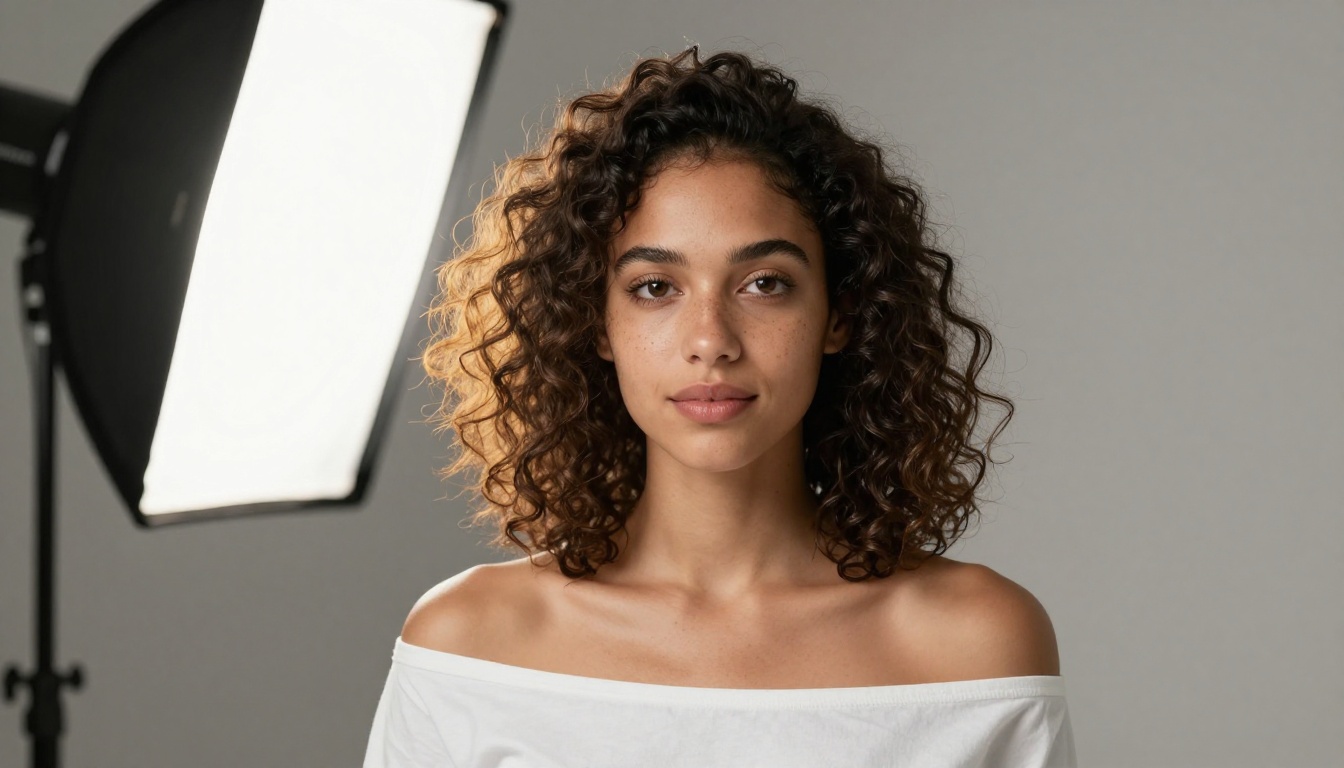
Hunyuan Image 2.1 and Flux Pro Finetuned both produce portraits where individual pores, natural eye reflections, and authentic hair texture are visible. This level of detail is what separates an image that gets used in a campaign from one that goes in the bin.
Background removal, upscaling, inpainting
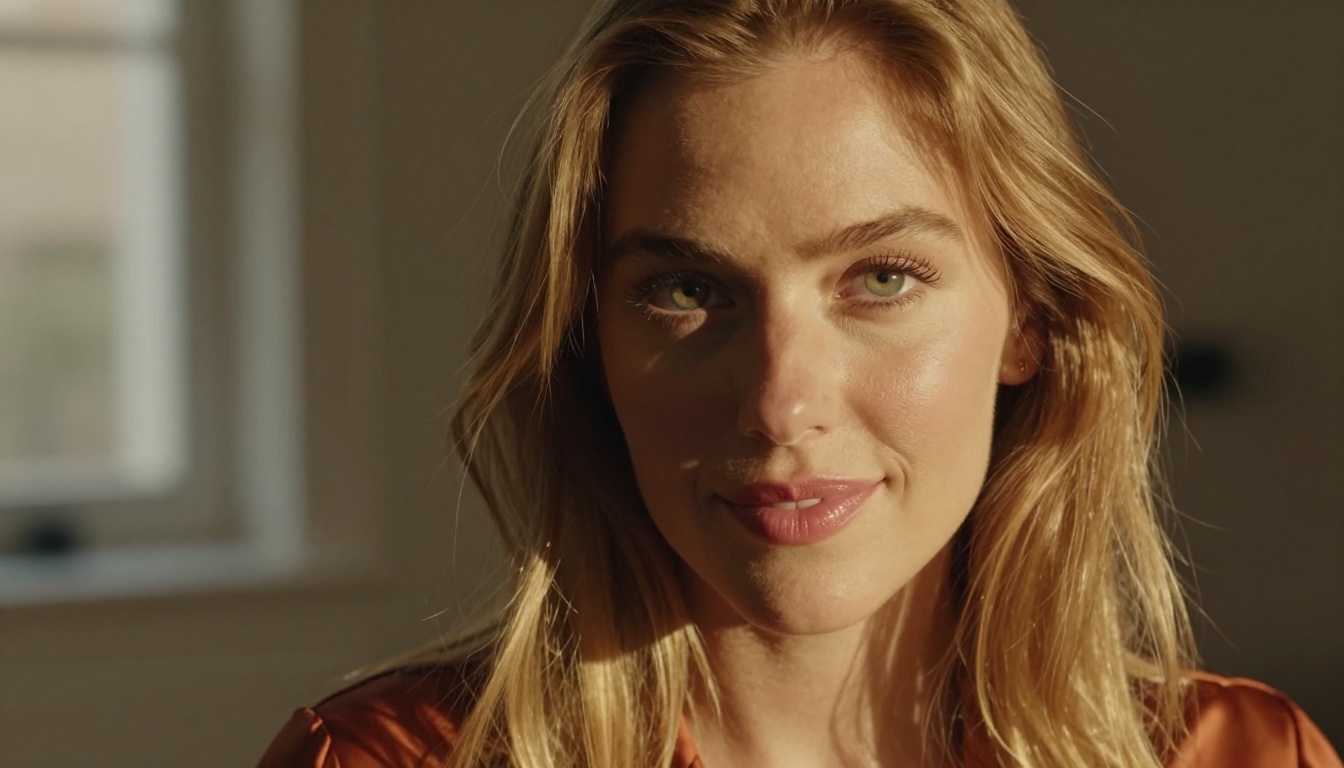
Freepik includes background removal on paid plans. It works adequately for simple subjects but struggles with complex edges, fine hair, or objects with similar color to backgrounds. Their upscaling adds resolution without adding real detail.
Picasso AI's editing suite operates at a different scope entirely:
- Background Removal: Bria Remove Background handles complex hair, fur, and soft edges that simpler tools miss
- Super Resolution: Clarity Pro Upscaler adds genuine detail during upscaling, not just interpolated pixels
- 4x to 6x Upscaling: Topaz Image Upscale enlarges images up to 6x while preserving texture authenticity
- AI Image Restoration: Real ESRGAN rescues damaged, blurry, or compressed images back to usable quality
- Photo Colorization: Image Colorization adds accurate color to black and white photographs
- Region Editing: Fibo Edit by Bria lets you modify specific areas of an image using text prompts
How the workflow changes
When all of these tools exist in one platform, the creative workflow compresses significantly. Instead of generating in Freepik, exporting, taking to Photoshop for background removal, resizing, and moving to a separate upscaling tool, you stay in one place.
For freelancers charging hourly, that workflow efficiency has direct monetary value. For agencies producing high volumes, it scales even more dramatically.
💡 Workflow tip: Generate your base image with Flux Pro, upscale with Clarity Pro Upscaler, and remove the background with Bria Remove Background, all without switching tabs.
How to Use Flux Pro on Picasso AI
Step-by-step from prompt to image
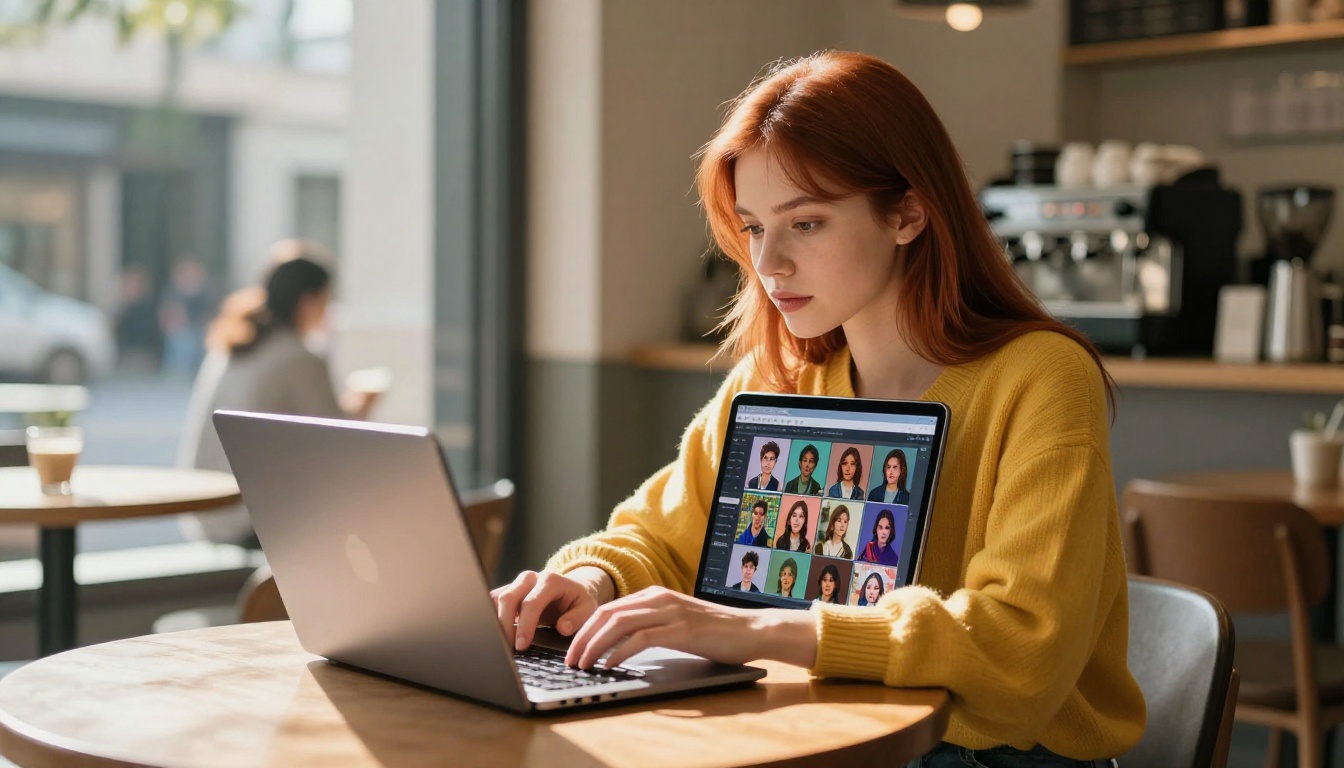
Flux Pro is one of the most capable photorealistic models available on the platform. Here's how to get a professional result from it:
- Go to the Flux Pro model page
- Write a detailed prompt including the subject, environment, lighting, and mood. For example: "Portrait of a woman in her thirties, warm studio lighting from the left, soft white background, shallow depth of field, 85mm lens, photorealistic"
- Set the aspect ratio based on your output need: 1:1 for social media, 16:9 for editorial, 9:16 for vertical formats
- Run the generation. Flux Pro typically completes in 8 to 15 seconds
- Inspect the result at full resolution before downloading
- If fine detail needs enhancement, take the output directly to Clarity Pro Upscaler
Settings that improve output
A few specifics that make a consistent difference with Flux Pro:
- Prompt length matters: Flux Pro responds well to long, specific prompts. Vague prompts produce vague results
- Lighting description is not optional: Including lighting direction, such as "soft volumetric morning light from the upper left," dramatically improves realism
- Camera language helps: Mention lens focal length (85mm, 50mm), aperture (f/1.4, f/2.8), and camera style (RAW, Kodak Portra) to signal the desired output style
- Avoid conflicting elements: Mixing styles, like "photorealistic neon cyberpunk," confuses the model. Pick one direction and commit to it
For generating a consistent custom style, face, or product look, P Image Trainer lets you create a personal LoRA that reproduces a specific aesthetic every time.
Who Wins the Price-Per-Image Math
Breaking down the actual cost
Let's run the real numbers. This is what most comparisons skip.
| Platform | Plan | Monthly Price | Generations |
|---|
| Freepik | Essential | ~$29/mo | ~100 AI images |
| Freepik | Premium | ~$79/mo | ~500 AI images |
| Picasso AI | Basic | ~$19/mo | 500+ AI images |
| Picasso AI | Pro | ~$39/mo | Unlimited |
At Freepik Essential, you're paying approximately $0.29 per image. At Freepik Premium, around $0.16 per image. And that's with a single model, no editing tools included at lower tiers.
With Picasso AI's Pro plan, the per-image cost drops to near zero since generations are unlimited, and you're choosing from 91 models rather than one.
What freelancers and agencies actually pay
The math shifts further when you factor in tool consolidation. A typical professional workflow requires:
- AI image generation ($29 or more per month on Freepik)
- An upscaling tool ($10 to $20/mo separately if not included)
- Background removal ($10 to $15/mo for a dedicated service)
- Image editing for inpainting and region modification ($20 or more per month)
That stack, bought separately, costs between $70 and $90 per month. Picasso AI includes all of it inside one subscription.
For agencies producing 200 or more images per month, the savings are immediate and substantial.

When Freepik Still Makes Sense
The honest cases
Freepik is not worthless. There are specific situations where it remains a reasonable choice:
- You primarily need stock photos and vectors: Freepik's library of professionally shot stock photography and traditional graphic assets has no equivalent in an AI-only platform. If stock assets are your main need and AI generation is secondary, the bundle still has value
- You're a non-designer who wants simple outputs: For casual use where photorealism is not a priority, Freepik's simplified interface is genuinely easier than a platform with 91 models and parameter controls
- You already pay for it and use the stock library heavily: If you're generating 5 AI images per month and downloading 200 stock assets, the calculation is different
When switching is the obvious call
- You generate AI images regularly, more than 20 per week
- You need photorealistic output that holds up at full resolution
- You're currently paying for multiple separate tools (upscaler, background remover, inpainting)
- You want control over which specific model processes your prompts
- Output quality matters more than interface simplicity
💡 The deciding question: Is AI image generation the main thing you're paying for, or is it a secondary feature of a stock subscription? That answer tells you which platform to use.

Start Generating Better Images Now
The comparison comes down to this: Freepik was built as a stock media platform that added AI generation. Picasso AI was built specifically for AI generation from the start. That origin difference runs through every aspect of both products, from model selection to output quality to editing depth.
If you've been settling for images that feel almost right but never quite professional, the platform you're using is likely the reason. The models available on Picasso AI, particularly Flux Pro, Imagen 4 Ultra, and Seedream 4.5, produce outputs that are genuinely harder to distinguish from real photography.
Try running a prompt through Flux Dev for fast iteration or Flux Pro for maximum quality. See what Ideogram v2 Turbo does with text-heavy designs. Take an output and run it through Clarity Pro Upscaler to see what 8K-level detail actually looks like.
The quality difference is not abstract. It's in the first image you generate.


