PixVerse V6 is the most capable version of PixVerse's AI video engine to date, and it shows in every frame. Whether you are crafting a short-form clip for social media, building a product demo, or producing a cinematic sequence for a passion project, V6 delivers a level of visual fidelity and motion control that puts it firmly in the top tier of text-to-video AI generators available right now. This article covers what makes V6 different, how its core systems work, and exactly how to get results from it on PicassoIA.
What PixVerse V6 Actually Does
Most AI video tools ask you to type a prompt and hope for the best. PixVerse V6 goes further. It treats your text as a full director's brief, interpreting not just the subject but the pacing, the atmosphere, and the camera behavior of the scene. The result is video that feels intentional, not accidental.
From Text Prompt to Cinematic Clip
At its core, PixVerse V6 is a text-to-video model capable of producing clips up to 1080p resolution at smooth, consistent frame rates. You write a description, optionally add camera movement instructions, and the model renders a short video that matches your intent with impressive accuracy.
What separates V6 from earlier versions like PixVerse V5 and PixVerse V5.6 is how well it handles complex prompts. Multi-element scenes, specific lighting conditions, and nuanced character actions all render with more reliability than before. It does not just approximate your prompt; it interprets it with a level of contextual understanding that earlier versions lacked.
The model supports video clips from 4 to 8 seconds in duration. While that may sound short, it is the standard range for AI video generation and is more than enough for social media content, product cutaways, and cinematic B-roll. Longer sequences are built by combining multiple clips in post-production.
The Audio Layer That Changes Everything
One of the most significant additions in PixVerse V6 is native AI audio generation. The model produces ambient sound, environmental effects, and audio that syncs with the visual content in real time. This is not a post-processing overlay; the audio is generated alongside the video, meaning it responds to what is happening on screen rather than being applied over a finished clip.
For content creators who previously had to source royalty-free sound effects separately and sync them manually, this is a significant workflow improvement. A clip of rain falling on a city street now sounds like rain falling on a city street, without any manual audio editing. A beach scene generates wave sounds. A crowd sequence picks up ambient noise. The audio is not always perfect, but it is consistent enough to be genuinely useful.

💡 Tip: To get the best audio output from PixVerse V6, describe the sonic environment in your prompt. "A busy cafe with the sound of espresso machines and soft conversation" will produce more textured audio than a generic scene description alone.
What's New in V6
Calling V6 an incremental update would be underselling it. PixVerse made substantive changes that affect everything from prompt adherence to rendering speed to motion quality.
How It Compares to V5 and V5.6
PixVerse V5 was already a capable model for general text-to-video work. V5.6 tightened motion consistency and reduced flickering artifacts that had plagued earlier versions. V6 builds on both, adding:
- Integrated audio synthesis (absent in all prior PixVerse versions)
- Improved character fidelity across the full duration of a clip
- Better camera motion control with more natural, physically believable trajectories
- Higher prompt adherence for complex, multi-element scenes
- Faster generation times without sacrificing output quality at 1080p
The jump from V5.6 to V6 is roughly analogous to the jump between PixVerse V4 and V5. Meaningful across every dimension, not cosmetic.
Resolution, Speed, and Motion Quality
PixVerse V6 outputs at up to 1080p and supports multiple aspect ratios including 16:9 for landscape, 9:16 for vertical content (Reels, TikTok, Shorts), and 1:1 for square formats. Generation speed is faster than V5 at equivalent quality settings, which matters when you are iterating through multiple prompt variations looking for the right result.
The motion quality improvement is most visible in how subjects move through space. Earlier PixVerse versions occasionally produced jittery or anatomically inconsistent motion during complex actions like walking through crowds or interacting with objects. V6 handles these scenarios with noticeably more physical accuracy. Limbs move in predictable arcs, body weight shifts correctly during locomotion, and hands interact with objects without morphing into unrecognizable shapes mid-clip.
Core Features Worth Knowing
Camera Motion Control
This is where PixVerse V6 genuinely separates from many competitors. You can specify camera movements directly in your prompt using natural language, and the model interprets and executes them with a high degree of fidelity:
- Pan left/right: Horizontal sweeps across a wide scene
- Tilt up/down: Vertical camera pivots, useful for revealing tall subjects or environments
- Zoom in/out: Dolly-style push or pull that shifts the focal relationship between subject and background
- Orbit: Circular rotation around a central subject
- Crane/aerial rise: Rising or descending shots that reveal environments from above
These are not post-processing effects applied over a static frame. The model generates the video with the camera motion baked into the rendering process. This produces results that look genuinely cinematic rather than like a freeze-frame with a filter applied on top.
Character Consistency
One long-standing challenge with AI video models is keeping a character recognizable across the full duration of a clip. Faces morph between frames, clothing changes color or texture unexpectedly, and body proportions shift in ways that break the illusion of a continuous scene.
V6 improves substantially here. Faces remain stable across a full 8-second clip with far fewer drift artifacts than previous versions. Clothing maintains its texture and color through motion. Hair behaves more physically. This does not make V6 flawless at character consistency, but it is reliable enough for most short-form content without requiring frame-by-frame manual correction.
Style Modes and Aspect Ratios
PixVerse V6 supports multiple visual style modes that affect the overall aesthetic rendering of the output:
| Style Mode | Best For |
|---|
| Cinematic | Film-quality storytelling, music videos, branded content |
| Anime | Illustrated characters, stylized narratives, animated shorts |
| 3D Animation | Product visualization, explainer videos, branded animation |
| Realistic | Documentary-style footage, lifestyle content, social ads |
For most creators focused on realism and polished social content, Cinematic and Realistic modes deliver the strongest results. Anime and 3D Animation modes are capable but work best when your prompt language explicitly references those visual styles.
PixVerse V6 vs the Competition
The AI video space has become genuinely competitive. Here is how PixVerse V6 stacks up against other top text-to-video models available on PicassoIA today:
| Model | Max Resolution | Native Audio | Camera Control | Strength |
|---|
| PixVerse V6 | 1080p | Yes | Strong | All-round cinematic quality |
| Kling v3 | 1080p | No | Very strong | Motion control, character work |
| Veo 3 | 1080p | Yes | Moderate | Photorealistic outdoor scenes |
| Sora 2 | HD | Yes | Moderate | Long-form narrative storytelling |
| Seedance 2.0 | 1080p | Yes | Moderate | High-speed generation |
| Hailuo 02 | 1080p | No | Moderate | Stylized cinematic look |
| LTX 2 Pro | 4K | No | Good | Ultra-high resolution output |
PixVerse V6's combination of native audio, strong camera control, and 1080p output makes it one of the most well-rounded options available. Kling v3 edges it out on raw motion control precision. Veo 3 matches or exceeds it on photorealism in natural outdoor environments. LTX 2 Pro goes higher on resolution. But for a single model that performs well across all of those dimensions without specializing in just one, V6 is the most balanced choice currently available.

How to Use PixVerse V6 on PicassoIA
PixVerse V6 is available directly on PicassoIA, where you can generate videos without setting up any external accounts, API tokens, or local installations. Here is the exact process.
Step 1: Access the Model
Head to the PixVerse V6 page on PicassoIA. You will see the generation interface with a large prompt field, parameter controls on the right panel, and an output preview area below. No configuration is required before you start.
Step 2: Write Your Prompt
This is where most users either get strong results or mediocre ones. A strong PixVerse V6 prompt has three parts working together:
- Subject and action: Who or what is in the scene, and what are they doing right now
- Environment: Where the scene takes place, the time of day, weather conditions, and ambient details
- Camera: How the camera moves, from what angle, and at what focal length if relevant
Example of a weak prompt: "A woman walking in a city at night"
Example of a strong prompt: "A woman in her 30s wearing a black trench coat walks along a rain-slicked Manhattan sidewalk at 10pm, puddles reflecting blurred neon signs from storefronts. Camera follows from behind at street level, slowly pushing forward. Light jazz music audible from an open bar door."
The second version gives PixVerse V6 enough information to make every creative decision in alignment with your intent. The first version forces the model to guess on every dimension.
Step 3: Set Your Parameters
Before generating, configure these settings in the panel:
| Parameter | Recommended Setting |
|---|
| Aspect Ratio | 16:9 for landscape content, 9:16 for vertical social |
| Duration | Start at 5 seconds; extend to 8 once prompt is dialed in |
| Style Mode | Cinematic or Realistic for most content types |
| Audio | Enable whenever your scene has a strong sonic environment |
| Quality | 1080p for final outputs; draft quality for prompt testing |
💡 Tip: Start every new concept at 5 seconds and draft quality. Once your prompt is producing results you like, switch to 8 seconds and full 1080p for the final render. This approach cuts generation time and credit usage significantly during the iteration phase.
Step 4: Generate, Review, and Refine
Hit generate and wait for the render to complete. PicassoIA shows a progress indicator during generation. Once done, preview the clip directly in the browser before downloading.
If the result does not match your intent, adjust your prompt rather than regenerating the same input. Focus your revision on the specific element that is off. If motion feels mechanical, add explicit camera direction. If the subject looks wrong, describe their appearance in more detail: clothing color, hair length, age, posture. If the lighting is flat, specify the light source direction and quality.
Most users find that 3 to 5 iterations are enough to arrive at a strong result with a well-structured initial prompt.
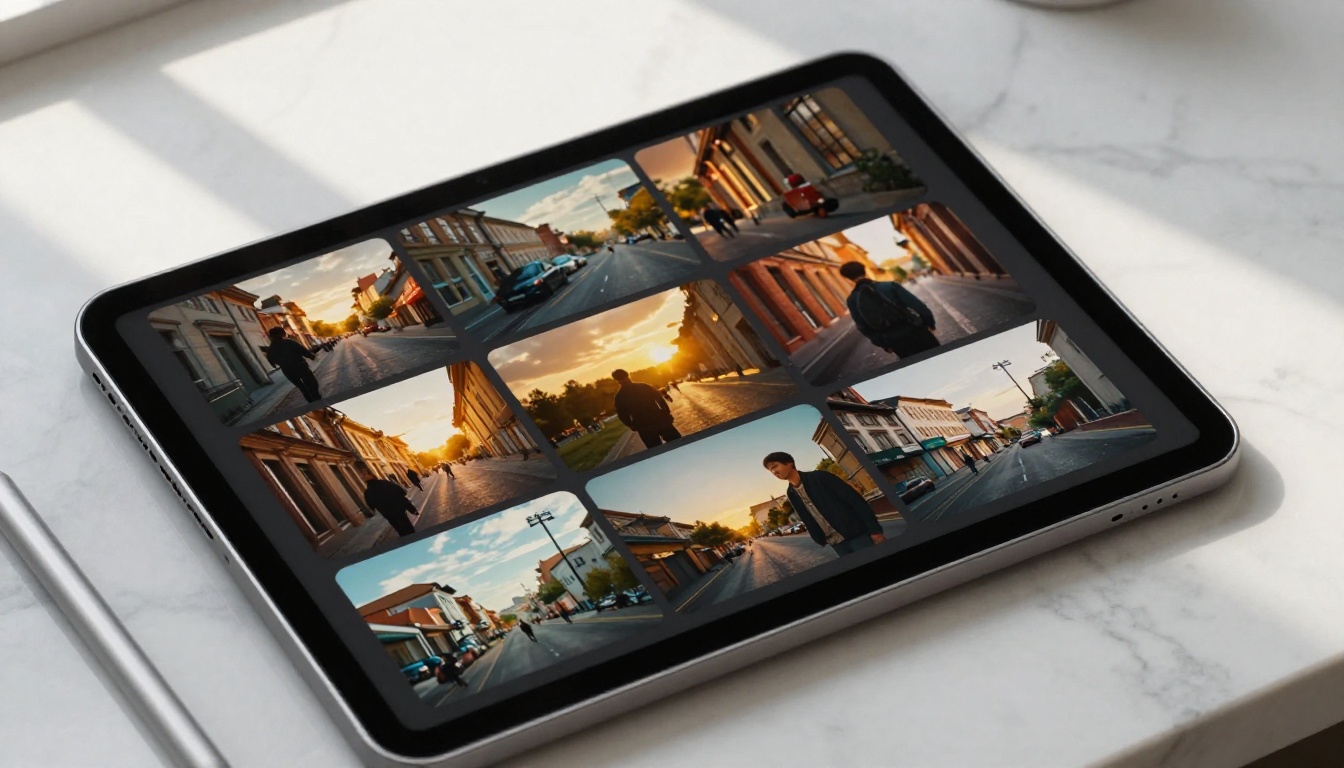
Prompt Writing That Actually Works
Writing for PixVerse V6 is not like writing a search query. The model responds to descriptive, specific language that gives it enough context to make good creative decisions. Vague prompts produce vague results regardless of how good the underlying model is.
Structure Your Shots Like a Director
Think of your prompt as a shot description. Film directors communicate scenes in terms of subject, environment, action, and camera movement. Apply the same structure:
- Describe the subject with specific visual attributes (age, clothing, expression, body position)
- Set the environment with time of day, weather, architecture, and any background activity
- Define the camera explicitly (angle, movement type, speed, distance)
- Add atmosphere through sound, temperature, and mood descriptors
This structure works because PixVerse V6 is optimized to produce coherent scenes. The more coherent your input, the more coherent your output.
Common Mistakes to Skip
Over-stuffing the subject line: More than one primary subject almost always results in the model splitting its attention and rendering both poorly. One subject, one action, one environment per clip.
Ignoring camera direction entirely: Without explicit camera instructions, V6 picks a path for you. It is usually acceptable but rarely exactly what you had in mind. Specifying "static wide shot", "slow dolly in", or "low-angle upward tilt" takes 4 words and significantly improves output consistency.
Skipping the time of day: Lighting quality is determined primarily by time of day in natural scenes. "Golden hour", "midday direct sun", "overcast grey morning", and "blue hour dusk" produce dramatically different outputs. Always include it.
Using conflicting style cues: Describing a realistic scene while the style mode is set to Anime will produce anime output. Style mode overrides prompt aesthetics. Match your mode to your intent.
Real Use Cases for V6
Social Media and Short-Form Content
PixVerse V6 excels at producing content for Instagram Reels, TikTok, and YouTube Shorts. The 9:16 vertical aspect ratio support, combined with native audio, means you can produce a post-ready clip without additional editing software for straightforward content types.
Lifestyle content performs particularly well. Cooking scenes, travel snippets, fashion moments, and fitness clips translate cleanly into V6's Realistic mode. The cinematic output quality makes AI-generated clips competitive with phone-shot footage on visual appeal alone, which is the practical bar for organic social performance.
Marketing and Product Visualization
Brands using AI video for social advertising find PixVerse V6 useful for rapid concept visualization. Rather than staging a full production shoot to test whether a creative direction works, a marketing team can generate 10 different visual interpretations of a campaign concept in an afternoon and choose the strongest before any real budget is committed.
Product-adjacent prompts work best when you describe the product's context rather than the product itself. "A slim silver laptop open on a minimalist white desk with morning light from the left and steam rising from a coffee cup beside it" produces far better results than "show me a laptop advertisement."
Creative Storytelling and Pre-Production
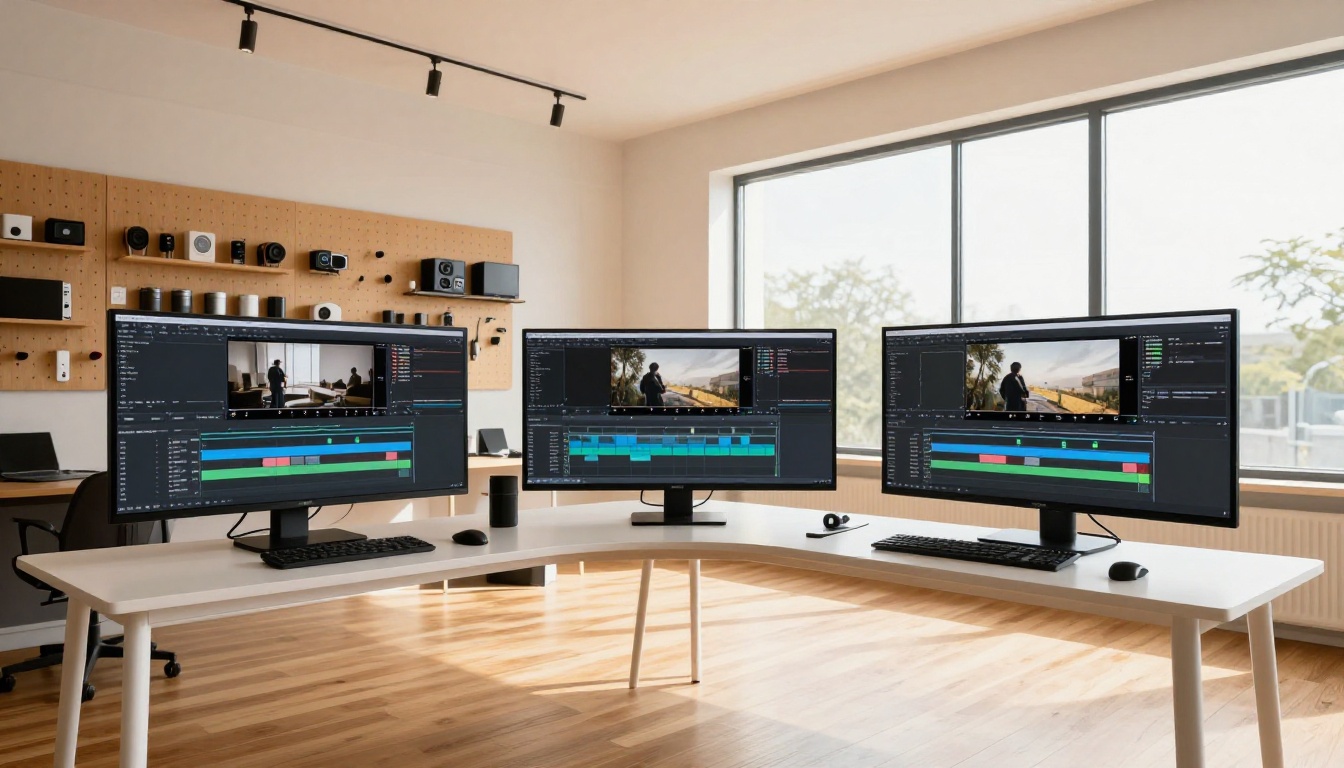
For filmmakers and writers, PixVerse V6 functions as an animatic tool that actually moves. Instead of static storyboard sketches, you get short animated sequences that show how a scene will feel in motion, with real camera behavior and lighting. The camera control features make it possible to test dolly shots, orbital sequences, and aerial transitions before committing to a physical shoot.
This use of AI video as a pre-production asset, rather than a finished product, is one of the most professionally credible applications of the technology right now.
Try PixVerse V6 on PicassoIA
PixVerse V6 is one of the most capable and well-rounded AI video models available today. Accessing it through PicassoIA is immediate: no downloads, no API configuration, no steep onboarding process. You write a prompt, set your parameters, and generate.
The best way to get started is to pick a simple scene with one subject, one clear environment, and one camera movement direction. Run your first generation. See what the model does with it. Then refine from there. The gap between a mediocre first result and a strong polished clip is almost always in the prompt, not the model itself.
Beyond PixVerse V6, PicassoIA gives you access to the full range of leading text-to-video models including Kling v3, Veo 3, Seedance 2.0, LTX 2 Pro, Ray, and Gen 4.5, all from the same interface. This makes it straightforward to compare outputs across models and choose the right tool for each project rather than committing to one generator for everything.
The quality ceiling for AI video is rising fast. PixVerse V6 is part of the reason why.


