Discover how to master Google's Veo 3.1 with this comprehensive guide to its advanced features. Learn to use reference-to-video for character consistency, first and last frame interpolation for stunning transformations, and enhanced image-to-video capabilities. This tutorial covers everything from basic prompting principles to advanced techniques, helping you create professional-quality AI videos with precise control over composition, camera movements, and visual style.
Google's Veo 3.1 brings exciting new capabilities to AI video generation, including reference-to-video with multiple character images, first and last frame interpolation, and significantly improved image-to-video generation. Whether you're creating product reviews, character animations, or transformation sequences, Veo 3.1 offers unprecedented control over your video outputs.
As with all video generation models, following structured prompting guidelines ensures the best results. For Veo 3.1, there are four key elements to consider when crafting your prompts:
Shot composition: Define the framing and number of subjects (e.g., "single shot," "two shot," "over-the-shoulder shot")
Focus and lens effects: Use specific terms like "shallow focus," "deep focus," "soft focus," "macro lens," or "wide-angle lens"
Overall style and subject: Guide the creative direction with style descriptors like "sci-fi," "romantic comedy," "action movie," or "animation"
Camera positioning and movement: Control camera behavior with terms like "eye level," "high angle," "worm's eye," "dolly shot," "zoom shot," "pan shot," and "tracking shot"
Now that you understand the foundations of effective prompting, let's explore Veo 3.1's powerful new features.
Reference to Video
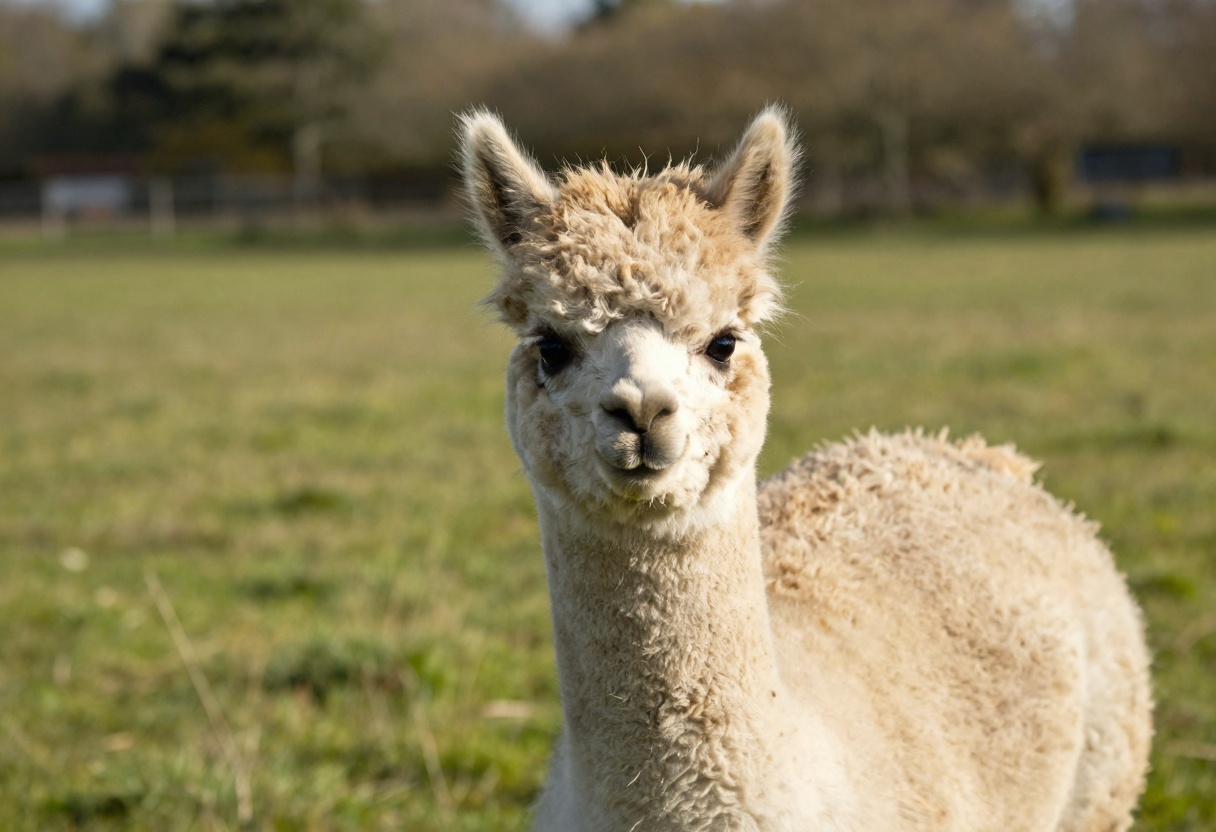
The standout feature in Veo 3.1 is reference-to-video generation. This capability allows you to combine up to three reference images into a single coherent video scene, all guided by your text prompt. Think of it as assembling visual elements like pieces of a puzzle, with the AI seamlessly blending them together based on your description.
Reference to video takes your input images and uses your text prompt to determine how these elements should interact and appear together in the final video.
Practical Examples
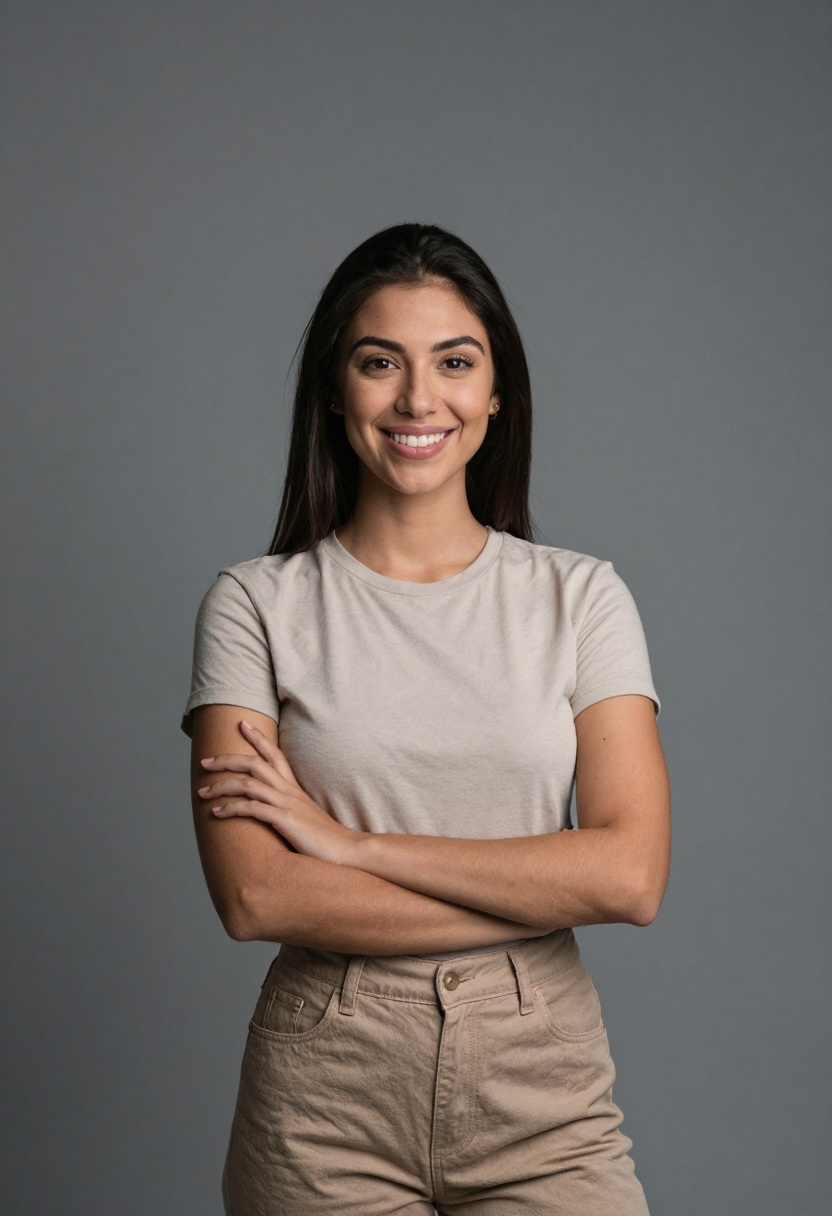
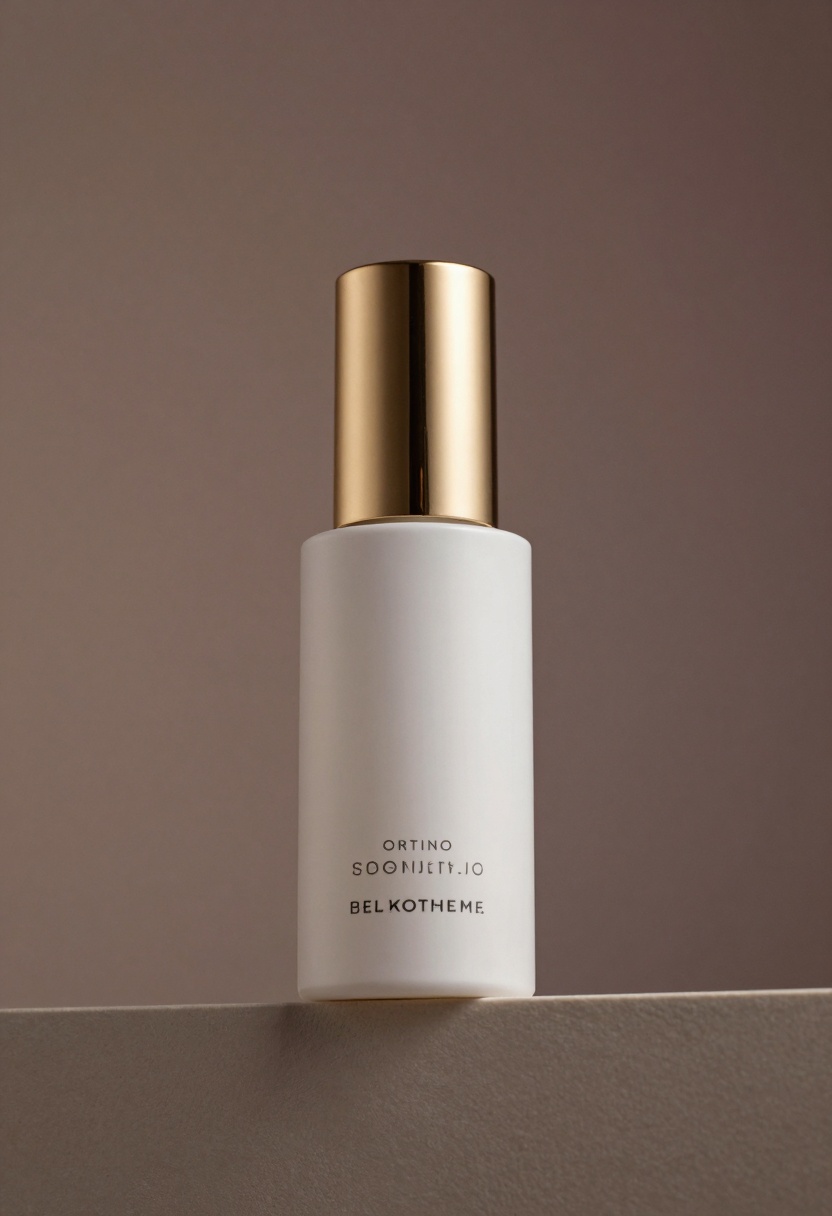
Consider a scenario where you want to create a user-generated content (UGC) style review video. You might have a portrait of a content creator and a product image. Veo 3.1 can preserve both the character's appearance and the product details while generating a fluid, realistic review sequence.
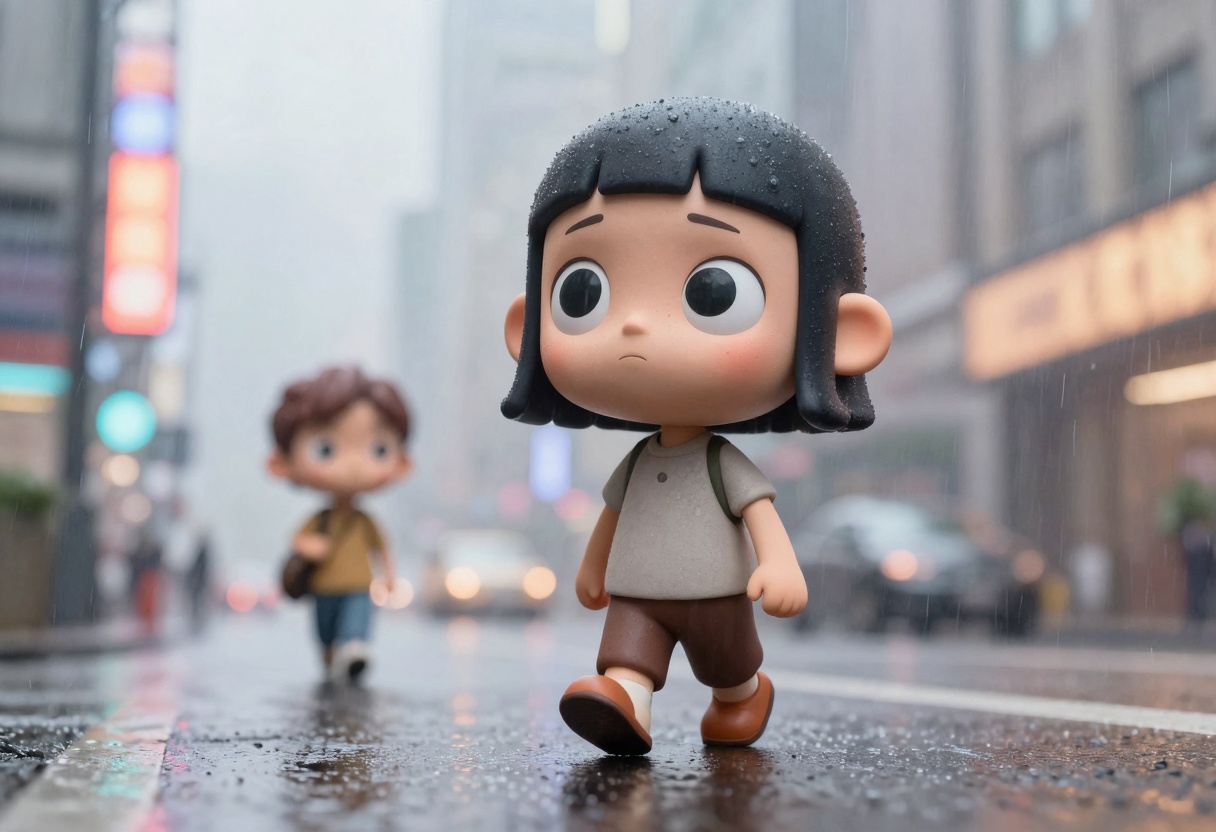
One of the most powerful aspects of reference-to-video is character consistency. You can take a character reference and place them in completely different scenarios while maintaining their appearance and identity. This opens up incredible storytelling possibilities—imagine taking your brand mascot or main character and seamlessly placing them in various environments, ones you could have never imagined them to be part of.
Users have been particularly impressed with Veo 3.1's ability to blend different art styles. One creator successfully placed an anime character into a live-action rain scene, demonstrating the model's versatility in handling mixed media references.
This feature provides unprecedented controllability over your video scenes, making it perfect for creating complex narratives with specific visual elements.
First and Last Frame to Video
Another powerful new feature is first and last frame to video generation. This extends the traditional image-to-video concept by allowing you to specify both the starting and ending frames of your video.
Instead of just providing a starting image like traditional image-to-video approaches, you provide both a first frame and a last frame. The model then intelligently interpolates between these two points based on your text prompt guidance.
Transformation Examples
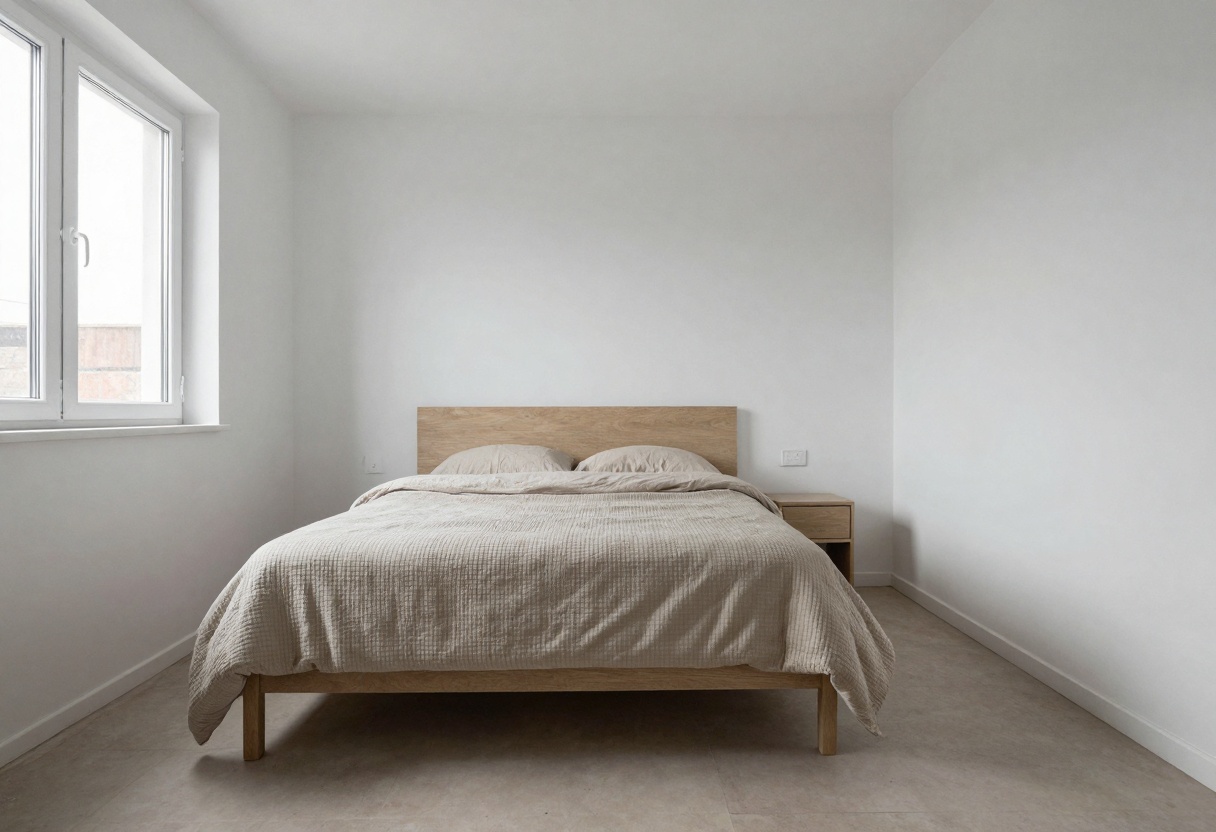
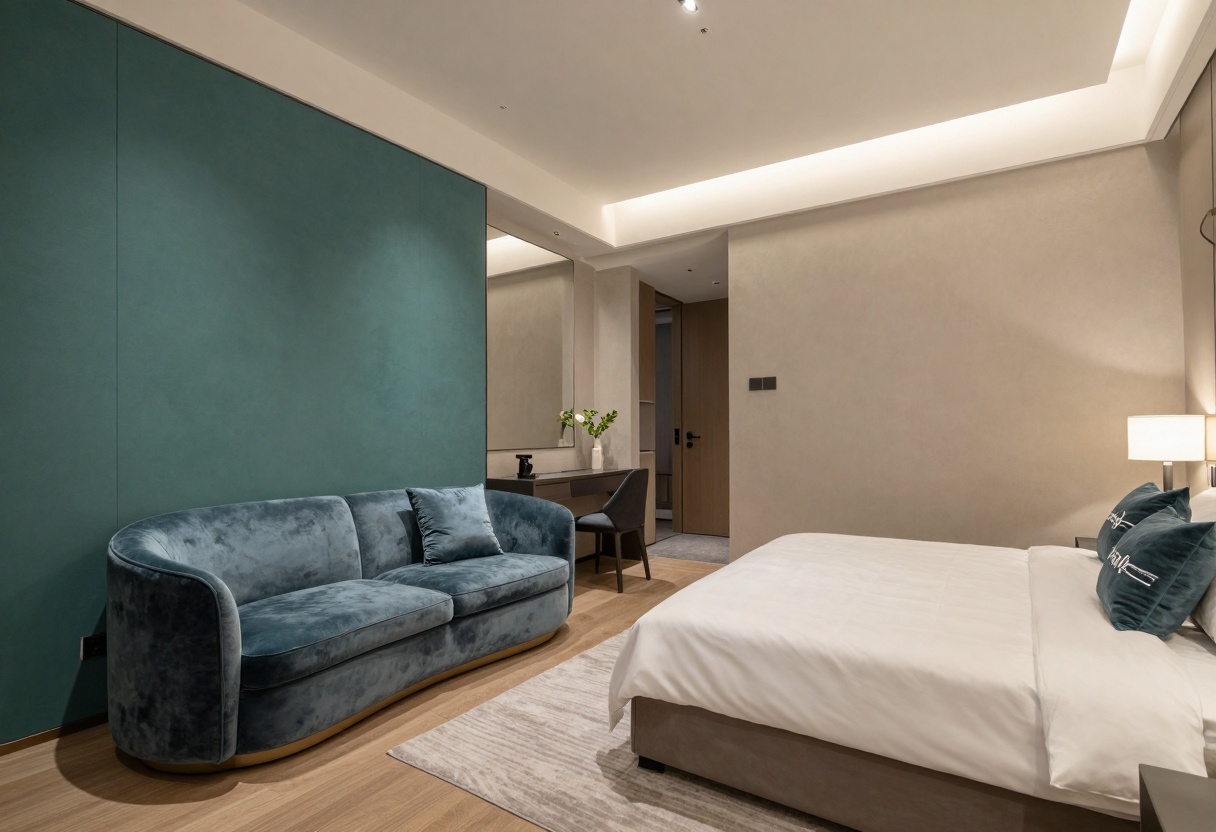
First and last frame interpolation creates compelling transformation sequences that would be difficult to achieve with traditional video generation methods. Here's a cool example of a morphing transformation:
Look at this magical room transformation showing before and after states:
Stagers and interior designers will find this particularly inspiring. This feature is especially useful for creating videos with specific start and end points, giving you precise control over the narrative arc.
Enhanced Image to Video
The classic image-to-video functionality has been significantly improved in Veo 3.1, offering better quality and more responsive prompt following.
How It Works
Provide a single starting image and a text prompt describing the desired motion or action. The model generates video content that begins with your image and follows your prompt instructions. The model has knowledge baked into it, allowing it to reason from inputted images.
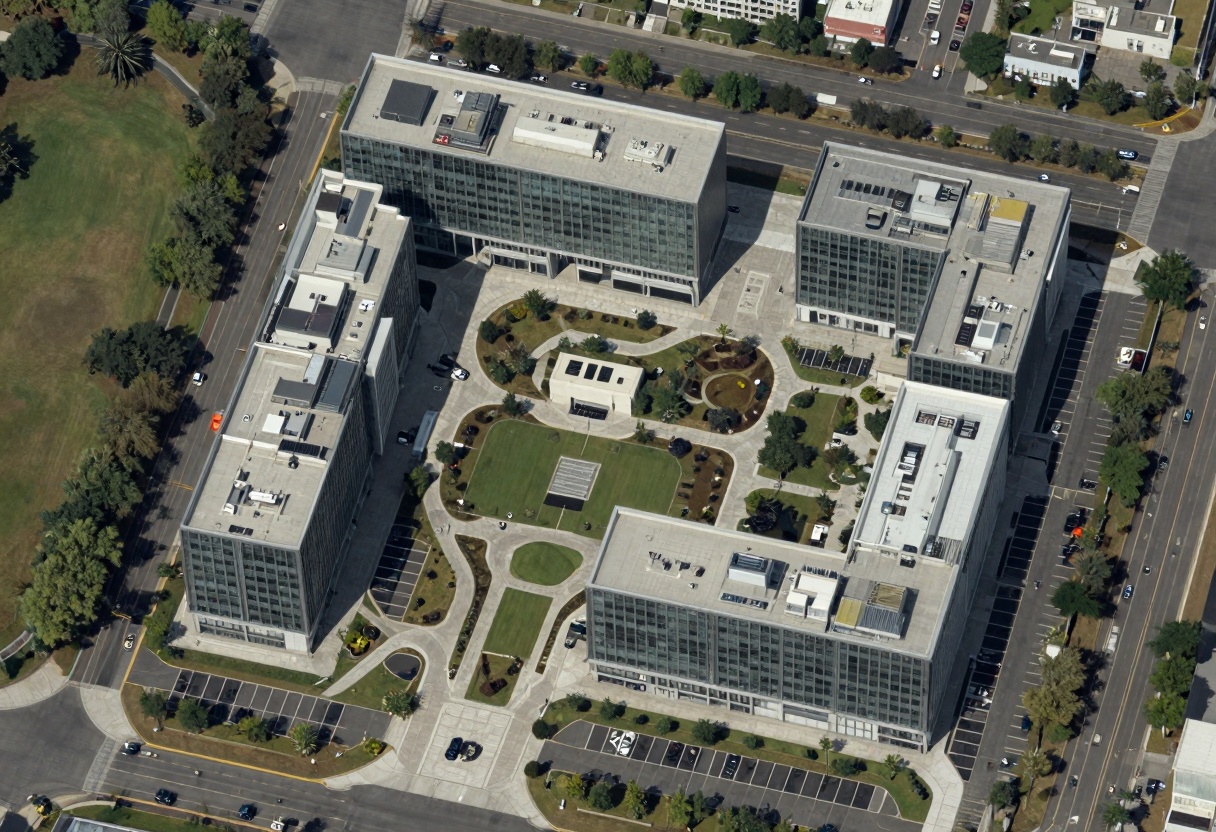
For example, taking an aerial view of a location and asking the model to show what activities happen there results in intelligent transitions. Veo 3.1's enhanced image-to-video feature includes intelligent logic that creates fluid transitions. The model understands the content of your input image and generates motion that feels natural and purposeful.
There's no need to prompt for specific transitions—Veo 3.1 can pick up on information in the image and transition to an appropriate video sequence that makes contextual sense.
Fast Versions Available
All endpoints except reference-to-video offer fast generation options, providing a great balance between speed, cost, and quality:
Feature
Fast Version
Standard Version
Speed
Under 60 seconds
~90 seconds
Cost
Approximately half price
Standard pricing
Quality
Slightly reduced but still high-quality
Maximum quality
If you need something cheaper and speedier, the fast versions are an excellent choice for rapid iterations or high-volume projects.
How to Use Veo 3.1 on PicassoIA
Ready to start creating with Veo 3.1? PicassoIA makes it easy to access this powerful video generation model through an intuitive web interface. Here's your step-by-step guide:
Step 1: Access the Veo 3.1 Model
Navigate to the Veo 3.1 model page on PicassoIA. The interface provides all the controls you need to customize your video generation.
Step 2: Enter Your Prompt
The prompt field is required and serves as the foundation of your generation. Describe the video you want to create using the prompting principles mentioned earlier:
Include shot composition details
Specify camera movements and angles
Define the style and mood
Describe any specific actions or events
Example prompt: "A cinematic dolly shot following a character walking through a futuristic city at dusk, neon lights reflecting on wet streets, shallow focus on the subject, cyberpunk aesthetic"
Step 3: Upload Reference Images (Optional)
For reference-to-video generation, you can upload 1 to 3 reference images. These work best with:
16:9 aspect ratio
8-second duration
Images should be clear and well-lit
The model will maintain the visual identity of subjects in these reference images throughout the generated video.
Step 4: Configure Optional Parameters
Duration: Choose between 4, 6, or 8 seconds (default: 8 seconds)
Resolution: Select 720p or 1080p (default: 1080p)
Aspect Ratio: Choose 16:9 or 9:16 (default: 16:9)
Generate Audio: Toggle audio generation on or off (default: on)
Input Image: Upload a starting image for image-to-video generation
Last Frame: Upload an ending image for first/last frame interpolation
Negative Prompt: Describe elements you want to exclude from the video
Seed: Specify a seed value for reproducible results, or leave blank for random generation
Step 5: Generate Your Video
Click the generate button to start processing. Depending on whether you're using the standard or fast version, generation typically takes 60-90 seconds. Once complete, you can preview the video directly in your browser and download it for use in your projects.
Tips for Best Results
Be specific in your prompts: The more detailed your description, the better Veo 3.1 can understand your vision
Use cinematic terminology: Terms like "tracking shot," "shallow focus," and "high angle" help guide camera behavior
Match reference image quality: Higher quality reference images produce better consistency
Experiment with negative prompts: Explicitly excluding unwanted elements can improve results
Try different seeds: If you're not satisfied with a result, changing the seed can produce variations while keeping other parameters the same
Key Capabilities Summary
Veo 3.1 represents a significant advancement in AI video generation technology. The model excels at:
Creating consistent character animations across different scenes and environments
Generating smooth transformations between defined start and end points
Understanding and reasoning from input images to create contextually appropriate video sequences
Maintaining subject identity when using multiple reference images
Producing high-quality output up to 1080p resolution with optional audio
Whether you're prototyping concepts, creating marketing content, or exploring creative storytelling, Veo 3.1 provides the tools you need to bring your vision to life. The combination of text-to-video, reference-to-video, and first/last frame features gives you unprecedented creative control.
Ready to start creating? Visit PicassoIA's Veo 3.1 page and start generating stunning AI videos today.
The possibilities are endless—from user-generated content and product demonstrations to animated shorts and transformation sequences. Give Veo 3.1 a try and discover what you can create with these powerful new capabilities.