You rendered the video. It looked terrible. Flickering faces, blurry backgrounds, limbs bending in directions they should not, audio that cuts out mid-sentence. This is the reality of working with AI video tools right now, and it happens to everyone, including people who have been doing this for years.
The good news: most bad AI video outputs are fixable. Not always with a full regeneration either. Sometimes a single tool call, a better prompt, or a different model is all it takes to go from embarrassing to publishable. This article walks through the most common problems and exactly what to do about each one.
Why Your AI Videos Look Wrong
Before fixing anything, you need to know what you are actually looking at. AI video failures fall into a few consistent categories, and each one has a different root cause. Treating a flicker problem the same way you treat a resolution problem will waste your time and credits.
The Flicker Problem
Flickering is the most common complaint. It shows up as rapid changes in brightness, texture, or color between frames, even when the scene is supposed to be static. This happens because most AI video models generate frames semi-independently, without a strong enough temporal consistency mechanism to hold visual information stable across time.
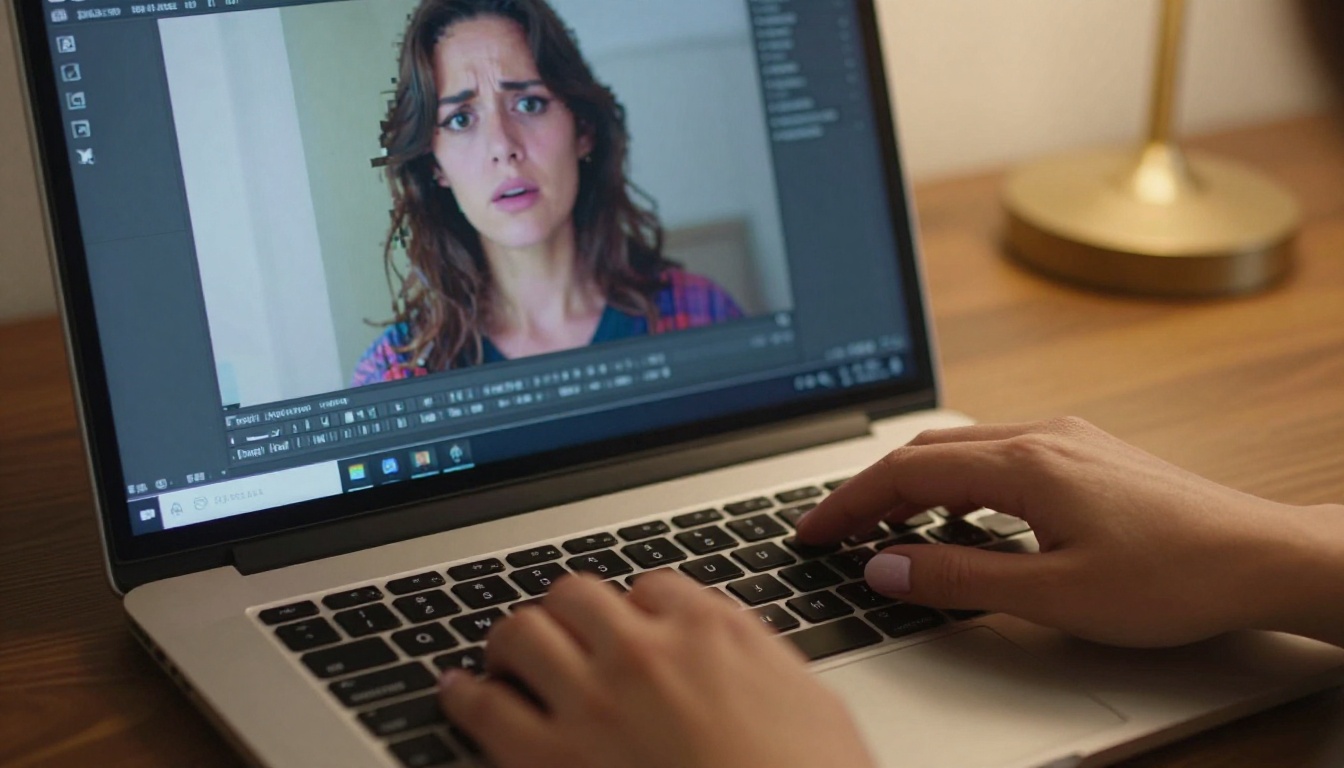
Flicker is almost always a prompt problem combined with a model limitation. If your prompt is vague or contradictory, the model oscillates between interpretations frame to frame. The fix is specificity, covered in the next section. The model fix is switching to one built with stronger temporal coherence, also covered below.
Blurry Faces and Soft Details
Faces turn to mush at 480p. Hands gain extra fingers and then lose them. Fine details like text, fabric texture, and individual hair strands become abstract smears. This happens when the resolution is too low for the complexity of the scene, or when the model was not trained on enough examples of that specific type of detail.
💡 Rule of thumb: If you need faces to be readable, always generate at 720p minimum. For close-ups or portrait-style footage, use a 1080p model or upscale afterward.
Broken Motion and Warped Bodies
A person walks through a wall. A hand slides off the end of an arm. A dog grows a fifth leg mid-clip. These are spatial coherence failures, and they are more common in fast-motion scenes or any scene with multiple people interacting simultaneously.
The causes are usually: prompts with too many simultaneous actions, models with weak physics understanding, or using an image-to-video model with a source image that has unusual proportions or significant occlusions. Each of these has a targeted solution.
3 Mistakes Most People Make
Most bad AI video outcomes trace back to three repeatable errors. Fixing all three at once is often enough to go from frustrating output to something you can actually use.
Mistake 1: Overloaded prompts. Asking a model to handle seven distinct visual elements in a five-second clip is setting it up to fail. The model allocates attention across all elements and does none of them well.
Mistake 2: Skipping negative prompts. Negative prompts are not optional for video. Without them, the model freely explores its worst patterns: flickering, soft focus, morphing hands, watermarks. A strong negative prompt closes those doors.
Mistake 3: Using the wrong model for the job. A fast 480p model will never produce cinematic-quality output, no matter how good the prompt is. Matching model capability to the quality requirement is non-negotiable.
Fix Bad Prompts First
Most bad AI video outputs start with a bad prompt. Not bad as in offensive, bad as in unclear, overloaded, or physically impossible.

What a Bad Prompt Looks Like
Here is a real example of a bad video prompt:
"A beautiful woman walks through a futuristic city at night while it's raining and she's holding an umbrella and there are reflections everywhere and neon signs and cars driving past and she looks back at the camera"
Count the simultaneous requests: walking motion, rain, umbrella interaction, reflections, neon signs, moving cars, and a specific camera look. That is seven competing visual tasks for a model generating three to five seconds of footage. The result is predictably broken.
Writing Prompts That Work
A working video prompt is narrow, sequential, and physically grounded. It describes one primary subject doing one primary action in one clearly lit environment.
| Bad Prompt Element | Better Version |
|---|
| Multiple simultaneous actions | Single focused motion |
| Ambiguous lighting ("beautiful light") | Specific: "golden hour side lighting from the left" |
| Abstract aesthetics ("cinematic vibes") | Concrete: "shallow depth of field, 85mm lens" |
| Scene overloading | One subject, one environment, one key motion |
| No camera direction | "slow push-in" or "static locked shot" |
Structure your prompt like this:
[Subject + specific action] + [Exact environment] + [Lighting source and direction] + [Camera movement] + [Texture and mood details]
Example: "A woman with dark curly hair slowly turns toward the camera in a warmly lit coffee shop interior, afternoon light from a side window illuminating her left side, shallow depth of field, slow zoom-in, realistic skin texture, 24fps."
That prompt is completable. The model can hold all of those elements simultaneously without sacrificing any of them.
Negative Prompts Are Not Optional

Many video models accept negative prompts, and ignoring this field is the fastest way to get consistently bad output. A solid negative prompt for video generation looks like this:
"blurry, flickering, low resolution, artifacts, distortion, extra limbs, morphing hands, overexposed, text overlay, watermark, cartoon, CGI, 3D render, jitter, noise, compression artifacts"
This does not guarantee perfect output. But it reduces the probability of the model drifting into its worst habits on every single generation.
💡 Practical tip: Save your best negative prompt as a text snippet you can paste on every generation. The time investment is under two minutes and the quality improvement is consistent and measurable.
Upscale and Sharpen the Result
When the content is right but the quality is not, upscaling is your first tool, not your last resort. Many people skip straight to regeneration when a simple upscale would solve the problem in a fraction of the time.
When to Use Video Upscaling
If the composition, motion, and storytelling are all correct but the video looks soft or low-resolution, do not regenerate from scratch. Regenerating wastes credits and frequently introduces new problems in sections that were previously working. Upscale first.
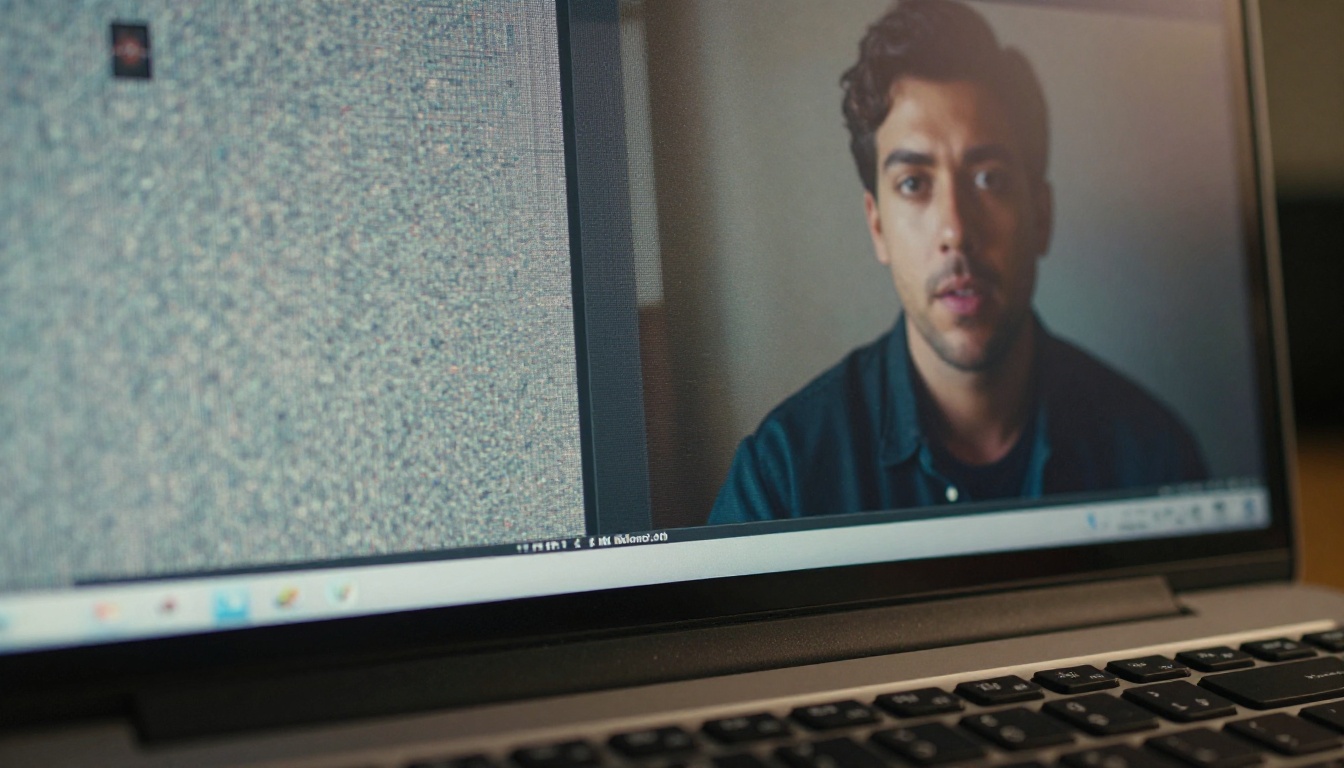
Upscaling works best when:
- The video was generated at 480p or 720p and you need 1080p or above
- The motion is relatively slow and steady (fast motion at low resolution is harder to upscale cleanly)
- There are no major structural artifacts like extra limbs or warped geometry (upscaling makes spatial errors more visible, not less)
Real ESRGAN vs. Topaz Video Upscale
Two dedicated tools handle video upscaling well on the platform:
Real ESRGAN Video uses the ESRGAN architecture trained specifically on video frames. It is fast and handles most upscaling jobs from 2x to 4x cleanly. Ideal for mid-range content where you need a resolution bump without complex processing.
Video Upscale by Topaz Labs is the premium option. It handles 4K output and 120fps frame interpolation, which means it simultaneously resolves choppy motion artifacts along with resolution. If you are producing content for large-screen display, social media advertising, or professional distribution, this is the right choice.
Video Increase Resolution by Bria offers upscaling up to 8K and handles footage with complex skin texture and facial detail particularly well.
💡 Workflow: Generate at 720p for speed and prompt testing, then upscale the approved version to 4K before final publishing. This approach cuts generation time significantly while preserving output quality for the final asset.
Edit Out the Broken Parts
Sometimes a video is 90% perfect. One second of bad motion, an object that does not fit the scene, or a face that briefly distorts. Regenerating the whole clip for one second of problems is wasteful and often produces a new version with the same problem in a different spot. Targeted editing tools exist for exactly this scenario.
Regen Specific Sections
LTX 2 Retake by Lightricks lets you isolate and regenerate specific sections of an existing video while keeping the rest intact. If your first three seconds are perfect and only seconds four and five have a spatial artifact, you can retake just those two seconds with a modified prompt without touching what is working.
Wan 2.7 Videoedit goes a step further, allowing text-based video editing at the content level. Describe what you want to change in plain language, and the model rewrites that section accordingly. This is particularly powerful for fixing prompt drift that occurs in the middle of a longer clip.
Lucy Edit 2 by Decart is a strong text-driven editing option for changing visual elements like clothing color, background atmosphere, or lighting quality in specific frames without disturbing the motion or surrounding content.
Erase Unwanted Objects
Random objects appearing in AI video backgrounds is a documented issue across nearly every model. A chair that was not in the prompt. A partial figure at the frame edge. Text artifacts bleeding through from the model's training data.
Video Erase Object by Bria handles removal cleanly. You mark the region to erase and the model fills it with a plausible background continuation that matches the surrounding texture and lighting.
Reframe and Recut
Sometimes a video generates at the wrong aspect ratio, or the composition puts the subject at the wrong position in the frame. Reframe Video by Luma intelligently reframes the shot, keeping the subject centered while adjusting the crop for any target aspect ratio. Useful when 16:9 footage needs to become 9:16 for mobile or Stories publishing.
For simple timing fixes, Trim Video and Video Split handle clean cuts without re-encoding quality loss.
Choosing the Right Model
Many bad AI videos are not bad because of a bad prompt or a post-processing problem. They are bad because the wrong model was chosen for the job. Model selection is the single most impactful quality decision you make before generation even starts.
Best Models for Cinematic Quality
For photorealistic, high-resolution output, these are the top-tier options currently available:
Kling v3 Video by Kwaivgi produces cinematic 1080p output with strong motion coherence. Faces stay stable across frames. Physics behaves naturally. It is the current standard for realistic human motion and portrait-style footage.
Veo 3 by Google is one of the most capable text-to-video models available, with native audio generation built in. If you want a video that already carries environmental sound without a separate audio processing step, this is the model to use first.
Wan 2.7 T2V by Wan Video generates 1080p footage with strong temporal consistency, which directly addresses the flicker problem at a model architecture level. It holds frame-to-frame coherence better than many alternatives at this resolution tier.
Seedance 1.5 Pro by ByteDance pairs high resolution with built-in audio, making it a strong all-in-one option for content that needs both visual quality and synchronized sound from generation.
Pixverse v5 is a reliable 1080p option with fast generation speeds, making it the practical choice for rapid prompt iteration before committing to a slower, higher-fidelity final render.
Speed vs. Quality Trade-offs
| Model | Resolution | Best For | Speed |
|---|
| Kling v3 Video | 1080p | Cinematic human motion | Medium |
| Veo 3 | 1080p | Photorealism plus native audio | Medium |
| Wan 2.7 T2V | 1080p | Flicker-free temporal consistency | Medium |
| Pixverse v5 | 1080p | Fast prompt iteration | Fast |
| Seedance 1.5 Pro | 1080p | Video with built-in audio | Medium |
💡 Workflow tip: Use Pixverse v5 for prompt testing. Once you have a version that works, switch to Kling v3 or Veo 3 for the final render. This approach cuts iteration time significantly while preserving quality for the asset that actually gets published.
Add Audio to Save a Silent Video
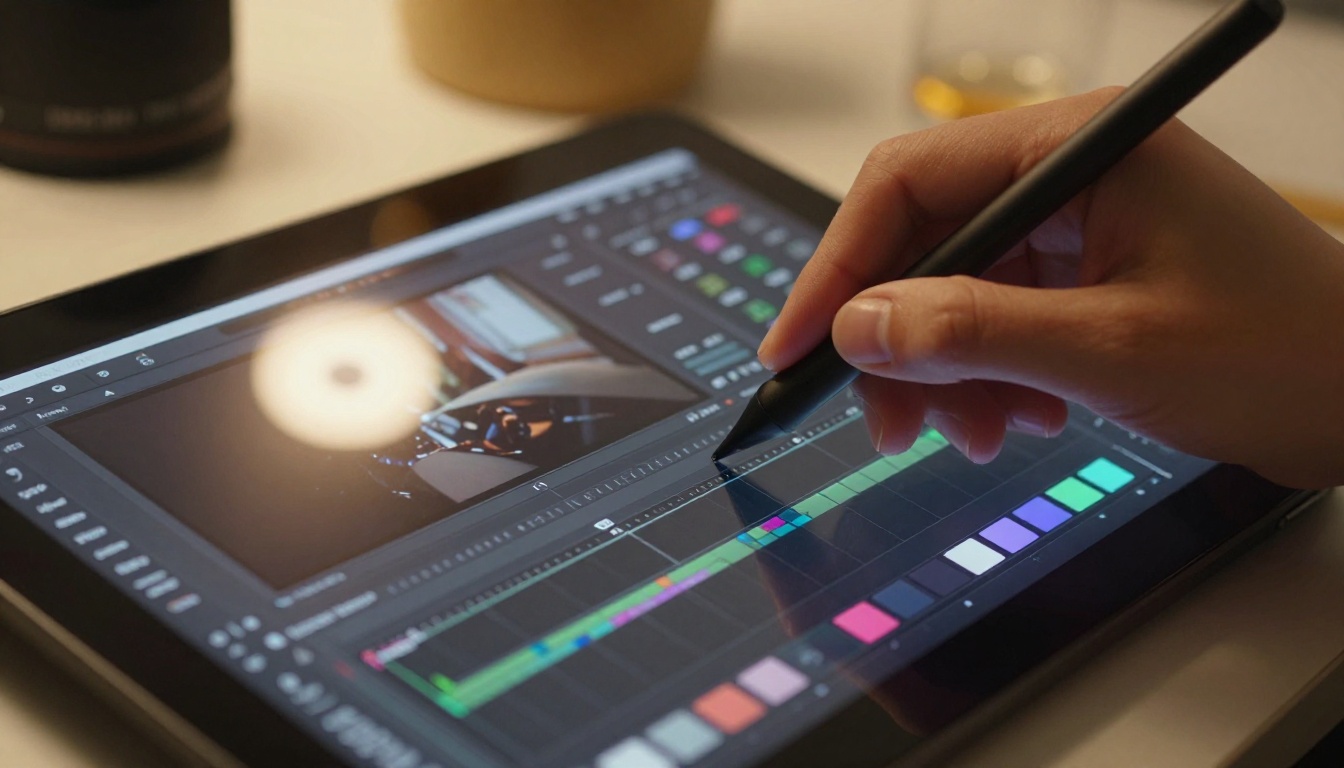
Silent AI videos feel broken even when the visuals are technically perfect. The absence of ambient sound, footsteps, or room tone creates an uncanny disconnect that viewers notice immediately, even if they cannot articulate why.
Thinksound analyzes your video visually and generates contextually appropriate sound effects matched to what is actually happening on screen. A scene in a coffee shop gets ambient conversation and espresso machine sounds. An outdoor scene gets wind, birds, and traffic appropriate to the visual environment.
For videos where you need specific sound effects rather than ambient audio, Video to SFX v1.5 gives more granular control over the type of audio generated.
If you already have separate audio that needs to be combined with your video, Video Audio Merge handles clean audio replacement or mixing without re-encoding quality loss.
For broader AI sound generation synced to video context, MMAudio covers a wider range of audio types beyond ambient, including music beds and layered sound design.
Rewrite the Whole Scene When Needed
Sometimes a video is structurally wrong and partial fixes do not help. The subject is facing the wrong direction. The lighting is flat when it should be dramatic. The entire visual aesthetic is off. In these cases, rewriting the scene with a video-to-video editing tool is faster than starting completely from scratch, because you preserve the motion timing you already have.

Gen 4 Aleph by Runway lets you restyle and recut existing video footage with AI. Feed it a clip that has correct motion but wrong aesthetics, and it transforms the visual style while maintaining the underlying motion pattern.
Kling o1 by Kwaivgi rewrites video content from text instructions, allowing substantial changes to on-screen behavior. This is useful when the camera motion is right but the subject action needs to be completely different.
Modify Video by Luma restyls video with AI while preserving temporal motion. If your clip has good pacing but the wrong visual treatment, this is typically the fastest path to a usable final result without losing the motion work you already have.
The Fix-It Workflow That Actually Works
Bad AI videos follow predictable patterns. Every pattern has a specific fix. The workflow that consistently produces good results looks like this:
- Write a focused, specific prompt with one subject and one primary action
- Include negative prompts to suppress known failure modes from the start
- Choose a model matched to your quality requirements, not just the fastest available
- Upscale the result if resolution is the problem, before regenerating
- Use targeted editing tools for specific broken sections rather than regenerating entire clips
- Add audio to complete the sensory experience and remove the uncanny silence
💡 Quick reference: For flicker, use Wan 2.7 T2V. For blurry output, use Topaz Video Upscale. For broken sections, use LTX 2 Retake. For wrong aesthetics, use Gen 4 Aleph. For silent video, use Thinksound.
None of these steps are difficult once you know them. The difference between bad AI video and good AI video is almost entirely process, not luck. The tools to fix each specific problem are available right now. Pick the one that matches what went wrong in your last output and run it. The results are noticeably different from the first attempt.
If you have not tried generating a video from scratch yet, any of the models above is a strong starting point. Start with a narrow, specific prompt, use a 1080p model, and apply one of the post-processing tools above on the result. That single iteration cycle will produce better output than ten rounds of regeneration without a clear fix strategy.


