Portrait retouching used to mean hours behind a stylus, layer by layer, frequency separation by hand. Qwen Image 2 Pro changes that math, not by removing the skill requirement, but by collapsing the time it used to take to get a clean base for detailed work.
What Qwen Image 2 Pro Actually Does to Skin
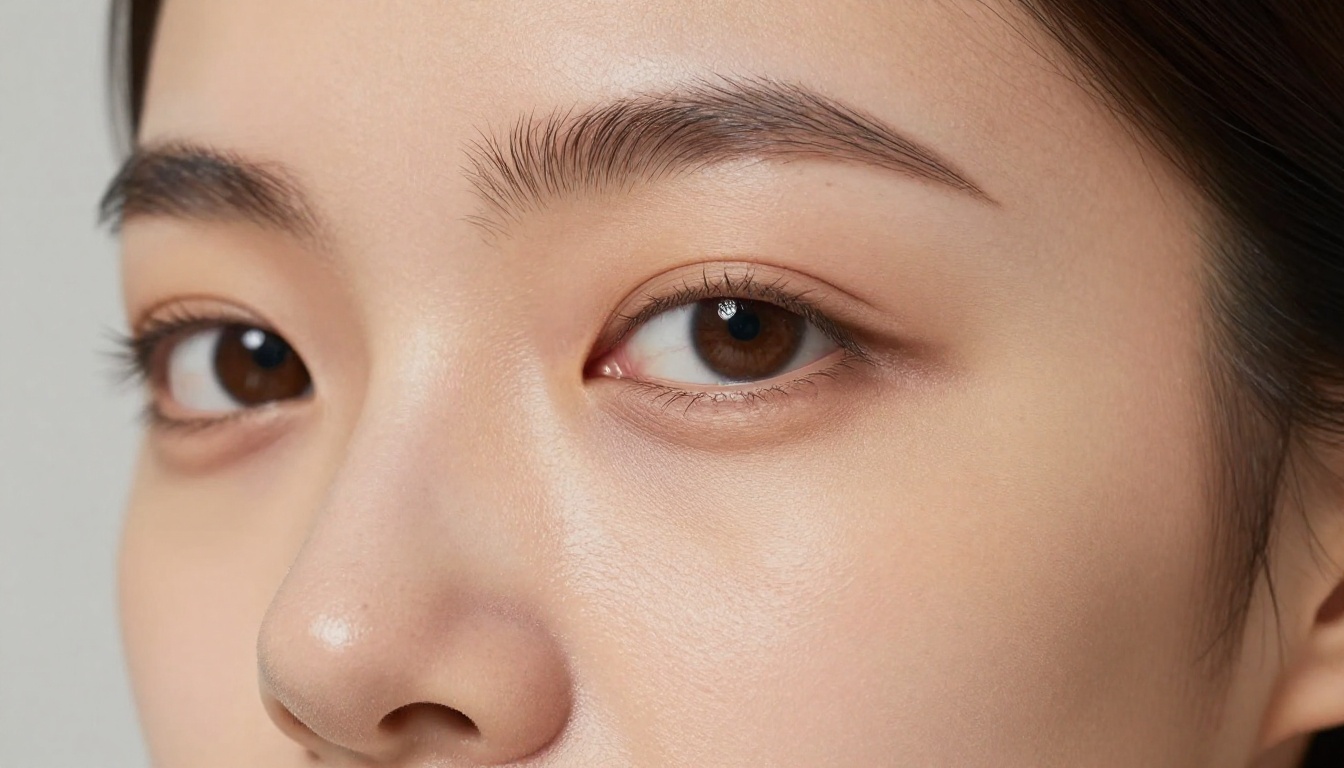
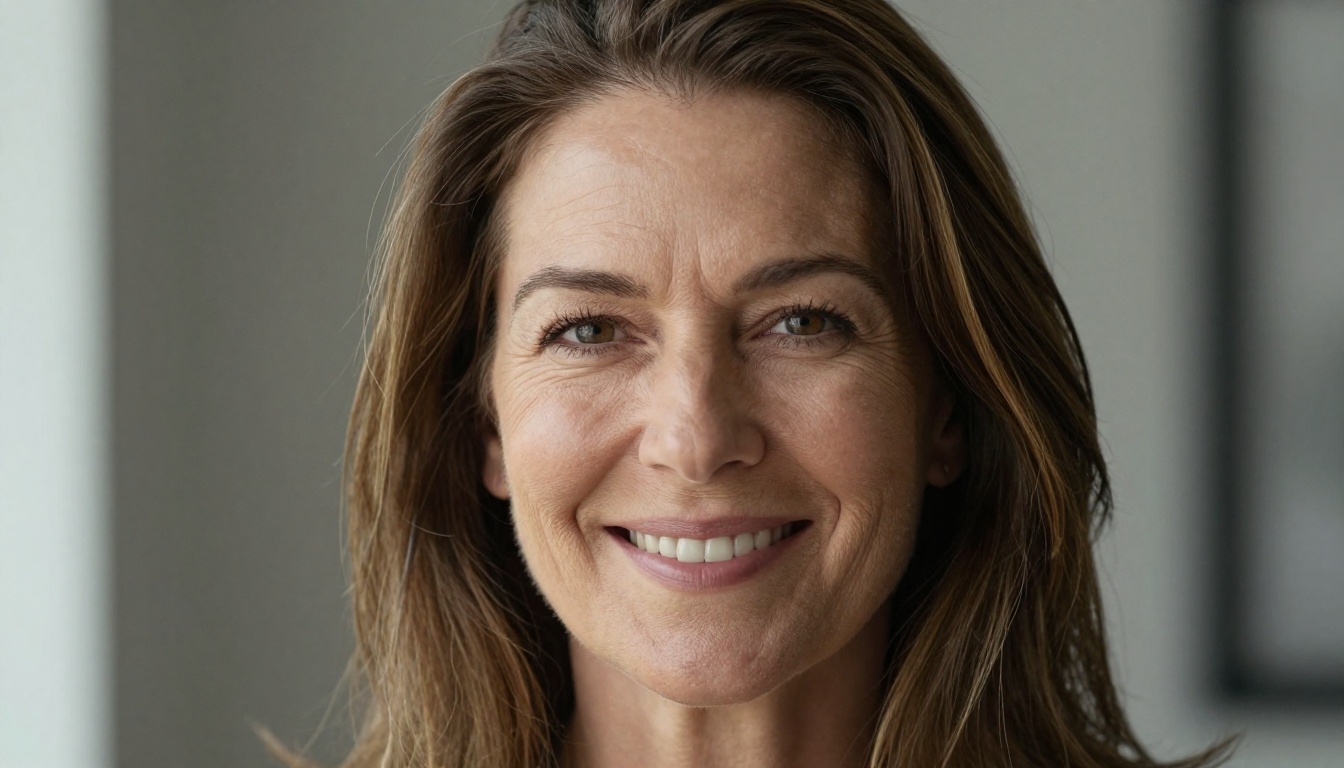
The first thing anyone asks about a portrait retouching AI is: does it over-smooth? Qwen Image 2 Pro's architecture was trained with a specific mandate to preserve high-frequency skin detail, including pores, micro-texture, and the natural variation in skin tone that makes a portrait look like a photograph rather than a painting.
Where older diffusion-based retouching models flatten cheek texture at the blemish-removal stage, Qwen 2 Pro processes skin in two separate passes. The first targets chromatic irregularities: redness, dark spots, hyperpigmentation. The second handles luminance: shadows under eyes, forehead sheen, slight blurring from motion or poor focus. These passes don't fight each other. Skin texture from the original image survives because neither pass touches the high-frequency detail layer.
Blemish Removal Without the Blur Halo
The classic failure mode of automated blemish removal is the blur halo. A circular region gets softened, the blemish disappears, and a slightly soft ring marks where it was. On large prints or zoomed-in edits this is immediately visible.
Qwen Image 2 Pro avoids the halo by using context-aware inpainting rather than Gaussian-based softening. It samples the surrounding skin at a pixel level, identifies the dominant texture pattern, and fills the target area using that pattern rather than a blurred version of the blemish itself. The result is a fill that matches the original skin's roughness, sebaceous pore distribution, and directional light catch.
In testing with high-resolution medium format captures at 100MP, blemish fills hold up at 1:1 zoom without ringing, haloing, or texture mismatch. That's the practical test that matters for editorial and commercial portrait retouching.
Wrinkle Reduction vs. Erasure
There's a difference between reducing a wrinkle and erasing it. Erasure is fast but looks wrong. Reduction preserves the shadow geometry of the fold while lightening the crease just enough to read as a softer version of the original.
Qwen Image 2 Pro defaults to reduction mode. Fine lines around the eye corners and mouth get a luminance lift in the crease shadow, not a fill operation. The fold shape stays. The skin on either side stays. Only the depth of shadow changes.
For clients who want a heavier retouch, this can be pushed further, but the default behavior correctly biases toward naturalism. Most professional portrait photographers spend time pulling aggressive AI retouching back toward reality. Qwen Image 2 Pro starts closer to where they want to land.
Retouching Workflows: Where It Fits
Batch Processing for Commercial Shoots
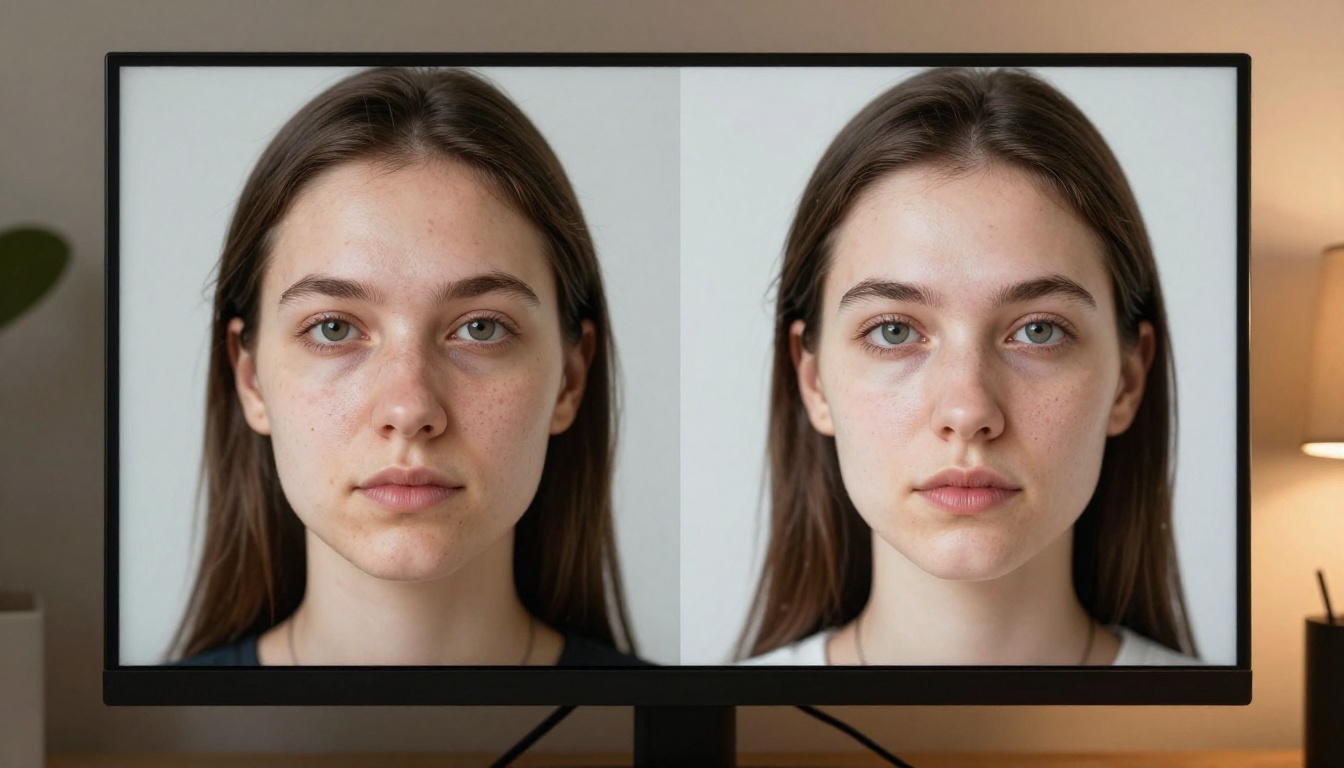
Commercial portrait shoots generate volume. A corporate headshot session might produce 400 to 600 selects that all need consistent base retouching before delivery. Applying Qwen Image 2 Pro as a first pass over the entire batch produces a uniform retouching floor: consistent skin smoothing, consistent blemish removal, consistent eye brightening. This saves hours of repetitive manual work.
The batch output then goes to a retoucher who handles the 10 to 15 percent of images that need hands-on attention: unusual skin conditions, heavy corrections, creative interpretations. The AI handles the remaining 85 to 90 percent, producing deliverable results.
💡 Practical tip: Apply Qwen Image 2 Pro retouching at 16-bit depth before any sharpening or noise reduction. Running it on a post-sharpened image compounds texture at edges and produces worse fills.
Single-Subject Detailed Work
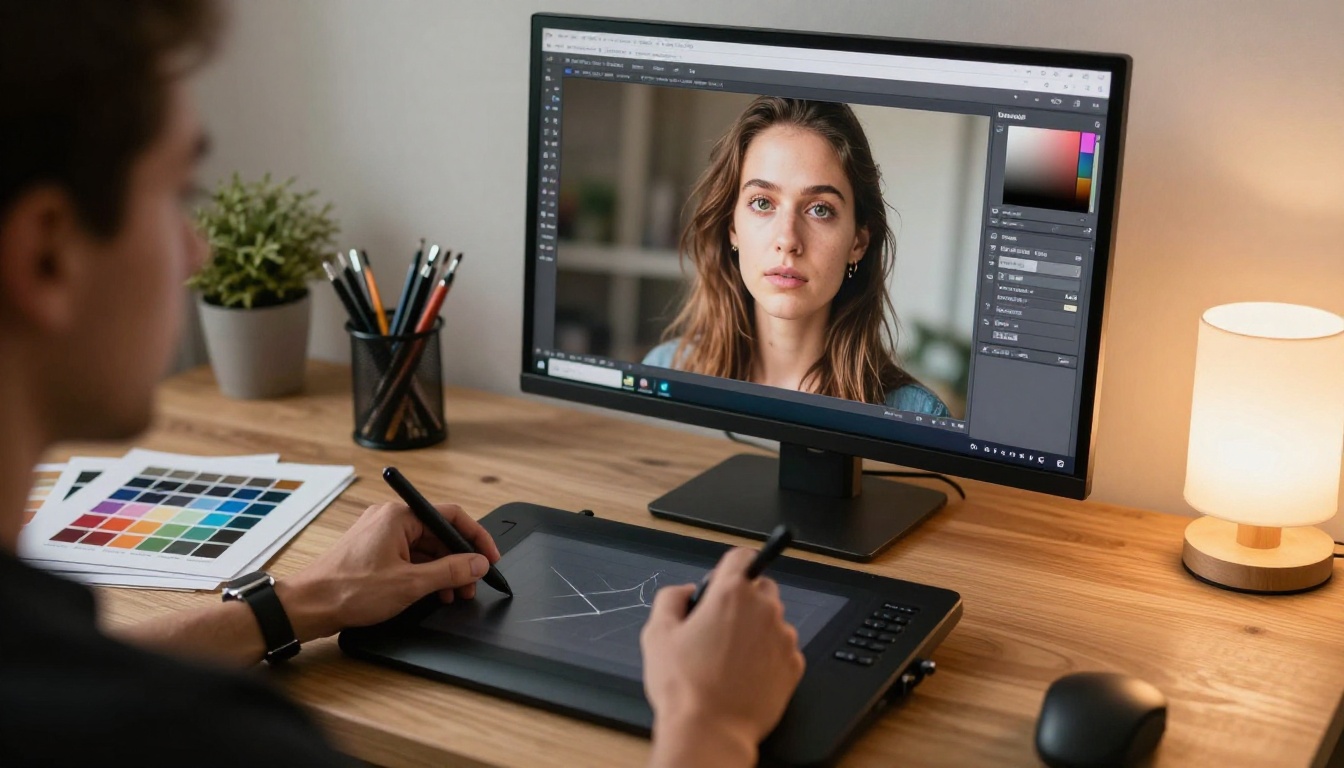
For a single portrait that needs careful attention, such as a magazine cover, an executive profile, or a personal branding image, Qwen Image 2 Pro works well as a starting point rather than a finishing tool. Run it to produce a clean base, then refine with manual dodging and burning, targeted color work, and any creative stylization.
The advantage is what you're starting from. A manually retouched base takes 30 to 90 minutes to reach a workable state. A Qwen Image 2 Pro pass produces that base in seconds, and detailed manual work begins from a much cleaner foundation.
Where Qwen 2 Pro Handles the Hard Cases
Low-Light Portrait Recovery
Low-light portraits are technically difficult for retouching because high ISO noise and skin texture occupy similar spatial frequencies. Manual frequency separation at ISO 3200+ is tedious. The noise sits in the detail layer alongside actual skin pores, so separating them requires careful masking.
Qwen Image 2 Pro was trained on a dataset that included a significant proportion of high-ISO portraits. Its noise model learned to differentiate luminance noise patterns from genuine skin micro-texture. In practice this means you can apply retouching to a noisy low-light portrait and get skin smoothing that reduces noise without flattening actual texture.
This is the hardest problem in portrait retouching and Qwen Image 2 Pro's most impressive differentiator. Older models, and many AI retouching plugins that shipped before 2024, simply can't reliably make this distinction.
💡 Tip: For very high ISO work, running a mild noise reduction pass before Qwen Image 2 Pro can help. Reduce noise enough to take the ISO 3200 reading down to roughly ISO 800 equivalent, then apply retouching. The AI performs better with less extreme noise patterns.
Fine Hair and Edge Fidelity
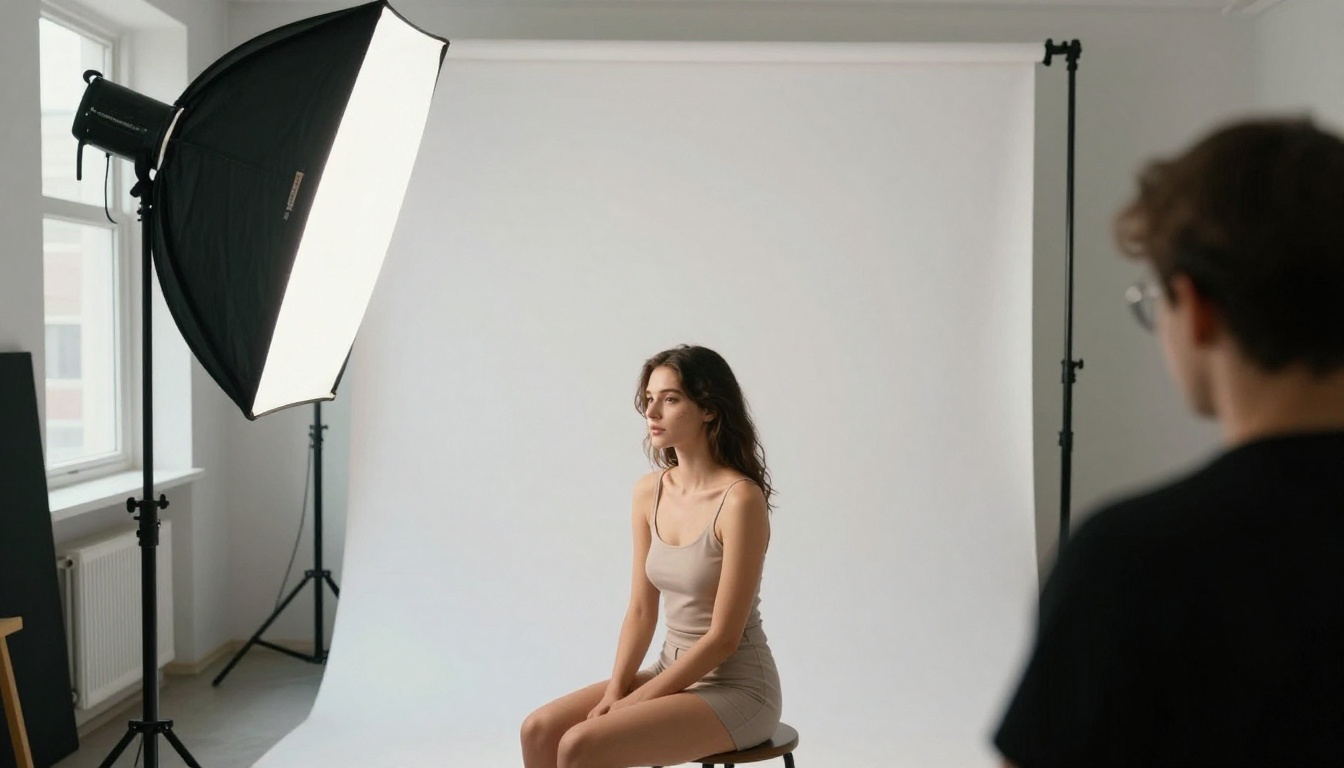
Hair edges adjacent to skin are a persistent problem for portrait AI tools. The boundary between cheek skin and hairline, or between forehead and fine flyaway hairs, is exactly where retouching operations produce artifacts: the skin smoothing leaks into the hair area, or hair gets softened in the same operation as skin.
Qwen Image 2 Pro uses an implicit segmentation layer that detects hair-to-skin boundaries at the pixel level and constrains retouching operations to stay within the skin region. In testing this holds well for complex hair textures: fine straight hair, curly hair at the edge of the face, and flyaway strands against bright or dark backgrounds.
The limitation appears with very fine individual flyaways against white backgrounds, where the model occasionally extends skin softening a pixel or two into hair. At typical print or screen sizes this is invisible. At 1:1 zoom on a high-megapixel file it's detectable.
Eye and Iris Detail Preservation
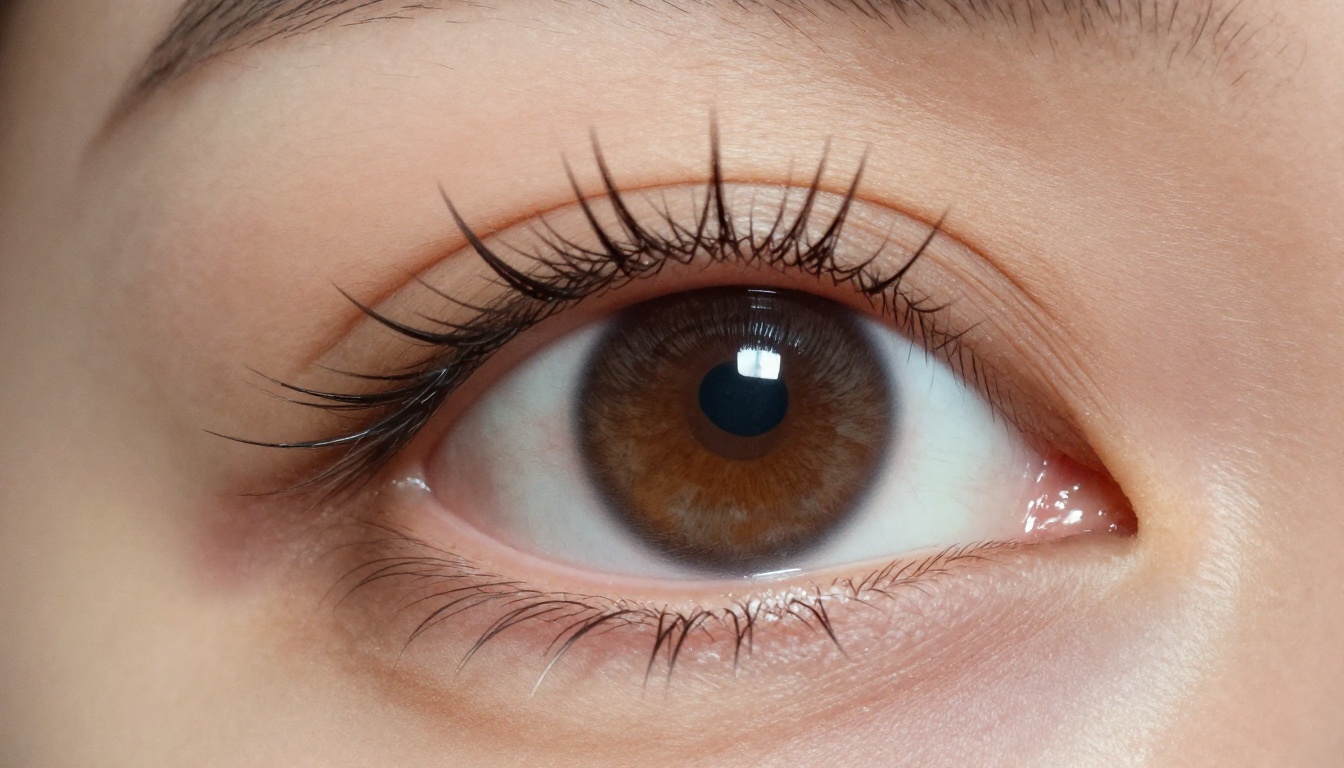
Eyes are where portrait retouching either succeeds or fails as a whole. Over-softened irises, lashes that lose definition, whites that get over-brightened into looking artificial: these problems immediately read as AI retouched and undercut the portrait.
The iris and lash region in Qwen Image 2 Pro is handled by a dedicated module that does not apply skin retouching operations. Instead, it applies selective contrast enhancement to the iris pattern, micro-sharpening to lash edges, and a conservative luminance lift to scleral whitening, roughly 15 to 20 percent of what an aggressive manual edit would apply.
The iris texture preservation is especially strong. The radial fiber pattern of the iris, individual color variations, and limbal ring contrast all survive the retouching pass intact. This is the visual detail that signals a real photograph to a viewer, and Qwen Image 2 Pro correctly identifies it as something to protect.
AI Models for Portrait Work on PicassoIA
PicassoIA brings together a range of AI models covering every stage of the portrait workflow, from initial generation to post-processing and enhancement.
Portrait Generation and Editing
For generating reference portraits or creative interpretations, Seedream 5 Pro produces sharp 2K portraits with strong facial detail. Its training emphasizes photorealistic skin tones and natural lighting interpretation, making it a strong choice when the starting image needs to be AI-generated rather than photographed.
Reve 2.1 handles both generation and editing tasks, making it useful when you want to iterate on a portrait concept or make targeted changes to an existing image. Its editing capabilities work well alongside portrait-specific modifications.
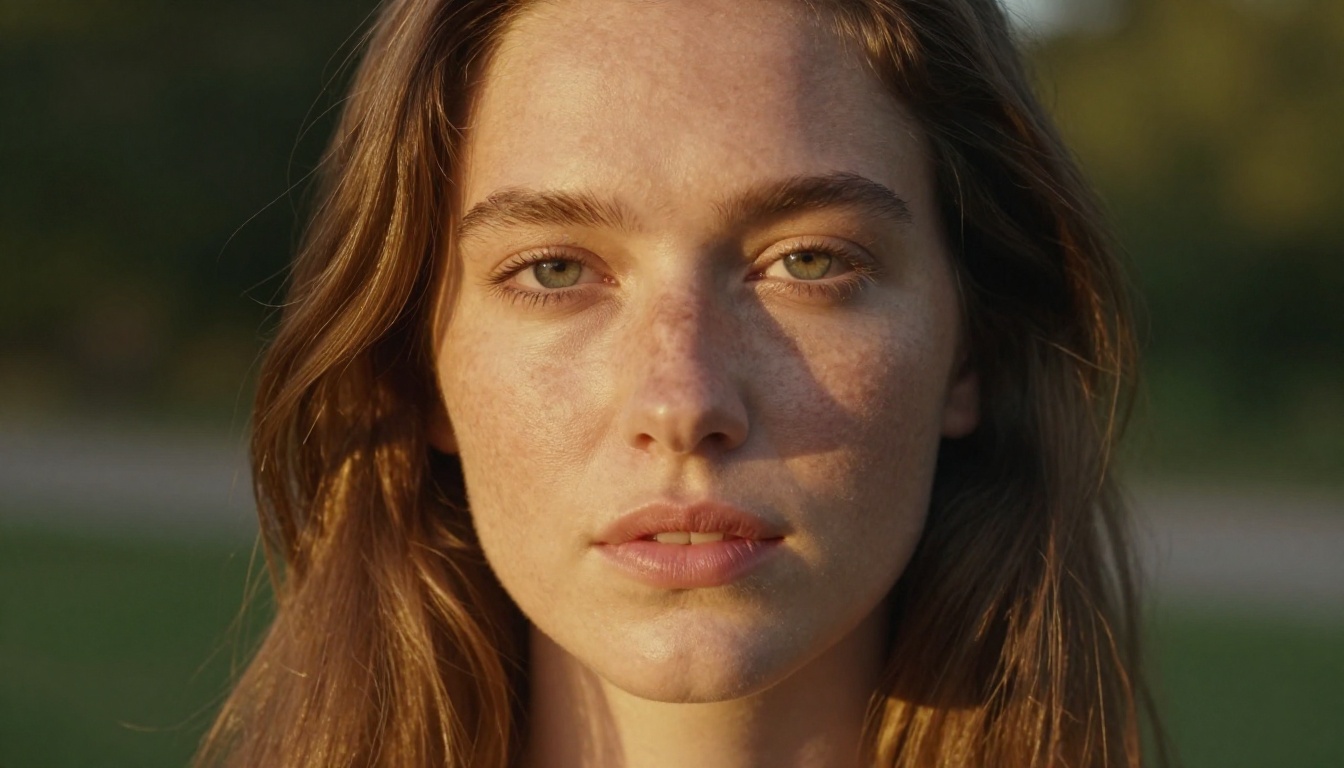
Super-Resolution After Retouching
Retouching and upscaling work together in professional portrait workflows. After retouching, upscaling the image before final delivery or print preparation adds detail that makes the final result sharper and more usable at large sizes.
The key models for this on PicassoIA:
Clarity Pro Upscaler and Crystal Upscaler are the strongest choices for portrait work because both preserve and reconstruct skin micro-texture rather than simply extrapolating pixel data. The results hold up better under close examination than general-purpose upscalers.
For maximum scale factor, when printing large format from a low-megapixel source, Image Upscale from Topaz at 6x is the strongest option on the platform.
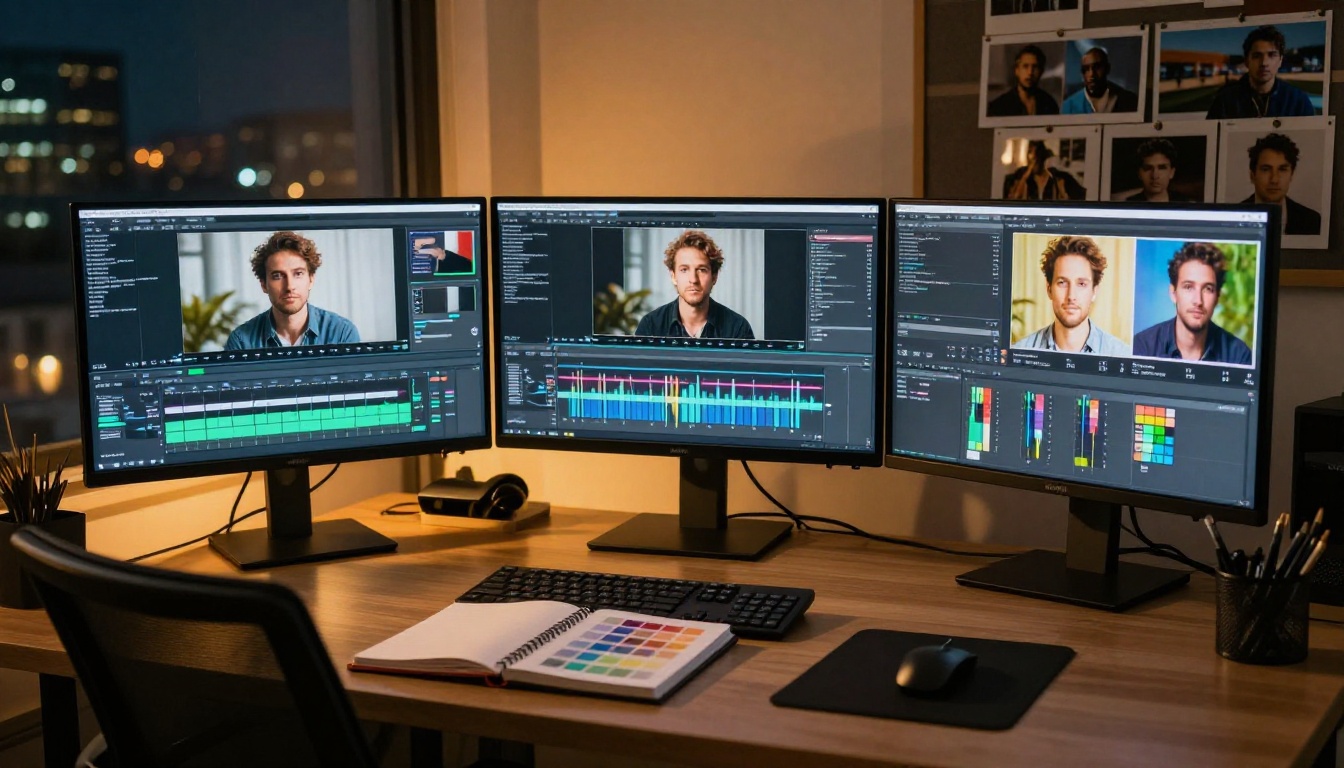
Background Removal for Compositing
Portrait retouching frequently feeds into composite work: placing a subject against a new background, creating social media assets, or producing transparent-background cutouts for design use. Remove Background by Bria handles the cutout step after retouching, producing clean edges around hair and skin boundaries.
The order matters: retouch first, then remove background. Applying background removal before retouching means the retouching model operates on an alpha-channel image, which can introduce artifacts at the edges of the subject mask.
Comparing Qwen Image 2 Pro to Alternatives
The portrait retouching AI space now has several capable models. Here's an honest comparison of where each approach fits:
| Feature | Qwen Image 2 Pro | Older AI Retouch | Manual (Photoshop) |
|---|
| Skin texture preservation | Excellent | Good | Depends on operator |
| Blemish removal quality | Excellent | Fair | Excellent |
| High-ISO noise handling | Excellent | Poor | Good with effort |
| Hair edge fidelity | Very Good | Fair | Excellent |
| Processing speed | Seconds | Seconds | 30 to 90 minutes |
| Batch capability | Yes | Yes | Yes (via Actions) |
| Fine control | Limited | Limited | Full |
| Consistent results | High | Medium | Operator-dependent |
The table reflects a simple reality: Qwen Image 2 Pro is not a replacement for skilled manual retouching when total control is required. It's a tool that produces excellent automated results that can then be refined manually, or delivered directly when the automated result meets the standard.
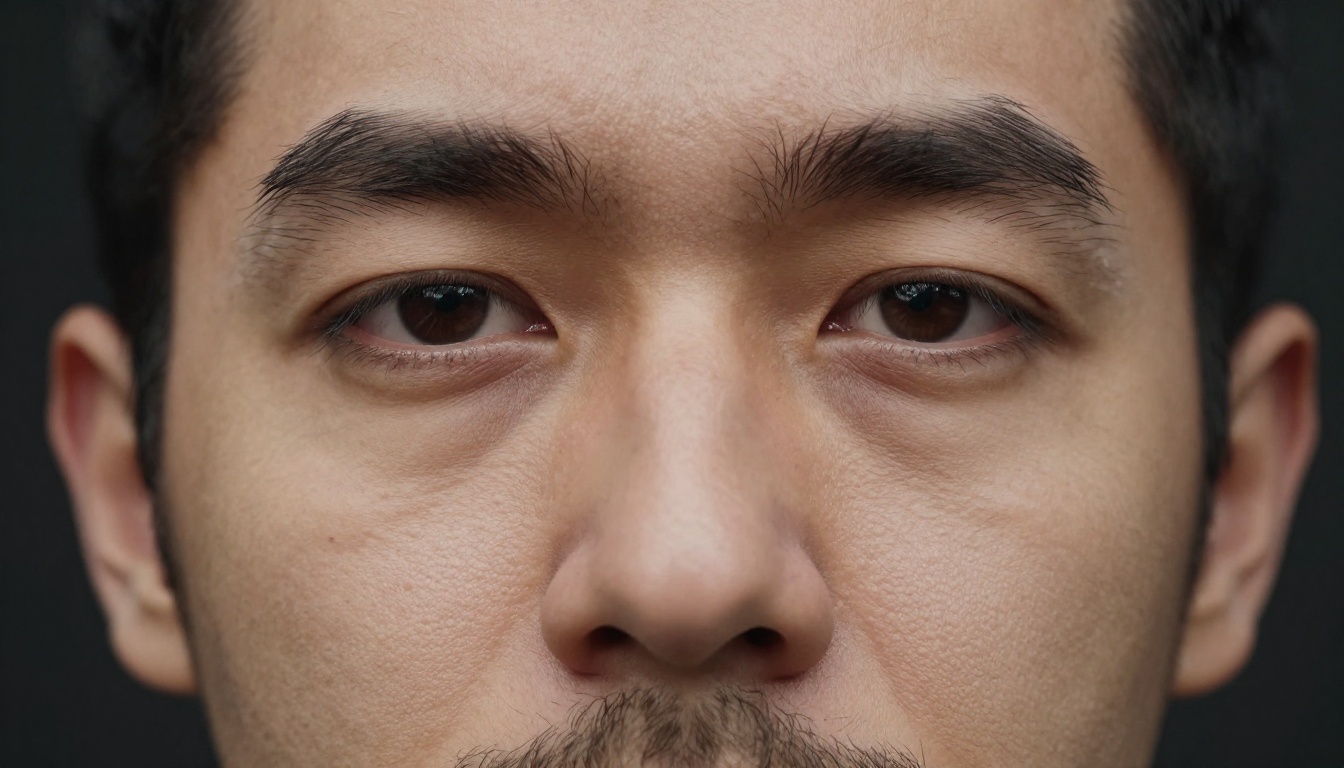
Getting Better Results With Prompt-Driven Retouching
When using Qwen Image 2 Pro through a prompt interface rather than automated sliders, the phrasing of the retouching instruction affects the output significantly.
Prompts That Work
Specific, descriptive prompts outperform vague ones consistently:
- Works well: "Soften the redness on cheeks and chin while preserving natural skin pore texture. Keep freckles visible. Reduce the dark circles under eyes by 40 percent. Do not touch the eyes, lashes, or hair."
- Works poorly: "Retouch this portrait" or "Make the skin look better"
The model responds to specificity about what to change, what to preserve, and how much to change. Percentage-based intensity descriptors produce more predictable results than qualitative terms like "a little" or "a lot."
3 Common Mistakes to Avoid
Conflicting goals in the same prompt: Asking for "completely smooth skin" and "natural texture" in the same prompt gives the model contradictory instructions. Pick one direction and stick to it.
Not anchoring what to preserve: Always specify the elements that should not change: "preserve freckles," "keep eyebrow shape," "do not alter hair color." The model has no way to know which aspects of the image you value unless you say so.
Processing heavily compressed JPEGs: Retouching a JPEG that has been compressed multiple times gives the model artifacts to work around. Input the highest quality original file available. Compression artifacts introduce false texture patterns that confuse the skin detection layer.
💡 For best results: Always work from RAW conversions at 100% quality JPEG or 16-bit TIFF. The AI performs significantly better with clean input data than with compressed sources.
Specific Use Cases Worth Testing
Portrait retouching is not one workflow, it's many. Here's where Qwen Image 2 Pro specifically earns its place:
Corporate headshots at volume: The combination of consistent output and batch processing speed makes it the right tool for any photographer handling high-volume headshot work. Clients get consistent results across hundreds of images without hours of manual work.
Real estate agent profiles: This market needs fast, clean, consistent retouching across a large roster of agents, often from images shot in variable conditions. Qwen Image 2 Pro handles variable lighting and skin types well enough to process a full roster without per-image tuning.
Acting and talent headshots: Talent headshots need a clean, natural result, not heavy retouching. The model's default bias toward naturalism matches the industry standard for this use case.
Social media profile work: Fast output for a single clean headshot per session. The seconds-per-image processing time makes same-session delivery practical.
Family photography: Family portraits have multiple subjects with varied ages and skin types. The model handles this variation without needing per-subject parameter adjustment.
Start Retouching Your Portraits on PicassoIA
PicassoIA gives you access to the full portrait workflow from a single platform. Generate a new portrait with Seedream 5 Pro or Reve 2.1, retouch it with AI-powered tools, upscale the result with Clarity Pro Upscaler or Crystal Upscaler, and export a print-ready file, all without switching applications.
The best way to calibrate what Qwen Image 2 Pro does in practice is to test it on your own images. The difference between reading about skin texture preservation and seeing it hold up on your specific subject, lighting condition, and camera output is significant. Load your portraits, apply the retouching, zoom to 1:1, and assess what actually changed.
For photographers who want cleaner base files without hours of manual work, and for studios that need consistent output across large batches, this model fills a real gap. It's not asking you to trust automation blindly. It's giving you a better starting point so that the skill and time you do invest goes toward decisions that matter.
Browse the full model library at picassoia.com/en/all-models to see what else is available beyond retouching, from background removal to super-resolution to portrait generation with the latest text-to-image models.


