If you've ever zoomed into a logo and watched it turn into a blurry mess of pixels, you already understand why SVG exists. Scalable Vector Graphics are the format professionals reach for when crisp output at any size is non-negotiable, and Recraft V4.1 Pro is one of the few AI tools that takes SVG output seriously enough to make it a first-class feature. This article breaks down exactly what that output is, how it works, and when it actually matters in a real creative workflow.
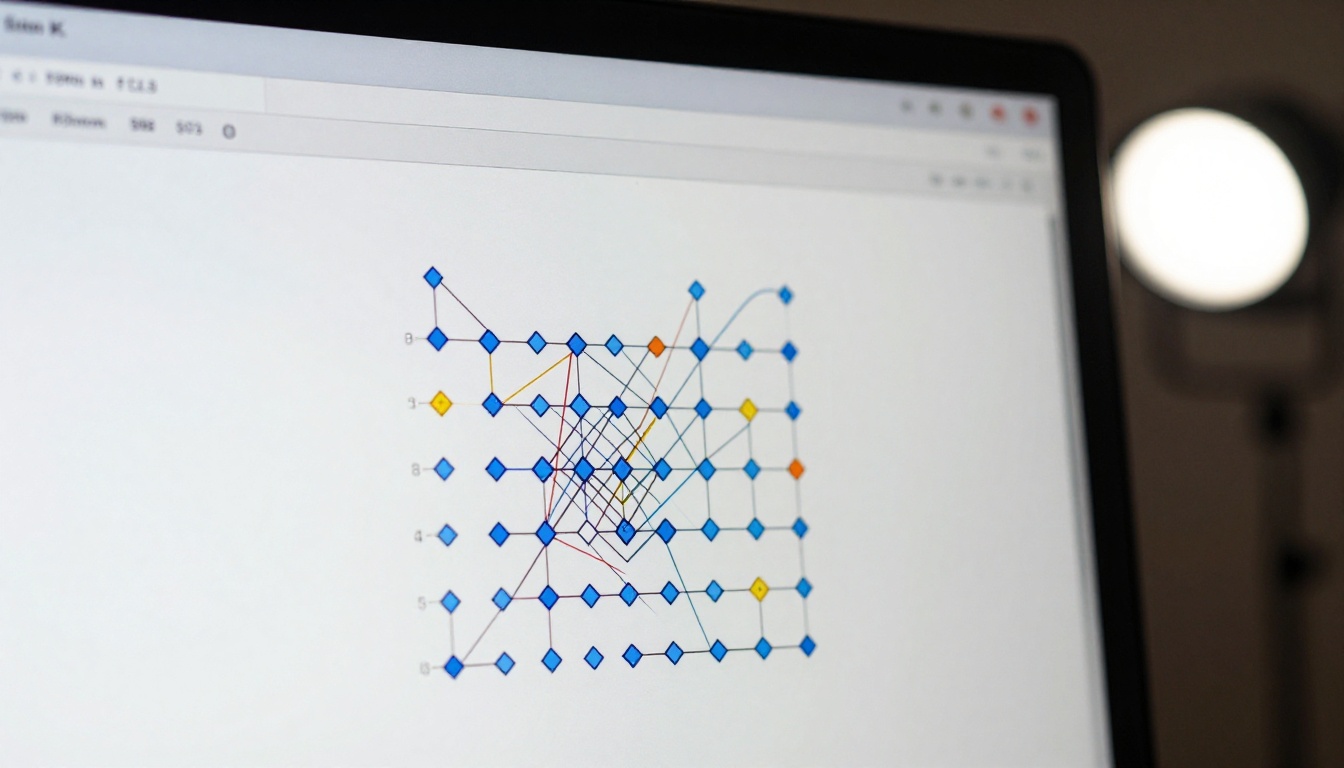
What SVG Actually Is
SVG stands for Scalable Vector Graphics. Unlike raster formats (JPEG, PNG, WebP), which store images as a fixed grid of colored pixels, SVG stores images as mathematical descriptions of shapes, lines, and curves. When you scale an SVG to 10x its original size, no information is lost because the software simply recalculates the geometry at the new dimensions.
This is the foundational difference: raster files hold pixel data, vector files hold geometric instructions. The same instruction set that draws a 500-pixel circle can draw a 50,000-pixel circle with equal precision.
SVG vs. Raster: The Core Difference
The practical difference shows up the moment you try to do something a designer actually needs:
| Task | Raster (PNG/JPG) | SVG |
|---|
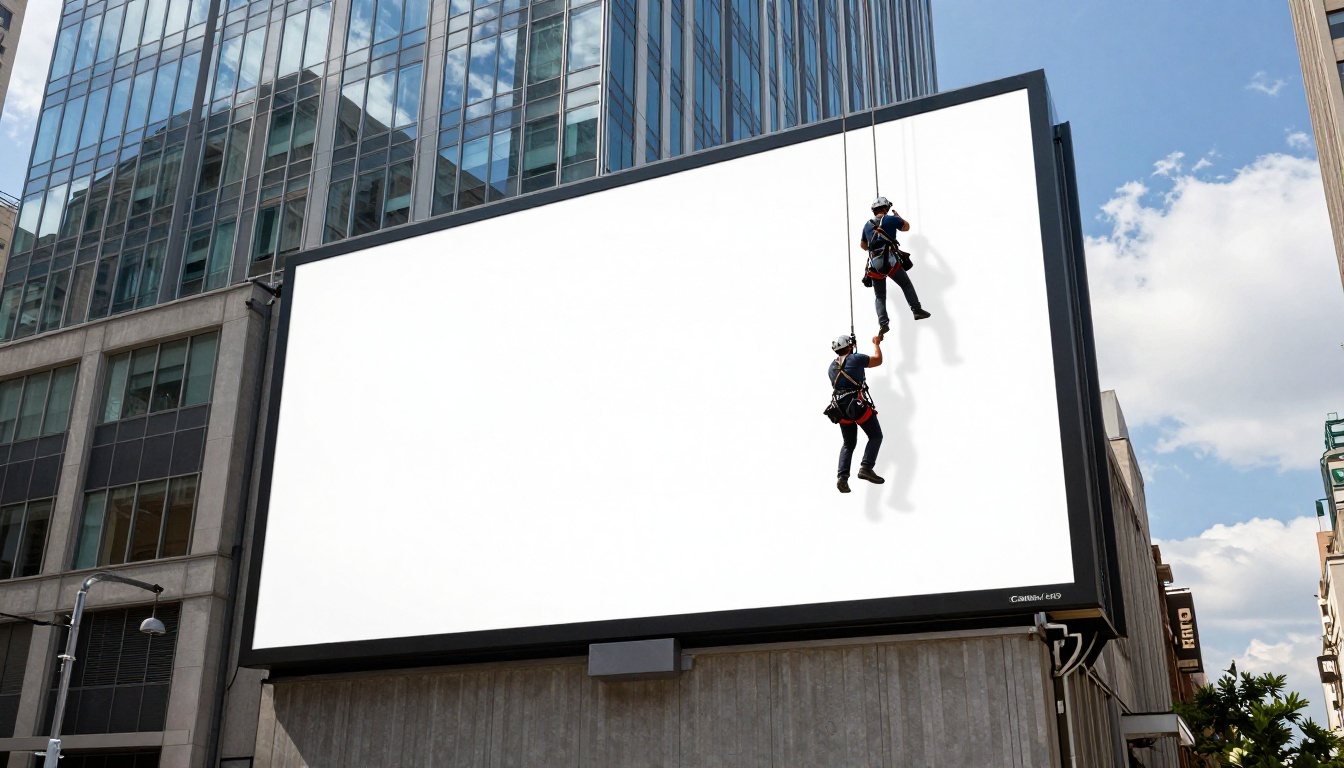
| Scale logo to billboard size | Blurry, pixelated | Crisp at any size |
| Edit brand colors globally | Flatten and re-export | Edit one attribute in code |
| Use as web icon | Fixed resolution | Renders sharp on all screen densities |
| Embed in CSS for animation | Background-image only | Inline, animatable with CSS |
| File size for simple shapes | Relatively large | Compact and fast-loading |
SVG is plain text under the hood, which also means it is searchable, indexable, and editable in any text editor. A front-end developer can open an SVG file and change a color with a single find-and-replace. That is not possible with any raster format.

Why Scalability Changes Everything
A raster logo designed at 500x500 pixels looks fine on a business card. Print it on a 3-meter banner and it falls apart entirely. An SVG logo at 500x500 scales to that same banner without any quality loss, because the print software calculates fresh geometry at the output resolution every time.
💡 The real productivity win: A designer who delivers vector assets eliminates the "can you send a higher-res version?" email loop entirely. The file they send is infinitely high-resolution by definition.
This is why brand identity work, icon systems, and any output destined for print or large-format display almost always requires SVG or its close relatives EPS and PDF, never raster formats. The specification is non-negotiable in professional print production.
How SVG Files Are Structured
An SVG file is XML. A simple circle in SVG is a <circle> element with attributes for its center coordinates, radius, and fill color. A more complex logo is a series of <path> elements, each described by a string of bezier curve instructions.
This structure is what makes SVG so powerful for design systems. You can reference external SVG icons in a webpage and change their color from a CSS stylesheet. You can animate individual paths with JavaScript. You can programmatically generate icons at build time with different parameters. The format is not just a delivery container, it is an active design asset.
Recraft V4.1 Pro: The SVG Upgrade
Recraft has been iterating on its AI image generation model since V1, but the V4.1 Pro release introduced something that sets it apart from nearly every other AI image tool: a native SVG output mode, not just a PNG-to-SVG conversion step bolted on afterward as an afterthought.
What Changed from V3 to V4.1
Most AI image generators produce raster output and then attempt to trace it into vector format using auto-trace algorithms. The results are typically messy, with hundreds of overlapping anchor points and filled shapes that look correct at a glance but become a nightmare to edit in Illustrator or Figma.
Recraft V4.1 Pro takes a fundamentally different approach. The model is trained to produce geometrically clean outputs specifically for the SVG export path. This means:
- Fewer nodes per path: Each curve uses the minimum number of anchor points needed to describe the shape accurately
- Logical layer grouping: Shapes that belong together are grouped as expected, not scattered randomly across the layer stack
- Editable discrete fills: Color fills are separate attributes, not baked into a rasterized composite layer
- Text rendered as paths: Where text appears, it converts to clean bezier paths that reproduce correctly across every environment without font dependency issues
The Pro Tier SVG Feature
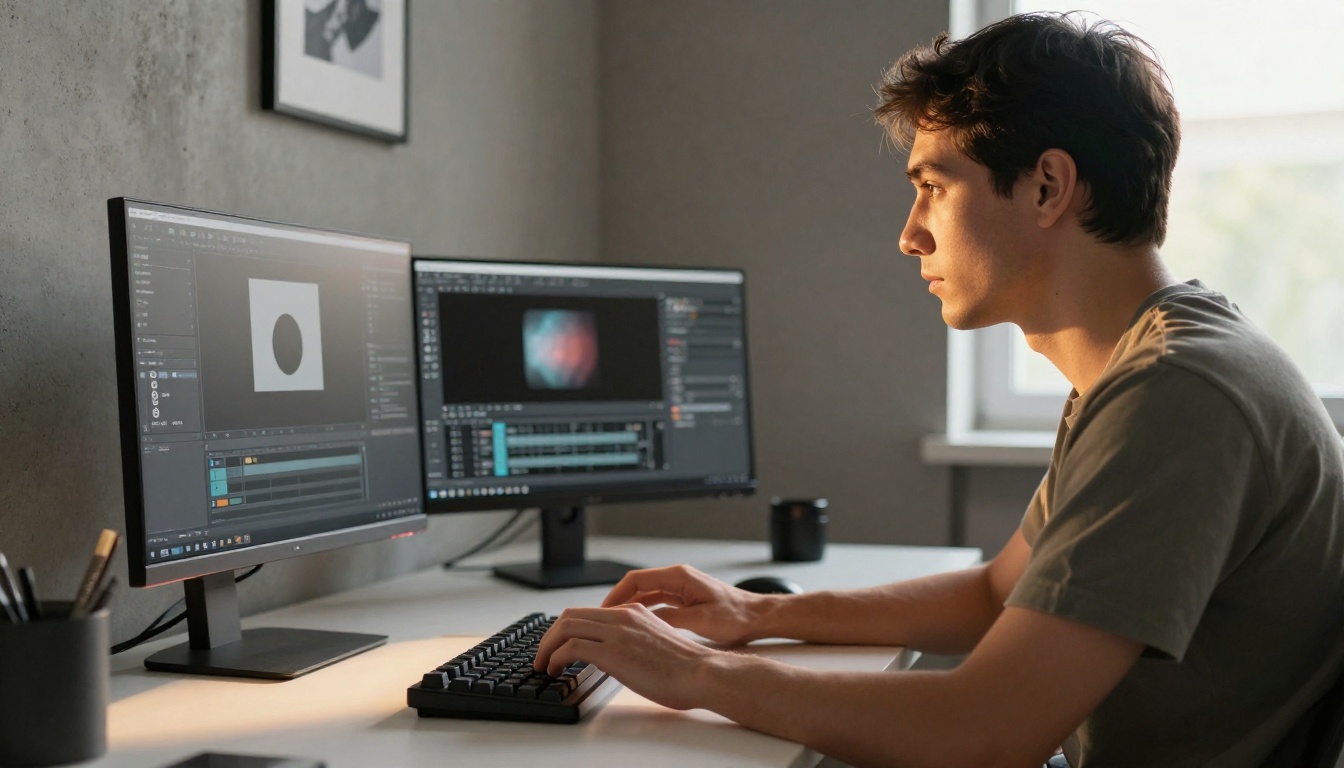
The SVG output in Recraft is a Pro-tier feature, not available on the free plan. This distinction is intentional: generating clean vector output requires significantly more computational work than producing a raster image, because the model has to reason about geometry, not just pixel values.
💡 What "native SVG" means in practice: The model is not tracing pixels after the fact. It generates path and fill instructions directly during inference, which is why the output quality is categorically different from using a free PNG-to-SVG converter online.
Recraft's Approach to Path Quality
The version bump from V3 to V4.1 specifically improved path smoothness and node reduction. For simple flat icons, results can be production-ready straight from export. For complex multi-color illustrations, some editing is still typically required, but the starting point is so much cleaner that the total time invested drops substantially compared to tracing raster output manually.
Internal benchmarks from the Recraft team showed that V4.1 Pro output requires significantly fewer manual edits before a design is ready for production, with many icon designs coming out clean enough to deliver without ever opening a vector editor.
When SVG Output Actually Matters
Not every use case needs SVG. Knowing which projects justify the specific format saves both time and computational credits.
Use Cases That Demand Vector
Logos and brand marks sit at the top of the list. Any logo that will appear on a billboard, embroidered on clothing, laser-cut into metal, screen-printed on fabric, or rendered across digital and print at multiple sizes requires vector format. This is an industry standard expectation, not a preference.
Icon systems for apps and websites are a strong second. SVG icons scale perfectly across device pixel densities and can be animated, themed, or colored dynamically with CSS without maintaining multiple raster asset sets at different resolutions.
Illustrations for print at magazine or poster scale need vector treatment when they contain geometric shapes, flat areas of color, or text elements. Editorial graphics, infographics, and data visualizations consistently benefit from SVG output.
Cut files for laser and vinyl cutters require vector paths absolutely. The cutter reads path instructions mathematically and follows them precisely. A raster file fed into a cutter requires manual re-tracing, which adds significant time and introduces imprecision.
When JPG or PNG Is Fine
A photorealistic photograph has millions of subtle tonal transitions across every pixel. That kind of content is inherently raster and produces an enormous, completely unworkable SVG if you attempt to vectorize it. Photos, detailed photorealistic AI-generated images, and anything with complex gradients or photographic textures should stay as raster.
The mental model that works cleanly: if the image could have been created with geometric shapes in a vector program, SVG will be better. If it could only exist as a photograph, stay raster.
How Recraft V4.1 Pro Generates SVG
Knowing the generation process helps you write better prompts and set realistic expectations for output quality.
The Generation Process Step by Step
When you select SVG as the output format in Recraft V4.1 Pro, the model routes your prompt through a specialized decoder that reasons in terms of path instructions rather than pixel values. This is analogous to the difference between a raster renderer and a vector renderer in design software, applied at the model inference level.
You write a prompt describing what you want, select SVG output in the format options, and the model returns an .svg file. The file is plain XML and opens correctly in Adobe Illustrator, Affinity Designer, Figma, Inkscape, or any modern browser without any plugin or conversion step.
Path Optimization in Practice
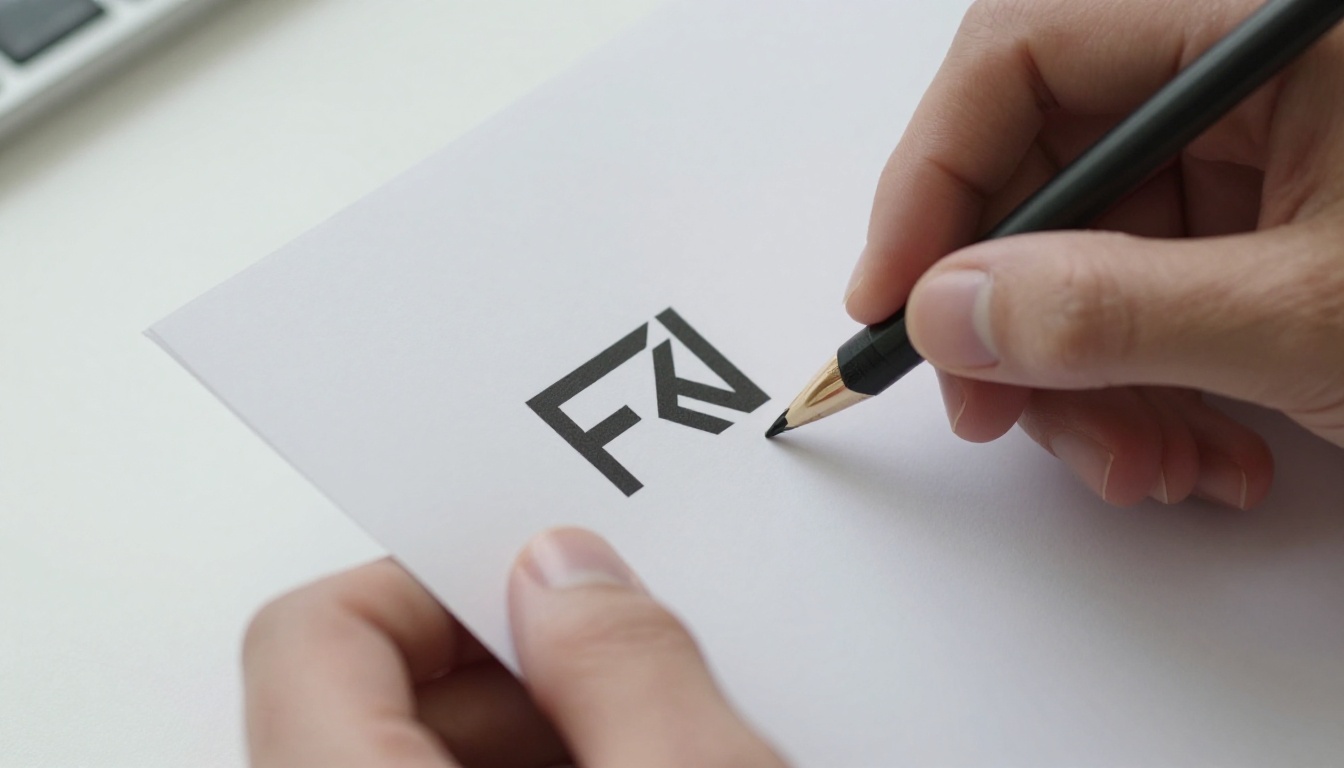
One of the most important quality metrics for AI-generated SVG is path complexity. A well-optimized SVG uses clean bezier curves with minimal control points. A poorly optimized one uses hundreds of tiny straight line segments to approximate what should be a smooth arc, bloating the file and making manual editing effectively impossible.
Recraft V4.1 Pro produces output that is genuinely editable in practice, not just technically correct. Running the exported file through SVGO (the standard open-source SVG optimizer) typically reduces file size by 30-50% with no visible quality loss, which confirms the paths were already reasonably efficient to begin with. A poorly traced SVG often shows minimal size reduction under SVGO because the bloat is structural, not syntactic.
Handling Complex Illustrations
For complex multi-element scenes, the model makes intentional trade-offs. Highly detailed elements may be slightly simplified to keep path counts manageable. This is deliberate design, not a defect: an SVG with 50,000 path nodes is technically correct but practically useless for any creative editing work.
💡 Prompt tip: Use "flat illustration style" or "minimal geometric shapes" in your prompt when you want maximum editability. Complexity in the prompt correlates directly with complexity in the output, which raises node count and reduces practical editability.
SVG Output Quality: What to Check
When you receive your SVG from Recraft V4.1 Pro, run a quick quality inspection before building a production workflow around it.
Clean Paths vs. Messy Nodes
Open the file in Illustrator, Affinity Designer, or Inkscape and select individual paths with the direct selection tool. A clean path has smooth curves you could have drawn manually. A messy path zigzags between dozens of control points to approximate what should be a simple arc.
| Quality Indicator | Good Output | Problem Output |
|---|
| Node count for a simple circle | 4 anchor points | 40+ anchor points |
| Curve type | Smooth bezier arcs | Polyline segments |
| Color fills | Discrete fills on separate paths | Embedded raster fragments |
| Single shape selectability | Click shape, see it selected cleanly | Overlapping compound shapes |
| File size for a simple logo | Under 50KB | 500KB or more |
File Size as a Quality Signal
A small file size for a simple design is a reliable proxy for clean paths. If your Recraft SVG of a simple logo comes in at 8-12KB, that strongly signals the geometry is efficient. If the same simple logo exports at 800KB, something went wrong in the generation, and regenerating with a simpler, more explicit prompt will typically resolve it.
Recraft Models on PicassoIA
PicassoIA hosts dedicated Recraft models that pair well with SVG-based design workflows. Whether you are generating new visual assets or refining existing source material before vectorization, these tools fit directly into a professional production pipeline without requiring any local software setup.
Recraft Crisp Upscale is specifically built for sharpening images before conversion to vector format. If your source image has soft edges, limited resolution, or compression artifacts, running it through Recraft Crisp Upscale first produces a sharper starting point. Sharper edges translate directly into cleaner, more accurate path tracing when you export to SVG.
This is particularly valuable for logo mockups or concept sketches photographed at low resolution, where the original capture lacks the edge definition that auto-tracers depend on to produce clean bezier output. Sharper input consistently produces cleaner vector output.
Recraft Creative Upscale takes a different approach to the upscaling problem. Rather than purely sharpening existing detail, it adds texture, depth, and visual richness to the enlarged result. For illustration-style work where the final printed piece needs tactile character at large format, this is the tool that supplies the dimensional quality before you take your design into the print production phase.
Both models are accessible directly on PicassoIA without any local software installation requirements.

Real Workflow: From Prompt to Print
Here is how a practical SVG production workflow looks using Recraft V4.1 Pro and PicassoIA tools in sequence.
Step-by-Step for Logo Work
- Write a clear, constrained prompt: Terms like "flat vector style, minimal shapes, white background, two-color" steer the model toward clean path output. Avoid describing photorealistic or textural qualities in prompts meant for vector output.
- Select SVG output in Recraft V4.1 Pro's format settings before generating the asset.
- Open the exported SVG in Illustrator or Figma and inspect paths with the direct selection tool. Confirm the design is editable at the individual shape level.
- Run through SVGO to trim redundant nodes and reduce the file size for web delivery.
- Upscale a raster preview version with Recraft Crisp Upscale on PicassoIA when you need a high-resolution PNG for mockup presentations.
- Deliver the SVG for web and print use, and the upscaled PNG for contexts where SVG is not natively supported by the receiving system.
Step-by-Step for Icon Sets
- Establish a consistent prompt template: One structure that produces a matching visual style across every icon in the set.
- Batch generate using identical settings for each icon, locking the style seed for visual consistency.
- Inspect consistency of stroke weights and corner radii across the full icon set before delivery.
- Normalize in Illustrator: Align all icons to identical bounding boxes and standardize stroke widths across the set.
- Export as SVG sprite or individual files depending on the implementation requirements of the target system.
💡 Consistency across a set: Lock the seed number once you find a style you want. The seed controls the visual character of the output. Holding it constant across an icon set produces a visually unified family without manual effort.
SVG in the Broader AI Design Workflow
The arrival of native SVG output in tools like Recraft V4.1 Pro does not replace the designer. It changes what the designer spends their hours on.
Before: hours manually tracing raster AI output into usable vector paths.
After: minutes checking and adjusting already-clean AI-generated vector geometry.
The productivity shift is real, and it compounds across a project. An icon set that previously took a full day to produce and clean now takes a morning. A logo exploration phase that required dedicated vector illustration time now happens within the same session as the initial concept work. The creative bandwidth that was previously consumed by mechanical tracing work is freed for the decisions that actually require human judgment.
Tools that matter most in this workflow:
- Recraft V4.1 Pro: Native SVG generation with clean, editable bezier paths
- Recraft Crisp Upscale: Sharpening raster source material before vectorization
- Recraft Creative Upscale: Adding print-ready depth and texture to upscaled assets
- SVGO: Post-generation compression and path optimization for web delivery
- Figma or Illustrator: Final creative editing and client delivery
The workflow removes the mechanical friction between concept and production-ready vector asset. The creative judgment stays entirely with the designer.
Start Generating Your Own Vector Assets
PicassoIA gives you direct access to Recraft's upscale models and a full library of AI image generation tools that produce print-ready results. Whether you are building a logo system from scratch, designing an icon set for a mobile app, or producing artwork destined for large-format print production, the platform removes the friction between concept and production-ready asset.
Try Recraft Crisp Upscale for your next upscaling task, or use Recraft Creative Upscale when you want print-ready depth added to your artwork. The full model library is at picassoia.com/en/all-models. Browse it, pick the model that fits your visual style, and generate your first asset today. The tools are ready, the output is production-quality, and the only thing left is the idea.


