Remove Anyone from Photos Using AI Magic in 2027
Remember that perfect vacation photo ruined by tourists wandering into your shot? Or the family portrait where someone blinked at the wrong moment? For decades, these photo disasters meant accepting imperfect memories or spending hours with complex editing software. Today, AI has transformed photo editing from a specialist skill to something anyone can master in minutes. The technology has advanced so dramatically that removing unwanted people from photos now feels like magic—select, click, and watch them disappear while the background reconstructs itself perfectly.
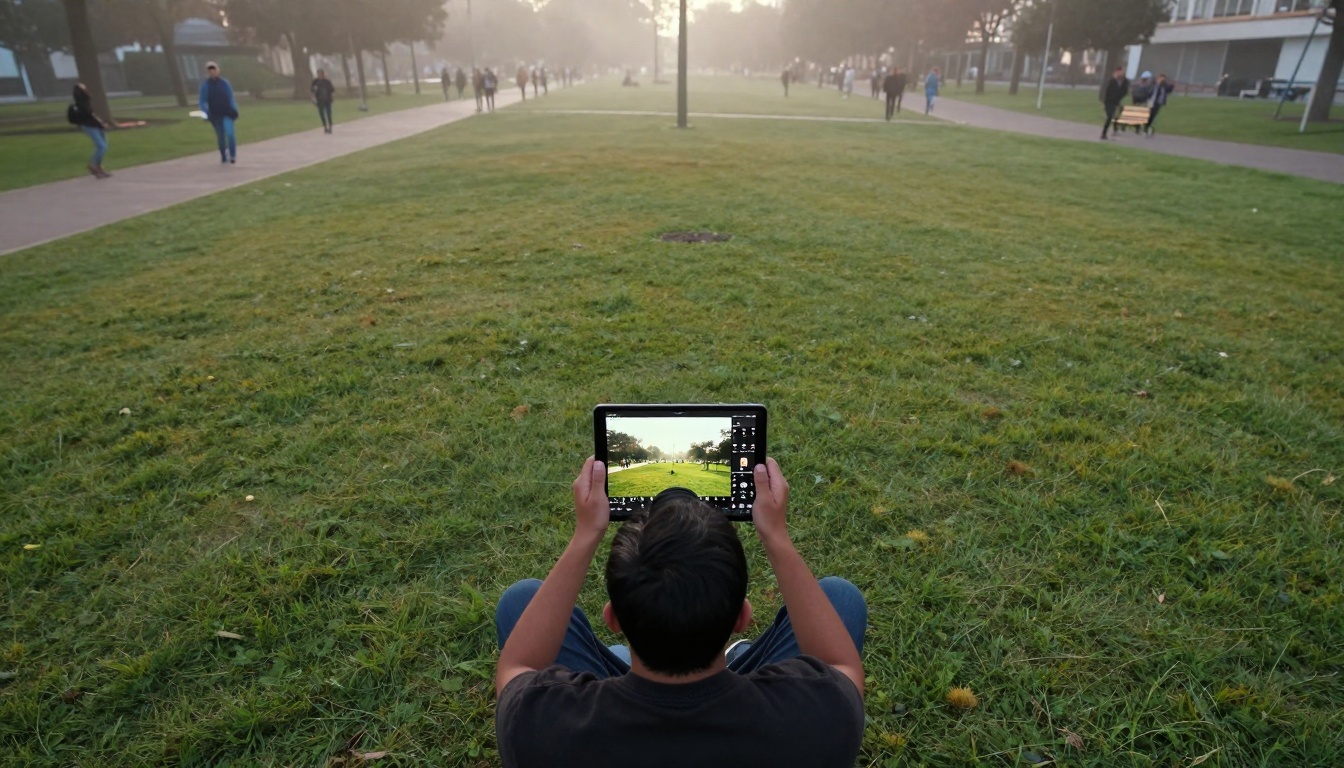
Modern AI tools let you edit photos anywhere, even outdoors with natural lighting
Why AI Photo Editing Changes Everything
Traditional photo editing required technical expertise, expensive software, and hours of meticulous work. Removing a person meant manually cloning background pixels, adjusting shadows, and matching textures—a process that could take professional editors 30-60 minutes per image. Now, AI algorithms analyze the entire photo, understand the scene's structure, and reconstruct missing elements with astonishing accuracy.
💡 The Speed Difference: What took professionals 60 minutes in 2020 now takes AI 60 seconds in 2026. The quality? Often better than human-edited results.
The economics shifted dramatically too. Where Photoshop subscriptions cost $20-50 monthly, many AI tools offer similar capabilities for free or at minimal cost. The accessibility means everyone from smartphone photographers to professional studios can achieve results that were previously exclusive to top-tier editing houses.
How AI Object Removal Actually Works
Behind the simple interface lies sophisticated technology. Modern AI photo editors use several interconnected systems:
- Object Detection Neural Networks - Identify people, objects, and their boundaries
- Scene Understanding Algorithms - Analyze the photo's composition, lighting, and perspective
- Generative Fill Models - Create new pixels that match the surrounding area
- Texture Synthesis Engines - Ensure reconstructed areas blend seamlessly
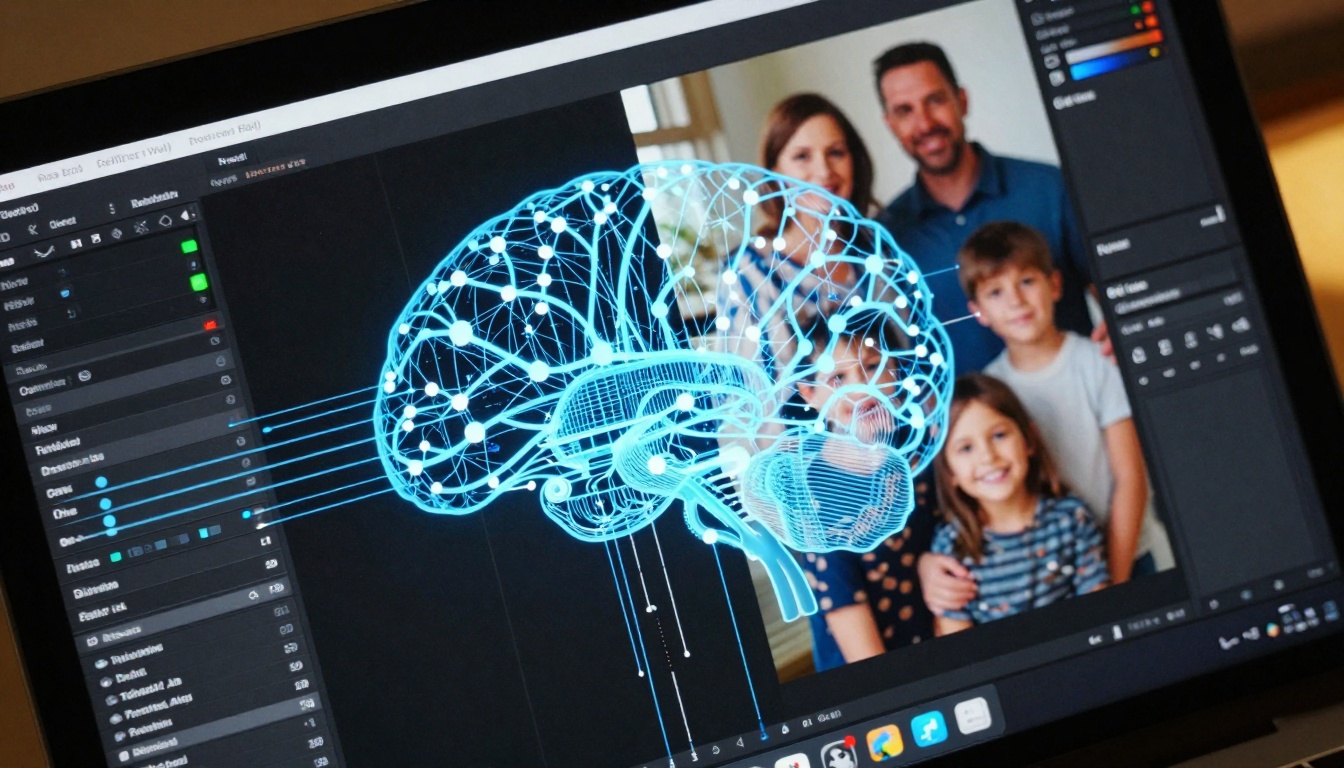
The complex algorithms working behind a simple click
These systems work together in real-time. When you select a person to remove, the AI first identifies what needs to go, then analyzes what should replace it. If you're removing someone from a beach scene, the AI doesn't just fill with generic sand—it matches the specific grain pattern, wave lines, and lighting conditions of that exact beach.
Common Scenarios Where AI Saves Your Photos
Tourist Crowd Removal
The most common frustration: beautiful landmarks ruined by crowds. AI excels here because landmarks have predictable patterns. The Eiffel Tower, Taj Mahal, or Grand Canyon have consistent structures that AI can reconstruct accurately even when removing dozens of people.
Wedding Photo Cleanup
Uncle Bob photobombing the first kiss? Distracting guests in the background? AI can remove specific individuals while preserving the emotional moment. The technology handles complex scenes with multiple lighting sources and intricate backgrounds.
Family Portrait Perfection
That one family member who always blinks or makes a funny face. Now you can remove them from the group shot and replace them with a smiling version from another photo. AI matches lighting, skin tones, and positioning automatically.
Street Photography Polishing
Candid street shots often include unwanted elements—parked cars, trash cans, random pedestrians. AI cleans these up while maintaining the authentic street photography aesthetic.
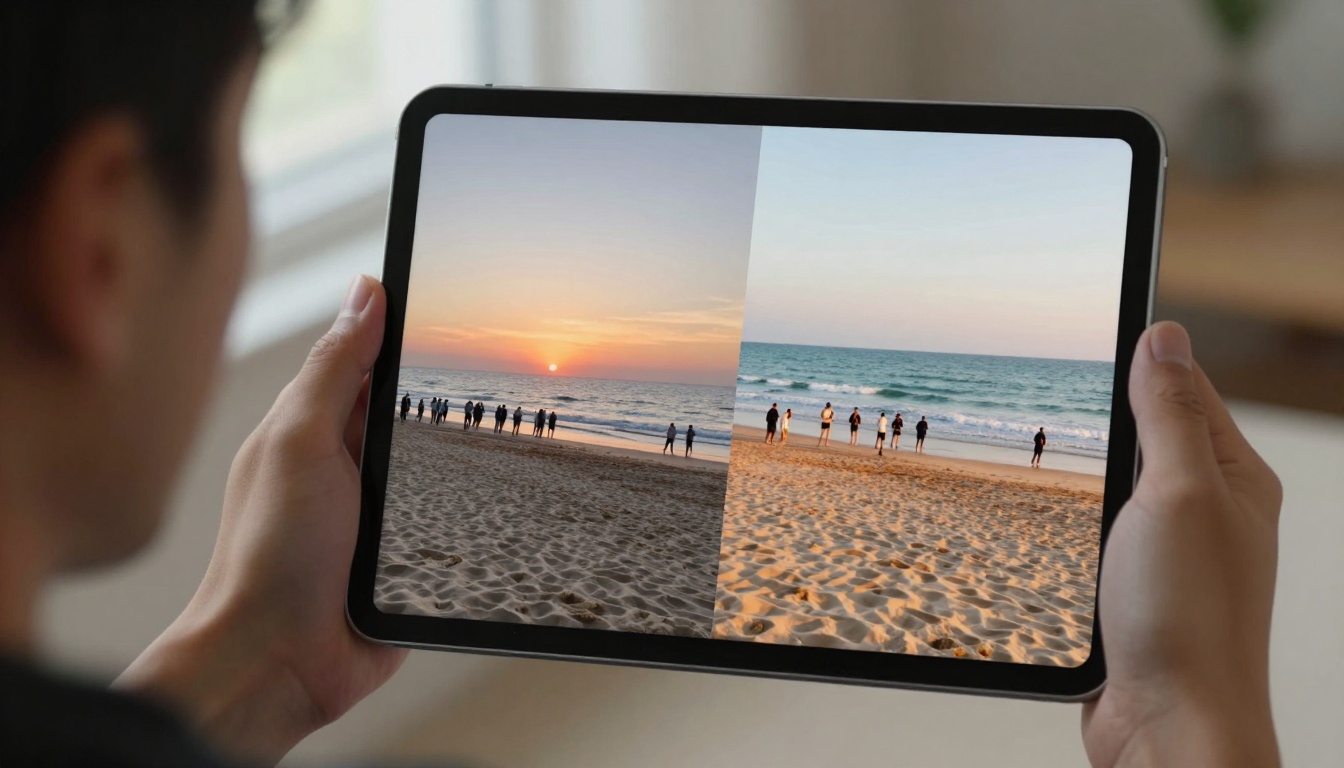
The emotional impact of transforming frustrating photos into perfect memories
The Best AI Tools for Removing People
Different tools excel at different tasks. Here's what works best for specific scenarios:
| Scenario | Recommended Tool | Why It Works Best | Time Required |
|---|
| Simple Object Removal | Photoshop AI | Excellent for straightforward cases | 15-30 seconds |
| Complex Crowd Removal | Remove.bg AI | Specialized in people/object detection | 30-60 seconds |
| Professional Grade | Lightroom AI | Maintains maximum image quality | 45-90 seconds |
| Batch Processing | Pixelcut | Handles multiple images simultaneously | Varies by batch |
| Mobile Editing | Snapseed | Optimized for smartphone workflows | 20-40 seconds |
PicassoIA Platform Models
The PicassoIA platform offers several specialized models perfect for photo editing tasks:
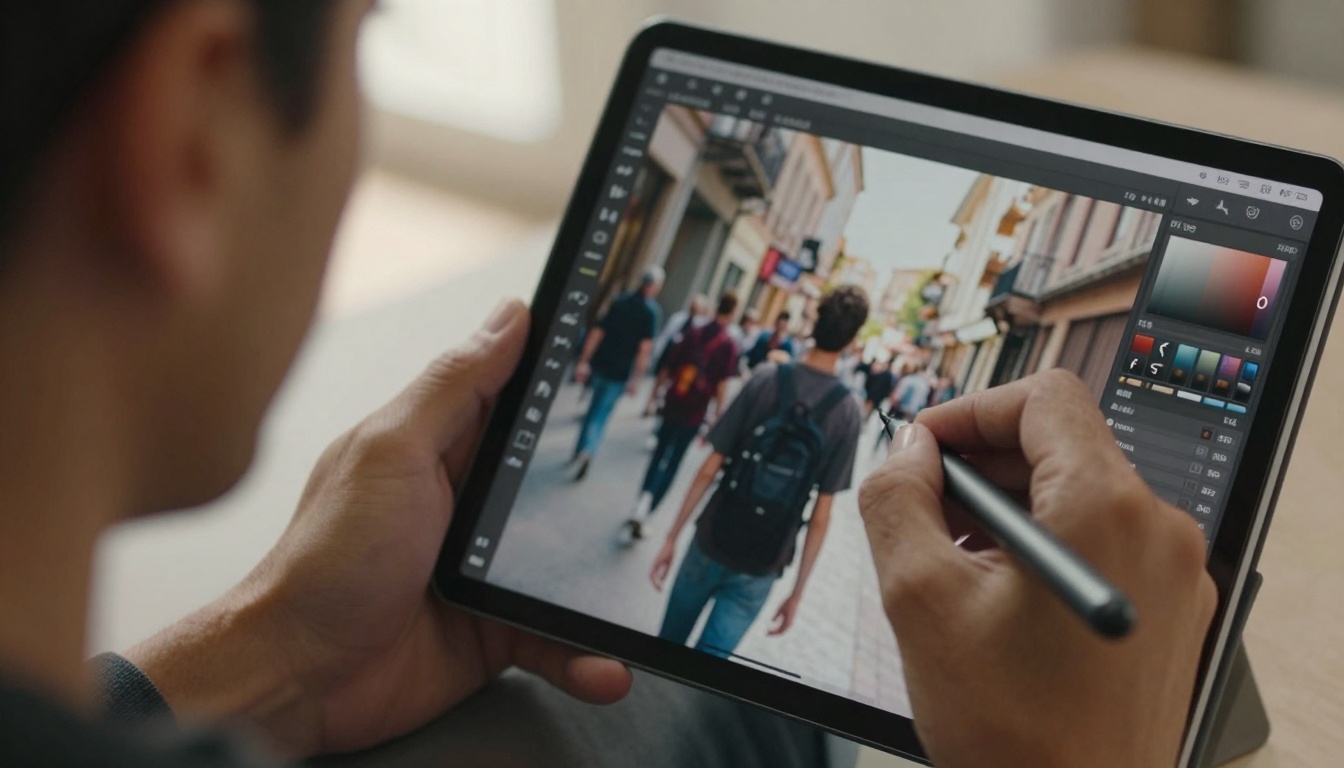
Modern tools provide artistic control, not just automatic removal
Step-by-Step: Removing Unwanted Elements
The process varies by tool, but follows similar patterns:
1. Upload Your Photo
Start with the highest quality version available. AI works better with more data. If you shot in RAW format, use that file rather than a compressed JPEG.
2. Select the Removal Tool
Most interfaces offer multiple selection methods:
- Brush tool - Paint over what you want removed
- Lasso tool - Draw around the object
- Auto-detect - Let AI identify people/objects automatically
3. Refine the Selection
Zoom in to check edges. Most tools offer refinement options:
- Edge smoothing - Softens transition boundaries
- Feathering - Creates gradual blends
- Content-aware - Matches surrounding patterns
4. Generate Replacement
Click "Remove" or "Generate." The AI analyzes surrounding pixels and creates replacement content. This usually takes 5-30 seconds depending on image complexity.
5. Review and Adjust
Examine the result closely:
- Check lighting consistency
- Verify texture matches
- Look for repetition patterns
- Ensure perspective aligns
6. Final Export
Save in appropriate format:
- Web use: Compressed JPEG or WebP
- Print: High-resolution TIFF or PNG
- Future editing: PSD with layers preserved
Advanced Techniques for Complex Removals
Some scenarios require extra attention:
Partial People (Arms/Legs Cut Off)
When only part of a person appears in frame, AI sometimes struggles with partial limbs. Solution: Extend the selection slightly beyond the visible portion so the AI understands the complete object shape.
Reflections and Shadows
People often cast shadows or appear in reflections. Remember to remove these too! Most advanced tools offer "Remove associated shadows" and "Clean reflections" options.
Complex Backgrounds
Patterned walls, textured surfaces, or intricate architecture require more processing time. For best results:
- Use higher "Quality" settings
- Process in stages if removing multiple people
- Manually assist with difficult areas
Mixed Lighting Conditions
When a photo has multiple light sources (sunlight + artificial lights), the reconstruction needs to match both. Some tools offer "Lighting analysis" to handle these cases properly.
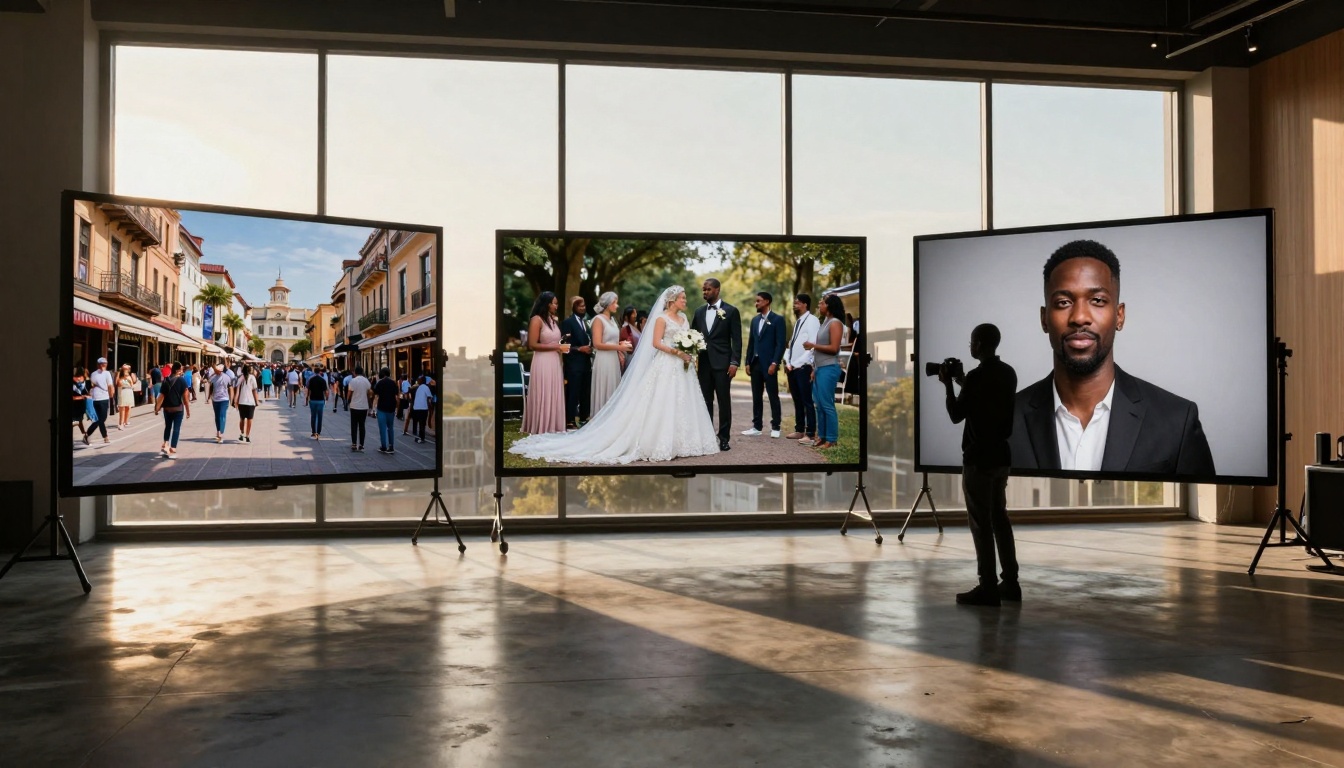
Professional setups handle multiple complex scenarios simultaneously
What Professional Photographers Know
Professional photographers have adapted AI into their workflows with specific strategies:
Workflow Integration
Pros don't use AI as a standalone tool—they integrate it into their existing editing pipeline. A typical professional workflow:
- Capture - Shoot with removal in mind (extra frames, varied angles)
- Cull - Select best images for editing
- Basic edits - Exposure, color, cropping
- AI cleanup - Remove unwanted elements
- Fine-tuning - Manual adjustments where needed
- Delivery - Format for client needs
Shooting for Removal
Smart photographers capture "removal-friendly" photos:
- Extra frames - Shoot multiple shots of the same scene
- Empty backgrounds - Capture the scene without people first
- Reference shots - Photos of the environment for texture reference
- Varied angles - Different perspectives help AI understand 3D space
Quality Preservation
Professionals prioritize maintaining image quality:
- Work with originals - Never edit compressed versions
- Preserve metadata - Keep EXIF data for reference
- Non-destructive editing - Use layers and masks
- Monitor color spaces - Maintain consistent color profiles
Ethical Considerations
Professional standards include:
- Client permission - Always get approval for significant edits
- Truth in advertising - Disclose edited images when relevant
- Historical preservation - Keep original files archived
- Cultural sensitivity - Respect subjects and contexts
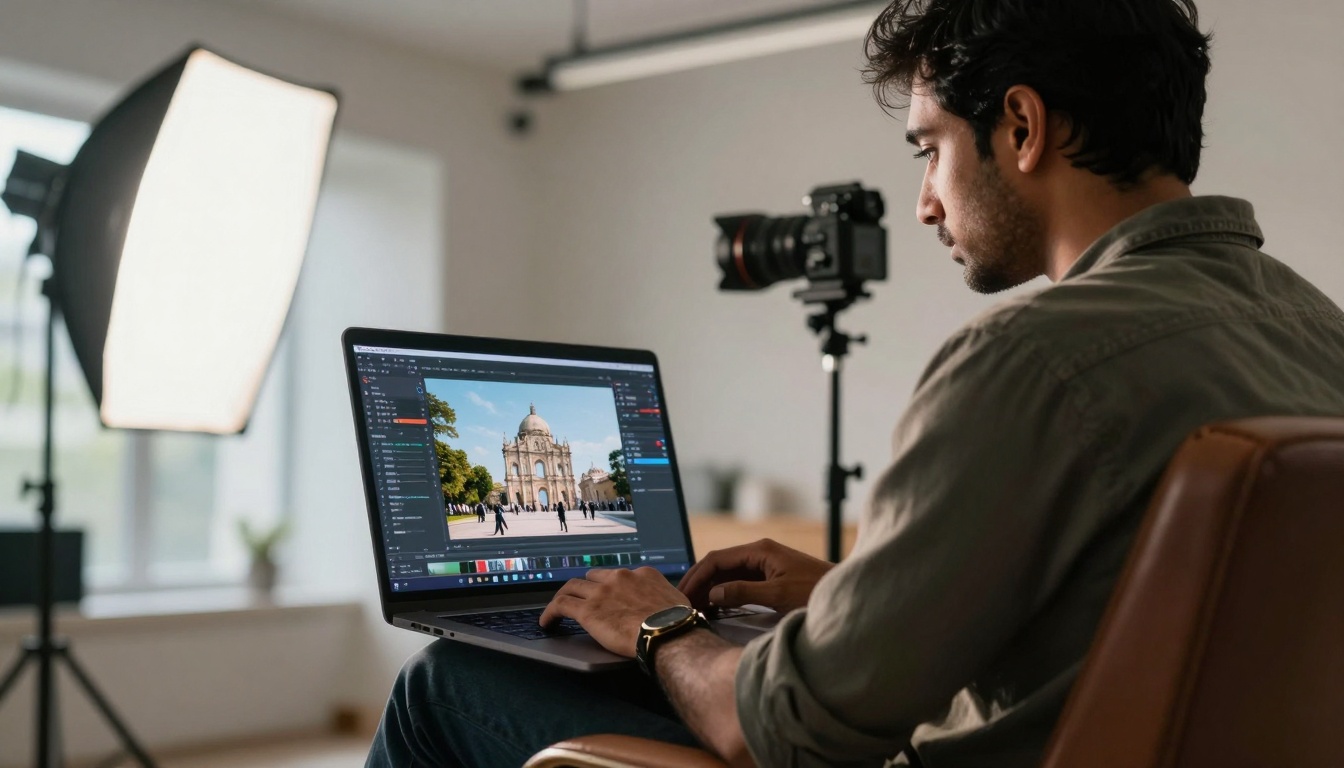
Professional environments combine AI tools with traditional expertise
Creating Perfect Memories from Imperfect Photos
The emotional value of photos often outweighs their technical perfection. AI tools now help preserve those emotional moments by removing technical distractions. A child's first birthday shouldn't be remembered for the delivery person who walked into the shot. A wedding ceremony deserves focus on the couple, not random guests in the background.
Real-World Impact Examples
Travel Photography
Sarah visited Paris for the first time and waited 45 minutes to get a shot of the Louvre pyramid without crowds. She got three seconds between tourist groups. With AI removal, she transformed a crowded shot into the clean photo she wanted—in 90 seconds.
Real Estate
Michael shoots luxury properties but often captures passing cars or neighbors in shots. Previously, he'd schedule reshoots or spend hours editing. Now AI removes transient elements instantly, saving thousands in reshoot costs annually.
Event Photography
Jessica photographs corporate events where executives move through crowds. She captures candid moments that often include distracting elements. AI lets her deliver clean, professional shots without asking people to reposition.
Personal Archives
The Thompson family had decades of photos with various relatives they no longer speak to. Rather than discarding memories, they used AI to remove specific individuals while preserving the family moments.
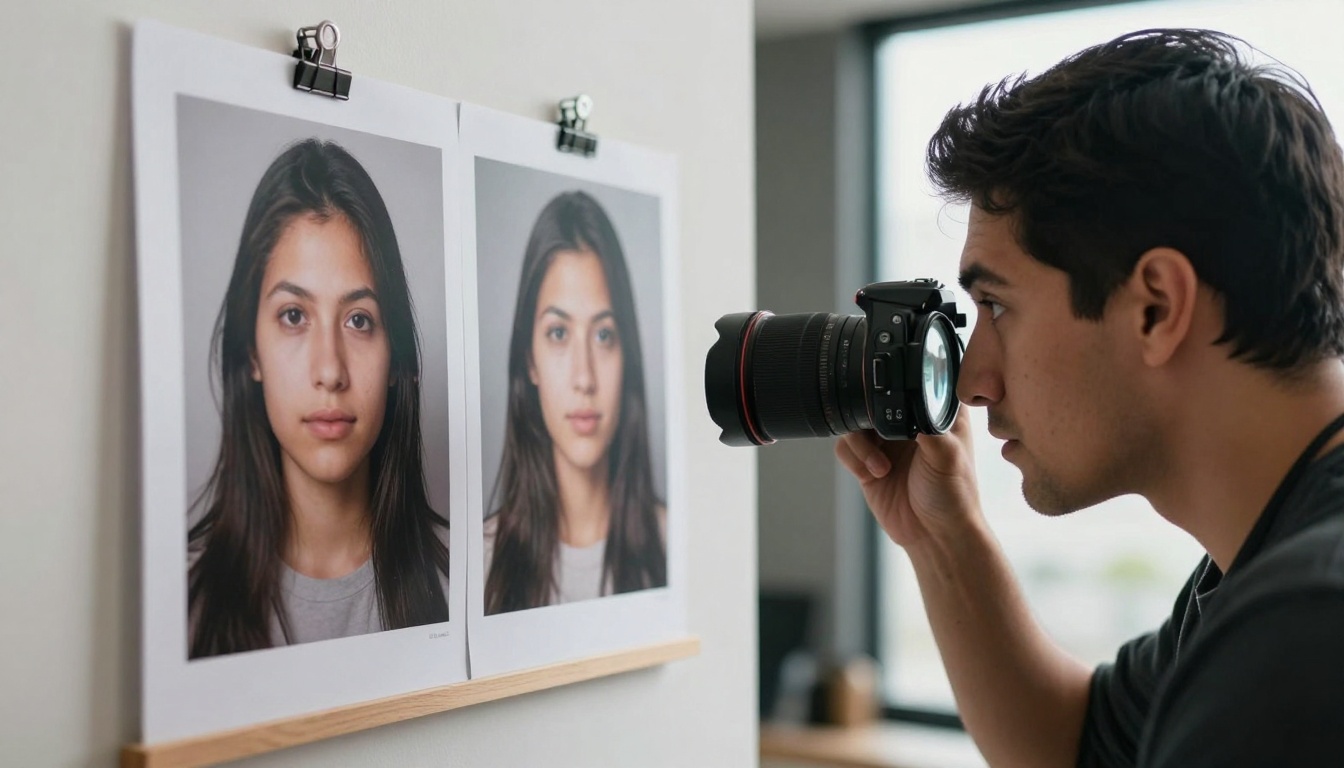
The tangible result: printed photos that tell complete stories
Technical Specifications for Optimal Results
To get the best AI removal results, understand the technical requirements:
Image Quality Factors
- Resolution: Minimum 2MP for decent results, 8MP+ for professional quality
- File format: RAW > TIFF > PNG > JPEG (compression artifacts reduce quality)
- Noise levels: Clean images process better than noisy ones
- Dynamic range: More data in shadows/highlights helps reconstruction
AI Processing Considerations
- GPU acceleration: Significantly speeds up processing (5-10x faster)
- RAM requirements: 8GB minimum, 16GB+ recommended for batch processing
- Internet speed: Cloud-based tools need stable connections
- Processing time: Varies by complexity (5 seconds to 5 minutes)
Output Quality Settings
Most tools offer quality tiers:
- Fast/Preview: Quick results for evaluation
- Standard: Good quality for most uses
- High Quality: Best results, longer processing
- Ultra/Professional: Maximum quality for critical work
Future Developments in AI Photo Editing
The technology continues evolving rapidly:
2026-2027 Predictions
- Real-time editing: AI that edits as you shoot
- 3D reconstruction: Remove people while maintaining 3D scene consistency
- Context-aware editing: AI that understands cultural/historical context
- Emotion preservation: Editing that maintains emotional tone of original
Emerging Technologies
- Quantum-assisted AI: Faster processing for ultra-complex scenes
- Neural rendering: Photorealistic reconstruction from minimal data
- Collaborative editing: Multiple AI systems working together
- Adaptive interfaces: Tools that learn your editing style
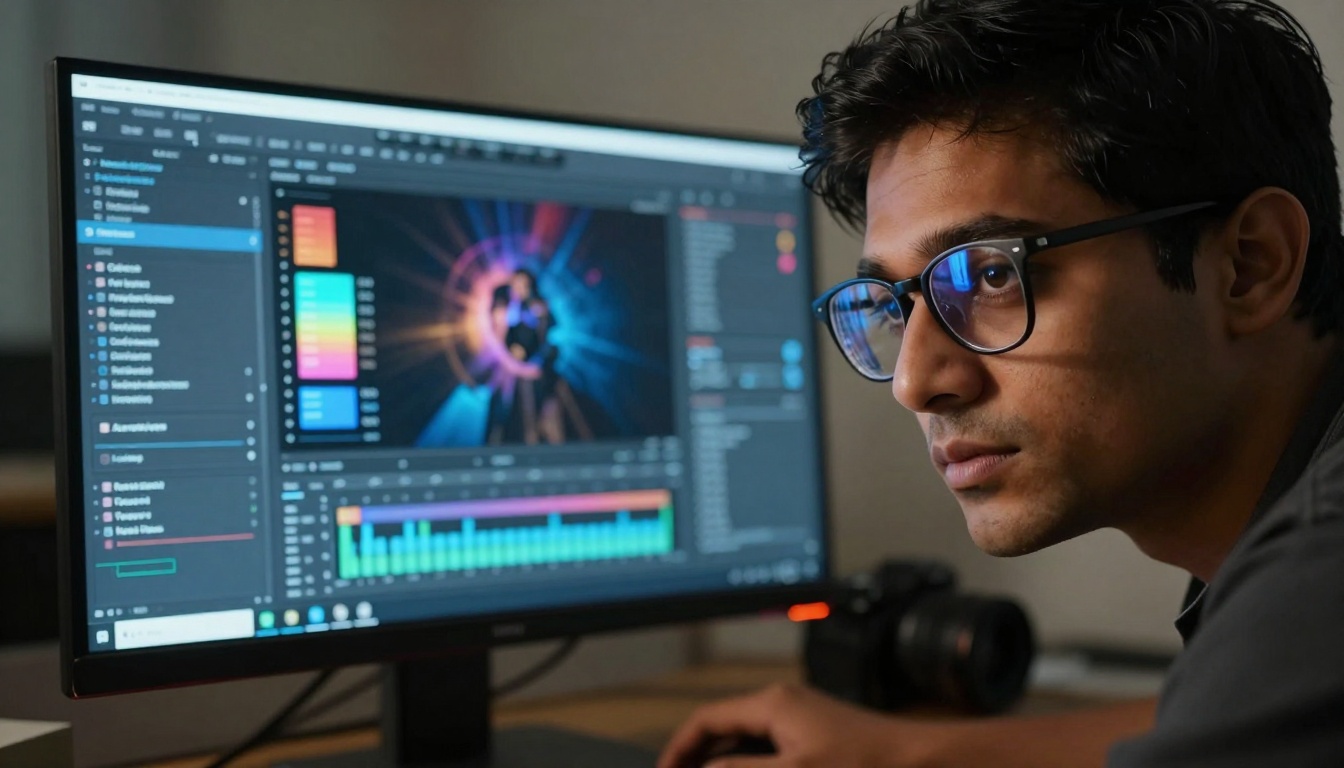
The sophisticated interfaces behind today's seemingly simple tools
Getting Started with AI Photo Editing
Begin with these practical steps:
1. Choose Your First Tool
Start with user-friendly options:
- Free tier: Remove.bg, Pixlr, Canva
- Mobile apps: Snapseed, Photoshop Express
- Desktop: GIMP with AI plugins, Affinity Photo
2. Practice on Non-Critical Photos
Use old photos or test images first. Learn the interface without pressure.
3. Understand Limitations
AI isn't perfect (yet). Complex patterns, mixed lighting, and motion blur still challenge current systems.
4. Develop Your Workflow
Create a consistent process: import → select → remove → review → export.
5. Join Communities
Online forums, Reddit communities, and Discord servers offer tips and support.
The PicassoIA Advantage
For those seeking professional-grade AI editing, PicassoIA offers specialized models:
Model Selection Guide
For General Object Removal
For Background-Specific Tasks
For Maximum Quality
- flux-2-pro delivers highest fidelity reconstruction
- imagen-4 offers Google's latest image generation technology
Integration Tips
PicassoIA models work well with existing workflows:
- Batch processing - Handle multiple images efficiently
- API access - Integrate into custom applications
- Quality settings - Adjust based on output needs
- Format support - Works with standard image formats
Practical Applications Beyond Personal Use
AI photo editing extends beyond personal photos:
Business Applications
- E-commerce: Clean product photos without distractions
- Real estate: Property photos without cars/people
- Tourism: Attraction photos without crowds
- Architecture: Building shots without construction elements
Creative Industries
- Film/TV: Location scouting photos cleanup
- Advertising: Clean backgrounds for product placement
- Publishing: Book cover image preparation
- Journalism: News photos with distracting elements removed
Educational Uses
- Historical photos: Remove modern elements from period images
- Scientific documentation: Clean specimen photos
- Educational materials: Create clear instructional images
- Research publications: Prepare figures and illustrations
Quality Control and Verification
When using AI for important work, implement quality checks:
Visual Inspection Checklist
Technical Verification
- Check file integrity post-processing
- Verify color profile preservation
- Confirm resolution maintenance
- Validate metadata retention
- Test output in intended medium (print/screen)
The Human-AI Collaboration
The most effective approach combines AI efficiency with human judgment:
AI's Strengths
- Speed and consistency
- Pattern recognition
- Data analysis
- Repetitive tasks
- Initial cleanup
Human Strengths
- Artistic judgment
- Emotional understanding
- Context awareness
- Quality assessment
- Final refinement
Optimal Workflow
- AI does heavy lifting - Initial removal and reconstruction
- Human provides direction - Selects what to remove, sets parameters
- AI refines - Processes based on human feedback
- Human finalizes - Makes artistic adjustments, verifies quality
This collaborative approach yields better results than either working alone. AI handles the tedious technical work while humans provide creative direction and quality control.
Your Next Steps
Start experimenting today. Choose one photo that's been frustrating you—that crowded vacation shot, the family portrait with someone blinking, the street photo with distracting elements. Upload it to an AI tool and see what happens. The technology has reached the point where trying costs nothing but a few minutes, and the results often surprise even skeptical users.
The magic of removing anyone from photos isn't about deception or alteration—it's about revealing the moment you intended to capture. It's about removing distractions so the true subject shines through. In 2027, this capability sits at your fingertips, waiting to transform your photo collection from "almost perfect" to genuinely perfect.


