Removing a background used to be the most time-consuming part of photo editing. Hours spent with a pen tool in Photoshop, zooming in pixel by pixel on flyaway hair strands and transparent fabrics, only to end up with a result that still looked slightly off. That era is over. AI-powered background removal has changed everything, and today it happens in seconds with results that rival professional manual cutouts.
Why Background Removal Actually Matters
Most people underestimate how much a clean background transforms the perception of an image. A product photo against a cluttered background looks amateur. The same product isolated on white looks premium, store-ready, and professional. A portrait headshot on a messy background feels casual. That same face cut out and placed on neutral gray looks like it belongs in a Fortune 500 company directory.
Background removal is not a cosmetic tweak. It is a fundamental step in professional photo workflows across every creative industry.
The Ecommerce Problem
Online stores live and die by their product photography. Platforms like Amazon, Etsy, and Shopify have strict requirements for product images — pure white backgrounds, no distracting shadows, no visual clutter. Sellers who cannot produce clean cutouts either pay expensive photography studios or struggle with inconsistent DIY results that hurt their brand perception.
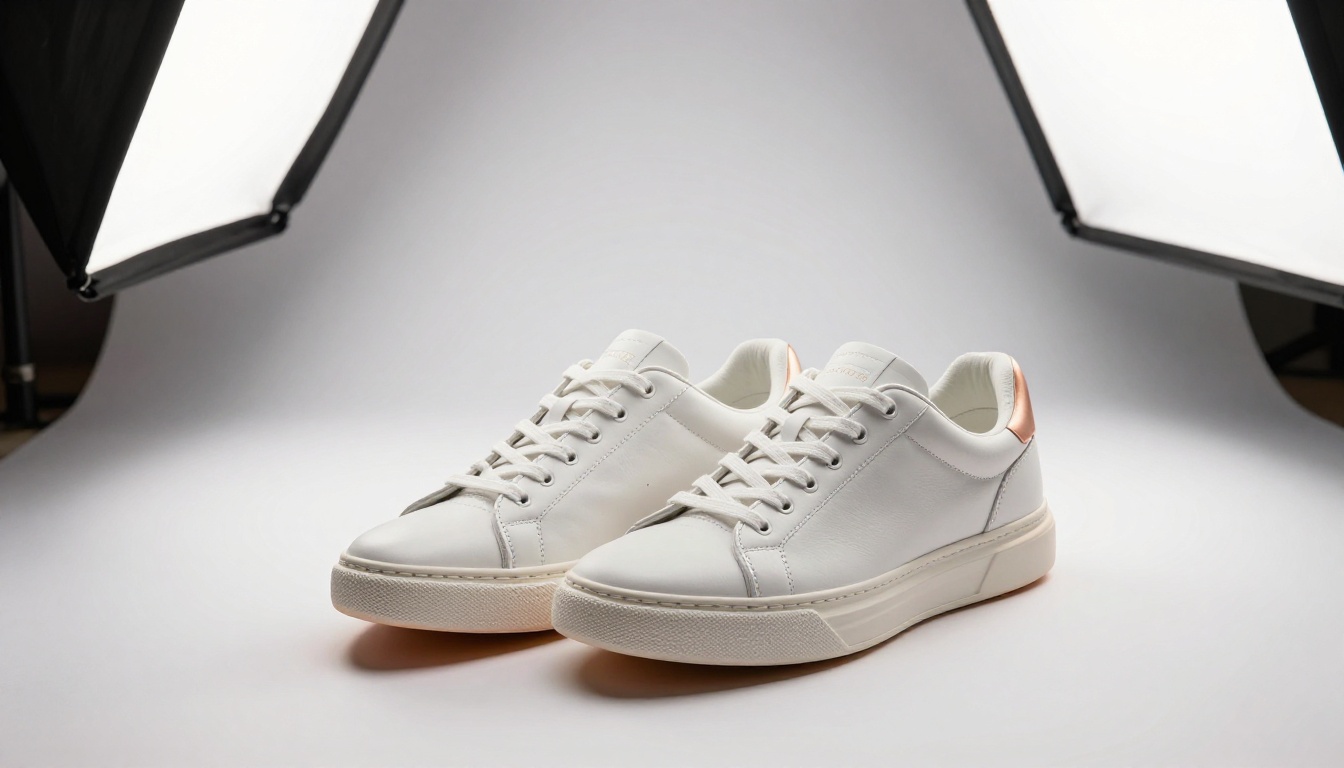
Studies consistently show that products with clean, isolated backgrounds convert at significantly higher rates than those with cluttered or inconsistent backgrounds. When a shopper scrolls through dozens of similar products, the one with the cleanest presentation wins attention first.
| Background Type | Perceived Quality | Conversion Impact |
|---|
| Cluttered or real-world scene | Low | Negative |
| Solid white or neutral color | High | +15-30% |
| Custom lifestyle composite | Very High | Context-dependent |
For ecommerce sellers managing hundreds or thousands of product SKUs, manual background removal is simply not scalable. Automatic AI removal changes the economics entirely.
Portrait and Headshot Workflows
The photography and marketing industries rely just as heavily on clean photo cutouts. Corporate headshots need to match company branding with consistent backgrounds. Social media profile photos need clean, professional presentation. Real estate agent photos, doctor profiles, team pages, and speaker bios all require that isolated, polished look.

Before AI tools, this meant either shooting in a dedicated studio against a physical backdrop or spending significant time in post-processing. Now a single click handles what used to take 20 minutes per image.
How AI Removes Backgrounds in Seconds
The technology driving instant background removal is a class of deep learning models trained on millions of images. These models do not simply look for a color difference between subject and background. They have learned to understand the semantic content of an image at a far deeper level.
What the Model Actually Sees
Modern AI background removal works through semantic segmentation. The model identifies every pixel in an image and classifies it as either subject or background based on learned visual patterns. It recognizes:
- Human figures including complex hair and translucent fabrics
- Animals with fine fur and feather edge detail
- Objects with intricate edges like bicycle spokes or wire jewelry
- Complex scenes where subject and background share similar colors
This is fundamentally different from the old "magic wand" or "select by color" approaches that required near-perfect contrast between subject and background to work reliably. The AI understands what it is looking at, not just which pixels match.
Why AI Beats Manual Editing
The comparison is not even close for most real-world use cases:
| Method | Time Per Image | Quality on Hair | Batch Processing |
|---|
| Manual pen tool | 15-60 minutes | Excellent with skill | Not practical |
| Color selection tool | 2-5 minutes | Poor | Limited |
| AI automatic removal | 3-10 seconds | Very Good | Yes, unlimited |
For professional photographers working on wedding albums with 500+ portraits, or ecommerce managers processing hundreds of product SKUs every week, the time savings are not marginal. They are the difference between a workflow that is viable and one that is not.
💡 Pro Tip: AI background removal works best when there is reasonable contrast between subject and background. A person in a white shirt against a white wall gives the model less signal to work with. When shooting with background removal in mind, a slightly different-toned backdrop behind your subject helps the AI produce cleaner, more precise cuts.
PicassoIA offers the bria Remove Background model, one of the most accurate AI background removal tools available for both product photography and portrait work. Here is exactly how to use it.

Step 1: Open the tool
Go to the Remove Background model page on PicassoIA. You will see a clean, straightforward interface with an image upload area.
Step 2: Upload your photo
Click the upload button or drag and drop your image directly onto the interface. The tool accepts JPEG, PNG, and WebP formats. For best results, use images with at least 1000px on the longest side.
Step 3: Run the AI
Click the generate button and let the Remove Background model process your image. For most photos, results appear within 5-10 seconds.
Step 4: Download your transparent PNG
The output is a PNG file with a fully transparent background channel. This transparent layer is the core asset you need. From here you can:
- Place it on any new background in seconds
- Use it directly in Figma, Canva, or Photoshop
- Export it for your online store product listings
- Composite it into any design template or promotional asset
Step 5: Refine if needed
For complex images with particularly fine hair or challenging edges, you can use the AI result as a starting point and do minor touch-ups in your preferred editor. In the vast majority of cases, the output from bria Remove Background requires zero correction.
💡 Shooting Tip: For product shots with reflective surfaces like glass bottles or glossy packaging, photograph against a mid-gray background rather than pure white. The added contrast gives the AI model more edge information to work with, producing cleaner cutouts on difficult reflective subjects.
Real Results Across Photo Types
The proof is in the output quality across different photography categories. Background removal is not one-size-fits-all, and different subject types present genuinely different challenges.
Product Photography Results
For ecommerce product photography, results from AI removal are consistently excellent. Hard-edged products like electronics, shoes, bags, and packaged goods produce near-perfect cutouts with clean, sharp edges every time.
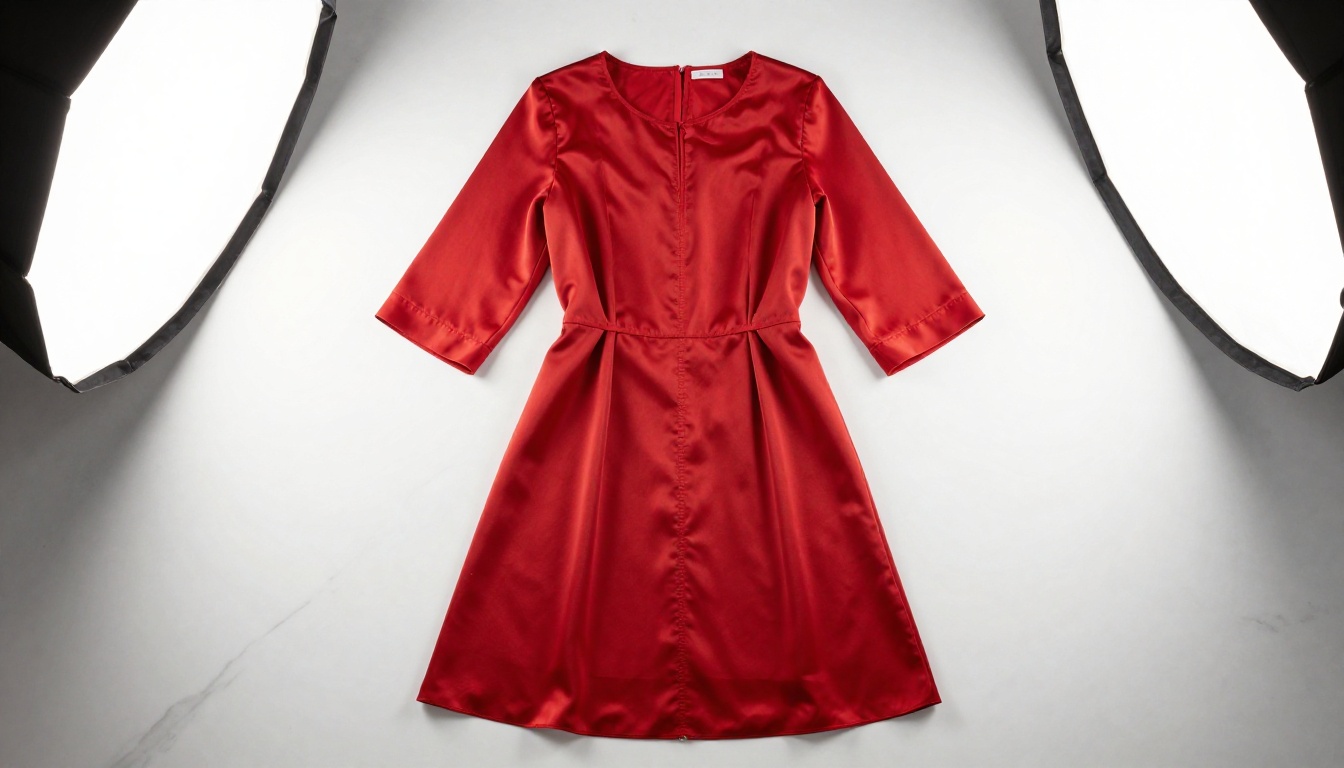
The Remove Background model handles fine edge detail on fabric items, stitching, and surface texture with impressive accuracy. For footwear, it accurately traces rubber sole edges, lace details, and the subtle shadows products cast on surfaces beneath them.
Portrait and People Photography
Human subjects are where AI background removal has seen the most dramatic improvement in recent years. The model accurately handles the hardest cases:
- Flyaway hair strands against complex outdoor backgrounds
- Transparent fabrics like veils, chiffon, mesh, and organza
- Jewelry and glasses with thin metal wire frames
- Multiple people in group portrait compositions

The output quality on modern AI models for human portraits regularly exceeds what a quick manual extraction would produce, with better preservation of the subtle color transitions at hair edges that manual selection tends to destroy.
Cosmetics and Luxury Products
For beauty brands and cosmetics photography, clean product cutouts are non-negotiable. Glass bottles, reflective packaging, and transparent elements present genuine challenges for any AI, but the bria Remove Background model handles them with notable precision.
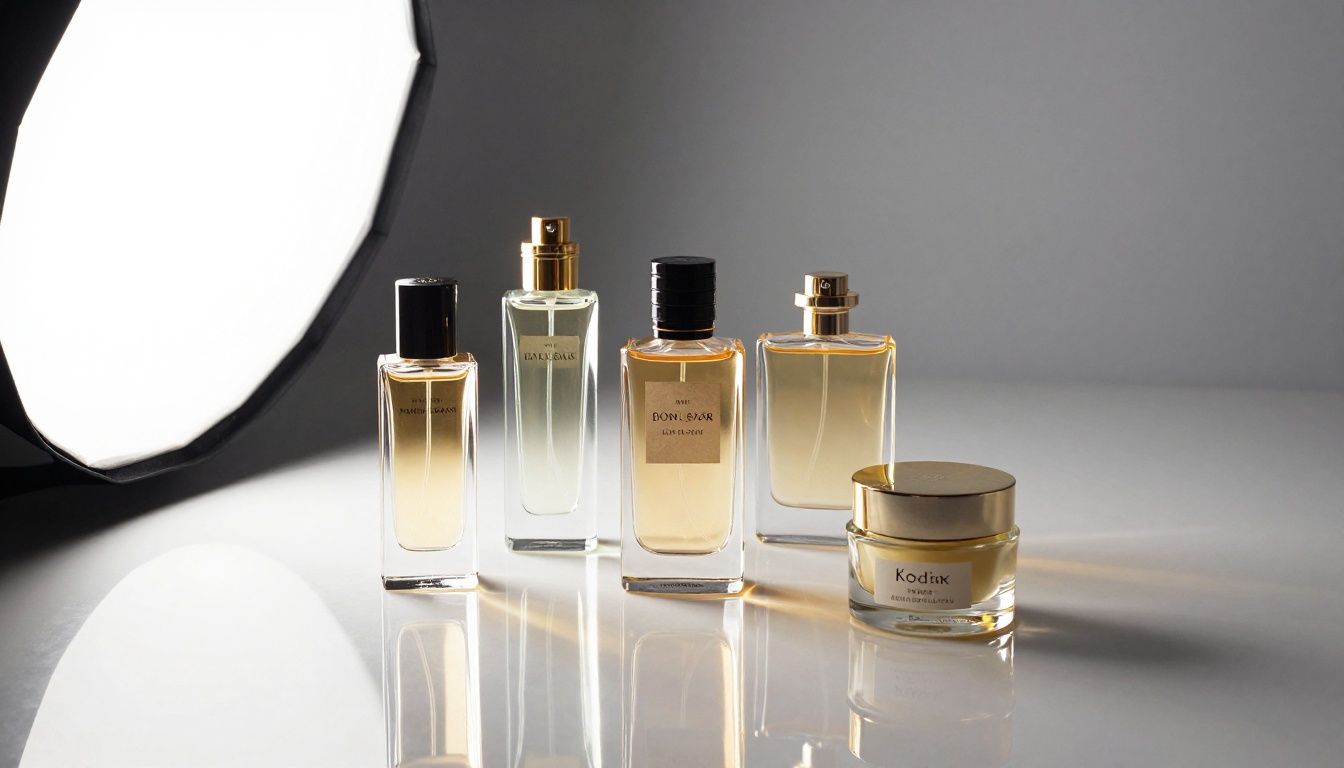
Light caustics on glass and the reflections inside transparent bottles are preserved rather than accidentally removed, which is a common failure point in older automatic tools.
When AI Background Removal Gets Tricky
Transparency matters here. AI removal is exceptional in most cases, but there are specific scenarios where results need closer attention.
The Hair Complexity Problem
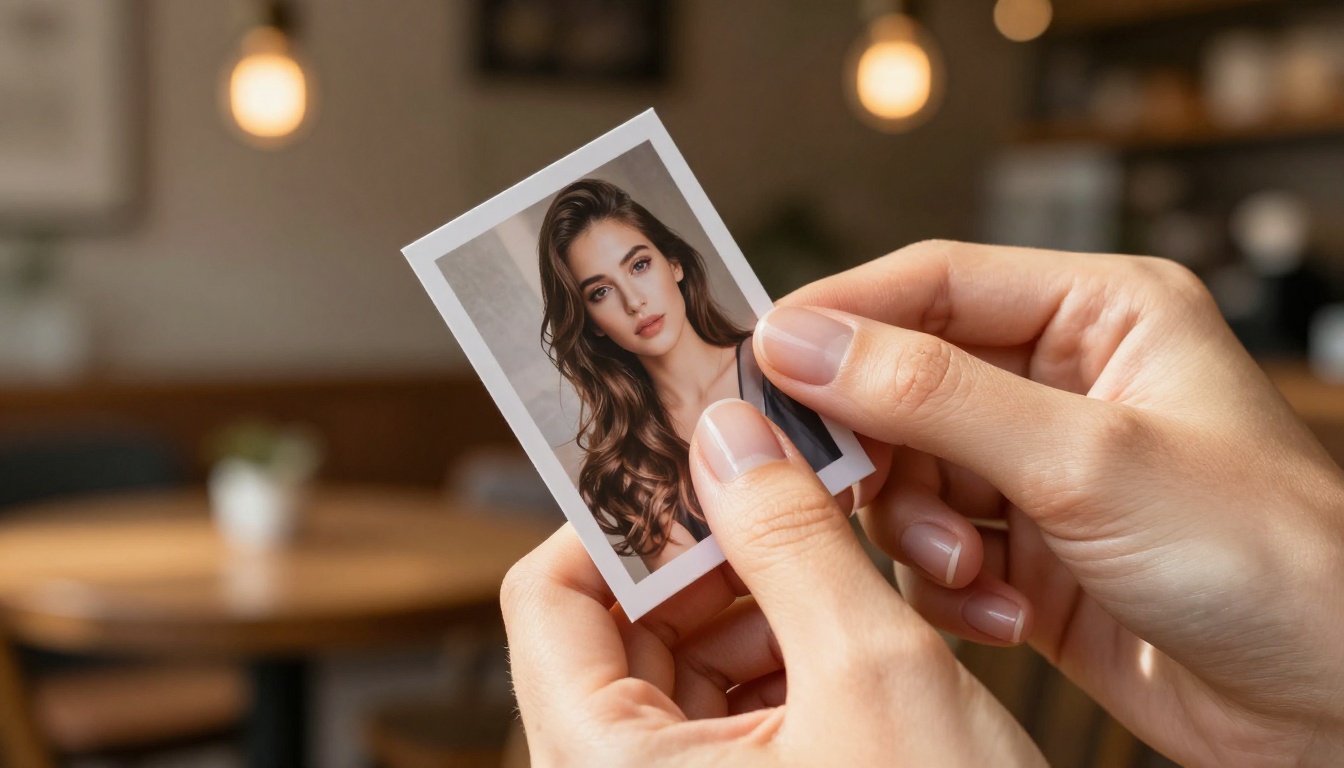
Fine, flyaway hair in front of complex backgrounds is the most persistent challenge for any background removal tool. When individual hair strands are set against a background with similar color or heavy texture, the model has to make probabilistic guesses about which pixels belong to hair and which belong to background.
The practical solution is simple: shoot portraits against clean, relatively plain backgrounds when you know you will want to remove them later. A plain wall, a clear sky, or a simple fabric backdrop gives the AI maximum visual contrast to work with.
Transparent and Reflective Materials
Glass objects, sheer fabrics, water splashes, and highly polished reflective surfaces contain pixels that belong to both subject and background at once. The model has to make a judgment call about which elements to preserve, and this is where AI tools have the most room for improvement.
For these subjects, use the AI-generated cutout as a starting point. Minor edge refinements in Photoshop or Affinity Photo can correct the small areas where transparency creates ambiguity.
💡 Workflow Tip: Use the AI-generated mask as your base layer. In Photoshop, the "Select and Mask" workspace lets you paint corrections over the AI result in seconds rather than starting from scratch. You get 90% of the work done by AI and spend 30 seconds finishing the last 10%.
5 Smart Ways to Use Transparent PNGs
Once you have a clean cutout, a transparent PNG is one of the most versatile assets in any creative workflow. Here is how professionals are putting them to work every day:
1. Product listing optimization
Drop your transparent product PNG onto a pure white (#FFFFFF) or light gray background for Amazon, Etsy, Shopify, or any marketplace with clean background requirements. Consistent backgrounds across your entire catalog create a professional, cohesive visual identity.
2. Social media content at scale
Place your subject on branded backgrounds, seasonal scenes, or promotional templates in Canva or Figma. A single clean portrait cutout becomes dozens of different social posts, campaign graphics, and story templates without any reshooting.
3. Marketing collateral that actually looks good
Place product photos or team headshots into brochures, presentations, and digital ads without any white bounding box around them. The transparent PNG composites cleanly into any design layout at any size.
4. Virtual mockups and composites
For fashion and apparel brands, clean clothing cutouts power virtual styling tools, flat-lay composite mockups, and lookbook templates that show items in context without requiring full photo shoots for every variation.
5. Video and motion graphics
Import transparent PNGs into video editing software like Premiere Pro, After Effects, or DaVinci Resolve for motion graphics, animated lower thirds, or composite scenes. The transparency layer works natively in all professional video production tools.

Background Removal as Part of a Bigger Workflow
Background removal is powerful on its own, but it becomes even more valuable as the first step in a broader AI photo editing workflow on PicassoIA.
After removing a background with the bria Remove Background model, you can use PicassoIA's Super Resolution tools to upscale your cutout up to 4x its original size without quality loss. This is particularly useful for product photos originally shot at lower resolutions or repurposed from older catalogs.
For portraits, combining background removal with AI image restoration means you can take an older, slightly noisy headshot, clean it up, and prepare it for modern use. The result is a refreshed professional photo that looks like it was shot yesterday.
The text-to-image models on PicassoIA open up a compelling creative workflow: remove the background from a product or portrait photo, then generate a brand-new AI background that perfectly matches your brand aesthetic, seasonal campaign, or creative vision. Your subject stays real and photorealistic while the environment becomes whatever you need it to be.

Try It with Your Own Photos
The barrier to professional-quality photo cutouts is effectively zero today. You do not need Photoshop expertise, a studio setup, or hours of patient manual selection work. The Remove Background model on PicassoIA processes your images in seconds and delivers transparent PNGs that are ready for any use case, any platform, and any creative project.
Whether you are a solo seller building your first Shopify store, a photographer delivering client headshots, a marketing team preparing campaign assets, or a creative professional working across multiple brands, AI background removal takes one of the most tedious steps in the photo editing process and makes it instant.
The best way to see what it does is to try it with your own images. Upload a product photo, a portrait, or any photo where the background is getting in the way of the shot you actually want.
Head to PicassoIA's Remove Background tool and see what a clean photo actually looks like.


