That perfect shot of the Eiffel Tower? Three strangers are standing right in the middle of it. Your honeymoon beach photo? A family of five is camped out in the background. You waited, repositioned, tried every angle, and still came home with someone else in your memories.
AI can fix that in about 30 seconds.
Removing unwanted people from photos used to mean hours in Photoshop, professional retouching fees, or just accepting that the photo was ruined. Today, AI tools can analyze what is behind those people and reconstruct the scene as if they were never there. The results are often indistinguishable from the original empty scene.
This article covers exactly how that works, when it works best, and how to use it on PicassoIA right now.
That Shot Was Perfect. Except for Them.
The tourist trap nobody talks about
Travel photography has a problem that guidebooks do not warn you about. The most beautiful places on earth are also the most photographed, which means they are almost always packed with other photographers photographing them. You plan the trip, wake up at 5 AM for the golden hour light, set up your shot, and there they are. A tour group. A couple taking selfies. A kid running through the frame.
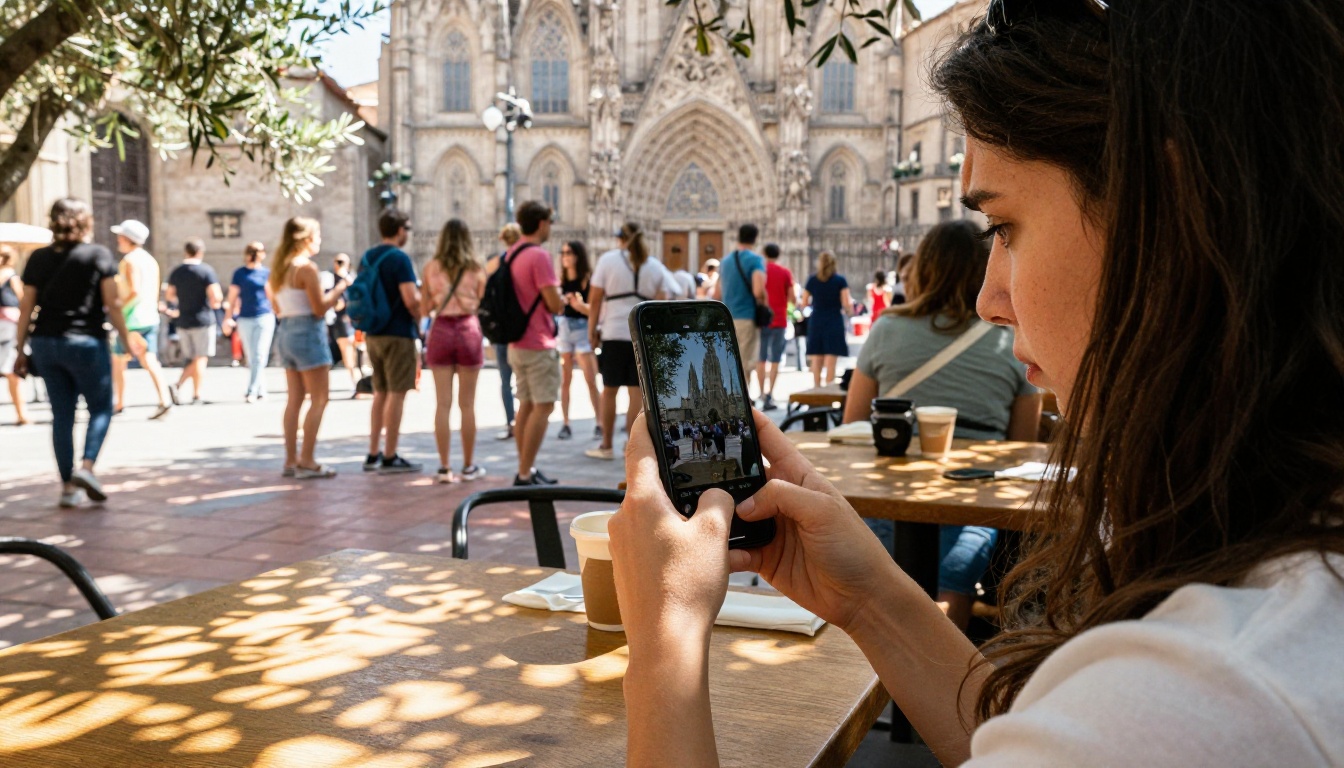
The familiar disappointment of a perfect location, ruined by timing.
This is not just a hobbyist problem. Professional travel photographers deal with it constantly. The difference is they either have the budget to hire crowd control, the patience to wait hours for a clear moment, or the skills to edit them out afterward. For everyone else, the photo just stays broken.
When a great moment becomes someone else's cameo
There is a specific kind of frustration that comes from reviewing your vacation photos and realizing that a stranger is the most prominent figure in your favorite shot. It is not just about aesthetics. It is about the memory. The photo is supposed to capture your moment, your trip, your story. An unknown person in the frame turns it into something else.
💡 Quick fact: Studies on travel photography behavior show that over 60% of photographers report dissatisfaction with their shots due to unwanted people in the frame, even at off-peak hours.
Wedding photos carry even higher stakes. A photobomber at a ceremony, an ex-partner in the background of a reception, a relative mid-sneeze in what would otherwise be the family portrait of the year. These moments cannot be re-shot.
What AI Actually Does When It Erases People
It does not just delete pixels
The most common misconception about AI photo removal tools is that they simply "cut out" the person and leave a blank space. That would be useless. What modern AI actually does is called inpainting, a technique where the model analyzes the entire image, predicts what should logically exist behind the selected area, and fills it in with realistic detail.
Think of it like this: if a person is standing in front of a brick wall, the AI does not just delete them and leave a hole. It looks at the texture, color, pattern, and lighting of the surrounding wall, and reconstructs the missing section to match. If the background is a beach, it fills in sand, water, and sky in a way that matches the existing wave patterns and horizon line.
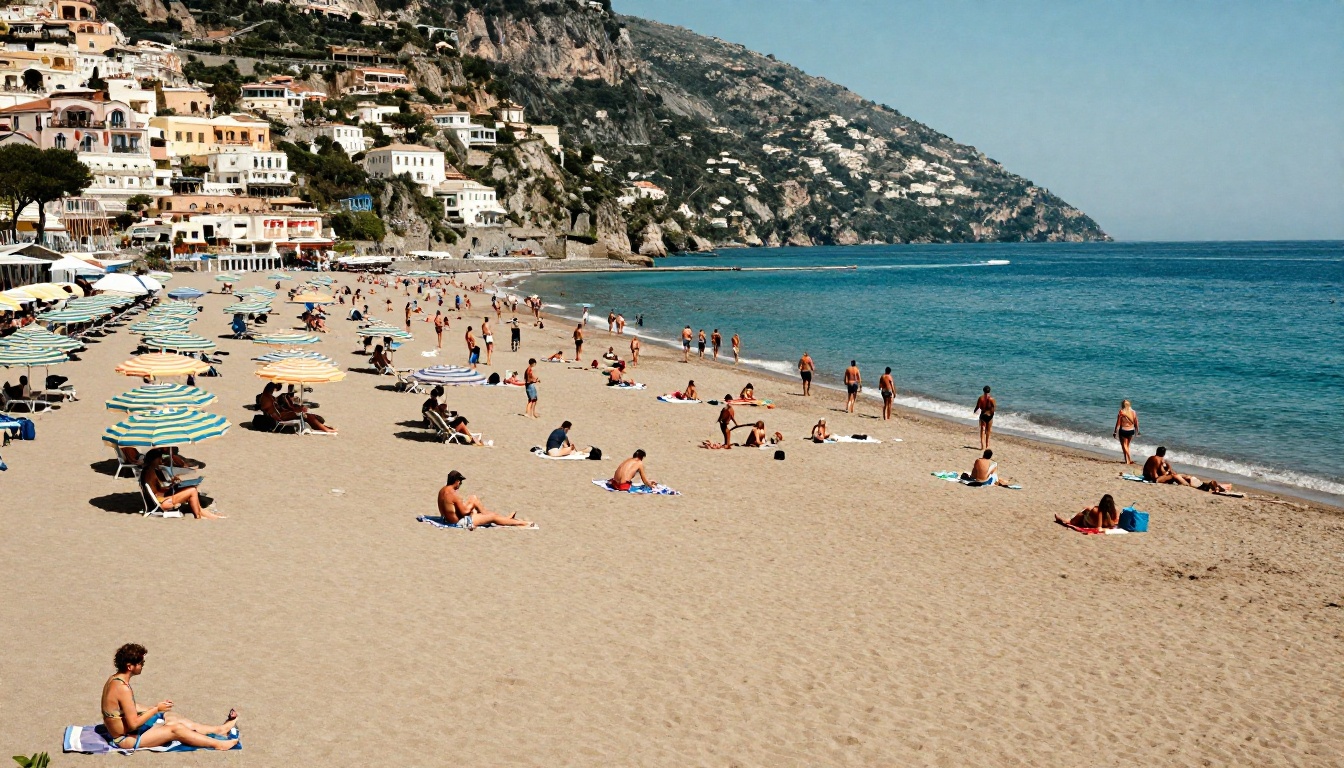
Before and after: AI reconstructs the beach scene completely.
How background reconstruction works
The AI models trained for this task have seen millions of images. They have learned patterns: what cobblestones look like, how shadows fall on grass, what an empty corridor should look like given the lighting in the rest of the frame. When you ask the model to remove a person, it essentially "imagines" what the photographer would have captured if the person had not been there.
This is different from simple clone-stamping (copying a nearby patch of pixels). The AI generates new content that fits the context, which is why it handles complex backgrounds, reflections, and uneven lighting so much better than traditional tools.
Key factors the AI considers during reconstruction:
- Lighting direction and intensity across the scene
- Background texture continuity (grass, water, stone, etc.)
- Perspective and depth cues
- Color temperature and saturation matching
- Shadow placement relative to removed subjects
When AI gets it right vs. when it struggles
AI-powered person removal works exceptionally well in most situations, but it is not magic. Here is an honest breakdown:
| Situation | AI Performance |
|---|
| Person against a simple background | Excellent |
| Tourist in front of a landmark | Very Good |
| Person partially behind an object | Good |
| Dense crowd of many people | Moderate |
| Person casting a large shadow | Moderate |
| Person overlapping the main subject | Challenging |
The more uniform and predictable the background, the cleaner the result. A stranger standing in front of a blue sky or a stone wall? Gone in seconds. A person interlocked with the main subject, partially hidden behind them, with a complex shadow? The AI may need a little help, or a second pass.
How to Remove People on PicassoIA
PicassoIA gives you access to the Bria Remove Background model, one of the most precise AI cutout and person removal tools available. Here is how to use it effectively for people removal and scene cleanup.

Selecting subjects for removal on the editing interface.
Step 1: Upload your photo
Go to the Bria Remove Background tool on PicassoIA. Upload your photo directly from your device. The platform accepts JPG, PNG, and WebP formats. Higher resolution images produce cleaner results, so upload at the original resolution if possible.
💡 Tip: Photos taken in RAW and exported to high-quality JPEG will give the AI more pixel data to work with, which directly improves reconstruction accuracy.
Step 2: Select who to remove
The Bria model uses intelligent subject detection. It automatically identifies people in the frame and allows you to isolate or remove them. For photos where you want to keep the background and remove the people, the tool isolates the human subjects cleanly, leaving the rest of the image untouched.
Selection tips for better results:
- Make sure your selection tightly wraps the person you want removed
- Include their shadow in the selection if it is clearly visible
- For groups, select all members at once rather than one at a time
- If hair or clothing edges are complex, zoom in to refine the selection
Step 3: Let AI reconstruct the scene
Once you confirm the selection, the AI processes the image and fills in the background. Depending on the complexity of the scene, this takes between 5 and 30 seconds. The result downloads as a high-quality PNG file ready to use.
If the first result has minor artifacts or mismatched textures in a small area, try running the tool again. Due to the generative nature of inpainting, each pass can produce slightly different output, and the second or third attempt sometimes yields a cleaner result.
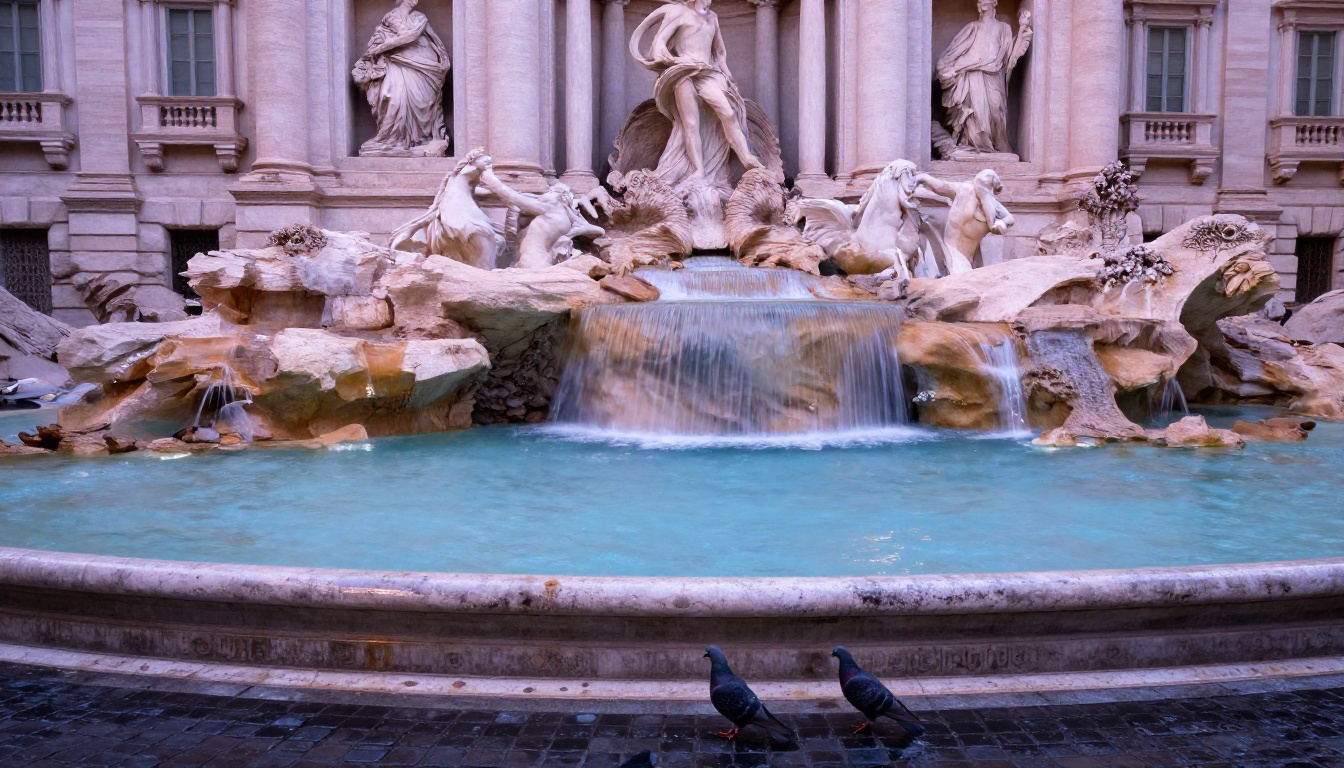
The result: a landmark shot completely free of crowds, photorealistic and clean.
Situations Where This Changes Everything
Travel photography
This is the obvious one. Iconic landmarks, narrow European alleys, famous viewpoints: these places are almost impossible to photograph without people in them during normal hours. AI removal means you no longer have to plan shoots around 4 AM to get a clean shot. Take the photo when the light is right, the moment feels real, and remove the strangers afterward.
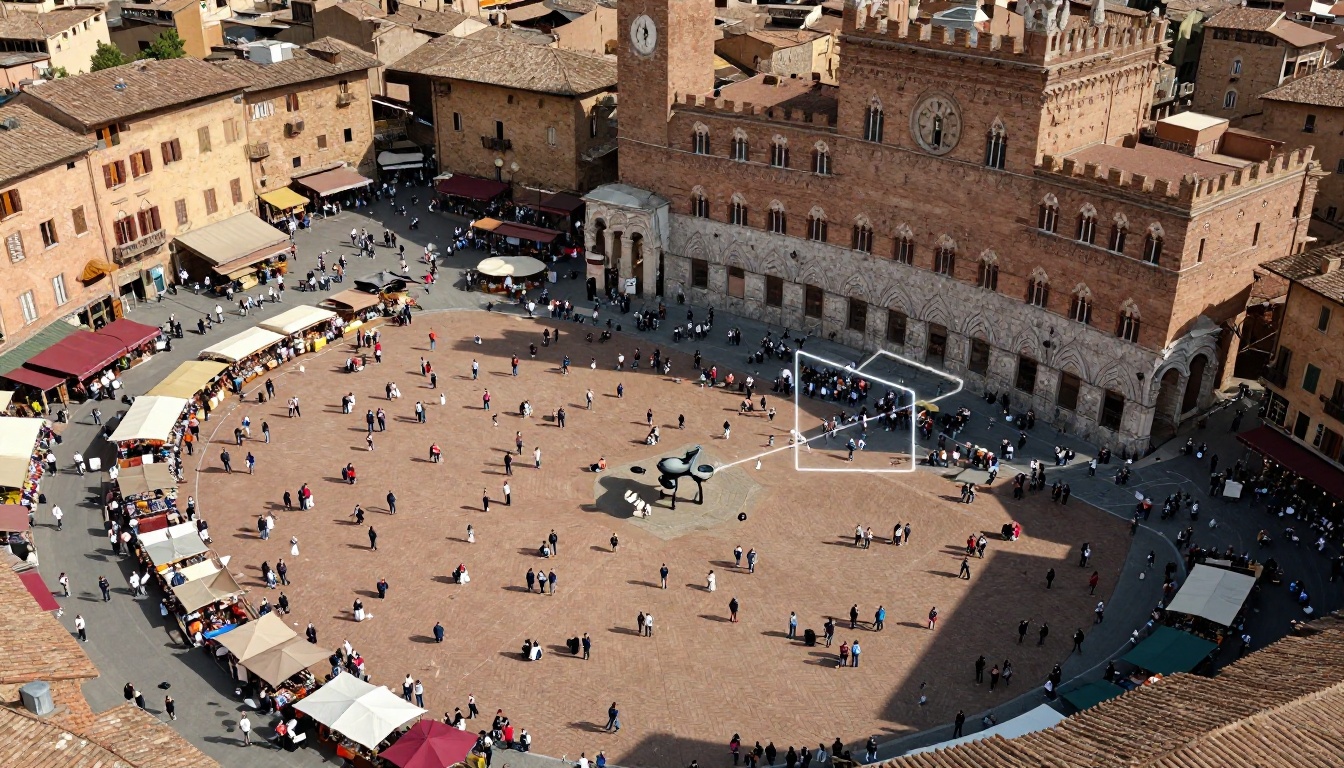
An aerial perspective showing crowd removal in progress, revealing the architecture beneath.
Particularly useful scenarios in travel photography:
- UNESCO World Heritage Sites during peak season
- Famous streets, markets, and piazzas
- Natural landscapes with trails and viewpoints
- Museum interiors and architectural shots
Wedding and event photos
Weddings are a high-stakes environment for photography. You have one chance to capture moments that cannot be repeated, and you cannot control everyone in the frame. A guest walking through the background at the wrong moment, a server visible in a candid shot, a cousin mid-conversation in a group photo: all of these are fixable after the fact.
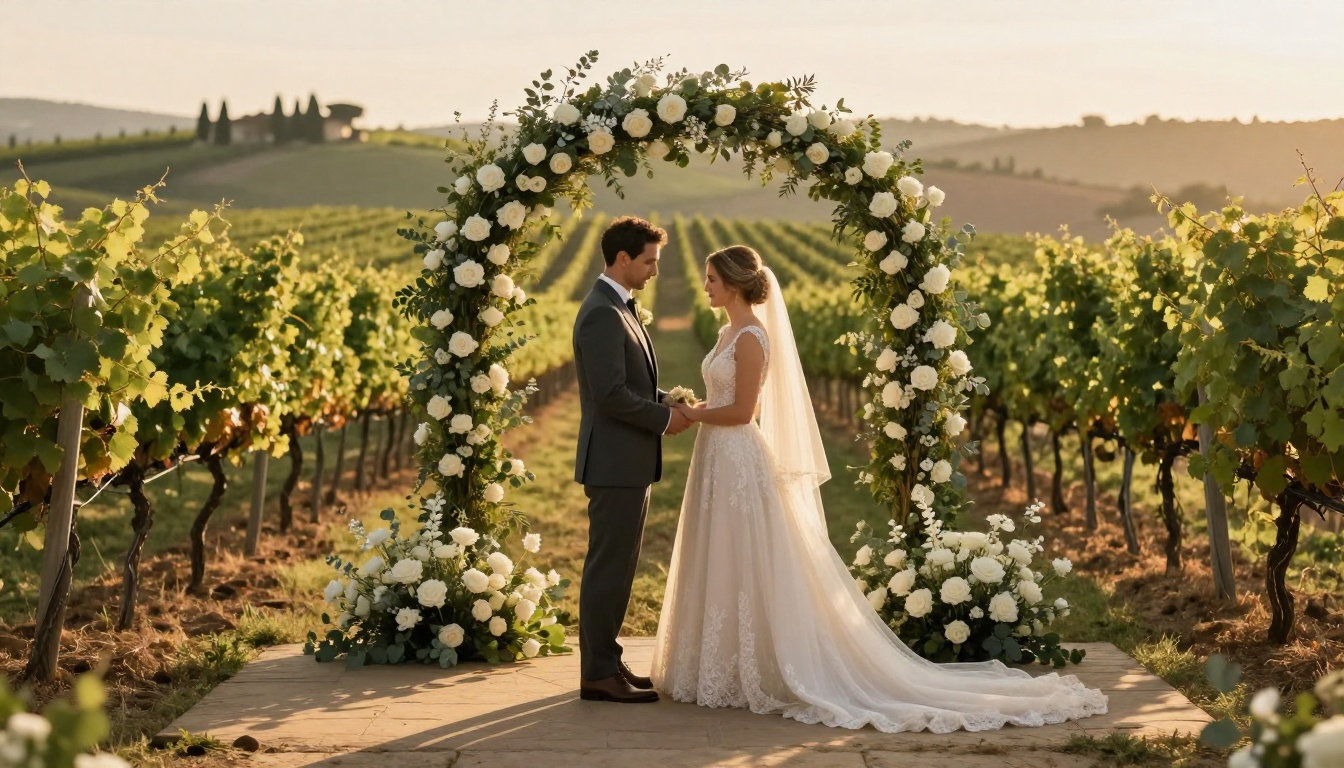
An intimate wedding portrait with all background distractions removed.
Event photographers increasingly use AI person removal as a post-processing step to clean up wide-angle venue shots where it is impossible to control the crowd entirely.
Real estate and property shots
Real estate photography has strict requirements for clean, uncluttered images. A property with people visible in the background looks lived-in when it needs to look pristine. Removing maintenance workers, neighbors, or passersby from exterior shots saves significant time compared to rescheduling the shoot.
💡 Real estate tip: For interior shots, the Bria Remove Background model can also isolate furniture items or room elements, giving you flexibility for compositing and virtual staging workflows.
Tips for Cleaner Results
Photo quality matters
The AI can only work with what it is given. A blurry, low-resolution, or heavily compressed photo will produce a blurry, low-resolution reconstruction. For best results:
- Shoot at the highest resolution your camera or phone supports
- Avoid aggressive JPEG compression when transferring files
- Use photos taken in good lighting conditions (harsh shadows reduce accuracy)
- Avoid motion blur around the subject you want removed
Choose the right selection area
Tight is better than loose. If your selection includes a large amount of background area around the person, the AI treats that entire region as "uncertain" and may produce unnecessary changes outside the person's boundaries. Select precisely around the subject.
Conversely, do not crop the selection at the image edge. If the person is partially cut off by the frame, the AI will have difficulty reconstructing the edge naturally. Leave at least a small margin of background visible around every side of the person.
When to use super resolution after removal
After removing people and getting a clean reconstructed background, the filled-in area sometimes has slightly lower perceived sharpness compared to the rest of the image, especially in large, high-detail scenes. Running the finished image through a super resolution model can equalize the detail level across the entire photo.
PicassoIA has super resolution tools available in the platform that can upscale your image 2x to 4x while sharpening reconstructed areas to match the native photography quality.
Beyond Removing People
Full background removal for product shots
The Bria Remove Background model excels at full background removal, not just people. If you need a clean product shot, a portrait on a white background, or an image ready for compositing onto a new scene, this is the tool for it. The edge detection on hair, fur, and transparent materials is particularly accurate compared to earlier generation background removal tools.
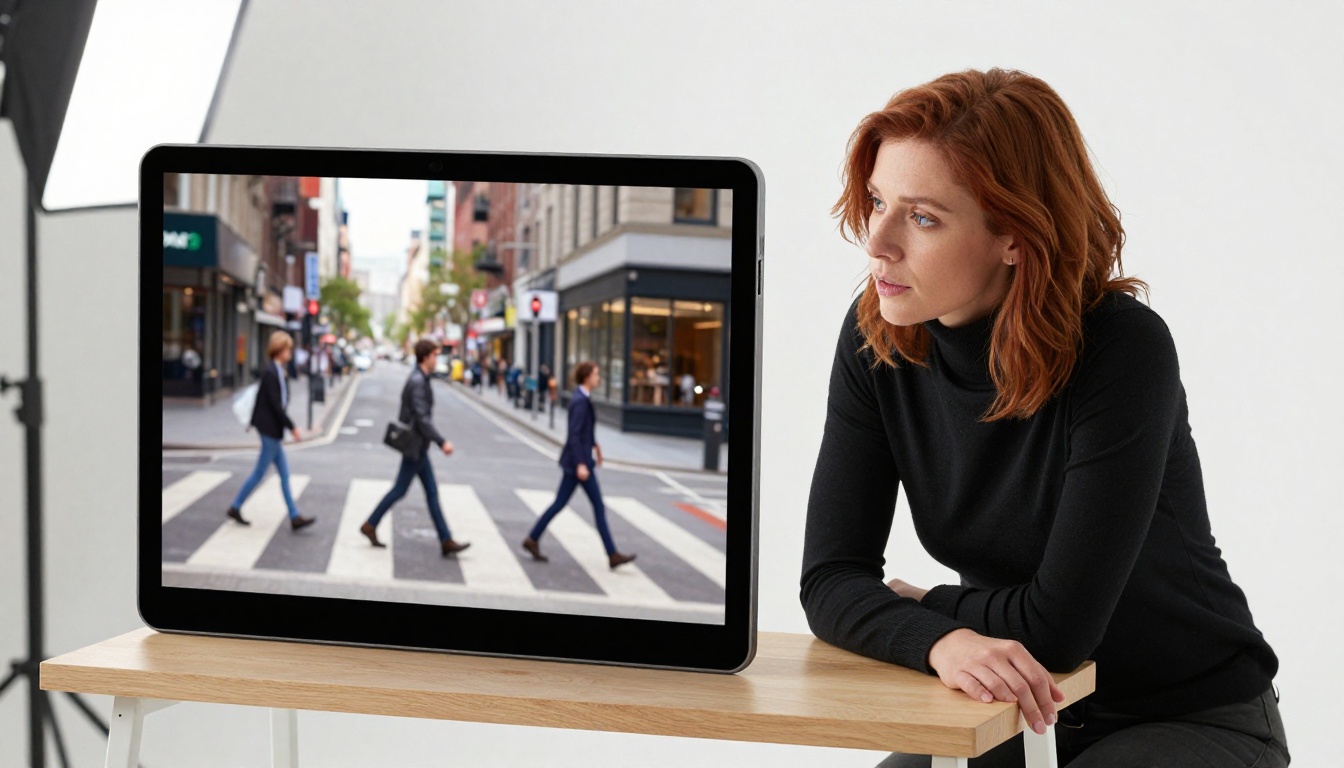
Reviewing clean results in a professional workflow.
Restore old or damaged photos
AI reconstruction is not only about removing unwanted content. The same underlying technology applies to photo restoration: filling in torn sections, removing scratches, recovering faces obscured by damage. If you have old family photos with physical damage or digital artifacts, the inpainting approach works here too.
💡 Restoration tip: For damaged or aged photos, combine person removal with PicassoIA's AI image enhancement tools to recover color accuracy and sharpness in a single workflow.
Shoot more freely, edit with precision later
One of the most practical shifts that AI editing enables is a change in how you approach shooting. Instead of waiting endlessly for a clean frame, you can shoot freely and clean up the results afterward. This is especially valuable for photographers working in unpredictable environments: street photography, documentary work, events, or anywhere that crowd control is impossible.
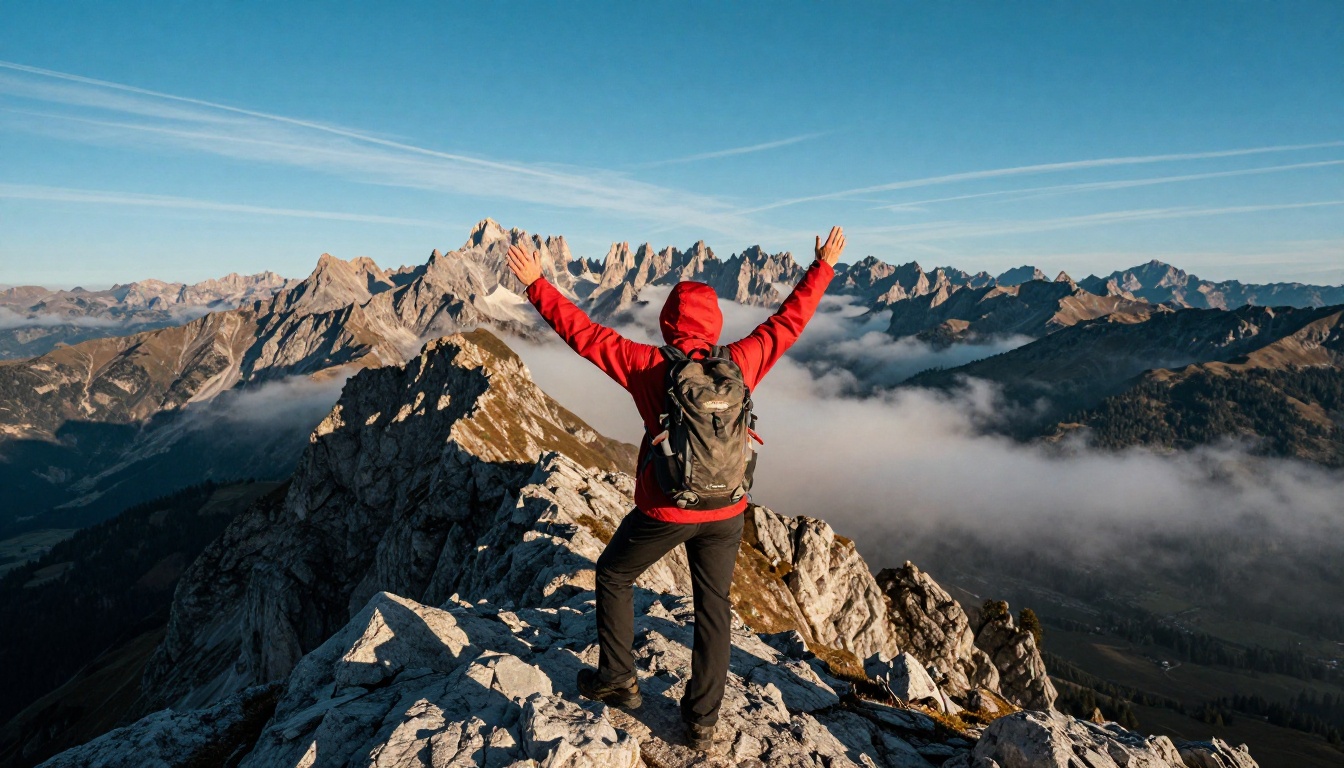
The final shot: a solitary mountain moment, exactly as it felt in person.
The technical overhead of this workflow is close to zero. Upload, select, download. No layer masks, no content-aware fill settings to configure, no Photoshop license to maintain.
Your Photos, Exactly as You Imagined
You went to the place. You had the moment. The camera captured it, more or less. The "less" is the part that AI is now very good at fixing.
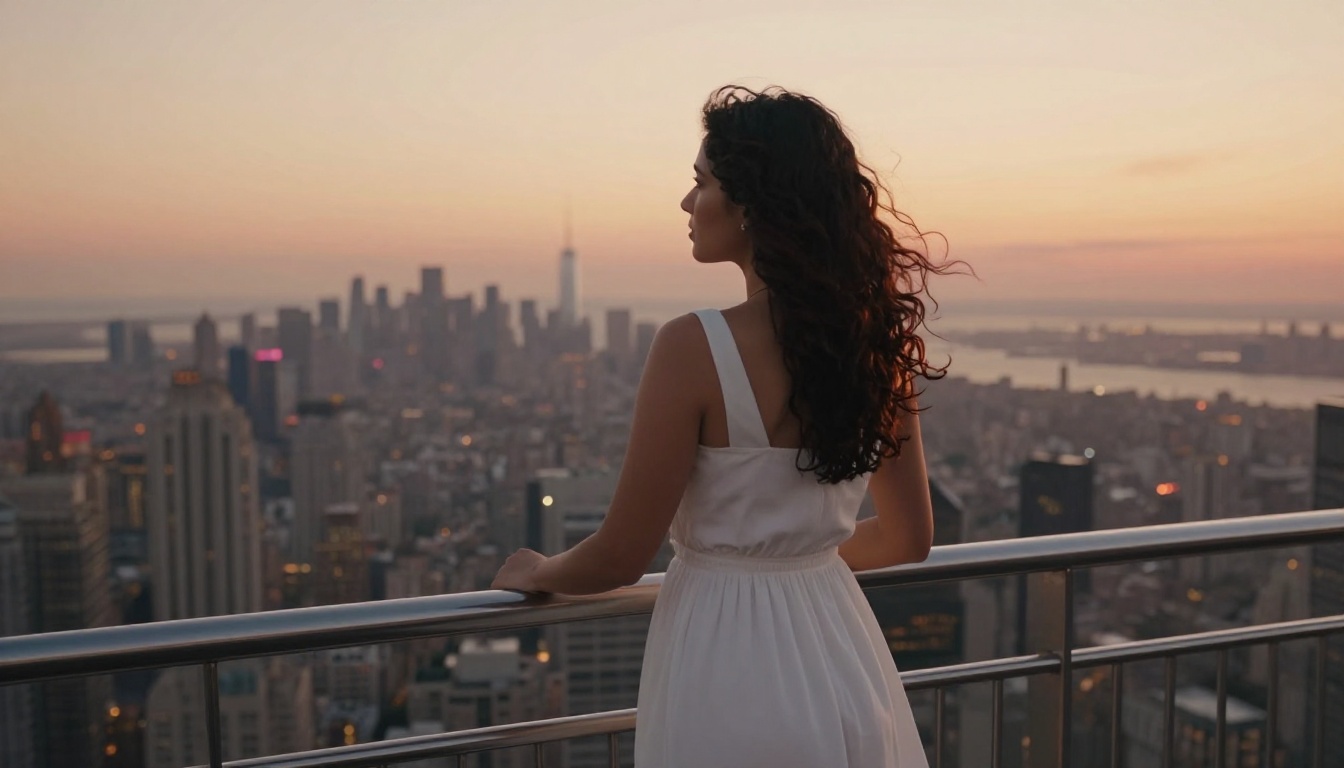
The version of the shot you always wanted: just you, just the view.
The Bria Remove Background model on PicassoIA is available right now. Upload any photo with unwanted people, let the AI reconstruct the scene, and see what your original shot actually looked like without the interruptions.
Try it with your most frustrating travel photo first. The platform handles the technical work so you can focus on what actually matters: getting the image right. Once you see the result, you will start looking at your entire "ruined" photo archive in a very different way.
PicassoIA also offers text-to-image generation, AI video tools, and image enhancement across a full suite of creative tools. But start with removing those strangers from your best shots. That one is immediately satisfying.


