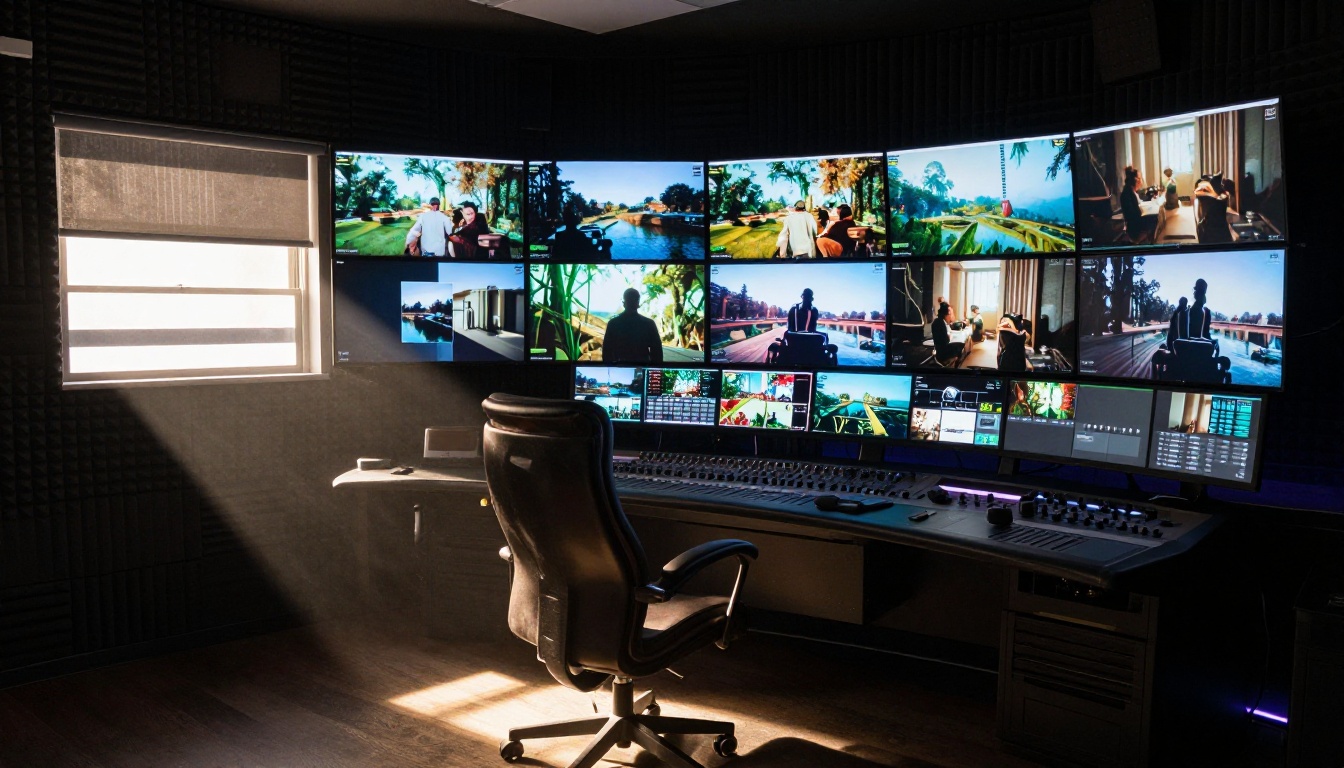
Video editing used to mean staring at a timeline for hours, dragging clips, nudging keyframes, and fighting with color curves just to get a passable result. That entire workflow is being displaced. Runway Gen 4 Aleph does something most tools still cannot: it reads a text prompt and rewrites what is happening in your video, not just the look of it but the actual content, the pacing, the visual style, all at once.
This is not a filter. This is not a preset. It is a full AI video editing model that treats footage as raw material and your words as the editing instructions.
What Gen 4 Aleph Actually Does
Gen 4 Aleph is Runway's text-driven video editing model. You feed it a source video and a text prompt describing what you want the output to look like. The model analyzes every frame and applies coherent, temporally consistent changes across the entire clip.
The primary distinction from older video AI tools is temporal coherence. Most AI image models applied frame by frame produce jittery, flickering results because each frame is generated independently. Gen 4 Aleph maintains consistency across the full clip, so motion looks natural and changes flow smoothly.
Restyling Footage in Seconds
You can take raw footage of a person walking down a street and restyle it into a completely different visual environment. Change the lighting from overcast to golden hour. Shift the mood from neutral to cinematic. The subject, motion, and camera movement stay intact while the visual atmosphere is rebuilt from scratch.
This is where the model shines for content creators. You shoot once, then produce multiple visual versions from a single take.
Recuts and Structural Edits
Beyond style transfer, Gen 4 Aleph handles structural video edits. You can instruct it to change the pacing, reframe the shot, or alter how subjects appear within the frame. This is closer to traditional editing decisions, except you describe the outcome rather than manually achieving it.
How It Fits Into Real Workflows
The reason AI video editing matters right now is not novelty. It is speed and cost. Professional video production has always bottlenecked at post-production. Even simple edits take hours when done manually. AI tools compress that timeline dramatically.
From Raw Footage to Final Cut
A typical workflow using Gen 4 Aleph looks like this:
- Shoot or source your raw footage
- Write a text description of the desired output
- Submit to the model and review the result
- Iterate with refined prompts if needed
There is no timeline to manage. No plugin to configure. No color grading panel to navigate. The editing decisions are communicated in plain language.
Who Uses It
| Creator Type | Use Case |
|---|
| Social media creators | Fast visual restyling for platform-specific aesthetics |
| Brand marketers | Multiple visual variants from a single shoot |
| Filmmakers | Previsualization and style tests |
| Educators | Clean, consistent visual tone for tutorial content |
| Solo videographers | Professional-grade output without a post-production team |
How to Use Gen 4 Aleph on PicassoIA
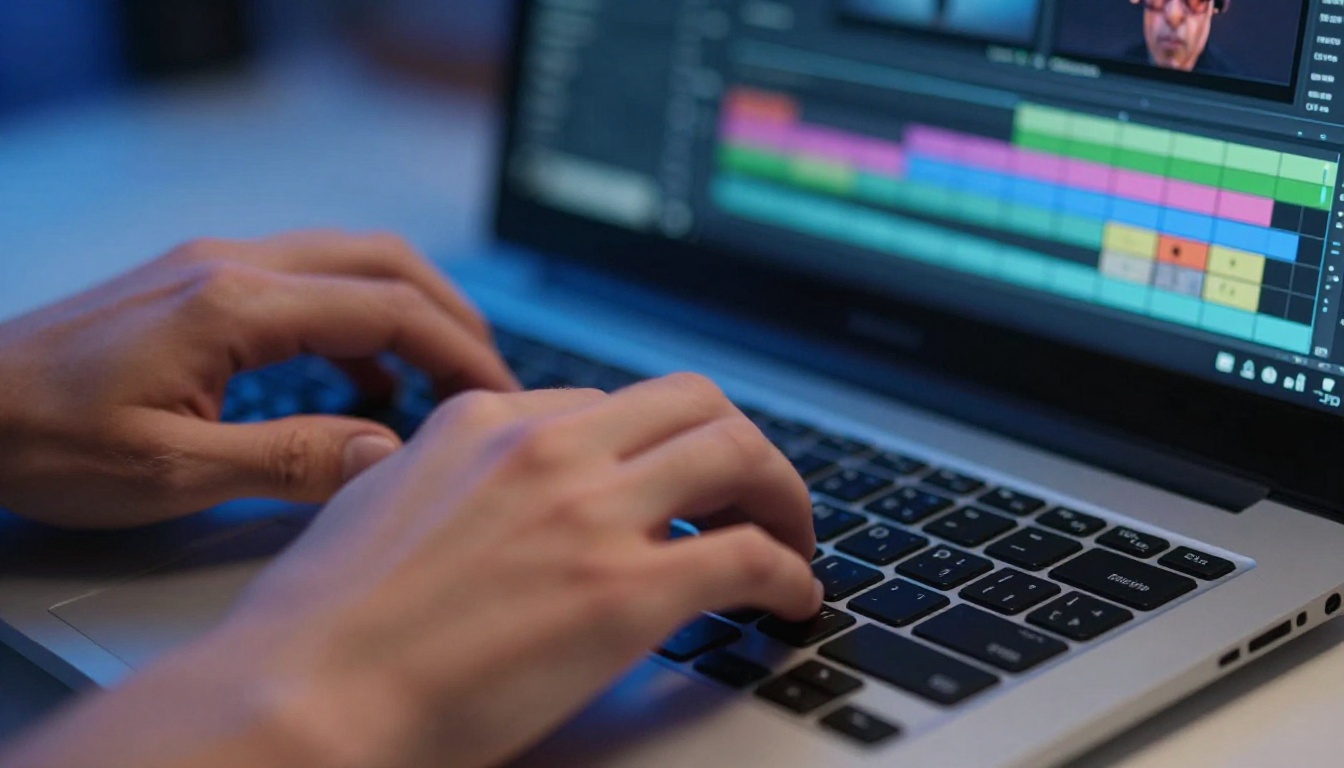
Since Gen 4 Aleph is available on PicassoIA, you can run it directly in your browser. No software installation, no API setup, no credits to manage through a separate platform.
Here is the full process.
Step 1: Open the Model
Go directly to Gen 4 Aleph on PicassoIA. The model page shows the input fields and example outputs so you can calibrate your expectations before uploading anything.
Step 2: Upload Your Video
Click the video upload area and select your source clip. Gen 4 Aleph works best with clips between 3 and 10 seconds. Short, focused clips produce cleaner results than long, complex sequences.
💡 Tip: Clips with stable camera movement, minimal fast motion, and clear subject separation produce the most coherent edits. Handheld shaky footage can work but may show more artifacts at transition zones.
Step 3: Write Your Edit Prompt
This is the most important step. Your prompt is the edit instruction. Be specific about:
- Visual style: "warm cinematic color grade", "muted tones", "film grain aesthetic"
- Environmental changes: "change the background to a desert at sunset"
- Mood shifts: "make the lighting dramatic and moody"
- Subject changes: "change the outfit to formal wear"
Avoid vague terms like "make it better" or "improve the quality." The more concrete the description, the more accurately the model interprets your intent.
Step 4: Set Parameters and Run
After writing your prompt, review any available parameters such as influence strength, which controls how aggressively the model applies changes. A lower value preserves more of the original; a higher value applies a stronger visual shift.
Click run and wait for the output. Processing time typically ranges from 30 seconds to a few minutes depending on clip length and server load.
Step 5: Download and Iterate
Review the output. If the result is not exactly what you wanted, refine your prompt. Add more specificity, adjust the influence level, or try breaking your edit into smaller, more targeted instructions.
💡 Tip: Save your successful prompts. A prompt that works well for one clip often transfers cleanly to similar footage.
5 Things Gen 4 Aleph Does Better Than Manual Editing
There are specific editing tasks where AI genuinely outperforms manual workflows, not just in speed but in quality consistency.
1. Cross-Clip Style Consistency
When editing multiple clips from the same project, maintaining a consistent visual style across all of them manually requires careful color grading on every single clip. Gen 4 Aleph applies the same prompt to all clips and produces a matched output. One prompt, consistent style, no manual calibration.
2. Rapid Style Variants
Brands often need multiple visual versions of the same content for different platforms or campaigns. Exporting to a new preset in a traditional editor does not change the fundamental aesthetic of footage. Gen 4 Aleph can produce dramatically different visual versions of identical source material in minutes.
3. Non-Destructive Concept Testing
Before committing to a specific look for a project, you can run concept prompts against rough footage to test visual directions. This is faster than rendering in a traditional NLE and far cheaper than reshooting.
4. Prompt-Based Color Direction
Describing color mood in plain language ("warm autumn afternoon light", "cold blue industrial tone") and getting accurate results beats manually adjusting color wheels if you do not have professional color grading experience.
5. Accessible Complex Effects
Certain visual changes that would require advanced compositing skills traditionally, like changing the apparent time of day in footage, can be achieved through a single well-written prompt.
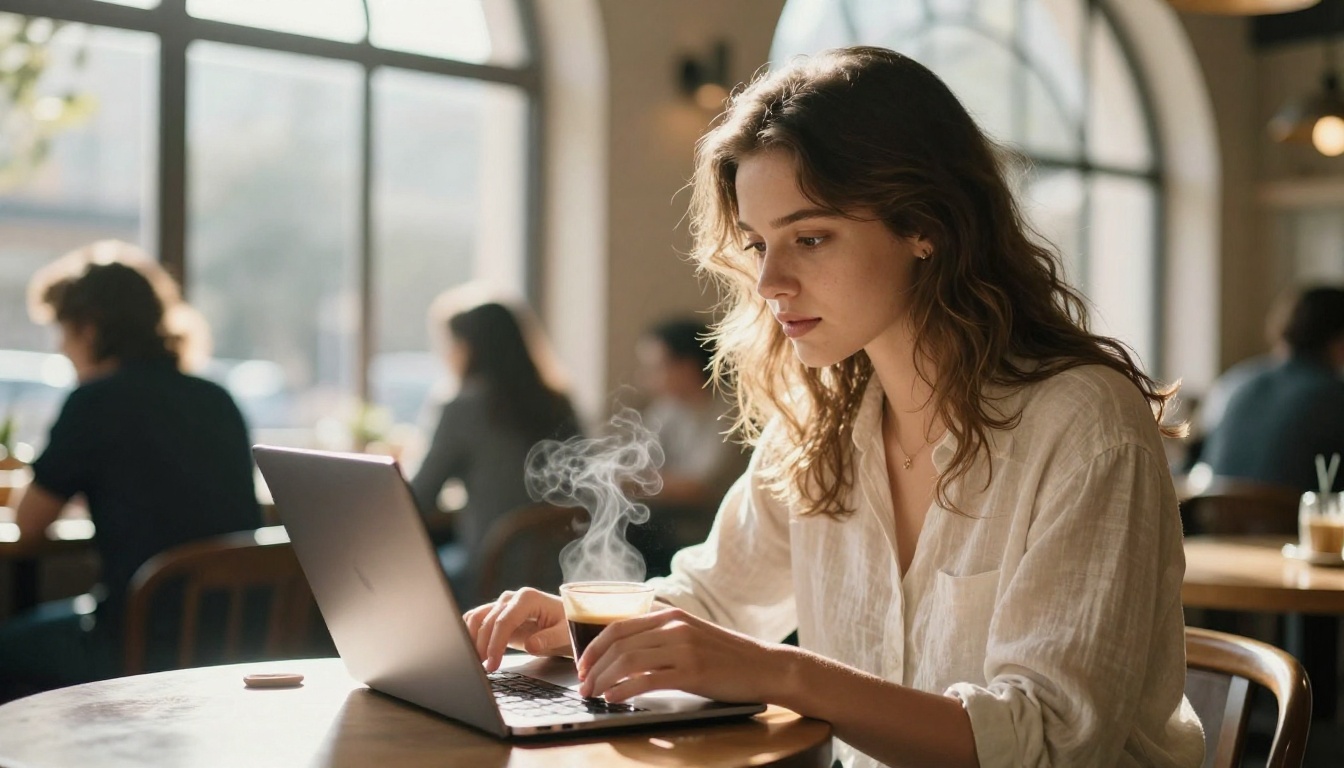
Gen 4 Aleph handles style and structural edits, but a full video workflow often requires more specialized tools. PicassoIA has everything needed in one place.
For Text-Based Video Rewrites
Wan 2.7 Videoedit and Lucy Edit 2 are both strong alternatives for text-driven video editing. Wan 2.7 Videoedit excels at scene-level changes while Lucy Edit 2 specializes in precise, localized edits. Kling o1 is another option for full video rewrites when you need maximum creative control over the output.
Luma's Modify Video works particularly well for restyling footage while keeping subject motion intact, and LTX 2 Retake lets you re-edit specific sections of a clip without touching the rest.
For Removing Unwanted Elements
Video Erase Object by Bria removes objects from video frames with AI inpainting. This handles microphone stands in the shot, unwanted people in the background, logos that need to be cleared, and similar cleanup tasks that would take significant time in traditional compositing software.
For Upscaling and Resolution
If your source footage is 720p or lower, Video Increase Resolution from Bria upscales it up to 8K with AI detail enhancement. Real ESRGAN Video by Lucataco is another strong option for 4K upscaling, particularly on natural footage where the texture reconstruction algorithm performs well.
For Adding Captions
Autocaption automatically transcribes and adds styled captions to any video. For content going to platforms like TikTok, Instagram Reels, or YouTube Shorts, this saves significant time and improves accessibility.
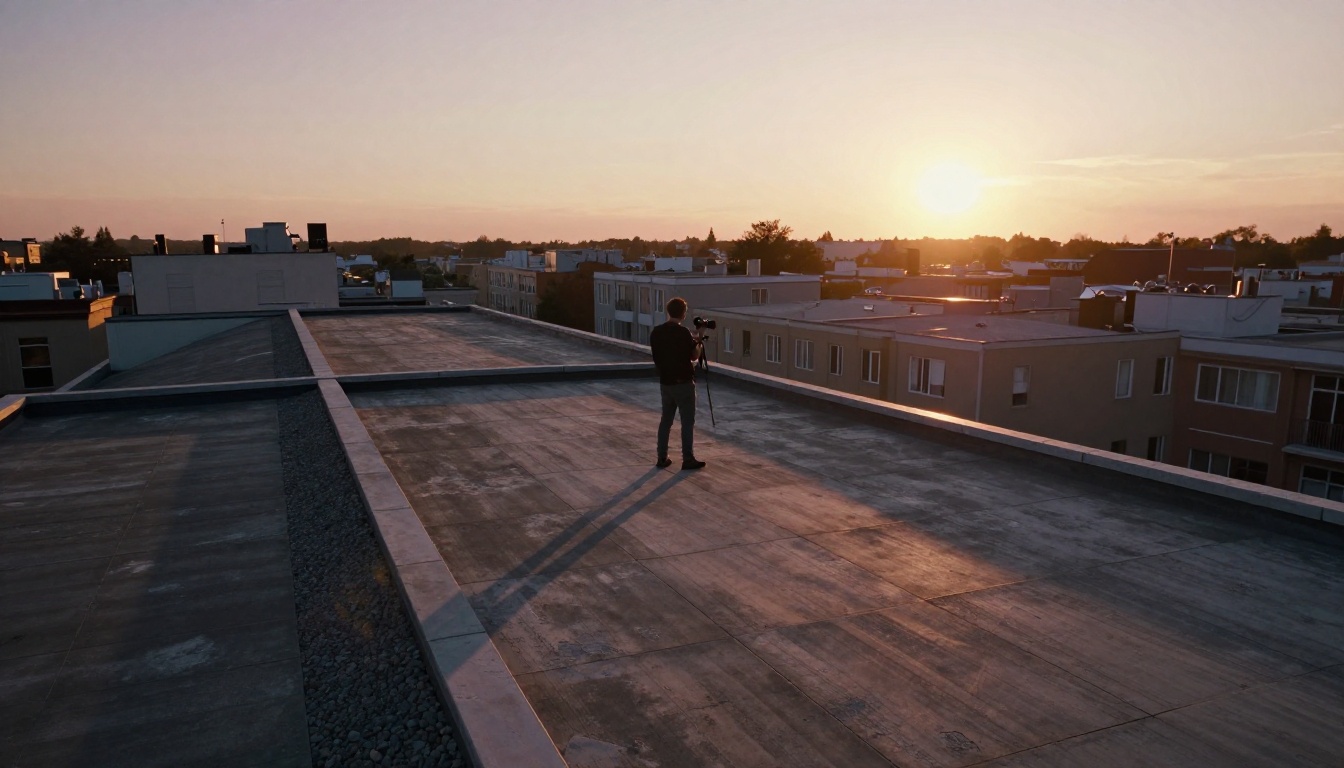
Prompt Writing: What Actually Works
Writing prompts for video editing AI is different from prompting image generators. Video prompts need to account for motion, continuity, and temporal consistency.
Prompts That Produce Clean Results
- "Restyle the footage in the visual style of a 1970s travel documentary, warm amber tones, slight vignette, film grain"
- "Change the background to a snow-covered mountain valley while keeping the subject and their movement intact"
- "Apply dramatic moody lighting to the scene, deep shadows, cooler color temperature"
- "Make the footage look like it was shot on a vintage 16mm film camera"
- "Shift the color palette to a desaturated Nordic winter palette with soft diffuse overcast light"
Prompts That Cause Problems
- "Make it look good" (too vague)
- "Professional quality" (not specific about how)
- "Fix the lighting" (fix to what standard?)
- Multiple conflicting instructions packed into a single prompt
💡 Tip: If you want a major change (like moving from day to night), break it into a two-step process. First shift the background, then adjust the overall lighting mood. Incremental changes produce cleaner results than trying to do everything in one pass.
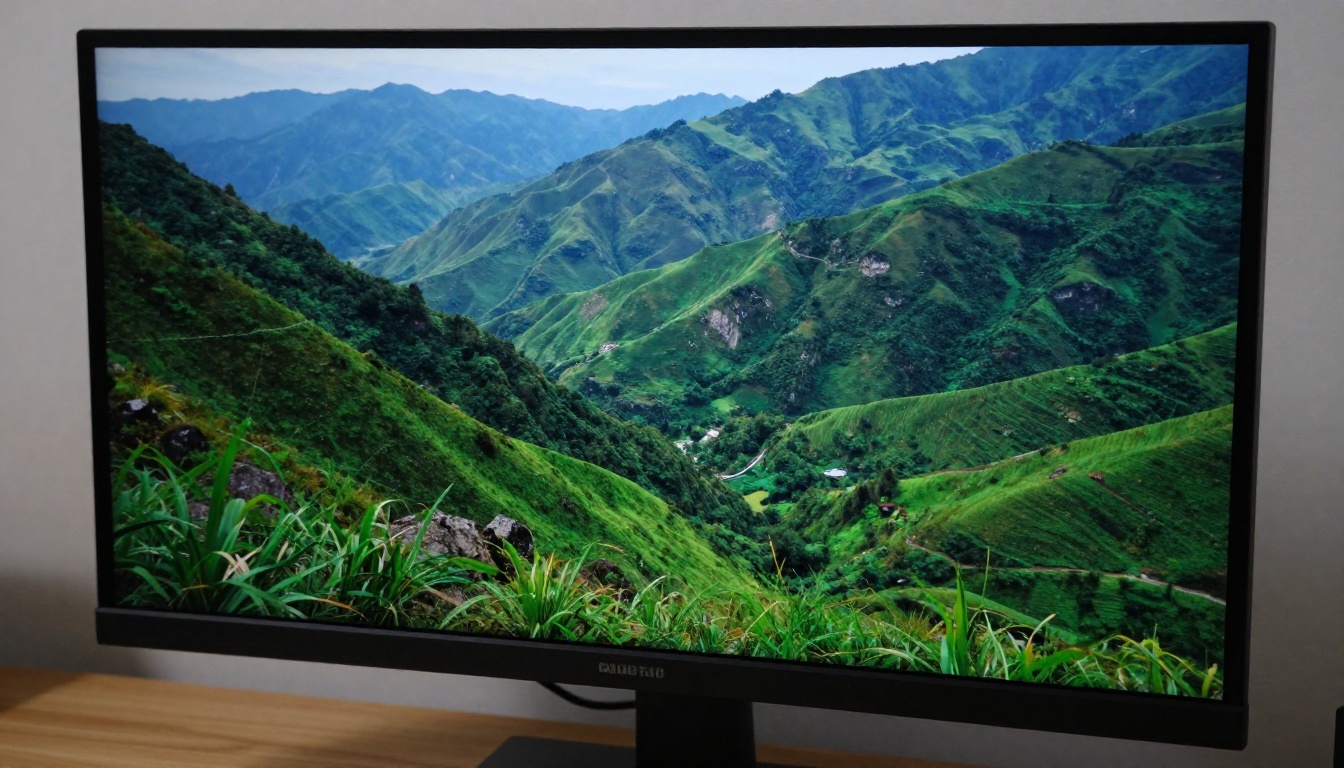
What Gen 4 Aleph Cannot Do Yet
Honesty about limitations matters. Gen 4 Aleph is powerful, but it has boundaries.
Precise frame-level cuts: It is not a replacement for timeline-based editing. If you need to cut exactly at a specific timecode, you still need a traditional editor. AI video editing operates on visual changes, not surgical precision cuts. Use Trim Video for exact cuts.
Long-form content: The model performs best on short clips. Processing a 10-minute interview and maintaining coherent style throughout is not its current strength. Break long projects into segments and process each one separately.
Subject identity preservation: Prompts that try to change the subject significantly while keeping everything else intact can produce inconsistent results. The model may alter details you want preserved.
Audio editing: Gen 4 Aleph works on the visual layer only. For audio work, you need separate tools like Video Audio Merge or MMAudio for adding AI-generated sound.
These are not reasons to avoid the tool. They are reasons to use it strategically within a broader workflow.
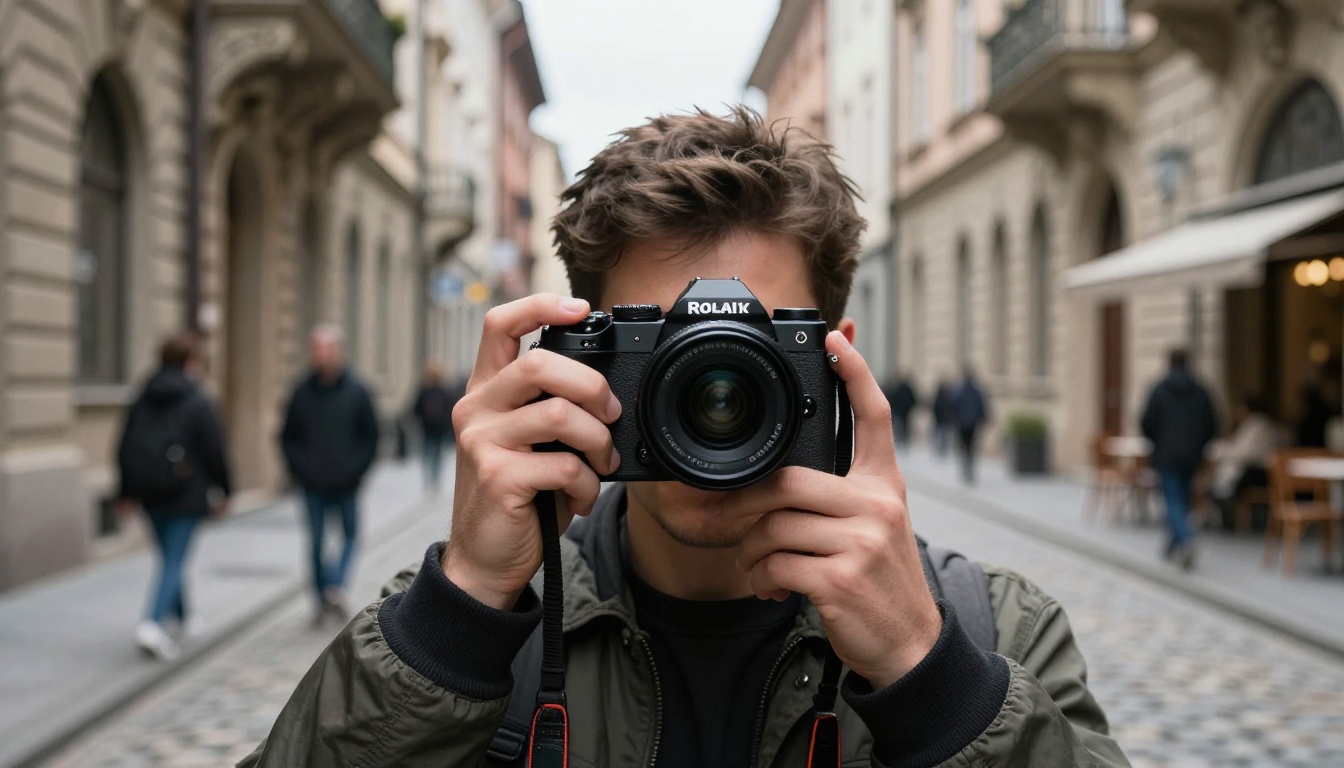
Building a Full AI Video Workflow
The most effective way to use these tools is not to pick one and ignore the rest. A complete AI video post-production pipeline on PicassoIA looks like this:
- Edit with text prompts: Gen 4 Aleph for style and structural edits
- Remove unwanted elements: Video Erase Object for cleanup
- Upscale the output: Video Increase Resolution or Real ESRGAN Video
- Add captions: Autocaption
- Add sound effects: Thinksound or MMAudio
- Reframe for platform: Reframe Video to adapt aspect ratio for TikTok, Instagram, or YouTube
Each tool handles one specific task. Together they cover the full post-production process without any desktop software.
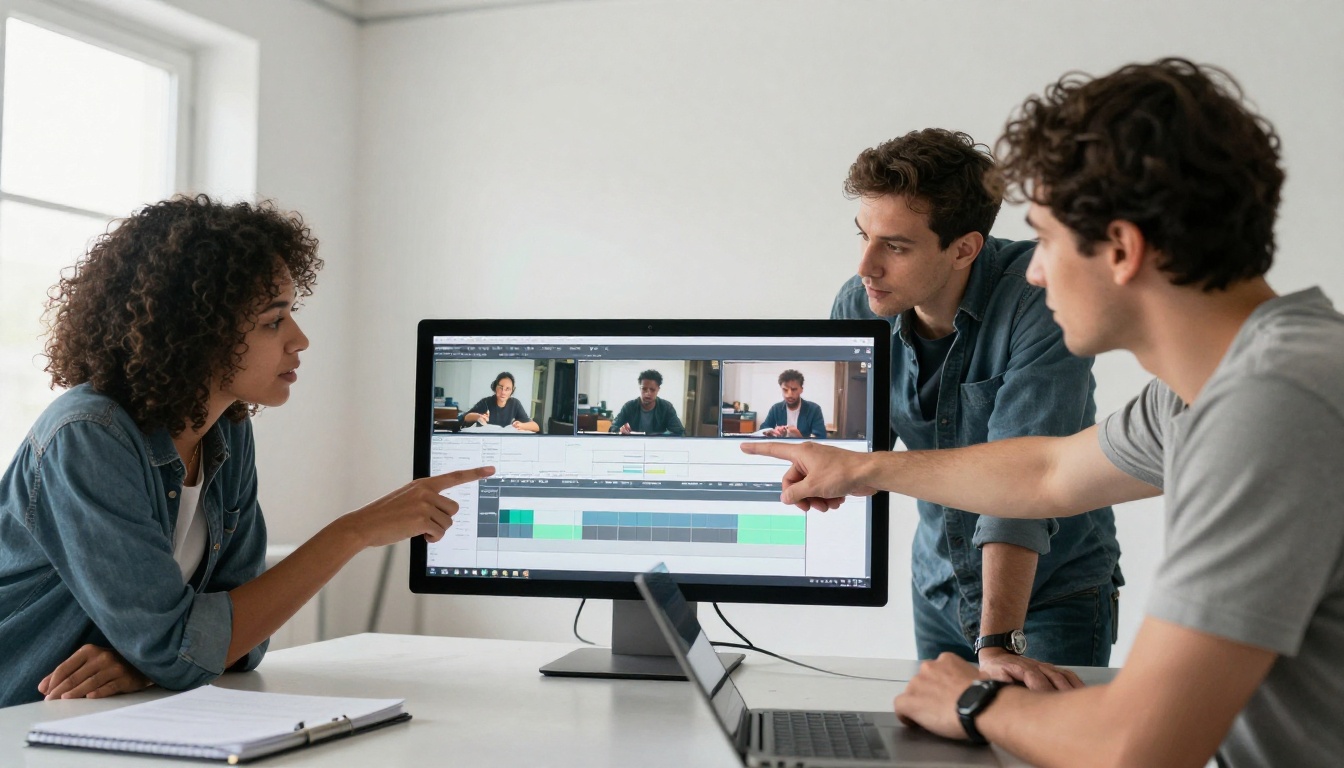
Gen 4 Aleph vs. Traditional Editing Software
| Feature | Gen 4 Aleph | Traditional NLE |
|---|
| Setup time | Zero | Hours |
| Style application | Text prompt | Manual color grading |
| Learning curve | Minimal | Steep |
| Frame-precise cuts | No | Yes |
| Batch style consistency | Excellent | Manual per clip |
| Visual shift quality | Deep AI | Presets and plugins |
| Audio editing | No | Yes |
| Output resolution | Up to 1080p | Unlimited |
| Cost model | Per use | Subscription or license |
For content creators, social media managers, and videographers without dedicated post-production teams, the Gen 4 Aleph column wins on most of the criteria that matter daily. For broadcast editors, narrative filmmakers, and workflows requiring frame-precise control, traditional tools remain necessary. The smart approach is combining both.
Start Editing Videos With AI Right Now
The tools described in this article are all available without download, installation, or a professional subscription. Gen 4 Aleph on PicassoIA runs in your browser. You upload a clip, write a prompt, and see the result in minutes.
The best way to get comfortable with AI video editing is to start with footage you do not care about. Run a few experimental prompts. Test different levels of visual shift. Get a feel for how specific your instructions need to be.
Once you see what a well-written prompt does to raw footage, the way you think about video production changes. The bottleneck shifts from technical skill to creative direction. That is a much better place to spend your time.
Try Gen 4 Aleph now and bring the same footage to Wan 2.7 Videoedit or Kling o1 to compare results. Running the same clip through multiple models is the fastest way to develop prompt intuition and find the tool that fits your specific creative style.