Runway Gen 4.5 is one of the most talked about AI video models right now, and the questions people type into search are always the same. How long can a clip be? Can you start from a photo? What happens when 10 seconds is not enough? This article answers all three in plain language, using what the model actually offers today. You will also get a short tutorial and five alternatives for the jobs Gen 4.5 does not handle well.
If you only want the short version: Gen 4.5 produces 5 or 10 second clips, accepts an optional starting image as the first frame, and supports six aspect ratios. Everything else in this piece is about getting more out of those three facts.
What Runway Gen 4.5 Actually Is
Gen 4.5 is a text to video model from Runway. You type a description, pick a clip length and a frame shape, and it returns a short video with fluid motion and close prompt adherence. It can also start from a still image, which is the feature most creators care about once they have a look they like.
The model sits above the earlier Gen 4 family. If you have used Gen4 Turbo for quick image animation, think of Gen 4.5 as the heavier option that puts more weight on motion quality and detail consistency from frame to frame.
Core features at a glance
| Feature | What you get |
|---|
| Input modes | Text only, or text plus a first frame image |
| Clip length | 5 or 10 seconds |
| Aspect ratios | 16:9, 9:16, 4:3, 3:4, 1:1, 21:9 |
| Reproducibility | Optional seed value |
| Motion style | Smooth, cinematic, low artifact movement |
| Prompt fidelity | Specific scenes produce specific results |
Who it suits best
Gen 4.5 fits people who need short, polished shots rather than long narrative sequences. Think product reveals, social clips, b-roll, mood footage for a pitch deck, and animated stills. If you are building a three minute story, you will be stitching many clips together no matter which model you pick.
Video Length Limits Explained
This is the question behind most searches, so let's be direct. On PicassoIA, the duration setting accepts 5 or 10 seconds. There is no 7 second option and no 30 second option.
Why you see different numbers elsewhere
If you have read other reviews, you may have noticed conflicting figures. Several providers that host the model describe a flexible range of roughly 2 to 10 seconds, while at least one pricing page mentions a 5 second minimum. Those differences come from how each platform wraps the model, not from a change in the model itself. The one number every source agrees on is the 10 second ceiling.
Output resolution is another place numbers drift. Most reports put Gen 4.5 output at 720p, with some platforms advertising higher tiers. Check the settings on the platform you use before you plan a delivery format around it.
💡 Tip: Plan your edit around the ceiling, not the average. If a scene needs 14 seconds, design it as two shots from the start rather than trying to stretch one.
When to choose 5 seconds
Choose the shorter length when the action is simple: a slow push toward a coffee cup, a head turn, steam rising, a hand opening a door. Short clips hold together better. Faces stay consistent, objects keep their shape, and you spend less on retakes.
When to choose 10 seconds
Go with 10 seconds when the motion needs room to develop, such as a camera crossing a landscape, a person walking from background to foreground, or a slow reveal. Longer clips give you more freedom in the edit, but the risk of drift grows with every extra second. Write a tighter prompt when you pick the longer option.
Building longer sequences
You can chain clips. Generate the first shot, grab its final frame, and use that frame as the starting image for the next generation. This gives continuity of lighting, wardrobe and setting. It takes a few minutes of extra work, but it is the most reliable way past the 10 second wall with this model.
Image to Video, Step by Step
Gen 4.5 lets you supply an image that becomes the first frame. The model then animates forward from that exact picture. This is powerful because the picture does the heavy lifting on style, subject, color and composition, and your prompt only has to describe the motion.
What makes a good source image
The best starting frames share a few traits:
- A clear subject with room around it to move
- Sharp focus and clean edges, since blur tends to carry into the motion
- Natural lighting that matches the mood you want
- A frame shape that matches the aspect ratio you plan to choose
- No text or small logos that can warp during animation
You can create a source image with a text to image model, then animate it. Gen4 Image works well for building a scene from reference pictures, and Riverflow v2.5 Pro is a strong pick when you want a detailed, high resolution still before motion.
Writing a motion only prompt
When a picture is supplied, do not re-describe it. The model can already see it. Spend your words on what changes. Compare these two:
- Weak: "A woman in a red coat on a snowy street with lampposts and falling snow."
- Strong: "She turns slowly toward the camera, snow drifting past, camera pushes in gently."
The second version tells the model about movement, pacing and camera behavior, which is exactly the missing information.
Common image to video problems
| Problem | Likely cause | Fix |
|---|
| Face changes mid clip | Prompt asks for too much action | Simplify to one small movement |
| Background wobbles | Source image has soft or busy detail | Use a sharper, cleaner still |
| Motion feels frozen | Prompt describes the scene, not movement | Add verbs and a camera direction |
| Wrong crop | Aspect ratio mismatch | Match the setting to the image shape |
Six Aspect Ratios, Six Uses
Gen 4.5 offers 16:9, 9:16, 4:3, 3:4, 1:1 and 21:9. That range covers nearly every place a short video ends up.

| Ratio | Best for |
|---|
| 16:9 | YouTube, websites, presentations |
| 9:16 | Reels, Shorts, TikTok, Stories |
| 4:3 | Classic video look, slideshows |
| 3:4 | Portrait feed posts |
| 1:1 | Square social posts, thumbnails |
| 21:9 | Ultra wide, cinematic trailers |
Picking the right shape first
Choose the ratio before you write the prompt. A vertical frame calls for vertical composition: a single subject, tall objects, a camera that tilts rather than pans. A 21:9 frame wants horizontal movement, wide landscapes and side tracking shots. Fighting the frame shape is a quick way to waste generations.
Matching ratio to source image
If you start from a photo, set the aspect ratio to match it. A 16:9 picture forced into 9:16 will either crop awkwardly or leave the model guessing about the missing area.
Prompting for Cleaner Motion
Good prompts for Gen 4.5 read like a shot description from a camera operator, not a paragraph of adjectives.

A simple prompt formula
Use this order: subject, action, camera, light, mood. For example:
"A ceramic teapot on a wooden table pours tea into a small cup, slow dolly in from the side, soft morning window light, calm quiet atmosphere."
Each part answers one question the model would otherwise guess at.
Words that help
- Camera moves: slow push in, gentle pan left, handheld sway, static wide shot
- Light: golden hour, overcast, window light, candle glow
- Pacing: slowly, steadily, gradually, in one smooth motion
Words that cause trouble
Avoid stacking several actions in a single clip. "She runs, jumps, laughs, spins and waves" will almost always collapse into mush inside 5 seconds. One action per clip is a good rule. If you need five actions, make five clips.
💡 Tip: Lock the seed once you get a result you like. Then change only one word in the prompt per run, so you can see exactly what each change does.
Real Uses for Short AI Clips
Short clips are more useful than they sound. A 5 second shot is longer than most b-roll cuts in professional edits.
Marketing and product shots
Brands use short generated clips for product reveals, ad variations and seasonal refreshes. Start from a clean product photo, animate a slow camera move, and you have a polished loop for a landing page.
Social content
With 9:16 and 1:1 on the menu, Gen 4.5 fits vertical feeds without cropping. Creators generate hooks, scene setters and transitions, then edit them into longer posts.
Pre-visualization and pitching
Directors and agencies use clips as moving mood boards. It is far easier to sell an idea with 10 seconds of motion than with six static frames. For heavier edits afterward, Gen4 Aleph lets you recut and restyle existing footage.
Animating still photography
Old family photos, portfolio shots and illustrations of real places can be brought to life with a gentle camera move. Keep the motion subtle and the result usually feels natural rather than gimmicky.
Honest Limits to Expect
No video model is magic, and Gen 4.5 has boundaries you should know before you commit to a project.

Hard limits
- Maximum 10 seconds per generation
- Only 5 or 10 second settings on PicassoIA, with no custom length
- Resolution usually reported around 720p, so plan upscaling if you need more
- Complex multi-person action often loses coherence
- Readable text inside the frame is unreliable
Soft limits
Hands, crowds, fast sports motion and very long camera moves remain tricky for every current model, not just this one. You can reduce the risk by keeping scenes simple and using a strong starting image.
Workarounds that work
- Generate multiple takes of the same prompt and pick the best.
- Chain clips by reusing the last frame as the next first frame.
- Add sound, titles and transitions in an editor, not inside the prompt.
- Upscale the final cut with a video enhancement model if you need sharper delivery.
Alternatives When You Need More
Sometimes the right answer is a different model. Each option below is on PicassoIA, so you can test them side by side with the same prompt.
For longer single shots
If you hit the 10 second wall often, Seedance 2.5 is the first one to try. It is described as capable of 30 second videos, which removes most of the stitching work. For cheaper experiments, Seedance 2.5 Lite is free and unlimited up to 10 seconds.
For sound and dialogue
Gen 4.5 focuses on visuals. If you want ambient sound or speech generated alongside the picture, test Veo 3.1 or Sora 2, both of which support synced audio.
For character-driven scenes
Kling v3 Video is a solid pick for people and expressive movement. If you want to animate a character from a reference performance, Kling v3 Motion Control is built for that job.
For fast image animation
Wan 2.5 I2V Fast animates a photo quickly, which is handy when you are testing many source images before committing to a slower run.
💡 Tip: Run the same prompt and the same starting image through two or three models. The differences in motion, color and pacing become obvious in minutes, and you will know which one fits your style.
How to Use Gen 4.5 on PicassoIA
Here is the full workflow, from blank page to finished clip.

Step by step
- Open the model page. Go to Gen 4.5 on PicassoIA.
- Write your prompt. Use the formula from earlier: subject, action, camera, light, mood.
- Add a starting image (optional). Upload a sharp photo or a generated still to pin the first frame.
- Set the duration. Choose 5 seconds for simple shots, 10 seconds for longer movement.
- Pick the aspect ratio. Match your destination: 9:16 for vertical, 16:9 for widescreen, 21:9 for cinematic.
- Set a seed (optional). Use a fixed number if you want to repeat or fine tune a result.
- Run and review. Watch the clip twice: once for motion, once for faces and edges.
- Iterate. Change one thing at a time and run again.
Parameter tips
| Setting | Recommendation |
|---|
| Duration | Start at 5 seconds while testing, then switch to 10 for the final |
| Aspect ratio | Match the source image shape exactly |
| Seed | Keep it fixed while you tune the prompt |
| Prompt length | One to three sentences, one main action |
| Starting image | Sharp, well lit, room for the subject to move |
A workflow that saves time
Build your source stills first with a text to image model, pick the best two or three, then animate only those. Image generation is faster and cheaper than video, so you filter out weak ideas before they cost you a clip. When the animation is done, send it through an enhancement or upscaling model if you need extra sharpness.
Make Your First Clip Today
The practical picture is simple. Gen 4.5 gives you 5 or 10 second clips, a first frame image option, and six aspect ratios that fit almost every platform. Past 10 seconds, you either chain shots or switch to a model built for longer output, and PicassoIA lets you test all of them in one place.
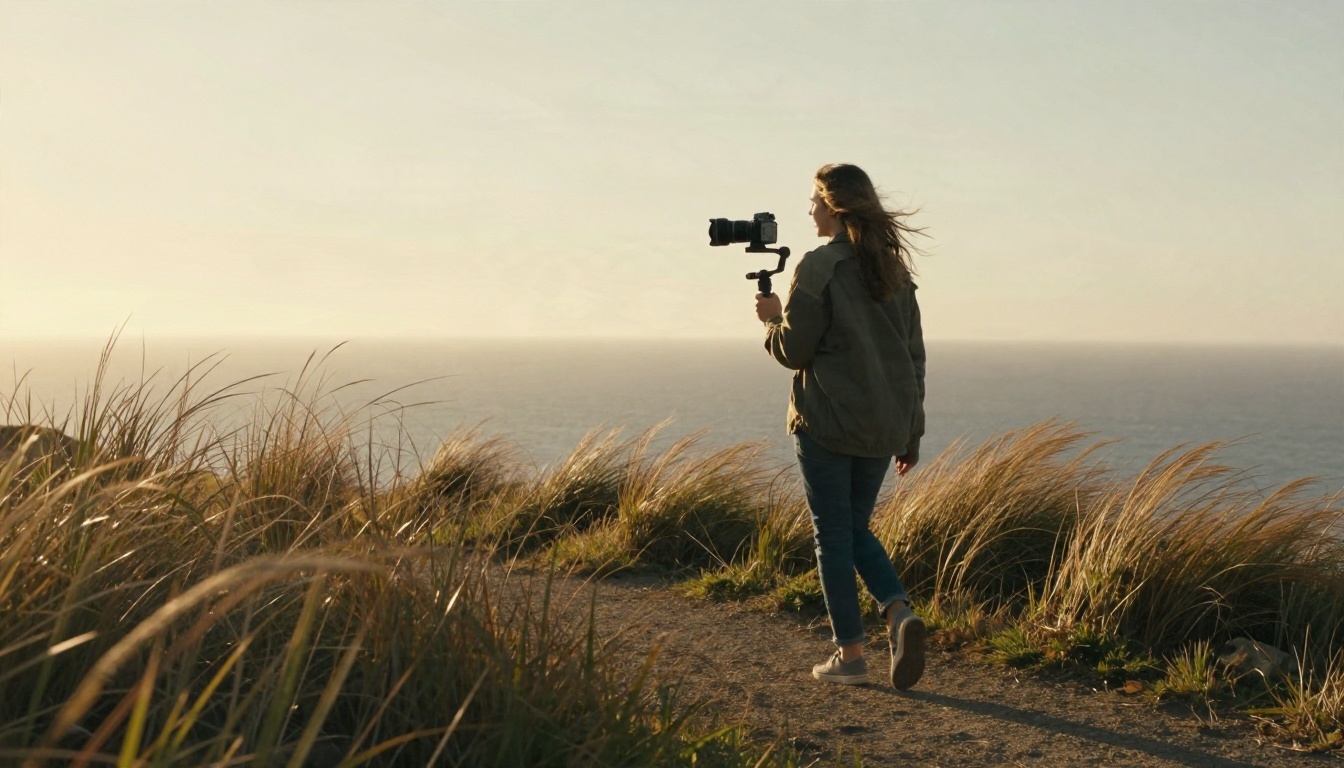
The fastest way to see what suits your work is to try it. Pick one photo you love, write a single sentence about how it should move, and run it through Gen 4.5. Then repeat the same idea with Seedance 2.5 or Kling v3 Video and compare. You can also browse every video, image and audio model at picassoia.com/en/all-models.
Open PicassoIA, drop in your first prompt, and see what your idea looks like in motion.


