Runway has been steadily iterating on its Gen-4 architecture, and with Gen-4.5, the jump is noticeable. If you have been using the earlier release and wondering whether the upgrade actually matters for your workflow, the short answer is yes. The changes are not cosmetic. Motion quality, consistency across frames, and how faithfully the model follows your prompts have all seen real improvements. This article walks through every meaningful change in Gen-4.5, shows you how to use the model step by step, and puts it side by side with the strongest competitors currently available in 2027.
What Actually Changed in Gen-4.5
The version bump from Gen-4 to Gen-4.5 is not just marketing. Three areas received substantial attention: motion control precision, frame-to-frame stability, and prompt fidelity. Each one affects how usable the model is for professional creative work, whether you are producing short films, social media content, or commercial video assets.
The Multi-Motion Brush
The Multi-Motion Brush is the headline feature in this release. In Gen-4, you could suggest general motion through text prompts, but the model made its own decisions about how objects moved relative to each other. Gen-4.5 gives you granular control: you draw regions directly on your input image and assign independent motion vectors to each region.
This matters enormously for scenes with multiple subjects. A person walking left while a background crowd moves right, or a car pulling away as the camera pans in the opposite direction. Before this update, achieving that kind of motion choreography required compositing multiple separate generations together in post-production. Now it happens in a single generation pass.
The tool also supports layered motion. You can assign a slow drift to the background sky, moderate movement to midground trees, and a faster specific trajectory to your foreground subject. The result is a parallax depth effect that previously required dedicated motion graphics software.
💡 Tip: Keep motion vectors on adjacent regions clearly differentiated. Overlapping direction assignments confuse the model and produce blended, unintended motion in the overlap zone. A small spatial gap between brushed regions prevents this entirely.
Temporal Consistency Improvements
One of the persistent frustrations with early AI video models was flickering. Faces would subtly shift between frames. Textures on clothing would crawl or pulse. Small objects in the background would pop in and out of existence in ways that broke immersion immediately.
Gen-4.5 addresses this through improved temporal attention in the model architecture. In practice, this means:
- Skin and surface textures remain stable across the full clip duration
- Background elements no longer shimmer or disappear between frames
- Hair and fabric move with physically plausible inertia instead of teleporting between positions
- Consistent lighting is maintained even when subjects move through different parts of the frame
- Object identity is preserved, meaning a coffee cup that starts on a table stays a coffee cup with the same shape and color throughout
For anyone generating talking head videos, interview-style content, or close-up product shots, this improvement alone justifies using Gen-4.5 over its predecessor. The difference is visible even on a first watch.
Stronger Prompt Adherence
Gen-4.5 is significantly better at following specific textual instructions. The earlier version would often honor the general mood of a prompt while ignoring specific details, particularly around camera movement and the behavior of small objects in the frame.
The updated model now correctly handles instructions like "slow dolly in toward the subject" or "leaves fall from upper left while subject remains stationary." Specificity in prompts now produces correspondingly specific outputs rather than a best-guess approximation. This is particularly valuable for creators who have developed detailed prompt libraries and rely on consistent interpretation to maintain visual style across a project.
Gen-4 vs Gen-4.5: The Real Differences
Here is a direct comparison of what changed between the two versions across the features that matter most for production work:
| Feature | Gen-4 | Gen-4.5 |
|---|
| Motion Control | Text-only suggestions | Multi-Motion Brush regions |
| Temporal Consistency | Moderate, visible flicker | Significantly reduced flicker |
| Prompt Adherence | General intent honored | Specific instructions followed |
| Max Resolution | 1280x768 | 1280x768 |
| Max Duration | 10 seconds | 10 seconds |
| Camera Control | Basic (text-driven) | Improved directionality |
| Subject Consistency | Variable across clips | More stable within clip |
| Multi-Layer Motion | Not available | Available via brush tool |
| Pricing | Credits-based | Credits-based (unchanged) |
The resolution ceiling has not changed, which is worth noting. If 4K output is a hard requirement for your project, you will still need to run a separate super-resolution pass after generation. That is a genuine limitation compared to several competitors that now output native 1080p or higher in their base pipelines.
How Gen-4.5 Works in Practice

Text-to-Video Mode
The text-to-video pipeline in Gen-4.5 takes a written prompt and produces a clip up to 10 seconds long. The model is tuned for cinematic content and handles natural environments, architectural interiors, and human subjects particularly well. Abstract or surreal prompts can produce compelling results, but consistency is harder to predict and control across multiple generations.
The most reliable prompt structure for Gen-4.5 follows this pattern:
[Subject description] + [Action and Motion] + [Environment] + [Camera instruction] + [Mood and Lighting]
For example: "A woman in a white coat walks slowly through a sun-drenched wheat field, camera tracking from behind at low height, warm golden hour light, slight wind motion in the grass." This structure gives the model clear instructions at every level: who, what they do, where they are, how the camera behaves, and what the scene should feel like.
Avoid vague emotional descriptors like "beautiful" or "dramatic" as standalone modifiers. Instead, describe the specific visual conditions that create that emotion. "Late afternoon backlight with lens flare" is more useful than "beautiful lighting."
Image-to-Video Mode
Image-to-video is where Gen-4.5 becomes a practical production tool. You provide a still image and a motion prompt, and the model animates it while preserving the visual style, lighting, and composition of your source material.
This is particularly useful when you have:
- Product photography you want to bring to life with subtle motion
- Concept art or illustrations that need animation
- Portrait shots where you want natural breathing, blinking, and eye movement
- Architecture stills where you want environmental animation such as wind, water, or shifting light
- Brand assets or logos where you need controlled, branded motion
The Multi-Motion Brush integrates directly with this mode. You paint regions on your source image, assign motion vectors to each region, then let the model compute the physics of how those motions interact with each other and with the scene geometry.
5 Tips for Better Outputs
Getting consistently good results from Gen-4.5 requires understanding how the model interprets input. These five practices make a measurable difference in output quality:
- Use reference images when possible. Image-to-video outputs are more consistent than pure text-to-video because the model has a concrete visual starting point. Subject identity, lighting conditions, and composition are all locked in from the reference.
- Describe motion at the sentence level. Instead of "moving camera," write "slow lateral tracking shot from left to right, subject stays centered in frame throughout." The more explicit the camera instruction, the more accurately it is executed.
- Keep scenes compositionally simple. One primary subject with a clearly defined background outperforms complex multi-element scenes in terms of consistency and temporal stability.
- Separate Multi-Motion Brush regions with clear spatial gaps. Motion definitions bleed between regions with overlapping assignments, producing muddy in-between motion that satisfies neither instruction.
- Generate multiple variations of the same prompt. Gen-4.5 has meaningful variance between runs. Generating three to five versions of the same prompt gives you a selection pool and dramatically improves the probability of a strong result.
💡 Tip: For talking head content specifically, start from a high-resolution portrait photograph rather than generating a character from text. The temporal consistency improvements in Gen-4.5 preserve facial identity much more reliably when working from a real photographic source.
Where Gen-4.5 Falls Short
No model is without weaknesses. These are the areas where Gen-4.5 still struggles compared to what professional creators need and what competing models now deliver:
Resolution ceiling. Maxing out at 1280x768 means anything intended for broadcast, cinema, or 4K social delivery requires a separate upscaling step. Competitors like LTX 2.3 Pro output native 4K, and Kling v3 handles 1080p natively without a post-processing step.
Maximum clip length. At 10 seconds per generation, you cannot produce extended sequences in a single pass. Stitching multiple clips together introduces consistency challenges: matching lighting, subject appearance, and camera behavior across separate generations is time-consuming work that often requires manual correction.
No native audio. Gen-4.5 produces silent video. Models like Veo 3 and Seedance 2.0 now generate synchronized ambient sound, dialogue, and music alongside video in a single pass. For creators who want fully produced clips without additional post-production work, this is a significant gap.
Credit cost on high iteration workflows. Runway operates on a credit system, and Gen-4.5 consumes credits at a rate that accumulates quickly when you are iterating through many generations to find the right take. Budget-conscious creators working at volume will feel this constraint more acutely than those making occasional, polished pieces.

The Competition in 2027
Gen-4.5 is a strong model, but the AI video generation landscape in 2027 is intensely competitive. Several alternatives outperform it in specific categories that matter for different production types.
Kling v3
Kling v3 from Kuaishou is currently one of the most capable text-to-video models available. It outputs native 1080p, handles complex multi-subject scenes with strong temporal consistency, and has its own dedicated motion control system through Kling v3 Motion Control. For creators who prioritize output resolution and subject complexity, Kling v3 is the stronger choice right now. The Kling v2.6 variant also remains a reliable option for those wanting a balance of speed and quality.
Sora 2 Pro
OpenAI's Sora 2 Pro brings physics simulation quality that Gen-4.5 cannot match for fluid dynamics, cloth simulation, and complex particle interactions. If your content involves water, fire, smoke, or intricate fabric motion under wind, Sora 2 Pro produces noticeably more physically accurate results that hold up under close scrutiny.
Veo 3
Google's Veo 3 is the current benchmark for audio-synchronized video generation. It produces ambient environmental sound, dialogue, and atmospheric music alongside visuals in a single generation pass. For social content creators and marketers who need ready-to-publish clips with sound, this workflow advantage is substantial. Veo 3.1 takes this further with improved audio fidelity and faster rendering.
Seedance 2.0
ByteDance's Seedance 2.0 is particularly strong for fast generation at high quality. Seedance 2.0 Fast is the model to reach for when you need rapid iteration without sacrificing too much visual quality. For agencies and creators running high-volume workflows, the speed-to-quality ratio is difficult to beat.
Here is how these models compare across the dimensions that matter most for production decisions:
| Model | Max Resolution | Native Audio | Motion Control | Best For |
|---|
| Runway Gen-4.5 | 1280x768 | No | Multi-Motion Brush | Cinematic shorts, precise motion |
| Kling v3 | 1080p | No | Advanced motion control | High-res professional content |
| Sora 2 Pro | 1080p | Yes | Standard | Physics-heavy scenes |
| Veo 3 | 1080p | Yes | Standard | Audio-synced social content |
| Seedance 2.0 | 1080p | Yes | Standard | Fast iteration, high volume |
| LTX 2.3 Pro | 4K | No | Standard | Ultra-high resolution output |
How to Use Gen 4.5 on PicassoIA
Gen 4.5 is available directly on PicassoIA, which means you can generate Runway-quality video without managing a separate Runway account or navigating their standalone credit system. The workflow is clean and beginner-friendly.
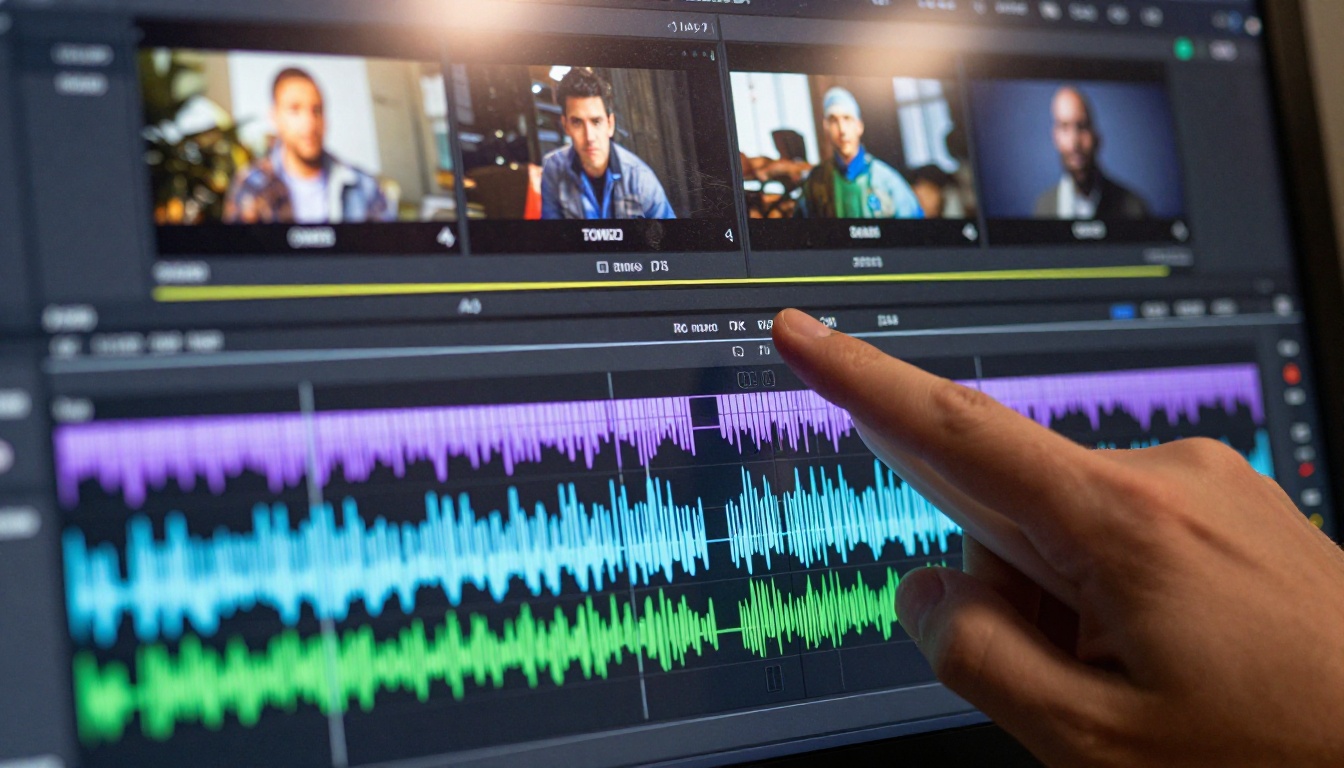
Step 1: Open the Gen 4.5 model page
Navigate to the Gen 4.5 model page on PicassoIA. You will see the prompt input field and the option to upload a reference image for image-to-video mode.
Step 2: Choose your generation mode
If you are starting from text only, write your prompt directly in the input field. If you have a reference image, upload it using the image input. Image-to-video mode activates automatically when an image is detected, and the Multi-Motion Brush tool becomes available in the toolbar.
Step 3: Write a structured prompt
Follow the Subject, Action, Environment, Camera, Mood structure described earlier. For the Multi-Motion Brush: click the brush tool icon, draw your regions on the uploaded image, and assign motion directions to each region using the directional controls. Keep regions spatially separated to avoid motion bleed.
Step 4: Set your parameters
- Duration: Start with 5 seconds for faster, cheaper iteration. Move to 10 seconds once you have a prompt structure that produces consistent results.
- Aspect ratio: 16:9 for landscape content, 9:16 for vertical social formats.
- Motion amount: Moderate settings produce the most stable results. High motion settings can introduce temporal artifacts even with Gen-4.5's improvements, particularly around fast-moving subjects.
Step 5: Generate and evaluate
Submit your job. Generation typically takes 60 to 120 seconds depending on current server load. Evaluate the output against your motion brief. If facial consistency is off, switch to a photographic reference image. If camera motion is not matching your intent, make the camera instruction more explicit in your prompt.
Step 6: Iterate and refine
PicassoIA's interface lets you re-run the same prompt with modifications. Use this to explore motion variations, then combine your best shots in your video editor. If you need the output upscaled to 4K for delivery, run it through LTX 2.3 Pro or another super-resolution model as a final step.
💡 Tip: If you want faster generation for high-volume iteration, Gen4 Turbo is also available on PicassoIA. It trades some quality for significantly faster output times, making it practical for rapid creative exploration before committing to a final Gen-4.5 render.
Your Turn to Create

Gen-4.5 represents the most capable version of Runway's architecture to date, and the Multi-Motion Brush alone opens up production workflows that simply were not possible in previous releases. The temporal consistency improvements make it genuinely usable for close-up and face-forward content without the manual cleanup that earlier versions demanded.
The real advantage of working on PicassoIA is that you are not locked into a single model. If your scene demands native audio, Veo 3 is one click away. If you need native 4K output, LTX 2.3 Pro or Kling v3 are right there. If you need volume at speed, Seedance 2.0 Fast delivers. And when you want the precise motion control and cinematic quality that Gen-4.5 is built for, it is ready to use without any additional setup.
The best way to see what these models can actually do for your specific content is to run them on your own material. Open Gen 4.5 on PicassoIA, start with an image you already have, write a clear motion prompt, and see what comes back. The first generation is always surprising.


