Most AI video tools ask you to describe a character in words and then hope the model remembers what you meant. Seedance 2.0 R2V takes a different route: you hand the model actual pictures, clips and audio, and it builds the video around them. The result is a red coat that stays red, a face that stays recognizable, and a product that keeps its shape from the first frame to the last. This article covers the settings you can change, prompt examples you can copy, what providers charge per generation, and the limits that will shape how you plan a shot.
You can run the model on PicassoIA through Seedance 2.0, so the steps below are tied to the real input fields rather than guesswork.
What R2V Actually Means
R2V stands for reference-to-video. Instead of starting from text alone (text-to-video) or from one opening frame (image-to-video), you give the model a pool of reference material and a prompt that tells it how to use each piece.
Reference Images vs First Frame
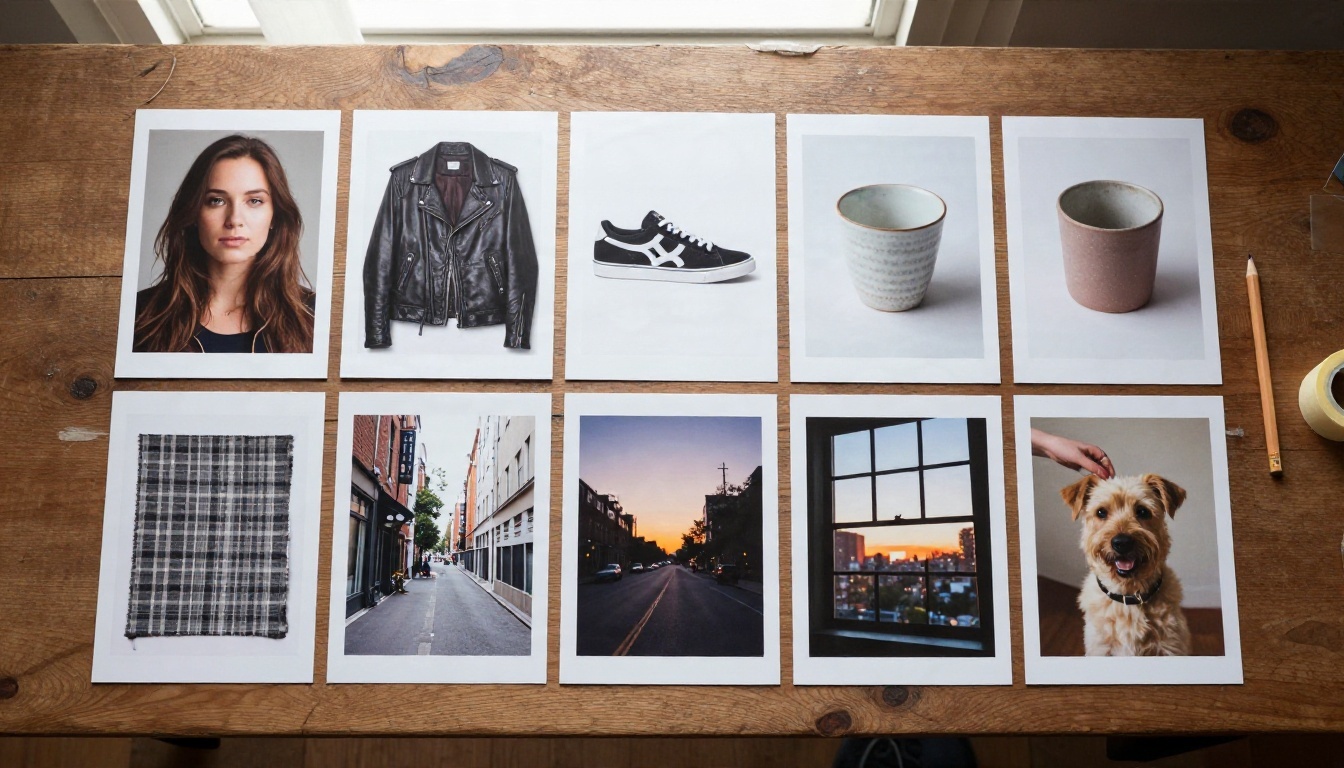
This distinction trips up a lot of people. A first frame image pins the opening of the clip, and the model animates forward from it. Reference images do something else: they tell the model what a subject, outfit, location or style looks like, but the model decides how to compose the scene.
On PicassoIA the two modes are mutually exclusive. The image field (first frame) and the last frame field cannot be combined with reference images. If you upload references, leave the first and last frame fields empty.
💡 Rule of thumb: use a first frame when you need an exact opening shot. Use reference images when you need the same character or product to appear in a scene you are still inventing.
What the Model Reads From Your Inputs
Seedance 2.0 accepts three kinds of reference material in one request:
- Images for identity, clothing, props, setting and visual style
- Videos for motion, camera movement and editing behavior
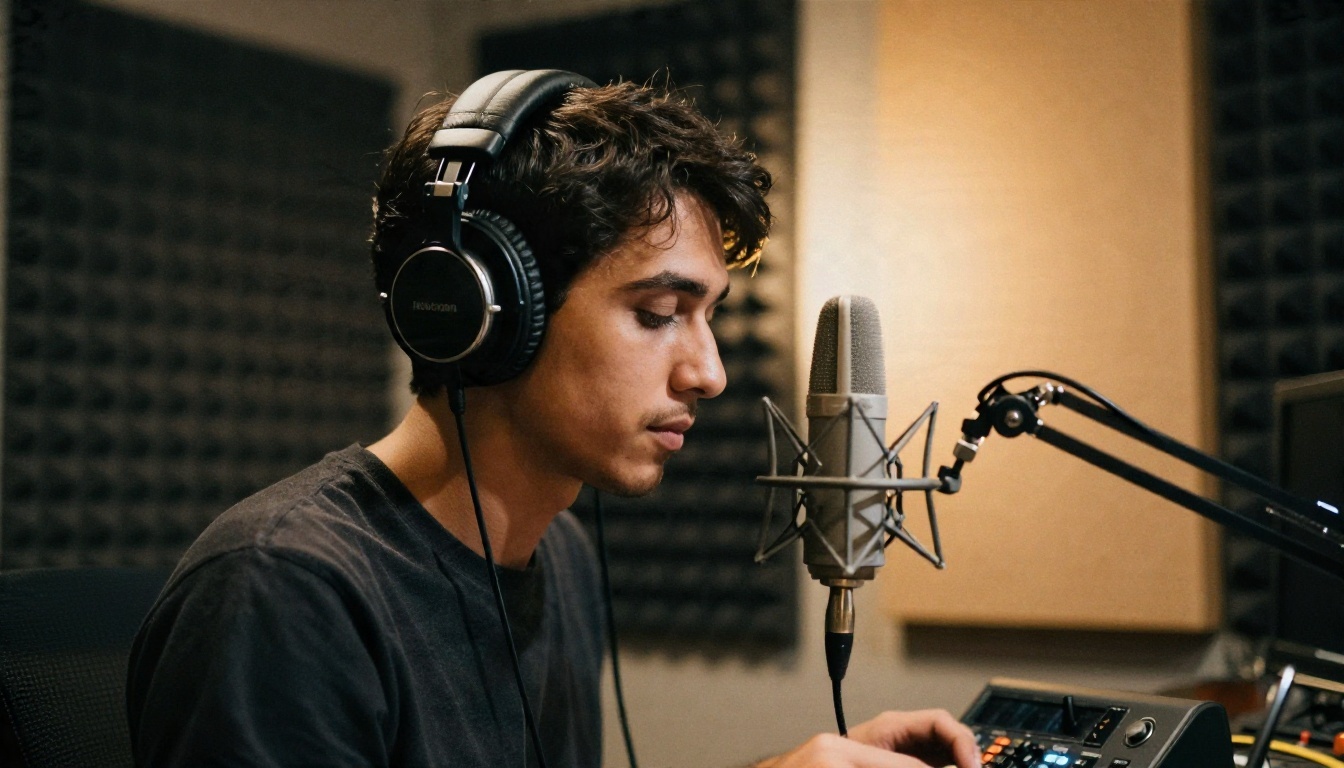
- Audio for voice, rhythm and lip-sync
Each file gets a tag in your prompt: [Image1], [Video1], [Audio1], and so on. The tag order follows the order in which you upload. If you skip the tags, the model still uses your references, but it decides on its own what each one is for. Tagging removes that ambiguity.
Every Setting Explained
Here is the full input list as it appears for Seedance 2.0 on PicassoIA, with what each field does in practice.
| Setting | Options | Default | What it does |
|---|
| Prompt | Free text | Required | Describes action, camera and sound. Dialogue goes in double quotes |
| Reference images | Up to 9 | Empty | Character, style and scene guidance |
| Reference videos | Up to 3, 15 s total | Empty | Motion transfer and style reference |
| Reference audios | Up to 3, 15 s total | Empty | Audio driven generation and lip-sync |
| Duration | Integer seconds, or -1 | 5 | -1 lets the model pick a length |
| Resolution | 480p, 720p, 1080p, 4k | 720p | Output sharpness and cost tier |
| Aspect ratio | 16:9, 4:3, 1:1, 3:4, 9:16, 21:9, 9:21, adaptive | 16:9 | Frame shape |
| Generate audio | On or off | On | Dialogue, effects and music in one pass |
| Seed | Integer | Random | Repeat or compare generations |
Reference Images, Videos and Audio
Nine images is a generous ceiling, but more is not automatically better. Three to five well-chosen images usually beat nine mixed ones, because every extra image gives the model another thing to reconcile. A clean portrait, a full-body shot and one location photo will do more than a scrapbook.
Reference videos are capped at three with a combined length of 15 seconds. They work best when the clip shows one clear motion: a head turn, a walk cycle, a slow dolly. A busy clip with five movements gives the model nothing specific to copy.
Reference audio has a catch worth remembering: it requires at least one reference image or video. You cannot drive a video from audio alone. Upload the face or the scene first, then attach the voice clip and tag it [Audio1] in the prompt.
Duration and Aspect Ratio
The default is 5 seconds. Providers that publish ranges for the 2.0 reference-to-video endpoint generally list 4 to 15 seconds. Setting duration to -1 hands the decision to the model, which picks a length based on how much happens in your prompt. That is handy for a quick test but unpredictable when you are budgeting.
Aspect ratio is simpler. Use 16:9 for YouTube and film, 9:16 for Reels and Shorts, 1:1 for feeds, and 21:9 for a cinematic crop. The adaptive setting lets the model choose based on your inputs, which works well when your reference images share a clear orientation.
Resolution and the Audio Toggle
Resolution options on the schema run from 480p up to 4k, with 720p as the default. Some providers cap output lower than others, and your plan may restrict the higher tiers, so confirm what your account allows before planning a 1080p workflow.
The Generate Audio toggle is on by default. With it on, the model writes dialogue, ambient sound and music in the same pass as the picture. Turn it off if you plan to score the video yourself or if you are only testing motion.
How to Use Seedance 2.0 on PicassoIA
Follow these steps to run your first R2V generation.
- Open the model. Go to Seedance 2.0 on PicassoIA.
- Upload reference images. Add one to five images in the reference images field. Leave the first frame and last frame fields empty.
- Add optional video or audio. Attach a motion clip or a voice file if your shot needs them. Remember that audio needs at least one image or video alongside it.
- Write a tagged prompt. Mention each file by tag, for example: "[Image1] walks along a rainy street, camera tracking at shoulder height."
- Set duration and ratio. Start with 5 seconds and 16:9 or 9:16.
- Pick resolution. Test at 720p before spending on a higher tier.
- Keep audio on. Unless you plan to replace it in editing.
- Generate and review. Change one variable at a time between runs and keep the seed if you want to compare.

💡 Test cheap, finish expensive. Run your first two or three attempts at 720p and a short duration. Move to a larger resolution only once the motion and identity look right.
Prompt Examples You Can Copy
Good R2V prompts read like shot notes. They say who, where, what moves, how the camera behaves and what we hear.
Character Consistency Across Scenes
Upload a clear portrait of your subject as [Image1] and a street photo as [Image2].
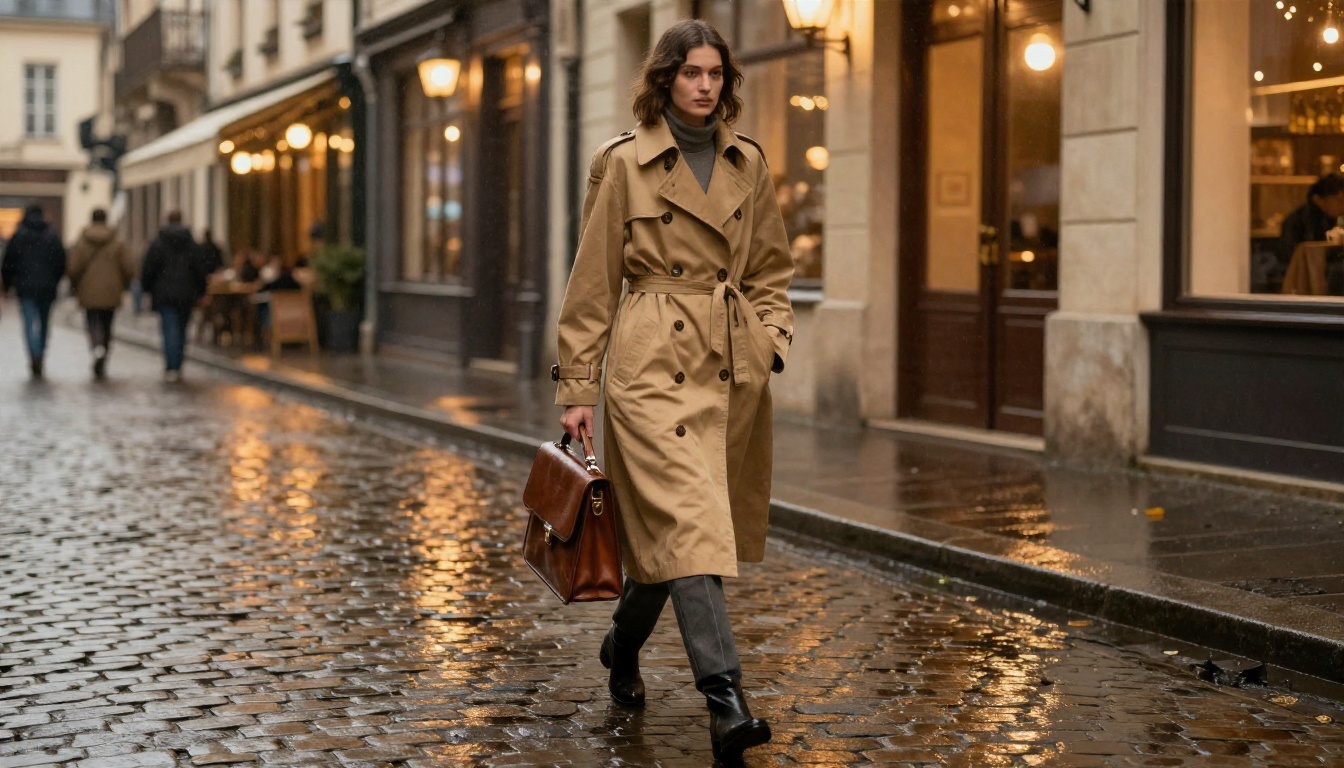
"[Image1] walks slowly along the wet cobblestone street from [Image2], camera low and tracking beside her. Warm cafe light reflects in puddles. Soft rain, distant footsteps, quiet piano in the background."
The portrait locks the face and clothing, the street photo sets the location, and the prompt supplies the motion. Reuse the same portrait in your next prompt with a different location and the character carries over.
Product Shots
Upload two or three angles of the same product, such as a front view, a side view and a close-up of the label.
"The bottle from [Image1] and [Image2] rests on a travertine slab. Slow push-in, soft side light from the left, glass catches a moving highlight. Quiet room tone, faint cloth rustle."
Product work is where reference images pay off most. A text-only prompt will invent a bottle. A reference-driven prompt keeps the one you actually sell.

Portrait With Spoken Dialogue
Upload a portrait as [Image1] and a short voice recording as [Audio1].
"[Image1] sits by a cafe window and speaks to the camera in the voice of [Audio1]. Subtle head movement, natural blinking, soft daylight from the left. Cups clink in the background."
Dialogue written directly in the prompt goes inside double quotes. If you attach audio instead, tag it and let the model drive the lips from the recording.

Pricing Without the Guesswork
There is no single price for Seedance 2.0 R2V. Costs depend on the platform, the resolution, the duration and, on some providers, whether your request includes a reference video.
What Providers Charge
Published figures from different API providers vary a lot, which is why it helps to read them as ranges instead of quotes:
| Factor | How it affects cost |
|---|
| Resolution | Higher tiers cost more per second |
| Duration | Billed per second of output on most providers |
| Reference video | Some providers charge a different rate when a video input is present |
| Tier | Standard, Fast and Mini variants are priced differently |
| Platform | Aggregators and direct APIs publish different rates |
As a rough reality check, one aggregator lists a range of about $0.60 to $4.05 per generation depending on resolution and length, while other providers quote per-second prices that run from a few tenths of a dollar to well over a dollar. Those figures change often, so treat them as a sign of how wide the spread is and check the provider you plan to use before committing to a batch.
How to Keep Cost Down
- Draft at 480p or 720p. Judge motion and identity before paying for sharpness.
- Keep duration short. A 5 second test tells you almost everything a 12 second one does.
- Avoid -1 while budgeting. An automatic length can run longer than you planned.
- Limit reference clutter. Fewer, better references mean fewer wasted retries.
- Use a cheaper tier for drafts. Seedance 2.0 Fast and Seedance 2.0 Mini are lighter options for rough passes.
Limits You Will Hit
Every video model has edges. Knowing them early saves credits and patience.
Hard Limits
| Limit | Value |
|---|
| Reference images | Up to 9 |
| Reference videos | Up to 3, 15 seconds combined |
| Reference audio | Up to 3, 15 seconds combined |
| Audio input | Needs at least one image or video reference |
| First frame and reference images | Cannot be used together |
| Last frame | Only works with a first frame, and not with references |
| Image upload size | Around 25 MiB per file on some providers, in PNG, JPEG or WEBP |
| Clip length | Roughly 4 to 15 seconds on published provider ranges |
Soft Limits
These are not written into the schema, but you will notice them fast:
- Identity drift on busy references. If your images show the same person in very different lighting or angles, the model may average them. Choose consistent, clear shots.
- Conflicting instructions. Asking for a fast chase and a slow, contemplative mood in one prompt confuses the output.
- Real people. Many providers restrict reference photos of real, identifiable people. Policies differ by platform, so check the rules where you generate.
- Long scenes. A single clip is short. Longer stories mean generating several clips with the same references and cutting them together.
- Version confusion. Some online listings mix Seedance 2.0 and the newer 2.5 family. Check which model an endpoint actually runs before comparing prices or limits.
💡 Plan in shots, not scenes. Treat each generation as one camera setup. Reuse the same reference images for each setup, then assemble the sequence in an editor.
Alternatives Worth Testing
Seedance 2.0 is not the only reference-capable video model on PicassoIA. Depending on the job, these are worth a side-by-side run:
Run the same prompt and the same references through two models and compare identity, motion and sound. Differences show up quickly, and the best choice often depends on your subject rather than a leaderboard.
Try Your Own Reference Set
The fastest way to see what R2V can do is to build a small reference set of your own: one portrait, one location, one prop. Write a prompt with tags, generate at 720p for 5 seconds, and watch how closely the output follows your pictures. Change a single input, such as swapping the location photo or adding a voice clip, and compare.
Open Seedance 2.0 on PicassoIA, upload your references and run your first test. If you want to see what else is available, browse everything at picassoia.com/en/all-models and pair video generation with image, audio and upscaling tools for a full production pipeline.


