Wedding films have evolved faster in the past two years than in the previous two decades. What once required a full crew, multiple camera rigs, and days inside a color suite now fits inside a browser tab. Seedance 2.5 from ByteDance is the AI video model changing that equation for wedding videographers who want cinematic output without the cinematic budget, and it is available right now on PicassoIA.
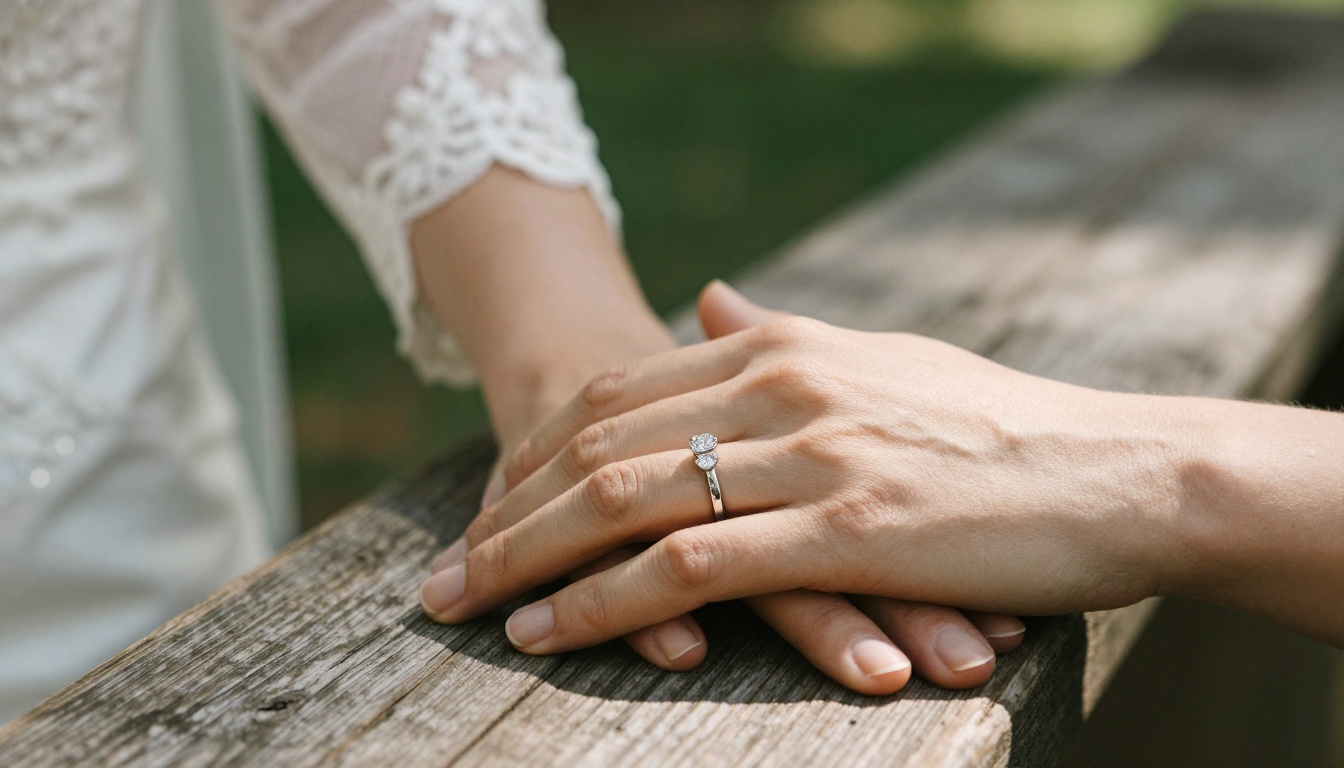
What Seedance 2.5 Actually Is
Seedance 2.5 is ByteDance's most capable text-to-video and image-to-video model to date. It generates up to 30 seconds of high-definition video from a text prompt, an image, or both simultaneously. What sets it apart from earlier generations is its native audio synthesis: the model does not just render motion, it produces synchronized ambient sound that matches the visual content.
For wedding highlight reels, that matters enormously. A slow dolly-in on a couple during their first dance does not feel complete without the soft rustle of fabric, the ambient murmur of guests, or the distant strings of the wedding band. Seedance 2.5 handles all of it in a single generation pass.
The Core Specs
| Feature | Seedance 2.5 |
|---|
| Max video length | 30 seconds |
| Native audio | Yes (synchronized) |
| Image-to-video | Yes |
| Text-to-video | Yes |
| Resolution | Up to 1080p |
| Platform | PicassoIA |
Also available on PicassoIA is Seedance 2.5 Lite, a free and unlimited version that caps at 10 seconds per clip. For short vignettes and social content, it is more than enough to get a feel for the workflow before committing to the full model.
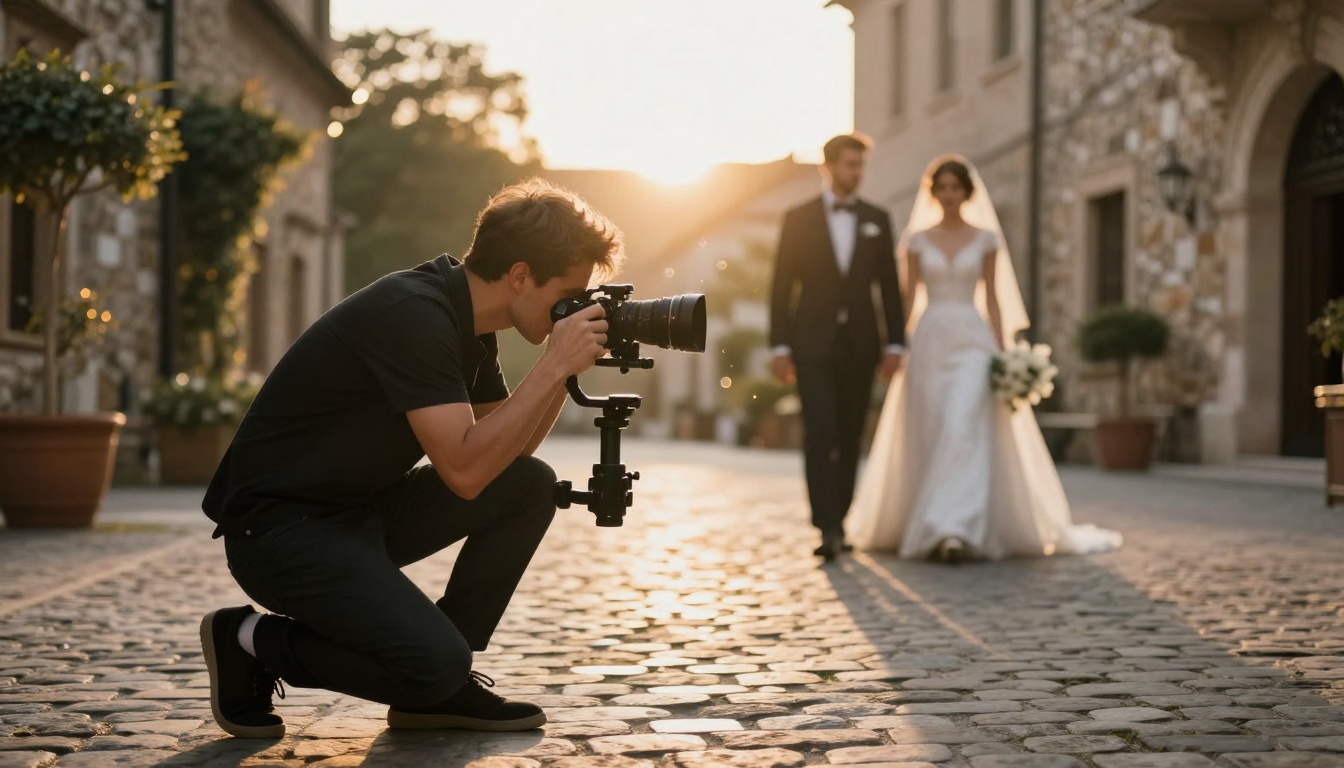
Why Wedding Reels Are the Perfect Use Case
Most AI video models struggle with two things: human faces and consistent motion over time. Wedding footage is almost entirely about both. A model that cannot maintain the bride's facial features across 10 seconds of a ceremony clip is useless for this category.
Seedance 2.5 was built with what ByteDance calls "temporal coherence," meaning faces, lighting, and spatial relationships hold steady across the full duration of each clip. This directly solves the biggest pain point wedding videographers faced with earlier models like Seedance 2.0 and Seedance 1.5 Pro.
The 3 Wedding Moments That Benefit Most
1. The ceremony walk
A slow zoom from behind as the bride walks down the aisle is technically demanding. It requires perfect stabilization and a clear sense of depth progression. Seedance 2.5 generates this from a single still photograph, adding natural motion, camera drift, and ambient audio in seconds.
2. The first dance
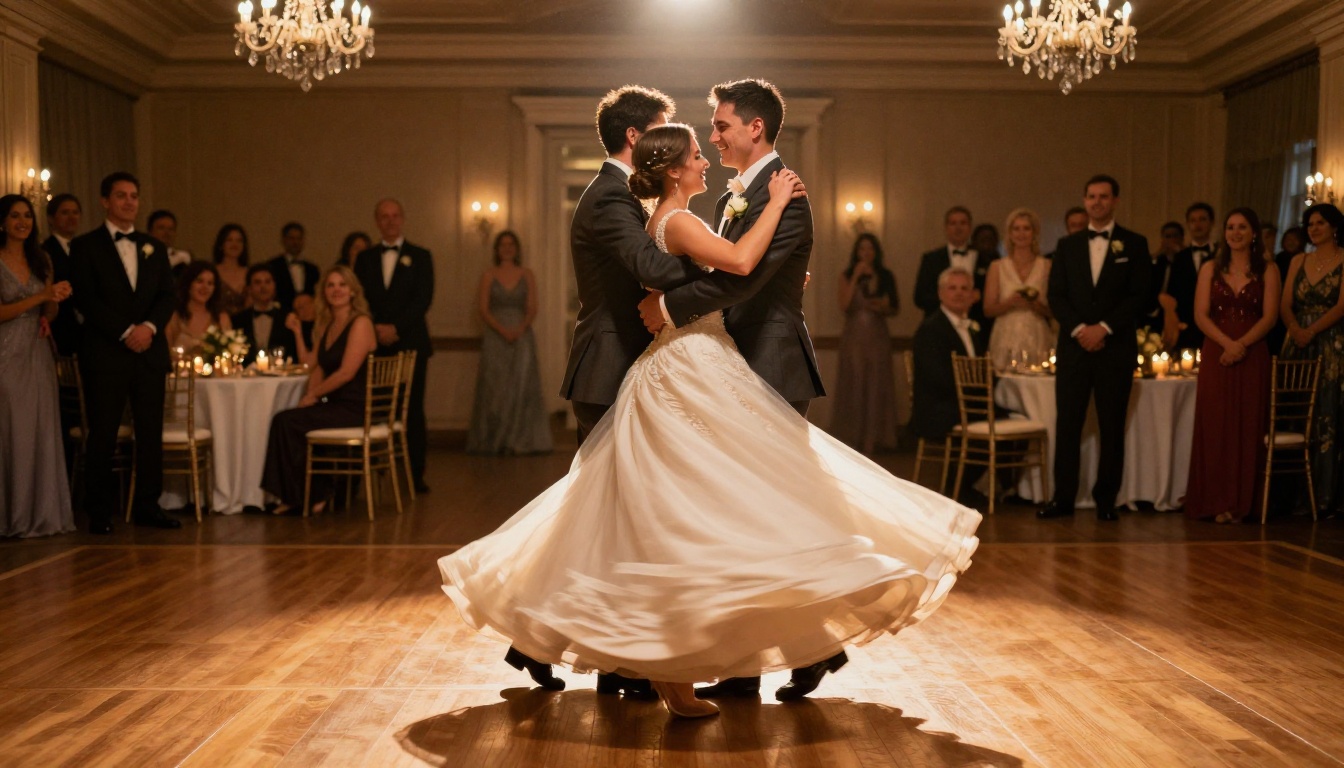
Motion blur, soft lighting, and continuous rotation are where most AI video models produce artifacts. Seedance 2.5 handles circular and orbital camera motion well, which makes the spinning first dance shot one of its strongest outputs.
3. The send-off
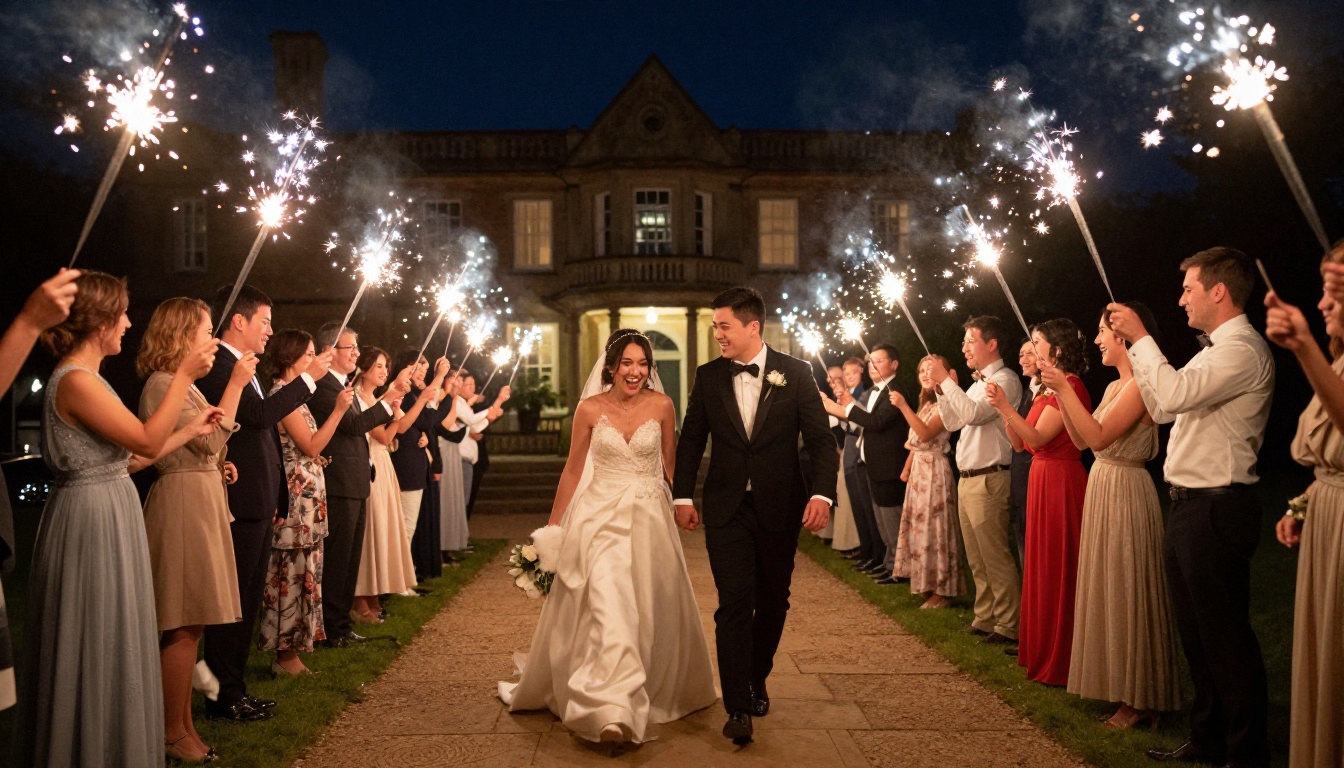
Sparkler tunnels, confetti, or flower petal tosses involve chaotic particle motion. Earlier models like Wan 2.7 I2V handle particle effects reasonably, but Seedance 2.5's upgraded physics simulation produces more realistic, non-repeating particle trails that look convincing on a large screen.
💡 Pro tip: For the send-off shot, use an existing photo from the event as your starting frame. Seedance 2.5 will animate outward from that frame, preserving the real faces and real venue while adding cinematic motion.
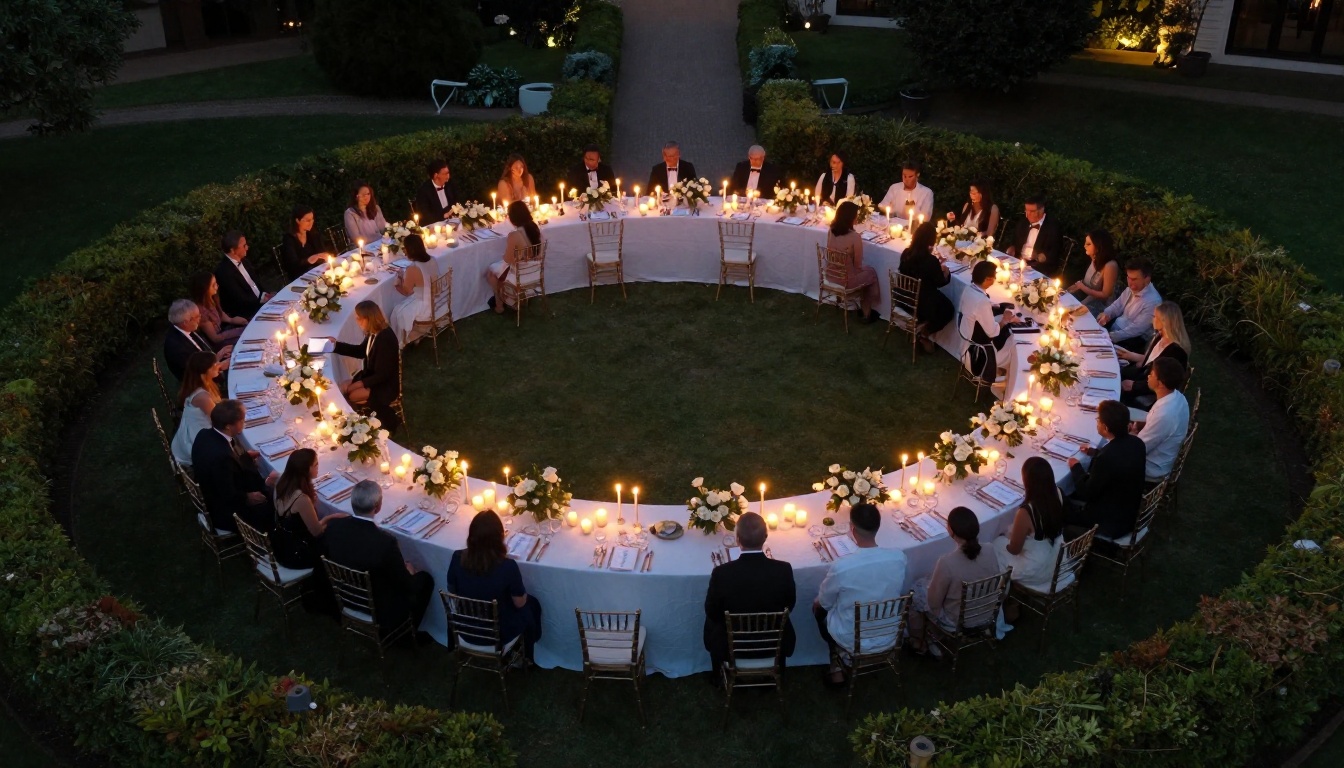
How to Use Seedance 2.5 on PicassoIA
PicassoIA gives you direct access to Seedance 2.5 without any API setup, billing configuration, or account on ByteDance's platform. You log in once and generate immediately.
Step 1: Choose Your Input
You have two paths:
- Text-to-video: Write a detailed prompt describing the wedding scene. Include camera angle, lighting, subject position, and motion direction.
- Image-to-video: Upload a real photograph from the wedding. The model animates it forward in time, preserving the original composition.
For highlight reels, image-to-video is the stronger option. It ties the AI output directly to the real event rather than producing a generic wedding scene.
Step 2: Write a Motion Prompt
Even when using an image as input, you still write a prompt. The prompt describes what happens during the video, not what the image looks like. Think of it as directing the camera and action.
Weak prompt: "Wedding couple at the altar"
Strong prompt: "Bride and groom facing each other at the altar, camera slowly dollying in from behind the officiant, soft morning light from the left windows, gentle motion in her veil from ambient airflow, guests in soft focus in the background"
The difference in output quality between those two prompts is significant. Specificity about camera direction, lighting source, and motion type consistently improves results.
Step 3: Set Duration and Resolution
Seedance 2.5 supports up to 30 seconds. For a highlight reel workflow, generate clips in the 5 to 10 second range and assemble them in your editing software. This gives you more control over pacing and lets you swap out clips that do not cut well against the real footage.
Step 4: Review and Regenerate
Not every generation is perfect. The model is probabilistic, meaning the same prompt will produce different outputs each time. Generate 2 to 3 variations per important moment and select the best one. On PicassoIA, this process is fast enough that iterating 3 times still costs less time than a single round-trip to a traditional motion graphics artist.
💡 Edit note: After generating clips, you can use a super resolution tool to upscale if needed. PicassoIA's AI video enhancement section includes upscaling and stabilization models that pair well with Seedance 2.5 output.
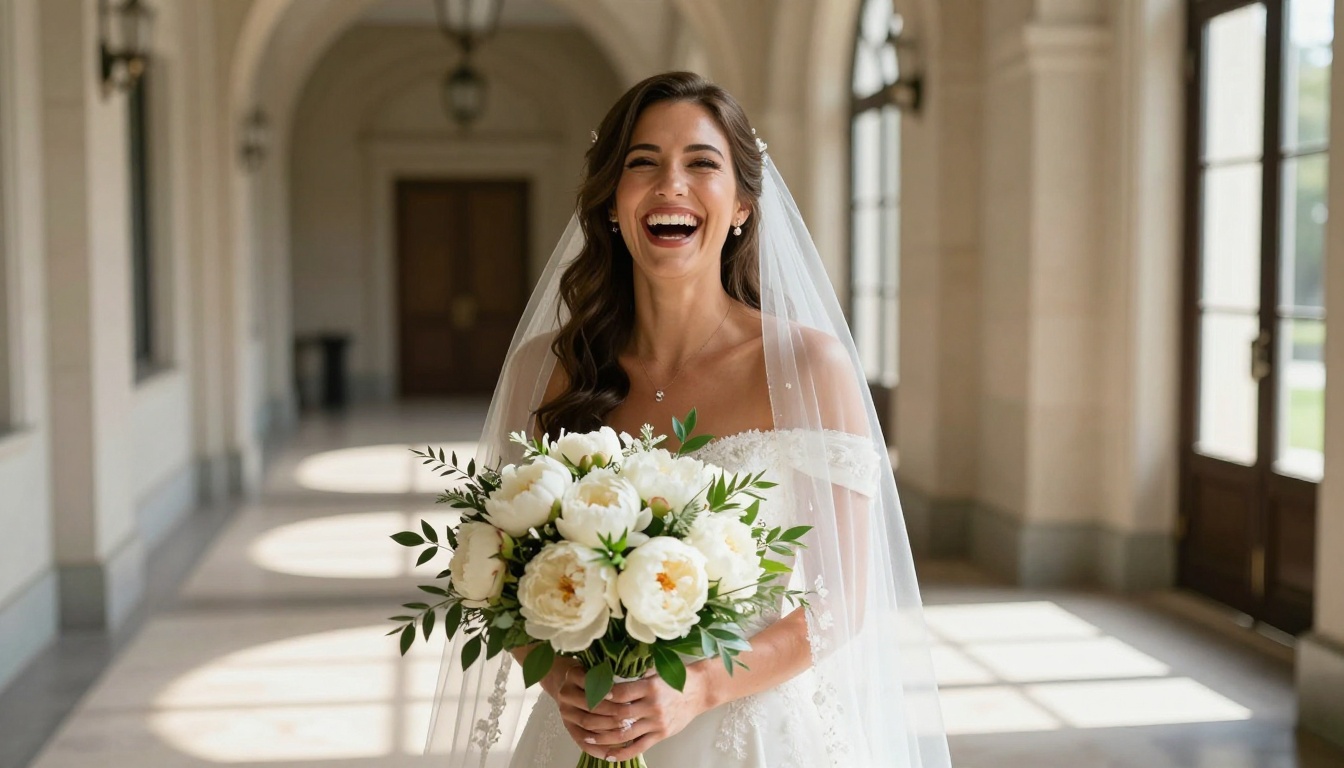
Seedance 2.5 vs. the Competition for Wedding Content
Wedding videographers do not have just one choice. PicassoIA carries a large library of text-to-video models, and several of them are genuinely competitive for this use case.
For wedding highlight reels specifically, Seedance 2.5 wins on the two criteria that matter most: duration and audio. A 30-second clip with synchronized ambient sound is closer to a finished reel than a 5-second silent loop. The tradeoff is generation time, which is longer than faster models like Pixverse v5.6.
Building a Full Highlight Reel With AI
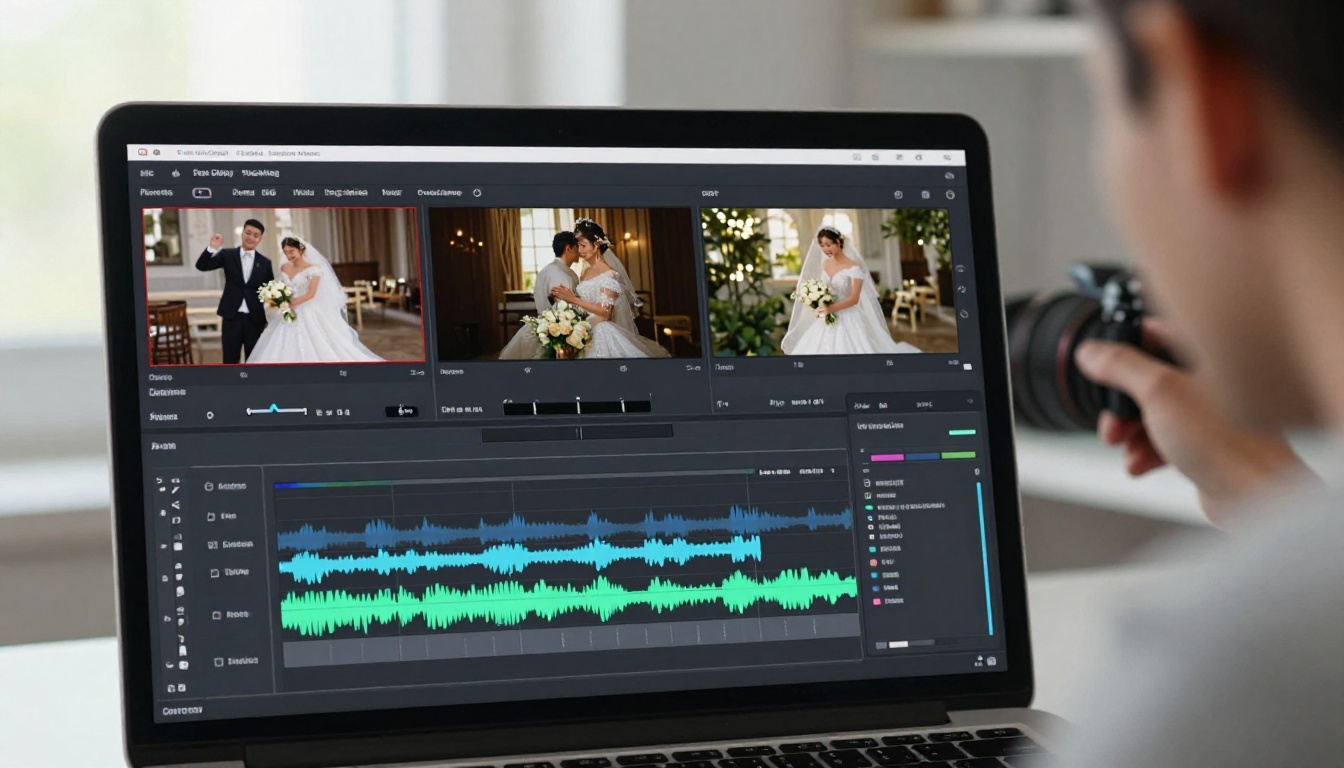
A 3-minute wedding highlight reel typically contains 25 to 40 individual clips. Using Seedance 2.5, you can generate the cinematic B-roll that elevates the real footage without replacing it. The workflow that works best is a hybrid: real camera footage for pivotal moments (vows, first kiss, first dance) and AI-generated cinematic cutaways for everything else.
What AI Handles Well
- Venue establishing shots (wide angle drone-style, aerial views)
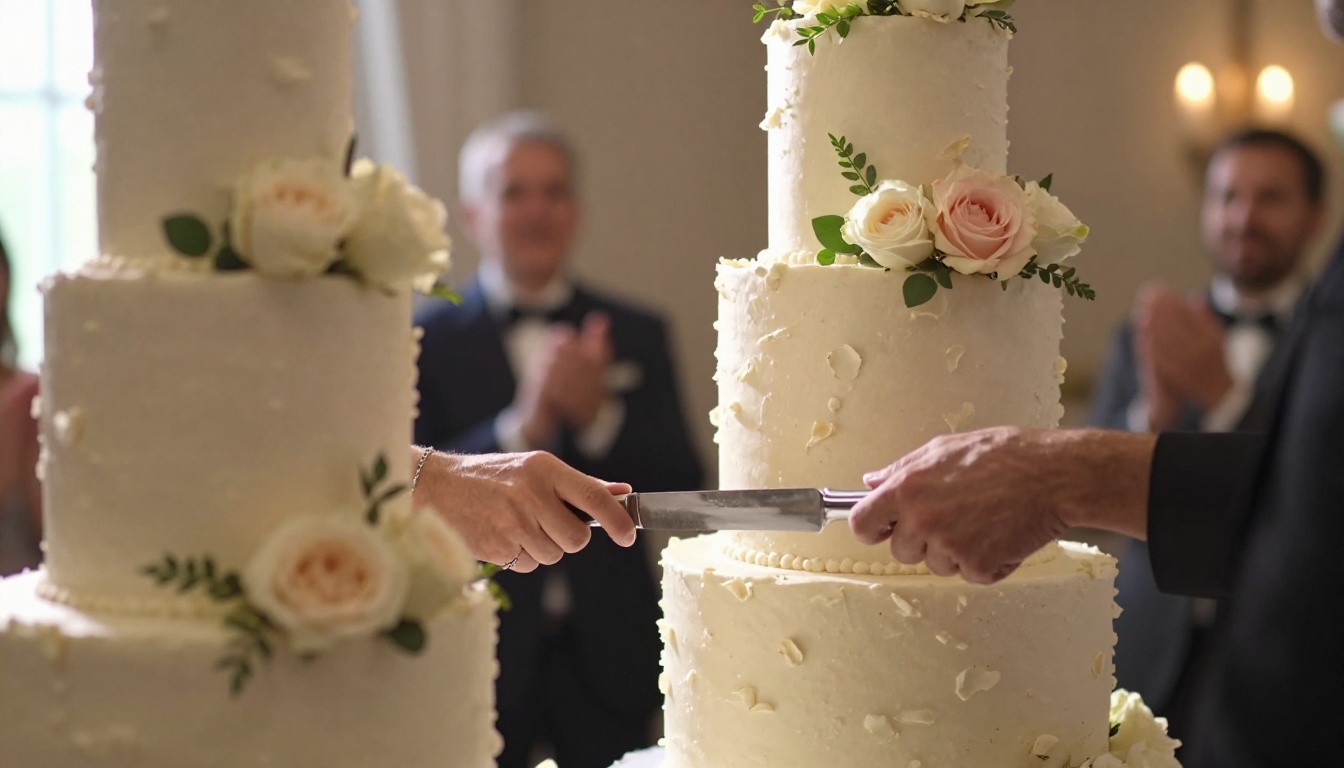
- Detail shots (rings, flowers, table settings) with realistic motion
- Atmospheric transitions (sun moving through trees, water rippling in a fountain)
- B-roll fill (guests mingling, dancing crowd reaction shots)
- Title card scenes (soft focus backgrounds for text overlays)
What Still Needs Real Footage
- The exact faces of the couple during pivotal emotional moments
- Spoken vows or speeches with accurate lip sync
- Documentary moments that cannot be staged or recreated
- Any content the couple explicitly requested be captured by a human
💡 Workflow note: Generate your AI clips at 1080p from PicassoIA, then import them alongside your real footage in your editing software. Color grade both layers together using the same LUT to create visual continuity between AI and camera-captured content.
The right prompt structure makes a measurable difference. Below are tested prompt formulas for the most common wedding highlight moments.
Ceremony Prompts
Altar wide shot:
"Wide shot of [venue type] ceremony space from the back, empty aisle with white chair rows, floral arch at the front, [natural/tungsten] light from [left/right], slow gentle camera tilt upward, no people, cinematic"
Processional:
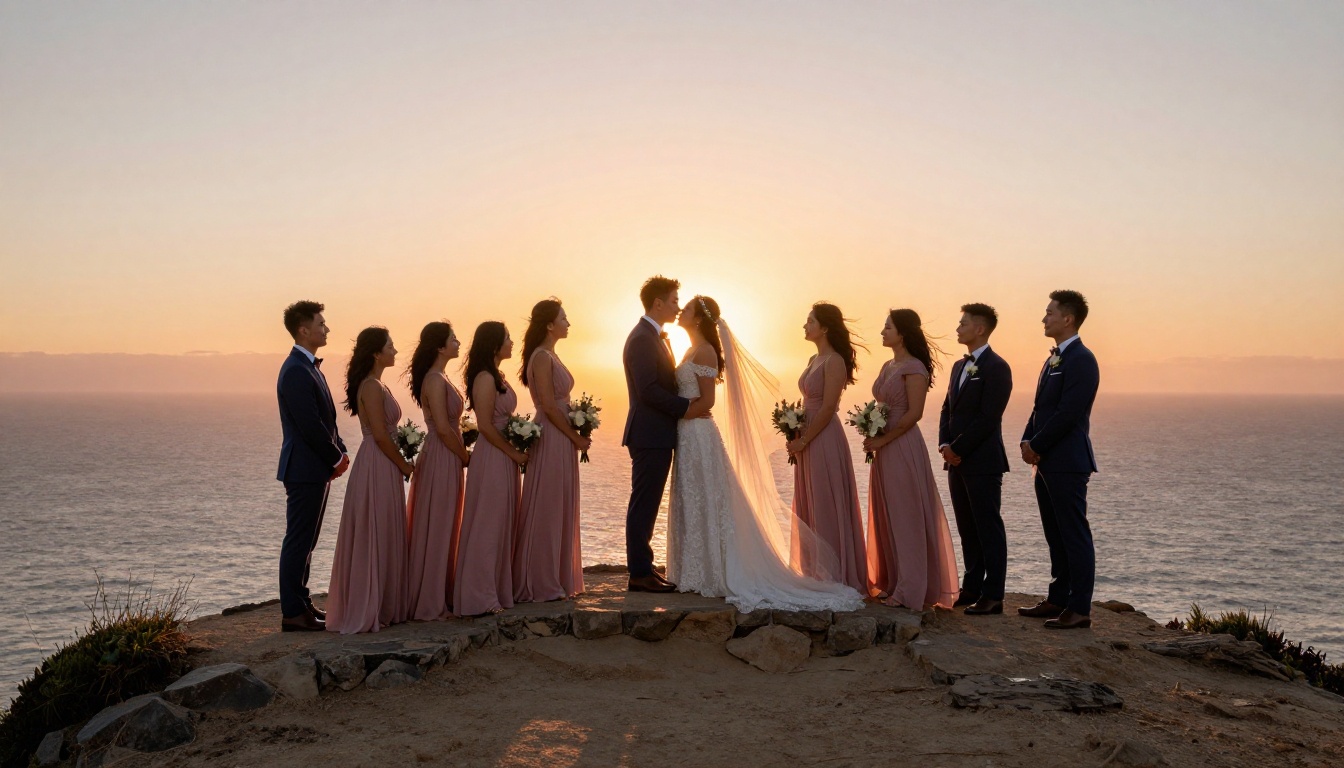
"Bride entering from the right side of frame, slow walk toward camera, soft backlight creating rim lighting on her veil, warm afternoon sun, guests turning in soft focus, gentle zoom in, 85mm equivalent lens"
Reception Prompts
First dance:
"Couple dancing slowly in center of ballroom, amber spotlight from above, camera orbiting slowly counterclockwise at waist height, guests blurred in background at candlelit tables, fabric motion on her dress, 5 seconds"
Toast reaction:
"Wide shot of reception guests raising champagne glasses toward camera, warm indoor tungsten lighting, laughter and motion, slight camera drift inward, candlelit tables visible throughout frame"
Venue Atmosphere Prompts
Garden reveal:
"Slow forward camera push through an empty rose garden pathway leading to a white ceremony arch, morning light, dew on petals, birds audible in ambient audio, no people"
Ballroom empty scene:
"Grand ballroom with crystal chandeliers reflecting light on polished hardwood floor, no people, camera tilting slowly upward from floor to ceiling, warm amber ambient light"
The Audio Advantage
Most wedding videographers do not realize that Seedance 2.5's native audio is one of its most practical features for this use case. When you generate a clip of a garden ceremony, it comes with ambient outdoor audio: birdsong, light wind, distant natural sounds. That ambient layer, even when muted in the final edit, provides a reference for what sound design to add in post-production.
For photographers who are expanding into videography without dedicated audio equipment, this is a genuine shortcut. Instead of licensing stock audio beds or recording sound on site, you generate clips with appropriate ambient sound already present and use that as a starting point for the full sound design.
Where the Audio Falls Short
Seedance 2.5 does not generate music, speech, or specific song selections. It produces ambient and atmospheric sound only. For the musical score of a highlight reel, you still need licensed music or an AI music generation tool. PicassoIA's AI Music Generation category includes models that create original tracks from text descriptions, which pair naturally with Seedance 2.5 video output.
💡 Sound tip: Generate a 30-second ambient clip of your venue type (garden, ballroom, church) using Seedance 2.5 before the event. Extract the audio layer and use it as a subtle under-layer beneath your licensed music track. It adds naturalistic depth without a recording crew.
Common Mistakes and How to Avoid Them
Wedding videographers new to AI video generation tend to make predictable errors. Here are the ones that cause the most wasted time.
Mistake 1: Over-specifying People in Text Prompts
If your prompt includes too many details about specific people, the model often produces artifacts or ignores parts of the description. For prompts that involve real people, use an image-to-video approach instead of text-to-video. Upload the actual photo and let the image carry the likeness.
Mistake 2: Ignoring Camera Direction
A prompt without a camera direction produces a static or randomly moving shot. Always include camera movement. Words like "slow dolly in," "gentle orbit," "static wide shot," or "handheld pull back" dramatically increase the usability of the output.
Mistake 3: Using Low Resolution for Final Output
Seedance 2.5 Lite is free and unlimited, but it outputs at lower resolution. For anything going into a final deliverable, use full Seedance 2.5 at 1080p. The quality difference is visible on any screen larger than a phone.
Mistake 4: Not Iterating
The first generation of any clip is a draft. Run the same prompt 3 times and select the best output. This takes about 3 minutes total and consistently produces better final clips than accepting the first result.
Mistake 5: Missing Visual Continuity
AI clips do not inherently cut well to real footage if the color grade, focal length feel, or lighting does not match. Plan your AI clips with the real footage in mind: if your real ceremony footage is cool-toned and shot at 50mm, generate AI clips with "cool natural light, medium focal length" in the prompt to create visual continuity.
Pricing and Access on PicassoIA
Seedance 2.5 is available on PicassoIA with a straightforward credit system. Each 30-second generation costs credits based on resolution and duration. There is no subscription required to get started, and new users receive free credits upon registration.
For photographers doing 5 to 10 weddings per month, the numbers work out favorably. Compare it against the cost of purchasing 10 to 20 royalty-free stock video clips per event, which easily runs $50 to $150 per project. Custom AI-generated clips that match the actual venue and aesthetic are both cheaper and more contextually appropriate for each event.
If you are testing the workflow before committing, start with Seedance 2.5 Lite, which is free and unlimited at the 10-second clip length. The quality is sufficient for social media posts, Instagram Reels, and client preview edits.
Comparing Seedance 2.5 Pricing to Alternatives
| Model | Cost | Output Length | Best For |
|---|
| Seedance 2.5 Lite | Free, unlimited | 10s | Testing, social clips |
| Seedance 2.5 | Credits | 30s | Full reel production |
| Kling v2.6 | Credits | 10s | Dramatic moments |
| Veo 3 | Credits | Variable | Outdoor, nature |
| Stock video licensing | $5–$15/clip | Fixed | Generic scenes only |
Start Generating Wedding Reel Clips Now
The only thing stopping most videographers from adopting AI video generation is the first session. Once you have run three or four prompts and seen how quickly usable clips come back, the workflow becomes obvious.
PicassoIA gives you access to Seedance 2.5 alongside dozens of other video generation models, all in one place. You can move between Kling v2.6 for dramatic motion, Veo 3 for outdoor cinematic scenes, and LTX 2.3 Pro for 4K output, all without switching platforms or managing separate accounts.
Pick one upcoming project, generate 5 test clips with Seedance 2.5 using the prompt formulas above, and compare them against the B-roll you would have needed to either shoot yourself or license. The results are clear.
Browse the full model library at picassoia.com/en/all-models and start generating your first wedding highlight clips today.


