Seedance 2.5 does something most video models don't: it takes your reference material seriously. Feed it an image, a text prompt, or both together, and it uses those inputs as active constraints on the output, not just loose inspiration. That distinction is what makes multimodal references the most practical tool in a beginner's Seedance workflow.
This article breaks down what multimodal references are, which input types work best in which situations, and how to build a repeatable process that produces consistent cinematic results every time you hit generate.
What Seedance 2.5 Actually Does Differently
Most text-to-video models operate on a single input channel. You write a prompt, the model interprets it as best it can, and you get something that may or may not match what you imagined. Seedance 2.5 breaks that single-channel assumption by treating image and text as separate, simultaneous control surfaces.
Two Input Channels, Not One
Seedance 2.5 accepts a reference image and a text prompt as separate inputs that operate in parallel. The image governs the visual starting point: the composition, the subject, the color palette, and the spatial relationships between elements. The text prompt governs the motion: what moves, how it moves, and the overall action arc of the 5 to 30-second clip.
These two channels are not merged into a single blended instruction. They function independently, which is what gives you precise control over each dimension of the output without touching the other.
💡 Changing only your text prompt while keeping the same reference image lets you iterate on motion without losing your established visual style. This is the single fastest way to refine outputs without running every generation from scratch.
Why That Changes the Output
With a single-channel model, every output iteration requires rewriting the entire prompt. If the composition is right but the motion is wrong, you still have to modify a prompt that touches both dimensions at once. With multimodal references, you can lock the image and iterate only on the text, or lock the text and swap images until the visual framing is right.
That separation gives beginners a reproducible process rather than a lottery. The reference image becomes a stable anchor. The text prompt becomes the only variable you adjust. Over several runs, you build an intuitive sense of which text structures produce the motion you want, and that knowledge transfers to every future Seedance generation.
The Three Reference Types You Can Use
Seedance 2.5 supports three distinct reference configurations. Knowing when to use each one is the foundation of a solid multimodal workflow.
Image References
An image reference fixes the first frame of the video. The model reads the spatial content of that image and uses it as the visual baseline. Everything in the output, including depth, light direction, subject position, and background texture, starts from that image.
This configuration is the most useful for:
- Reproducing a specific visual style across multiple clips
- Animating a subject from a photograph you already own
- Controlling color grading and tonal range without writing it into your text prompt
The image does not need to be AI-generated. A well-composed photograph works just as well as a generated asset. In practice, a clean, high-contrast photograph with one clear subject and consistent lighting produces sharper results than an abstract or visually busy image.
Text References
A text reference operates as a motion script. It tells the model what happens during the clip: whether the camera dollies in slowly, whether the subject walks left to right, whether leaves drift through the background.
Strong text references for Seedance 2.5 follow a four-part structure:
Subject + action + camera movement + atmosphere
For example: "A woman sits on a park bench and turns her head slowly toward camera. Camera holds static. Late afternoon sun filters through trees. A slight breeze moves through her hair."
That structure gives the model enough information to produce coherent motion without overcrowding the instruction. Every extra detail you add beyond those four parts increases the risk that the model prioritizes the wrong element.
Combined Multimodal Inputs
Using both an image and a text prompt together is where Seedance 2.5 most clearly outperforms single-channel models. The image holds the visual state steady. The text adds motion. The result is a clip that looks like it came from a director with a specific vision, not an arbitrary generation.
| Reference Type | Controls | Best Use Case |
|---|
| Image only | Visual style, composition, subject | Animating an existing photograph |
| Text only | Motion, action, atmosphere | When you have no source image |
| Image + Text | Visual style and motion together | Production-quality, repeatable results |
The combined workflow takes slightly more preparation, but the iteration speed more than compensates. Because you are not rerunning from scratch when one dimension is already locked, you spend far less time on failed generations.
How to Pick the Right Reference Material
Not every image makes a strong reference. Not every text description translates cleanly into motion. Here is what separates effective inputs from ones that produce muddy outputs.
Images That Transfer Well
Clear subject separation from the background. If the model cannot distinguish the subject from the environment, it will animate both simultaneously, which creates artifacts and unintended motion. A portrait against a plain wall works better than a portrait shot in a dense crowd.
Consistent lighting direction. A reference image with flat or contradictory lighting gives the model conflicting information about depth and volume, and the output often produces flickering surfaces as a result.
Minimal or no text overlays. Text in a reference image tends to either distort in the output or stay unnaturally rigid while everything around it moves. Strip any logos, captions, or watermarks from reference images before using them.
16:9 aspect ratio. Seedance 2.5 handles 16:9 references most predictably. Square or portrait images work, but the model may reframe or crop to fit its native output dimensions in ways that shift the composition you intended.
What Makes Text References Effective
Effective text references are specific about motion and light, and unspecific about visual style. The image already handles style, so your text prompt should not repeat visual descriptions that are already present in the reference. If your image shows a warm golden sunset, do not also write "warm golden light" in your prompt. The model may try to satisfy the description in ways that conflict with the image it already has.
What text references should specify:
- Subject movement: direction, speed, which body parts move
- Camera movement: dolly, pan, tilt, or static hold
- Environmental motion: wind in grass, rippling water, falling objects, crowd movement
- Audio atmosphere: Seedance 2.5 generates native synchronized audio, so specifying sound (rain, footsteps, traffic, ambient voices) directly influences the audio track
What text references should avoid:
- Redundant visual descriptions that are already visible in your reference image
- Abstract emotional language like "melancholic" or "hopeful" without a concrete motion anchor
- More than one major action event within a single clip
Your First Seedance 2.5 Workflow
This is a three-step process you can repeat with any source material, any subject, and any motion intent.
Step 1: Prepare Your Source Image
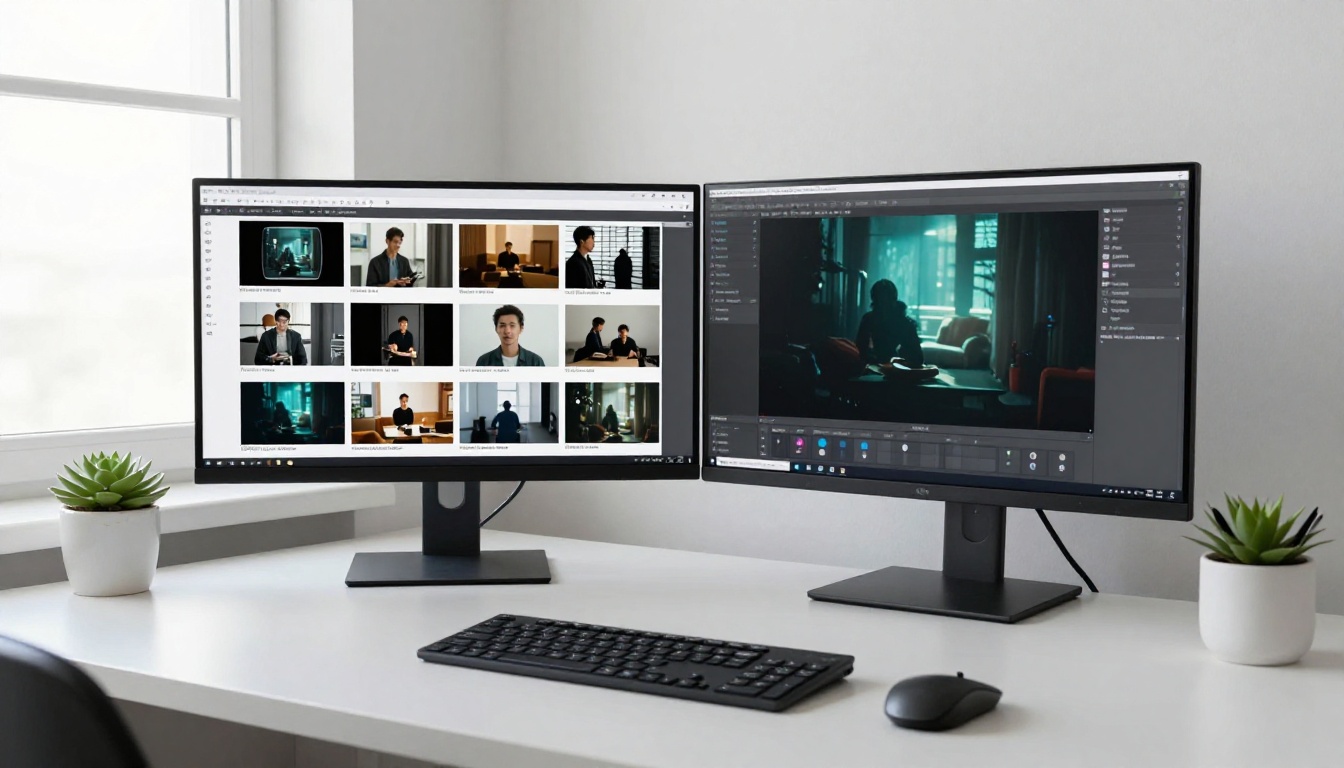
Start with a single image that has a clear subject and clean, directional lighting. If you are generating the reference image rather than using a photograph, the Wan 2.7 I2V pipeline produces strong first-frame-quality images that are built for animation. For your first workflow, a real photograph is more predictable because there are no generation artifacts to work around.
Crop the image to 16:9. Remove any text overlays or watermarks. Confirm that the subject is centered or positioned according to the rule of thirds with clear separation from the background. Save it as a high-quality JPG or PNG at full resolution.
Step 2: Write the Motion Prompt
Open a notepad and write one sentence for each of the four motion elements: subject action, camera movement, environmental detail, and audio atmosphere. Write them separately first, then combine them into one fluid paragraph.
Read the combined prompt out loud. If it sounds like a film director briefing a cinematographer, it is ready. If it sounds like a product listing or a visual description, it needs more specificity about motion.
Weak prompt: "A cinematic video of a city street at night with nice lighting."
Stronger prompt: "A man in a dark coat walks away from camera along a wet city street. Camera holds static. Neon reflections ripple in rain puddles on the pavement. Distant traffic noise, light rainfall, and a single car passing from right to left in the background."
The stronger version specifies the exact camera hold, the precise subject motion, and the exact sound, even though the visual style of the neon reflections and wet street is already implied by a strong reference image.

Step 3: Run and Evaluate
Submit your image reference and text prompt to Seedance 2.5. When the output arrives, evaluate it on three distinct axes:
- Visual fidelity: Does the output match the color palette and composition of your reference image?
- Motion coherence: Does the subject move in the way your text prompt described?
- Temporal stability: Does the output hold together over its full duration without flickering, melting geometry, or visual artifacts?
If visual fidelity fails, the issue is in your reference image. If motion coherence fails, the issue is in your text prompt. If temporal stability fails, try simplifying the motion in your text prompt or using a less visually complex reference image.
This three-axis checklist makes it significantly faster to identify which input needs adjustment rather than rewriting both simultaneously and not knowing what changed.
What Beginners Get Wrong
Two mistakes account for the majority of poor outputs from new Seedance 2.5 users.
Conflicting Visual Signals
The most common failure is using a reference image and text prompt that describe different visual environments. The model tries to satisfy both inputs, and the output typically blends them in ways that feel unreal or incoherent.
Example conflict: Reference image shows a bright, indoor daylit office. Text prompt includes "neon signs glowing in city rain." The model cannot reconcile the indoor daylight with outdoor neon, and the output often produces a hybrid that fits neither environment convincingly.
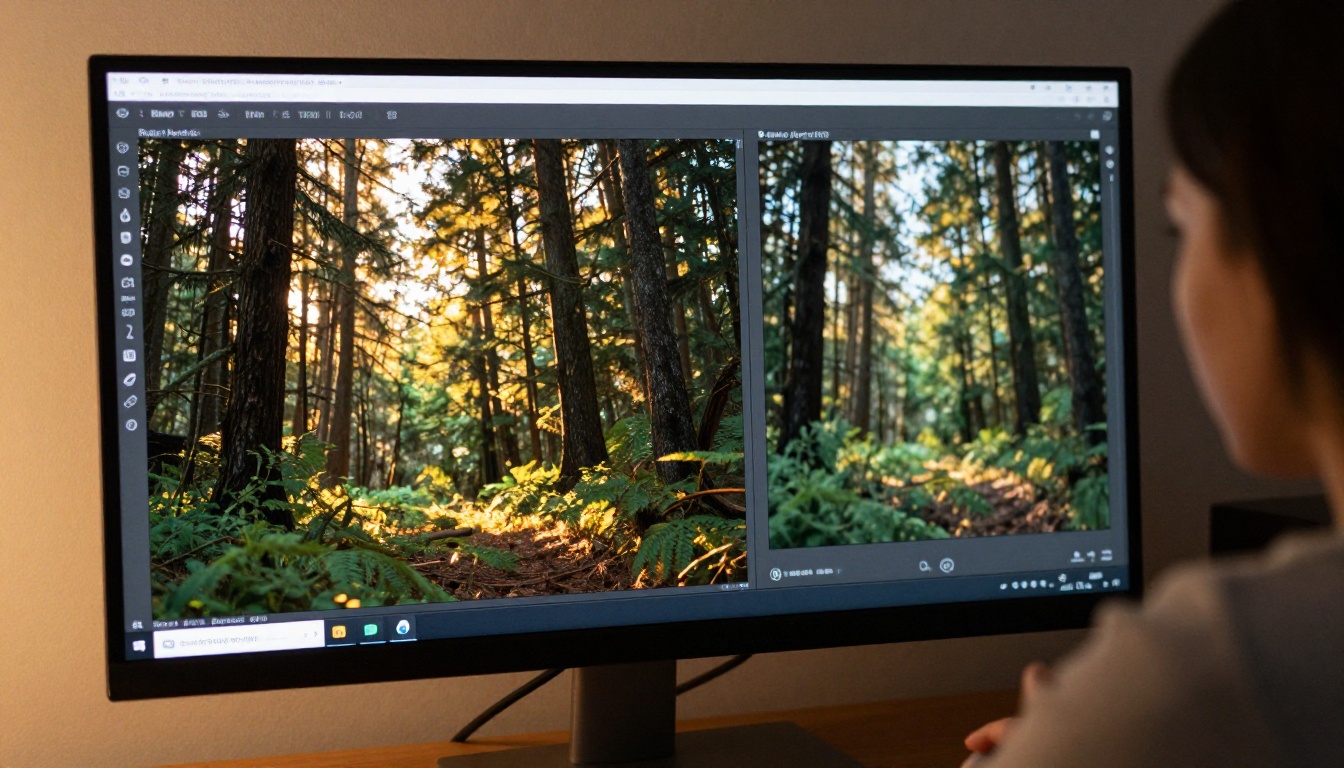
The fix is straightforward: let the image fully own the visual environment and remove any environmental descriptions from the text that are not already present in the image. If your image is an indoor space, your prompt should describe motion that happens indoors. If your image is a forest, your prompt should describe what moves within that forest.
Over-Stuffed Prompts
Beginners tend to write prompts that include too many events in a single generation. Seedance 2.5 clips run for 5 to 30 seconds. In that window, one action can be portrayed convincingly. Two actions begin to compete for attention. Three actions typically produce none of them well.
💡 One subject. One primary action. One camera movement. That structure produces the most temporally stable outputs, especially when combined with a strong reference image. Resist the urge to include a complete narrative arc in a single generation.
If you need a sequence with multiple events, generate each as its own clip with its own dedicated reference image, then combine the clips in a video editor afterward. The quality of each individual clip will be higher, and the overall sequence will feel more controlled.
How to Use Seedance 2.5 on PicassoIA
PicassoIA offers both Seedance 2.5 and the free Seedance 2.5 Lite, giving you options depending on whether you are iterating quickly or producing final-quality outputs.
Setting Up the Generation
- Go to Seedance 2.5 on PicassoIA
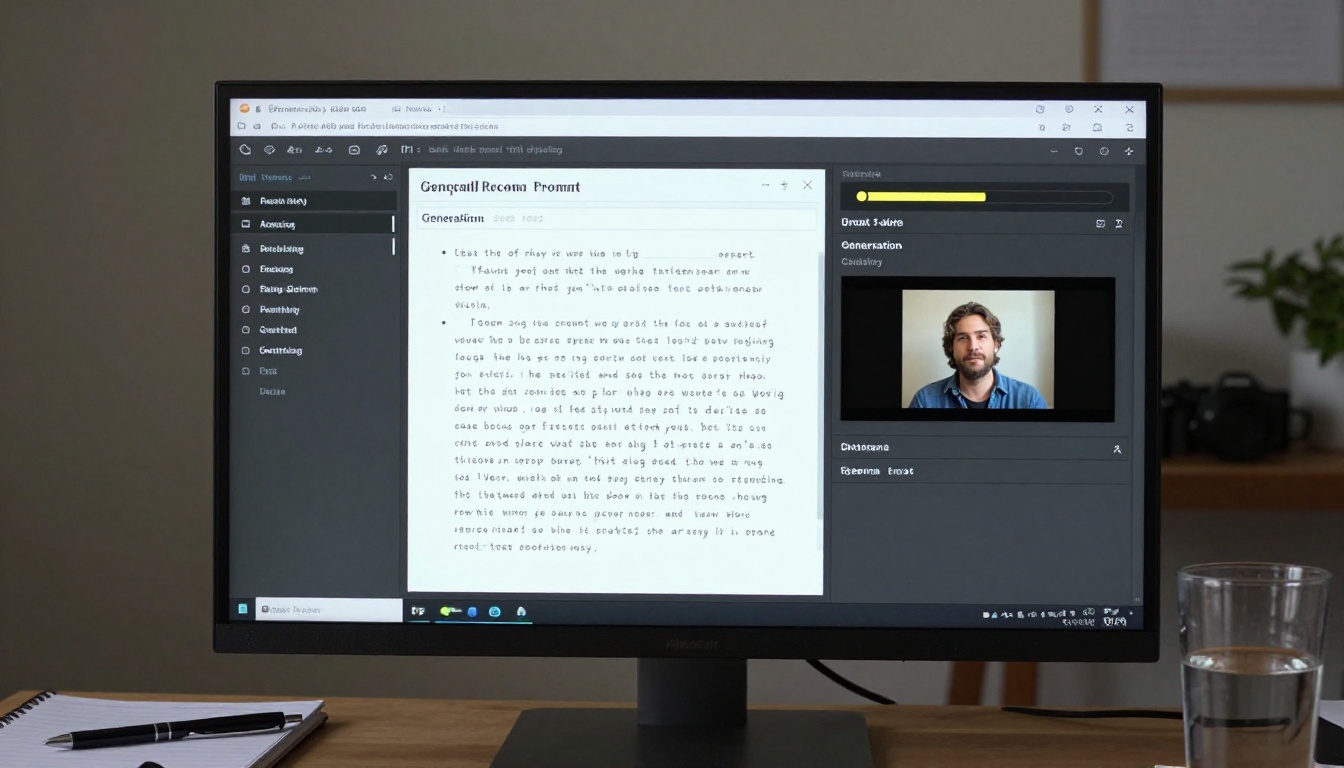
- Upload your prepared reference image in the image input panel
- Paste your motion prompt into the text field
- Select your desired clip duration between 5 and 30 seconds
- Click Generate and wait for the output
The platform handles the multimodal processing automatically. You do not need to flag which part of your input is visual and which is motion. The two fields are distinct in the interface, and the model reads them separately.
Reading and Iterating on Results
When the first output arrives, watch it twice. First pass: evaluate visual fidelity against your reference image. Second pass: evaluate motion coherence against your text prompt. Take written notes before you run a second generation.
The most effective iteration approach is to change exactly one thing at a time. Swap the reference image while keeping the text, or adjust one sentence of the text while keeping the same image. Changing both inputs simultaneously makes it impossible to identify what caused any improvement or regression. One variable, one generation, one evaluation.
For higher-volume work, Seedance 1.5 Pro and Seedance 2.0 accept the same multimodal reference structure. The workflow transfers directly between model versions, so experience with one immediately benefits your results on the others.
Models Worth Comparing
Once your multimodal reference workflow is dialed in with Seedance 2.5, it helps to know how other models on PicassoIA handle similar inputs. The right choice changes depending on your priority.
When to Use Seedance 2.5 vs. Alternatives
For consistent subject identity across multiple clips: Kling v3 Omni Video handles face and body coherence particularly well when you need the same character to appear consistently across a series of clips.
For longer outputs: Seedance 2.5 supports up to 30 seconds, which is longer than many alternatives on the platform. Veo 3.1 competes at this duration with high photorealism but processes more slowly, making it better suited for final renders than rapid iteration.
For rapid iteration at lower cost: Seedance 2.5 Lite and Ray Flash 2 720p generate faster outputs, which makes them practical for testing reference combinations before committing to a full-quality run on the main model.
For motion region control: Wan 2.7 I2V gives you more granular control over which parts of the reference image should move, useful when only a specific region of the frame needs animation while the rest stays static.
For native audio quality: Hailuo 2.3 produces particularly strong synchronized audio, which is worth considering when the sound design of the clip is as important as the visual output.
The practical approach for any new project is to run the same reference image and text prompt through two or three models in a single session, compare outputs on the three evaluation axes (visual fidelity, motion coherence, temporal stability), and scale production with the model that wins for that specific type of content. What works for a portrait might not work as well for a landscape, and vice versa.
Start Building Your Own Videos
The multimodal reference workflow in Seedance 2.5 is not complicated once you internalize its structure. Prepare a clean reference image. Write a motion-specific text prompt in four parts. Evaluate the output on three axes. Adjust one input at a time. Repeat until the output matches your intent.
That loop, once it becomes second nature, makes AI video generation feel less like a guessing game and more like a controlled production process. The quality of your outputs improves without increasing the time you spend per generation, because each run carries forward information from the last.
PicassoIA gives you access to Seedance 2.5 and Seedance 2.5 Lite alongside dozens of other video generation models spanning motion control, face animation, audio synthesis, and high-resolution upscaling. You can test the same reference workflow across multiple models in a single session, compare outputs directly, and scale up the approach that works.
If you have a reference image ready, the fastest way to see what multimodal generation actually produces is to upload it, write one clear motion sentence, and run it. Watch the output once for visual fidelity, once for motion. Change one thing. Run it again. The results build quickly from there, and the workflow you develop in the first few sessions will carry through every project that follows.
Visit picassoia.com/en/all-models to see the full range of available video generation models and find the one that fits your specific production needs.


