You filmed ten seconds of yourself walking across a room. Now you want a different character, in a different place, moving exactly the way you did: same stride, same head turn, same pause before the last step. Describing that with words alone is a coin flip. Handing the model a real clip of the movement is not. That is the whole idea behind Seedance motion control: a reference video supplies the motion, a reference image supplies the look, and your prompt fills in everything the clip cannot show.
This article walks through how it works, which settings change the result, how to write prompts that stay on target, and where you can run it for free. Every setting mentioned below comes from the real input list of Seedance 2.5 on PicassoIA, so you can follow along in the same interface.

What Motion Control Actually Does
Most AI video tools start from words. You type "a woman walks down a street" and the model invents the walk. The result looks fine, but you have no say over the rhythm, the weight shift or the exact arm swing. Motion control flips the order: the movement is decided first, then a new subject is dressed around it.
Reference video versus text prompt
Think of the two inputs as two different jobs:
- The reference video answers "how does it move?" Timing, body mechanics, camera path and pacing all come from here.
- The reference image answers "who or what is it?" Face, outfit, product shape and colour come from here.
- The text prompt answers "where and in what mood?" Setting, light, style and any spoken lines.
Researchers and creators who test this workflow keep arriving at the same conclusion: the reference video behaves like a motion signal, not a source of pixels. Wardrobe, materials and background should come from your images and your words. If you expect the clip to also carry its original clothing and room, you will be disappointed.
Where it fits next to image to video
Classic image to video animates a single photo and lets the model decide what happens. Motion control is stricter. You are not asking the model to be creative about movement, you are asking it to be faithful. Pick image to video when you want a quick, loose animation. Pick motion control when a specific gesture, dance step or camera move has to survive the transfer.
💡 Rule of thumb: if you can film the movement in under ten seconds with your phone, motion control will usually beat a text description.
Settings That Matter Most
Seedance 2.5 exposes a short list of inputs. Only a few of them decide whether motion transfer works.
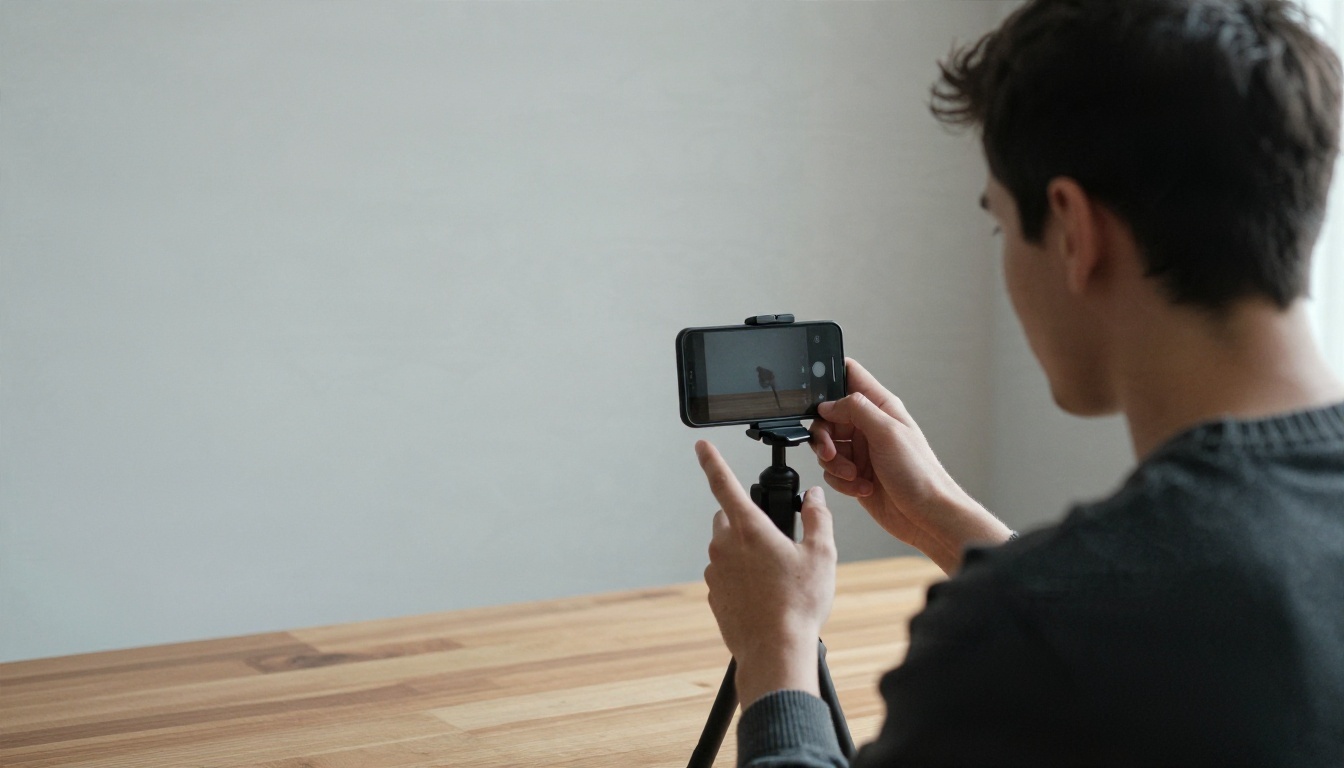
Reference videos and images
These two fields carry the whole workflow:
| Input | Limit on PicassoIA | What it does |
|---|
| Reference videos | Up to 10 files, combined 30 seconds | Motion transfer, style reference, editing and extension |
| Reference images | Up to 30 files | Character consistency, style and scene composition |
| Reference audios | Up to 10 files, combined 30 seconds | Audio driven generation and lip sync |
In your prompt you point to each file with a tag: [Video1], [Image1], [Audio1] and so on. Writing "the man from [Image1] performs the movement from [Video1]" is far more reliable than hoping the model guesses which file does what.
One detail trips people up. The plain first frame image field cannot be combined with reference images, videos or audios. For motion control, leave that field empty and use the reference fields instead. The same rule applies to the last frame image.
Duration, resolution and ratio
| Setting | Options | Practical advice |
|---|
| Duration | Any length in seconds, or -1 | Use -1 and the model picks the best length. Editing mode requires -1. |
| Resolution | 480p or 720p | Test at 480p, deliver at 720p. |
| Aspect ratio | 16:9, 4:3, 1:1, 3:4, 9:16, 21:9, adaptive | Match your destination. Use adaptive when inputs vary. |
| Output format | mp4 or mov | mp4 for sharing, mov for editing software. |
A habit that saves time: run your first two or three tests at 480p with the same seed, adjust only one thing between runs, and switch to 720p once the motion looks right. Changing the prompt, the reference and the ratio all at once makes it impossible to tell what helped.
Audio and seed
Generate audio is on by default. The model renders dialogue, sound effects and music together with the picture. To get spoken lines, put the words in double quotes inside the prompt. If you only want the movement, switch audio off and add sound later.
The seed field matters more than it looks. Fix it while you test so every difference you see comes from your edits, not from random variation. The tool itself notes that reproducibility is not guaranteed, so treat it as a strong nudge rather than a promise.
How to Use Seedance 2.5 on PicassoIA
Here is the workflow from blank page to finished clip.
- Open the model. Go to Seedance 2.5 on PicassoIA.
- Upload your motion clip into the reference videos field. Three to eight seconds, one continuous shot, is the sweet spot.
- Upload one or more character images into the reference images field. A clean, front facing photo with even light works best.
- Write the prompt using tags: who is in the scene ([Image1]), what they do ([Video1]), where they are and how it looks.
- Set the basics: 480p for the first test, aspect ratio matching your final platform, duration at -1 unless you need a fixed length.
- Generate, then change one thing. If the motion is right but the face drifts, add a second reference image. If the face is right but the motion is loose, shorten the prompt and let the clip do more of the talking.
- Render the final at 720p and download.
💡 Reference image tip: a neutral expression and a plain, readable outfit give the model less to argue with. Dramatic expressions in the portrait tend to leak into the motion.
Prompts That Work
A simple formula
The structure below keeps prompts short and gives each input one clear job:
[Subject from image] + [action copied from video] + [environment] + [light and lens] + [mood or sound]
Keep style words to about three adjectives. A long pile of descriptors competes with the reference and pulls the result away from the movement you filmed. The text should cover what the clip cannot show, nothing more.
Five prompt examples
Copy these and swap in your own tags.
1. Dance transfer
The woman from [Image1] performs the exact dance sequence from [Video1] in a sunlit loft with tall windows. Soft morning light, 35mm lens, natural fabric movement, calm and focused mood.
2. Product turn
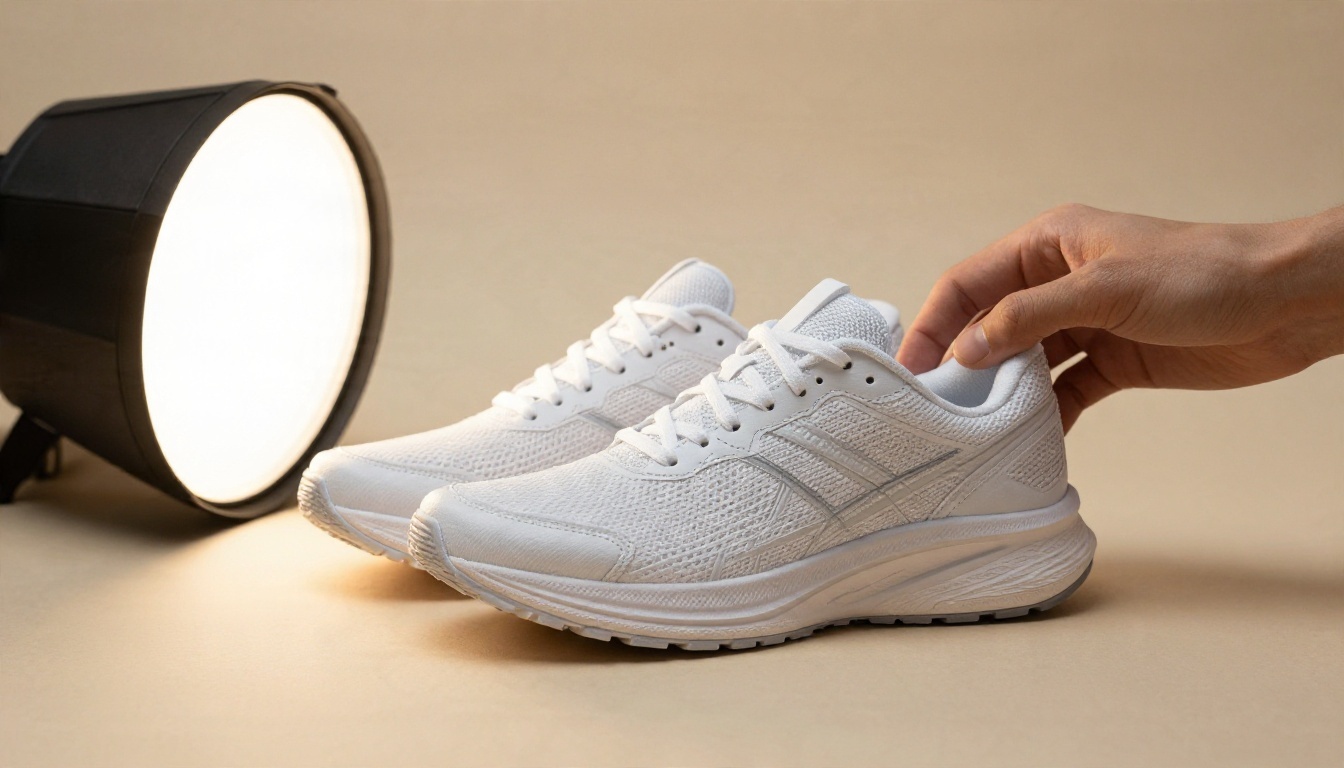
The white sneaker from [Image1] rotates on a matte turntable following the camera orbit from [Video1]. Seamless sand coloured backdrop, soft studio light from the left, crisp stitching detail.
3. Talking portrait
The man from [Image1] speaks to the camera with the head movement from [Video1]. He says: "We shipped it this morning." Warm desk lamp light, shallow depth of field, quiet office sound.
4. Sports action
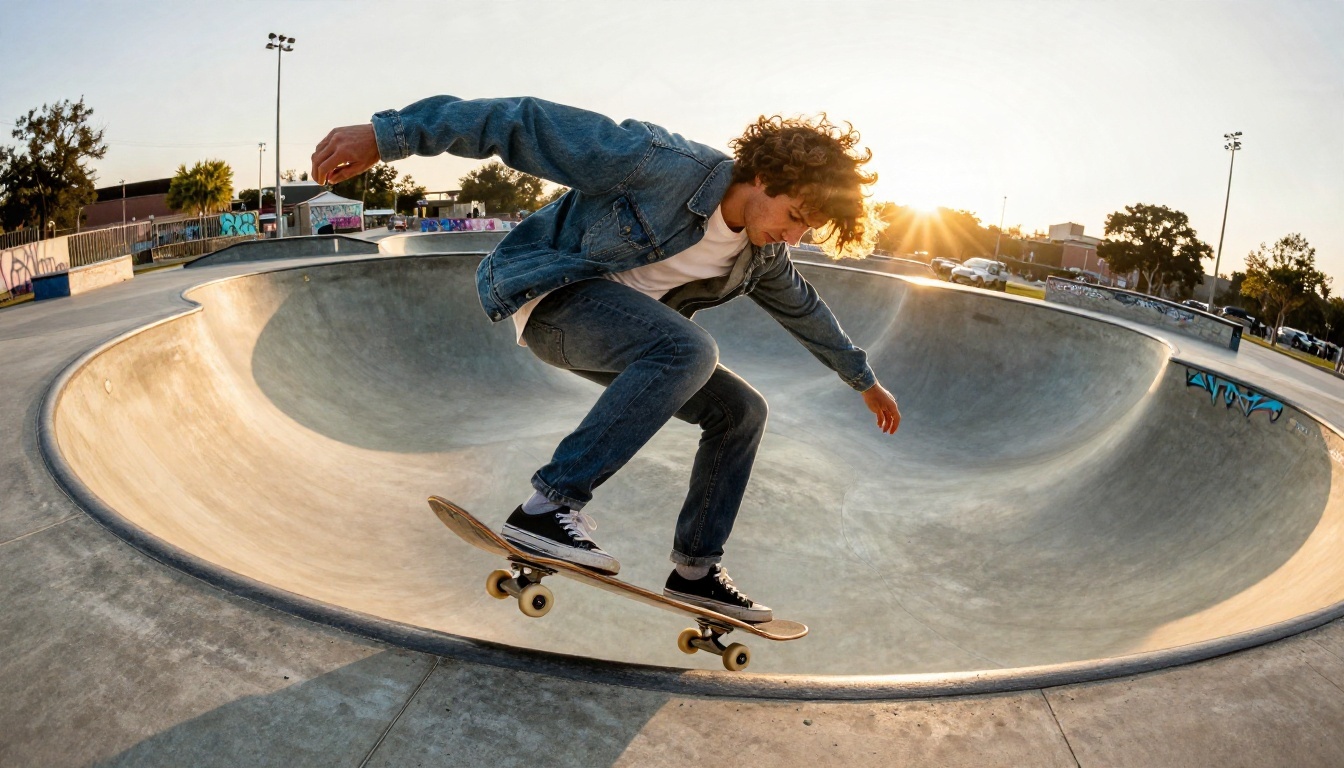
The skater from [Image1] repeats the jump from [Video1] in a concrete skate park at sunset. Low angle, warm backlight, real concrete texture, wheels clacking on the ground.
5. Camera move only
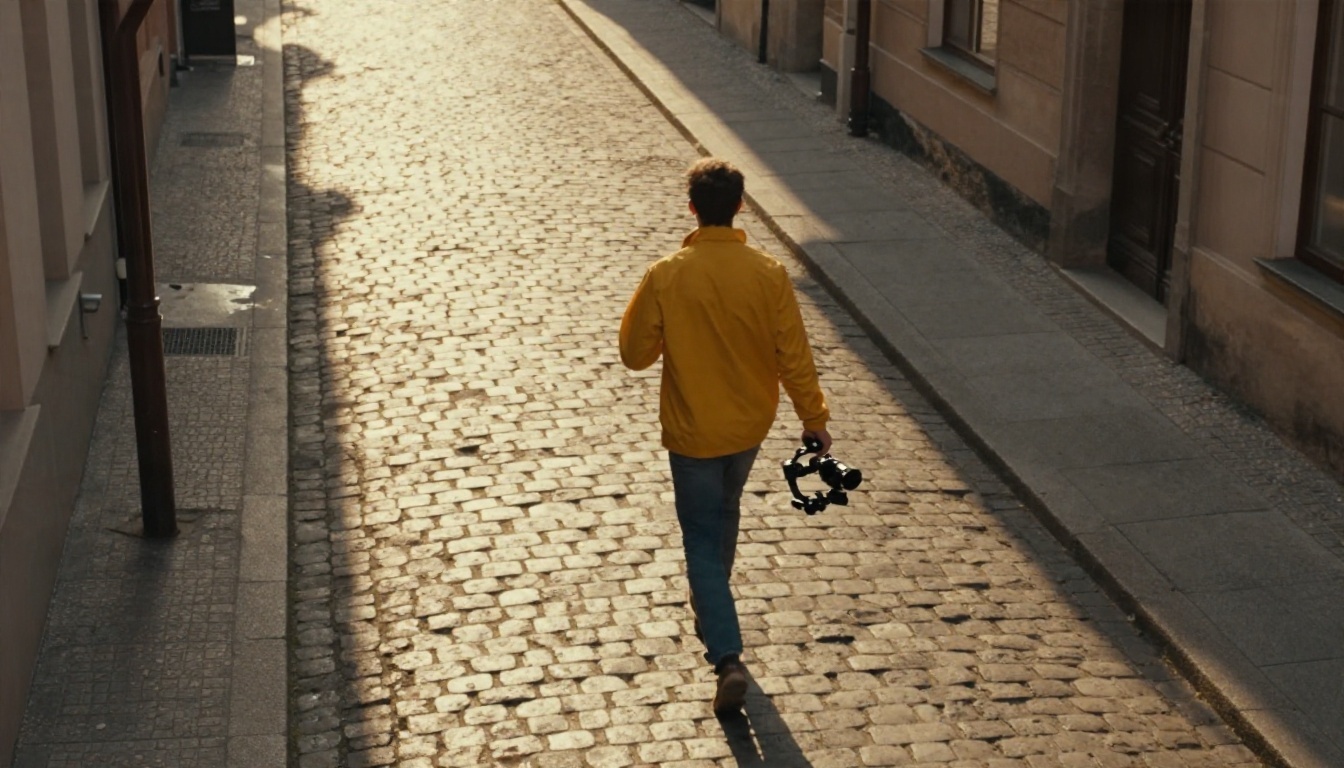
A runner in a yellow jacket from [Image1] jogs along a cobblestone street. The camera follows the same backward tracking path as [Video1]. Golden hour, wet stones, shallow focus.
💡 Tip: when a reference should only control one moment, say so. "Use [Video1] for the first three seconds only" is understood better than hoping the model splits the clip itself.
Real Examples by Use Case
Different jobs call for different references. These are the patterns that hold up best.
Dance and choreography
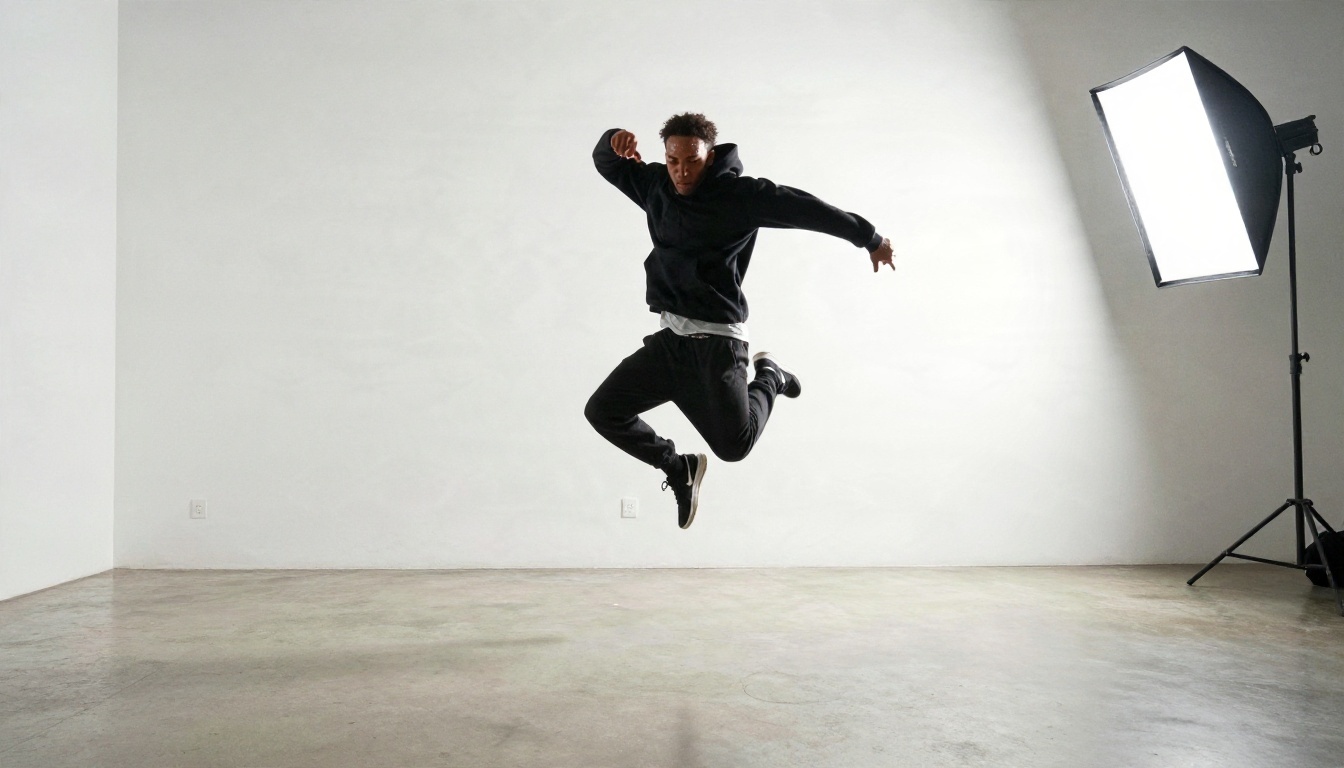
Dance is the classic test because every limb has to stay in sync. Film the routine against a plain wall with the full body in frame from head to toe. Avoid cropping the feet, since the model then has to guess the footwork. One performer per reference clip keeps the transfer clean.
Product rotations and reveals
A hand turning an object on a turntable is easy to film and easy to transfer. Use it to move a product shot onto a new colourway, a new backdrop or a different packaging design without reshooting. Keep the product reference image sharp and evenly lit, because the model reads shape and surface detail from it.
Sports and fast action
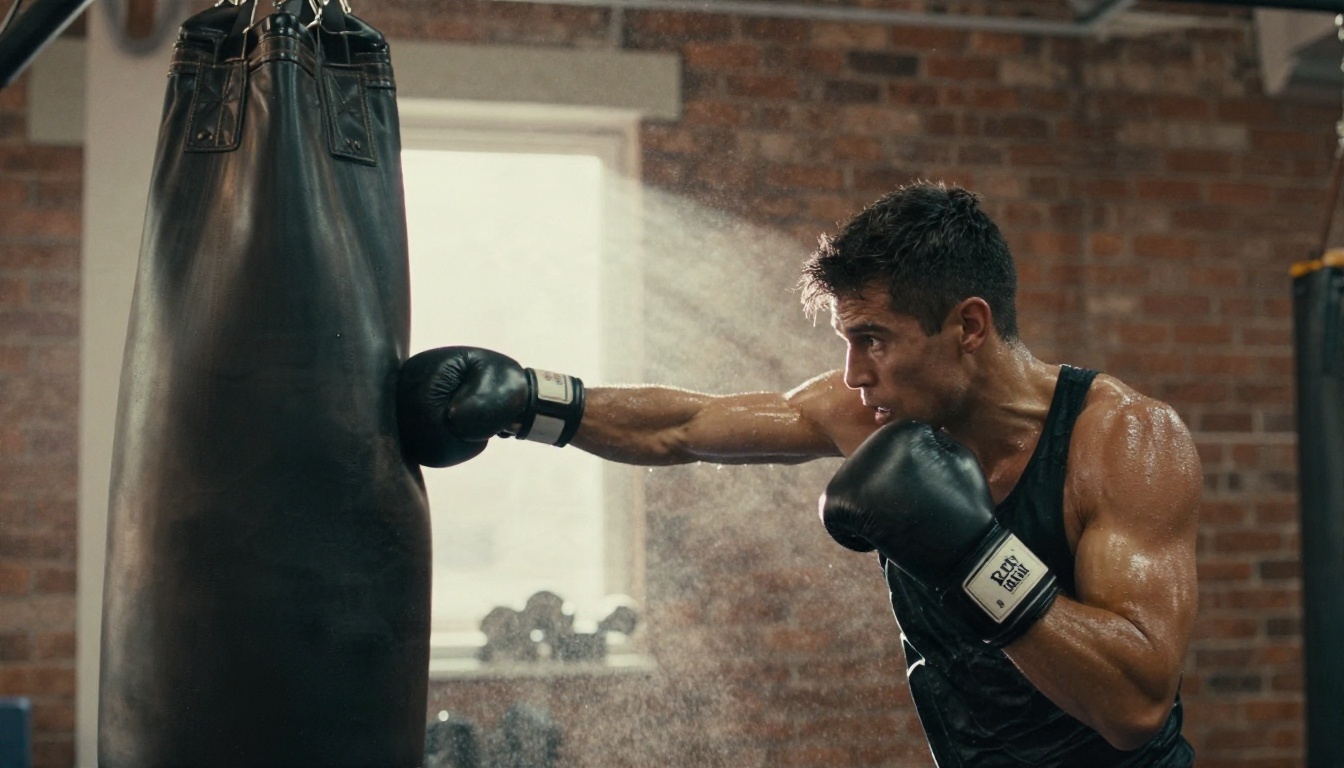
Punches, jumps and kicks carry a lot of motion in a short span. Trim the clip to the moment of action and nothing else. A boxer throwing one clean punch teaches the model more than thirty seconds of shadowboxing. Fast movement also benefits from a simple background in the reference, so the model does not mistake clutter for motion.
Camera moves and tracking shots
Motion control is not limited to people. A reference clip can carry a dolly, orbit, tracking or handheld path, and the new scene inherits it. Film a walk down a corridor with a gimbal, then apply the same glide to a completely different location. Say in the prompt whether the camera path is the only thing to copy, so the model does not also try to copy the subject.
Preparing a Clean Reference Clip
The reference clip decides about 70 percent of the outcome. Spending five minutes on it saves a dozen failed generations.
Framing and length
- 3 to 8 seconds is a safe range. Short enough to stay consistent, long enough to show a full movement.
- Single continuous shot. Jump cuts confuse the model about where one movement ends and the next begins.
- Subject fully visible. Cropped limbs lead to invented limbs.
- Stable exposure. Avoid sudden light changes or auto exposure pumping.
- Clean compression. A sharp H.264 file beats a blurry file that was shared through three messaging apps.
Common mistakes
| Mistake | What happens | Fix |
|---|
| Busy patterned background | Model reads patterns as motion | Film against a plain wall |
| Several references controlling the same detail | Conflicting results | Give each file one job |
| Very long prompt | Text overrides the clip | Cut to 2 or 3 sentences |
| Extreme expression in the portrait | Face leaks into motion | Use a neutral portrait |
| Changing everything between tests | You cannot tell what worked | Change one thing per run |
💡 Lock the motion first. Get the movement right with a plain character, then refine clothing, light and style. Doing it in the opposite order wastes renders.
Free Options Worth Trying
Money is a fair question, because motion control means several test renders before you get a keeper.
Seedance 2.5 Lite
Seedance 2.5 Lite is the lighter version of the main model, built for 480p and 720p and clips of 5 or 10 seconds. On PicassoIA, Elite and Infinite members can run it without a per clip cost or a daily counter. That makes it a strong place to test prompts, camera language and first frame ideas before you spend on a final render.
One honest limit: the Lite model takes a text prompt, an optional first frame image and an optional last frame image. It does not list reference video inputs, so it does not do motion transfer from a clip. Use it to rehearse your prompts and visual direction, then run the real motion transfer on Seedance 2.5.
Other models for similar results
If your goal is to move a character with a recorded movement, two other models on PicassoIA are built around that exact idea:
For a character image to feed any of them, Seedream 4.5 produces clean portraits you can use directly as a reference image. A sharp, neutral portrait made there often performs better than a casual snapshot.
💡 A cheap testing loop: make the character in Seedream 4.5, rehearse the scene with Seedance 2.5 Lite, then spend your real render on Seedance 2.5 with the motion clip attached.
When Results Go Wrong
Even with clean inputs, a render sometimes misses. These are the fixes that work most often.
- Motion is right, face is wrong. Add a second or third reference image of the same person from a different angle.
- Face is right, motion is loose. Shorten the prompt and remove adjectives about movement. Let the clip speak.
- The new subject copies the room from the reference. State the location explicitly in the prompt and use a plain wall when filming.
- The clip ends abruptly. Set the duration to -1 so the model chooses a natural stopping point.
- Hands look off. Re-film with hands clearly visible and slower, smaller gestures.
Start Making Your Own Motion Clips
You do not need a studio. A phone, a plain wall, a character portrait and one short prompt are enough to run your first motion transfer today. Film a five second movement, upload it as a reference video on Seedance 2.5, tag your files in the prompt and generate a 480p test. Change one thing, run it again, and finish at 720p when the movement looks right.
If you want to rehearse first, try Seedance 2.5 Lite for fast, unlimited testing on a member plan, then compare your results with Kling v3 Motion Control. Browse the full list of video and image tools at picassoia.com/en/all-models and start building your own library of movements.


