You type "send me a photo of the tavern," the character answers in perfect voice, and then the picture never arrives. Or it arrives as a broken box. If you have ever stared at that empty spot in a SillyTavern chat, this article is for you. Below you will find a free setup that works on an ordinary gaming PC, prompt templates you can paste today, the settings that decide whether faces look good or melted, and a fix list for the errors that cause nearly every "not working" thread.
How SillyTavern Makes Pictures
SillyTavern is a front end for chatting with language models and playing characters. It does not draw anything by itself. The image feature is an extension (older versions called it "Stable Diffusion") that takes text from your chat, turns it into an image prompt, and sends that prompt to a separate image backend. The backend renders the picture and sends it back to be shown in the conversation.
That split explains most of the confusion. When something fails, the fault is usually in one of three places: the text model that writes the prompt, the connection between SillyTavern and the backend, or the backend itself.
The Three Moving Parts
| Part | Job | Typical choice |
|---|
| Chat model | Writes the story and the image prompt | A local model or an API model |
| Extension | Builds the prompt, calls the backend | Built in to SillyTavern |
| Image backend | Draws the picture | Stable Diffusion WebUI, ComfyUI, a crowd-sourced network, or a paid API |
Free Versus Paid Backends
Free really means one of two things. You run the backend on your own graphics card, which costs nothing per image but needs a decent GPU. Or you use a volunteer-powered network, which costs nothing but makes you wait in a queue. Paid APIs are fast and need no hardware, but they bill per picture.
💡 Tip: If your GPU has 8 GB of VRAM or more, local is the best free route. Below 6 GB, expect slow renders and out-of-memory errors at larger sizes.
Free Setup With a Local Backend
Two local backends are popular: AUTOMATIC1111's Stable Diffusion WebUI and ComfyUI. WebUI is simpler. ComfyUI is more flexible and lets you load newer model families through workflows. Pick one, not both, until you have a working picture.
Option One: Stable Diffusion WebUI
- Install WebUI and confirm you can generate an image in its own browser page.
- Open
webui-user.bat and set the launch line to set COMMANDLINE_ARGS=--api. Without this flag, SillyTavern has nothing to talk to.
- Restart WebUI. It normally listens on
http://127.0.0.1:7860.
- In SillyTavern, open Extensions, then Image Generation.
- Choose the WebUI source, paste the address above, and press Connect.
- When the model, sampler and VAE lists fill in, the link works.
Option Two: ComfyUI
- Start ComfyUI and generate one test image in its own interface.
- In SillyTavern, set the source to ComfyUI and enter its address, normally
http://127.0.0.1:8188.
- Pick a checkpoint and sampler from the dropdowns that appear.
- If you want a custom pipeline, build it in ComfyUI, export it in API format, and paste it into SillyTavern's workflow editor. The default workflow is the safer first test. Switch to a custom one only after the default draws a picture.
Option Three: Volunteer Network
SillyTavern also offers a crowd-sourced source that needs no install. You pick a model, send the prompt, and wait for a volunteer's GPU to pick it up. Queues can run from seconds to several minutes, and quality varies by model, so treat it as a way to test the feature before you commit to local hardware.
A Note on API Services
Some paid services advertise "OpenAI-compatible" image endpoints. Here is the catch: SillyTavern's built-in OpenAI image option is built for the official service and does not always accept a custom address. People who point it at a third-party endpoint often get a 404. If you want a hosted API, look for a dedicated extension for that provider rather than bending the built-in one.
Prompts That Actually Work
The extension does not simply send your last message. It builds a prompt from the scene, using templates you can edit. Understanding how those pieces stack is the difference between a sharp portrait and a random blur.
The Prompt Stack
Every image prompt is assembled in layers:
- Common prefix: Quality words that apply to everything, such as
photograph, natural light, detailed skin, sharp focus.
- Character prefix: A fixed description of the character's face, hair and outfit, so they look the same in every picture.
- Scene text: The part the language model writes from the latest messages.
- Negative prompt: Things to avoid, such as
blurry, extra fingers, deformed hands, watermark.
💡 Tip: Put the character's permanent traits in the character prefix, not the scene text. That is the single biggest fix for a character whose hair color changes every message.
Prompts to Paste
Here are patterns that behave well with most photographic checkpoints:
| Goal | Example prompt |
|---|
| Portrait | portrait of a woman with long auburn hair, green linen cloak, forest clearing, soft diffused light, 85mm lens, shallow depth of field |
| Scene | candle lit tavern interior, oak table, stone walls, warm light, 35mm photograph |
| Background | misty pine forest at dawn, wide shot, natural colors |
| Selfie | close up selfie, smiling, indoor window light, casual sweater |
Let a Language Model Write Them
Smaller chat models often produce muddled image prompts. A stronger model can rewrite the scene into a clean, comma-separated description. On PicassoIA you can test that idea with DeepSeek V3.1 or GPT 5.6 Luna: paste a paragraph of your story and ask for a single-line image prompt with subject, setting, light and lens. Then copy the result into the extension's prompt field to see how the backend responds.
Trigger Words and Slash Commands
The extension can respond to phrases in your own messages, such as asking for a picture, and it adds a magic wand menu with modes for the character, you, the whole scene, or a background. You can also run /sd followed by a short description to force a render without relying on the model to decide. When troubleshooting, /sd is your best friend because it removes the chat model from the equation.
Settings That Change the Result
Defaults are rarely right for your specific checkpoint. These are the values worth touching first.
Sampler, Steps and CFG
| Setting | Starting value | What it does |
|---|
| Steps | 20 to 28 | More steps rarely help past this range and cost time |
| CFG scale | 5 to 7 | Higher values follow the prompt harder but can look burnt |
| Sampler | DPM++ 2M Karras or Euler a | Reliable general choices |
| Clip skip | 1 or 2 | Depends on the checkpoint, check its page |
Fast distilled models behave differently. Many of them want very few steps and a CFG near 1. If your picture comes out gray or noisy, read the model's recommended values before touching anything else.
Resolution and Aspect Ratio
Each model family has a native size. SD 1.5 style checkpoints are happiest near 512 by 512 or 512 by 768. SDXL style checkpoints work best near 1024 by 1024. Asking for a size far from native creates doubled limbs and strange compositions.
- Portraits: 832 by 1216 on SDXL, tall and narrow.
- Scenes and backgrounds: 1216 by 832, wide.
- Quick tests: Halve the size to cut render time, then scale up once the composition is right.
Faces and Upscaling
Small faces in a wide scene often look smeared. Two options help: render the character as a portrait instead of a full scene, or turn on the extension's high resolution option so a second pass adds detail. Both cost render time, so use them for pictures you actually want to keep.
💡 Tip: Keep a "fast preview" profile and a "keeper" profile. Preview at low steps and small size while you shape the prompt, then switch to the keeper profile for the final render.
Fixes When Nothing Appears

Work through these in order. Each one takes under a minute, and together they cover the large majority of failures.
Check the Backend on Its Own
Open the backend's own page and generate a test image there. If that fails, SillyTavern was never the problem. Restart the backend, read its console for out-of-memory messages, and lower the image size.
Confirm the API Is Switched On
For WebUI, the --api flag must be in the launch arguments. If the Connect button in SillyTavern says it cannot reach the server, this is the first thing to look at. Close WebUI fully and start it again after saving the file.
Match the Right Address and Port
WebUI and ComfyUI use different ports and different APIs. Pointing the WebUI source at ComfyUI's port may let requests go through but never return a usable picture. Check that the source you selected matches the program actually running.
Test With /sd
Type /sd a red apple on a wooden table. If this draws an apple, the connection is healthy and the problem is in how the chat model writes prompts or how your triggers are set. If it fails, the problem is the connection.
Read the Console
SillyTavern prints the exact error in the terminal window where it runs. Look for lines mentioning connection refused, 404, 422 or a missing model. The message is usually more specific than the red toast in the browser.
Quick Error Table
| Symptom | Likely cause | Fix |
|---|
| Cannot connect | API flag missing or wrong port | Add --api, restart, check the address |
| 404 from a hosted API | Built-in OpenAI source used with a custom endpoint | Use a provider-specific extension |
| Endless spinner | Backend crashed or queue is long | Check the backend console, retry |
| Gray or noisy image | Wrong CFG or steps for the model | Use the model's recommended values |
| Wrong model loads | Checkpoint list is stale | Refresh the list, reselect |
| Workflow rejected | ComfyUI file not in API format | Export again in API format |
Remote and Phone Problems
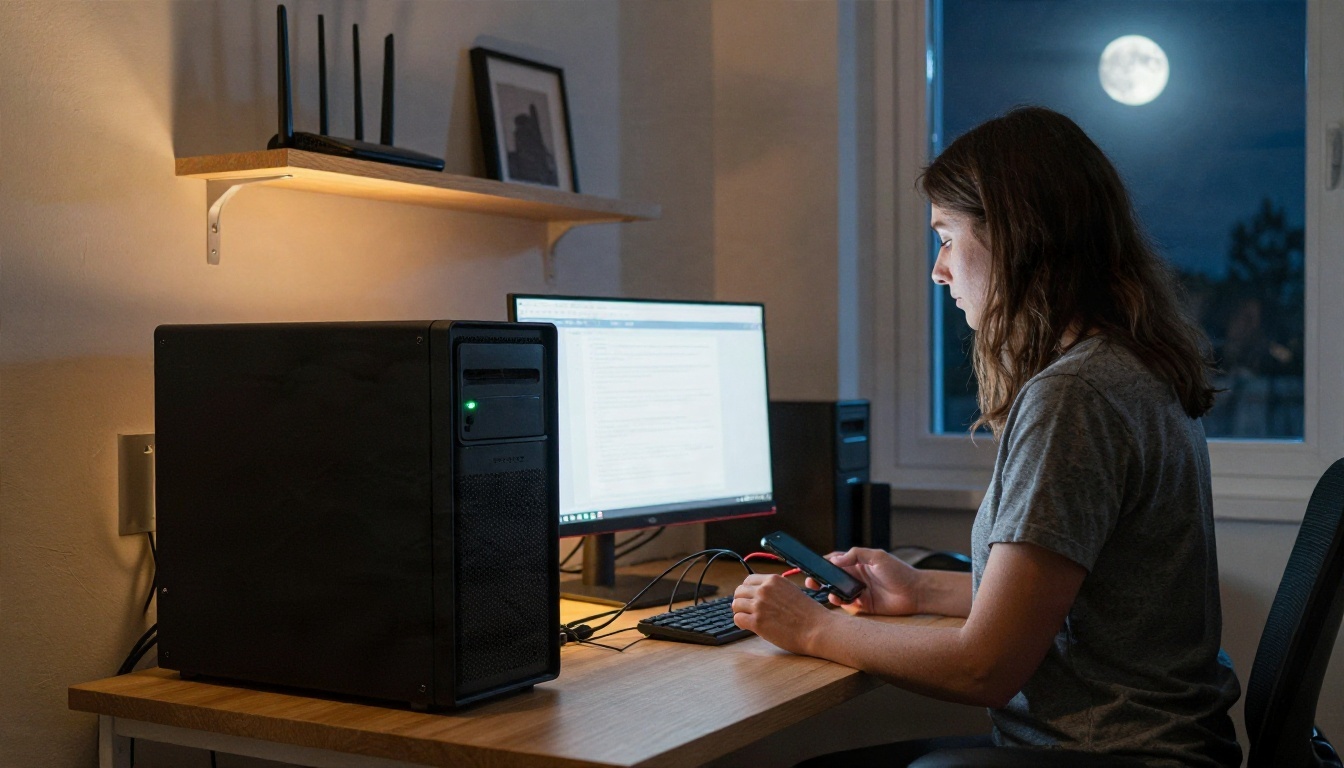
Plenty of people run SillyTavern on a phone or a second computer and keep the backend on a gaming PC. That adds a network layer, and every link in it can fail.
Localhost Means This Device
The address 127.0.0.1 points to whatever device you are on. If SillyTavern runs on a phone and the backend runs on a PC, the phone will look for a backend on itself and find nothing. Use the PC's local network address instead, for example one starting with 192.168.
Let the Backend Listen
By default, many backends accept connections only from the same machine. Start WebUI with its listen option and, for ComfyUI, enable its network listening and cross-origin settings. Then allow the port through the PC firewall.
Containers Add One More Hop
If SillyTavern runs in a container, localhost refers to the container, not your computer. Use the host's address or the container networking name for the backend.
💡 Tip: Test the backend address in a phone browser first. If the page loads there, SillyTavern can reach it too.
Characters and Backgrounds That Stay Consistent
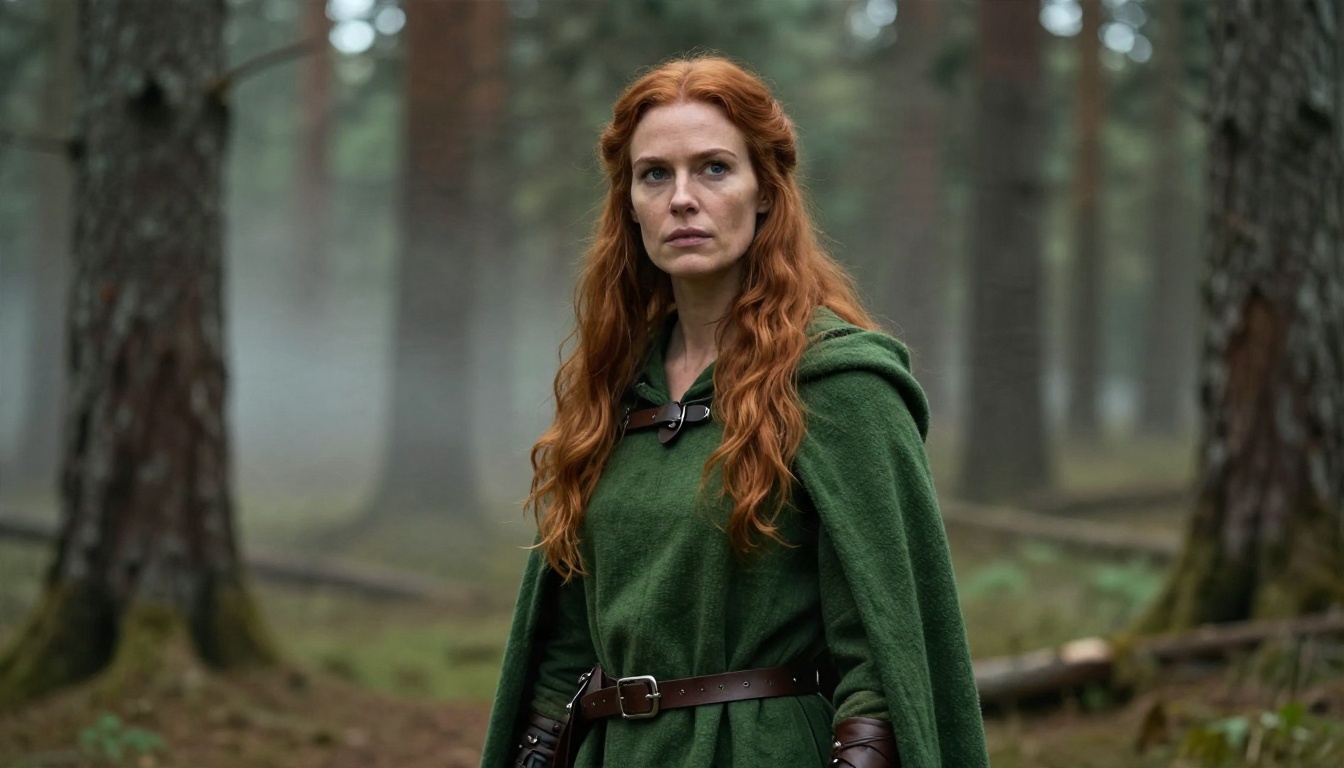
Once pictures appear, the next complaint is consistency. A character who changes face every message breaks the spell.
Write a Fixed Character Description
Start the character prefix with the same short block every time: age, hair, eyes, build, signature clothing. Keep it to one line. Longer blocks fight with the scene text.
Reuse a Seed or a LoRA
Fixing the seed keeps the overall look steadier between renders, though changing the scene still changes the picture. For stronger likeness, a small trained add-on (a LoRA) for the character does the heavy lifting. If you want to experiment with that style of control on PicassoIA, Flux 2 Klein 4B Base and Flux Schnell LoRA are good places to see how styled results look.
Make Avatars and Backgrounds Elsewhere
You do not have to render every picture inside the chat. Many players generate a character portrait once, use it as the avatar, and add a handful of scene backgrounds. Doing that outside SillyTavern saves render time during play and lets you pick the best of many tries.
Making Art on PicassoIA
SillyTavern is not a model, so there is nothing to install from PicassoIA into it. What you can do is use PicassoIA as a free place to create the avatars, backgrounds and character sheets that you import into your chats, and to test prompts before you paste them into the extension.
Models Worth Trying
A Simple Workflow
- Draft your character description in plain English.
- Open a fast model such as Z Image Turbo and test three variations of the prompt.
- Pick the best result and save it as the avatar.
- Take the winning wording and paste it into the SillyTavern character prefix.
- Use Seedream 4.5 for the hero portrait once the look is settled.
Because the same wording drives both places, your in-chat pictures and your avatar will feel like the same person.
💡 Tip: Test your prompt in a fast model first. If a prompt cannot produce a good picture there, it will not produce one in your chat either, and you will have saved yourself a debugging session.
A Short Checklist Before You Chat
Run through this list the first time and after any update:
- The backend generates an image on its own page.
- The API flag is on and the address and port are right.
/sd draws a simple object.- The model, sampler and size match what the checkpoint expects.
- The character prefix holds the permanent look, the scene text holds the moment.
- The negative prompt includes your usual problems, such as extra fingers.
Most chats that "stopped working" after an update fail on the first or second item, because the backend restarted without its flags or the address changed.
Try It on Your Own Characters
You now have a free route, prompts to paste, settings to adjust and a fix list for the usual failures. The fastest way to improve is to experiment with wording. Open PicassoIA, try Z Image Turbo or Seedream 4.5 with your own character description, and compare a few versions. Once one looks right, carry that wording back into SillyTavern. Browse everything available at picassoia.com/en/all-models and build your next story's cast.


