The first time you watch an AI-generated video that looks genuinely cinematic, something shifts. You stop thinking about how it was made and start thinking about what you would make. Sora 2 is the model that's been creating those reactions all over the internet, and the good news is that it's not reserved for technical experts or creative agencies. This article is for anyone who wants to make their first AI video without getting lost in jargon.
By the end, you'll have a clear picture of how Sora 2 works, what to type into the prompt box, and how to get results that actually impress.
What Sora 2 Actually Does
Sora 2 is a text-to-video model built by OpenAI. You type a description of a scene, and it renders a short video clip from scratch. No footage needed. No editing software. No camera. Just words and a few seconds of processing time.
What separates Sora 2 from earlier AI video tools is the way it handles physics, light, and motion. Objects behave the way you'd expect them to in the real world. Shadows move with the sun. Water ripples convincingly. A person walking across a room doesn't flicker or glitch halfway through.

From Text to Video in Seconds
The process is straightforward. You write a prompt describing a scene, choose a duration and resolution, and submit. The model generates a video clip that matches your description, usually in under a minute depending on the platform and queue load.
The clips range from a few seconds up to around 20 seconds. That might sound short, but a well-composed 10-second clip can be genuinely striking, especially for social media content, product teasers, or short-form storytelling.
Why the Quality Feels Different
Earlier text-to-video models produced clips that were visually interesting but obviously artificial. Edges flickered. Faces melted. Motion felt choppy.
Sora 2 changed that baseline. The model was trained on a significantly larger dataset and uses a diffusion-based architecture that produces much more temporally consistent results. In plain terms: things stay looking like themselves across the entire duration of the clip instead of warping mid-video.
💡 Worth knowing: Sora 2 excels at landscape scenes, nature footage, and cinematic establishing shots. Abstract or highly specific face-based prompts can still be hit or miss.
How to Use Sora 2 on PicassoIA
Sora 2 is available directly on PicassoIA without any installation or API setup. You just need a browser.

Setting Up Your First Project
- Go to the Sora 2 model page on PicassoIA.
- Sign in or create a free account if you don't have one yet.
- You'll land on the generation interface. You'll see a prompt input box, resolution options, and duration settings.
- Take a moment to scan the example outputs already shown on the page. These give you a realistic sense of what the model produces at different quality levels.
No download, no setup, no local GPU required. The entire process runs in the cloud.
Entering Your First Prompt
Click into the prompt box and describe a scene. Don't overthink it. A decent first prompt is specific about the environment, the subject, and the mood. Something like:
"A young woman walks along a quiet beach at sunrise, waves gently rolling in, warm golden light on the sand, slow cinematic camera movement"
That's it. That single sentence has enough detail for the model to produce a compelling clip.
Picking the Right Settings
| Setting | Recommended for Beginners |
|---|
| Resolution | 720p (faster generation, good quality) |
| Duration | 5-8 seconds (easiest to control) |
| Aspect Ratio | 16:9 (standard widescreen) |
| Motion Intensity | Medium |
Once you have a feel for the model, you can push to 1080p and longer durations. For your first few attempts, keep things short so you can iterate quickly.
💡 Tip: Run your first prompt at 720p. If you like the result, regenerate the same prompt at 1080p for the higher-quality version.
Writing Prompts That Work
The quality of your output is almost entirely determined by the quality of your prompt. This is where most beginners spend too little time, and then wonder why their results feel generic.

The 3-Part Prompt Formula
Every strong Sora 2 prompt has three components:
- Subject: Who or what is in the scene?
- Environment: Where is it happening? What does the space look like?
- Mood or Motion: What is the atmosphere? Is the camera moving?
Here's the formula in action:
[Subject doing something] + [detailed environment description] + [camera movement or mood]
Example: "An elderly fisherman casting a net from a weathered wooden boat, surrounded by a misty river at dawn, slow pan from left to right, soft blue-grey light"
That covers all three parts. The model has enough to work with.
Common Mistakes to Avoid
Too vague: "A car driving" will produce a generic result. Be specific about the type of car, the road, the time of day.
Too many elements: Don't try to describe five different things happening at once. Focus on one primary subject in one environment.
No motion cue: AI video models respond well to camera direction or subject motion described in the prompt. Add phrases like "slow push in", "rotating orbit", "subject walking toward camera", or "handheld gentle sway".
Over-specifying style: Sora 2's default output is already cinematic. Short, scene-descriptive prompts often outperform over-engineered paragraphs with excessive quality modifiers.
5 Prompt Examples to Try Right Now
| # | Prompt | Expected Result |
|---|
| 1 | "Autumn leaves falling in a quiet forest, gentle breeze, camera slowly tilting upward toward sunlight through branches" | Serene nature footage |
| 2 | "A street musician playing guitar on a rainy Paris sidewalk at night, reflections in the wet pavement, bokeh lights" | Moody urban scene |
| 3 | "Close-up of waves crashing on black volcanic rock, slow motion, spray catching the afternoon sun" | Dynamic nature close-up |
| 4 | "A coffee shop interior on a winter morning, steam rising from cups, people at laptops, warm window light" | Cozy interior lifestyle |
| 5 | "Aerial view of a mountain road winding through a snowy valley, camera slowly pulling back to reveal the full landscape" | Cinematic aerial opener |
Copy any of these directly into Sora 2 and run them as-is. Each one is built to produce a satisfying first result.
Sora 2 vs. Other AI Video Models
PicassoIA offers dozens of text-to-video options. Understanding where Sora 2 fits in relation to others helps you pick the right tool for each job.

Sora 2 vs. Kling v3
Kling v3 is a powerful competitor with excellent motion fidelity and strong support for human movement. It handles action sequences and character-driven scenes very well.
Sora 2 tends to produce more photorealistic environments and more cinematic framing out of the box. Kling v3 offers more precise motion control. If your scene involves detailed human action, try Kling. For atmospheric and environmental scenes, Sora 2 usually wins.
Sora 2 vs. Gen-4.5 by Runway
Gen-4.5 by Runway is optimized for professional production workflows, including reference image consistency and style matching. It's a stronger choice when you need visual consistency across multiple clips in a project.
For one-off creative clips and standalone scenes, Sora 2 is simpler and often more visually impressive on a single generation basis.
Which One Is Right for You?
If you want the highest quality output on PicassoIA with no compromises, Sora 2 Pro is the upgraded version worth trying once you've gotten comfortable with the standard model.
What Sora 2 Can and Cannot Do
Setting honest expectations before your first generation makes the experience much better.

Where It Shines
- Natural environments: Forests, oceans, deserts, cities at dusk. These come out consistently beautiful.
- Atmospheric shots: Fog, rain, golden hour, moonlit scenes. Sora 2 handles atmospheric lighting with remarkable accuracy.
- Abstract motion: Smoke curling, water flowing, clouds building over a mountain. These are almost always striking.
- Architecture and interiors: Cafes, libraries, empty streets. Spatial consistency is very strong.
Current Limitations
- Faces in motion: Realistic face generation across extended clips is still inconsistent. Close-up portrait videos can produce minor artifacts.
- Text in video: Readable text within the generated clip is unreliable. Don't try to include signs, labels, or captions in your prompt.
- Complex multi-person scenes: Two or more interacting people in the same clip can lose coherence, especially if they're physically interacting.
- Exact replication: You cannot guarantee the same prompt produces the exact same video twice. Generation has inherent variance.
💡 Pro move: Run the same prompt 2-3 times and pick the best output. Small variations between generations often mean one attempt is noticeably better than the others.
Getting More From Your AI Videos
Once you have a generated clip you're happy with, there are several ways to improve it further using other tools on PicassoIA.
Raising Output Quality with Super Resolution
Sora 2's standard output resolution is solid but not always publication-ready at large display sizes. PicassoIA's super-resolution tools can upscale your video 2x or 4x while preserving detail and sharpness. This is especially useful if you're posting to a platform that requires higher resolution or if you're using the clip as part of a larger production.
After generating your clip, run it through an AI video enhancement tool to sharpen edges and increase apparent detail without any manual editing.
Pairing with AI Music for Better Results
A silent AI video clip is fine. A silent AI video clip set to an original AI-generated soundtrack is something you actually want to share.
PicassoIA's AI music generation tools let you create a custom audio track that fits your video's mood in seconds. Describe the vibe you want, similar to how you write a video prompt, and the system outputs a royalty-free audio track. Combine the two, and you have a shareable piece of content that requires zero original footage, no recording equipment, and no paid music licensing.
💡 Pairing tip: If your video has a slow, meditative quality, prompt for "ambient piano, soft strings, no drums, contemplative mood" to match the energy.
Using Image-to-Video for More Control
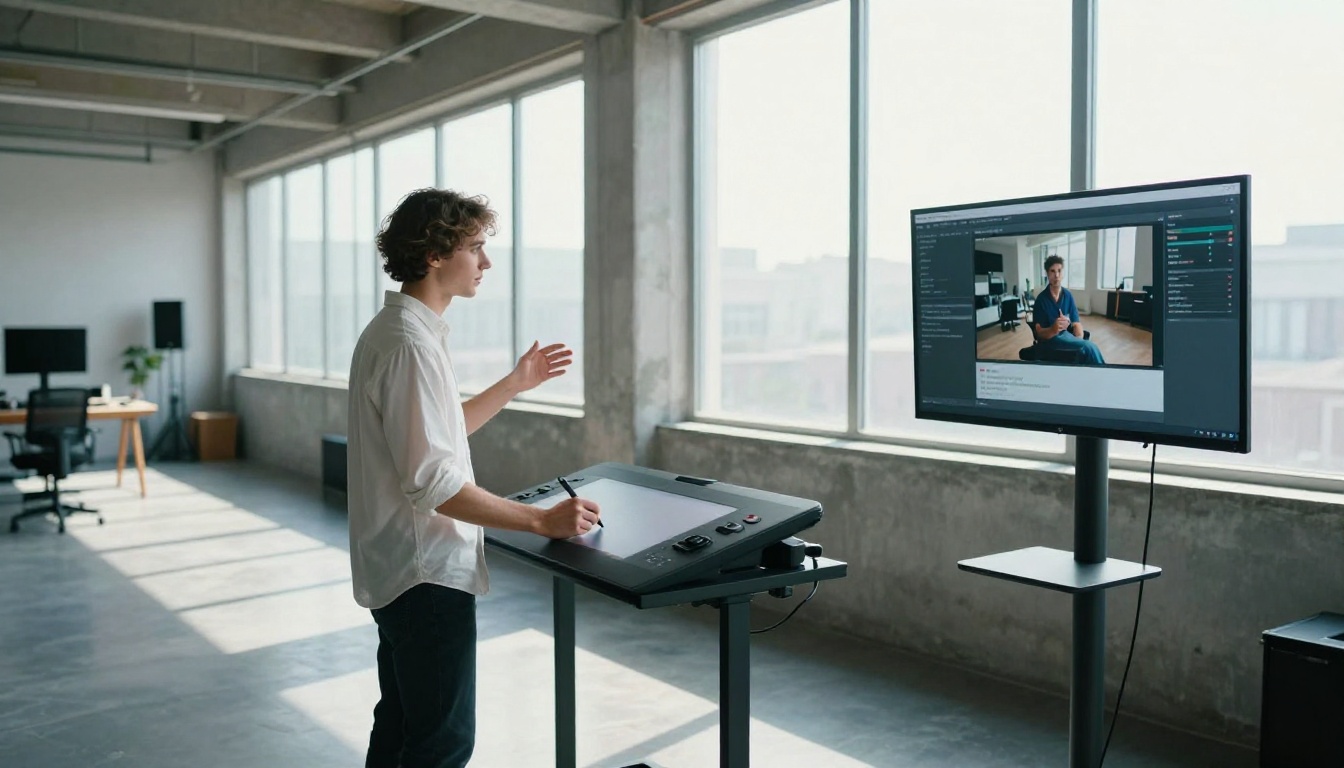
If you want more control over the starting frame of your video, try image-to-video instead of pure text-to-video. Generate a still image first using one of PicassoIA's image generation tools, then use a model like Wan 2.6 Image-to-Video or Hailuo 2.3 Fast to animate it. This gives you a precise starting composition and lets the AI handle the motion from there.
This two-step workflow is especially useful for product content, portraits, and architectural visuals where you need the first frame to look exactly right.
Adding Lipsync to Characters
If you create a video featuring a person speaking or a character you want to animate with dialogue, PicassoIA's lipsync tools can synchronize mouth movement with any audio track. This opens up possibilities for talking head videos, character voiceovers, and short narrative clips, all built entirely from AI-generated assets.
The Prompt That Changes How You Think About Content
Most people who try AI video for the first time approach it like a lottery. Type something in, hope it looks good. That mindset produces mediocre results.
The ones who get the most out of it treat the prompt like a shot list. They describe what the camera sees, what the light does, and what the subject is doing. They run multiple attempts. They combine image-to-video workflows when they need precision. They layer in music and enhancements after the fact.
That's not complicated. It's just intentional.
The tools available on PicassoIA, including Sora 2, Sora 2 Pro, Kling v3, Gen-4.5, and PixVerse v5.6, cover every creative need from quick social content to production-quality visuals. You don't need all of them. You need to start with one.
💡 Start here: Go to Sora 2 on PicassoIA, paste in one of the five example prompts from earlier, and run your first generation. That's the whole step one.
Make Something of Your Own
The best way to get better at AI video is simply to make more of it. Every generation teaches you something about what works, what's too vague, and what combinations of words produce something genuinely cinematic.
PicassoIA puts the full stack in one place: text-to-video, image generation, super-resolution, lipsync, AI music, and more. You can start with a single prompt and build toward something that looks like it came from a production house, entirely within the browser, on any device.
There's no better time to start than now. Open the Sora 2 model page, write one sentence about a scene you'd like to see move, and generate it. That first clip is the beginning of something interesting.


