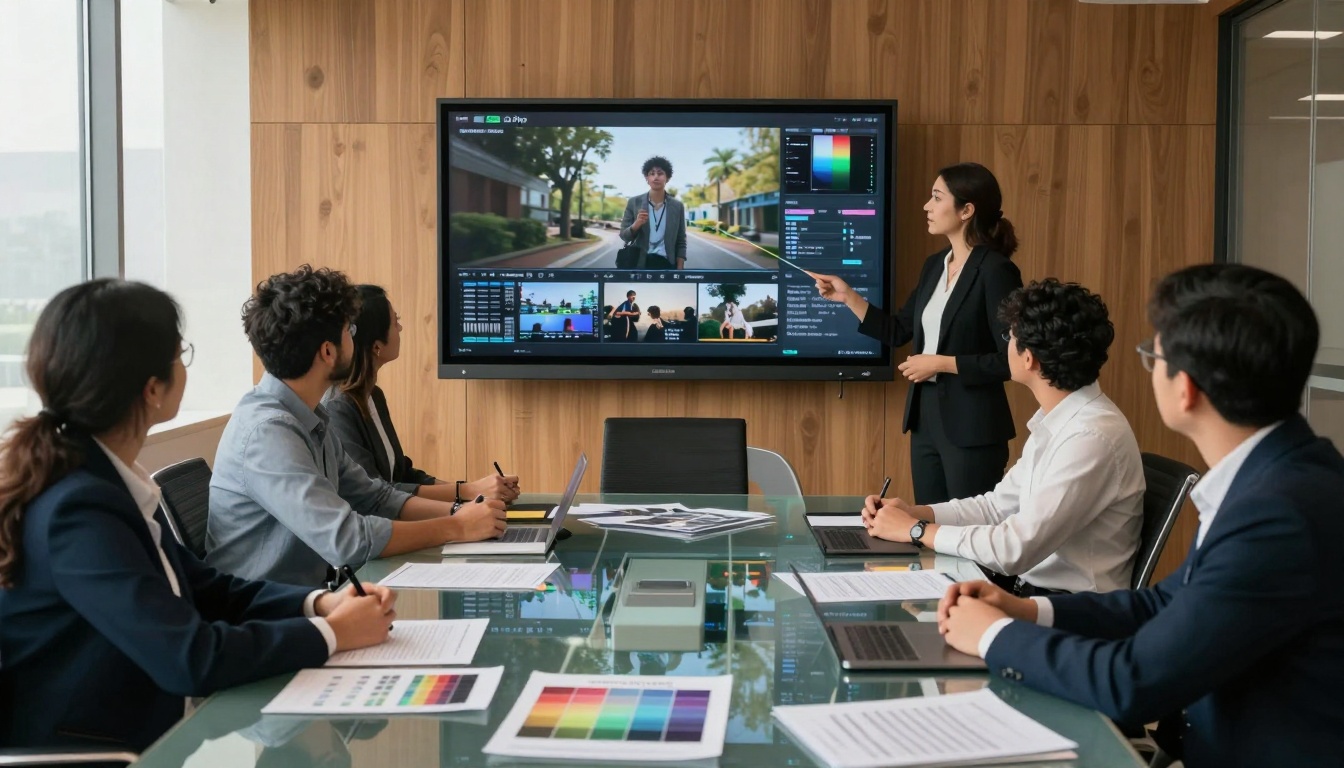
Sora 2 Pro Videos That Look Edited by Pros: Achieving Professional Quality with AI
This guide shows you exactly how to create Sora 2 Pro videos that look professionally edited, covering everything from prompt engineering to post-processing techniques. We'll walk through practical methods for achieving cinematic quality, controlling motion and lighting, and adding finishing touches that elevate AI-generated videos to professional standards. You'll learn specific workflows that content creators and marketers use to produce studio-quality results directly from text prompts.
The gap between raw AI-generated footage and professionally edited video is smaller than you think. With Sora 2 Pro, you're starting with some of the most advanced video generation technology available, but the real magic happens when you apply professional post-production techniques. This isn't about complex software or expensive equipment - it's about understanding what makes videos look "professional" and applying those principles to your AI-generated content.
When you first generate video with Sora 2 Pro, the output can feel impressive but still carry that telltale "AI" look. The motion might be slightly unnatural, the lighting flat, or the composition lacking cinematic intent. These are the exact same challenges professional filmmakers face with raw footage - and they've developed systematic approaches to solve them.
What Professional Editors Actually Do
Professional video editing isn't just cutting clips together. It's a multi-layered process that builds quality from the ground up:
The foundation layer starts with the source material. With Sora 2 Pro, this means getting your prompts right from the beginning. Professional editors working with AI video generators have learned that spending extra time on prompt engineering pays off massively in post-production.
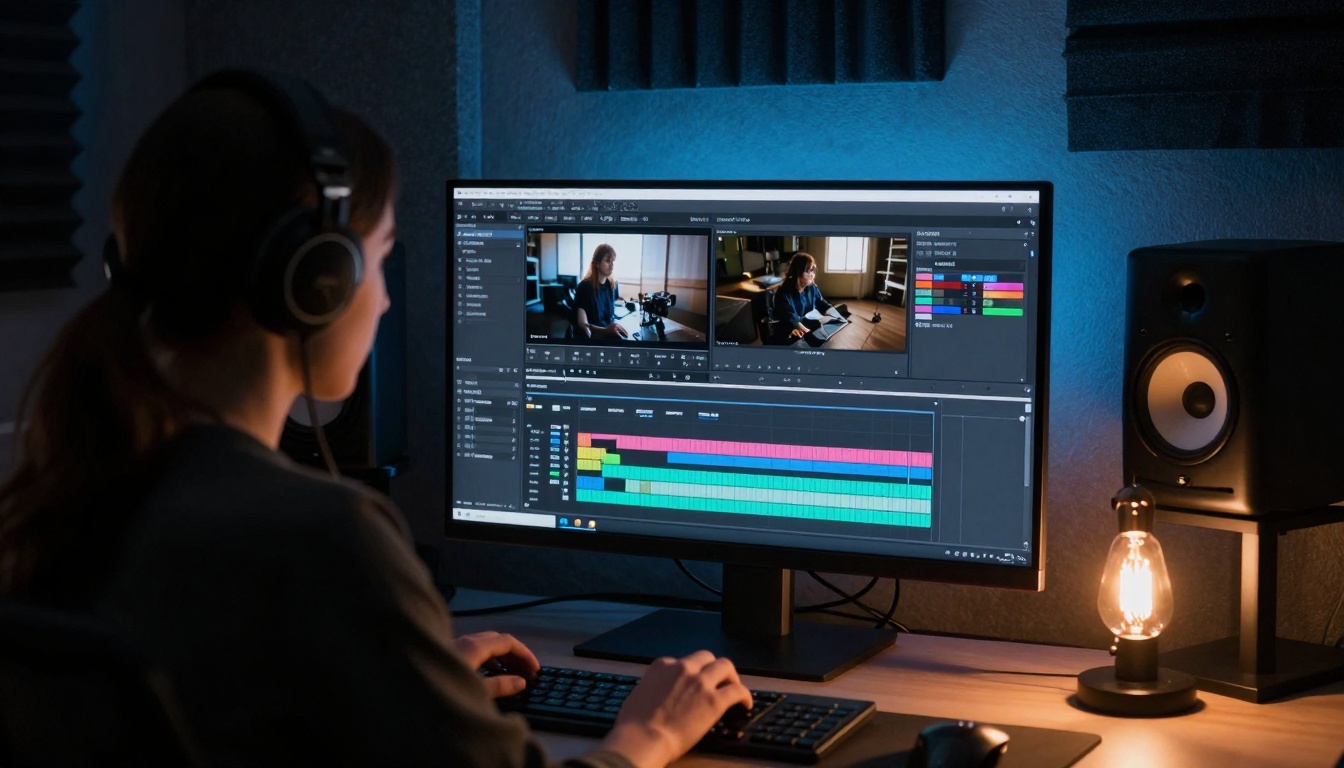
The technical layer involves color correction, stabilization, and timing adjustments. This is where raw AI footage gets transformed into something that looks intentional rather than generated.
The aesthetic layer adds cinematic qualities - film grain, depth of field simulation, lighting adjustments, and color grading that creates mood and atmosphere.
The finishing layer includes audio sweetening, title graphics, and final export optimization for different platforms.
💡 Professional Insight: The most successful AI video creators treat Sora 2 Pro as their "cinematographer" rather than their "entire production team." You're directing the AI to capture great raw footage, then you become the editor who turns it into a finished product.
Prompt Engineering for Professional Results
Your starting point determines everything. Professional-quality Sora 2 Pro videos begin with prompts that think like cinematographers:
Cinematic Language in Prompts
Instead of: "A person walking in a park"
Use: "Medium shot of a person walking through autumnal park, golden hour lighting creating long shadows, 35mm film aesthetic, subtle camera drift movement, documentary style"
The difference is specificity. Professional cinematographers think in terms of:
Shot composition (wide, medium, close-up)
Camera movement (static, dolly, pan, tilt)
Lighting conditions (golden hour, overcast, studio lighting)
Lens characteristics (wide angle, telephoto, prime lens look)
Film stock simulation (Kodak Portra, Fuji film looks)
Advanced Prompt Structure
Professional AI video creators use structured prompts that read like shot lists:
SUBJECT: Elderly fisherman mending nets
SETTING: Weather-beaten wooden dock at dawn
LIGHTING: First light with mist rising from water, backlit silhouette
CAMERA: 85mm lens, shallow depth of field, static tripod shot
MOVEMENT: Subtle water ripples, fishing nets moving in breeze
STYLE: Documentary realism, Kodak Portra 400 film simulation
MOOD: Peaceful, contemplative, nostalgic
This approach gives Sora 2 Pro specific cinematic instructions rather than vague descriptions.
Color Grading AI Footage
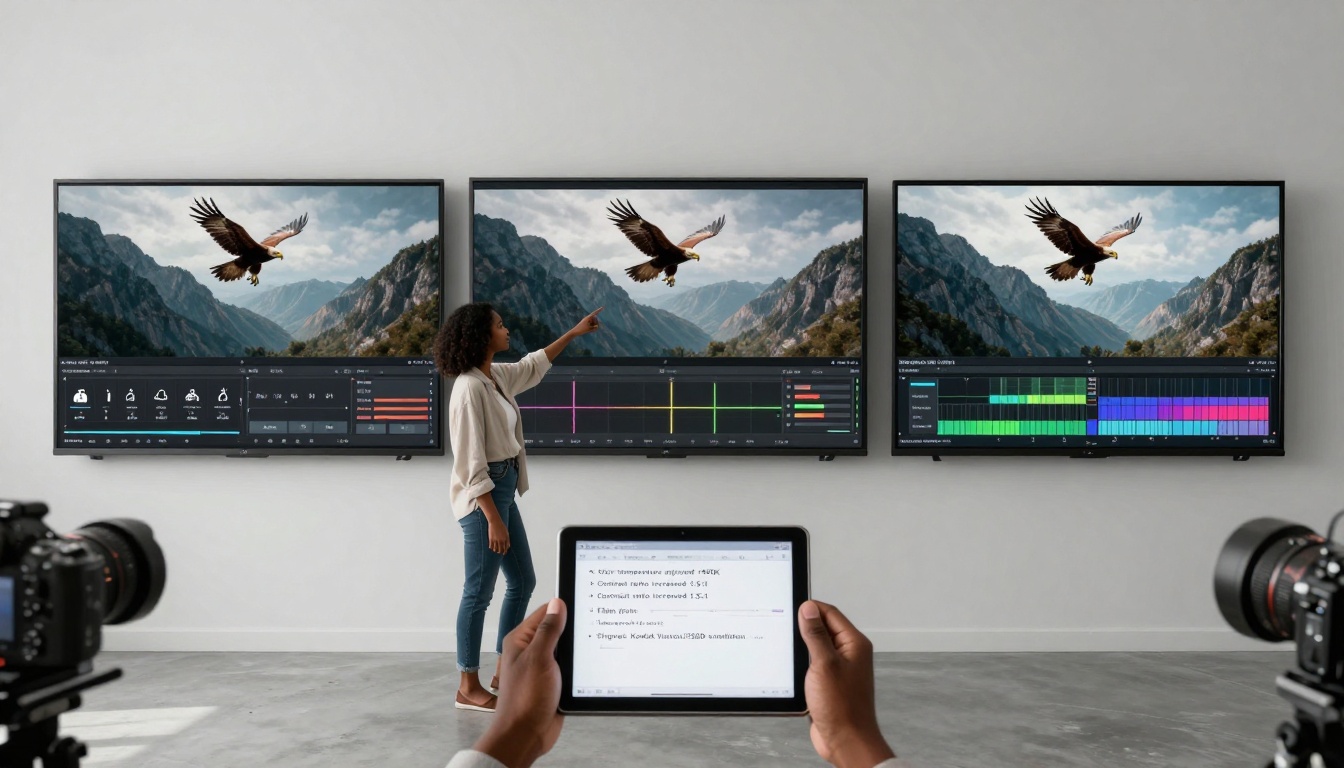
Raw Sora 2 Pro output often has neutral, somewhat flat color. Professional editors immediately apply color grading to establish mood and visual consistency.
Basic Color Correction Workflow
Exposure adjustment - Ensure proper brightness and contrast
White balance - Correct any color temperature issues
Saturation control - Adjust color intensity without oversaturating
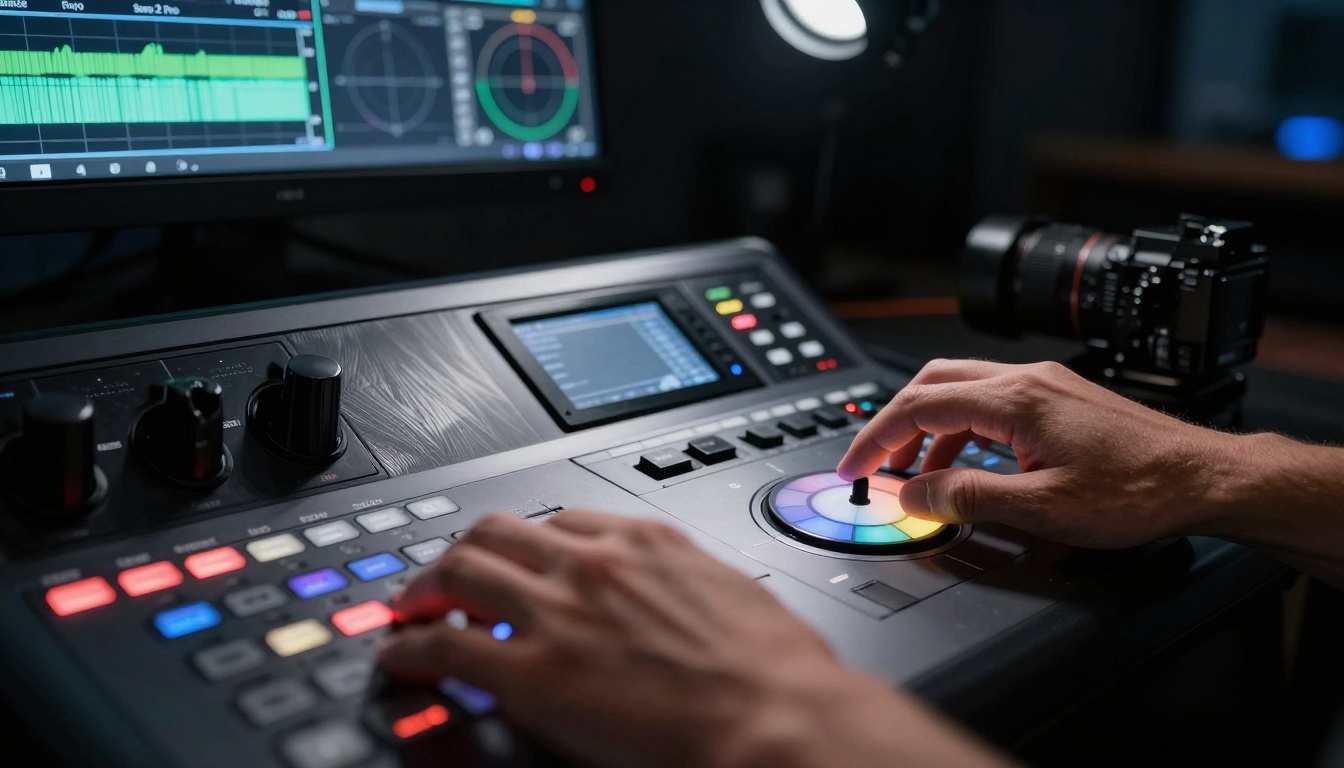
Color wheels - Fine-tune shadows, midtones, and highlights separately
Professional Color Grading Styles
Different projects require different color treatments:
Style
Characteristics
Best For
Cinematic
Orange/teal complementary colors, crushed blacks, film grain
Practical Color Grading Tools
You don't need DaVinci Resolve to get professional results. These accessible tools work well with Sora 2 Pro footage:
DaVinci Resolve (free version) - Industry standard, steep learning curve
Adobe Premiere Pro - Familiar interface for many creators
Final Cut Pro - Apple ecosystem, excellent performance
LumaFusion (iOS/iPad) - Mobile professional grading
CapCut (free) - Surprisingly capable for basic grading
💡 Color Grading Tip: Always grade on a calibrated monitor or at least disable any "enhancement" features on your display. What looks good on your screen might look completely different on others.
Motion and Stabilization Techniques
AI-generated video can sometimes have unnatural motion or minor instability. Professional editors fix this with targeted stabilization.
Common Motion Issues in AI Video
Micro-jitters - Tiny, rapid movements that feel unnatural
Unnatural smoothness - Motion that's too perfect, lacking human camera operator characteristics
Inconsistent speed - Objects moving at slightly wrong velocities
Fluid dynamics issues - Water, smoke, or hair not moving realistically
Stabilization Approaches
Warp Stabilizer (Premiere Pro/Final Cut) - Good for minor jitters
Manual keyframing - For more controlled, intentional camera movements
Motion blur addition - Makes fast movement look more natural
Speed ramping - Controlled acceleration/deceleration for dramatic effect
Adding Intentional Camera Movement
Sometimes the solution isn't removing motion, but adding the right kind of motion:
Subtle camera drift - Minimal movement that feels like human-operated camera
Dolly movements - Smooth forward/backward motion
Panning shots - Horizontal movement following action
Dutch angles - Slightly tilted frames for dramatic effect
These can be added in post-production using motion effects or by including them in your Sora 2 Pro prompts.
Audio Enhancement for Professional Results
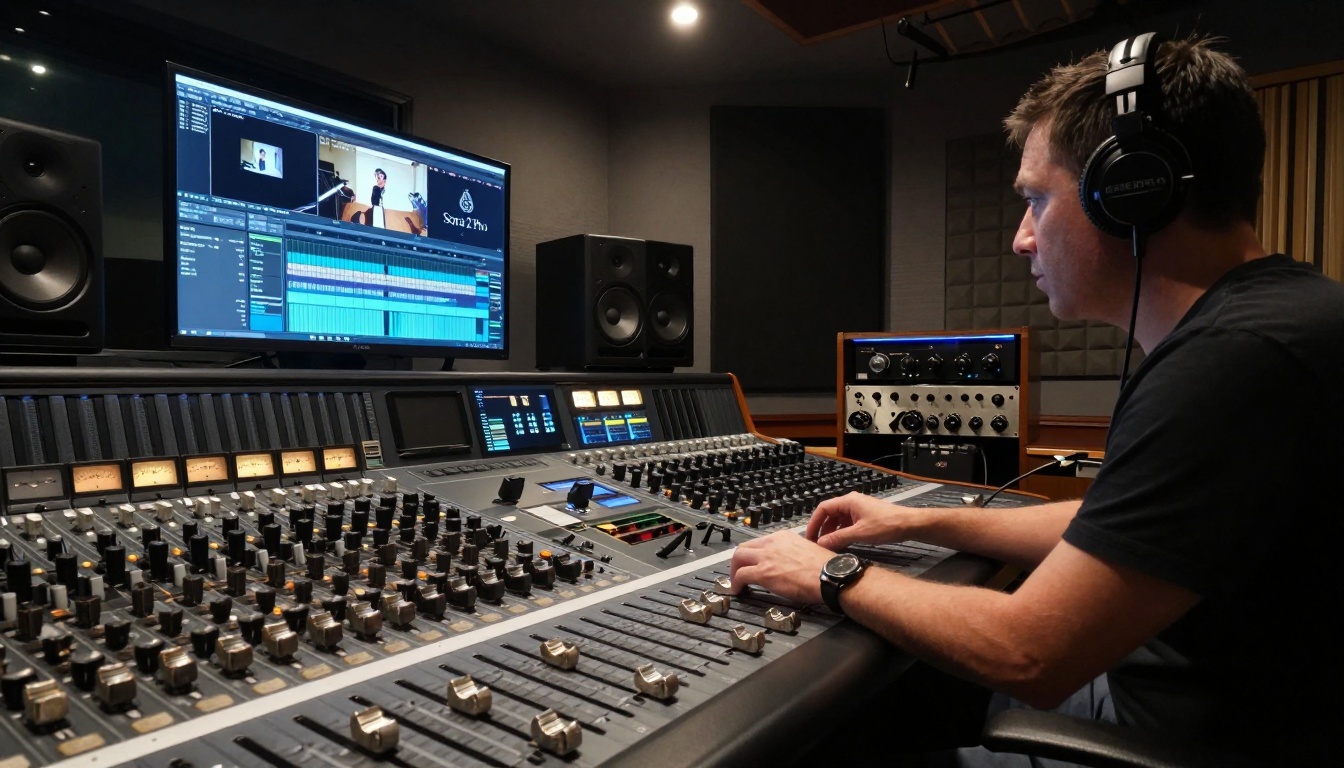
Video is 50% visual, 50% audio. Professional editors never neglect sound design.
Basic Audio Workflow
Clean up background noise - Remove any hiss or hum
Balance levels - Ensure consistent volume throughout
Add ambient sound - Room tone or environmental sounds
Sweeten with effects - Reverb, EQ, compression where needed
Add music and SFX - Complementary audio elements
Professional Audio Tools
Audacity (free) - Excellent for basic cleanup and editing
Adobe Audition - Professional-grade with great integration
Descript - AI-powered editing with transcription
GarageBand (free for Apple users) - Good for music and basic mixing
Audio Source Recommendations
For Sora 2 Pro videos, these audio elements work particularly well:
Epidemic Sound - Professional music library with clean licensing
Artlist - High-quality music and sound effects
Freesound.org - Community sounds (check licenses carefully)
YouTube Audio Library - Free, royalty-free music
Local recordings - Your own voiceovers or field recordings
How to Use Sora 2 Pro on PicassoIA
Sora 2 Pro on PicassoIA offers professional-grade video generation with parameters that let you control the cinematic quality from the start.
Presentation assets - Supporting visual material for talks
Prototype visualization - Concept testing before production
Post-Production Software Choices
The right tools make professional results achievable without Hollywood budgets.
Free/Open Source Options
DaVinci Resolve - Hollywood-grade color grading for free
Kdenlive - Capable open-source editor
Shotcut - Simple interface, good basic features
Blender - Surprisingly capable video editor with VFX tools
Olive - Early development but promising
Paid Professional Options
Adobe Creative Cloud - Industry standard, subscription model
Final Cut Pro - One-time purchase, Apple ecosystem
Camtasia - Screen recording + editing specialty
Filmora - User-friendly with professional features
Vegas Pro - Long-standing professional option
Mobile Editing for Professionals
Yes, you can achieve professional results on mobile:
LumaFusion (iOS) - Truly professional mobile editing
Kinemaster (Android/iOS) - Capable with good feature set
PowerDirector (Android/iOS) - Robust mobile editor
VN Video Editor (iOS) - Clean interface, good performance
CapCut (iOS/Android) - Excellent for social media optimization
💡 Software Selection: Choose based on your specific needs rather than what's "most professional." A well-edited video in a simple editor beats a poorly edited video in Hollywood software.
Workflow Optimization
Professional editors work efficiently. Here's how to optimize your Sora 2 Pro workflow:
Pre-Production Planning
Storyboard your concept - Even simple sketches help
Write detailed prompts - For each shot/scene
Plan edit points - Where cuts will happen
Audio planning - What sounds/music you'll need
Style references - Collect visual examples
Batch Processing Approach
Instead of generating one video at a time:
Generate 5-10 related clips in one session
Do all color grading in one pass
Process all audio together
Export all final versions at once
Template Creation
Save professional settings as templates:
Color grading presets
Audio mixing templates
Export settings for different platforms
Title/credits templates
Common Mistakes and How to Fix Them
Even with Sora 2 Pro's advanced capabilities, certain issues commonly appear:
Unnatural Facial Expressions
Solution: Use close-up prompts with specific emotion descriptors
Post-production: Subtle blur or focus on other elements
Inconsistent Lighting
Solution: Specify exact lighting in prompts ("window light from left at 45 degrees")
Post-production: Color match different shots, add consistent film grain
Physical camera for B-roll and real-world elements
Microphone for quality voice recording
Color checker for calibration reference
Monitor calibrator for accurate color work
Start Creating Professional Videos Today
The barrier to professional video production has never been lower. With Sora 2 Pro handling the complex generation and these post-production techniques handling the polish, you can create content that stands alongside professionally produced videos.
Your Next Steps
Experiment with cinematic prompts - Test different shot descriptions
Learn one editing software deeply - Mastery beats familiarity with multiple tools
Develop your color grading style - Consistent looks build recognition
Build a sound library - Quality audio makes everything better
Create template projects - Speed up your workflow
The most important step is simply starting. Generate your first Sora 2 Pro clip with cinematic intent, apply basic color correction, add thoughtful audio, and see the transformation. That gap between "AI-generated" and "professionally edited" closes faster than you expect when you approach it with professional techniques.
Professional video editing has always been about solving problems and enhancing what's already there. With Sora 2 Pro, you're starting with remarkably capable raw footage. Your job as editor is to apply the centuries of cinematic knowledge that separate amateur footage from professional work. The tools are different, but the principles remain the same: intentional composition, controlled motion, thoughtful color, and complementary sound.
Take your Sora 2 Pro generations to PicassoIA and start experimenting with these professional techniques. The learning curve is shorter than traditional video production, and the results can be equally impressive when you apply professional post-production thinking to AI-generated content.