OpenAI's Sora 2 has made waves in the AI video generation space, promising to bring professional-quality video creation to anyone with a text prompt. After spending considerable time testing both Sora 2 and Sora 2 Pro on PicassoIA, I can tell you there's a lot to unpack about what this technology can actually deliver.

What Is Sora 2?
Sora 2 represents OpenAI's second generation of text-to-video AI models, available in two versions on PicassoIA: the standard Sora 2 and the more advanced Sora 2 Pro. Both versions take your written descriptions and transform them into video clips with synchronized audio, but they differ in capabilities and output quality.
The model works by processing your text prompt and generating video frames that match your description. What sets it apart from earlier text-to-video models is its ability to maintain consistency across frames, produce realistic motion, and even generate accompanying audio that fits the scene.
Key Features That Stand Out
Video Duration Options
One of Sora 2's practical features is the flexibility in video length. You can generate clips of 4, 8, or 12 seconds, giving you control over how much content you need. This might seem short compared to traditional video, but for social media clips, product demos, or establishing shots, these durations work surprisingly well.
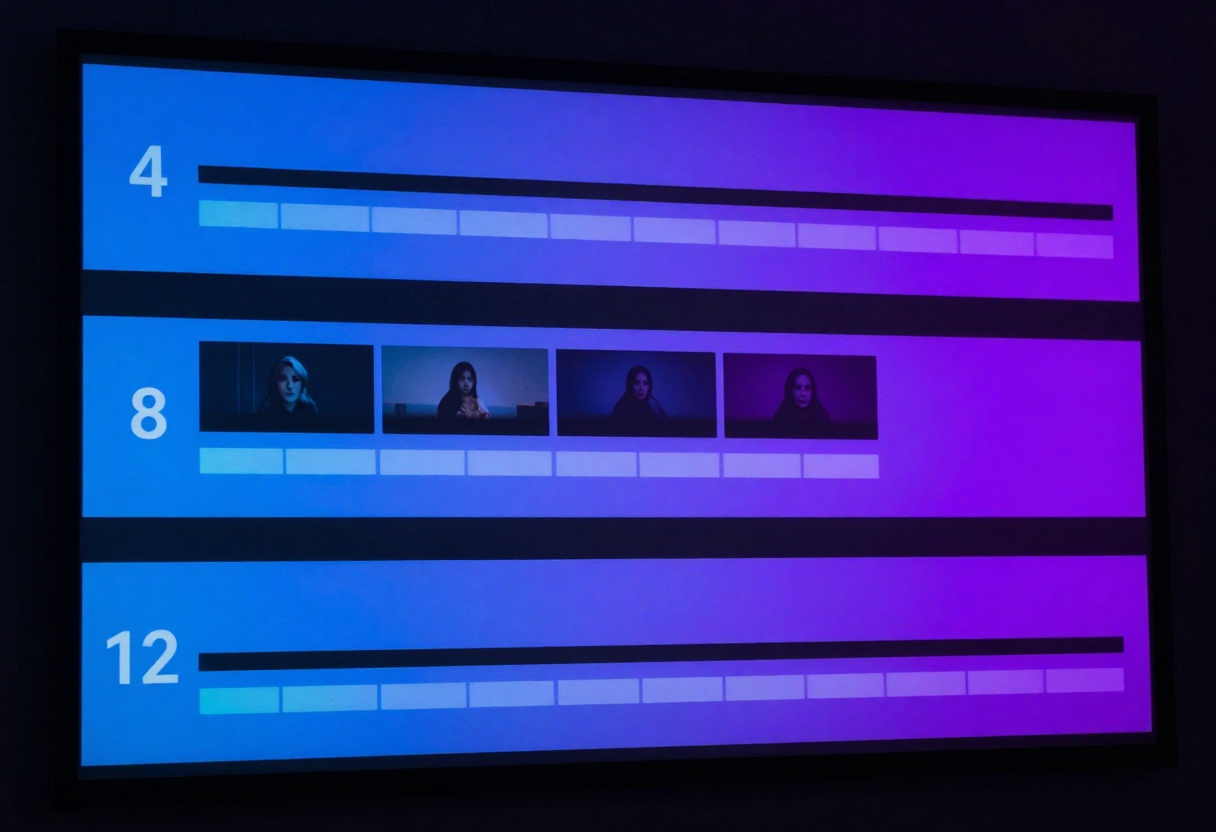
The 4-second option processes fastest and works great for testing prompts. The 8-second sweet spot balances quality with generation time. The 12-second option pushes the boundaries but occasionally shows strain maintaining consistency throughout.
Resolution Choices
Sora 2 Pro offers two resolution tiers:
- Standard resolution: 720p output that processes quickly
- High resolution: 1024p for situations where quality matters most
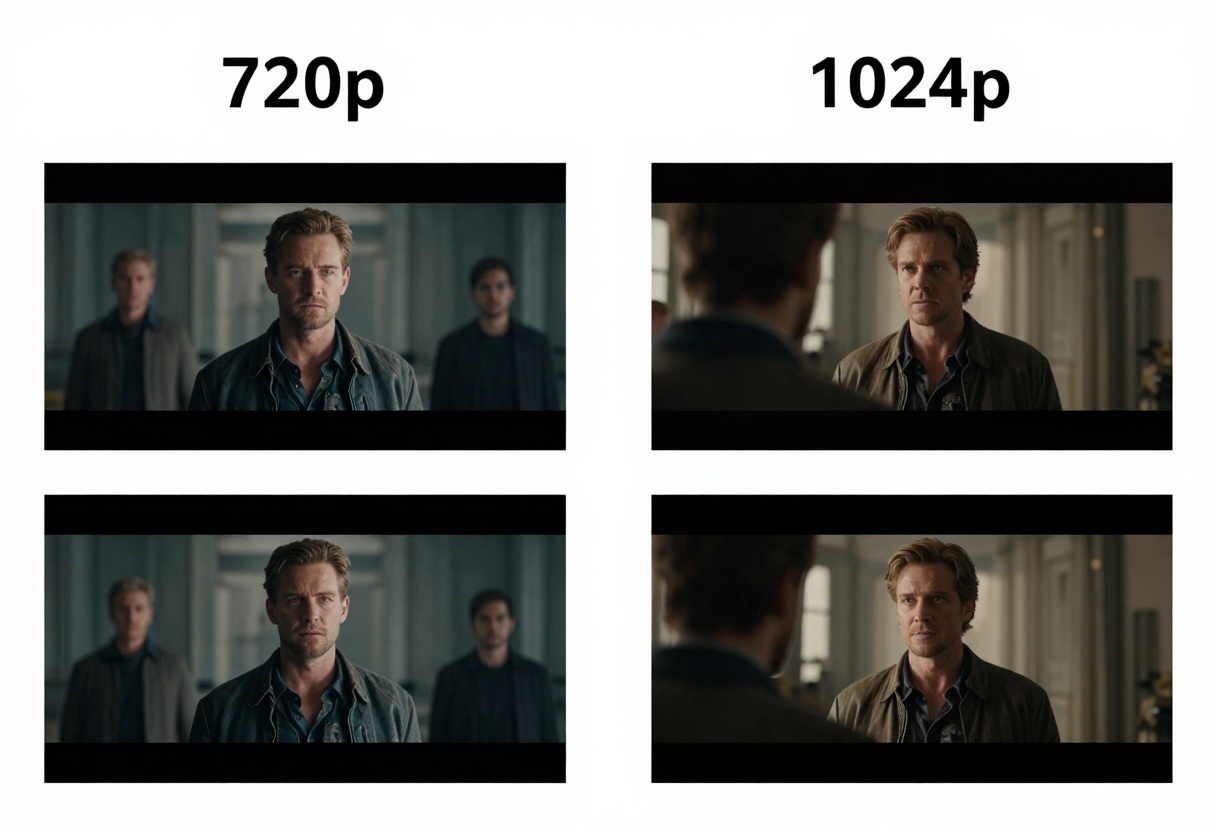
The difference between the two is noticeable. Standard resolution handles fast-moving scenes better and generates quicker, while high resolution shines when you need crisp details for professional presentations or marketing materials.
Aspect Ratio Flexibility
You can choose between:
- Portrait mode (720x1280) for vertical social media content
- Landscape mode (1280x720) for traditional video formats
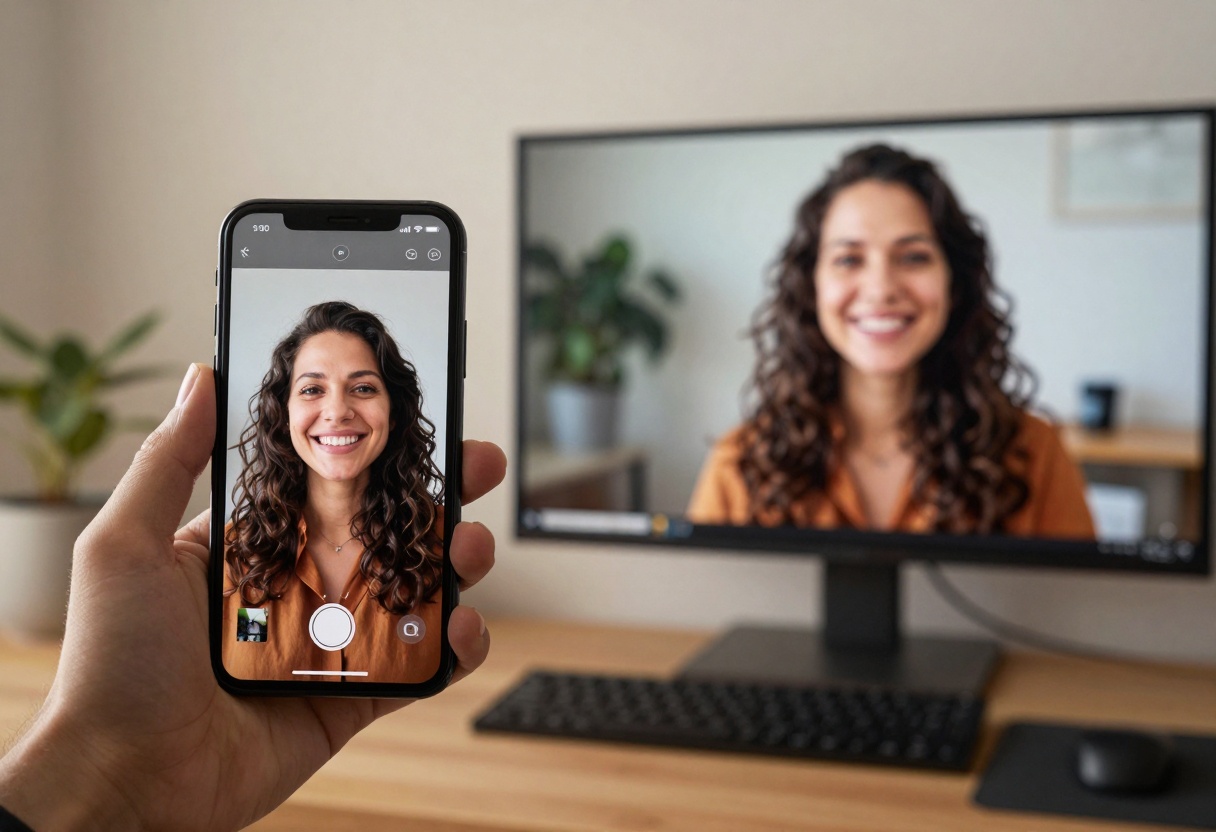
This flexibility means you're not stuck reformatting your videos for different platforms. Generate directly in the format you need, whether it's for Instagram Stories, YouTube, or your website.
How Good Is the Video Quality?
Let me be honest: the quality varies significantly based on what you're trying to create. Sora 2 excels at certain types of content while struggling with others.
Where It Shines
The model produces excellent results for:
- Nature scenes with organic movement (flowing water, swaying trees, clouds)
- Abstract and artistic content
- Slow, deliberate camera movements
- Scenes with consistent lighting
- Cityscapes and architectural subjects
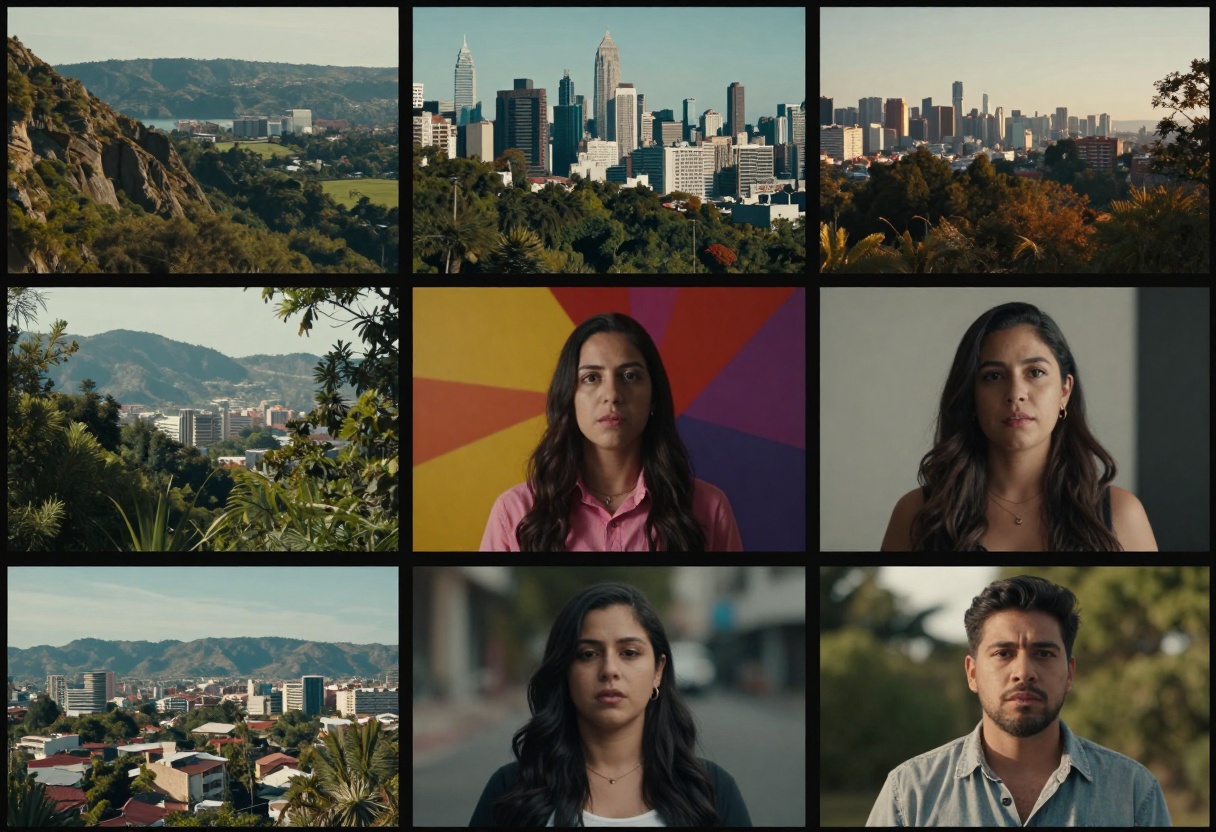
When generating these types of scenes, the output often looks impressively realistic. The motion feels natural, lighting remains consistent, and the overall composition holds together well.
Where It Struggles
You'll notice limitations with:
- Complex human movements: While faces look decent, intricate hand gestures or athletic movements often appear unnatural
- Text rendering: Any text in the scene usually comes out garbled or nonsensical
- Fine details: Small objects or textures can become blurry or inconsistent
- Physics: Objects don't always obey real-world physics, especially in longer clips
The Prompt Writing Process
Getting good results from Sora 2 requires learning how to write effective prompts. After generating dozens of videos, I've found some patterns that consistently work better.

What Makes a Good Prompt
The most successful prompts tend to:
- Be specific about the scene: Instead of "a beach," try "a quiet beach at sunset with gentle waves lapping at the shore"
- Include camera movement: Mentioning "slow pan," "drone shot," or "close-up" helps the model understand framing
- Describe lighting: Adding details about time of day or lighting mood improves consistency
- Keep it focused: Attempting too many elements in one scene often leads to messy results
Example of a good prompt:
"A cinematic drone shot slowly rising over a misty forest at dawn, golden sunlight filtering through the trees, soft ambient sounds"
This works because it's specific about the shot type, setting, lighting, and even mentions the audio component.
Common Mistakes to Avoid
After plenty of trial and error, here are issues that consistently cause problems:
- Requesting multiple complex actions in a short clip
- Being too vague about what you want
- Including characters performing intricate tasks
- Expecting text or logos to render clearly
Audio Capabilities
One feature that surprised me is Sora 2's automatic audio generation. The model doesn't just create silent video but attempts to add appropriate sounds based on your scene.
The audio quality varies. Environmental sounds like wind, water, or ambient city noise tend to work well. However, if your scene involves specific sound effects or music, you might need to replace the generated audio in post-production.
The synchronized audio is a nice touch that saves time, but don't expect it to match the precision of professional sound design.
Sora 2 Pro includes an optional input reference parameter that lets you provide an image to use as the first frame of your video. This feature opens up interesting possibilities for maintaining brand consistency or extending existing visual content.
To use it effectively:
- Ensure your reference image matches your chosen aspect ratio
- Keep the reference image simple and clear
- Write your prompt to build naturally from what's shown in the image
This feature works particularly well for product videos where you want to start from a specific angle or for maintaining visual continuity across multiple clips.
Real-World Applications
After testing extensively, here are the scenarios where Sora 2 genuinely saves time and delivers value:
Social Media Content
For Instagram Reels, TikToks, or YouTube Shorts, Sora 2 can quickly generate engaging background footage or establishing shots. The portrait orientation works perfectly for vertical video platforms.
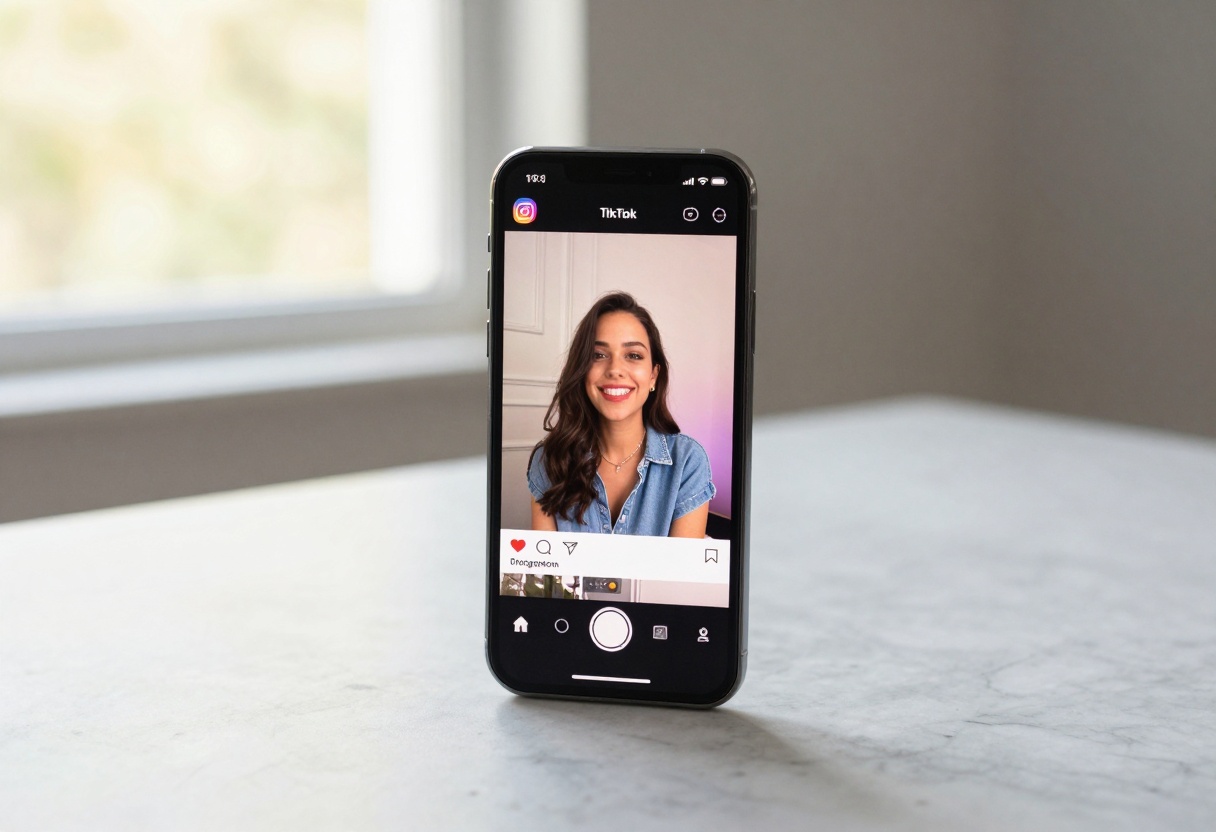
You won't rely on it for your entire video, but it's excellent for transitions, mood-setting clips, or abstract backgrounds that would be expensive to shoot traditionally.
Marketing and Advertising
Product concept videos, mood pieces, and visual metaphors come out well. Marketing teams can iterate quickly on ideas without committing to expensive production.

The ability to test multiple visual approaches before investing in traditional video production is genuinely useful for client presentations and early-stage creative development.
Educational Content
For explainer videos that need visual representations of abstract concepts, Sora 2 handles the job reasonably well. Diagrams in motion, simplified visualizations, and conceptual representations work better than attempts at realistic human instruction.
Creative Projects
Artists and filmmakers experimenting with new visual styles find Sora 2 particularly valuable. The ability to generate surreal or abstract footage that would be impossible to capture traditionally opens creative doors.
Workflow Integration
Using Sora 2 on PicassoIA fits naturally into content creation workflows. The platform makes it straightforward to:
- Generate initial video concepts quickly
- Download and import into editing software
- Combine with other footage or graphics
- Add proper audio mixing and color grading
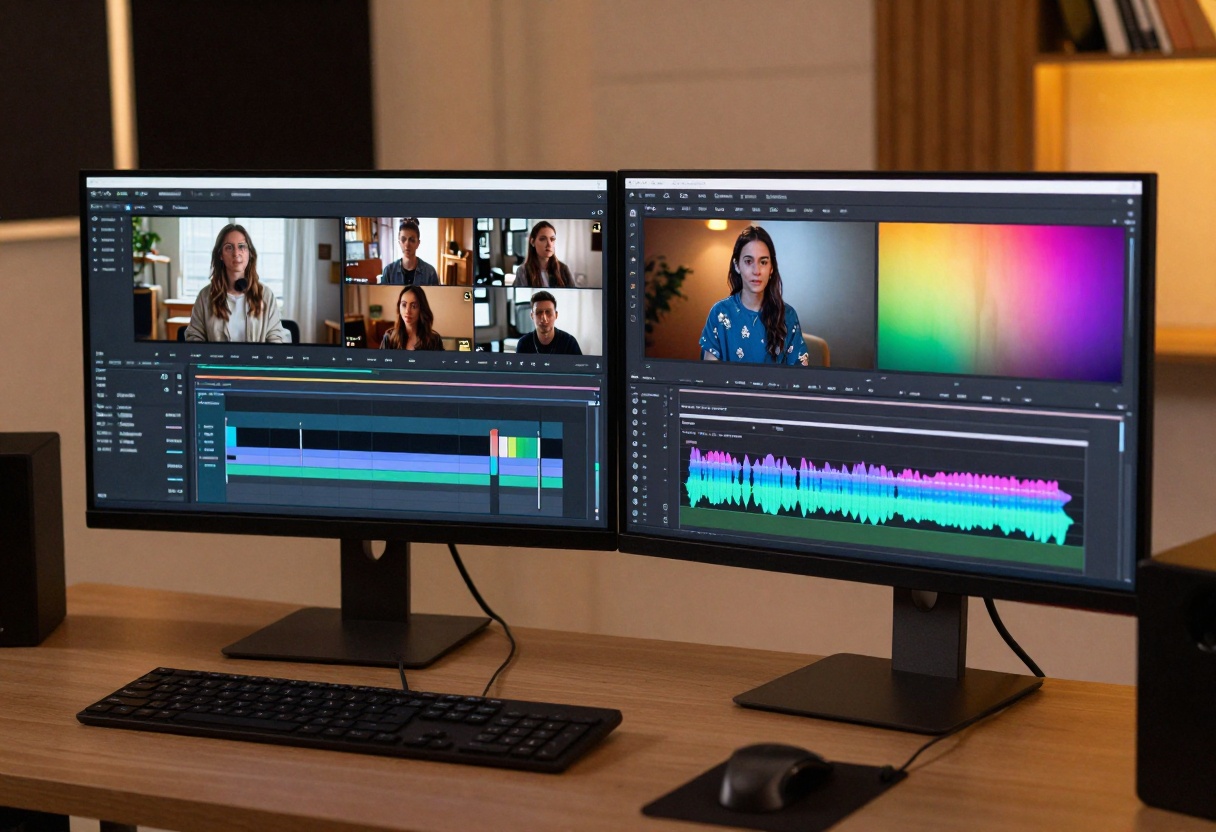
Most users treat Sora 2 output as raw material rather than finished product. The generated videos work best when enhanced with professional editing, sound design, and color correction.
Comparing to Other Options
PicassoIA offers several text-to-video models beyond Sora 2, and each has distinct strengths:
- Google Veo 3.1: Often produces slightly more realistic motion at the cost of longer generation times
- Kling v2.5: Excels at specific action scenes but has a steeper learning curve for prompts
- Wan 2.5: Faster generation with decent quality for rapid iteration
The choice depends on your specific needs. Sora 2 Pro occupies a middle ground with good quality, reasonable speed, and reliable results across various scene types.
Limitations to Consider
Before committing to Sora 2 for your projects, be aware of these constraints:
Generation Time
Even short clips take several minutes to generate, which adds up when you're iterating on prompts. Plan accordingly if you're working under tight deadlines.
Consistency Challenges
Longer clips (especially 12 seconds) sometimes show degradation in quality or consistency toward the end. The model maintains coherence better in shorter durations.
Cost Considerations
While PicassoIA offers competitive pricing, generating multiple versions of videos while refining your prompts can become expensive. Start with the 4-second duration when testing prompts to minimize costs.
Limited Control
Unlike traditional video production or even advanced 3D rendering, you can't precisely control every aspect of the output. The model interprets your prompt, but you're at the mercy of its understanding.
Tips for Getting the Best Results
From my experience, these approaches consistently produce better output:
- Start simple: Test your core concept in 4 seconds before committing to longer durations
- Iterate methodically: Change one element of your prompt at a time to understand what affects the output
- Use standard resolution first: Save high resolution for your final version once you're happy with the composition
- Plan for post-production: Generate with the expectation that you'll enhance the footage in editing
- Study successful examples: Look at what others have created successfully to understand the model's strengths
Is Sora 2 Worth Using?
The answer depends entirely on your needs and expectations.
Sora 2 makes sense if you:
- Need quick concept videos for pitches or presentations
- Want abstract or artistic footage that's expensive to produce traditionally
- Create content where perfect realism isn't critical
- Have the patience to iterate on prompts
- Work with budgets that make traditional video production prohibitive
Look elsewhere if you need:
- Perfect control over every frame
- Highly realistic human performances
- Text rendering or precise brand elements
- Instant results without prompt refinement
- Footage for high-budget commercial production
The Future of AI Video
Sora 2 represents a significant step forward in text-to-video generation, but it's still early technology. The capabilities will undoubtedly improve, and the limitations will diminish over time.

What's exciting is how rapidly this technology evolves. Features that seemed impossible a year ago are now routine, and the pace of improvement shows no signs of slowing.
For creators willing to adapt their workflows and learn the tool's strengths, Sora 2 already offers practical value. As it continues to improve, it will become an increasingly essential part of the video production toolkit.
Getting Started with Sora 2 on PicassoIA
Ready to try Sora 2 for yourself? Here's exactly how to start creating AI-generated videos on PicassoIA.
Step 1: Access Sora 2 Pro
Visit the Sora 2 Pro model page on PicassoIA. This is where you'll find all the generation controls and settings.
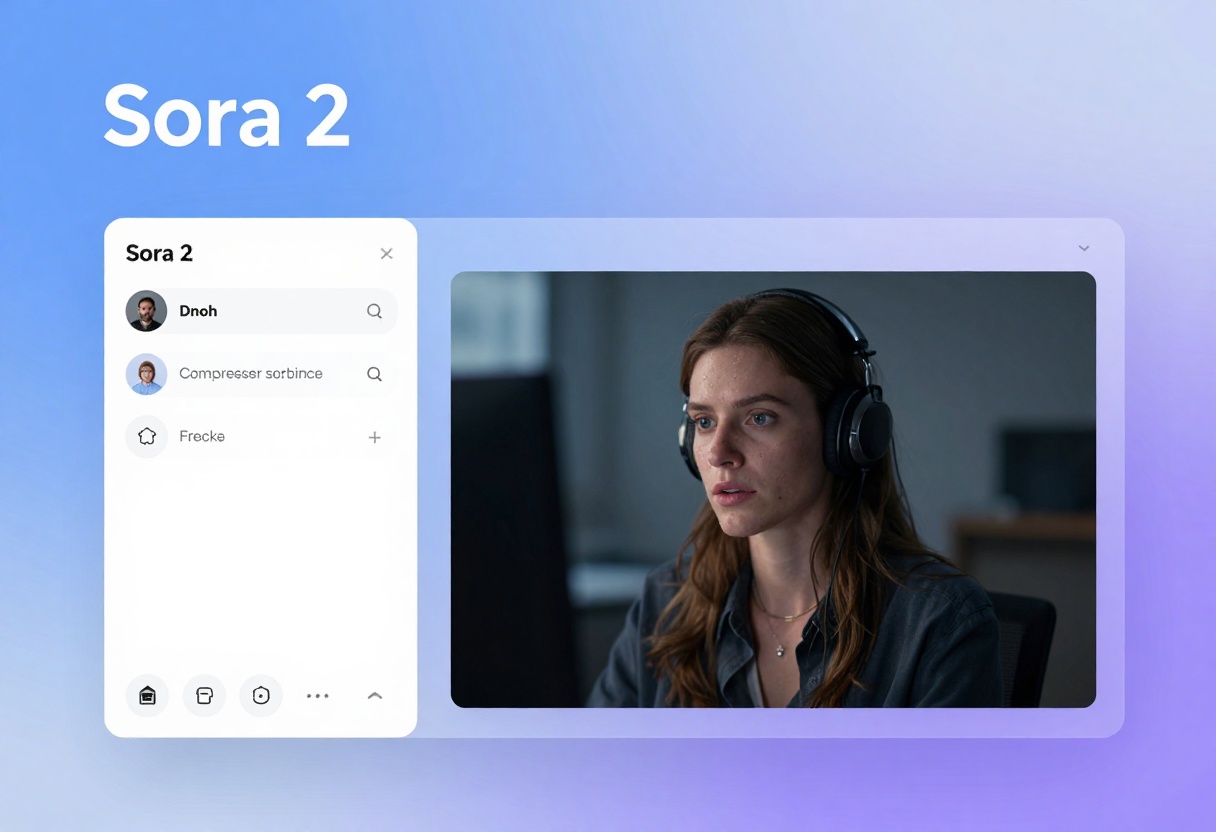
The interface is clean and straightforward. You'll see the prompt input field prominently displayed along with all the customization options below it.
Step 2: Write Your Prompt
In the Prompt field (the only required parameter), enter a detailed description of the video you want to create. This is where your creativity and specificity matter most.
Remember to include:
- The main subject or scene
- Camera movement or angle
- Lighting and atmosphere
- Any specific actions or motion
Example prompt: "A serene mountain lake at sunrise, mist rising from the water surface, gentle ripples reflecting pink and orange clouds, slow pan across the scene, peaceful ambient nature sounds"
Step 3: Configure Duration
Choose your video length from the seconds dropdown:
- Select 4 seconds for quick tests and concept validation
- Choose 8 seconds for balanced clips with more content
- Pick 12 seconds when you need extended footage
Start with 4 seconds while you're refining your prompt, then move to longer durations once you're satisfied with the basic result.
Step 4: Set Resolution Quality
The resolution setting determines your output quality:
- Standard (720p): Faster generation, great for social media and web use
- High (1024p): Superior quality for professional presentations and marketing
For most purposes, standard resolution provides excellent results. Reserve high resolution for final versions where quality is paramount.
Step 5: Choose Aspect Ratio
Select your aspect_ratio based on where you'll use the video:
- Portrait (720x1280): Perfect for Instagram Stories, TikTok, and vertical platforms
- Landscape (1280x720): Ideal for YouTube, websites, and traditional viewing
Consider your distribution platform before generating to avoid reformatting later.
Step 6: Optional - Add Reference Image
If you want to start from a specific frame, use the input_reference field:
- Upload or provide a URL to your reference image
- Ensure the image matches your selected aspect ratio
- Write your prompt to describe how the scene should evolve from this starting point
This works brilliantly for product videos or when maintaining brand consistency across multiple clips.
Step 7: Generate Your Video
Once all settings are configured, click the Generate button to start the process. The generation typically takes 2-5 minutes depending on duration and resolution settings.
You'll see a progress indicator while the model creates your video. This is a good time to plan any prompt adjustments for your next iteration.
Step 8: Review and Download
When generation completes, preview your video directly in the interface. Check for:
- Overall composition and framing
- Motion consistency throughout
- Audio quality and synchronization
- Any unexpected artifacts or issues
If satisfied, download the video in your preferred format. If not, adjust your prompt based on what you learned and generate again.
Pro Tips for Your First Generations
Start with these approaches to get the best results right away:
- Test incrementally: Generate one 4-second clip before committing to a full series
- Keep prompts focused: Describe one clear scene rather than multiple complex elements
- Note what works: Keep a document of successful prompts for future reference
- Expect iteration: Plan for 3-5 generations to dial in exactly what you want
Wrapping Up
Sora 2 sits in an interesting space between impressive technological achievement and practical production tool. It excels at specific types of content while revealing the current limitations of AI video generation.
For creators who understand both its capabilities and constraints, Sora 2 offers genuine value. It won't replace traditional video production, but it carves out a useful niche for concept development, abstract footage, and situations where traditional shooting isn't feasible.
The technology will only get better from here. What we're seeing with Sora 2 is the beginning of something that will fundamentally change how video content gets created. Whether that excites or concerns you probably depends on which side of the camera you typically stand on.
Try it yourself on PicassoIA and see what you can create. The results might surprise you.


