Every AI video creator hits the same wall eventually. The visuals are stunning, the motion is fluid, but the audio is either silent, lifted from royalty-free libraries, or blocked by content moderation filters that refuse to touch certain categories of video. Stable Audio 2.5 by Stability AI just changed that equation in a significant way. The model generates full-length, high-fidelity audio tracks from text prompts with no content filtering on the audio side, making it the go-to scoring tool for creators working with uncensored AI video workflows.
What Stable Audio 2.5 Actually Does
Text Prompt to Finished Audio in Seconds
Stable Audio 2.5 is a text-to-audio diffusion model trained on a massive dataset of licensed music, sound effects, and ambient recordings. Unlike earlier versions that struggled with coherent musical structure beyond 30 seconds, version 2.5 delivers stereo audio outputs up to 3 minutes in length, which is genuinely useful for short-form video scoring. You describe the mood, instrumentation, tempo, and genre in plain language, and the model synthesizes a continuous audio track that follows those parameters with impressive fidelity.
Stereo Output and Extended Duration
The stereo output is not a gimmick. Earlier AI audio models typically produced mono or pseudo-stereo tracks that collapsed under real studio monitoring conditions. Stable Audio 2.5 generates true stereo separation, meaning musical elements like a piano in the left channel and strings on the right sit spatially correct when mixed into video. For creators scoring 30-second to 3-minute AI video clips, the 180-second ceiling covers the vast majority of use cases without any looping workarounds.
No Content Filters on the Audio Layer
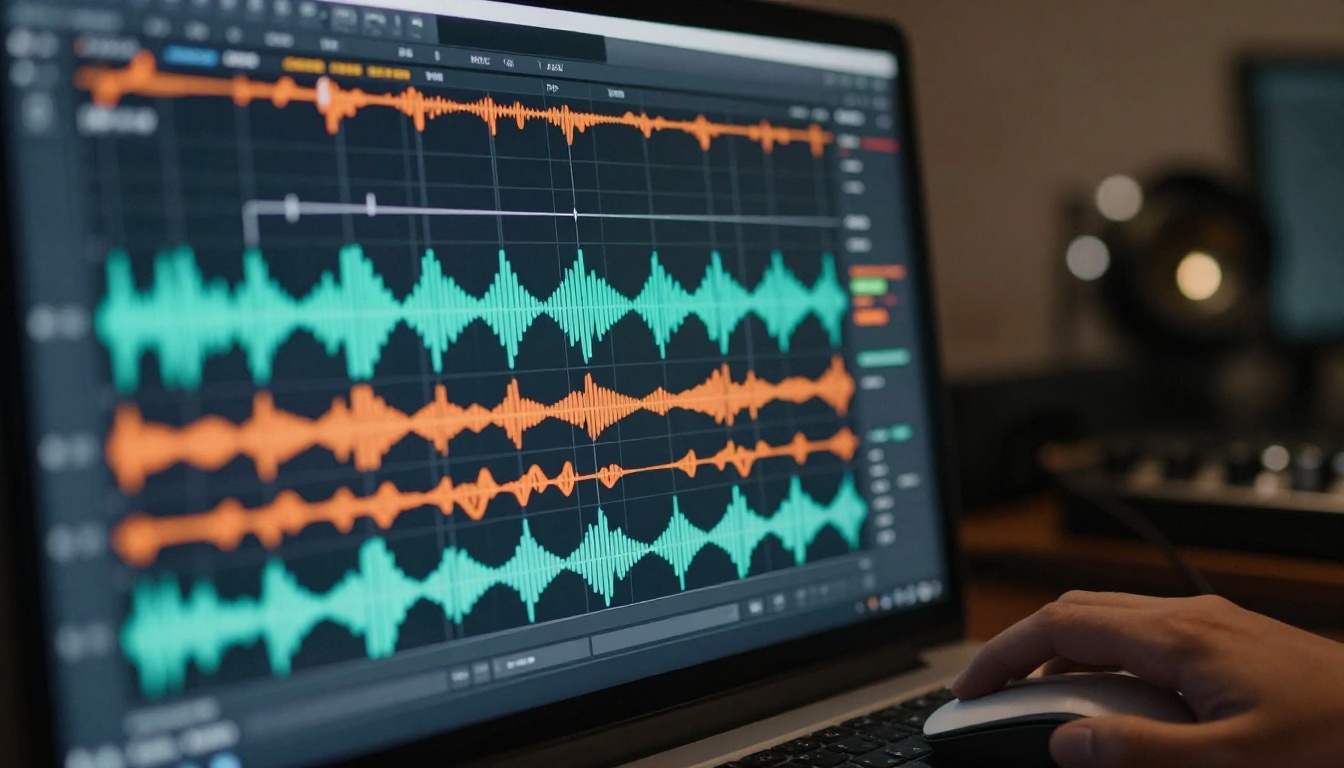
This is the part that matters most for the uncensored AI video workflow. Stable Audio 2.5 accepts prompts describing sensual, erotic, or adult-adjacent moods without refusing or sanitizing the output. Prompts like "slow, intimate jazz with breathy saxophone, dim lighting, late-night atmosphere" or "deep bass-heavy ambient drone, tension-building, provocative" generate exactly what is described. There is no content moderation layer blocking audio generation based on the nature of the video it will score. That gap in the workflow is now closed.
Why It Pairs So Well With Uncensored AI Videos
Mood Matching Without Compromise
When creators use platforms like PicassoIA to generate adult-adjacent or fully uncensored imagery and video, the audio layer has historically been the weakest point. Stock libraries flag adult content. Voice synthesis tools often refuse provocative or erotic scripts. Stable Audio 2.5 sidesteps all of that. Because it operates purely as a music and sound effects generator with no visual content check, it can match the emotional tone of any video without restriction.
Tempo and Energy That Follows the Scene
A fast-cut montage of AI-generated imagery needs audio that matches the pacing. A slow, atmospheric loop of a suggestive scene needs something completely different. Stable Audio 2.5 responds directly to descriptive language about tempo, rhythm, and emotional arc. Describing a track as "slow 70 BPM, seductive, R&B-influenced, prominent bass guitar, sparse hi-hats" produces a result that fits an intimate video scene far better than anything scraped from a filtered royalty-free library.
Why Audio-First Thinking Changes Everything
Most AI video creators build visuals first and treat audio as an afterthought. This workflow produces weak results because the audio is always retrofitted rather than designed. Starting with a mood reference in your Stable Audio 2.5 prompt before you generate the video forces you to define the emotional tone upfront, and that clarity feeds directly into better video generation prompts as well. The whole production improves when audio is planned from the beginning.
How to Use Stable Audio 2.5 on PicassoIA
PicassoIA hosts Stable Audio 2.5 directly in its AI Music Generation collection, meaning you do not need a separate Stability AI account or API key. The model is available alongside the full toolkit for video and image creation, so you can run the entire workflow from a single platform.
Step 1: Generate Your Video First
Before scoring audio, you need a finished video clip. Use any of the video generation models in the PicassoIA collection. For uncensored content, Seedance 2.5 delivers up to 30 seconds of cinematic output and handles suggestive subjects without filtering. For shorter loops, Seedance 2.0 is faster and ships with built-in audio generation if you want to hear the native soundtrack before overlaying a custom score.
Step 2: Write Your Audio Prompt
Note the exact duration of your video clip. Then open Stable Audio 2.5 and write a prompt describing:
- Genre and instrumentation (e.g., "trip-hop with live drum samples and Rhodes piano")
- Emotional tone (e.g., "slow-burn tension, intimate, provocative")
- Tempo in BPM (e.g., "65 BPM, slow")
- Atmosphere (e.g., "late night, dimly lit, cinematic room reverb")
- Duration in seconds matched to your clip length
💡 Tip: Add spatial descriptors like "wide stereo field," "close-mic'd," or "distant and reverberant" to control how the audio sits in the mix relative to your video. These small additions significantly improve how the track integrates with the footage.
Step 3: Match, Refine, and Export
Generate 2-3 variations at the same settings and pick the one that fits the video's pacing. Because the model is deterministic per seed, you can regenerate the exact same track later if needed. Always generate your audio 10-15 seconds longer than the clip itself, then fade out in post before the track structure ends. This avoids the abrupt-sounding finish that happens when an AI audio model hits its duration limit exactly at a cut point.
For AI-generated videos that need their resolution raised before final export, Video Upscale by Topaz Labs sharpens footage to 4K at 120fps after the audio is locked in, producing a finished piece that looks and sounds professional.
Best AI Video Models to Pair It With
Not all video models work equally well as a base for Stable Audio 2.5 scoring. Here is a breakdown of the models worth prioritizing on PicassoIA and why each one matters.
Seedance 2.5 for Long-Form Clips
Seedance 2.5 supports video outputs up to 30 seconds, which is long enough to justify a fully produced audio track rather than a short ambient loop. It also handles a wider range of subjects, including adult-adjacent content, making it the natural pairing for this workflow. The cinematic quality of the motion is high enough that a well-scored audio track elevates the finished piece significantly.
Audio to Video by Lightricks
Audio to Video takes the reverse approach: you provide an audio file and it animates a still image to the rhythm and energy of the track. Once you have generated a Stable Audio 2.5 soundtrack, this model can bring a static image to life in sync with the audio. It is a particularly effective workflow for glamour or artistic photography that needs motion without generating video from scratch.
Veo 3 for Native Audio Comparison
Veo 3 generates video with native synchronized audio baked in. It is worth generating the same clip with Veo 3 first to hear what the native audio sounds like, then comparing it against a custom Stable Audio 2.5 score. For specific moods or genres that Veo 3's native audio cannot reproduce precisely, custom scoring wins every time.
Wan 2.2 S2V for Audio-Synced Output
Wan 2.2 S2V creates audio-synced videos, so if you have a specific audio track from Stable Audio 2.5 ready, you can feed it directly to S2V and let the model generate visuals that react to the audio energy. This is a sophisticated workflow but one of the most coherent ways to build an audio-first uncensored video where the visuals feel genuinely married to the sound.
Flux 3 for Audio-Synchronized Video
Flux 3 generates video with synced audio output and is worth pairing with Stable Audio 2.5 for comparison purposes. Flux 3's native audio capability and Stable Audio 2.5's custom scoring represent two different philosophies: automated versus intentional. Both approaches have their place depending on how much control you want over the final soundtrack.

How does Stable Audio 2.5 compare to the other music generation models available on PicassoIA? The table below breaks down the key differences across the models in the collection.
💡 Google Lyria 3 Pro and Lyria 3 produce the most polished-sounding music but both carry strict content filters that refuse certain prompt styles. For creative freedom in adult AI video workflows, Stable Audio 2.5 is the only model in the table with zero audio-side content filtering.
Sound Design Tips That Actually Work
Generating a technically valid audio track is one thing. Making it actually work for the video it scores is another. These practical approaches separate mediocre AI audio from soundtracks that feel intentional and professional.
Match Energy Before Matching Genre
The single biggest mistake creators make is focusing on genre first. Start with energy level. A high-energy fast-cut sequence needs rapid attack transients regardless of whether the genre is electronic, orchestral, or hip-hop. Describe the energy first in your Stable Audio 2.5 prompt ("aggressive, high-tension, rapid percussion") before specifying genre ("cinematic action score"). The model responds to energy descriptors more reliably than genre tags alone.
Layer Ambient Under Foreground
A good soundtrack for video almost always has two layers: ambient texture (room tone, environmental sound, underlying pads) and foreground music (melody, rhythm, featured instruments). You can generate these separately with Stable Audio 2.5 by writing two different prompts for the same scene. One prompt focused on "deep ambient drone, spatial, room reverb, background texture" and a second focused on the melodic foreground. Combine both tracks at different volumes in your editor for a richer, more professional result.
Use Duration Intentionally
Stable Audio 2.5 tracks generated at exactly the length of your video clip will often end awkwardly because the model does not know the video ends at that point. Generate your audio 10-15 seconds longer than the clip, then fade out in post before the track structure concludes. This gives you a natural-sounding audio ending rather than an abrupt cutoff that breaks immersion.
Describe the Room, Not Just the Music
Spatial characteristics matter as much as instrumentation. Describing "close-mic'd intimacy, dry room, minimal reverb" produces audio that sounds like it belongs in a private, personal moment. Describing "large hall reverb, wide and spacious, natural decay" produces something that feels cinematic and grand. Match the spatial character of your audio to the visual environment in the video. Indoor scenes need different room characteristics than outdoor ones, even for purely musical tracks.
Building a Complete Audio-Visual AI Workflow
The real potential of Stable Audio 2.5 is not as a standalone tool but as one piece of a fully AI-generated production pipeline. Here is how a complete workflow looks from concept to finished piece.
Start With Image Generation
Before touching video, generate your key visual assets using PicassoIA's image generation tools. This gives you a concrete reference for the mood, lighting, and atmosphere you want the audio to match. A warm, intimate image suggests different audio than a cold, high-contrast one. Having visuals locked before writing audio prompts produces more cohesive results because you are reacting to something real rather than a hypothetical.
Build Your Video in Layers
Generate your video clips using Seedance 2.5 for the main footage. For shorter reactive clips that respond to audio energy, bring the generated Stable Audio 2.5 track into Wan 2.2 S2V to create complementary clips that move in sync with the beat. For quick animation of still images to the audio track, Audio to Video handles the heavy lifting without requiring you to generate fresh video from a text prompt.
Score and Upscale Last
Always add your Stable Audio 2.5 score after the video is finalized. Then upscale with Video Upscale by Topaz Labs before the final export. Upscaling after audio sync prevents any timing drift that can occur if you alter the video file after the audio is already attached and synced.
What Makes This Model Different in Practice
The spec sheet for Stable Audio 2.5 reads well on paper. The real test is in extended use within actual uncensored AI video workflows. Several things stand out consistently.
Prompt Responsiveness Is Unusually High
Most AI music generators produce outputs that loosely follow your prompt but often drift in unexpected directions, delivering something vaguely related to what you asked for. Stable Audio 2.5 tracks the prompt more tightly than competing models at a similar price point. If you ask for "slow, seductive, finger-picked acoustic guitar, intimate, close-mic'd studio recording, 60 BPM, late night," that is genuinely what you receive. The close-mic'd texture, the tempo, and the emotional register are all present and identifiable in the output.
Consistency Across Multiple Seeds
Generating five variations at different seeds produces five genuinely different tracks rather than five slightly shuffled versions of the same thing. This matters for workflow efficiency because you can find the right "feel" quickly without running dozens of generations. In practice, two or three generations are usually enough to find a usable track for most scenes, saving time and generation credits compared to models that require many attempts.
It Handles Silence Well
One underrated quality is how the model handles silence and space within the track. Quiet moments in AI video, particularly in slow or atmospheric adult content, need audio that breathes rather than constantly fills space. Stable Audio 2.5 produces tracks with genuine dynamic range, including moments of near-silence that feel intentional rather than like gaps or errors in the generation. That dynamic quality is what separates it from models that produce continuously dense audio regardless of the emotional intent behind the prompt.
Start Creating on PicassoIA
If you have been producing AI videos and treating the audio as an afterthought, Stable Audio 2.5 on PicassoIA is a direct fix. The model is live in the platform's AI Music Generation collection, accessible alongside every video and image tool in the same workspace. You do not need external software, a separate subscription, or any audio production background to get results that work.
Start with a simple prompt describing the mood of your video. Generate three variations. Pick the one that fits the pacing and emotional tone of the footage. The entire process takes minutes. For creators working with uncensored AI content who have been relying on filtered stock libraries or leaving videos silent, this is the piece of the workflow that has been missing.
PicassoIA brings it all together in one place: image generation, video generation with models like Seedance 2.5, audio-responsive video with Audio to Video, and AI music scoring with Stable Audio 2.5, all without navigating content restrictions at each step.
Visit picassoia.com/en/all-models to see the full collection of AI models available, including the complete AI Music Generation library and every video generation tool the platform offers.